AUX CHEVROLET CAMARO 2011 5.G Owners Manual
[x] Cancel search | Manufacturer: CHEVROLET, Model Year: 2011, Model line: CAMARO, Model: CHEVROLET CAMARO 2011 5.GPages: 414, PDF Size: 6.24 MB
Page 20 of 414
Black plate (14,1)Chevrolet Camaro Owner Manual - 2011
1-14 In Brief
Portable Audio Devices
This vehicle may have a 3.5 mm
(1/8 in) auxiliary input and a USB
port located in the center console.
External devices such as iPods
®,
laptop computers, MP3 players, CD
changers, and USB storage devices
may be connected, depending on
the audio system.
For more information, see Auxiliary
Devices on page 7‑17.
Bluetooth®
The Bluetooth®system allows users
with a Bluetooth-enabled cell phone
to make and receive hands-free
calls using the vehicle audio
system, microphone, and controls.
The Bluetooth-enabled cell phone
must be paired with the in-vehicle
Bluetooth system before it can be
used in the vehicle. Not all phones
will support all functions. See
Bluetooth (Overview) on
page 7‑23 orBluetooth
(Infotainment Controls) on
page 7‑24 orBluetooth (Voice
Recognition) on page 7‑28.
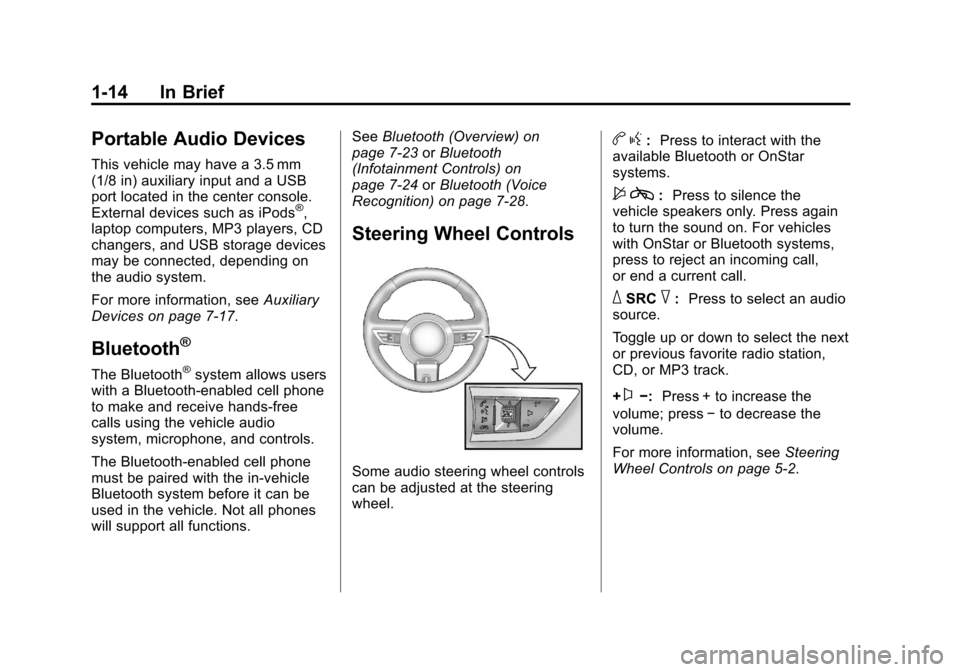
Steering Wheel Controls
Some audio steering wheel controls
can be adjusted at the steering
wheel.
b g: Press to interact with the
available Bluetooth or OnStar
systems.
$ c: Press to silence the
vehicle speakers only. Press again
to turn the sound on. For vehicles
with OnStar or Bluetooth systems,
press to reject an incoming call,
or end a current call.
_SRC^: Press to select an audio
source.
Toggle up or down to select the next
or previous favorite radio station,
CD, or MP3 track.
+
x−: Press + to increase the
volume; press −to decrease the
volume.
For more information, see Steering
Wheel Controls on page 5‑2.
Page 105 of 414
Black plate (1,1)Chevrolet Camaro Owner Manual - 2011
Storage 4-1
Storage
Storage Compartments
Glove Box . . . . . . . . . . . . . . . . . . . . 4-1
Center Console Storage . . . . . . 4-1
Additional Storage Features
Convenience Net . . . . . . . . . . . . . 4-1
Storage
Compartments
Glove Box
Open the glove box by lifting up on
the lever. Use the key to lock and
unlock the glove box.
Center Console Storage
To open, lift the latch on the
front edge.
There is an Accessory Power Outlet
(APO) and an optional USB/audio
jack located in the storage area.
SeePower Outlets on page 5‑5 and
Auxiliary Devices on page 7‑17 for
more information.
Additional Storage
Features
Convenience Net
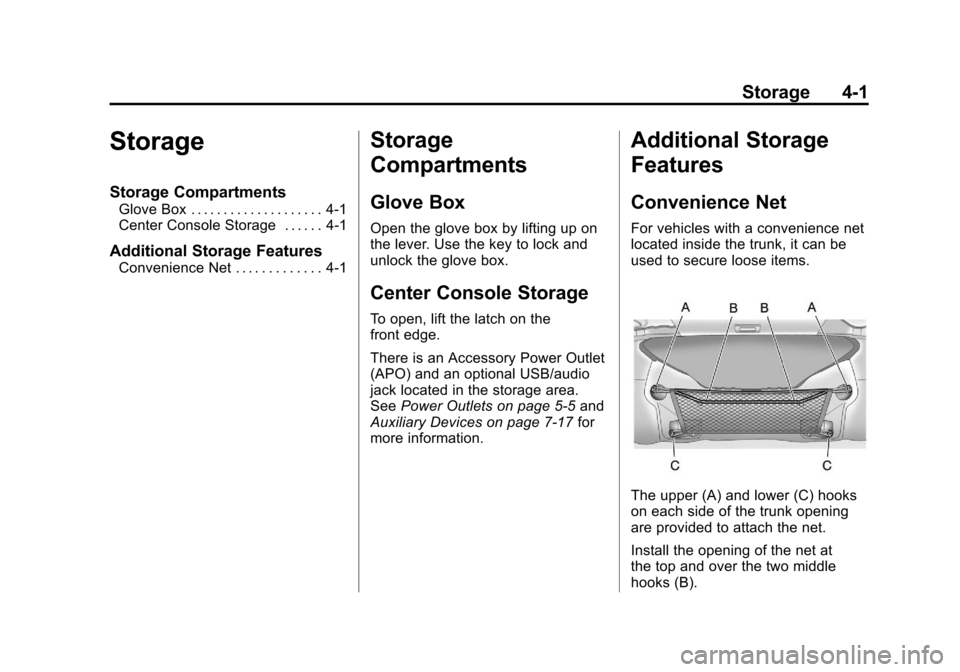
For vehicles with a convenience net
located inside the trunk, it can be
used to secure loose items.
The upper (A) and lower (C) hooks
on each side of the trunk opening
are provided to attach the net.
Install the opening of the net at
the top and over the two middle
hooks (B).
Page 165 of 414
Black plate (1,1)Chevrolet Camaro Owner Manual - 2011
Infotainment System 7-1
Infotainment
System
Introduction
Infotainment . . . . . . . . . . . . . . . . . . . 7-1
Theft-Deterrent Feature . . . . . . . 7-2
Overview . . . . . . . . . . . . . . . . . . . . . . 7-2
Operation . . . . . . . . . . . . . . . . . . . . . 7-4
Radio
AM-FM Radio . . . . . . . . . . . . . . . . . 7-8
Satellite Radio . . . . . . . . . . . . . . . 7-10
Radio Reception . . . . . . . . . . . . . 7-13
Backglass Antenna . . . . . . . . . . 7-13
Diversity Antenna System . . . 7-14
Satellite Radio Antenna . . . . . . 7-14
Audio Players
CD Player . . . . . . . . . . . . . . . . . . . 7-14
Auxiliary Devices . . . . . . . . . . . . 7-17
Phone
Bluetooth (Overview) . . . . . . . . 7-23
Bluetooth (InfotainmentControls) . . . . . . . . . . . . . . . . . . . 7-24
Bluetooth (Voice Recognition) . . . . . . . . . . . . . . . 7-28
Introduction
Infotainment
Read the following pages to
become familiar with the
infotainment system features.
{WARNING
Taking your eyes off the road
for extended periods could
cause a crash resulting in
injury or death to you or others.
Do not give extended attention to
entertainment tasks while driving.
This system provides access to
many audio and non‐audio listings. To minimize taking your eyes off the
road while driving, do the following
while the vehicle is parked:
.Become familiar with the
operation and controls of the
audio system.
.Set up the tone, speaker
adjustments, and preset
radio stations.
For more information, see Defensive
Driving on page 9‑2.
Notice: Contact your dealer
before adding any equipment.
Adding audio or communication
equipment could interfere with
the operation of the engine, radio,
or other systems, and could
damage them. Follow federal
rules covering mobile radio
and telephone equipment.
Page 167 of 414

Black plate (3,1)Chevrolet Camaro Owner Manual - 2011
Infotainment System 7-3
C. Buttons 1‐6
.Radio: Saves and selects
favorite stations.
D. FAV
.Radio: Opens the
favorites list.
E. MENU/SELECT
.Press: Opens the menus
and selects menu items.
.Turn: Highlights menu
items or sets values while
in a menu. Manually
selects radio stations while
listening to the radio.
F. RADIO/BAND
.Changes the band while
listening to the radio.
.Selects the radio when
listening to a different
audio source. G.
ZCD Eject
.Removes' the CD the
from slot.
H. CD/AUX
.Selects between the CD
player or a connected
external audio source.
I. PHONE
.Opens the phone
main menu.
.Mutes the audio system.
J.
7SEEK
.Radio: Seeks the previous
station.
.CD: Selects the previous
track or rewinds within a
track. K. CD Slot
.Insert a CD.
L.
6SEEK
.Radio: Seeks the next
station.
.CD: Selects the next track
or fast forwards within a
track.
M. CONFIG
.Opens the settings menu.
N. TONE
.Opens the tone menu.
O.
0BACK
.Menu: Moves one
level back.
.Character Input: Deletes
the last character.
Page 179 of 414
Black plate (15,1)Chevrolet Camaro Owner Manual - 2011
Infotainment System 7-15
If the bottom surface of a disc is
dirty, take a soft lint‐free cloth,
or dampen a clean soft cloth in
a mild neutral detergent solution
mixed with water, and clean it.
Wipe the disc from the center
to the outer edge.
Care of the CD Player
Do not add a label to a disc, as it
could get caught in the CD player.
If a label is needed, label the top
of the recorded disc with a
marking pen.
Do not use disc lens cleaners
because they could contaminate the
lens of the disc optics and damage
the CD player.
Notice:If a label is added to
a CD, or more than one CD is
inserted into the slot at a time,
or an attempt is made to play
scratched or damaged CDs, the
CD player could be damaged. While using the CD player,
use only CDs in good condition
without any label, load one CD at
a time, and keep the CD player
and the loading slot free of
foreign materials, liquids, and
debris.
Control Buttons
The buttons used to control the CD
player are:
CD/AUX:
Press to choose between
the CD and AUX player.
7SEEK /6SEEK: Press to
select tracks or to fast forward or
rewind within a track.
MENU/SELECT: Turn to select
tracks.
INFO: Press to display additional
information about the CD that may
be available.
Z(Eject): Press to remove
the CD.
Inserting a CD
With the printed side facing up,
insert a disc into the CD slot until it
is drawn in.
Removing a CD
Press theZbutton.
The disc is pushed out of the
CD slot.
If the disc is not removed after it is
ejected, it is pulled back in after a
few seconds.
Playing a CD or MP3 CD
Press the CD/AUX button if there
is a disc in the player; it begins
playing.
Information about the disc and
current track is shown on the
display depending on the data
stored.
Page 181 of 414
Black plate (17,1)Chevrolet Camaro Owner Manual - 2011
Infotainment System 7-17
Auxiliary Devices
The AUX Input allows portable
devices to connect to the vehicle
using the 3.5 mm (1/8 in) input
jack, the USB port, if equipped,
or Bluetooth
®wireless technology,
if equipped.
Portable devices are controlled by
using the menu system described in
Operation on page 7‑4.
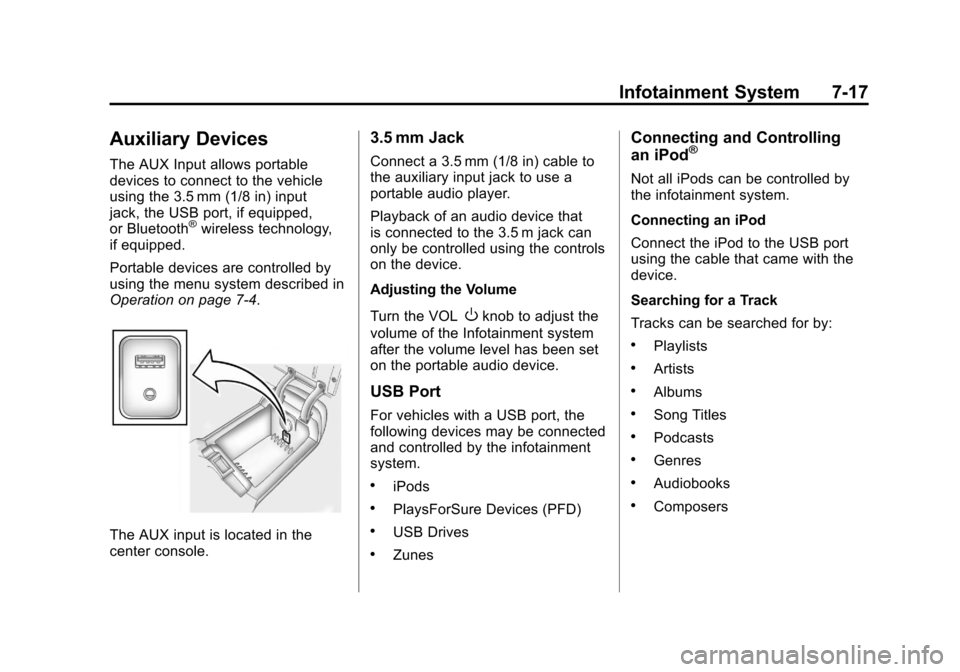
The AUX input is located in the
center console.
3.5 mm Jack
Connect a 3.5 mm (1/8 in) cable to
the auxiliary input jack to use a
portable audio player.
Playback of an audio device that
is connected to the 3.5 m jack can
only be controlled using the controls
on the device.
Adjusting the Volume
Turn the VOL
Oknob to adjust the
volume of the Infotainment system
after the volume level has been set
on the portable audio device.
USB Port
For vehicles with a USB port, the
following devices may be connected
and controlled by the infotainment
system.
.iPods
.PlaysForSure Devices (PFD)
.USB Drives
.Zunes
Connecting and Controlling
an iPod®
Not all iPods can be controlled by
the infotainment system.
Connecting an iPod
Connect the iPod to the USB port
using the cable that came with the
device.
Searching for a Track
Tracks can be searched for by:
.Playlists
.Artists
.Albums
.Song Titles
.Podcasts
.Genres
.Audiobooks
.Composers
Page 185 of 414
Black plate (21,1)Chevrolet Camaro Owner Manual - 2011
Infotainment System 7-21
Bluetooth Setup Menu
The Bluetooth Setup menu can
be accessed with or without a
device attached to the USB port.
To select the Bluetooth Setup menu
when a device is attached to the
USB port and active:
1. Press the MENU/SELECT knobwhile in the iPod, Zune, PFD,
or USB device main menu.
2. Select Bluetooth Music Setup.
To select the Bluetooth Music Setup
menu when a device is not attached
to the USB port, or when a device
is attached to the USB port but not
active:
1. Press the CD/AUX button until AUX is the active source.
2. Press the MENU/SELECT knob.
3. Select Bluetooth Music Setup.
To select the Bluetooth Music Setup
menu when a Bluetooth device is
connected and active:
1. Press the MENU/SELECT knob.
2. Select Bluetooth Music Setup. Pairing a Device
1. Select Connect To New Device
from the Bluetooth Music
Setup menu.
2. The system asks a series of Yes/No questions to determine
what type of device is being
paired.
3. After the system determines what type of Bluetooth device
is being paired, the Bluetooth
device will need to be put into
discovery mode.
4. Some devices may require a personal identification
number (PIN) in order to
complete the pairing process.
Locate the device named
“GMusicConnect” in the list on
the Bluetooth device and follow
the instructions on the device to
enter the four‐digit PIN provided
by the infotainment system. Connecting to a Device
Once a device is paired to the
infotainment system, it can be
connected to the infotainment
system.
To connect a paired device when
no other device is connected to the
infotainment system:
1. Select the Select Device option
from the Bluetooth Music
Setup menu.
2. Select the new device.
To connect a paired device when
another device is connected to the
infotainment system:
1. Select the Select Device option from the Bluetooth Music
Setup menu.
2. Select the new device.
3. The active device is disconnected from the system
and the new device is
connected.
Page 403 of 414

Black plate (1,1)Chevrolet Camaro Owner Manual - 2011
INDEX i-1
A
Accessories andModifications . . . . . . . . . . . . . . . . . 10-3
Accessory Power . . . . . . . . . . . . . . 9-24
Active Fuel Management
®. . . . . 9-28
Add-On Electrical Equipment . . . . . . . . . . . . . . . . . . . 9-60
Air Cleaner/Filter, Engine . . . . . 10-16
Air Vents . . . . . . . . . . . . . . . . . . . . . . . 8-4
Airbag System Check . . . . . . . . . . . . . . . . . . . . . . . . 3-38
How Does an Airbag
Restrain? . . . . . . . . . . . . . . . . . . . 3-29
Passenger Sensing System . . . . . . . . . . . . . . . . . . . . . . 3-31
What Makes an Airbag
Inflate? . . . . . . . . . . . . . . . . . . . . . . 3-28
What Will You See After an Airbag Inflates? . . . . . . . . . . 3-29
When Should an Airbag
Inflate? . . . . . . . . . . . . . . . . . . . . . . 3-27
Where Are the Airbags? . . . . . . 3-25 Airbags
Adding Equipment to the
Vehicle . . . . . . . . . . . . . . . . . . . . . . 3-36
Passenger Status Indicator . . . 5-16
Readiness Light . . . . . . . . . . . . . . 5-15
Servicing Airbag-Equipped Vehicles . . . . . . . . . . . . . . . . . . . . . 3-36
System Check . . . . . . . . . . . . . . . . 3-23
Alarm System Anti-Theft . . . . . . . . . . . . . . . . . . . . . 2-10
AM-FM Radio . . . . . . . . . . . . . . . . . . . 7-8
Antenna
Satellite Radio . . . . . . . . . . . . . . . . 7-14
Anti-Theft Alarm System . . . . . . . . . . . . . . . . 2-10
Alarm System Messages . . . . . 5-39
Antilock Brake System (ABS) . . . . . . . . . . . . . . . . 9-36
Warning Light . . . . . . . . . . . . . . . . . 5-21
Appearance Care Exterior . . . . . . . . . . . . . . . . . . . . . 10-95
Interior . . . . . . . . . . . . . . . . . . . . . 10-100 Assistance Program,
Roadside . . . . . . . . . . . . . . 13-7, 13-10
Audio Players . . . . . . . . . . . . . . . . . 7-14 CD . . . . . . . . . . . . . . . . . . . . . . . . . . . 7-14
Audio System Backglass Antenna . . . . . . . . . . . 7-13
Diversity Antenna System . . . . 7-14
Radio Reception . . . . . . . . . . . . . . 7-13
Theft-Deterrent Feature . . . . . . . . 7-2
Automatic Dimming Mirrors . . . . . . . . . . . . . . 2-14
Headlamp System . . . . . . . . . . . . . 6-4
Automatic Transmission . . . . . . . 9-30 Fluid . . . . . . . . . . . . . . . . . . . . . . . . 10-15
Manual Mode . . . . . . . . . . . . . . . . . 9-32
Shift Lock ControlFunction Check . . . . . . . . . . . 10-33
Auxiliary Devices . . . . . . . . . . . . . . 7-17
Page 405 of 414

Black plate (3,1)Chevrolet Camaro Owner Manual - 2011
INDEX i-3
Compact Spare Tire . . . . . . . . . . 10-90
Compass . . . . . . . . . . . . . . . . . . . . . . . 5-4Messages . . . . . . . . . . . . . . . . . . . . 5-35
Competitive Driving . . . . . . . . . . . . . 9-7
Competitive Driving Mode . . . . . 9-41
Compressor Kit, Tire Sealant . . . . . . . . . . . . . . . . . . . . . . 10-78
Control of a Vehicle . . . . . . . . . . . . . 9-3
Convenience Net . . . . . . . . . . . . . . . 4-1
Convex Mirrors . . . . . . . . . . . . . . . . 2-13
Coolant Engine . . . . . . . . . . . . . . . . . . . . . . 10-20
Engine TemperatureGauge . . . . . . . . . . . . . . . . . . . . . . 5-11
Cooling System . . . . . . . . . . . . . . . 10-18 Engine Messages . . . . . . . . . . . . 5-35
Courtesy Transportation Program . . . . . . . . . . . . . . . . . . . . . 13-10
Covers Engine . . . . . . . . . . . . . . . . . . . . . . . . 10-9
Cruise Control . . . . . . . . . . . . . . . . . 9-43
Light . . . . . . . . . . . . . . . . . . . . . . . . . . 5-25
Messages . . . . . . . . . . . . . . . . . . . . 5-35 Customer Assistance . . . . . . . . . . 13-6
Offices . . . . . . . . . . . . . . . . . . 13-4, 13-5
Text Telephone (TTY)
Users . . . . . . . . . . . . . . . . . . . . . . . 13-6
Customer Information Service PublicationsOrdering Information . . . . . . 13-15
Customer Satisfaction Procedure . . . . . . . . . . . . . . 13-1, 13-3
D
Damage Repair, Collision . . . . . 13-12
Danger, Warnings, andCautions . . . . . . . . . . . . . . . . . . . . . . . . iv
Data Recorders, Event . . . . . . . 13-17
Daytime Running Lamps (DRL) . . . . . . . . . . . 10-41, 6-3
Defensive Driving . . . . . . . . . . . . . . . 9-2
Devices, Auxiliary . . . . . . . . . . . . . 7-17
Displays
Head-Up . . . . . . . . . . . . . . . . . . . . . . 5-29
Dome Lamps . . . . . . . . . . . . . . . . . . . 6-6 Door
Ajar Messages . . . . . . . . . . . . . . . 5-35
Locks . . . . . . . . . . . . . . . . . . . . . . . . . . 2-7
Power Locks . . . . . . . . . . . . . . . . . . . 2-8
Driver Information Center (DIC) . . . . . . . . . . . . . . . . . 5-25
Driving
Characteristics andTowing Tips . . . . . . . . . . . . . . . . . 9-54
Competitive . . . . . . . . . . . . . . 9-7, 9-41
Defensive . . . . . . . . . . . . . . . . . . . . . . 9-2
Drunk . . . . . . . . . . . . . . . . . . . . . . . . . . 9-2
Highway Hypnosis . . . . . . . . . . . . . 9-9
Hill and Mountain Roads . . . . . . . 9-9
If the Vehicle is Stuck . . . . . . . . . 9-12
Loss of Control . . . . . . . . . . . . . . . . 9-6
Off-Road Recovery . . . . . . . . . . . . 9-6
Vehicle Load Limits . . . . . . . . . . . 9-13
Wet Roads . . . . . . . . . . . . . . . . . . . . 9-8
Winter . . . . . . . . . . . . . . . . . . . . . . . . 9-10
Driving for Better Fuel
Economy . . . . . . . . . . . . . . . . . . . . . 1-19