phone CHEVROLET CAMARO 2015 5.G User Guide
[x] Cancel search | Manufacturer: CHEVROLET, Model Year: 2015, Model line: CAMARO, Model: CHEVROLET CAMARO 2015 5.GPages: 435, PDF Size: 6.28 MB
Page 168 of 435
Black plate (3,1)Chevrolet Camaro Owner Manual (GMNA-Localizing-U.S./Canada/Mexico-
7695163) - 2015 - crc - 9/4/14
Infotainment System 7-3
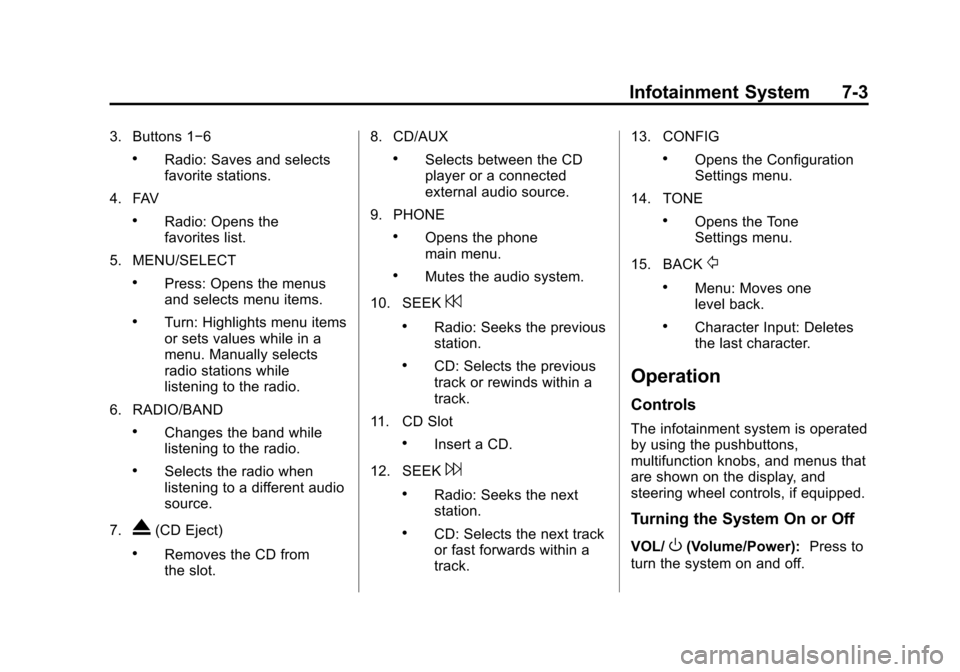
3. Buttons 1−6
.Radio: Saves and selects
favorite stations.
4. FAV
.Radio: Opens the
favorites list.
5. MENU/SELECT
.Press: Opens the menus
and selects menu items.
.Turn: Highlights menu items
or sets values while in a
menu. Manually selects
radio stations while
listening to the radio.
6. RADIO/BAND
.Changes the band while
listening to the radio.
.Selects the radio when
listening to a different audio
source.
7.
X(CD Eject)
.Removes the CD from
the slot. 8. CD/AUX
.Selects between the CD
player or a connected
external audio source.
9. PHONE
.Opens the phone
main menu.
.Mutes the audio system.
10. SEEK
7
.Radio: Seeks the previous
station.
.CD: Selects the previous
track or rewinds within a
track.
11. CD Slot
.Insert a CD.
12. SEEK
6
.Radio: Seeks the next
station.
.CD: Selects the next track
or fast forwards within a
track. 13. CONFIG
.Opens the Configuration
Settings menu.
14. TONE
.Opens the Tone
Settings menu.
15. BACK
/
.Menu: Moves one
level back.
.Character Input: Deletes
the last character.
Operation
Controls
The infotainment system is operated
by using the pushbuttons,
multifunction knobs, and menus that
are shown on the display, and
steering wheel controls, if equipped.
Turning the System On or Off
VOL/O(Volume/Power): Press to
turn the system on and off.
Page 169 of 435
Black plate (4,1)Chevrolet Camaro Owner Manual (GMNA-Localizing-U.S./Canada/Mexico-
7695163) - 2015 - crc - 9/4/14
7-4 Infotainment System
Automatic Off
If the infotainment system has been
turned on after the ignition is turned
off, the system turns off
automatically after 10 minutes.
Volume Control
VOL/O(Volume/Power):Turn to
adjust the volume.
PHONE: For vehicles with
OnStar
®, press and hold PHONE to
mute the infotainment system. Press
and hold PHONE again, or turn
VOL/
Oto cancel mute.
For vehicles without OnStar, press
PHONE to mute the infotainment
system. Press PHONE again,
or turn VOL/
Oto cancel mute.
Menu System
Controls
The MENU/SELECT knob and the
BACK
/button are used to
navigate the menu system. MENU/SELECT:
Press to:
.Enter the menu system.
.Select or activate the highlighted
menu option.
.Confirm a set value.
.Switch a system setting on
or off.
Turn to:
.Highlight a menu option.
.Select a value.
BACK
/: Press to:
.Exit a menu.
.Return from a submenu screen
to the previous menu screen.
.Delete the last character in a
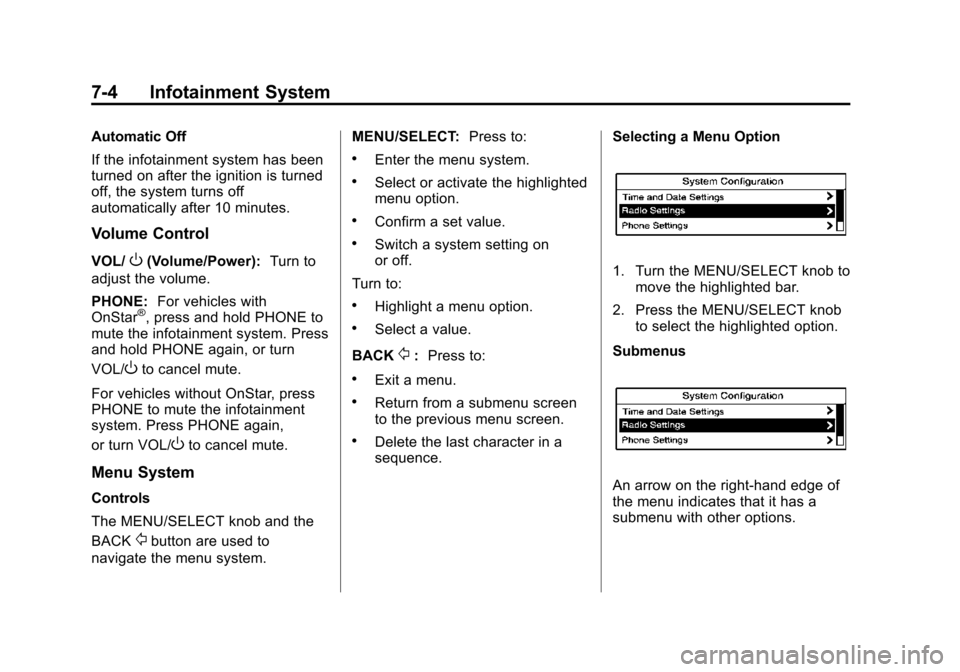
sequence. Selecting a Menu Option
1. Turn the MENU/SELECT knob to
move the highlighted bar.
2. Press the MENU/SELECT knob to select the highlighted option.
Submenus
An arrow on the right-hand edge of
the menu indicates that it has a
submenu with other options.
Page 175 of 435
Black plate (10,1)Chevrolet Camaro Owner Manual (GMNA-Localizing-U.S./Canada/Mexico-
7695163) - 2015 - crc - 9/4/14
7-10 Infotainment System
Removing or Adding Categories
1. Press the CONFIG button.
2. Select XM Categories.
3. Turn the MENU/SELECT knob tohighlight the category.
4. Press the MENU/SELECT knob to remove or add the category.
Selecting a SiriusXM Station
SiriusXM stations can be selected
by using SEEK
7or SEEK6, the
MENU/SELECT knob, or the menu
system.
To select a SiriusXM station using
SEEK
7or SEEK6, do one of the
following:
.Press and release SEEK7or
SEEK
6to go to the previous or
next station.
.Press and hold SEEK7or
SEEK
6to scroll through the
previous or next stations until
the station is reached. To select a SiriusXM station using
the MENU/SELECT knob:
1. Turn the MENU/SELECT knob to
highlight a SiriusXM station.
2. Press the MENU/SELECT knob to select the station, or leave the
station highlighted.
To select a station using the menu:
1. Press the MENU/SELECT knob.
2. Select XM Stations List.
3. Select the station.
Selecting a Station by Category
1. Press the MENU/SELECT knob.
2. Select XM Category List. A list of all programming types available
displays.
3. Select the programming type.
4. Select the station.
Storing and Retrieving
Favorites
Stations from all bands can be
stored in any order in the favorite
pages. Up to six stations can be stored in
each favorite page and the number
of available favorite pages can
be set.
Storing a Station as a Favorite
To store the station to a position in
the list, press and hold the
corresponding 1−6 button until the
station can be heard again.
Retrieving Stations
Press the FAV button to open a
favorite page or to switch to another
favorite page. Briefly press one of
the 1−6 buttons to retrieve the
station.
Radio Reception
Frequency interference and static
can occur during normal radio
reception if items such as phone
chargers, vehicle convenience
accessories, and external electronic
devices are plugged into the
accessory power outlet. If there is
Page 176 of 435
Black plate (11,1)Chevrolet Camaro Owner Manual (GMNA-Localizing-U.S./Canada/Mexico-
7695163) - 2015 - crc - 9/4/14
Infotainment System 7-11
interference or static, unplug the
item from the accessory power
outlet.
FM
FM signals only reach about 16 to
65 km (10 to 40 mi). Although the
radio has a built-in electronic circuit
that automatically works to reduce
interference, some static can occur,
especially around tall buildings or
hills, causing the sound to fade in
and out.
AM
The range for most AM stations is
greater than for FM, especially at
night. The longer range can cause
station frequencies to interfere with
each other. Static can also occur
when things like storms and power
lines interfere with radio reception.
When this happens, try reducing the
treble on the radio.
SiriusXM Satellite Radio
Service
If equipped, SiriusXM Satellite
Radio Service provides digital radio
reception. Tall buildings or hills can
interfere with satellite radio signals,
causing the sound to fade in and
out. In addition, traveling or standing
under heavy foliage, bridges,
garages, or tunnels may cause loss
of the SiriusXM signal for a period
of time.
Cell Phone Usage
Cell phone usage, such as making
or receiving phone calls, charging,
or just having the phone on may
cause static interference in the
radio. Unplug the phone or turn it off
if this happens.
Backglass Antenna
The AM-FM antenna is integrated
with the rear window defogger in the
rear window. Do not scratch the
inside surface or damage the lines
in the glass. If the inside surface isdamaged, it could interfere with
radio reception. For proper radio
reception, the antenna connector
needs to be properly attached to the
post on the glass.
If attaching a cell phone antenna to
the glass, attach it between the grid
lines.
{Caution
Using a razor blade or sharp
object to clear the inside rear
window can damage the rear
window antenna and/or the rear
window defogger. Repairs would
not be covered by the vehicle
warranty. Do not clear the inside
rear window with sharp objects.
Page 185 of 435
Black plate (20,1)Chevrolet Camaro Owner Manual (GMNA-Localizing-U.S./Canada/Mexico-
7695163) - 2015 - crc - 9/4/14
7-20 Infotainment System
Phone
Bluetooth (Overview)
For vehicles equipped with
Bluetooth capability, the system can
interact with many cell phones,
allowing:
.Placement and receipt of calls in
a hands-free mode.
.Sharing of the cell phone’s
address book or contact list with
the vehicle.
To minimize driver distraction,
before driving, and with the vehicle
parked:
.Become familiar with the
features of the cell phone.
Organize the phone book and
contact lists clearly and delete
duplicate or rarely used entries.
If possible, program speed dial
or other shortcuts.
.Review the controls and
operation of the infotainment
system.
.Pair cell phone(s) to the vehicle.
The system may not work with
all cell phones. See “Pairing”in
this section.
.If the cell phone has voice
dialing capability, learn to use
that feature to access the
address book or contact list. See
“Voice Pass-Thru” in this
section.
.See “Storing and Deleting Phone
Numbers” in this section.
{Warning
When using a cell phone, it can
be distracting to look too long or
too often at the screen of the
phone or the infotainment system.
Taking your eyes off the road too
long or too often could cause a
crash resulting in injury or death.
Focus your attention on driving.
Vehicles with a Bluetooth system
can use a Bluetooth-capable cell
phone with a Hands-Free Profile to make and receive phone calls. The
infotainment system and voice
recognition are used to control the
system. The system can be used
while in ON/RUN or ACC/
ACCESSORY. The range of the
Bluetooth system can be up to 9.1 m
(30 ft). Not all phones support all
functions and not all phones work
with the Bluetooth system. See
www.gm.com/bluetooth for more
information about compatible
phones.
Bluetooth Controls
Use the buttons on the infotainment
system and the steering wheel to
operate the Bluetooth system.
Steering Wheel Controls
b/g(Push to Talk):
Press to
answer incoming calls, confirm
system information, and start voice
recognition.
$/i(Mute/End Call): Press to
end a call, reject a call, or cancel an
operation.
Page 186 of 435
Black plate (21,1)Chevrolet Camaro Owner Manual (GMNA-Localizing-U.S./Canada/Mexico-
7695163) - 2015 - crc - 9/4/14
Infotainment System 7-21
Infotainment System Controls
If equipped, the infotainment system
allows certain controls to be
selected on the infotainment display.
For information about how to
navigate the menu system using the
infotainment controls, seeOperation
on page 7-3.
PHONE: Press to enter the Phone
main menu.
Voice Recognition
The voice recognition system uses
commands to control the system
and dial phone numbers.
Noise: The system may not
recognize voice commands if there
is too much background noise.
When to Speak: A tone sounds to
indicate that the system is ready for
a voice command. Wait for the tone
and then speak.
How to Speak: Speak clearly in a
calm and natural voice.
Audio System
When using the Bluetooth system,
sound comes through the vehicle's
front audio system speakers and
overrides the audio system. Use the
VOL/
Oknob during a call to
change the volume level. The
adjusted volume level remains in
memory for later calls. The system
maintains a minimum volume level.
Other Information
The Bluetooth®word mark and
logos are owned by the Bluetooth®
SIG, Inc. and any use of such marks
by General Motors is under license.
Other trademarks and trade names
are those of their respective owners.
See Radio Frequency Statement on
page 13-12.
Bluetooth (Infotainment
Controls)
For information about how to
navigate the menu system using the
infotainment controls, see Operation
on page 7-3.
Pairing
A Bluetooth-enabled cell phone
must be paired to the Bluetooth
system and then connected to the
vehicle before it can be used. See
your cell phone manufacturer's user
guide for Bluetooth functions before
pairing the cell phone. If a Bluetooth
phone is not connected, calls will be
made using OnStar Hands-Free
Calling, if available. See OnStar
Overview on page 14-1.
Pairing Information
.A Bluetooth phone with MP3
capability cannot be paired to
the vehicle as a phone and an
MP3 player at the same time.
.Up to five cell phones can be
paired to the Bluetooth system.
Page 187 of 435
Black plate (22,1)Chevrolet Camaro Owner Manual (GMNA-Localizing-U.S./Canada/Mexico-
7695163) - 2015 - crc - 9/4/14
7-22 Infotainment System
.The pairing process is disabled
when the vehicle is moving.
.Pairing only needs to be
completed once, unless the
pairing information on the cell
phone changes or the cell phone
is deleted from the system.
.Only one paired cell phone can
be connected to the Bluetooth
system at a time.
.If multiple paired cell phones are
within range of the system, the
system connects to the first
available paired cell phone in the
order that they were first paired
to the system. To link to a
different paired phone, see
“Linking to a Different Phone”
later in this section.
Pairing a Phone
1. Press the CONFIG button.
2. Select Phone Settings or Bluetooth Settings.
3. Select Bluetooth. 4. Select Pair Device (Phone).
A four-digit Personal
Identification Number (PIN)
appears on the display. The PIN
is used in Step 6.
5. Start the pairing process on the cell phone to be paired to the
vehicle. See the cell phone
manufacturer's user guide for
information on this process.
6. Locate the device named “Your
Vehicle” in the list on the cell
phone. Follow the instructions
on the cell phone to enter the
PIN provided in Step 4. After the
PIN is successfully entered, the
system prompts you to provide a
name for the paired cell phone.
This name will be used to
indicate which phones are
paired and connected to the
vehicle. The system responds
with “
successfully paired” after the
pairing process is complete.
7. Repeat Steps 1−6 to pair additional phones. Listing All Paired and Connected
Phones
1. Press the CONFIG button.
2. Select Phone Settings or
Bluetooth Settings.
3. Select Bluetooth.
4. Select Device List.
Deleting a Paired Phone
1. Press the CONFIG button.
2. Select Phone Settings or Bluetooth Settings.
3. Select Bluetooth.
4. Select Device List.
5. Select the phone to delete and follow the on screen prompts.
Linking to a Different Phone
To link to a different phone, the new
phone must be in the vehicle and
available to be connected to the
Bluetooth system before the
process is started.
1. Press the CONFIG button.
Page 188 of 435
Black plate (23,1)Chevrolet Camaro Owner Manual (GMNA-Localizing-U.S./Canada/Mexico-
7695163) - 2015 - crc - 9/4/14
Infotainment System 7-23
2. Select Phone Settings orBluetooth Settings.
3. Select Bluetooth.
4. Select Device List.
5. Select the new phone to link to and follow the on screen
prompts.
If delete is selected, the
highlighted phone will be
deleted.
Making a Call Using
Phone Book
For cell phones that support the
phone book feature, the Bluetooth
system can use the contacts stored
on your cell phone to make calls.
See your cell phone manufacturer‘s
user guide or contact your wireless
provider to find out if this feature is
supported by your phone.
When a cell phone supports the
phone book feature, the Phone
Book and Call Lists menus are
automatically available. The Phone Book menu allows you
to access the phone book stored in
the cell phone to make a call.
The Call Lists menu allows you to
access the phone numbers from the
Incoming Calls, Outgoing Calls, and
Missed Calls menus on your cell
phone to make a call.
To make a call using the Phone
Book menu:
1. Press the PHONE button once
or twice.
2. Select Phone Book.
3. Search through the list by selecting the letter group the
phone book entry begins with,
or press the MENU/SELECT
knob to scroll through the entire
list of names/numbers in the
phone book.
4. Select the name or number you want to call. To make a call using the Call
Lists menu:
1. Press the PHONE button once
or twice.
2. Select Call Lists.
3. Select the Incoming Calls, Outgoing Calls, or Missed
Calls list.
4. Select the name or number you want to call.
Making a Call
To make a call:
1. Press the PHONE button onceor twice.
2. Enter the character sequence. See “Entering a Character
Sequence” inOperation on
page 7-3.
3. Select Call to start dialing the number.
Page 189 of 435
Black plate (24,1)Chevrolet Camaro Owner Manual (GMNA-Localizing-U.S./Canada/Mexico-
7695163) - 2015 - crc - 9/4/14
7-24 Infotainment System
Accepting or Declining a Call
When an incoming call is received,
the infotainment system mutes and
a ring tone is heard in the vehicle.
Accepting a Call
Turn the MENU/SELECT knob to
“Answer”and press the MENU/
SELECT knob to accept the call.
Declining a Call
Turn the MENU/SELECT knob to
“Decline” and press the MENU/
SELECT knob to decline the call.
Call Waiting
Call waiting must be supported on
the Bluetooth phone and enabled by
the wireless service carrier to work.
Accepting a Call
Turn the MENU/SELECT knob to
“Answer” and press the MENU/
SELECT knob to accept the call. Declining a Call
Turn the MENU/SELECT knob to
“Decline”
and press the MENU/
SELECT knob to decline the call.
Switching Between Calls (Call
Waiting Calls Only)
To switch between calls:
1. Turn or press the MENU/ SELECT knob.
2. Select Switch Call from the menu.
Conference Calling
Conference calling and three-way
calling must be supported on the
Bluetooth phone and enabled by the
wireless service carrier to work.
To start a conference while in a
current call:
1. Turn or press the MENU/SELECT knob.
2. Select Enter Number. 3. Enter the character sequence
then select Call. See “Entering a
Character Sequence” in
Operation on page 7-3.
4. After the call has been placed, turn or press the MENU/
SELECT knob and choose
Merge Calls.
5. To add more callers to the conference call, repeat Steps 1
−4. The number of callers that
can be added is limited by your
wireless service carrier.Ending a Call
Turn or press the MENU/SELECT
knob and select Hang Up.
Muting a Call
To Mute a Call
Turn or press the MENU/SELECT
knob and select Mute Call.
To Cancel Mute
Turn or press the MENU/SELECT
knob and select Mute Call.
Page 190 of 435
Black plate (25,1)Chevrolet Camaro Owner Manual (GMNA-Localizing-U.S./Canada/Mexico-
7695163) - 2015 - crc - 9/4/14
Infotainment System 7-25
Dual Tone Multi-Frequency
(DTMF) Tones
The in-vehicle Bluetooth system can
send numbers during a call. This is
used when calling a menu-driven
phone system.
1. Turn or press the MENU/SELECT knob and select Enter
Number.
2. Enter the character sequence. See “Entering a Character
Sequence” inOperation on
page 7-3.
Bluetooth (Voice
Recognition)
Using Voice Recognition
To use voice recognition, press theb/gbutton on the steering wheel.
Use the commands below for the
various voice features. For
additional information, say “Help”
while you are in a voice
recognition menu.
Pairing
A Bluetooth-enabled cell phone
must be paired to the Bluetooth
system and then connected to the
vehicle before it can be used. See
your cell phone manufacturer's user
guide for Bluetooth functions before
pairing the cell phone. If a Bluetooth
phone is not connected, calls will be
made using OnStar Hands-Free
Calling, if available. See OnStar
Overview on page 14-1.
Pairing Information
.A Bluetooth phone with MP3
capability cannot be paired to
the vehicle as a phone and an
MP3 player at the same time.
.Up to five cell phones can be
paired to the Bluetooth system.
.The pairing process is disabled
when the vehicle is moving.
.Pairing only needs to be
completed once, unless the
pairing information on the cell
phone changes or the cell phone
is deleted from the system.
.Only one paired cell phone can
be connected to the Bluetooth
system at a time.
.If multiple paired cell phones are
within range of the system, the
system connects to the first
available paired cell phone in the
order that they were first paired
to the system. To link to a
different paired phone, see
“Linking to a Different Phone”
later in this section.
Pairing a Phone
1. Press
b/g. The system
responds “Ready,”followed by
a tone.
2. Say “Bluetooth.” This command
can be skipped.
3. Say “Pair.”The system responds
with instructions and a four-digit
Personal Identification Number
(PIN). The PIN is used in Step 5.