infotainment CHEVROLET CAMARO 2016 6.G User Guide
[x] Cancel search | Manufacturer: CHEVROLET, Model Year: 2016, Model line: CAMARO, Model: CHEVROLET CAMARO 2016 6.GPages: 383, PDF Size: 6.46 MB
Page 104 of 383
Chevrolet Camaro Owner Manual-Convertible (GMNA-Localizing-U.S./Cana-
da/Mexico-9702260) - 2016 - CRC - 10/28/15
Instruments and Controls 103
Uplevel Radio Using
Touchscreen Controls
The infotainment system controls
are used to access the time and
date settings through the menu
system. See“Using the System”
under “Introduction” in the
infotainment manual.
To set the time:
1. Touch SETTINGS from the Home Page, then touch Time
and Date.
2. Touch Set Time and touch
«
orªto increase or decrease
hours, minutes, and AM or PM.
Touch 12–24 Hr for 12 or
24 hour clock.
3. Touch
}to go back to the
previous menu.
Auto Set requires an OnStar
subscription. If auto timing is set, the time
displayed on the clock may not
update immediately when driving
into a new time zone.
To set the date:
1. Touch SETTINGS from the Home Page, then touch Time
and Date.
2. Touch Set Date and touch
«
orªto increase or decrease
month, day, or year.
3. Touch
}to go back to the
previous menu.
To set the clock display:
1. Touch SETTINGS and touch Time and Date.
2. Touch Clock Display and touch OFF or ON to turn the clock
display off or on.
3. Touch
}to go back to the
previous menu.
The clock settings can also be
accessed by touching the time
display, then touching Set.
Power Outlets
The vehicle has an accessory
power outlet on the center floor
console in front of the cupholders.
It can be used to plug in electrical
equipment, such as a cell phone or
an MP3 player.
The accessory power outlet does
not work when the ignition is turned
off and the driver door is opened.
This helps to preserve the battery
life of the vehicle.
Certain power accessory plugs may
not be compatible with the
accessory power outlet and could
overload vehicle and adapter fuses.
If a problem is experienced, see
your dealer.
Caution
Adding any electrical equipment
to the vehicle may damage it or
keep other components from
working as they should. The
repairs would not be covered by
the vehicle warranty. Do not use (Continued)
Page 106 of 383
Chevrolet Camaro Owner Manual-Convertible (GMNA-Localizing-U.S./Cana-
da/Mexico-9702260) - 2016 - CRC - 10/28/15
Instruments and Controls 105
Warning (Continued)
object gets wedged between the
phone and charger, remove the
phone and allow the metallic
object to cool before removing it
from the charging pad, to
prevent burns.
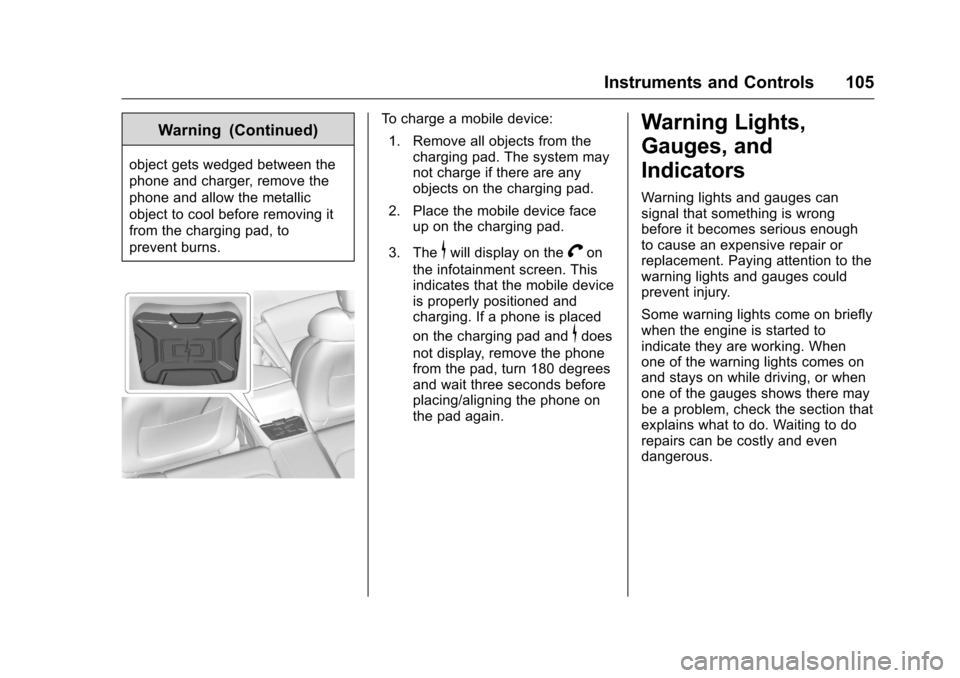
To charge a mobile device:1. Remove all objects from the charging pad. The system may
not charge if there are any
objects on the charging pad.
2. Place the mobile device face up on the charging pad.
3. The
$will display on theVon
the infotainment screen. This
indicates that the mobile device
is properly positioned and
charging. If a phone is placed
on the charging pad and
$does
not display, remove the phone
from the pad, turn 180 degrees
and wait three seconds before
placing/aligning the phone on
the pad again.
Warning Lights,
Gauges, and
Indicators
Warning lights and gauges can
signal that something is wrong
before it becomes serious enough
to cause an expensive repair or
replacement. Paying attention to the
warning lights and gauges could
prevent injury.
Some warning lights come on briefly
when the engine is started to
indicate they are working. When
one of the warning lights comes on
and stays on while driving, or when
one of the gauges shows there may
be a problem, check the section that
explains what to do. Waiting to do
repairs can be costly and even
dangerous.
Page 134 of 383
Chevrolet Camaro Owner Manual-Convertible (GMNA-Localizing-U.S./Cana-
da/Mexico-9702260) - 2016 - CRC - 10/28/15
Instruments and Controls 133
vehicle to a warmer location and
wait for the vehicle temperature to
rise. This may take several hours
depending on the initial vehicle
temperature and the temperature of
the new location.
TOP NOT SECURE
This message displays when the
power convertible top is not
completely opened or closed. Press
and hold the convertible top switch
until the top is fully opened or
closed. This is indicated by the
FOLDING TOP MOTION
COMPLETE message being
displayed and an audible indicator.
TOP POWERING DOWN
COMPLETE TOP MOTION
This message displays when the
power convertible top can no longer
hold the top in an intermediate
position. Top system components
may move during this time based on
external forces. Keep objects clear
from the normal path of movement
for the top system components.
TOP SYSTEM OVERHEATED,
PLEASE WAIT
This message displays and a sound
will be heard when the power
convertible top switch is pressed
and the power convertible top pump
motor temperature is overheated.
Wait for the power convertible top
pump motor to cool down before
using the power convertible top.
VALET SWITCH ACTIVE–TOP
DISABLED
This message displays when Valet
Mode is active. See “Valet Mode (If
Equipped)” in the infotainment
manual.
Cruise Control Messages
CRUISE SET TO XXX
This message displays when the
cruise control is set and shows the
speed it was set to. See Cruise
Control 0234.
Door Ajar Messages
DOOR OPEN
A door open symbol will display on
the DIC showing which door is
open. If the vehicle has been shifted
out of P (Park), a DOOR OPEN
message will also be displayed.
If the shift lever is in M (Manual
Mode), the DOOR OPEN message
will display if the vehicle starts to
move. Close the door completely.
HOOD OPEN
This message will display along with
a hood open symbol when the hood
is open. Close the hood completely.
TRUNK OPEN
This message will display along with
a symbol when the trunk is open.
Close the trunk completely.
Page 142 of 383
Chevrolet Camaro Owner Manual-Convertible (GMNA-Localizing-U.S./Cana-
da/Mexico-9702260) - 2016 - CRC - 10/28/15
Instruments and Controls 141
3. PressSBACK on the
faceplate or touch
0to return
to the previous menu or exit.
Turn the vehicle to ON/RUN to
access the Settings menu, then
select SETTINGS from the Home
page on the infotainment system
display.
Personalization Menus
The following list of menu items may
be available:
. Time and Date
. Driving Mode
. Language (Language)
. Radio
. Vehicle
. Bluetooth
. Apple CarPlay
. Android Auto
. USB Auto Launch
. Voice
. Display
. Rear Camera .
Return to Factory Settings
. Software Information
Detailed information for each menu
follows.
Time and Date
Manually set the time and date. See
Clock 0101.
Driving Mode
Select and the following may
display:
.
Engine Sound Management
Engine Sound Management
Select Engine Sound Management,
then choose from the available
options. See Driver Mode
Control 0228.
Language (Language)
Select Language, then select from
the available language(s).
The selected language will display
on the system, and voice
recognition will reflect the selected
language.
Radio
Press and the following may
display:
.
Manage Favorites
. Number of Favorites Shown
. Audible Touch Feedback
. Text Scroll
. Tone Settings
. Auto Volume
. Maximum Startup Volume
. Audio Cue Volume
Manage Favorites
This allows favorites to be edited.
See “Storing a Station as a
Favorite” inAM-FM Radio 0163 or
“Manage Favorites” in“Settings”
under “Radio” in the infotainment
manual.
Number of Favorites Shown
Press to set the number of favorites
to display.
Page 143 of 383
Chevrolet Camaro Owner Manual-Convertible (GMNA-Localizing-U.S./Cana-
da/Mexico-9702260) - 2016 - CRC - 10/28/15
142 Instruments and Controls
Select the desired number or select
Auto and the infotainment system
will automatically adjust the number
of favorites shown.
Audible Touch Feedback
This allows Audible Touch
Feedback to be turned on or off.
Select Off or On.
Text Scroll
Select to see text scroll on the
screen.
Select Off or On.
Tone Settings
Select to adjust the radio tone. See
Operation0162 or“Tone Settings”
under “AM-FM Radio” in the
infotainment manual.
Auto Volume
This feature adjusts the volume
based on vehicle speed and
ambient noise.
Select Off, Low, Medium-Low,
Medium, Medium-High, or High. Maximum Startup Volume
This feature sets the maximum
startup volume. If the vehicle is
started and the volume is greater
than this level, the volume is
adjusted to this level. To set the
maximum startup volume, turn the
MENU knob or press + or
−to
increase or decrease.
Audio Cue Volume
This feature sets the volume of
audio files played at system startup
and shutdown.
Select On, then press + or −to
increase or decrease the volume.
Vehicle
Select and the following may
display:
. Climate and Air Quality
. Collision/Detection Systems
. Comfort and Convenience
. Lighting
. Power Door Locks
. Remote Lock, Unlock, Start Climate and Air Quality
Select and the following may
display:
.
Auto Fan Max Speed
. Remote Start Auto Heat Seats
. Auto Defog
Auto Fan Max Speed
This feature will set the maximum
auto fan speed.
Select Low, Medium, or High.
Remote Start Auto Heat Seats
When on, this feature will turn the
heated seats on when using remote
start on cold days.
Select On or Off.
Auto Defog
When turned on and high humidity
is detected, the climate control
system may adjust to outside air
supply and turn on the air
conditioner or the heater. The fan
speed may slightly increase to help
prevent fogging.
Page 146 of 383
Chevrolet Camaro Owner Manual-Convertible (GMNA-Localizing-U.S./Cana-
da/Mexico-9702260) - 2016 - CRC - 10/28/15
Instruments and Controls 145
Select All Doors or Driver Door.
Remote Start Auto Cool Seats
If equipped and turned on, this
feature will turn the ventilated seats
on when using remote start on
warm days.
Select Off or On.
Remote Start Auto Heat Seats
If equipped and turned on, this
feature will turn the heated seats on
when using remote start on
cold days.
Select Off or On.
Remote Window Operation
This allows the windows to be
opened when pressing
Kon the
RKE transmitter. See Remote
Keyless Entry (RKE) System
Operation 027.
Select Off or On.
Passive Door Unlock
This allows the selection of what
doors will unlock when using the
button on the driver door to unlock
the vehicle. Select All Doors or Driver Door.
Passive Door Lock
This allows passive locking to be
turned on or off, or feedback can be
selected. See
Remote Keyless
Entry (RKE) System Operation 027.
Select Off, On with Horn
Chirp, or On.
Remote Left in Vehicle Alert
This feature sounds an alert when
the RKE transmitter is left in the
vehicle.
Select Off or On.
Bluetooth
Select and the following may
display:
. Pair New Device
. Discoverable
. Device Management
. Ringtones
. Voice Mail Numbers
. Text Message Alerts Pair New Device
Select to pair a new device. See
“Pairing”
in“Infotainment Controls”
under Bluetooth (Overview) 0169 or
Bluetooth (Infotainment Controls)
0 171 or“Pairing” in“Infotainment
Controls” under“Bluetooth” in the
infotainment manual.
Discoverable
This allows the system to find a
device.
Select Off or On.
Device Management
Select to connect to a different
phone source, disconnect a phone,
or delete a phone.
Ringtones
Press to change the ring tone for
the specific phone. The phone does
not need to be connected to change
the ring tones.
Voice Mail Numbers
This feature displays the voice mail
number for all connected phones.
To change the voice mail number,
select EDIT or press the EDIT
Page 147 of 383
Chevrolet Camaro Owner Manual-Convertible (GMNA-Localizing-U.S./Cana-
da/Mexico-9702260) - 2016 - CRC - 10/28/15
146 Instruments and Controls
button. Type a new number, then
select SAVE or press the SAVE
button.
Text Message Alerts
This allows the feature to be turned
on or off.
Select Off or On.
Apple CarPlay™
Select and the following may
display:
.Apple CarPlay
. Manage Apple CarPlay Devices
Apple CarPlay
This feature allows Apple devices to
be connected to the infotainment
system through a USB port.
Select Off or On.
Manage Apple CarPlay Devices
Select to manage Apple devices.
Apple CarPlay must be on for this
feature to be accessed.
Android Auto
Select and the following may
display: .
Android Auto
. Manage Android Auto Devices
Android Auto
This feature allows Android devices
to be connected to the infotainment
system through a USB port.
Select Off or On.
Manage Android Auto Devices
Select to manage Android devices.
Android Auto must be on for this
feature to be accessed.
USB Auto Launch
This allows Android and Apple
CarPlay devices to automatically
connect when plugged into the
USB port.
Select Off or On.
Voice
Select and the following may
display:
. Confidence Threshold
. Prompt Length
. Audio Feedback Speed .
Display “What Can I Say?” Tips
Confidence Threshold
This feature allows the adjustment
of the sensitivity of the speech
recognition system.
Select Confirm More or
Confirm Less.
Prompt Length
This feature adjusts the voice
prompt length.
Select Short or Long.
Audio Feedback Speed
This feature adjusts the audio
feedback speed.
Select Slow, Medium, or Fast.
Display “What Can I Say?” Tips
This feature gives tips on what to
say when using voice recognition.
Select Off or On.
Display
Select and the following may
display:
. Calibrate Touchscreen
Page 148 of 383
Chevrolet Camaro Owner Manual-Convertible (GMNA-Localizing-U.S./Cana-
da/Mexico-9702260) - 2016 - CRC - 10/28/15
Instruments and Controls 147
.Turn Display Off
Calibrate Touchscreen
Select to calibrate the touchscreen,
then follow the prompts.
Turn Display Off
Select to turn the display off. Press
anywhere on the display area or any
faceplate button to turn the
display on.
Rear Camera
Select and the following may
display:
. Guidance Lines
. Rear Park Assist Symbols
Guidance Lines
Select Off or On. See Assistance
Systems for Parking or
Backing 0238.
Rear Park Assist Symbols
Select Off or On. See Assistance
Systems for Parking or
Backing 0238.
Return to Factory Settings
Select and the following may
display:
.
Restore Vehicle Settings
. Clear All Private Data
. Restore Radio Settings
Restore Vehicle Settings
This allows selection of restoring
vehicle settings.
Select Restore or Cancel.
Clear All Private Data
This allows selection to clear all
private information from the vehicle.
Select Delete or Cancel.
Restore Radio Settings
This allows selection to restore
radio settings.
Select Restore or Cancel.
Software Information
Select to view the infotainment
system current software information.
Universal Remote
System
See Radio Frequency
Statement 0357.
Universal Remote System
Programming
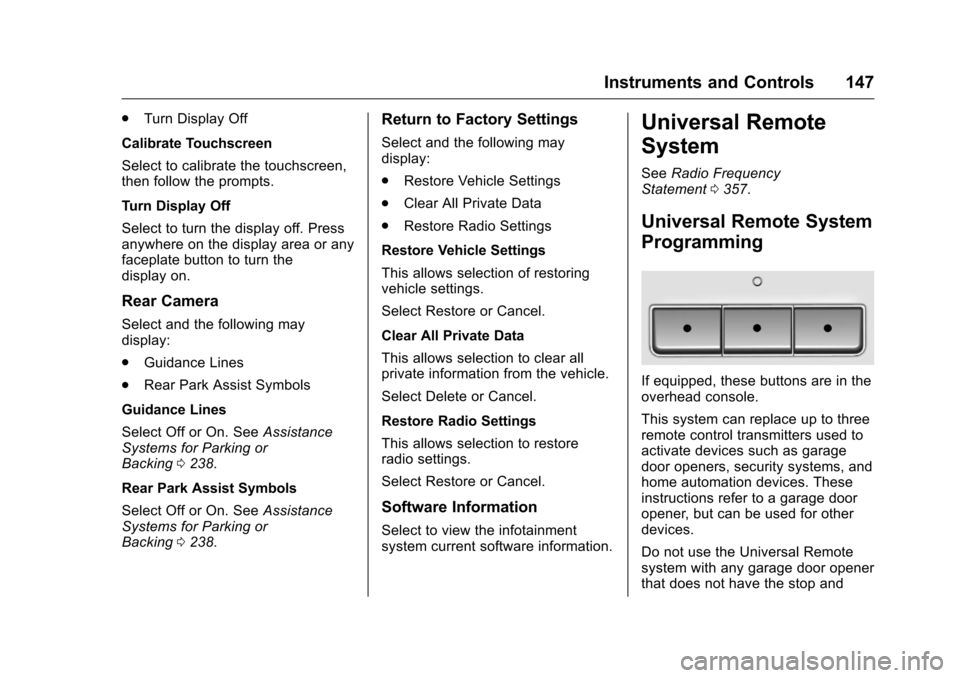
If equipped, these buttons are in the
overhead console.
This system can replace up to three
remote control transmitters used to
activate devices such as garage
door openers, security systems, and
home automation devices. These
instructions refer to a garage door
opener, but can be used for other
devices.
Do not use the Universal Remote
system with any garage door opener
that does not have the stop and
Page 160 of 383
Chevrolet Camaro Owner Manual-Convertible (GMNA-Localizing-U.S./Cana-
da/Mexico-9702260) - 2016 - CRC - 10/28/15
Infotainment System 159
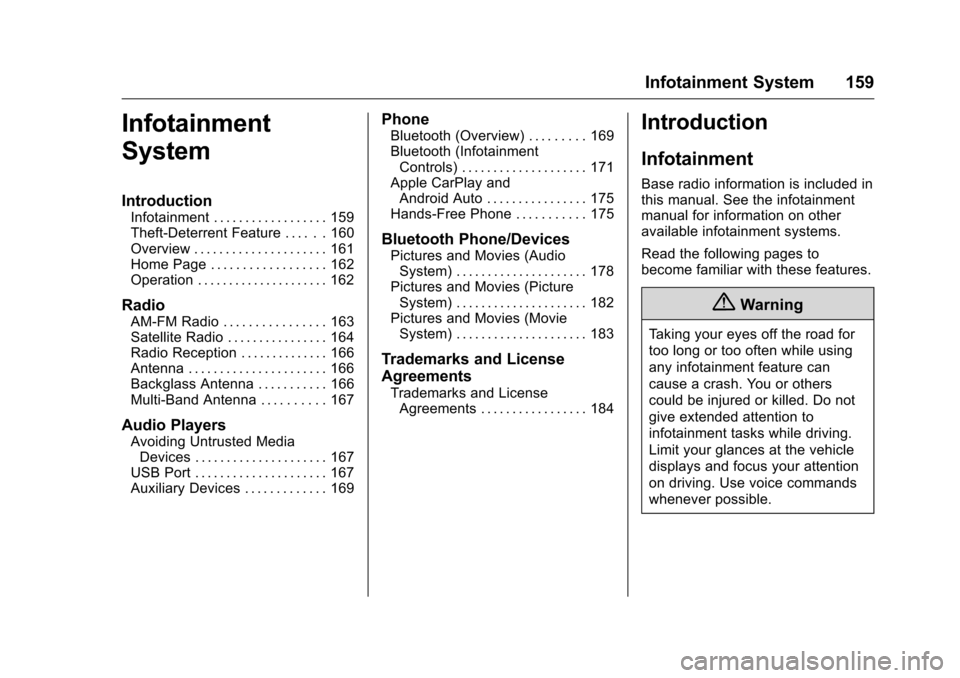
Infotainment
System
Introduction
Infotainment . . . . . . . . . . . . . . . . . . 159
Theft-Deterrent Feature . . . . . . 160
Overview . . . . . . . . . . . . . . . . . . . . . 161
Home Page . . . . . . . . . . . . . . . . . . 162
Operation . . . . . . . . . . . . . . . . . . . . . 162
Radio
AM-FM Radio . . . . . . . . . . . . . . . . 163
Satellite Radio . . . . . . . . . . . . . . . . 164
Radio Reception . . . . . . . . . . . . . . 166
Antenna . . . . . . . . . . . . . . . . . . . . . . 166
Backglass Antenna . . . . . . . . . . . 166
Multi-Band Antenna . . . . . . . . . . 167
Audio Players
Avoiding Untrusted MediaDevices . . . . . . . . . . . . . . . . . . . . . 167
USB Port . . . . . . . . . . . . . . . . . . . . . 167
Auxiliary Devices . . . . . . . . . . . . . 169
Phone
Bluetooth (Overview) . . . . . . . . . 169
Bluetooth (Infotainment
Controls) . . . . . . . . . . . . . . . . . . . . 171
Apple CarPlay and Android Auto . . . . . . . . . . . . . . . . 175
Hands-Free Phone . . . . . . . . . . . 175
Bluetooth Phone/Devices
Pictures and Movies (Audio System) . . . . . . . . . . . . . . . . . . . . . 178
Pictures and Movies (Picture System) . . . . . . . . . . . . . . . . . . . . . 182
Pictures and Movies (Movie System) . . . . . . . . . . . . . . . . . . . . . 183
Trademarks and License
Agreements
Trademarks and LicenseAgreements . . . . . . . . . . . . . . . . . 184
Introduction
Infotainment
Base radio information is included in
this manual. See the infotainment
manual for information on other
available infotainment systems.
Read the following pages to
become familiar with these features.
{Warning
Taking your eyes off the road for
too long or too often while using
any infotainment feature can
cause a crash. You or others
could be injured or killed. Do not
give extended attention to
infotainment tasks while driving.
Limit your glances at the vehicle
displays and focus your attention
on driving. Use voice commands
whenever possible.
Page 161 of 383
Chevrolet Camaro Owner Manual-Convertible (GMNA-Localizing-U.S./Cana-
da/Mexico-9702260) - 2016 - CRC - 10/28/15
160 Infotainment System
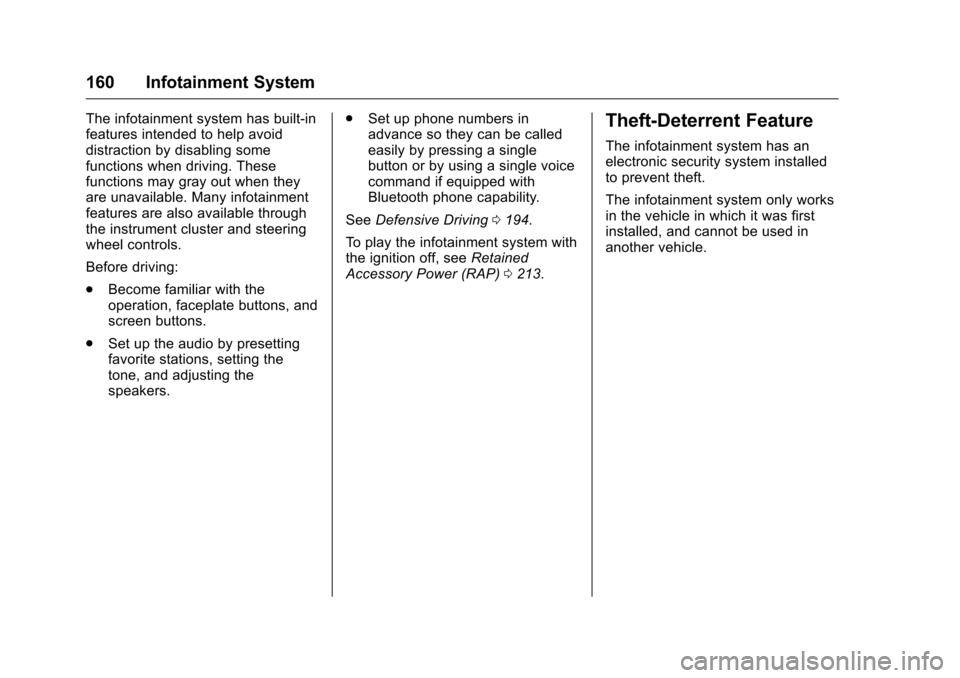
The infotainment system has built-in
features intended to help avoid
distraction by disabling some
functions when driving. These
functions may gray out when they
are unavailable. Many infotainment
features are also available through
the instrument cluster and steering
wheel controls.
Before driving:
.Become familiar with the
operation, faceplate buttons, and
screen buttons.
. Set up the audio by presetting
favorite stations, setting the
tone, and adjusting the
speakers. .
Set up phone numbers in
advance so they can be called
easily by pressing a single
button or by using a single voice
command if equipped with
Bluetooth phone capability.
See Defensive Driving 0194.
To play the infotainment system with
the ignition off, see Retained
Accessory Power (RAP) 0213.Theft-Deterrent Feature
The infotainment system has an
electronic security system installed
to prevent theft.
The infotainment system only works
in the vehicle in which it was first
installed, and cannot be used in
another vehicle.