lit CHEVROLET CAMARO 2017 6.G Service Manual
[x] Cancel search | Manufacturer: CHEVROLET, Model Year: 2017, Model line: CAMARO, Model: CHEVROLET CAMARO 2017 6.GPages: 391, PDF Size: 6.65 MB
Page 173 of 391

Chevrolet Camaro Owner Manual (GMNA-Localizing-U.S./Canada/Mexico-
9804281) - 2017 - crc - 4/25/16
172 Infotainment System
Using USB Storage Devices and
iPod/iPhone
.Use a USB or flash memory type
storage device. Do not connect
using a USB adaptor.
. Do not connect and reconnect
the USB device repeatedly in a
short time, as this may cause
static electricity and problems
using the device.
. Use a USB device with a metal
connecting terminal.
. Connection with i-Stick Type
USB storage devices may be
faulty due to vehicle vibration.
. Do not touch the USB
connecting terminal.
. Only USB storage devices
formatted in FAT16/32 or exFAT
file systems are recognized.
NTFS and other file systems are
not recognized.
. The time it takes to process files
will depend on the USB storage
device type and capacity, and
the type of files stored. .
Some USB storage device files
may not be compatible.
. Up to two USB devices and one
iPod can be played through a
USB hub. All devices may not be
supported, depending on the
performance of the USB hub.
If there is not enough power
supply, it may not operate
normally.
. Do not disconnect the USB
storage device while it is playing.
This may cause damage to the
product or affect the
performance of the USB device.
. Disconnect the USB storage
device when the ignition is
turned off. If the ignition is turned
on while the USB device is
connected, the USB device may
be damaged or may not operate
normally.
. USB storage devices can only
be connected for playing music,
viewing photo files,
or upgrading. .
Do not use the USB terminal to
charge USB accessory
equipment. The heat generated
may cause performance issues
or damage.
. Music files to which Digital Right
Management (DRM) is applied
cannot be played.
. USB storage device that has a
capacity limit of no more than
5,000 files, such as music,
photo, video, 15 levels of folder
structure. Normal usage cannot
be guaranteed for a storage
device that exceeds this limit.
The iPod/iPhone can play all
music files that are supported.
The music file lists will only
display up to 5,000 files on the
screen. These files are sorted in
alphabetical order.
. Some iPod/iPhone product
models may not support the
connectivity or functionality of
this product.
Page 178 of 391
Chevrolet Camaro Owner Manual (GMNA-Localizing-U.S./Canada/Mexico-
9804281) - 2017 - crc - 4/25/16
Infotainment System 177
Playing Music
To play music from the device, if the
device is already connected:1. Press
{.
2. Touch AUDIO.
3. Touch Source.
4. Touch AUX.
5. Touch
0.
To adjust the tone settings, see
“Tone Settings” inOperation 0165.
Performance Data
Recorder (PDR)
If equipped, the PDR icon displays
on the Home screen.
Important Information
Use of the PDR may be prohibited
or legally restricted in certain
countries and situations. Ensure
compliance with applicable laws and
regulations, including, but not
limited to: privacy laws, laws related
to camera surveillance and
recordings, road traffic and security
laws, and laws on the protection of
publicity and personality rights.
.
Do not use the PDR if it causes
distraction.
. Do not rely on camera footage to
steer the vehicle.
. Comply with any notice and
consent requirements before
capturing and/or recording the
voices or images of other
persons or before collecting
other personal data. .
Notify other drivers of your
vehicle of the above rules and
require them to comply.
. General Motors does not accept
any responsibility or liability in
connection with use that is not
permitted.
. Law enforcement authorities
may have the right to seize
video recordings and use them
as evidence of criminal/driving
offenses against you or third
parties.
The PDR records video, audio, and
vehicle data. This data is stored on
a removable SD card. The SD card
reader is located below the
instrument panel to the left of the
steering wheel and just above the
hood release.
The recorded data is not stored
anywhere else and is only
accessible from the SD card.
To begin, insert a FAT32 formatted
SD card, Class 10 required, 8, 16,
or 32 GB recommended, into the SD
card reader.
Page 182 of 391
Chevrolet Camaro Owner Manual (GMNA-Localizing-U.S./Canada/Mexico-
9804281) - 2017 - crc - 4/25/16
Infotainment System 181
steering. The numerical steering
angle displays below the
graphic.
. StabiliTrak Active Indicator: The
graphic only displays if the
active handling systems are
activated.
. Performance Traction
Management (PTM) Mode:
Displays the current PTM mode.
The options are Wet, Dry, Sport
1, Sport 2, or Race.
. Current Lap Time: Displays the
elapsed lap time if the finish line
is defined and the vehicle has
crossed the defined finish line at
least once.
. Event Odometer: Displays the
distance driven since the
recording began.
. Drive Mode: Displays the
vehicle’s current drive mode. Performance Timing:
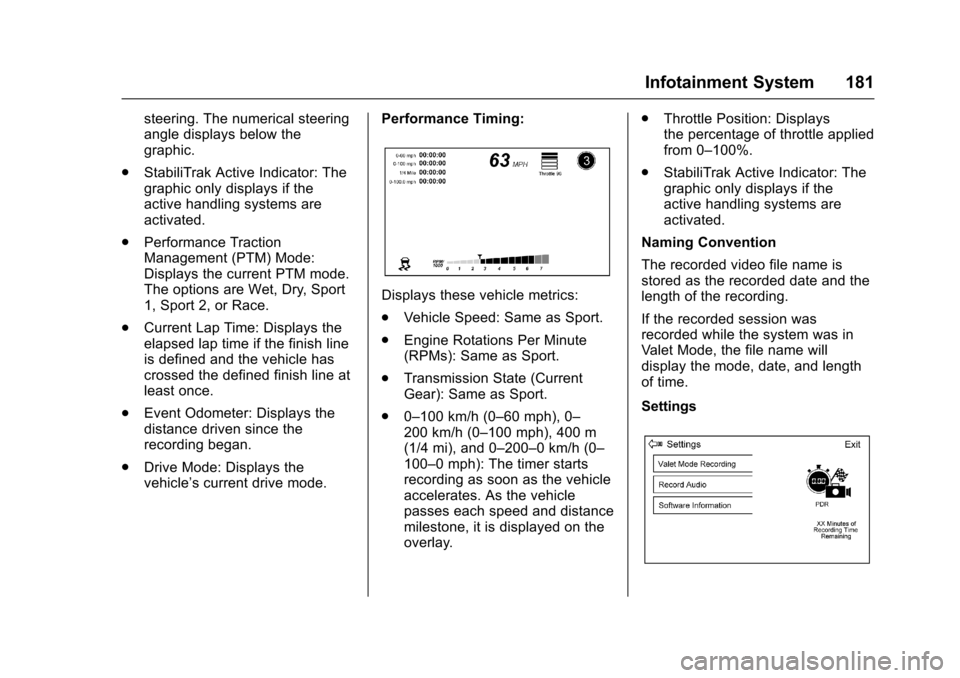
Displays these vehicle metrics:
.
Vehicle Speed: Same as Sport.
. Engine Rotations Per Minute
(RPMs): Same as Sport.
. Transmission State (Current
Gear): Same as Sport.
. 0–100 km/h (0–60 mph), 0–
200 km/h (0–100 mph), 400 m
(1/4 mi), and 0–200–0 km/h (0–
100–0 mph): The timer starts
recording as soon as the vehicle
accelerates. As the vehicle
passes each speed and distance
milestone, it is displayed on the
overlay. .
Throttle Position: Displays
the percentage of throttle applied
from 0–100%.
. StabiliTrak Active Indicator: The
graphic only displays if the
active handling systems are
activated.
Naming Convention
The recorded video file name is
stored as the recorded date and the
length of the recording.
If the recorded session was
recorded while the system was in
Valet Mode, the file name will
display the mode, date, and length
of time.
Settings
Page 183 of 391
Chevrolet Camaro Owner Manual (GMNA-Localizing-U.S./Canada/Mexico-
9804281) - 2017 - crc - 4/25/16
182 Infotainment System
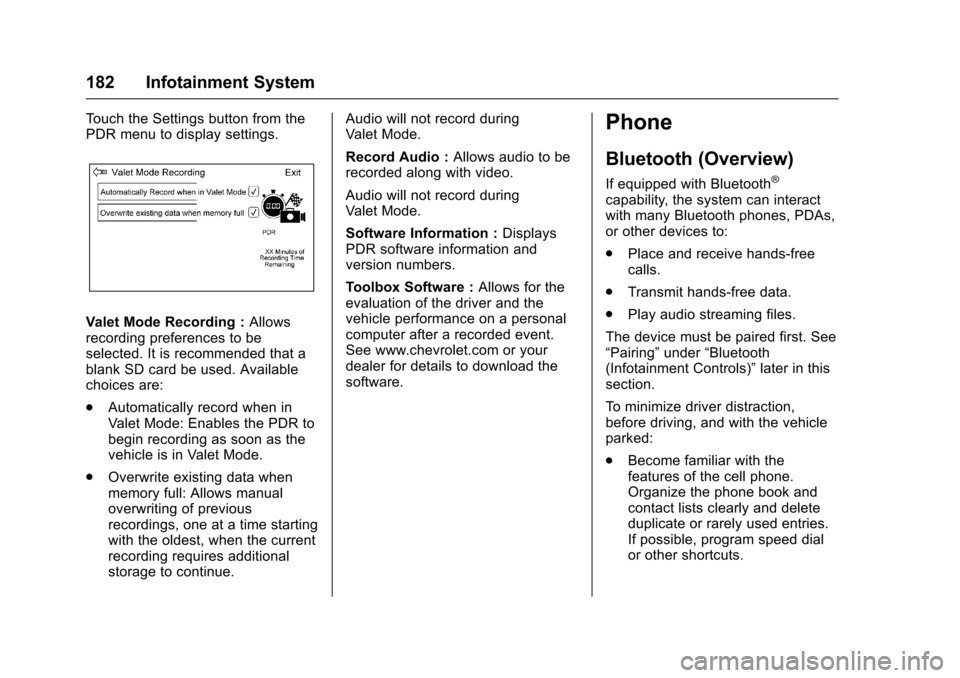
Touch the Settings button from the
PDR menu to display settings.
Valet Mode Recording :Allows
recording preferences to be
selected. It is recommended that a
blank SD card be used. Available
choices are:
. Automatically record when in
Valet Mode: Enables the PDR to
begin recording as soon as the
vehicle is in Valet Mode.
. Overwrite existing data when
memory full: Allows manual
overwriting of previous
recordings, one at a time starting
with the oldest, when the current
recording requires additional
storage to continue. Audio will not record during
Valet Mode.
Record Audio :
Allows audio to be
recorded along with video.
Audio will not record during
Valet Mode.
Software Information : Displays
PDR software information and
version numbers.
Toolbox Software : Allows for the
evaluation of the driver and the
vehicle performance on a personal
computer after a recorded event.
See www.chevrolet.com or your
dealer for details to download the
software.
Phone
Bluetooth (Overview)
If equipped with Bluetooth®
capability, the system can interact
with many Bluetooth phones, PDAs,
or other devices to:
. Place and receive hands-free
calls.
. Transmit hands-free data.
. Play audio streaming files.
The device must be paired first. See
“Pairing” under“Bluetooth
(Infotainment Controls)” later in this
section.
To minimize driver distraction,
before driving, and with the vehicle
parked:
. Become familiar with the
features of the cell phone.
Organize the phone book and
contact lists clearly and delete
duplicate or rarely used entries.
If possible, program speed dial
or other shortcuts.
Page 184 of 391
Chevrolet Camaro Owner Manual (GMNA-Localizing-U.S./Canada/Mexico-
9804281) - 2017 - crc - 4/25/16
Infotainment System 183
.Review the controls and
operation of the infotainment
system.
. Pair cell phone(s) to the vehicle.
The system may not work with
all cell phones. See “Pairing”
under “Bluetooth (Infotainment
Controls)” later in this section.
{Warning
When using a cell phone, it can
be distracting to look too long or
too often at the screen of the
phone or the infotainment system.
Taking your eyes off the road too
long or too often could cause a
crash resulting in injury or death.
Focus your attention on driving.
Vehicles with a Bluetooth system
can use a Bluetooth-capable cell
phone with a Hands-Free Profile to
make and receive phone calls. The
infotainment system is used to
control the system. The system can
be used while in ACC/ACCESSORY
or ON/RUN. See Ignition Positions
0 216. Not all phones support all functions and not all phones work
with the Bluetooth system. In the
U.S. and Canada, see
www.gm.com/bluetooth for more
information about compatible
phones.
The Bluetooth system range can be
up to 9.1 m (30 ft).
There may be restrictions on using
Bluetooth wireless technology in
some locations.
Due to the variety of Bluetooth
devices and their firmware versions,
the device may respond differently
when performing over Bluetooth.
On a current phone call, an image
of the current contact from the
phone's contact list may be
displayed. Not all phones are
compatible with this feature.
Refer to the cell phone
manufacturer
’s user guide for
questions about the phone's
Bluetooth functionality.
Bluetooth Controls
If equipped with Bluetooth capability,
use the buttons on the infotainment
system and the steering wheel to
operate the system.
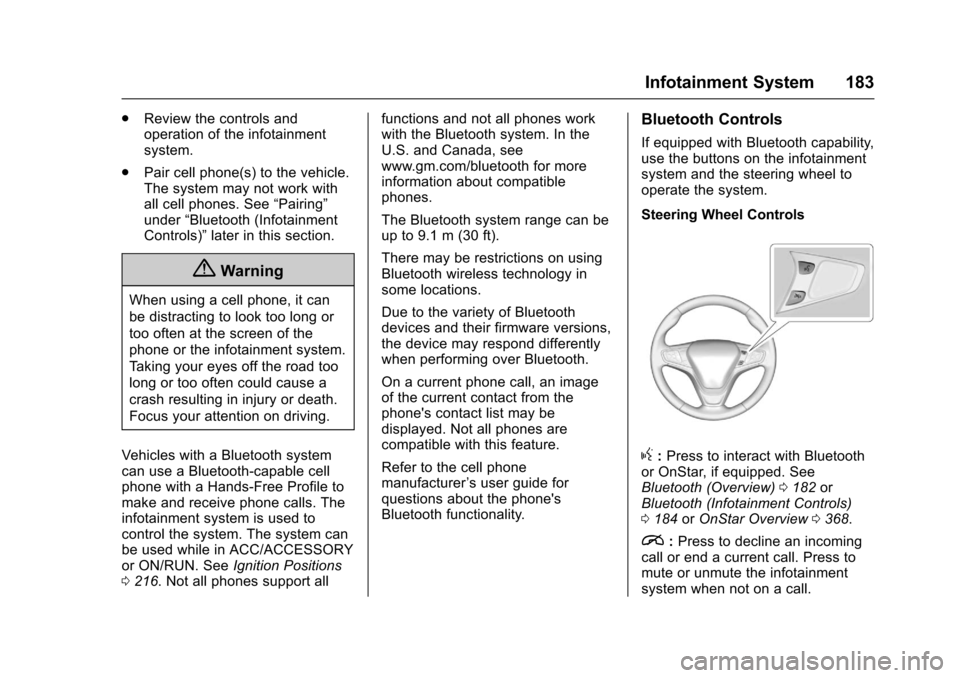
Steering Wheel Controls
g: Press to interact with Bluetooth
or OnStar, if equipped. See
Bluetooth (Overview) 0182 or
Bluetooth (Infotainment Controls)
0 184 orOnStar Overview 0368.
i:Press to decline an incoming
call or end a current call. Press to
mute or unmute the infotainment
system when not on a call.
Page 185 of 391
Chevrolet Camaro Owner Manual (GMNA-Localizing-U.S./Canada/Mexico-
9804281) - 2017 - crc - 4/25/16
184 Infotainment System
Bluetooth (Infotainment
Controls)
To use infotainment controls to
access the menu system, see
Overview0164.
Pairing
A Bluetooth-enabled cell phone
must be paired to the Bluetooth
system and then connected to the
vehicle before it can be used. See
your cell phone manufacturer's user
guide for Bluetooth functions before
pairing the cell phone. If a Bluetooth
phone is not connected, calls will be
made using OnStar Hands-Free
Calling, if available. See OnStar
Overview 0368.
Pairing Information
. A Bluetooth phone with MP3
capability cannot be paired to
the vehicle as a phone and an
MP3 player at the same time.
. Up to 10 cell phones can be
paired to the Bluetooth system.
. The pairing process is disabled
when the vehicle is moving. .
Pairing only needs to be
completed once, unless the
pairing information on the cell
phone changes or the cell phone
is deleted from the system.
. Only one paired cell phone can
be connected to the Bluetooth
system at a time.
. If multiple paired cell phones are
within range of the system, the
system connects to the first
available paired cell phone in the
order that they were first paired.
When the Bluetooth device and
infotainment system are
successfully paired, the phone book
is downloaded automatically. This is
dependent on the type of phone
paired. If the automatic download
does not occur, proceed with the
phone book download on the
phone.
Pairing a Phone –SSP and No
Paired Device
When there is no paired device on
the infotainment system and Simple
Secure Pairing (SSP) is supported:
1. Press
{. 2. Touch PHONE, press
5on the
faceplate, or press
gon the
steering wheel without OnStar.
3. Touch Search Device.
4. Touch the desired device to pair on the searched list
screen.
5. Touch Yes on the pop-up screen of the Bluetooth device
and infotainment system.
6. When the Bluetooth device and infotainment system are
successfully paired, the phone
screen is displayed on the
infotainment system.
Pairing a Phone –SSP and Paired
Device
When a paired device is on the
infotainment system and SSP is
supported:
1. Press
{.
2. Touch SETTINGS.
3. Touch Bluetooth, then Device Management.
Page 189 of 391
Chevrolet Camaro Owner Manual (GMNA-Localizing-U.S./Canada/Mexico-
9804281) - 2017 - crc - 4/25/16
188 Infotainment System
.The infotainment system outputs
the audio from the cell phone or
Bluetooth device as it is
transmitted.
Apple CarPlay and
Android Auto
If equipped, Android Auto™ and/or
Apple CarPlay™ capability may be
available through a compatible
smartphone. If available, a
PROJECTION icon will appear as
Android Auto or Car Play on the
Home Page of the infotainment
display.
To use Android Auto and/or Apple
CarPlay:
1. Download the Android Auto app to your phone from the
Google™ Play store. There is
no app required for Apple
CarPlay. Use the latest
available operation system.
2. Connect your Android phone or Apple iPhone by using the
compatible phone USB cable
and plugging into a USB data
port. For best performance, use the device’
s factory-provided
USB cable. Aftermarket or
third-party cables may
not work.
The PROJECTION icon on the
Home Page will change to Android
Auto or Apple CarPlay depending
on the phone. Android Auto and/or
Apple CarPlay may automatically
launch upon USB connection. If not,
press the ANDROID AUTO and/or
APPLE CARPLAY icon on the
Home Page to launch.
For further information on how to set
up Android Auto and Apple CarPlay
in the vehicle, see
www.my.chevrolet.com for U.S. and
Canada only or Customer
Assistance Offices 0356.
Android Auto is provided by Google
and is subject to Google’s terms
and privacy policy. CarPlay is
provided by Apple and is subject to
Apple’ s terms and privacy policy.
For Android Auto support see
https://support.google.com/
androidauto or Apple CarPlay
support at https://www.apple.com/
ios/carplay/. Apple or Google may change or suspend availability at
any time. Android Auto is a
trademark of Google Inc.; Apple
CarPlay is a trademark of Apple Inc.
Hands-Free Phone
General Information
Vehicles with a Hands-Free Phone
system can use a Bluetooth-capable
cell phone with a hands-free profile
to make and receive phone calls.
The infotainment system and voice
control are used to operate the
system. Not all phones support all
functions and not all phones work
with the Hands-Free Phone system.
Hands-Free Phone Controls
Use the buttons on the infotainment
system and the steering wheel to
operate the Hands-Free Phone
system.
Steering Wheel Controls
Steering wheel controls can be
used to:
.
Answer incoming calls.
. Confirm system information.
Page 192 of 391
Chevrolet Camaro Owner Manual (GMNA-Localizing-U.S./Canada/Mexico-
9804281) - 2017 - crc - 4/25/16
Infotainment System 191
Trademarks and
License Agreements
FCC Information
SeeRadio Frequency
Statement 0364.
Bluetooth
®
The Bluetooth word mark and logos
are owned by the Bluetooth®SIG,
Inc. and any use of such marks by
General Motors is under license.
Other trademarks and trade names
are those of their respective owners.
DivX Certified®to play DivX®video,
including premium content.
Covered by one or more of the
following U.S. patents: 7,295,673;
7,460,668; 7,515,710; 7,519,274. DivX
®, DivX Certified®and
associated logos are trademarks of
Rovi Corporation or its subsidiaries
and are used under license.
“Made for iPod” and“Made for
iPhone” mean that an electronic
accessory has been designed to
connect specifically to iPod or
iPhone and has been certified by
the developer to meet Apple
performance standards.
iPod and iPhone are trademarks of
Apple Computer, Inc., registered in
the U.S. and other countries.
Fees and Taxes: Subscription fee,
taxes, one time activation fee, and
other fees may apply. Subscription
fee is consumer only. All fees and
programming subject to change.
Subscriptions subject to Customer
Agreement available at
www.siriusxm.com or
www.siriusxm.ca. SiriusXM
®service
only available in the 48 contiguous
United States and Canada.
In Canada: Some deterioration of
service may occur in extreme
northern latitudes. This is beyond
the control of SiriusXM
®Satellite
Radio.
It is prohibited to copy, decompile,
disassemble, reverse engineer,
hack, manipulate, or otherwise
make available any technology or
software incorporated in receivers
compatible with the SiriusXM
Satellite Radio System or that
support the SiriusXM website, the
Online Service or any of its content.
Furthermore, the AMBER voice
compression software included in
this product is protected by
intellectual property rights including
Page 193 of 391
Chevrolet Camaro Owner Manual (GMNA-Localizing-U.S./Canada/Mexico-
9804281) - 2017 - crc - 4/25/16
192 Infotainment System
patent rights, copyrights, and trade
secrets of Digital Voice
Systems, Inc.
General Requirements:1. A License Agreement from SiriusXM is required for any
product that incorporates
SiriusXM Technology and/or for
use of any of the SiriusXM
marks to be manufactured,
distributed, or marketed in the
SiriusXM Service Area.
2. For products to be distributed, marketed, and/or sold in
Canada, a separate agreement
is required with Canadian
Satellite Radio Inc. (operating
as SiriusXM Canada). FreeType 2
Portions of this software are
copyright
®2007-2012 The
FreeType Project
(www.freetype.org). All rights
reserved.
Libjpeg
The navigation software is based in
part on the work of the independent
JPEG Group.
Page 195 of 391
Chevrolet Camaro Owner Manual (GMNA-Localizing-U.S./Canada/Mexico-
9804281) - 2017 - crc - 4/25/16
194 Climate Controls
Automatic Operation
The system automatically controls
the fan speed, air delivery, air
conditioning, and recirculation in
order to heat or cool the vehicle to
the desired temperature:
When AUTO is lit, all four functions
operate automatically. Each function
can also be manually set and the
setting is displayed. Functions not
manually set will continue to be
automatically controlled, even if the
AUTO indicator is not lit.
For automatic operation:1. Press AUTO.
2. Set the temperature. Allow the system time to stabilize. Adjust
the temperature as needed for
best comfort.
O:Press to turn the fan off or on.
Temperature Control : Turn the
outer ring of the air vent clockwise
or counterclockwise to increase or
decrease the temperature setting. Fan Control :
Turn the outer ring of
the air vent clockwise or
counterclockwise to increase or
decrease the fan speed.
Air Delivery Mode Controls :
Press
X,Y, or[to change the
direction of the airflow. Any
combination of the three buttons
can be selected. The indicator light
in the button will turn on. The
current mode appears in the display
screen. Pressing any of the three
buttons cancels automatic air
delivery control and the direction of
the airflow is controlled manually.
Press AUTO to return to automatic
operation.
To change the current mode, select
one or more of the following:
X: Clears the windows of fog or
moisture. Air is directed to the
windshield and side window outlets.
Y: Air is directed to the instrument
panel outlets.
[: Air is directed to the floor
outlets.
0: Clears the windshield of fog or
frost more quickly. Air is only
directed to the windshield and side
window outlets. The air conditioning
may turn on automatically to
remove fog.
For best results, clear all snow and
ice from the windshield before
defrosting.
Do not drive the vehicle until all
windows are clear.
Air Conditioning
A/C : Press to turn the air
conditioning on or off. An indicator
light turns on. If the fan is turned off
or the outside temperature falls
below freezing, the air conditioning
will not run, but the indicator light
will be lit.
The air conditioning might
automatically come on when
0is
selected.
@: Press to turn on recirculation.
An indicator light comes on. Air is
recirculated inside the vehicle.