steering CHEVROLET CAMARO 2018 Owner's Guide
[x] Cancel search | Manufacturer: CHEVROLET, Model Year: 2018, Model line: CAMARO, Model: CHEVROLET CAMARO 2018Pages: 393, PDF Size: 5.77 MB
Page 132 of 393
Chevrolet Camaro Owner Manual (GMNA-Localizing-U.S./Canada/Mexico-
11348325) - 2018 - CRC - 10/23/17
Instruments and Controls 131
Information Displays
Driver Information
Center (DIC)
The DIC displays are shown in the
center of the instrument cluster in
the Info application. SeeInstrument
Cluster 0113. The Info application
is only available when the ignition is
on. The displays show the status of
many vehicle systems. The controls
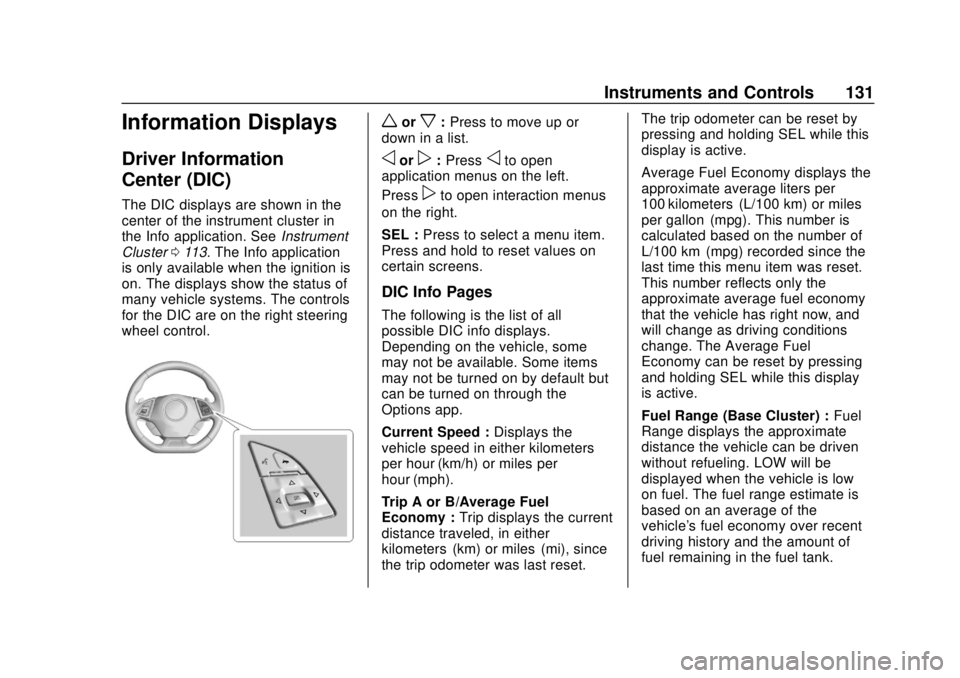
for the DIC are on the right steering
wheel control.
worx: Press to move up or
down in a list.
oorp: Pressoto open
application menus on the left.
Press
pto open interaction menus
on the right.
SEL : Press to select a menu item.
Press and hold to reset values on
certain screens.
DIC Info Pages
The following is the list of all
possible DIC info displays.
Depending on the vehicle, some
may not be available. Some items
may not be turned on by default but
can be turned on through the
Options app.
Current Speed : Displays the
vehicle speed in either kilometers
per hour (km/h) or miles per
hour (mph).
Trip A or B/Average Fuel
Economy : Trip displays the current
distance traveled, in either
kilometers (km) or miles (mi), since
the trip odometer was last reset. The trip odometer can be reset by
pressing and holding SEL while this
display is active.
Average Fuel Economy displays the
approximate average liters per
100 kilometers (L/100 km) or miles
per gallon (mpg). This number is
calculated based on the number of
L/100 km (mpg) recorded since the
last time this menu item was reset.
This number reflects only the
approximate average fuel economy
that the vehicle has right now, and
will change as driving conditions
change. The Average Fuel
Economy can be reset by pressing
and holding SEL while this display
is active.
Fuel Range (Base Cluster) :
Fuel
Range displays the approximate
distance the vehicle can be driven
without refueling. LOW will be
displayed when the vehicle is low
on fuel. The fuel range estimate is
based on an average of the
vehicle's fuel economy over recent
driving history and the amount of
fuel remaining in the fuel tank.
Page 136 of 393
Chevrolet Camaro Owner Manual (GMNA-Localizing-U.S./Canada/Mexico-
11348325) - 2018 - CRC - 10/23/17
Instruments and Controls 135
performance level has been
reached to shift the transmission
into the next higher gear.
. G-Force Gauge
. Audio Information
. Upcoming Maneuver from
OnBoard Navigation
. Incoming Call
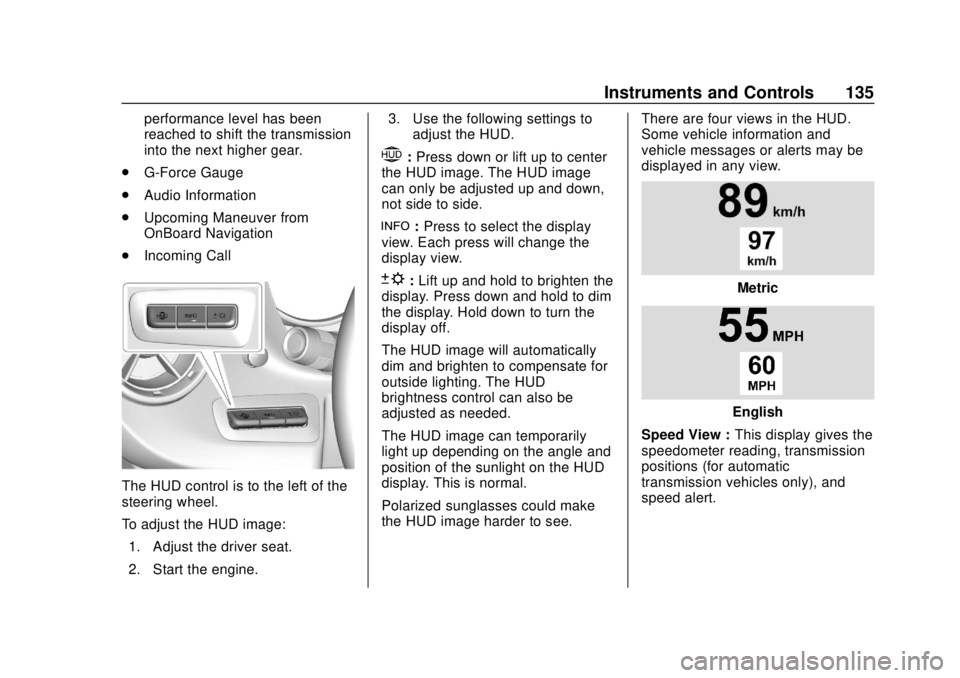
The HUD control is to the left of the
steering wheel.
To adjust the HUD image:
1. Adjust the driver seat.
2. Start the engine. 3. Use the following settings to
adjust the HUD.
$:Press down or lift up to center
the HUD image. The HUD image
can only be adjusted up and down,
not side to side.
!: Press to select the display
view. Each press will change the
display view.
D: Lift up and hold to brighten the
display. Press down and hold to dim
the display. Hold down to turn the
display off.
The HUD image will automatically
dim and brighten to compensate for
outside lighting. The HUD
brightness control can also be
adjusted as needed.
The HUD image can temporarily
light up depending on the angle and
position of the sunlight on the HUD
display. This is normal.
Polarized sunglasses could make
the HUD image harder to see. There are four views in the HUD.
Some vehicle information and
vehicle messages or alerts may be
displayed in any view.Metric
English
Speed View : This display gives the
speedometer reading, transmission
positions (for automatic
transmission vehicles only), and
speed alert.
Page 137 of 393

Chevrolet Camaro Owner Manual (GMNA-Localizing-U.S./Canada/Mexico-
11348325) - 2018 - CRC - 10/23/17
136 Instruments and Controls
Metric
English
Audio/Phone View : This displays
the speed view along with audio/
phone information. The current radio
station, media type, and incoming
calls may be displayed.
All HUD views may briefly display
audio information when the driver
uses the steering wheel controls to
adjust the audio settings appearing
in the instrument cluster.
Incoming phone calls appearing in
the instrument cluster may also
display in any HUD view.
Metric
English
Navigation View : This displays the
speed view along with Turn-by-Turn
Navigation information. When
navigation routing is not active, the
compass heading is displayed.
Metric
English
Performance View : This display
gives the speedometer reading, rpm
reading, transmission positions (for
automatic transmission vehicles
only), Shift Timing Light Position (if
equipped), and lateral acceleration
(G) indicators. The radio, CD,
navigation, and phone information
do not appear in Performance view.
If equipped, the shift timing lights at
the top of the display will appear
with increases in engine rpm. The
rows of lights get closer together as
the shift point gets closer. Shift the
transmission before the lights come
together in the display. Shift
immediately if the lights are flashing.
See Manual Mode 0224 orManual
Transmission 0226
Page 140 of 393
Chevrolet Camaro Owner Manual (GMNA-Localizing-U.S./Canada/Mexico-
11348325) - 2018 - CRC - 10/23/17
Instruments and Controls 139
3. PressSBACK on the center
stack or touch the Back icon to
return to the previous menu
or exit.
Turn the ignition on to access the
Settings menu, then select
SETTINGS from the Home page on
the infotainment display.
Personalization Menus
The following list of menu items may
be available:
. Time and Date
. Driving Mode
. Language
. Valet Mode
. Teen Driver
. Radio
. Vehicle
. Bluetooth
. Apple CarPlay
. Android Auto
. USB Auto Launch
. Voice .
Display
. Rear Camera
. Return to Factory Settings
. Software Information
. Wi-Fi
Detailed information for each menu
follows.
Time and Date
Manually set the time and date. See
Clock 0108.
Driving Mode
Select and the following may
display:
.
Engine Sound Management
. Steering
. Suspension
Engine Sound Management
Select Engine Sound Management,
then choose from the available
options. See Driver Mode Control
0 234. Steering
Select Steering, then choose from
the available options. See
Driver
Mode Control 0234.
Suspension
Select Suspension, then choose
from the available options. See
Driver Mode Control 0234.
Language
Select Language, then select from
the available language(s).
The selected language will display
on the system, and voice
recognition will reflect the selected
language.
Valet Mode
This will lock the infotainment
system and steering wheel controls.
It may also limit access to vehicle
storage locations, if equipped.
To enable valet mode:
1. Enter a four-digit code on the keypad.
2. Touch Enter to go to the confirmation screen.
Page 151 of 393
Chevrolet Camaro Owner Manual (GMNA-Localizing-U.S./Canada/Mexico-
11348325) - 2018 - CRC - 10/23/17
150 Lighting
Lighting
Exterior Lighting
Exterior Lamp Controls . . . . . . . 150
Headlamp High/Low-BeamChanger . . . . . . . . . . . . . . . . . . . . 150
Flash-to-Pass . . . . . . . . . . . . . . . . 151
Daytime Running Lamps (DRL) . . . . . . . . . . . . . . . 151
Automatic Headlamp System . . . . . . . . . . . . . . . . . . . . . . 151
Hazard Warning Flashers . . . . . 152
Turn and Lane-Change Signals . . . . . . . . . . . . . . . . . . . . . . 153
Interior Lighting
Instrument Panel IlluminationControl . . . . . . . . . . . . . . . . . . . . . . 153
Interior Lamps . . . . . . . . . . . . . . . . 154
Reading Lamps . . . . . . . . . . . . . . 154
Lighting Features
Entry Lighting . . . . . . . . . . . . . . . . 154
Exit Lighting . . . . . . . . . . . . . . . . . . 154
Theater Dimming . . . . . . . . . . . . . 155
Battery Load Management . . . 155
Battery Power Protection . . . . . 155
Exterior Lighting Battery Saver . . . . . . . . . . . . . . . . . . . . . . . 155
Exterior Lighting
Exterior Lamp Controls
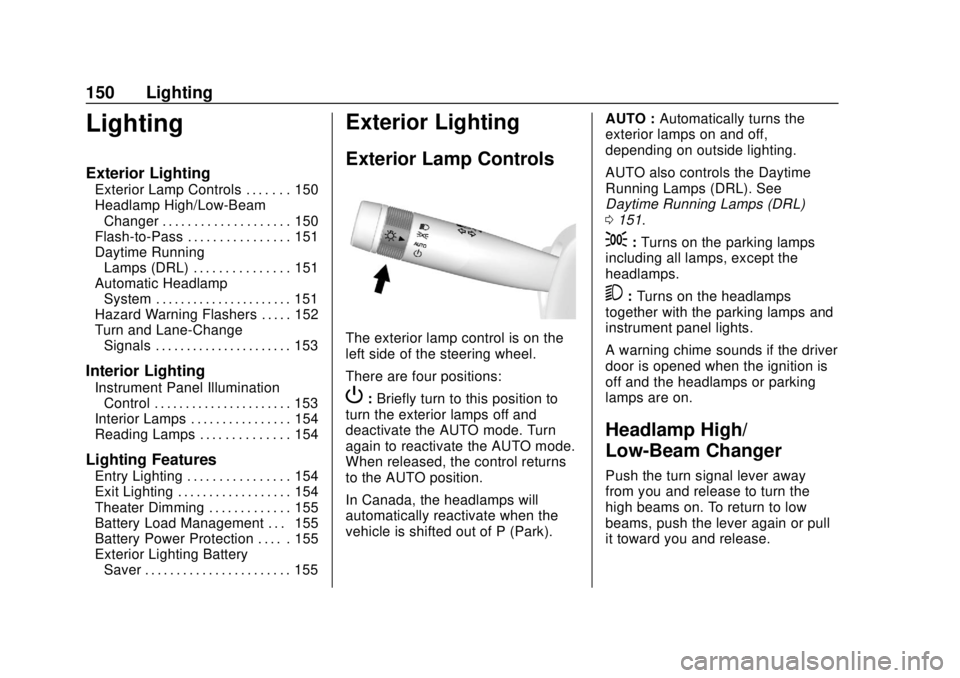
The exterior lamp control is on the
left side of the steering wheel.
There are four positions:
P: Briefly turn to this position to
turn the exterior lamps off and
deactivate the AUTO mode. Turn
again to reactivate the AUTO mode.
When released, the control returns
to the AUTO position.
In Canada, the headlamps will
automatically reactivate when the
vehicle is shifted out of P (Park). AUTO :
Automatically turns the
exterior lamps on and off,
depending on outside lighting.
AUTO also controls the Daytime
Running Lamps (DRL). See
Daytime Running Lamps (DRL)
0 151.
;:Turns on the parking lamps
including all lamps, except the
headlamps.
5: Turns on the headlamps
together with the parking lamps and
instrument panel lights.
A warning chime sounds if the driver
door is opened when the ignition is
off and the headlamps or parking
lamps are on.
Headlamp High/
Low-Beam Changer
Push the turn signal lever away
from you and release to turn the
high beams on. To return to low
beams, push the lever again or pull
it toward you and release.
Page 159 of 393

Chevrolet Camaro Owner Manual (GMNA-Localizing-U.S./Canada/Mexico-
11348325) - 2018 - CRC - 10/23/17
158 Infotainment System
The infotainment system has built-in
features intended to help avoid
distraction by disabling some
functions when driving. These
functions may gray out when they
are unavailable. Many infotainment
features are also available through
the instrument cluster and steering
wheel controls.
Before driving:
.Become familiar with the
operation, center stack controls,
and infotainment display
controls. .
Set up the audio by presetting
favorite stations, setting the
tone, and adjusting the
speakers.
. Set up phone numbers in
advance so they can be called
easily by pressing a single
control or by using a single voice
command if equipped with
Bluetooth phone capability.
See Defensive Driving 0197.
To play the infotainment system with
the ignition off, see Retained
Accessory Power (RAP) 0218.Theft-Deterrent Feature
The infotainment system has an
electronic security system installed
to prevent theft.
The infotainment system only works
in the vehicle in which it was first
installed, and cannot be used in
another vehicle.
Page 161 of 393
Chevrolet Camaro Owner Manual (GMNA-Localizing-U.S./Canada/Mexico-
11348325) - 2018 - CRC - 10/23/17
160 Infotainment System
4.d
.Radio: Press and release to
go to the next station or
channel. Press and hold to
fast seek the next track or
strongest station or
channel.
. USB/Music/Pictures: Press
to go to the next content.
Press and hold to fast
forward.
5.
5
. Press and release to
access the phone screen,
answer an incoming call,
or access the device home
screen.
Home Page
Infotainment Display
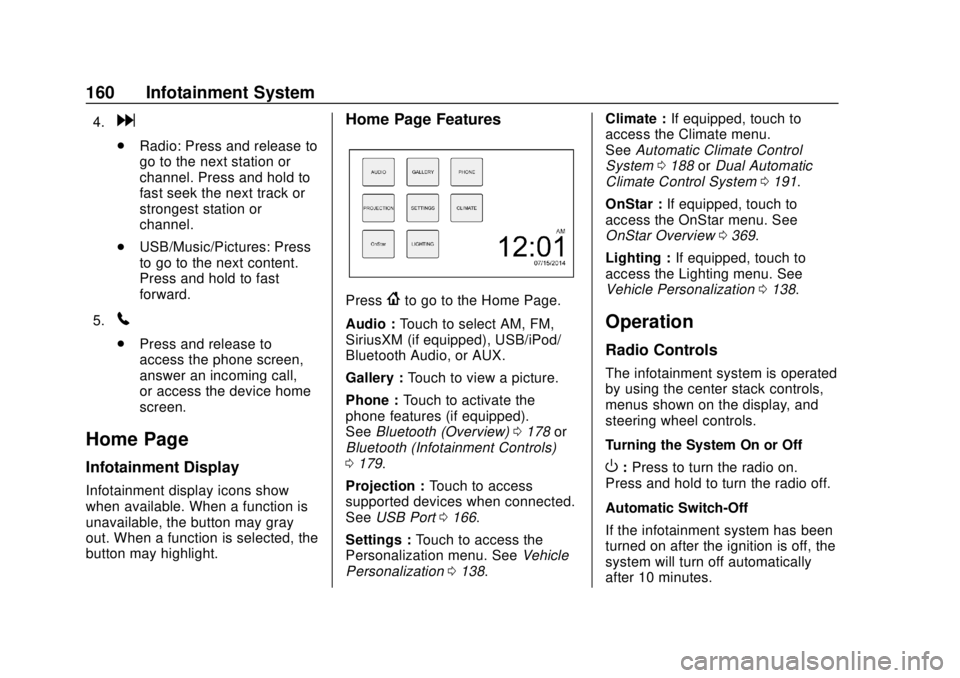
Infotainment display icons show
when available. When a function is
unavailable, the button may gray
out. When a function is selected, the
button may highlight.
Home Page Features
Press{to go to the Home Page.
Audio : Touch to select AM, FM,
SiriusXM (if equipped), USB/iPod/
Bluetooth Audio, or AUX.
Gallery : Touch to view a picture.
Phone : Touch to activate the
phone features (if equipped).
See Bluetooth (Overview) 0178 or
Bluetooth (Infotainment Controls)
0 179.
Projection : Touch to access
supported devices when connected.
See USB Port 0166.
Settings : Touch to access the
Personalization menu. See Vehicle
Personalization 0138. Climate :
If equipped, touch to
access the Climate menu.
See Automatic Climate Control
System 0188 orDual Automatic
Climate Control System 0191.
OnStar : If equipped, touch to
access the OnStar menu. See
OnStar Overview 0369.
Lighting : If equipped, touch to
access the Lighting menu. See
Vehicle Personalization 0138.
Operation
Radio Controls
The infotainment system is operated
by using the center stack controls,
menus shown on the display, and
steering wheel controls.
Turning the System On or Off
O:Press to turn the radio on.
Press and hold to turn the radio off.
Automatic Switch-Off
If the infotainment system has been
turned on after the ignition is off, the
system will turn off automatically
after 10 minutes.
Page 174 of 393
Chevrolet Camaro Owner Manual (GMNA-Localizing-U.S./Canada/Mexico-
11348325) - 2018 - CRC - 10/23/17
Infotainment System 173
Performance Data
Recorder (PDR)
If equipped, the PDR icon displays
on the Home Page.
Important Information
Use of the PDR may be prohibited
or legally restricted in certain
countries and situations. Ensure
compliance with applicable laws and
regulations, including, but not
limited to: privacy laws, laws related
to camera surveillance and
recordings, road traffic and security
laws, and laws on the protection of
publicity and personality rights.
.Do not use the PDR if it causes
distraction.
. Do not rely on camera footage to
steer the vehicle.
. Comply with any notice and
consent requirements before
capturing and/or recording the
voices or images of other
persons or before collecting
other personal data. .
Notify other drivers of your
vehicle of the above rules and
require them to comply.
. General Motors does not accept
any responsibility or liability in
connection with use that is not
permitted.
. Law enforcement authorities
may have the right to seize
video recordings and use them
as evidence of criminal/driving
offenses against you or third
parties.
The PDR records video, audio, and
vehicle data. This data is stored on
a removable SD card. The SD card
reader is below the instrument panel
to the left of the steering wheel and
just above the hood release.
The recorded data is not stored
anywhere else and is only
accessible from the SD card.
To begin, insert a FAT32 formatted
SD card, Class 10 required, 8, 16,
or 32 GB recommended, into the SD
card reader. Touch the PDR icon to access the
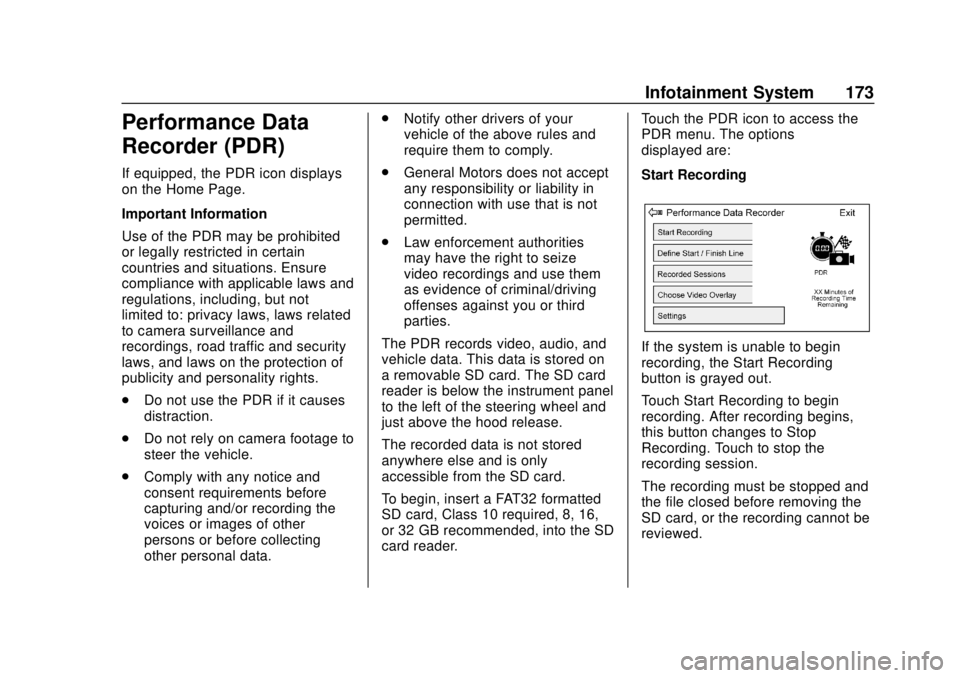
PDR menu. The options
displayed are:
Start Recording
If the system is unable to begin
recording, the Start Recording
button is grayed out.
Touch Start Recording to begin
recording. After recording begins,
this button changes to Stop
Recording. Touch to stop the
recording session.
The recording must be stopped and
the file closed before removing the
SD card, or the recording cannot be
reviewed.
Page 177 of 393
Chevrolet Camaro Owner Manual (GMNA-Localizing-U.S./Canada/Mexico-
11348325) - 2018 - CRC - 10/23/17
176 Infotainment System
.Transmission State (Current
Gear): Automatic and manual
transmissions display 1, 2, etc.
. Lateral G-Force Graphic: Left
and Right G-Forces are
displayed. The graphic fills to the
left or the right depending on the
measure value. The measured
G-Force displays as a number at
the top of the graphic.
. Event Odometer: This displays
the distance driven since the
recording began.
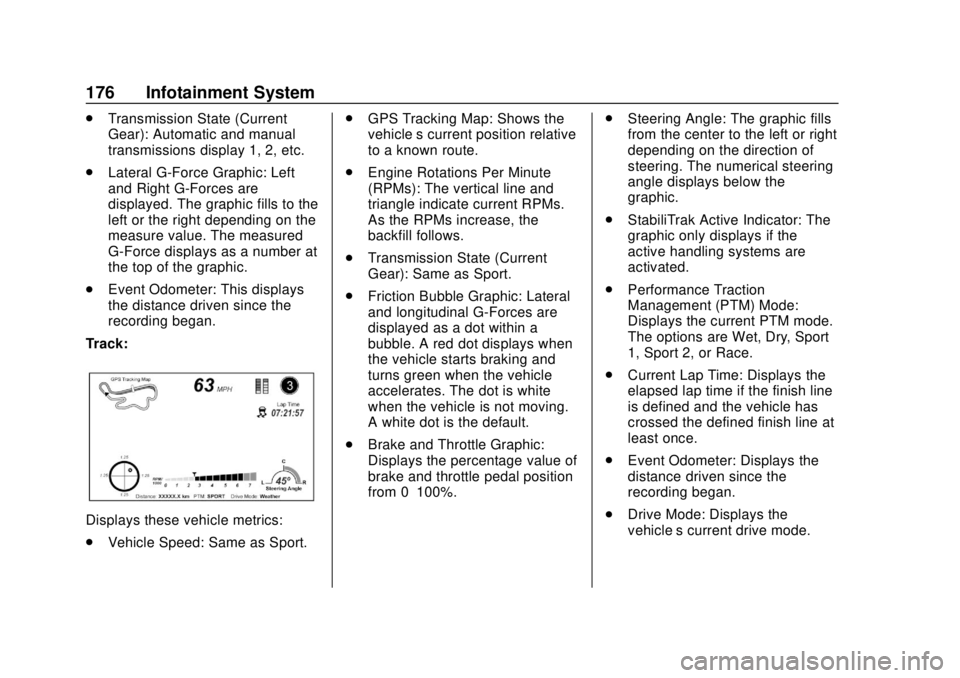
Track:
Displays these vehicle metrics:
. Vehicle Speed: Same as Sport. .
GPS Tracking Map: Shows the
vehicle’s current position relative
to a known route.
. Engine Rotations Per Minute
(RPMs): The vertical line and
triangle indicate current RPMs.
As the RPMs increase, the
backfill follows.
. Transmission State (Current
Gear): Same as Sport.
. Friction Bubble Graphic: Lateral
and longitudinal G-Forces are
displayed as a dot within a
bubble. A red dot displays when
the vehicle starts braking and
turns green when the vehicle
accelerates. The dot is white
when the vehicle is not moving.
A white dot is the default.
. Brake and Throttle Graphic:
Displays the percentage value of
brake and throttle pedal position
from 0–100%. .
Steering Angle: The graphic fills
from the center to the left or right
depending on the direction of
steering. The numerical steering
angle displays below the
graphic.
. StabiliTrak Active Indicator: The
graphic only displays if the
active handling systems are
activated.
. Performance Traction
Management (PTM) Mode:
Displays the current PTM mode.
The options are Wet, Dry, Sport
1, Sport 2, or Race.
. Current Lap Time: Displays the
elapsed lap time if the finish line
is defined and the vehicle has
crossed the defined finish line at
least once.
. Event Odometer: Displays the
distance driven since the
recording began.
. Drive Mode: Displays the
vehicle’s current drive mode.
Page 180 of 393
Chevrolet Camaro Owner Manual (GMNA-Localizing-U.S./Canada/Mexico-
11348325) - 2018 - CRC - 10/23/17
Infotainment System 179
support all functions and not all
phones work with the Bluetooth
system. In the U.S. and Canada,
see www.gm.com/bluetooth for more
information about compatible
phones.
The Bluetooth system range can be
up to 9.1 m (30 ft).
There may be restrictions on using
Bluetooth wireless technology in
some locations.
Due to the variety of Bluetooth
devices and their firmware versions,
the device may respond differently
when performing over Bluetooth.
On a current phone call, an image
of the current contact from the
phone's contact list may be
displayed. Not all phones are
compatible with this feature.
Refer to the cell phone
manufacturer’s user guide for
questions about the phone's
Bluetooth functionality.Bluetooth Controls
If equipped with Bluetooth capability,
use the infotainment controls on the
center stack and the steering wheel
to operate the system.
Steering Wheel Controls
See Steering Wheel Controls 0106.
Bluetooth (Infotainment
Controls)
To use infotainment controls to
access the menu system, see
Overview 0159.
Pairing
A Bluetooth-enabled cell phone
must be paired to the Bluetooth
system and then connected to the
vehicle before it can be used. See
your cell phone manufacturer's user
guide for Bluetooth functions before
pairing the cell phone. If a Bluetooth
phone is not connected, calls will be
made using OnStar Hands-Free
Calling, if available. See OnStar
Overview 0369. Pairing Information
.
A Bluetooth phone with MP3
capability cannot be paired to
the vehicle as a phone and an
MP3 player at the same time.
. Up to 10 cell phones can be
paired to the Bluetooth system.
. The pairing process is disabled
when the vehicle is moving.
. Pairing only needs to be
completed once, unless the
pairing information on the cell
phone changes or the cell phone
is deleted from the system.
. Only one paired cell phone can
be connected to the Bluetooth
system at a time.
. If multiple paired cell phones are
within range of the system, the
system connects to the first
available paired cell phone in the
order that they were first paired.
When the Bluetooth device and
infotainment system are
successfully paired, the phone book
is downloaded automatically. This is
dependent on the type of phone