lock CHEVROLET CAMARO 2021 Service Manual
[x] Cancel search | Manufacturer: CHEVROLET, Model Year: 2021, Model line: CAMARO, Model: CHEVROLET CAMARO 2021Pages: 354, PDF Size: 8.86 MB
Page 107 of 354

Chevrolet Camaro Owner Manual (GMNA-Localizing-U.S./Canada/Mexico-
14583589) - 2021 - CRC - 10/1/20
106 Instruments and Controls
This feature can be turned off or on.
Vehicle Locator Lights
This setting flashes the vehicle’s headlamps
when
Kis pressed on the Remote Keyless
Entry (RKE) transmitter.
Touch Off or On.
Exit Lighting
This setting specifies how long the
headlamps stay on after the vehicle is
turned off and exited.
Touch Off, 30 Seconds, 60 Seconds,
or 120 Seconds.
Power Door Locks
Touch and the following may display:
.Open Door Anti Lock Out
.Auto Door Unlock
.Delayed Door Lock
Open Door Anti Lock Out
This setting prevents the driver door from
locking when the door is open. If this
setting is on, the Delayed Door Lock menu
will not be available.
Touch Off or On. Auto Door Unlock
This allows selection of which of the doors
will automatically unlock when the vehicle is
shifted into P (Park) with an automatic
transmission or when the vehicle is turned
off with a manual transmission.
Select Off, All Doors, or Driver Door.
Delayed Door Lock
When on, this feature will delay the locking
of the doors. To override the delay, press
the power door lock switch on the door.
Touch Off or On.
Remote Lock, Unlock, and Start
Touch and the following may display:
.Remote Unlock Light Feedback
.Remote Lock Feedback
.Remote Door Unlock
.Remote Start Auto Cool Seats
.Remote Start Auto Heat Seats
.Remote Window Operation
.Passive Door Unlock
.Passive Door Lock
.Remote Left in Vehicle Alert
Remote Unlock Light Feedback
This setting flashes the exterior lamps when
the vehicle is unlocked with the RKE
transmitter.
Touch Off or Flash Lights.
Remote Lock Feedback
This setting specifies how the vehicle
responds when the vehicle is locked with
the RKE transmitter.
Touch Off, Lights and Horn, Lights Only,
or Horn Only.
Remote Door Unlock
This setting specifies whether all doors,
or just the driver door, unlock when pressing
Kon the RKE transmitter.
Touch All Doors or Driver Door.
Remote Start Auto Cool Seats
If equipped and turned on, this feature will
turn the ventilated seats on when using
remote start on warm days.
Touch Off, On-Driver and Passenger,
or On-Driver.
Page 108 of 354

Chevrolet Camaro Owner Manual (GMNA-Localizing-U.S./Canada/Mexico-
14583589) - 2021 - CRC - 10/1/20
Instruments and Controls 107
Remote Start Auto Heat Seats
This setting automatically turns on the
heated seats when using the remote start
function on cold days. SeeHeated and
Ventilated Front Seats 039 and
Remote Vehicle Start 014.
Touch Off, On-Driver and Passenger,
or On-Driver.
Remote Window Operation
If equipped, this feature enables remote
operation of the windows with the RKE
transmitter. See Remote Keyless Entry (RKE)
System Operation 07.
Touch Off or On.
Passive Door Unlock
This setting specifies which doors unlock
when using the button on the driver door
handle to unlock the vehicle.
Touch Off, All Doors, or Driver Door Only.
Passive Door Lock
This setting specifies if the vehicle will
automatically lock, or lock and provide an
alert after all the doors are closed, and you
walk away from the vehicle with the RKE
transmitter. See Remote Keyless Entry (RKE)
System Operation 07. Touch Off, On with Horn Chirp, or On.
Remote Left in Vehicle Alert
This feature sounds an alert when the RKE
transmitter is left in the vehicle. This menu
also enables Remote No Longer in Vehicle
Alert.
Touch Off or On.
Seating Position
Touch and the following may display:
.Seat Entry Memory
.Seat Exit Memory
Seat Entry Memory
This feature automatically recalls the
previously stored 1 or 2 button positions
when the ignition is changed from off to on
or ACC/ACCESSORY. See Memory Seats036.
Touch Off or On.
Seat Exit Memory
This feature automatically recalls the
previously stored exit button positions when
the ignition is changed from on or ACC/
ACCESSORY to off if the driver door is open
or opened. See Memory Seats036.
Touch Off or On.
Teen Driver
See Teen Driver 0162.
Valet Mode
This will lock the infotainment system and
steering wheel controls. It may also limit
access to vehicle storage locations,
if equipped.
To enable valet mode:
1. Enter a four-digit code on the keypad.
2. Touch Enter to go to the confirmation screen.
3. Re-enter the four-digit code.
Touch Lock or Unlock to lock or unlock the
system. Touch Back to go back to the
previous menu.
Page 112 of 354
Chevrolet Camaro Owner Manual (GMNA-Localizing-U.S./Canada/Mexico-
14583589) - 2021 - CRC - 10/1/20
Lighting 111
Interior Lighting
Instrument Panel Illumination
Control
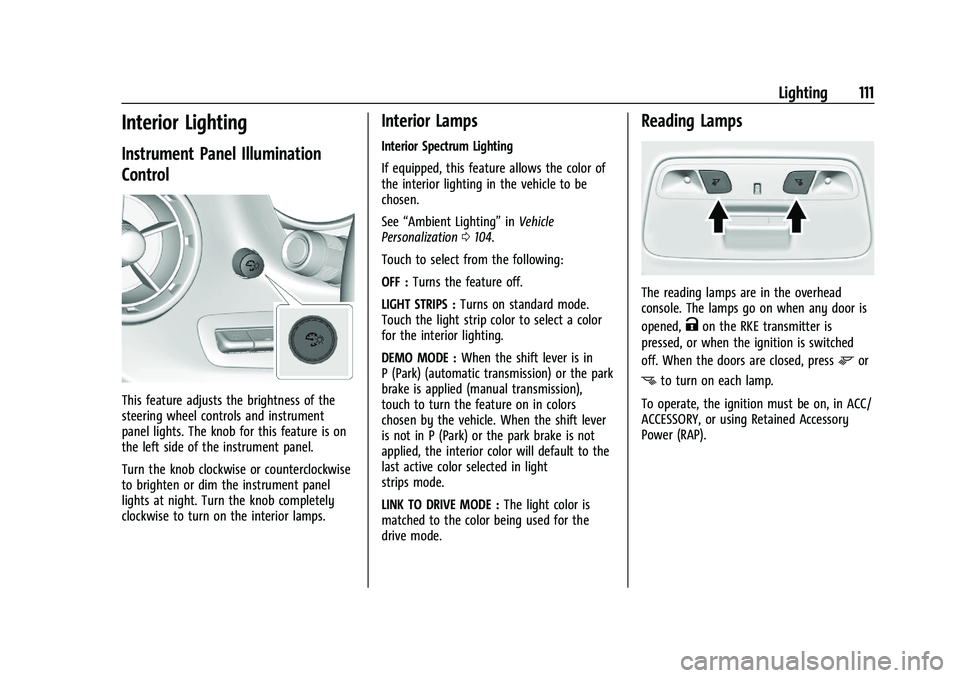
This feature adjusts the brightness of the
steering wheel controls and instrument
panel lights. The knob for this feature is on
the left side of the instrument panel.
Turn the knob clockwise or counterclockwise
to brighten or dim the instrument panel
lights at night. Turn the knob completely
clockwise to turn on the interior lamps.
Interior Lamps
Interior Spectrum Lighting
If equipped, this feature allows the color of
the interior lighting in the vehicle to be
chosen.
See“Ambient Lighting” inVehicle
Personalization 0104.
Touch to select from the following:
OFF : Turns the feature off.
LIGHT STRIPS : Turns on standard mode.
Touch the light strip color to select a color
for the interior lighting.
DEMO MODE : When the shift lever is in
P (Park) (automatic transmission) or the park
brake is applied (manual transmission),
touch to turn the feature on in colors
chosen by the vehicle. When the shift lever
is not in P (Park) or the park brake is not
applied, the interior color will default to the
last active color selected in light
strips mode.
LINK TO DRIVE MODE : The light color is
matched to the color being used for the
drive mode.
Reading Lamps
The reading lamps are in the overhead
console. The lamps go on when any door is
opened,
Kon the RKE transmitter is
pressed, or when the ignition is switched
off. When the doors are closed, press
mor
nto turn on each lamp.
To operate, the ignition must be on, in ACC/
ACCESSORY, or using Retained Accessory
Power (RAP).
Page 113 of 354

Chevrolet Camaro Owner Manual (GMNA-Localizing-U.S./Canada/Mexico-
14583589) - 2021 - CRC - 10/1/20
112 Lighting
Lighting Features
Entry Lighting
Some exterior lamps and interior lamps turn
on briefly at night, or in areas with limited
lighting, when
Kis pressed on the Remote
Keyless Entry (RKE) transmitter. After about
30 seconds the exterior lamps turn off.
Entry lighting can be disabled manually by
turning the ignition on or to ACC/
ACCESSORY, or by pressing
Qon the RKE
transmitter. When any door is opened or
remote unlock pressed, all interior lights
turn on and then interior lamps dim to off
after 20 seconds.
The entry lighting feature for exterior
lighting can be changed. See “Vehicle
Locator Lights” underVehicle Personalization
0 104.
Exit Lighting
Some exterior lamps come on at night or in
areas with limited lighting when the driver
door is opened after the ignition is
turned off.
The interior lamps come on after the
ignition is turned off or any door is opened. The exterior and interior lamps remain on
after the door is closed for a set amount of
time then automatically turn off.
Exit lighting for exterior lights can be
changed. See
Vehicle Personalization 0104.
Theater Dimming
This feature allows for a three to five
second fade out of the interior lamps
instead of having them turn off
immediately.
Battery Load Management
The vehicle has Electric Power Management
(EPM) that estimates the battery's
temperature and state of charge. It then
adjusts the voltage for best performance
and extended life of the battery.
When the battery's state of charge is low,
the voltage is raised slightly to quickly bring
the charge back up. When the state of
charge is high, the voltage is lowered
slightly to prevent overcharging. If the
vehicle has a voltmeter gauge or a voltage
display on the Driver Information Center
(DIC), you may see the voltage move up or
down. This is normal. If there is a problem,
an alert will be displayed. The battery can be discharged at idle if the
electrical loads are very high. This is true for
all vehicles. This is because the generator
(alternator) may not be spinning fast
enough at idle to produce all of the power
needed for very high electrical loads.
A high electrical load occurs when several of
the following are on, such as: headlamps,
high beams, rear window defogger, climate
control fan at high speed, heated seats,
engine cooling fans, trailer loads, and loads
plugged into accessory power outlets.
EPM works to prevent excessive discharge of
the battery. It does this by balancing the
generator's output and the vehicle's
electrical needs. It can increase engine idle
speed to generate more power whenever
needed. It can temporarily reduce the power
demands of some accessories.
Normally, these actions occur in steps or
levels, without being noticeable. In rare
cases at the highest levels of corrective
action, this action may be noticeable to the
driver. If so, a DIC message might be
displayed and it is recommended that the
driver reduce the electrical loads as much as
possible.
Page 157 of 354
Chevrolet Camaro Owner Manual (GMNA-Localizing-U.S./Canada/Mexico-
14583589) - 2021 - CRC - 10/1/20
156 Infotainment System
Features are subject to change. For further
information on how to set up Android Auto
and Apple CarPlay in the vehicle, see
my.chevrolet.com.
Android Auto is provided by Google and is
subject to Google’s terms and privacy policy.
Apple CarPlay is provided by Apple and is
subject to Apple’s terms and privacy policy.
Data plan rates apply. For Android Auto
support see https://support.google.com/
androidauto. For Apple CarPlay support see
www.apple.com/ios/carplay/. Apple or
Google may change or suspend availability
at any time. Android Auto, Android, Google,
Google Play, and other marks are
trademarks of Google Inc.; Apple CarPlay is a
trademark of Apple Inc.
Press
{on the center stack to exit Android
Auto or Apple CarPlay. To enter back into
Android Auto or Apple CarPlay, press and
hold
{on the center stack.
Apple CarPlay and Android Auto can be
disabled from the infotainment system. To
do this, touch Home, Settings, and then
touch the Apps tab along the top of the
display. Use the On/Off toggled to turn off
Apple CarPlay or Android Auto.
Settings
Certain settings can be managed in the
Owner Center sites when an account is
established, and may be modified if other
users have accessed the vehicle or created
accounts. This may result in changes to the
security or functionality of the infotainment
system. Some settings may also be
transferred to a new vehicle, if equipped. For
instructions, in the U.S. see
my.chevrolet.com or in Canada see
mychevrolet.ca or monchevrolet.ca.
Refer to the User Terms and Privacy
Statement for important details. To view,
touch the Settings icon on the Home Page
of the infotainment display.
The settings menu may be organized into
four categories. Select the desired category
by touching System, Apps, Vehicle,
or Personal.
To access the personalization menus: 1. Touch Settings on the Home Page on the infotainment display.
2. Touch the desired category to display a list of available options.
3. Touch to select the desired feature setting. 4. Touch the options on the infotainment
display to disable or enable a feature.
5. Touchzto go to the top level of the
Settings menu.
System
The menu may contain the following:
Time / Date
Use the following features to set the clock:
.Automatic Time and Date: Touch Off or
On to enable or disable automatic update
of the time and date. When this feature
is on, the time and date cannot be
manually set.
.Set Time: Touch to manually set the time
using the controls on the infotainment
display.
.Set Date: Touch to manually set the date
using the controls on the infotainment
display.
.Automatic Time Zone (If Equipped): Touch
Off or On to disable or enable automatic
update of the time zone based on vehicle
location. When this feature is on, the
time zone cannot be manually set.
.Select Time Zone: Touch to manually set
the time zone. Touch a time zone from
the list.
Page 158 of 354
Chevrolet Camaro Owner Manual (GMNA-Localizing-U.S./Canada/Mexico-
14583589) - 2021 - CRC - 10/1/20
Infotainment System 157
.Use 24-hour Format: Touch to specify the
clock format shown.
Touch Off or On to disable or enable.
Language
This will set the display language used on
the infotainment display. It may also use
the selected language for voice recognition
and audio feedback. Touch Language and
touch the appropriate language.
Phones
Touch to connect to a different cell phone or
mobile device source, disconnect a cell
phone or media device, or delete a cell
phone or media device.
Wi-Fi Networks
This will show connected and available Wi-Fi
networks.
If a 4G LTE data package is not active on the
vehicle, the infotainment system can be
connected to an external protected Wi-Fi
network, such as a mobile device or home
hotspot, to utilize connected services.
Wi-Fi Hotspot
Touch and the following may display:
.Wi-Fi Services: This allows devices to use
the vehicle hotspot. Touch the controls on the infotainment
display to disable or enable.
.Wi-Fi Name: Touch to change the vehicle
Wi-Fi name.
.Wi-Fi Password: Touch to change the
vehicle Wi-Fi password.
.Connected Devices: Touch to show
connected devices.
.Share Hotspot Data: Touch On to allow
devices to use the vehicle hotspot and its
data, or touch Off to allow devices to
only use the vehicle hotspot but not
its data.
Privacy
Touch and the following may display:
.Location Services: This setting enables or
disables sharing of vehicle location
outside the vehicle. Emergency services
will not be affected when Off is selected.
.Data Services: If equipped, this setting
determines if data sharing can be used by
features including Wi-Fi, Hotspot, and
applications. Touch Off to disable data
services. Emergency services and phone
calls, such as calls with OnStar Advisors or
others, will not be affected when Off is
selected.
.Voice Recognition Sharing: This setting
determines if voice commands can be
shared with a cloud-based voice
recognition system. Touch Off to prevent
the sharing and possible recording of your
voice commands with this system. This
may limit the system’s ability to
understand your voice commands and
may disable some features.
.Types: This setting lists all
Android-defined as dangerous permissions
currently used by the infotainment
system, the number of applications that
have requested this permission, and the
number of applications that are allowed
to use this permission.
.Used By Applications: This setting lists all
applications that are requested or are
using Android-defined as dangerous
permissions. Only requested and active
permissions are shown.
Display
Touch and the following may display:
.Mode: This adjusts the appearance of the
navigation map view and any
downloaded apps optimized for day or
night time conditions. Set to Auto for the
display to automatically adjust based on
bright/dark conditions.
Page 165 of 354
Chevrolet Camaro Owner Manual (GMNA-Localizing-U.S./Canada/Mexico-
14583589) - 2021 - CRC - 10/1/20
164 Infotainment System
When Teen Driver is Active:
.If equipped with Buckle to Drive, shifting
out of P (Park) will be prevented if the
driver seat belt, and in some vehicles the
front passenger seat belt, is not buckled.
.The radio will mute when the driver seat
belt, and in some vehicles the front
passenger seat belt, is not buckled. The
audio from any device paired to the
vehicle will also be muted.
.An object placed on the front passenger
seat, such as a briefcase, handbag,
grocery bag, laptop, or other electronic
device, could cause the passenger sensing
system to falsely sense an unbuckled
front passenger and mute the radio.
If this happens, remove the object from
the seat. SeePassenger Sensing System
0 53.
.Some safety systems, such as Forward
Collision Alert, if equipped, cannot be
turned off.
.The gap setting for the Forward Collision
Alert and Adaptive Cruise Control,
if equipped, cannot be changed.
.When trying to change a safety feature
that is not configurable in Teen Driver,
the DIC displays a message indicating
that Teen Driver is active and the action
is not available.
.Super Cruise, if equipped, is not available.
.Enhanced Low Fuel Warning (if equipped)
–When the vehicle is low on fuel, the
low fuel light on the instrument cluster
flashes and the DIC low fuel warning
cannot be dismissed.
.Do not tow a trailer.
Report Card
The vehicle owner must secure the driver’s
consent to record certain vehicle data when
the vehicle is driven with a registered Teen
Driver key. There is one Report Card per
vehicle. Data is only recorded when a
registered Teen Driver key is used to
operate the vehicle.
The Report Card data is collected from the
time Teen Driver is activated or the last
time the Report Card was reset. The
following items may be recorded:
.Distance Driven –the total distance
driven.
.Maximum Speed –the maximum vehicle
speed detected.
.Overspeed Warnings –the number of
times the speed warning setting was
exceeded.
.Wide Open Throttle –the number of
times the accelerator pedal was pressed
nearly all the way down.
.Forward Collision Alerts –the number of
times the driver was notified when
approaching a vehicle ahead too quickly
and at potential risk for a crash.
.Forward Automatic Braking, also called
Automatic Emergency Braking (if
equipped) –the number of times the
vehicle detected that a forward collision
was imminent and applied the brakes.
.Reverse Automatic Braking (if equipped) –
the number of times the vehicle detected
that a rearward collision was imminent
and applied the brakes.
.Traction Control –the number of times
the Traction Control System activated to
reduce wheel spin or loss of traction.
.Stability Control –the number of events
which required the use of electronic
stability control.
.Antilock Braking System Active –The
number of Antilock Brake System
activations.
Page 167 of 354

Chevrolet Camaro Owner Manual (GMNA-Localizing-U.S./Canada/Mexico-
14583589) - 2021 - CRC - 10/1/20
166 Infotainment System
Explicit Language Notice: Channels with
frequent explicit language are indicated with
an“XL” preceding the channel name.
Channel blocking is available for SiriusXM
Satellite Radio receivers by notifying
SiriusXM:
.USA Customers —See www.siriusxm.com
or call 1-888-601–6296.
.Canada Customers —See
www.siriusxm.ca or call 1-877-438-9677.
It is prohibited to copy, decompile,
disassemble, reverse engineer, hack,
manipulate, or otherwise make available any
technology or software incorporated in
receivers compatible with the SiriusXM
Satellite Radio System or that support the
SiriusXM website, the Online Service or any
of its content. Furthermore, the AMBER voice
compression software included in this
product is protected by intellectual property
rights including patent rights, copyrights,
and trade secrets of Digital Voice
Systems, Inc.
General Requirements: 1. A License Agreement from SiriusXM is required for any product that
incorporates SiriusXM Technology and/or
for use of any of the SiriusXM marks to be manufactured, distributed,
or marketed in the SiriusXM
Service Area.
2. For products to be distributed, marketed, and/or sold in Canada, a separate
agreement is required with Canadian
Satellite Radio Inc. (operating as SiriusXM
Canada).
TouchSense Technology and TouchSense
System 1000 Series Licensed from
Immersion Corporation. TouchSense System
1000 protected under one or more of the
U.S. Patents at the following address
www.immersion.com/patent-marking.html
and other patents pending.
Bose
Bose AudioPilot and Bose Centerpoint
surround are registered trademarks of Bose
Corporation in the U.S. and other countries. HD Radio Technology
HD Radio Technology manufactured under
license from iBiquity Digital Corporation. U.S.
and Foreign Patents. For patents see
http://dts.com/patents. HD Radio and the
HD, HD Radio, and
“ARC”logos are
registered trademarks or trademarks of
iBiquity Digital Corporation in the United
States and/or other countries.
Bluetooth
The Bluetooth word mark and logos are
owned by the Bluetooth SIG, Inc. and any
use of such marks by General Motors is
under license. Other trademarks and trade
names are those of their respective owners.
Java
Java is a registered trademark of Oracle
and/or its affiliates.
Page 175 of 354
Chevrolet Camaro Owner Manual (GMNA-Localizing-U.S./Canada/Mexico-
14583589) - 2021 - CRC - 10/1/20
174 Climate Controls
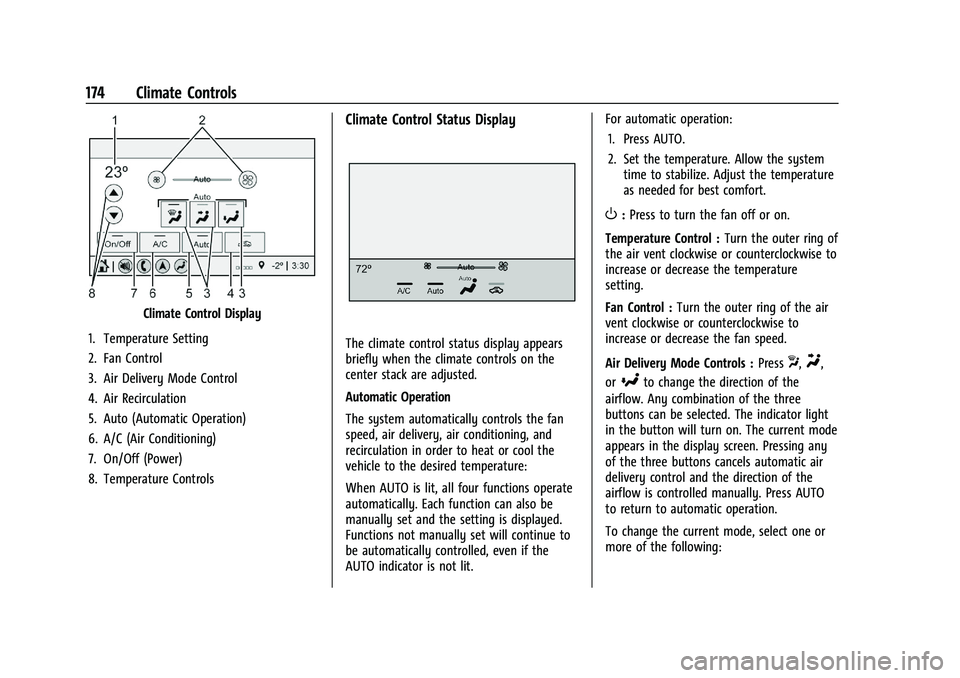
Climate Control Display
1. Temperature Setting
2. Fan Control
3. Air Delivery Mode Control
4. Air Recirculation
5. Auto (Automatic Operation)
6. A/C (Air Conditioning)
7. On/Off (Power)
8. Temperature Controls
Climate Control Status Display
The climate control status display appears
briefly when the climate controls on the
center stack are adjusted.
Automatic Operation
The system automatically controls the fan
speed, air delivery, air conditioning, and
recirculation in order to heat or cool the
vehicle to the desired temperature:
When AUTO is lit, all four functions operate
automatically. Each function can also be
manually set and the setting is displayed.
Functions not manually set will continue to
be automatically controlled, even if the
AUTO indicator is not lit. For automatic operation:
1. Press AUTO.
2. Set the temperature. Allow the system time to stabilize. Adjust the temperature
as needed for best comfort.
O:Press to turn the fan off or on.
Temperature Control : Turn the outer ring of
the air vent clockwise or counterclockwise to
increase or decrease the temperature
setting.
Fan Control : Turn the outer ring of the air
vent clockwise or counterclockwise to
increase or decrease the fan speed.
Air Delivery Mode Controls : Press
X,Y,
or
[to change the direction of the
airflow. Any combination of the three
buttons can be selected. The indicator light
in the button will turn on. The current mode
appears in the display screen. Pressing any
of the three buttons cancels automatic air
delivery control and the direction of the
airflow is controlled manually. Press AUTO
to return to automatic operation.
To change the current mode, select one or
more of the following:
Page 178 of 354
Chevrolet Camaro Owner Manual (GMNA-Localizing-U.S./Canada/Mexico-
14583589) - 2021 - CRC - 10/1/20
Climate Controls 177
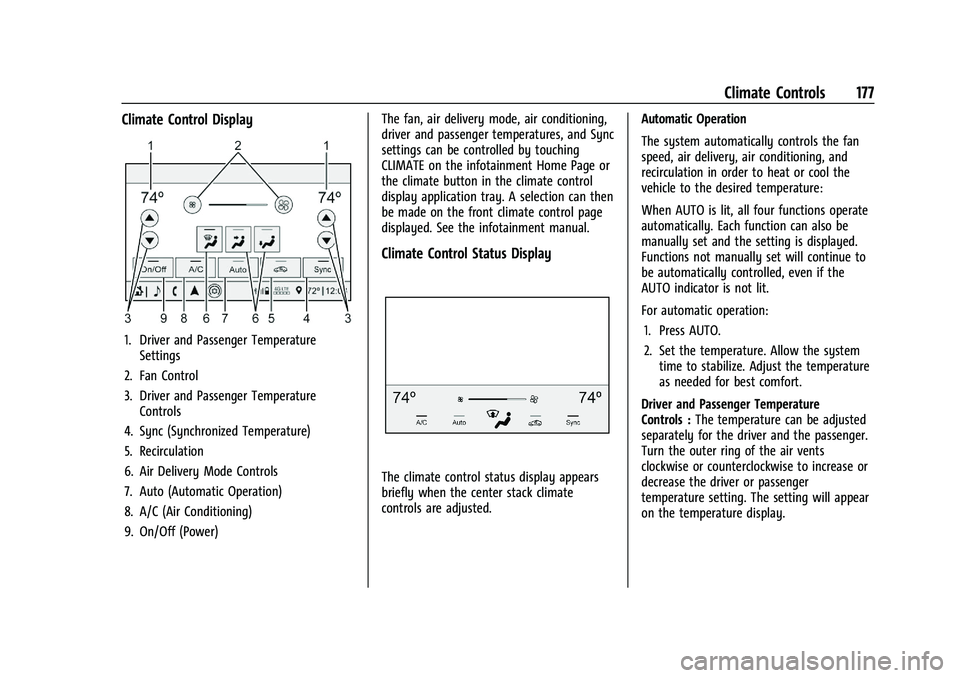
Climate Control Display
1. Driver and Passenger TemperatureSettings
2. Fan Control
3. Driver and Passenger Temperature Controls
4. Sync (Synchronized Temperature)
5. Recirculation
6. Air Delivery Mode Controls
7. Auto (Automatic Operation)
8. A/C (Air Conditioning)
9. On/Off (Power) The fan, air delivery mode, air conditioning,
driver and passenger temperatures, and Sync
settings can be controlled by touching
CLIMATE on the infotainment Home Page or
the climate button in the climate control
display application tray. A selection can then
be made on the front climate control page
displayed. See the infotainment manual.
Climate Control Status Display
The climate control status display appears
briefly when the center stack climate
controls are adjusted.
Automatic Operation
The system automatically controls the fan
speed, air delivery, air conditioning, and
recirculation in order to heat or cool the
vehicle to the desired temperature:
When AUTO is lit, all four functions operate
automatically. Each function can also be
manually set and the setting is displayed.
Functions not manually set will continue to
be automatically controlled, even if the
AUTO indicator is not lit.
For automatic operation:
1. Press AUTO.
2. Set the temperature. Allow the system time to stabilize. Adjust the temperature
as needed for best comfort.
Driver and Passenger Temperature
Controls : The temperature can be adjusted
separately for the driver and the passenger.
Turn the outer ring of the air vents
clockwise or counterclockwise to increase or
decrease the driver or passenger
temperature setting. The setting will appear
on the temperature display.