service CHEVROLET CAMARO 2022 Service Manual
[x] Cancel search | Manufacturer: CHEVROLET, Model Year: 2022, Model line: CAMARO, Model: CHEVROLET CAMARO 2022Pages: 357, PDF Size: 7.99 MB
Page 157 of 357
Chevrolet Camaro Owner Manual (GMNA-Localizing-U.S./Canada/Mexico-
14583589) - 2021 - CRC - 3/24/20
156 Infotainment System
To make a call using the Recents menu:1. Touch Phone on the Home Page.
2. Touch Recents.
3. Touch the name or number to call.
Making a Call Using the Keypad
To make a call by dialing the numbers:1. Touch the Phone icon on the Home Page.
2. Touch Keypad and enter a phone number.
3. Touch
#on the infotainment display to
start dialing the number.
Searching Contacts Using the Keypad
To search for contacts using the keypad:
1. Touch the Phone icon on the Home Page.
2. Touch Keypad and enter partial phone numbers or contact names using the
digits on the keypad to search.
Results will show on the right side of the
display. Touch one to place a call.
Accepting or Declining a Call
When an incoming call is received, the
infotainment system mutes and a ring tone
is heard in the vehicle.
Accepting a Call
There are two ways to accept a call:
.Pressgon the steering wheel controls.
.Touch Answer on the infotainment
display.
Declining a Call
There are two ways to decline a call:
.Pression the steering wheel controls.
.Touch Ignore on the infotainment display.
Call Waiting
Call waiting must be supported on the
Bluetooth cell phone and enabled by the
wireless service carrier to work.
Accepting a Call
Press
gto answer, then touch Switch on
the infotainment display.
Declining a Call
Press
ito decline, then touch Ignore on
the infotainment display Switching Between Calls (Call Waiting
Calls Only)
To switch between calls, touch Phone on the
Home Page to display Call View. While in
Call View, touch the call information of the
call on hold to change calls.
Three-Way Calling
Three-way calling must be supported on the
Bluetooth cell phone and enabled by the
wireless service carrier to work.
To start a three-way call while in a
current call:
1. In the Call View, touch Add Call to add another call.
2. Initiate the second call by selecting from Recents, Contacts, or Keypad.
3. When the second call is active, touch the merge icon to conference the three-way
call together.
Ending a Call
.Pression the steering wheel controls.
.Touch#on the infotainment display,
next to a call, to end only that call.
Page 158 of 357
Chevrolet Camaro Owner Manual (GMNA-Localizing-U.S./Canada/Mexico-
14583589) - 2021 - CRC - 3/24/20
Infotainment System 157
Dual Tone Multi-Frequency (DTMF) Tones
The in-vehicle Bluetooth system can send
numbers during a call. This is used when
calling a menu-driven phone system. Use the
Keypad to enter the number.
Apple CarPlay and Android Auto
If equipped, Android Auto and/or Apple
CarPlay capability may be available through
a compatible smartphone. If available, the
Android Auto and Apple CarPlay icons will
change from gray to color on the Home
Page of the infotainment display.
To use Android Auto and/or Apple CarPlay:
For Wired Phone Projection1. Download the Android Auto app to your smartphone from the Google Play store.
There is no app required for Apple
CarPlay.
2. Connect your Android phone or Apple iPhone by using the factory-provided
phone USB cable and plugging into a
USB data port. For best performance, it is
highly recommended to use the device’s
factory-provided USB cable. Aftermarket
or third-party cables may not work. 3. When the phone is first connected to
activate Apple CarPlay or Android Auto,
accept the terms and conditions on both
the infotainment system and the phone.
4. Follow the instructions on the phone.
The Android Auto and Apple CarPlay icons
on the Home Page will illuminate depending
on the smartphone. Android Auto and/or
Apple CarPlay may automatically launch
upon USB connection. If not, touch the
Android Auto or Apple CarPlay icon on the
Home Page to launch.
Press
{on the center stack to return to the
Home Page.
For Wireless Phone Projection
Verify your phone is wireless compatible by
visiting the Google Android Auto or Apple
CarPlay support page.
1. Download the Android Auto app to your smartphone from the Google Play store.
There is no app required for Apple
CarPlay.
2. For first time connection, there are two ways to set up wireless projection:
.Connect your Android phone or Apple
iPhone by using the factory-provided
phone USB cable and plugging into a USB data port. For best performance,
it is highly recommended to use the
device’s factory-provided USB cable.
Aftermarket or third-party cables may
not work.
.Connecting the phone over Bluetooth.
See
Bluetooth (Overview) 0152 or
Bluetooth (Pairing and Using a Phone)
0 153.
3. Make sure wireless is turned on the phone for wireless projection to work.
4. When the phone is first connected to activate Apple CarPlay or Android Auto,
agree to the terms and conditions on
both the infotainment system and the
phone.
5. Follow the instructions on the phone.
The Android Auto and Apple CarPlay icons
on the Home Page will illuminate depending
on the smartphone. Android Auto and/or
Apple CarPlay may automatically launch
upon wireless connection. If not, touch the
Android Auto or Apple CarPlay icon on the
Home Page to launch.
Wireless Carplay and/or Wireless Android
Auto may experience occasional service
disruption due to outside Wi-Fi interference.
Page 160 of 357
Chevrolet Camaro Owner Manual (GMNA-Localizing-U.S./Canada/Mexico-
14583589) - 2021 - CRC - 3/24/20
Infotainment System 159
.Set Time: Touch to manually set the time
using the controls on the infotainment
display.
.Set Date: Touch to manually set the date
using the controls on the infotainment
display.
.Automatic Time Zone (If Equipped): Touch
Off or On to disable or enable automatic
update of the time zone based on vehicle
location. When this feature is on, the
time zone cannot be manually set.
.Select Time Zone: Touch to manually set
the time zone. Touch a time zone from
the list.
.Use 24-hour Format: Touch to specify the
clock format shown.
Touch Off or On to disable or enable.
Language
This will set the display language used on
the infotainment display. It may also use
the selected language for voice recognition
and audio feedback. Touch Language and
touch the appropriate language. Phones
Touch to connect to a different cell phone or
mobile device source, disconnect a cell
phone or media device, or delete a cell
phone or media device.
Wi-Fi Networks
This will show connected and available Wi-Fi
networks.
If a 4G LTE data package is not active on the
vehicle, the infotainment system can be
connected to an external protected Wi-Fi
network, such as a mobile device or home
hotspot, to utilize connected services.
Wi-Fi Hotspot
Touch and the following may display:
.Wi-Fi Services: This allows devices to use
the vehicle hotspot.
Touch the controls on the infotainment
display to disable or enable.
.Wi-Fi Name: Touch to change the vehicle
Wi-Fi name.
.Wi-Fi Password: Touch to change the
vehicle Wi-Fi password.
.Connected Devices: Touch to show
connected devices.
.Share Hotspot Data: Touch On to allow
devices to use the vehicle hotspot and its
data, or touch Off to allow devices to
only use the vehicle hotspot but not
its data.
Privacy
Touch and the following may display:
.Location Services: This setting enables or
disables sharing of vehicle location
outside the vehicle. Emergency services
will not be affected when Off is selected.
.Data Services: If equipped, this setting
determines if data sharing can be used by
features including Wi-Fi, Hotspot, and
applications. Touch Off to disable data
services. Emergency services and phone
calls, such as calls with OnStar Advisors or
others, will not be affected when Off is
selected.
.Voice Recognition Sharing: This setting
determines if voice commands can be
shared with a cloud-based voice
recognition system. Touch Off to prevent
the sharing and possible recording of your
voice commands with this system. This
may limit the system’s ability to
understand your voice commands and
may disable some features.
Page 169 of 357
Chevrolet Camaro Owner Manual (GMNA-Localizing-U.S./Canada/Mexico-
14583589) - 2021 - CRC - 3/24/20
168 Infotainment System
If you decide to continue service after your
trial, your selected subscription plan will
automatically renew thereafter. You will be
charged at then-current rates. Fees and taxes
apply. Please see the SiriusXM Customer
Agreement at siriusxm.com for complete
terms and how to cancel, which includes
calling SiriusXM at 1-866-635-2349. All fees
and programming are subject to change.
Fees and Taxes: Subscription fee, taxes, one
time activation fee, and other fees may
apply. Subscription fee is consumer only. All
fees and programming subject to change.
Subscriptions subject to Customer
Agreement available at www.siriusxm.com.
SiriusXM service is only available in the
48 contiguous United States and Canada.
In Canada: Some deterioration of service
may occur in extreme northern latitudes.
This is beyond the control of SiriusXM
Satellite Radio.Explicit Language Notice: Channels with
frequent explicit language are indicated with
an
“XL” preceding the channel name.
Channel blocking is available for SiriusXM
Satellite Radio receivers by notifying
SiriusXM:.USA Customers —See www.siriusxm.com
or call 1-888-601–6296.
.Canada Customers —See
www.siriusxm.ca or call 1-877-438-9677.
It is prohibited to copy, decompile,
disassemble, reverse engineer, hack,
manipulate, or otherwise make available any
technology or software incorporated in
receivers compatible with the SiriusXM
Satellite Radio System or that support the
SiriusXM website, the Online Service or any
of its content. Furthermore, the AMBER voice
compression software included in this
product is protected by intellectual property
rights including patent rights, copyrights,
and trade secrets of Digital Voice
Systems, Inc.
General Requirements: 1. A License Agreement from SiriusXM is required for any product that
incorporates SiriusXM Technology and/or
for use of any of the SiriusXM marks to be manufactured, distributed,
or marketed in the SiriusXM
Service Area.
2. For products to be distributed, marketed, and/or sold in Canada, a separate
agreement is required with Canadian
Satellite Radio Inc. (operating as SiriusXM
Canada).
TouchSense Technology and TouchSense
System 1000 Series Licensed from
Immersion Corporation. TouchSense System
1000 protected under one or more of the
U.S. Patents at the following address
www.immersion.com/patent-marking.html
and other patents pending.
Bose
Bose AudioPilot and Bose Centerpoint
surround are registered trademarks of Bose
Corporation in the U.S. and other countries.
Page 170 of 357
Chevrolet Camaro Owner Manual (GMNA-Localizing-U.S./Canada/Mexico-
14583589) - 2021 - CRC - 3/24/20
Infotainment System 169
HD Radio Technology
HD Radio Technology manufactured under
license from iBiquity Digital Corporation. U.S.
and Foreign Patents. For patents see http://
dts.com/patents. HD Radio and the HD, HD
Radio, and“ARC”logos are registered
trademarks or trademarks of iBiquity Digital
Corporation in the United States and/or
other countries.
Bluetooth
The Bluetooth word mark and logos are
owned by the Bluetooth SIG, Inc. and any
use of such marks by General Motors is
under license. Other trademarks and trade
names are those of their respective owners.
Java
Java is a registered trademark of Oracle
and/or its affiliates.
Schedule I: Gracenote EULA
Music recognition technology and related
data are provided by Gracenote. Gracenote
is the industry standard in music recognition
technology and related content delivery. For
more information see www.gracenote.com.
Music-related data from Gracenote, Inc.,
copyright © 2000 to present Gracenote.
Gracenote Software, copyright © 2000 to
present Gracenote. One or more patents
owned by Gracenote may apply to this
product and service. See the Gracenote
website for a non-exhaustive list of
applicable Gracenote patents. Gracenote,
CDDB, MusicID, MediaVOCS, the Gracenote
logo and logotype, and the "Powered by
Gracenote" logo are either registered
trademarks or trademarks of Gracenote in
the United States and/or other countries. Gracenote Terms of Use
This application or device contains software
from Gracenote, Inc. of Emeryville, California
("Gracenote"). The software from Gracenote
(the "Gracenote Software") enables this
application to do disc or file identification
and obtain music-related information,
including name, artist, track, and title
information ("Gracenote Data") from online
servers or embedded databases (collectively,
"Gracenote Servers") and to perform other
functions. You may use Gracenote Data only
by means of the intended End-User
functions of this application or device.
This application or device may contain
content belonging to Gracenote’s providers.
If so, all of the restrictions set forth herein
with respect to Gracenote Data shall also
apply to such content and such content
providers shall be entitled to all of the
benefits and protections set forth herein
that are available to Gracenote.
You agree that you will use Gracenote Data,
the Gracenote Software, and Gracenote
Servers for your own personal
non-commercial use only. You agree not to
assign, copy, transfer or transmit the
Gracenote Software or any Gracenote Data
to any third party. YOU AGREE NOT TO USE
Page 171 of 357
Chevrolet Camaro Owner Manual (GMNA-Localizing-U.S./Canada/Mexico-
14583589) - 2021 - CRC - 3/24/20
170 Infotainment System
OR EXPLOIT GRACENOTE DATA, THE
GRACENOTE SOFTWARE, OR GRACENOTE
SERVERS, EXCEPT AS EXPRESSLY PERMITTED
HEREIN.
You agree that your non-exclusive license to
use the Gracenote Data, the Gracenote
Software, and Gracenote Servers will
terminate if you violate these restrictions.
If your license terminates, you agree to
cease any and all use of the Gracenote Data,
the Gracenote Software, and Gracenote
Servers. Gracenote reserves all rights in
Gracenote Data, the Gracenote Software,
and the Gracenote Servers, including all
ownership rights. Under no circumstances
will Gracenote become liable for any
payment to you for any information that
you provide. You agree that Gracenote may
enforce its rights under this Agreement
against you directly in its own name.
The Gracenote service uses a unique
identifier to track queries for statistical
purposes. The purpose of a randomly
assigned numeric identifier is to allow the
Gracenote service to count queries without
knowing anything about who you are. For
more information, see the web page for the
Gracenote Privacy Policy for the Gracenote
service.The Gracenote Software and each item of
Gracenote Data are licensed to you "AS IS."
Gracenote makes no representations or
warranties, express or implied, regarding the
accuracy of any Gracenote Data. Gracenote
reserves the right to delete data from the
Gracenote Servers or to change data
categories for any cause that Gracenote
deems sufficient. No warranty is made that
the Gracenote Software or Gracenote Servers
are error-free or that functioning of
Gracenote Software or Gracenote Servers
will be uninterrupted. Gracenote is not
obligated to provide you with new enhanced
or additional data types or categories that
Gracenote may provide in the future and is
free to discontinue its services at any time.
GRACENOTE DISCLAIMS ALL WARRANTIES
EXPRESS OR IMPLIED, INCLUDING, BUT NOT
LIMITED TO, IMPLIED WARRANTIES OF
MERCHANTABILITY, FITNESS FOR A
PARTICULAR PURPOSE, TITLE, AND
NON-INFRINGEMENT. GRACENOTE DOES NOT
WARRANT THE RESULTS THAT WILL BE
OBTAINED BY YOUR USE OF THE GRACENOTE
SOFTWARE OR ANY GRACENOTE SERVER. IN
NO CASE WILL GRACENOTE BE LIABLE FOR
ANY CONSEQUENTIAL OR INCIDENTAL
DAMAGES OR FOR ANY LOST PROFITS OR
LOST REVENUES.© 2014. Gracenote, Inc. All Rights Reserved.
MPEG4–AVC (H.264)
THIS PRODUCT IS LICENSED UNDER THE AVC
PATENT PORTFOLIO LICENSE FOR THE
PERSONAL AND NON-COMMERCIAL USE OF A
CONSUMER TO (i) ENCODE VIDEO IN
COMPLIANCE WITH THE AVC STANDARD
(“AVC VIDEO”) AND/OR (ii) DECODE AVC
VIDEO THAT WAS ENCODED BY A
CONSUMER ENGAGED IN A PERSONAL AND
NON-COMMERCIAL ACTIVITY AND/OR WAS
OBTAINED FROM A VIDEO PROVIDER
LICENSED TO PROVIDE AVC VIDEO. NO
LICENSE IS GRANTED OR SHALL BE IMPLIED
FOR ANY OTHER USE. ADDITIONAL
INFORMATION MAY BE OBTAINED FROM
MPEG LA, LLC. SEE HTTP://
WWW.MPEGLA.COM.
VC-1
THIS PRODUCT IS LICENSED UNDER THE VC-1
PATENT PORTFOLIO LICENSE FOR THE
PERSONAL AND NON-COMMERCIAL USE OF A
CONSUMER TO (i) ENCODE VIDEO IN
COMPLIANCE WITH THE VC-1 STANDARD
(“VC-1 VIDEO”) AND/OR (ii) DECODE VC-1
VIDEO THAT WAS ENCODED BY A
CONSUMER ENGAGED IN A PERSONAL AND
NON-COMMERCIAL ACTIVITY AND/OR WAS
OBTAINED FROM A VIDEO PROVIDER
Page 172 of 357
Chevrolet Camaro Owner Manual (GMNA-Localizing-U.S./Canada/Mexico-
14583589) - 2021 - CRC - 3/24/20
Infotainment System 171
LICENSED TO PROVIDE VC-1 VIDEO. NO
LICENSE IS GRANTED OR SHALL BE IMPLIED
FOR ANY OTHER USE. ADDITIONAL
INFORMATION MAY BE OBTAINED FROM
MPEG LA, LLC. SEE HTTP://
WWW.MPEGLA.COM.
MPEG4–Visual
USE OF THIS PRODUCT IN ANY MANNER
THAT COMPLIES WITH THE MPEG-4 VISUAL
STANDARD IS PROHIBITED, EXCEPT FOR USE
BY A CONSUMER ENGAGING IN PERSONAL
AND NON-COMMERCIAL ACTIVITIES.
MP3
MPEG Layer-3 audio coding technology
licensed from Fraunhofer IIS and Thomson.
WMV/WMA
This product includes technology owned by
Microsoft Corporation and under a license
from Microsoft Licensing, GP. Use or
distribution of such technology outside of
this product is prohibited without a license
from Microsoft Corporation and/or Microsoft
Licensing, GP as applicable.Map End User License Agreement
END USER TERMS
The Map Data SD card (“Data”) is provided
for your personal, internal use only and not
for resale. It is protected by copyright, and
is subject to the following terms (this“End
User License Agreement”) and conditions
which are agreed to by you, on the one
hand, and HERE North America, LLC (“HERE”)
and its licensors (including their licensors
and suppliers) on the other hand.
The Data for areas of Canada includes
information taken with permission from
Canadian authorities, including: © Her
Majesty the Queen in Right of Canada, ©
Queen's Printer for Ontario, © Canada Post
Corporation, GeoBase
®.
HERE holds a nonexclusive license from the
United States Postal Service
®to publish and
sell ZIP+4®information.
© United States Postal Service 2013. Prices
are not established, controlled, or approved
by the United States Postal Service. The
following trademarks and registrations are
owned by the USPS: United States Postal
Service, USPS, and ZIP+4. TERMS AND CONDITIONS
Personal Use Only: You agree to use this
Data for the solely personal, noncommercial
purposes for which you were licensed, and
not for service bureau, timesharing or other
similar purposes. Except as otherwise set
forth herein, you agree not to otherwise
reproduce, copy, modify, decompile,
disassemble or reverse engineer any portion
of this Data, and may not transfer or
distribute it in any form, for any purpose,
except to the extent permitted by
mandatory laws. You may transfer the Data
and all accompanying materials on a
permanent basis if you retain no copies and
the recipient agrees to the terms of this End
User License Agreement. Multi-disc sets may
only be transferred or sold as a complete
set as provided to you and not as a subset
thereof.
Restrictions
Except where you have been specifically
licensed to do so by HERE and without
limiting the preceding paragraph, you may
not (a) use this Data with any products,
systems, or applications installed or
otherwise connected to or in communication
with vehicles capable of vehicle navigation,
positioning, dispatch, real time route
Page 177 of 357
Chevrolet Camaro Owner Manual (GMNA-Localizing-U.S./Canada/Mexico-
14583589) - 2021 - CRC - 3/24/20
176 Climate Controls
Climate Controls
Climate Control Systems
Automatic Climate Control System . . . . 176
Dual Automatic Climate ControlSystem . . . . . . . . . . . . . . . . . . . . . . . . . . . . . . 179
Air Vents
Air Vents . . . . . . . . . . . . . . . . . . . . . . . . . . . . . . 182
Maintenance
Passenger Compartment Air Filter . . . . . 182
Service . . . . . . . . . . . . . . . . . . . . . . . . . . . . . . . . . 183
Climate Control Systems
Automatic Climate Control System
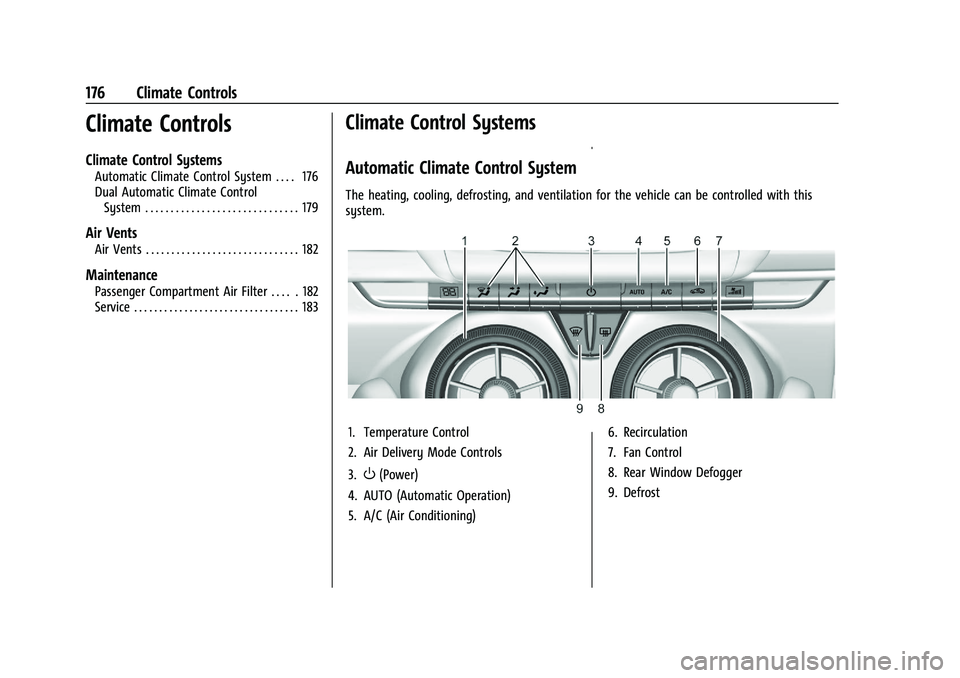
The heating, cooling, defrosting, and ventilation for the vehicle can be controlled with this
system.
1. Temperature Control
2. Air Delivery Mode Controls
3.
O(Power)
4. AUTO (Automatic Operation)
5. A/C (Air Conditioning) 6. Recirculation
7. Fan Control
8. Rear Window Defogger
9. Defrost
Page 184 of 357
Chevrolet Camaro Owner Manual (GMNA-Localizing-U.S./Canada/Mexico-
14583589) - 2021 - CRC - 3/24/20
Climate Controls 183
system and result in leaks or noises. Always
install a new filter when removing the old
filter.
For more information on filter replacement,
see your dealer.
Service
All vehicles have a label underhood that
identifies the refrigerant used in the vehicle.
The refrigerant system should only be
serviced by trained and certified technicians.
The air conditioning evaporator should never
be repaired or replaced by one from a
salvage vehicle. It should only be replaced
by a new evaporator to ensure proper and
safe operation.
During service, all refrigerants should be
reclaimed with proper equipment. Venting
refrigerants directly to the atmosphere is
harmful to the environment and may also
create unsafe conditions based on
inhalation, combustion, frostbite, or other
health-based concerns.
The air conditioning system requires periodic
maintenance. SeeMaintenance Schedule
0 310.
Page 190 of 357
Chevrolet Camaro Owner Manual (GMNA-Localizing-U.S./Canada/Mexico-
14583589) - 2021 - CRC - 3/24/20
Driving and Operating 189
3.6L (LGX) V6 Engine
Change the engine oil to 0W-40 or 5W-40
that meets the dexos2 specification. If this
oil is not available, the following oil can be
used as an alternative: Valvoline SYNPOWER
MST 5W-40.
For LS/LT 1LE, add 0.9 L (1.0 qt) of oil over
the nominal fill level for a track event. After
the competitive driving, remove the excess
oil so that the level on the dipstick is not
above the upper mark that shows the
proper operating range.
During track usage, do not follow the Engine
Oil Life System status. Change the engine oil
after four hours of accumulative track usage.
Fuel
Use premium unleaded gasoline with a
posted octane rating of 93 at a track event.
Unleaded gasoline with a posted octane
rating of 91 may be used, but performance
will be degraded.
Automatic Transmission Fluid
Have the transmission fluid set to the track
specific oil level prior to track usage.
Transmission fluid should be changed afterevery 15 hours of track usage. Any
transmission level set or change should be
performed at your dealer.
Manual Transmission Fluid
Manual transmission fluid should be
changed after every 15 hours of track usage.
Rear Axle Fluid
Axles must have 2 400 km (1,500 mi) before
being used in track driving.
The rear axle fluid temperatures may be
higher than when driving in severe
conditions. Drain and refill with new fluid
after the first racing or competitive driving
event, and then after every 24 hours of
racing or competitive driving. See
Recommended Fluids and Lubricants
0318.
Caution
During a first time track or racing event,
high rear axle temperatures can occur.
Damage could be caused to the rear axle
and would not be covered by the vehicle
warranty. Do not drive as long or as fast
the first time the vehicle is driven on the
track or raced.
Brake Fluid
For track events or competitive driving, it is
recommended that the brake fluid be
replaced with a high performance brake fluid
that has a dry boiling point greater than
279 °C (534 °F). After conversion to the high
performance brake fluid, follow the brake
fluid service recommendations outlined by
the fluid manufacturer. Do not use silicone
or DOT-5 brake fluids.
Brake Burnishing
To prepare the Camaro brake systems for
track events and racing, complete the
appropriate high performance brake
burnishing procedure described below.
New brake pads must be burnished before
racing or competitive driving.
Caution
These procedures are specific to the
Camaro SS, or LT with Y4Q Heavy Duty
Cooling System that is equipped with J55
brakes. This procedure should not be run
on other Camaro models as damage may
result.