Acc CHEVROLET CAMARO 2023 Service Manual
[x] Cancel search | Manufacturer: CHEVROLET, Model Year: 2023, Model line: CAMARO, Model: CHEVROLET CAMARO 2023Pages: 345, PDF Size: 16.19 MB
Page 102 of 345
Chevrolet Camaro Owner Manual (GMNA-Localizing-U.S./Canada/Mexico-
16408685) - 2023 - CRC - 3/28/22
Instruments and Controls 101
of time that has passed since the timer was
last reset. To reset the timer to zero, press
and hold SEL or use
pto access the menu
while this display is active.
Oil Life : Displays an estimate of the oil's
remaining useful life. If REMAINING OIL LIFE
99% is displayed, that means 99% of the
current oil life remains.
When the remaining oil life is low, the
CHANGE ENGINE OIL SOON message will
appear on the display. The oil should be
changed as soon as possible. See Engine Oil
0 235. In addition to the engine oil life
system monitoring the oil life, additional
maintenance is recommended. See
Maintenance Schedule 0300.
The Oil Life display must be reset after each
oil change. It will not reset itself. Do not
reset the Oil Life display accidentally at any
time other than when the oil has just been
changed. It cannot be reset accurately until
the next oil change. To reset the engine oil
life system, see Engine Oil Life System
0 237.
Air Filter Life : If equipped, shows an
estimate of the engine air filter’s remaining
useful life and the state of the system.
Engine Air Filter Life 95% means 95% of the current air filter life remains. Messages will
display based on the engine air filter life
and the state of the system. When the
REPLACE AT NEXT OIL CHANGE message
displays, the engine air filter should be
replaced at the time of the next oil change.
When the REPLACE NOW message displays,
the engine air filter should be replaced as
soon as possible.
The Air Filter Life display must be reset after
the engine air filter replacement. To reset,
see
Engine Air Filter Life System (2.0L LTG
and 3.6L LGX Engines Only) 0239.
Engine Hours : If equipped, shows the total
number of hours the engine has run.
Coolant Temperature : Displays the coolant
temperature in either degrees Celsius (°C) or
degrees Fahrenheit (°F).
Tire Pressure : Displays the approximate
pressures of all four tires. Tire pressure is
displayed in either kilopascal (kPa) or in
pounds per square inch (psi). If the pressure
is low, the value for that tire is shown in
amber. See Tire Pressure Monitor System
0 270 and
Tire Pressure Monitor Operation 0271. Battery Voltage :
Displays the current
battery voltage. The battery voltage can
fluctuate while viewing this information on
the DIC. This is normal.
Speed Limit (Uplevel Cluster) : Displays sign
information, which comes from a roadway
database in the onboard navigation.
Oil Temperature (Base Cluster) : Shows the
current oil temperature in either degrees
Celsius (°C) or degrees Fahrenheit (°F). This
display is available in the Performance app
on the uplevel cluster.
Oil Pressure (Base Cluster) : Shows the
current oil pressure in either kilopascal (kPa)
or in pounds per square inch (psi). This
display is available in the Performance app
on the uplevel cluster.
Performance Timer (Base Cluster) : Press
p
when Performance Timer is displayed to
enter the menu. Press
pwhile Set Start
Speed is highlighted then use
worxto
enter the start speed. Press SEL to save it.
Press
pwhile Set End Speed is highlighted
then use
worxto enter the end speed.
Press SEL to save it. After the start and end
speeds have been entered, press
oto set
the Sport display to the set speeds and the
Page 103 of 345
Chevrolet Camaro Owner Manual (GMNA-Localizing-U.S./Canada/Mexico-
16408685) - 2023 - CRC - 3/28/22
102 Instruments and Controls
performance timer is ready to use. On the
next acceleration, the performance time will
record the time. To reset the timer,
highlight Reset on the performance timer
menu and press SEL. This display is available
in the Performance app on the uplevel
cluster.
Lap Timer (Base Cluster) :Use to start, stop,
or reset the lap timer. A stopwatch icon will
be displayed when the lap timer is active.
Press SEL while the Lap Timer page is active
to start the timer. If the lamp timer is
active, pressing SEL on any page will stop
the current lap timer and start a new lap.
Also, pressing and holding SEL on any page
will stop the lap timer. This display is
available in the Performance app on the
uplevel cluster.
G-Force (Base Cluster) : Gives the driver an
indication of the vehicle performance in
cornering. The G-force is displayed in the
center of the DIC as a numerical value. This
display is available in the Performance app
on the uplevel cluster.
Transmission Fluid Temperature (Base
Cluster) : Shows the temperature of the
transmission fluid in either degrees Celsius (°C) or degrees Fahrenheit (°F). This display
is available in the Performance app on the
uplevel cluster.
Blank :
Shows no information.
Head-Up Display (HUD)
{Warning
If the HUD image is too bright or too
high in your field of view, it may take
you more time to see things you need to
see when it is dark outside. Be sure to
keep the HUD image dim and placed low
in your field of view.
If equipped with HUD, some information
concerning the operation of the vehicle is
projected onto the windshield.
The HUD information appears as an image
focused out toward the front of the vehicle.
Caution
If you try to use the HUD image as a
parking aid, you may misjudge the
distance and damage your vehicle. Do not
use the HUD image as a parking aid. The HUD information can be displayed in
various languages. The speedometer reading
and other numerical values can be displayed
in either English or metric units.
The language of the HUD information
displayed can be changed. The speedometer
reading and other numerical values can be
displayed in either English or metric units.
The language selection is changed through
the radio and the units of measurement are
changed through the instrument cluster. See
Settings
0152 and “Options” under
Instrument Cluster 084.
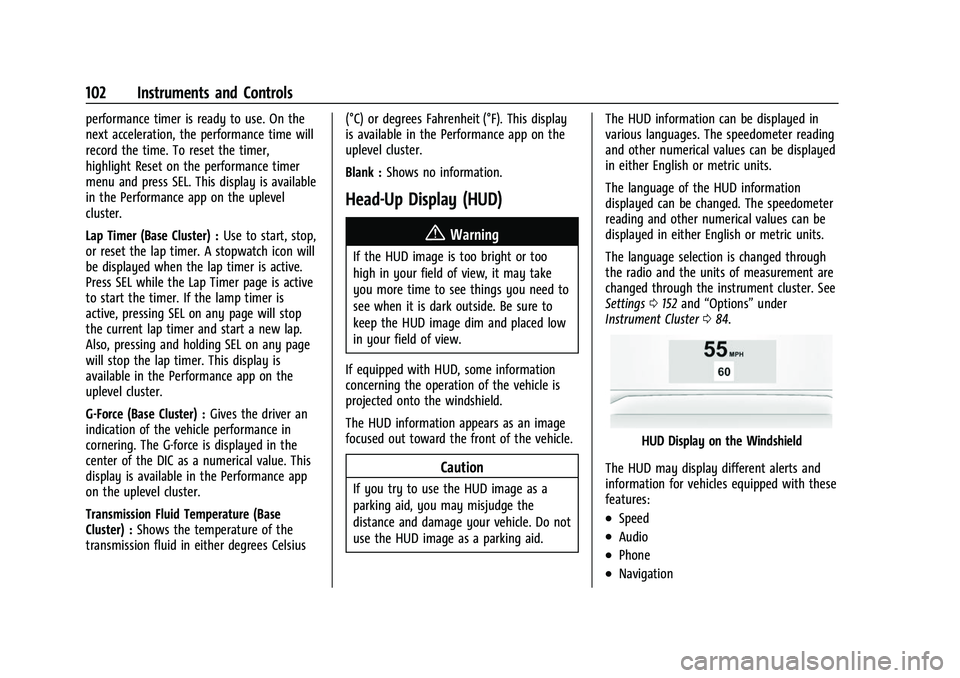
HUD Display on the Windshield
The HUD may display different alerts and
information for vehicles equipped with these
features:
.Speed
.Audio
.Phone
.Navigation
Page 105 of 345
Chevrolet Camaro Owner Manual (GMNA-Localizing-U.S./Canada/Mexico-
16408685) - 2023 - CRC - 3/28/22
104 Instruments and Controls
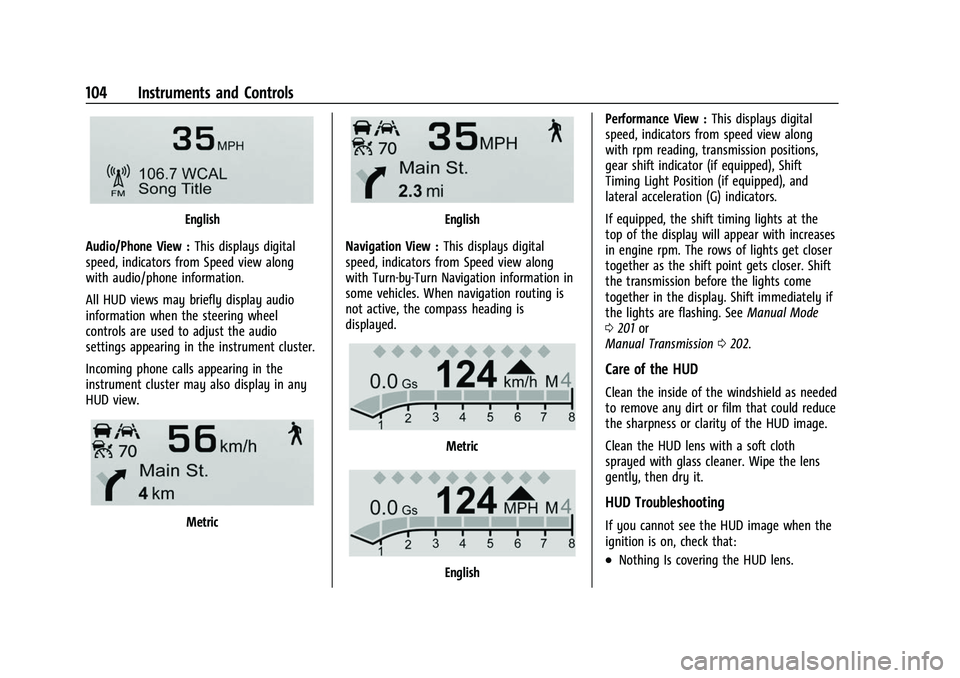
English
Audio/Phone View : This displays digital
speed, indicators from Speed view along
with audio/phone information.
All HUD views may briefly display audio
information when the steering wheel
controls are used to adjust the audio
settings appearing in the instrument cluster.
Incoming phone calls appearing in the
instrument cluster may also display in any
HUD view.
Metric
English
Navigation View : This displays digital
speed, indicators from Speed view along
with Turn-by-Turn Navigation information in
some vehicles. When navigation routing is
not active, the compass heading is
displayed.
Metric
English Performance View :
This displays digital
speed, indicators from speed view along
with rpm reading, transmission positions,
gear shift indicator (if equipped), Shift
Timing Light Position (if equipped), and
lateral acceleration (G) indicators.
If equipped, the shift timing lights at the
top of the display will appear with increases
in engine rpm. The rows of lights get closer
together as the shift point gets closer. Shift
the transmission before the lights come
together in the display. Shift immediately if
the lights are flashing. See Manual Mode
0 201 or
Manual Transmission 0202.
Care of the HUD
Clean the inside of the windshield as needed
to remove any dirt or film that could reduce
the sharpness or clarity of the HUD image.
Clean the HUD lens with a soft cloth
sprayed with glass cleaner. Wipe the lens
gently, then dry it.
HUD Troubleshooting
If you cannot see the HUD image when the
ignition is on, check that:
.Nothing Is covering the HUD lens.
Page 106 of 345
Chevrolet Camaro Owner Manual (GMNA-Localizing-U.S./Canada/Mexico-
16408685) - 2023 - CRC - 3/28/22
Instruments and Controls 105
.The HUD brightness is not too dim or too
bright.
.The HUD is adjusted to the proper height.
.Polarized sunglasses are not worn.
.Windshield and HUD lens are clean.
If the HUD image is not correct, contact
your dealer.
The windshield is part of the HUD system.
See Windshield Replacement 0251.
Vehicle Messages
Messages displayed on the DIC indicate the
status of the vehicle or some action that
may be needed to correct a condition.
Multiple messages may appear one after
another.
The messages that do not require
immediate action can be acknowledged and
cleared by pressing SEL. The messages that
require immediate action cannot be cleared
until that action is performed.
All messages should be taken seriously;
clearing the message does not correct the
problem.
If a SERVICE message appears, see your
dealer. Follow the instructions given in the
messages. The system displays messages
regarding the following topics:
.Service Messages
.Fluid Levels
.Vehicle Security
.Brakes
.Steering
.Ride Control Systems
.Driver Assistance Systems
.Cruise Control
.Lighting and Bulb Replacement
.Wiper/Washer Systems
.Doors and Windows
.Seat Belts
.Airbag Systems
.Engine and Transmission
.Tire Pressure
.Engine Air Filter Life
.Battery
Engine Power Messages
ENGINE POWER IS REDUCED
This message displays when the vehicle's
propulsion power is reduced. A reduction in
propulsion power can affect the vehicle'sability to accelerate. If this message is on,
but there is no observed reduction in
performance, proceed to your destination.
Under certain conditions the performance
may be reduced the next time the vehicle is
driven. The vehicle may be driven while this
message is on, but maximum acceleration
and speed may be reduced. Anytime this
message stays on, or displays repeatedly,
the vehicle should be taken to your dealer
for service as soon as possible.
Under certain operating conditions,
propulsion will be disabled. Try restarting
after the ignition has been off for
30 seconds.
Vehicle Speed Messages
SPEED LIMITED TO XXX KM/H (MPH)
This message shows that the vehicle speed
has been limited to the speed displayed. The
limited speed is a protection for various
propulsion and vehicle systems, such as
lubrication, thermal, brakes, suspension,
Teen Driver if equipped, or tires.
Page 110 of 345
Chevrolet Camaro Owner Manual (GMNA-Localizing-U.S./Canada/Mexico-
16408685) - 2023 - CRC - 3/28/22
Lighting 109
Interior Lighting
Instrument Panel Illumination
Control
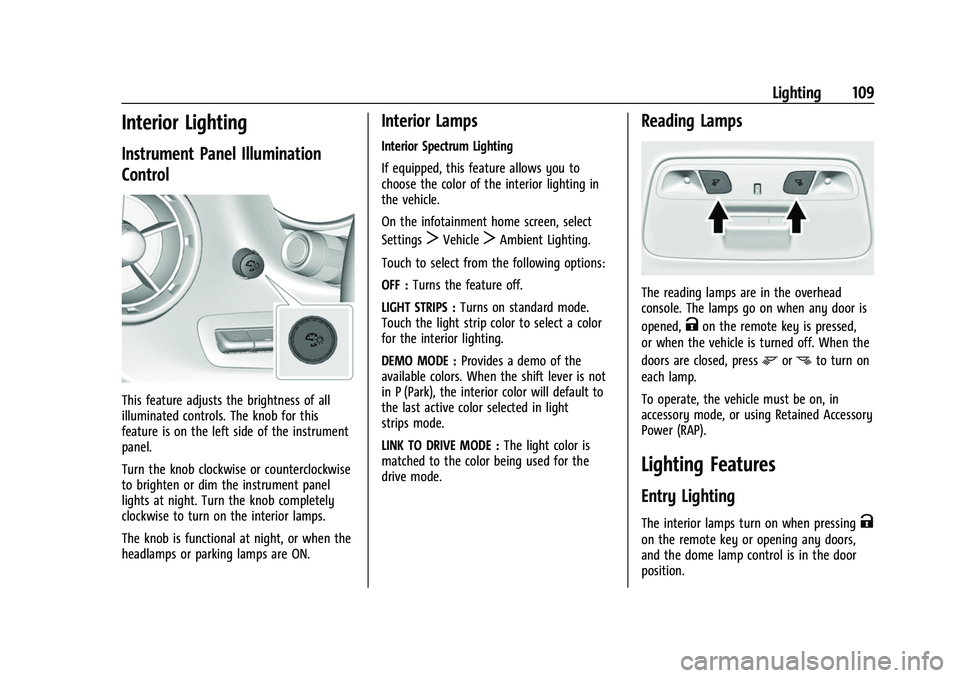
This feature adjusts the brightness of all
illuminated controls. The knob for this
feature is on the left side of the instrument
panel.
Turn the knob clockwise or counterclockwise
to brighten or dim the instrument panel
lights at night. Turn the knob completely
clockwise to turn on the interior lamps.
The knob is functional at night, or when the
headlamps or parking lamps are ON.
Interior Lamps
Interior Spectrum Lighting
If equipped, this feature allows you to
choose the color of the interior lighting in
the vehicle.
On the infotainment home screen, select
Settings
TVehicleTAmbient Lighting.
Touch to select from the following options:
OFF : Turns the feature off.
LIGHT STRIPS : Turns on standard mode.
Touch the light strip color to select a color
for the interior lighting.
DEMO MODE : Provides a demo of the
available colors. When the shift lever is not
in P (Park), the interior color will default to
the last active color selected in light
strips mode.
LINK TO DRIVE MODE : The light color is
matched to the color being used for the
drive mode.
Reading Lamps
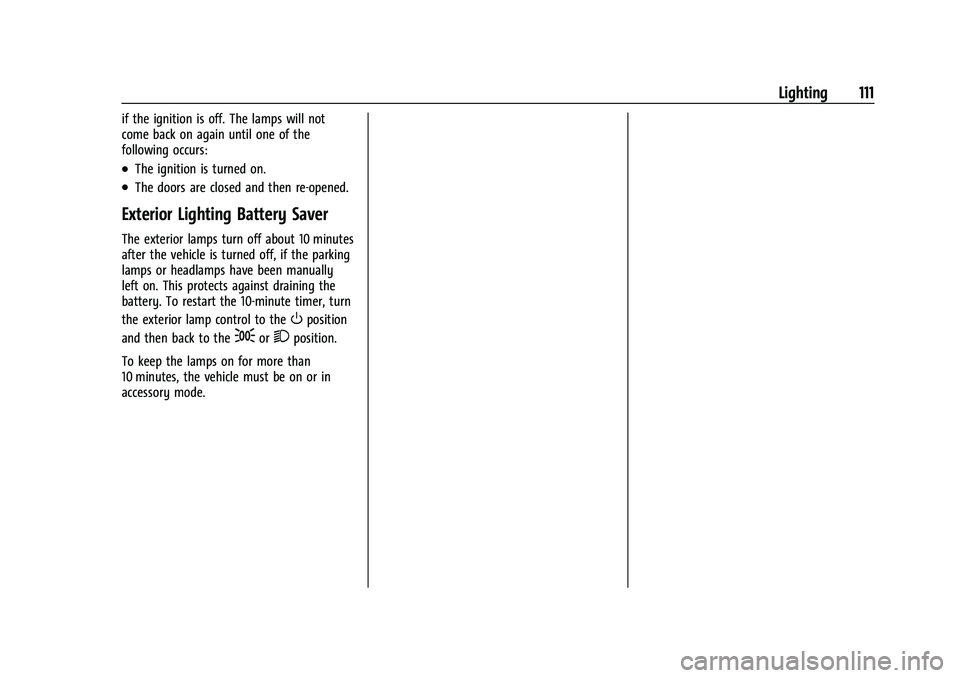
The reading lamps are in the overhead
console. The lamps go on when any door is
opened,
Kon the remote key is pressed,
or when the vehicle is turned off. When the
doors are closed, press
mornto turn on
each lamp.
To operate, the vehicle must be on, in
accessory mode, or using Retained Accessory
Power (RAP).
Lighting Features
Entry Lighting
The interior lamps turn on when pressingK
on the remote key or opening any doors,
and the dome lamp control is in the door
position.
Page 111 of 345

Chevrolet Camaro Owner Manual (GMNA-Localizing-U.S./Canada/Mexico-
16408685) - 2023 - CRC - 3/28/22
110 Lighting
Some exterior lamps also turn on when
pressing
Kon the remote key or opening
any doors. Low-Beam lamps will only turn
on briefly at night, or in areas with limited
lighting.
All lamps will gradually fade out after about
30 seconds.
Entry lighting can be disabled manually by
closing all doors, pressing
Qon the remote
key, or starting the vehicle.
This feature can be changed. On the
infotainment home page, select the Settings
icon
TVehicleTVehicle Locator Lights.
Exit Lighting
Some exterior lamps and interior lamps turn
on when the driver door is opened after the
vehicle is turned off.
The exterior and interior lamps remain on
for a set amount of time, then automatically
turn off.
The interior lights turn on when the vehicle
is turned off.
The exterior lamps turn off immediately by
turning the exterior lamp control off. This feature can be changed. On the
infotainment home screen, select the
Settings icon
TVehicleTExit Lighting.
Battery Load Management
The vehicle has Electric Power Management
(EPM) that estimates the battery's
temperature and state of charge. It then
adjusts the voltage for best performance
and extended life of the battery.
When the battery's state of charge is low,
the voltage is raised slightly to quickly bring
the charge back up. When the state of
charge is high, the voltage is lowered
slightly to prevent overcharging. If the
vehicle has a voltmeter gauge or a voltage
display on the Driver Information Center
(DIC), you may see the voltage move up or
down. This is normal. If there is a problem,
an alert will be displayed.
The battery can be discharged at idle if the
electrical loads are very high. This is true for
all vehicles. This is because the generator
(alternator) may not be spinning fast
enough at idle to produce all of the power
needed for very high electrical loads.
A high electrical load occurs when several of
the following are on, such as: headlamps,
high beams, rear window defogger, climate
control fan at high speed, heated seats,
engine cooling fans, trailer loads, and loads
plugged into accessory power outlets.
EPM works to prevent excessive discharge
of the battery. It does this by balancing the
generator's output and the vehicle's
electrical needs. It can increase engine idle
speed to generate more power whenever
needed. It can temporarily reduce the power
demands of some accessories.
Normally, these actions occur in steps or
levels, without being noticeable. In rare
cases at the highest levels of corrective
action, this action may be noticeable to the
driver. If so, a DIC message might be
displayed and it is recommended that the
driver reduce the electrical loads as much as
possible.
Battery Power Protection
This feature helps prevent the battery from
being drained, if the interior courtesy lamps
or reading lamps are accidentally left on.
If any of these lamps are left on, they
automatically turn off after 10 minutes,
Page 112 of 345
Chevrolet Camaro Owner Manual (GMNA-Localizing-U.S./Canada/Mexico-
16408685) - 2023 - CRC - 3/28/22
Lighting 111
if the ignition is off. The lamps will not
come back on again until one of the
following occurs:
.The ignition is turned on.
.The doors are closed and then re-opened.
Exterior Lighting Battery Saver
The exterior lamps turn off about 10 minutes
after the vehicle is turned off, if the parking
lamps or headlamps have been manually
left on. This protects against draining the
battery. To restart the 10-minute timer, turn
the exterior lamp control to the
Oposition
and then back to the
;or2position.
To keep the lamps on for more than
10 minutes, the vehicle must be on or in
accessory mode.
Page 115 of 345
Chevrolet Camaro Owner Manual (GMNA-Localizing-U.S./Canada/Mexico-
16408685) - 2023 - CRC - 3/28/22
114 Infotainment System
3.O(Power)
.Press to turn the power on.
.Press to mute/unmute the system
when on.
.Press and hold to display the
power off screen or the option to
display the power off screen.
.Turn to decrease or increase the
volume.
4.6
.Radio: Press and release to go to
the next station or channel. Press
and hold to fast seek the next
strongest station or channel.
.USB/Bluetooth: Press to seek the
next track. Press and hold to fast
forward through a track. Release to
return to playing speed. SeeUSB
Port 0122 or
Bluetooth Audio 0125.
5.SBACK or5
.PressSBACK to return to the
previous display in a menu.
.Press and release5to access the
phone display or answer an
incoming call.
Home Page
The Home Page is where vehicle application
icons are accessed. Some applications are
disabled when the vehicle is moving.
Swipe left or right across the display to
access the pages of icons.
Managing Home Page Icons 1. Touch and hold any of the Home Page icons to enter edit mode.
2. Continue holding the icon and drag it to the desired position. 3. Release your finger to drop the icon in
the desired position.
4. To move an application to another page, drag the icon to the edge of the display
toward the desired page.
5. Continue dragging and dropping application icons as desired.
Page 117 of 345
Chevrolet Camaro Owner Manual (GMNA-Localizing-U.S./Canada/Mexico-
16408685) - 2023 - CRC - 3/28/22
116 Infotainment System
Nav
Touch the Nav icon (if equipped) to display
the navigation map. SeeUsing the
Navigation System 0126.
Climate
Touch the Climate icon to display the
Climate main page. See Dual Automatic
Climate Control System 0168.
Wi-Fi Hotspot
Touch the Wi-Fi Hotspot icon to display the
Wi-Fi Hotspot information. See Settings
0 152.
Users
If equipped, touch the Users icon to sign in
or create a new user profile, and follow the
on-screen instructions.
Only four user profiles can be active at one
time in the vehicle. It may be necessary to
remove a profile from the menu before
creating or signing into an existing profile.
The removed profile can be logged into at a
later time.
Settings
Touch the Settings icon to display the
Settings menu. See Settings0152.
Apple CarPlay
Touch the Apple CarPlay icon to activate
Apple CarPlay (if equipped) after a
supported device is connected. See Apple
CarPlay and Android Auto 0151.
Android Auto
Touch the Android Auto icon to activate
Android Auto (if equipped) after a supported
device is connected. See Apple CarPlay and
Android Auto 0151.
Apps
If equipped, in-vehicle apps are available for
download. Touch the Apps icon on the
Home Page to begin.
Downloading and using in-vehicle apps
requires Internet connectivity which can be
accessed with a data plan through the
vehicle’s built-in 4G LTE Wi-Fi hotspot,
if equipped, or a compatible mobile device
hotspot. On most mobile devices, activation
of the Wi-Fi hotspot is in the device’s
Settings menu under Mobile Network
Sharing, Personal Hotspot, Mobile Hotspot,
or similar. Availability of apps and connectivity varies
by vehicle, conditions, and location. Data
plan rates apply. Features are subject to
change. For more information, see
www.my.chevrolet.com/learn.
OnStar Services
If equipped, touch the OnStar Services icon
to display the OnStar Services and Account
pages. See
OnStar Overview 0325.
Camera
If equipped, touch the Camera icon to access
the camera application. See Rear Vision
Camera (RVC) 0217.
Shortcut Tray
The shortcut tray is near the bottom of the
display. It shows up to four applications.
Infotainment Display Features
Infotainment display features show on the
display when available. When a feature is
unavailable, it may gray out. When a
feature is touched, it may highlight.
Page 120 of 345
Chevrolet Camaro Owner Manual (GMNA-Localizing-U.S./Canada/Mexico-
16408685) - 2023 - CRC - 3/28/22
Infotainment System 119
Fade/Balance :Touch to adjust by using the
controls on the infotainment display or by
tapping/dragging the crosshair.
Finding a Station
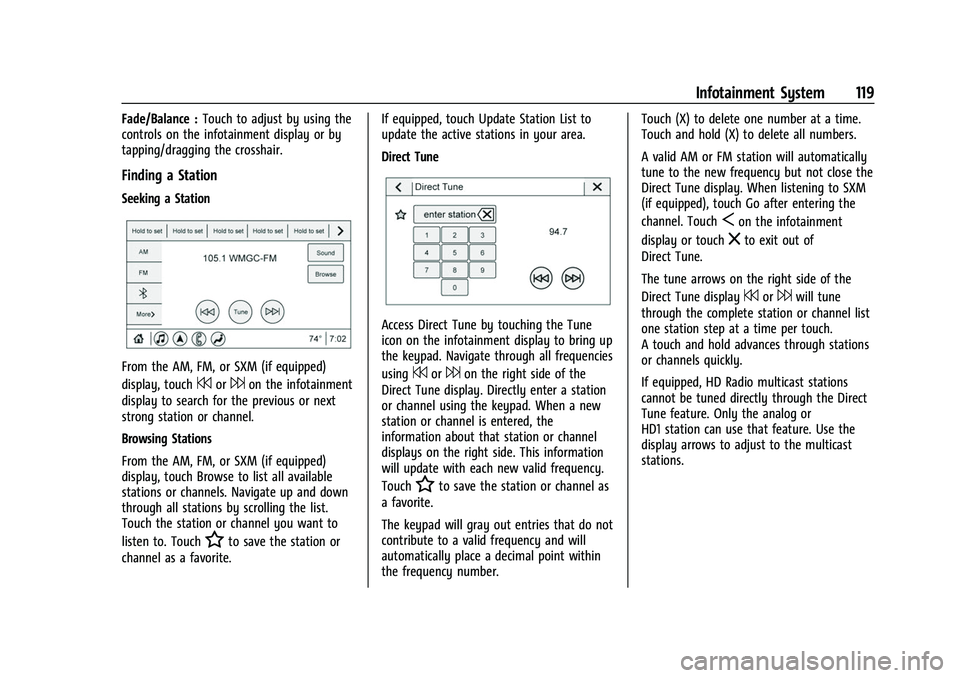
Seeking a Station
From the AM, FM, or SXM (if equipped)
display, touch
7or6on the infotainment
display to search for the previous or next
strong station or channel.
Browsing Stations
From the AM, FM, or SXM (if equipped)
display, touch Browse to list all available
stations or channels. Navigate up and down
through all stations by scrolling the list.
Touch the station or channel you want to
listen to. Touch
Hto save the station or
channel as a favorite. If equipped, touch Update Station List to
update the active stations in your area.
Direct Tune
Access Direct Tune by touching the Tune
icon on the infotainment display to bring up
the keypad. Navigate through all frequencies
using
7or6on the right side of the
Direct Tune display. Directly enter a station
or channel using the keypad. When a new
station or channel is entered, the
information about that station or channel
displays on the right side. This information
will update with each new valid frequency.
Touch
Hto save the station or channel as
a favorite.
The keypad will gray out entries that do not
contribute to a valid frequency and will
automatically place a decimal point within
the frequency number. Touch (X) to delete one number at a time.
Touch and hold (X) to delete all numbers.
A valid AM or FM station will automatically
tune to the new frequency but not close the
Direct Tune display. When listening to SXM
(if equipped), touch Go after entering the
channel. Touch
Son the infotainment
display or touch
zto exit out of
Direct Tune.
The tune arrows on the right side of the
Direct Tune display
7or6will tune
through the complete station or channel list
one station step at a time per touch.
A touch and hold advances through stations
or channels quickly.
If equipped, HD Radio multicast stations
cannot be tuned directly through the Direct
Tune feature. Only the analog or
HD1 station can use that feature. Use the
display arrows to adjust to the multicast
stations.