way CHEVROLET CAMARO 2023 Service Manual
[x] Cancel search | Manufacturer: CHEVROLET, Model Year: 2023, Model line: CAMARO, Model: CHEVROLET CAMARO 2023Pages: 345, PDF Size: 16.19 MB
Page 95 of 345
Chevrolet Camaro Owner Manual (GMNA-Localizing-U.S./Canada/Mexico-
16408685) - 2023 - CRC - 3/28/22
94 Instruments and Controls
Caution
If the vehicle is driven continually with
this light on, the emission control system
may not work as well, the fuel economy
may be lower, and the vehicle may not
run smoothly. This could lead to costly
repairs that might not be covered by the
vehicle warranty.
Caution
Modifications to the engine, transmission,
exhaust, intake, or fuel system, or the
use of replacement tires that do not
meet the original tire specifications, can
cause this light to come on. This could
lead to costly repairs not covered by the
vehicle warranty. This could also affect
the vehicle’s ability to pass an Emissions
Inspection/Maintenance test. See
Accessories and Modifications0228.
If the light is flashing : A malfunction has
been detected that could damage the
emission control system and increase vehicle
emissions. Diagnosis and service may be
required. To help prevent damage, reduce vehicle
speed and avoid hard accelerations and
uphill grades.
If the light continues to flash, find a safe
place to park. Turn the vehicle off and wait
at least 10 seconds before restarting the
engine. If the light is still flashing, follow
the previous guidelines and see your dealer
for service as soon as possible.
If the light is on steady :
A malfunction has
been detected. Diagnosis and service may be
required.
Check the following:
.If fuel has been added to the vehicle
using the capless funnel adapter, make
sure that it has been removed. See
“Filling the Tank with a Portable Gas Can”
under Filling the Tank 0224. The
diagnostic system can detect if the
adapter has been left installed in the
vehicle, allowing fuel to evaporate into
the atmosphere. A few driving trips with
the adapter removed may turn off the
light.
.Poor fuel quality can cause inefficient
engine operation and poor driveability,
which may go away once the engine is
warmed up. If this occurs, change the fuel
brand. It may require at least one full tank of the proper fuel to turn the light
off. See
Recommended Fuel (3.6L
V6 Engine) 0223 or
Recommended Fuel (2.0L L4 Turbo Engine
and 6.2L V8 Engine) 0223 or
Recommended Fuel (6.2L V8 Supercharged
Engine) 0223.
If the light remains on, see your dealer.
Emissions Inspection and Maintenance
Programs
If the vehicle requires an Emissions
Inspection/Maintenance test, the test
equipment will likely connect to the
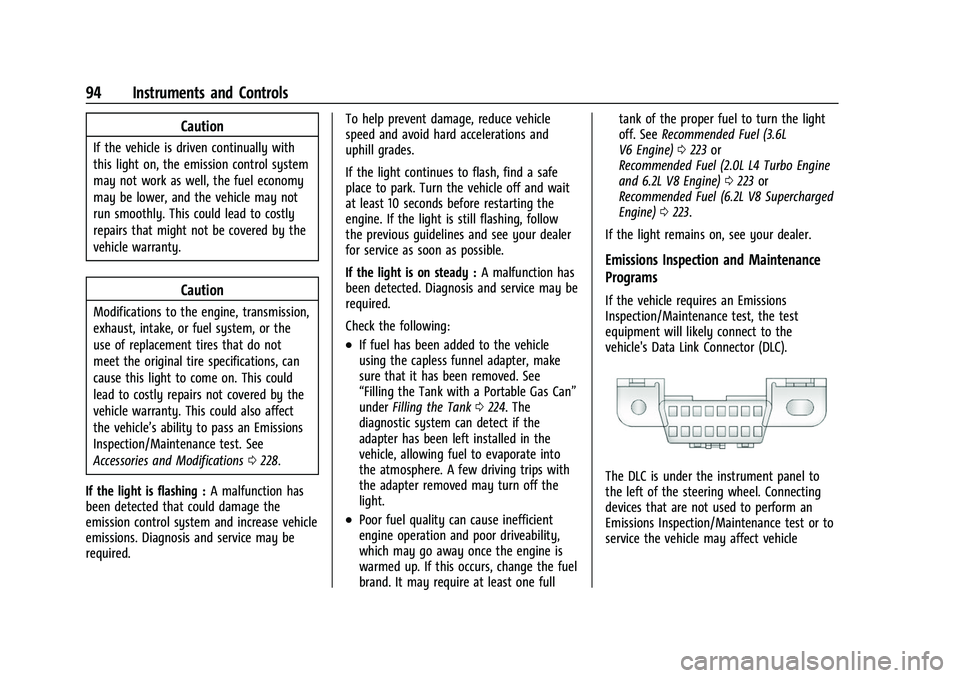
vehicle's Data Link Connector (DLC).
The DLC is under the instrument panel to
the left of the steering wheel. Connecting
devices that are not used to perform an
Emissions Inspection/Maintenance test or to
service the vehicle may affect vehicle
Page 96 of 345
Chevrolet Camaro Owner Manual (GMNA-Localizing-U.S./Canada/Mexico-
16408685) - 2023 - CRC - 3/28/22
Instruments and Controls 95
operation. SeeAdd-On Electrical Equipment
0 226. See your dealer if assistance is
needed.
The vehicle may not pass inspection if:
.The light is on when the engine is
running.
.The light does not come on when the
ignition is in Service Mode.
.Critical emission control systems have not
been completely diagnosed. If this
happens, the vehicle would not be ready
for inspection and might require
several days of routine driving before the
system is ready for inspection. This can
happen if the 12-volt battery has recently
been replaced or run down, or if the
vehicle has been recently serviced.
See your dealer if the vehicle will not pass
or cannot be made ready for the test.
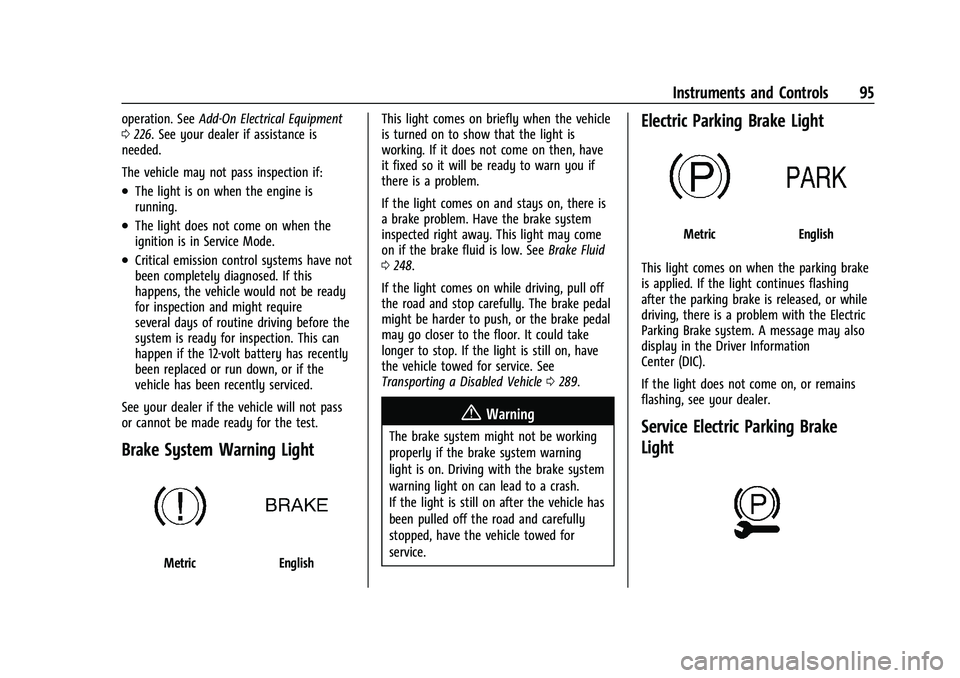
Brake System Warning Light
MetricEnglish This light comes on briefly when the vehicle
is turned on to show that the light is
working. If it does not come on then, have
it fixed so it will be ready to warn you if
there is a problem.
If the light comes on and stays on, there is
a brake problem. Have the brake system
inspected right away. This light may come
on if the brake fluid is low. See
Brake Fluid
0 248.
If the light comes on while driving, pull off
the road and stop carefully. The brake pedal
might be harder to push, or the brake pedal
may go closer to the floor. It could take
longer to stop. If the light is still on, have
the vehicle towed for service. See
Transporting a Disabled Vehicle 0289.
{Warning
The brake system might not be working
properly if the brake system warning
light is on. Driving with the brake system
warning light on can lead to a crash.
If the light is still on after the vehicle has
been pulled off the road and carefully
stopped, have the vehicle towed for
service.
Electric Parking Brake Light
MetricEnglish
This light comes on when the parking brake
is applied. If the light continues flashing
after the parking brake is released, or while
driving, there is a problem with the Electric
Parking Brake system. A message may also
display in the Driver Information
Center (DIC).
If the light does not come on, or remains
flashing, see your dealer.
Service Electric Parking Brake
Light
Page 102 of 345
Chevrolet Camaro Owner Manual (GMNA-Localizing-U.S./Canada/Mexico-
16408685) - 2023 - CRC - 3/28/22
Instruments and Controls 101
of time that has passed since the timer was
last reset. To reset the timer to zero, press
and hold SEL or use
pto access the menu
while this display is active.
Oil Life : Displays an estimate of the oil's
remaining useful life. If REMAINING OIL LIFE
99% is displayed, that means 99% of the
current oil life remains.
When the remaining oil life is low, the
CHANGE ENGINE OIL SOON message will
appear on the display. The oil should be
changed as soon as possible. See Engine Oil
0 235. In addition to the engine oil life
system monitoring the oil life, additional
maintenance is recommended. See
Maintenance Schedule 0300.
The Oil Life display must be reset after each
oil change. It will not reset itself. Do not
reset the Oil Life display accidentally at any
time other than when the oil has just been
changed. It cannot be reset accurately until
the next oil change. To reset the engine oil
life system, see Engine Oil Life System
0 237.
Air Filter Life : If equipped, shows an
estimate of the engine air filter’s remaining
useful life and the state of the system.
Engine Air Filter Life 95% means 95% of the current air filter life remains. Messages will
display based on the engine air filter life
and the state of the system. When the
REPLACE AT NEXT OIL CHANGE message
displays, the engine air filter should be
replaced at the time of the next oil change.
When the REPLACE NOW message displays,
the engine air filter should be replaced as
soon as possible.
The Air Filter Life display must be reset after
the engine air filter replacement. To reset,
see
Engine Air Filter Life System (2.0L LTG
and 3.6L LGX Engines Only) 0239.
Engine Hours : If equipped, shows the total
number of hours the engine has run.
Coolant Temperature : Displays the coolant
temperature in either degrees Celsius (°C) or
degrees Fahrenheit (°F).
Tire Pressure : Displays the approximate
pressures of all four tires. Tire pressure is
displayed in either kilopascal (kPa) or in
pounds per square inch (psi). If the pressure
is low, the value for that tire is shown in
amber. See Tire Pressure Monitor System
0 270 and
Tire Pressure Monitor Operation 0271. Battery Voltage :
Displays the current
battery voltage. The battery voltage can
fluctuate while viewing this information on
the DIC. This is normal.
Speed Limit (Uplevel Cluster) : Displays sign
information, which comes from a roadway
database in the onboard navigation.
Oil Temperature (Base Cluster) : Shows the
current oil temperature in either degrees
Celsius (°C) or degrees Fahrenheit (°F). This
display is available in the Performance app
on the uplevel cluster.
Oil Pressure (Base Cluster) : Shows the
current oil pressure in either kilopascal (kPa)
or in pounds per square inch (psi). This
display is available in the Performance app
on the uplevel cluster.
Performance Timer (Base Cluster) : Press
p
when Performance Timer is displayed to
enter the menu. Press
pwhile Set Start
Speed is highlighted then use
worxto
enter the start speed. Press SEL to save it.
Press
pwhile Set End Speed is highlighted
then use
worxto enter the end speed.
Press SEL to save it. After the start and end
speeds have been entered, press
oto set
the Sport display to the set speeds and the
Page 107 of 345
Chevrolet Camaro Owner Manual (GMNA-Localizing-U.S./Canada/Mexico-
16408685) - 2023 - CRC - 3/28/22
106 Lighting
Lighting
Exterior Lighting
Exterior Lamp Controls . . . . . . . . . . . . . . . . 106
Headlamp High/Low-Beam Changer . . . 106
Flash-to-Pass . . . . . . . . . . . . . . . . . . . . . . . . . . . 107
Daytime Running Lamps (DRL) . . . . . . . . . 107
Automatic Headlamp System . . . . . . . . . . 107
Hazard Warning Flashers . . . . . . . . . . . . . . 108
Turn and Lane-Change Signals . . . . . . . . . 108
Interior Lighting
Instrument Panel IlluminationControl . . . . . . . . . . . . . . . . . . . . . . . . . . . . . . 109
Interior Lamps . . . . . . . . . . . . . . . . . . . . . . . . . 109
Reading Lamps . . . . . . . . . . . . . . . . . . . . . . . . 109
Lighting Features
Entry Lighting . . . . . . . . . . . . . . . . . . . . . . . . . 109
Exit Lighting . . . . . . . . . . . . . . . . . . . . . . . . . . . 110
Battery Load Management . . . . . . . . . . . . 110
Battery Power Protection . . . . . . . . . . . . . . 110
Exterior Lighting Battery Saver . . . . . . . . . 111
Exterior Lighting
Exterior Lamp Controls
The exterior lamp control is on the left side
of the steering wheel.
There are four positions:
P: Briefly turn to this position to turn the
exterior lamps off and deactivate the AUTO
mode. Turn again to reactivate the AUTO
mode. When released, the control returns to
the AUTO position.
For vehicles first sold in Canada, the
headlamps will automatically reactivate
when the vehicle is shifted out of P (Park).
AUTO : Automatically turns the exterior
lamps on and off, depending on outside
lighting. AUTO also controls the Daytime Running
Lamps (DRL). See
Daytime Running Lamps
(DRL) 0107.
;:Turns on all lamps, except the
headlamps.
5: Turns on the headlamps together with
the parking lamps and instrument panel
lights.
A warning chime sounds if the driver door is
opened when the vehicle is off and the
headlamps or parking lamps are on.
Headlamp High/Low-Beam
Changer
Push the turn signal lever away from you
and release to turn the high beams on. To
return to low beams, push the lever again
or pull it toward you and release.
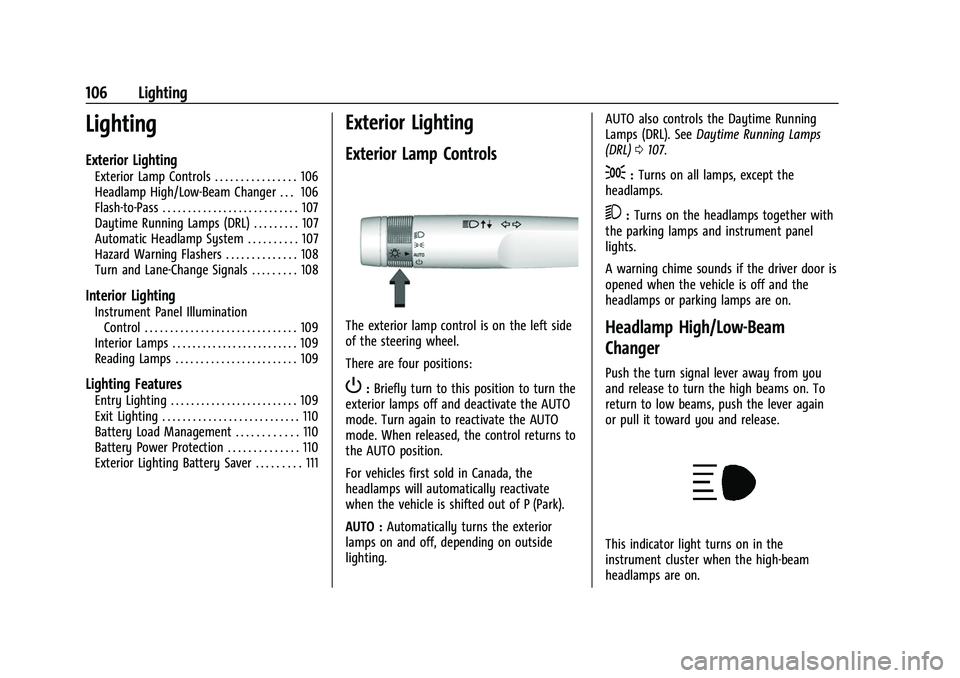
This indicator light turns on in the
instrument cluster when the high-beam
headlamps are on.
Page 108 of 345
Chevrolet Camaro Owner Manual (GMNA-Localizing-U.S./Canada/Mexico-
16408685) - 2023 - CRC - 3/28/22
Lighting 107
Flash-to-Pass
The flash-to-pass feature works with the low
beams or Daytime Running Lamps (DRL) on
or off.
To flash the high beams, pull the turn signal
lever all the way toward you, then
release it.
Daytime Running Lamps (DRL)
DRL can make it easier for others to see the
front of your vehicle during the day. DRL are
required on all vehicles first sold in Canada.
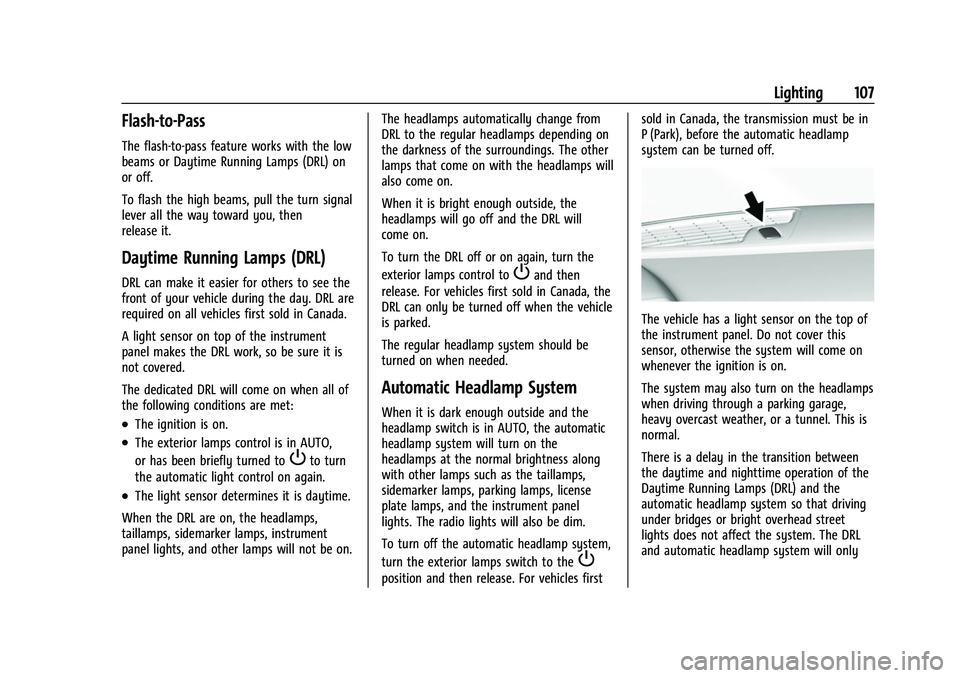
A light sensor on top of the instrument
panel makes the DRL work, so be sure it is
not covered.
The dedicated DRL will come on when all of
the following conditions are met:
.The ignition is on.
.The exterior lamps control is in AUTO,
or has been briefly turned to
Pto turn
the automatic light control on again.
.The light sensor determines it is daytime.
When the DRL are on, the headlamps,
taillamps, sidemarker lamps, instrument
panel lights, and other lamps will not be on. The headlamps automatically change from
DRL to the regular headlamps depending on
the darkness of the surroundings. The other
lamps that come on with the headlamps will
also come on.
When it is bright enough outside, the
headlamps will go off and the DRL will
come on.
To turn the DRL off or on again, turn the
exterior lamps control to
Pand then
release. For vehicles first sold in Canada, the
DRL can only be turned off when the vehicle
is parked.
The regular headlamp system should be
turned on when needed.
Automatic Headlamp System
When it is dark enough outside and the
headlamp switch is in AUTO, the automatic
headlamp system will turn on the
headlamps at the normal brightness along
with other lamps such as the taillamps,
sidemarker lamps, parking lamps, license
plate lamps, and the instrument panel
lights. The radio lights will also be dim.
To turn off the automatic headlamp system,
turn the exterior lamps switch to the
P
position and then release. For vehicles first sold in Canada, the transmission must be in
P (Park), before the automatic headlamp
system can be turned off.
The vehicle has a light sensor on the top of
the instrument panel. Do not cover this
sensor, otherwise the system will come on
whenever the ignition is on.
The system may also turn on the headlamps
when driving through a parking garage,
heavy overcast weather, or a tunnel. This is
normal.
There is a delay in the transition between
the daytime and nighttime operation of the
Daytime Running Lamps (DRL) and the
automatic headlamp system so that driving
under bridges or bright overhead street
lights does not affect the system. The DRL
and automatic headlamp system will only
Page 109 of 345
Chevrolet Camaro Owner Manual (GMNA-Localizing-U.S./Canada/Mexico-
16408685) - 2023 - CRC - 3/28/22
108 Lighting
be affected when the light sensor sees a
change in lighting lasting longer than the
delay.
If the vehicle is started in a dark garage, the
automatic headlamp system comes on
immediately. If it is light outside when the
vehicle leaves the garage, there will be a
slight delay before the automatic headlamp
system changes to the DRL. During that
delay, the instrument cluster may not be as
bright as usual. Make sure the instrument
panel brightness control is in the full bright
position. SeeInstrument Panel Illumination
Control 0109.
Lights On with Wipers
If the windshield wipers are activated in
daylight with the engine on, and the
exterior lamp control is in AUTO, the
headlamps, parking lamps, and other
exterior lamps come on. The transition time
for the lamps coming on varies based on
wiper speed. When the wipers are not
operating, these lamps turn off. Move the
exterior lamp control to
Por;to
disable this feature.
Hazard Warning Flashers
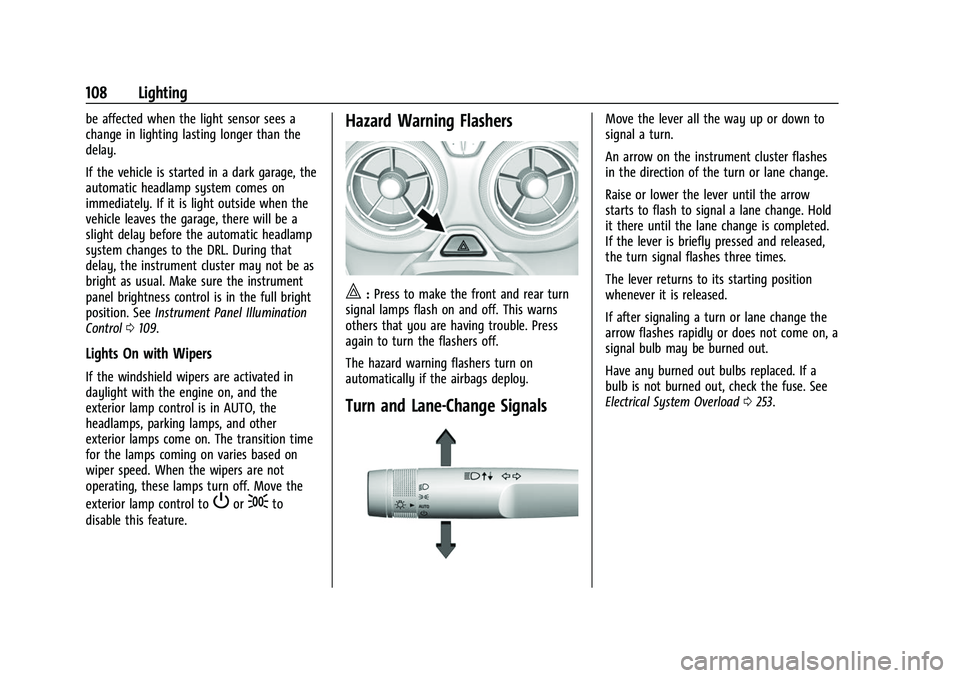
|: Press to make the front and rear turn
signal lamps flash on and off. This warns
others that you are having trouble. Press
again to turn the flashers off.
The hazard warning flashers turn on
automatically if the airbags deploy.
Turn and Lane-Change Signals
Move the lever all the way up or down to
signal a turn.
An arrow on the instrument cluster flashes
in the direction of the turn or lane change.
Raise or lower the lever until the arrow
starts to flash to signal a lane change. Hold
it there until the lane change is completed.
If the lever is briefly pressed and released,
the turn signal flashes three times.
The lever returns to its starting position
whenever it is released.
If after signaling a turn or lane change the
arrow flashes rapidly or does not come on, a
signal bulb may be burned out.
Have any burned out bulbs replaced. If a
bulb is not burned out, check the fuse. See
Electrical System Overload 0253.
Page 127 of 345
Chevrolet Camaro Owner Manual (GMNA-Localizing-U.S./Canada/Mexico-
16408685) - 2023 - CRC - 3/28/22
126 Infotainment System
Navigation
Using the Navigation System
If equipped, launch the Nav application by
touching the Nav icon on the Home Page or
on the shortcut tray near the bottom of the
infotainment display.
When the Nav application is launched for
the first time, a product walkthrough is
available. Use of the feature requires the
Terms and Conditions and the Privacy
statement to be confirmed. If available and
signed into a profile, it is also suggested to
enable and confirm Predictive Navigation.
Predictive Navigation (If Equipped)
If Predictive Navigation is available and
confirmed, this feature learns preferences by
remembering where the vehicle has been.
It uses the locations and navigation history
to personalize routes and results.
Predictive Navigation may learn elements
such as:
.Personalized routes based on preferred
streets.
.Search results that provide best matches
at the top of the list.
.Predictive traffic.
.Local map content updating.
Predictive Navigation can also be enabled or
disabled at a later time by touching
A
(Options). While in Options, touch Settings,
then Map and Navigation Settings, and then
Predictive Navigation.
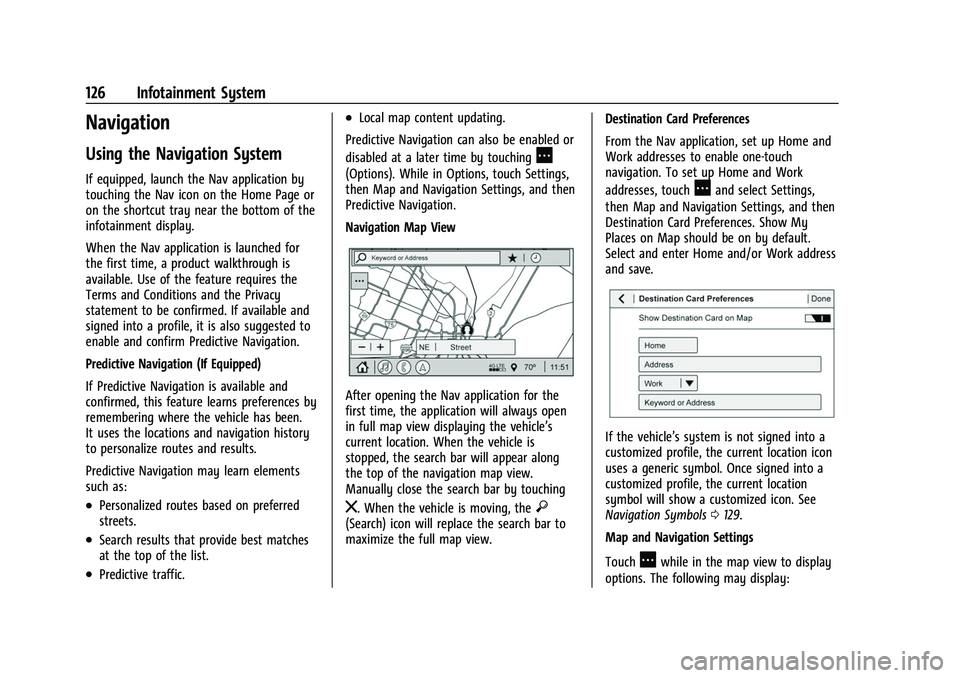
Navigation Map View
After opening the Nav application for the
first time, the application will always open
in full map view displaying the vehicle’s
current location. When the vehicle is
stopped, the search bar will appear along
the top of the navigation map view.
Manually close the search bar by touching
z. When the vehicle is moving, the}(Search) icon will replace the search bar to
maximize the full map view. Destination Card Preferences
From the Nav application, set up Home and
Work addresses to enable one-touch
navigation. To set up Home and Work
addresses, touch
Aand select Settings,
then Map and Navigation Settings, and then
Destination Card Preferences. Show My
Places on Map should be on by default.
Select and enter Home and/or Work address
and save.
If the vehicle’s system is not signed into a
customized profile, the current location icon
uses a generic symbol. Once signed into a
customized profile, the current location
symbol will show a customized icon. See
Navigation Symbols 0129.
Map and Navigation Settings
Touch
Awhile in the map view to display
options. The following may display:
Page 128 of 345
Chevrolet Camaro Owner Manual (GMNA-Localizing-U.S./Canada/Mexico-
16408685) - 2023 - CRC - 3/28/22
Infotainment System 127
.3D Heading Up, 2D Heading Up, 2D North
.Show on Map
.Traffic Events (available with Connected
Navigation)
.Settings
.Edit Destination (if a route has been set)
.Avoid on Route (if a route has been set)
Touch Settings to view Map and Navigation
Settings. The following may display:
.Destination Card Preferences
.Map Preferences
.Route Preferences
.Navigation Voice Control
.Traffic Preferences
.Alert Preferences
.Fuel Grade Preferences
.Manage History
.Predictive Navigation: See “Predictive
Navigation (If Equipped)” previously in
this section.
.About
To exit a list, touch
zin the top right
corner to return to the main map view.
Make sure to set up preferences before
setting a destination and starting active
guidance. Map Preferences
Touch to choose between basic map feature
configurations:
Map Colors
.Auto
–Touch to automatically change
modes based on lighting conditions.
.Day (Light)
.Night (Dark)
3D Landmark (Default is On) : Touch On or
Off. When turned on, the system will
display all 3D Landmarks on the map
depending on the zoom level.
3D Building (Default is Off) : Touch On or
Off. When turned on, the system will
display all of the possible 3D building shapes
on the map depending on the zoom level.
Show Terrain in 3D (Default is Off) :
If equipped, touch On or Off. When turned
on, the system will display terrain
information on the map in 3D view.
Auto-Zoom (Default is On) : Touch On or
Off. When turned on, the system will
automatically adjust the zoom level when
the vehicle is approaching a turn. After the
turn is completed, the system automatically
brings the zoom back to the originally set
level. If the vehicle is approaching a turn with the next turn occurring shortly after,
the Auto-Zoom will remain on until both
turns are completed.
Route Preferences
Touch to access the Route Preferences. The
choices are:
.Preferred Route
–Choose from two
different route options: Fastest or
Eco-Friendly.
‐ Fastest would be the route with the
shortest drive time.
‐ Eco-Friendly would be the most
fuel-efficient route.
.Avoid on Current Route –Choose any of
the road features to avoid while on route:
‐ Highways
‐ Unpaved Roads
‐ Ferries
‐ Carpool Lanes
‐ Toll Roads
‐ Tunnels
‐ Country Borders
Navigation Voice Control
Touch to access the voice control setting
display.
Page 130 of 345
Chevrolet Camaro Owner Manual (GMNA-Localizing-U.S./Canada/Mexico-
16408685) - 2023 - CRC - 3/28/22
Infotainment System 129
.The SD card has initialized for the first
time:“Once initialized, this SD card can
only be used for navigation in this
vehicle.”
.The SD card is not working properly: “SD
card is not functioning properly.
(Error Code).”
See your dealer if this message appears.
.The SD card is not paired with the
existing system: “This SD card is not valid
in this vehicle for navigation. See Owner’s
Manual for more detail or visit your
dealer. (Error Code).”
.The SD card has been removed from the
slot: “SD card has been removed.
(Error Code).”
Make sure the SD card is in the slot. If it
was removed and inserted and you still
receive an error code, see your dealer.
Touch Confirm to resume after the
initialization error message. For the other
messages, touch OK to return to the
Home Page.
Navigation Symbols
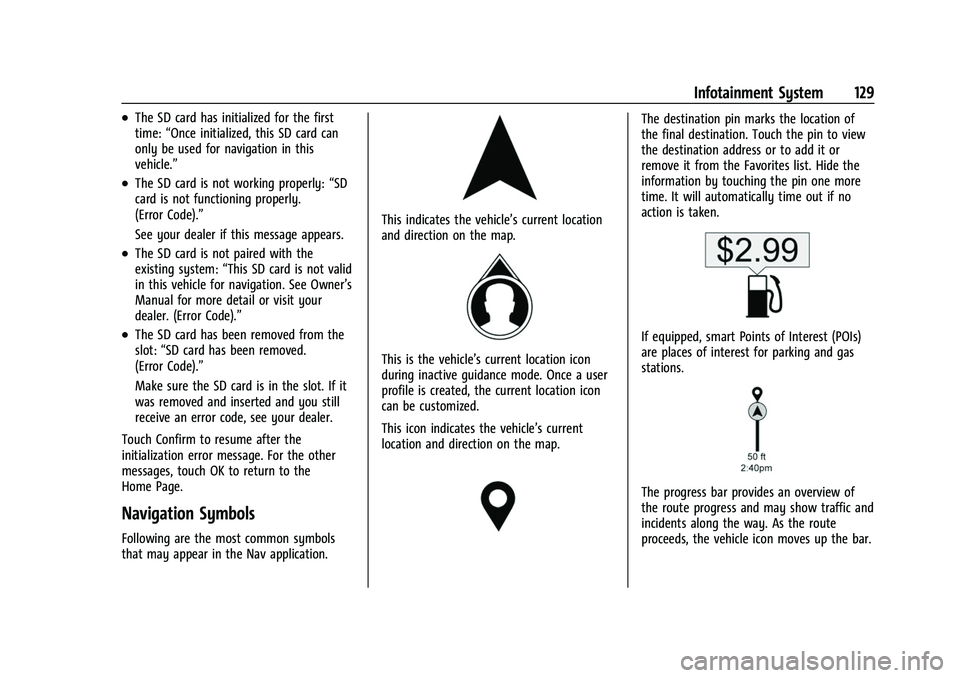
Following are the most common symbols
that may appear in the Nav application.
This indicates the vehicle’s current location
and direction on the map.
This is the vehicle’s current location icon
during inactive guidance mode. Once a user
profile is created, the current location icon
can be customized.
This icon indicates the vehicle’s current
location and direction on the map.
The destination pin marks the location of
the final destination. Touch the pin to view
the destination address or to add it or
remove it from the Favorites list. Hide the
information by touching the pin one more
time. It will automatically time out if no
action is taken.
If equipped, smart Points of Interest (POIs)
are places of interest for parking and gas
stations.
The progress bar provides an overview of
the route progress and may show traffic and
incidents along the way. As the route
proceeds, the vehicle icon moves up the bar.
Page 131 of 345
Chevrolet Camaro Owner Manual (GMNA-Localizing-U.S./Canada/Mexico-
16408685) - 2023 - CRC - 3/28/22
130 Infotainment System
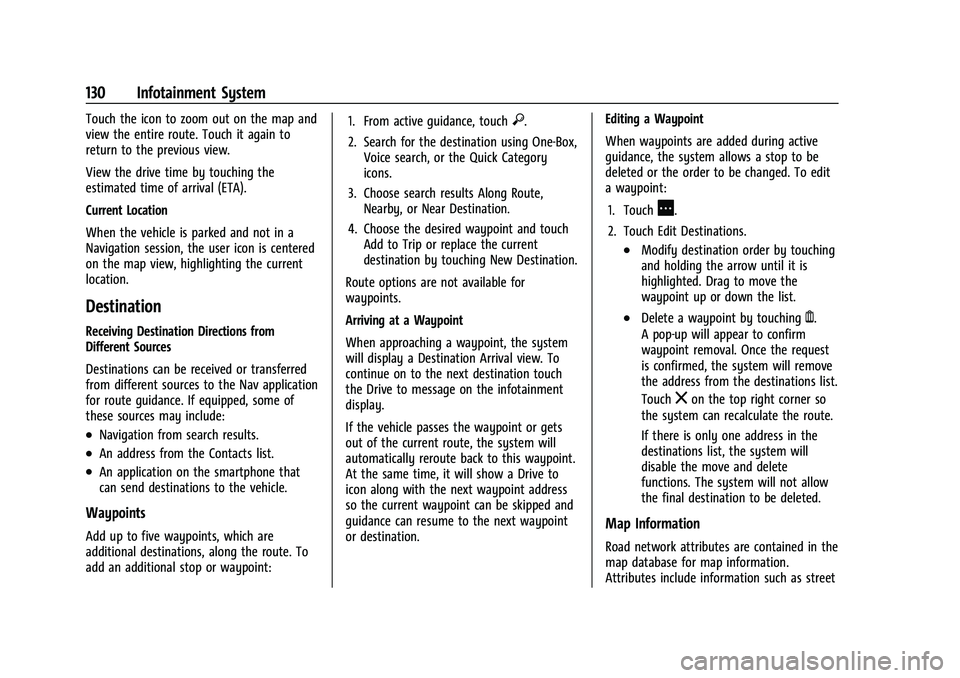
Touch the icon to zoom out on the map and
view the entire route. Touch it again to
return to the previous view.
View the drive time by touching the
estimated time of arrival (ETA).
Current Location
When the vehicle is parked and not in a
Navigation session, the user icon is centered
on the map view, highlighting the current
location.
Destination
Receiving Destination Directions from
Different Sources
Destinations can be received or transferred
from different sources to the Nav application
for route guidance. If equipped, some of
these sources may include:
.Navigation from search results.
.An address from the Contacts list.
.An application on the smartphone that
can send destinations to the vehicle.
Waypoints
Add up to five waypoints, which are
additional destinations, along the route. To
add an additional stop or waypoint:1. From active guidance, touch
}.
2. Search for the destination using One-Box, Voice search, or the Quick Category
icons.
3. Choose search results Along Route, Nearby, or Near Destination.
4. Choose the desired waypoint and touch Add to Trip or replace the current
destination by touching New Destination.
Route options are not available for
waypoints.
Arriving at a Waypoint
When approaching a waypoint, the system
will display a Destination Arrival view. To
continue on to the next destination touch
the Drive to message on the infotainment
display.
If the vehicle passes the waypoint or gets
out of the current route, the system will
automatically reroute back to this waypoint.
At the same time, it will show a Drive to
icon along with the next waypoint address
so the current waypoint can be skipped and
guidance can resume to the next waypoint
or destination. Editing a Waypoint
When waypoints are added during active
guidance, the system allows a stop to be
deleted or the order to be changed. To edit
a waypoint:
1. Touch
A.
2. Touch Edit Destinations.
.Modify destination order by touching
and holding the arrow until it is
highlighted. Drag to move the
waypoint up or down the list.
.Delete a waypoint by touchingY.
A pop-up will appear to confirm
waypoint removal. Once the request
is confirmed, the system will remove
the address from the destinations list.
Touch
zon the top right corner so
the system can recalculate the route.
If there is only one address in the
destinations list, the system will
disable the move and delete
functions. The system will not allow
the final destination to be deleted.
Map Information
Road network attributes are contained in the
map database for map information.
Attributes include information such as street