Lane CHEVROLET CAMARO 2023 Owners Manual
[x] Cancel search | Manufacturer: CHEVROLET, Model Year: 2023, Model line: CAMARO, Model: CHEVROLET CAMARO 2023Pages: 345, PDF Size: 16.19 MB
Page 4 of 345
Chevrolet Camaro Owner Manual (GMNA-Localizing-U.S./Canada/Mexico-
16408685) - 2023 - CRC - 3/28/22
Introduction 3
A circle with a slash through it is a safety
symbol which means“Do not,” “Do not do
this,” or“Do not let this happen.”
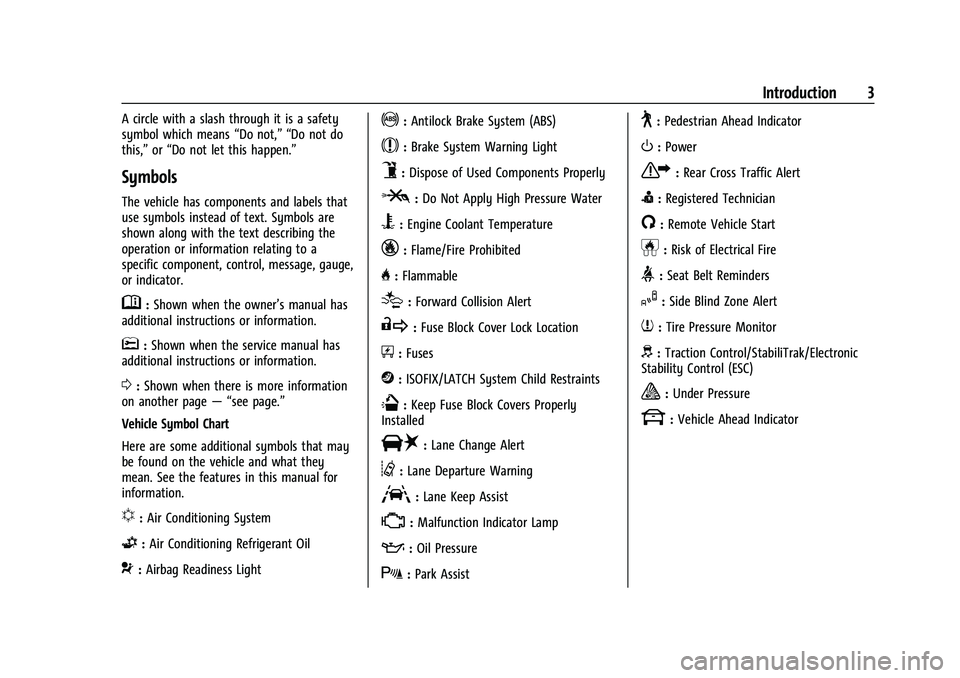
Symbols
The vehicle has components and labels that
use symbols instead of text. Symbols are
shown along with the text describing the
operation or information relating to a
specific component, control, message, gauge,
or indicator.
M:Shown when the owner’s manual has
additional instructions or information.
*: Shown when the service manual has
additional instructions or information.
0: Shown when there is more information
on another page — “see page.”
Vehicle Symbol Chart
Here are some additional symbols that may
be found on the vehicle and what they
mean. See the features in this manual for
information.
u: Air Conditioning System
G:Air Conditioning Refrigerant Oil
9:Airbag Readiness Light
!:Antilock Brake System (ABS)
$:Brake System Warning Light
9:Dispose of Used Components Properly
P:Do Not Apply High Pressure Water
B:Engine Coolant Temperature
_:Flame/Fire Prohibited
H: Flammable
[:Forward Collision Alert
R:Fuse Block Cover Lock Location
+:Fuses
j:ISOFIX/LATCH System Child Restraints
Q:Keep Fuse Block Covers Properly
Installed
|: Lane Change Alert
@:Lane Departure Warning
A:Lane Keep Assist
*: Malfunction Indicator Lamp
::Oil Pressure
X:Park Assist
~:Pedestrian Ahead Indicator
O:Power
7:Rear Cross Traffic Alert
I:Registered Technician
/:Remote Vehicle Start
h:Risk of Electrical Fire
>:Seat Belt Reminders
I:Side Blind Zone Alert
7:Tire Pressure Monitor
d:Traction Control/StabiliTrak/Electronic
Stability Control (ESC)
a: Under Pressure
k: Vehicle Ahead Indicator
Page 6 of 345
Chevrolet Camaro Owner Manual (GMNA-Localizing-U.S./Canada/Mexico-
16408685) - 2023 - CRC - 3/28/22
Introduction 5
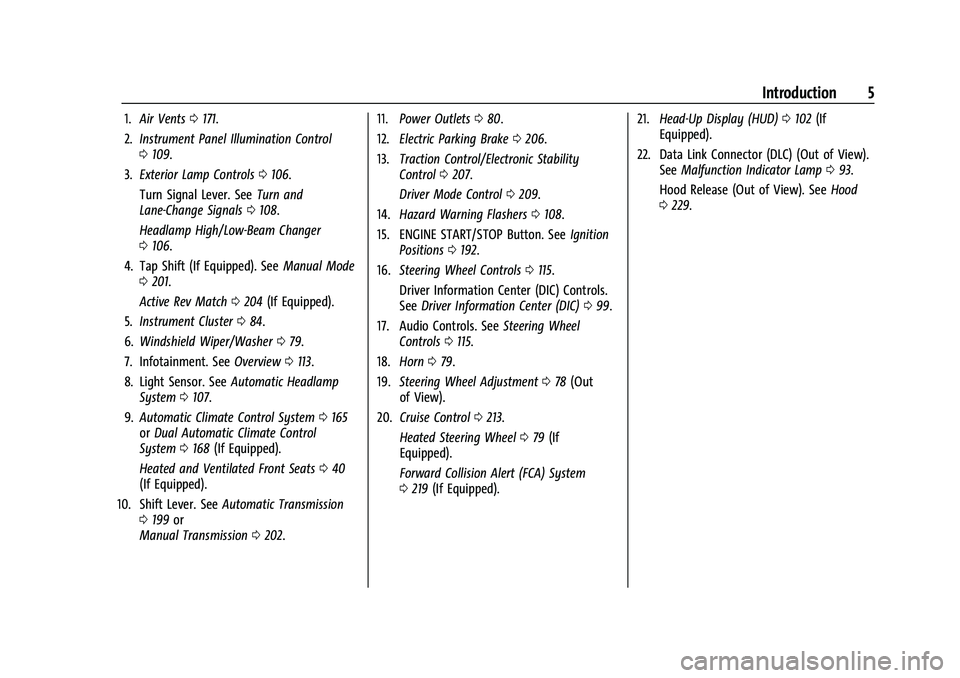
1.Air Vents 0171.
2. Instrument Panel Illumination Control
0109.
3. Exterior Lamp Controls 0106.
Turn Signal Lever. See Turn and
Lane-Change Signals 0108.
Headlamp High/Low-Beam Changer
0 106.
4. Tap Shift (If Equipped). See Manual Mode
0 201.
Active Rev Match 0204 (If Equipped).
5. Instrument Cluster 084.
6. Windshield Wiper/Washer 079.
7. Infotainment. See Overview0113.
8. Light Sensor. See Automatic Headlamp
System 0107.
9. Automatic Climate Control System 0165
or Dual Automatic Climate Control
System 0168 (If Equipped).
Heated and Ventilated Front Seats 040
(If Equipped).
10. Shift Lever. See Automatic Transmission
0 199 or
Manual Transmission 0202. 11.
Power Outlets 080.
12. Electric Parking Brake 0206.
13. Traction Control/Electronic Stability
Control 0207.
Driver Mode Control 0209.
14. Hazard Warning Flashers 0108.
15. ENGINE START/STOP Button. See Ignition
Positions 0192.
16. Steering Wheel Controls 0115.
Driver Information Center (DIC) Controls.
See Driver Information Center (DIC) 099.
17. Audio Controls. See Steering Wheel
Controls 0115.
18. Horn 079.
19. Steering Wheel Adjustment 078 (Out
of View).
20. Cruise Control 0213.
Heated Steering Wheel 079 (If
Equipped).
Forward Collision Alert (FCA) System
0 219 (If Equipped). 21.
Head-Up Display (HUD) 0102 (If
Equipped).
22. Data Link Connector (DLC) (Out of View). SeeMalfunction Indicator Lamp 093.
Hood Release (Out of View). See Hood
0 229.
Page 23 of 345
Chevrolet Camaro Owner Manual (GMNA-Localizing-U.S./Canada/Mexico-
16408685) - 2023 - CRC - 3/28/22
22 Keys, Doors, and Windows
Immobilizer Operation
This vehicle has a passive theft-deterrent
system.
The system does not have to be manually
armed or disarmed.
The vehicle is automatically immobilized
when the remote key leaves the vehicle.
The immobilization system is disarmed
when the ignition button is pressed and a
valid remote key is found in the vehicle.
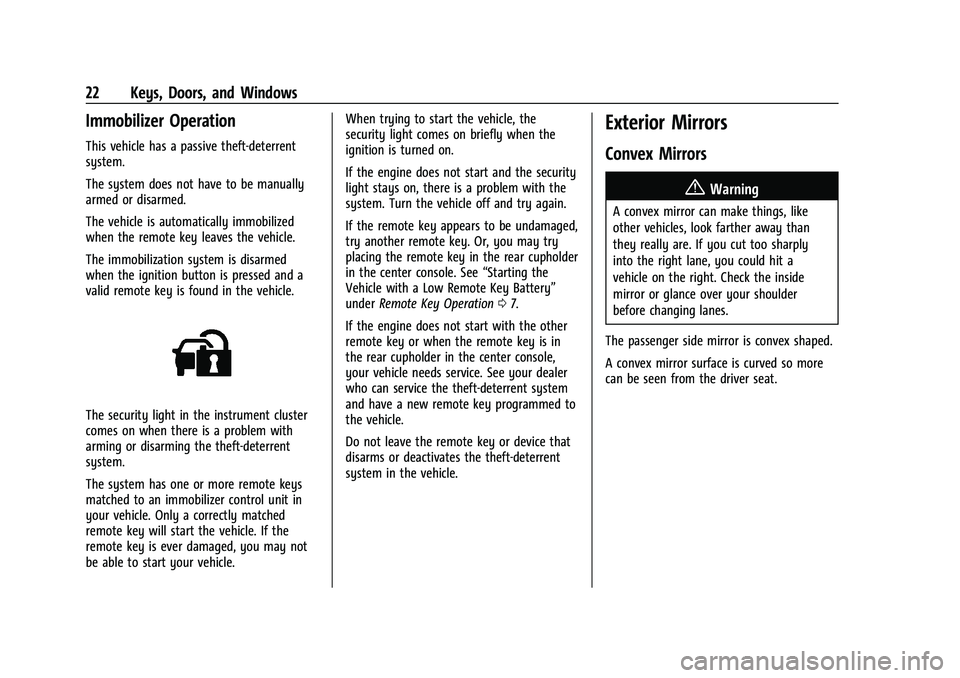
The security light in the instrument cluster
comes on when there is a problem with
arming or disarming the theft-deterrent
system.
The system has one or more remote keys
matched to an immobilizer control unit in
your vehicle. Only a correctly matched
remote key will start the vehicle. If the
remote key is ever damaged, you may not
be able to start your vehicle.When trying to start the vehicle, the
security light comes on briefly when the
ignition is turned on.
If the engine does not start and the security
light stays on, there is a problem with the
system. Turn the vehicle off and try again.
If the remote key appears to be undamaged,
try another remote key. Or, you may try
placing the remote key in the rear cupholder
in the center console. See
“Starting the
Vehicle with a Low Remote Key Battery”
under Remote Key Operation 07.
If the engine does not start with the other
remote key or when the remote key is in
the rear cupholder in the center console,
your vehicle needs service. See your dealer
who can service the theft-deterrent system
and have a new remote key programmed to
the vehicle.
Do not leave the remote key or device that
disarms or deactivates the theft-deterrent
system in the vehicle.
Exterior Mirrors
Convex Mirrors
{Warning
A convex mirror can make things, like
other vehicles, look farther away than
they really are. If you cut too sharply
into the right lane, you could hit a
vehicle on the right. Check the inside
mirror or glance over your shoulder
before changing lanes.
The passenger side mirror is convex shaped.
A convex mirror surface is curved so more
can be seen from the driver seat.
Page 24 of 345
Chevrolet Camaro Owner Manual (GMNA-Localizing-U.S./Canada/Mexico-
16408685) - 2023 - CRC - 3/28/22
Keys, Doors, and Windows 23
Power Mirrors
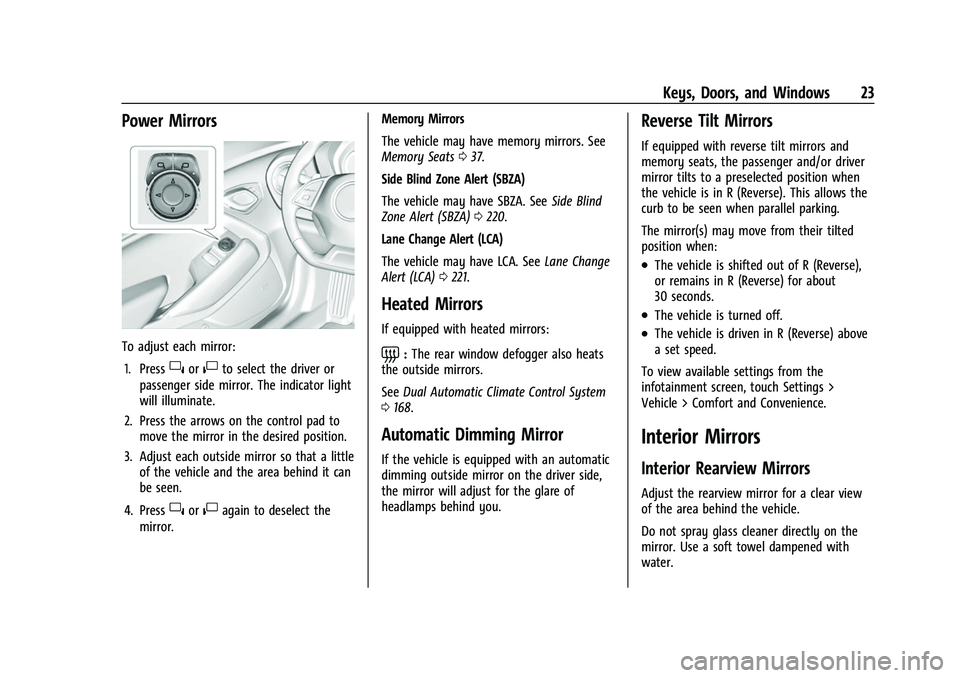
To adjust each mirror:1. Press
}or|to select the driver or
passenger side mirror. The indicator light
will illuminate.
2. Press the arrows on the control pad to move the mirror in the desired position.
3. Adjust each outside mirror so that a little of the vehicle and the area behind it can
be seen.
4. Press
}or|again to deselect the
mirror. Memory Mirrors
The vehicle may have memory mirrors. See
Memory Seats
037.
Side Blind Zone Alert (SBZA)
The vehicle may have SBZA. See Side Blind
Zone Alert (SBZA) 0220.
Lane Change Alert (LCA)
The vehicle may have LCA. See Lane Change
Alert (LCA) 0221.
Heated Mirrors
If equipped with heated mirrors:
=:The rear window defogger also heats
the outside mirrors.
See Dual Automatic Climate Control System
0 168.
Automatic Dimming Mirror
If the vehicle is equipped with an automatic
dimming outside mirror on the driver side,
the mirror will adjust for the glare of
headlamps behind you.
Reverse Tilt Mirrors
If equipped with reverse tilt mirrors and
memory seats, the passenger and/or driver
mirror tilts to a preselected position when
the vehicle is in R (Reverse). This allows the
curb to be seen when parallel parking.
The mirror(s) may move from their tilted
position when:
.The vehicle is shifted out of R (Reverse),
or remains in R (Reverse) for about
30 seconds.
.The vehicle is turned off.
.The vehicle is driven in R (Reverse) above
a set speed.
To view available settings from the
infotainment screen, touch Settings >
Vehicle > Comfort and Convenience.
Interior Mirrors
Interior Rearview Mirrors
Adjust the rearview mirror for a clear view
of the area behind the vehicle.
Do not spray glass cleaner directly on the
mirror. Use a soft towel dampened with
water.
Page 26 of 345
Chevrolet Camaro Owner Manual (GMNA-Localizing-U.S./Canada/Mexico-
16408685) - 2023 - CRC - 3/28/22
Keys, Doors, and Windows 25
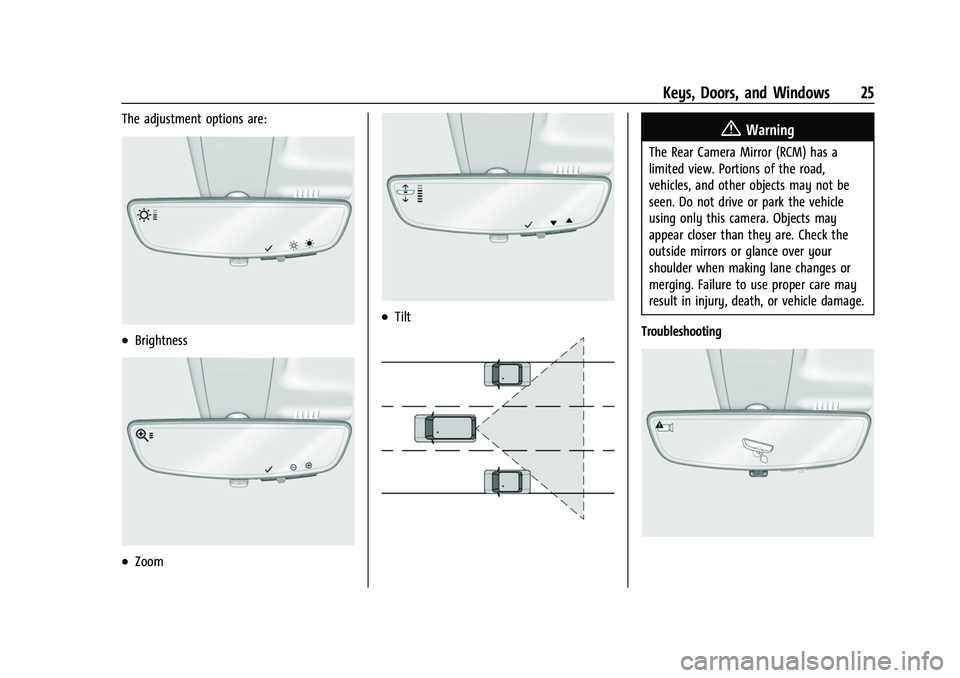
The adjustment options are:
.Brightness
.Zoom
.Tilt
{Warning
The Rear Camera Mirror (RCM) has a
limited view. Portions of the road,
vehicles, and other objects may not be
seen. Do not drive or park the vehicle
using only this camera. Objects may
appear closer than they are. Check the
outside mirrors or glance over your
shoulder when making lane changes or
merging. Failure to use proper care may
result in injury, death, or vehicle damage.
Troubleshooting
Page 104 of 345
Chevrolet Camaro Owner Manual (GMNA-Localizing-U.S./Canada/Mexico-
16408685) - 2023 - CRC - 3/28/22
Instruments and Controls 103
.Performance
.Vehicle Messages
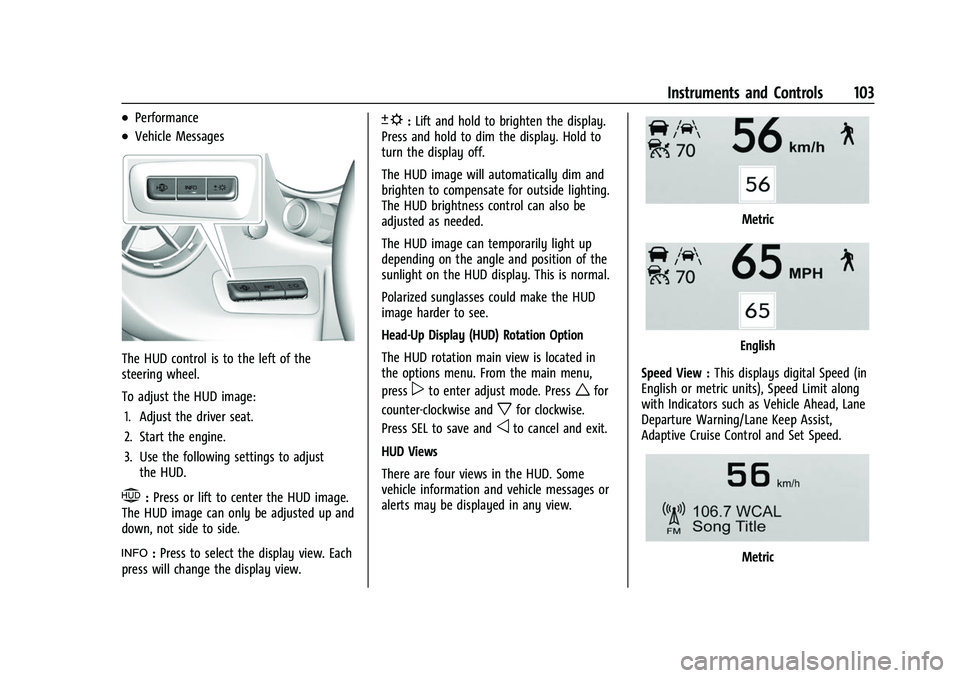
The HUD control is to the left of the
steering wheel.
To adjust the HUD image:1. Adjust the driver seat.
2. Start the engine.
3. Use the following settings to adjust the HUD.
$:Press or lift to center the HUD image.
The HUD image can only be adjusted up and
down, not side to side.
!: Press to select the display view. Each
press will change the display view.
D: Lift and hold to brighten the display.
Press and hold to dim the display. Hold to
turn the display off.
The HUD image will automatically dim and
brighten to compensate for outside lighting.
The HUD brightness control can also be
adjusted as needed.
The HUD image can temporarily light up
depending on the angle and position of the
sunlight on the HUD display. This is normal.
Polarized sunglasses could make the HUD
image harder to see.
Head-Up Display (HUD) Rotation Option
The HUD rotation main view is located in
the options menu. From the main menu,
press
pto enter adjust mode. Presswfor
counter-clockwise and
xfor clockwise.
Press SEL to save and
oto cancel and exit.
HUD Views
There are four views in the HUD. Some
vehicle information and vehicle messages or
alerts may be displayed in any view.
Metric
English
Speed View : This displays digital Speed (in
English or metric units), Speed Limit along
with Indicators such as Vehicle Ahead, Lane
Departure Warning/Lane Keep Assist,
Adaptive Cruise Control and Set Speed.
Metric
Page 107 of 345
Chevrolet Camaro Owner Manual (GMNA-Localizing-U.S./Canada/Mexico-
16408685) - 2023 - CRC - 3/28/22
106 Lighting
Lighting
Exterior Lighting
Exterior Lamp Controls . . . . . . . . . . . . . . . . 106
Headlamp High/Low-Beam Changer . . . 106
Flash-to-Pass . . . . . . . . . . . . . . . . . . . . . . . . . . . 107
Daytime Running Lamps (DRL) . . . . . . . . . 107
Automatic Headlamp System . . . . . . . . . . 107
Hazard Warning Flashers . . . . . . . . . . . . . . 108
Turn and Lane-Change Signals . . . . . . . . . 108
Interior Lighting
Instrument Panel IlluminationControl . . . . . . . . . . . . . . . . . . . . . . . . . . . . . . 109
Interior Lamps . . . . . . . . . . . . . . . . . . . . . . . . . 109
Reading Lamps . . . . . . . . . . . . . . . . . . . . . . . . 109
Lighting Features
Entry Lighting . . . . . . . . . . . . . . . . . . . . . . . . . 109
Exit Lighting . . . . . . . . . . . . . . . . . . . . . . . . . . . 110
Battery Load Management . . . . . . . . . . . . 110
Battery Power Protection . . . . . . . . . . . . . . 110
Exterior Lighting Battery Saver . . . . . . . . . 111
Exterior Lighting
Exterior Lamp Controls
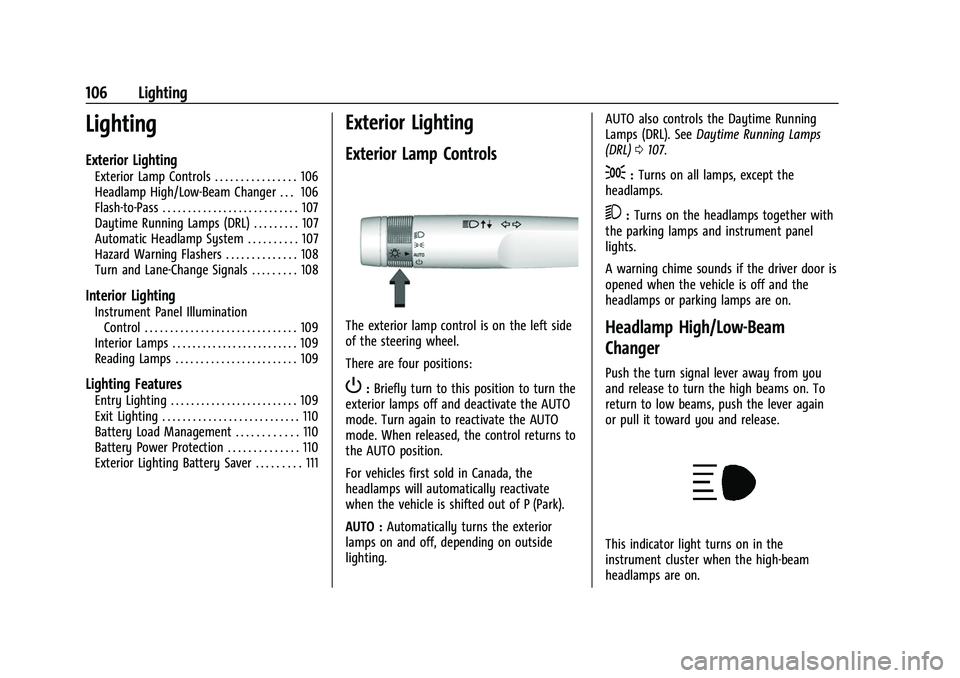
The exterior lamp control is on the left side
of the steering wheel.
There are four positions:
P: Briefly turn to this position to turn the
exterior lamps off and deactivate the AUTO
mode. Turn again to reactivate the AUTO
mode. When released, the control returns to
the AUTO position.
For vehicles first sold in Canada, the
headlamps will automatically reactivate
when the vehicle is shifted out of P (Park).
AUTO : Automatically turns the exterior
lamps on and off, depending on outside
lighting. AUTO also controls the Daytime Running
Lamps (DRL). See
Daytime Running Lamps
(DRL) 0107.
;:Turns on all lamps, except the
headlamps.
5: Turns on the headlamps together with
the parking lamps and instrument panel
lights.
A warning chime sounds if the driver door is
opened when the vehicle is off and the
headlamps or parking lamps are on.
Headlamp High/Low-Beam
Changer
Push the turn signal lever away from you
and release to turn the high beams on. To
return to low beams, push the lever again
or pull it toward you and release.
This indicator light turns on in the
instrument cluster when the high-beam
headlamps are on.
Page 109 of 345
Chevrolet Camaro Owner Manual (GMNA-Localizing-U.S./Canada/Mexico-
16408685) - 2023 - CRC - 3/28/22
108 Lighting
be affected when the light sensor sees a
change in lighting lasting longer than the
delay.
If the vehicle is started in a dark garage, the
automatic headlamp system comes on
immediately. If it is light outside when the
vehicle leaves the garage, there will be a
slight delay before the automatic headlamp
system changes to the DRL. During that
delay, the instrument cluster may not be as
bright as usual. Make sure the instrument
panel brightness control is in the full bright
position. SeeInstrument Panel Illumination
Control 0109.
Lights On with Wipers
If the windshield wipers are activated in
daylight with the engine on, and the
exterior lamp control is in AUTO, the
headlamps, parking lamps, and other
exterior lamps come on. The transition time
for the lamps coming on varies based on
wiper speed. When the wipers are not
operating, these lamps turn off. Move the
exterior lamp control to
Por;to
disable this feature.
Hazard Warning Flashers
|: Press to make the front and rear turn
signal lamps flash on and off. This warns
others that you are having trouble. Press
again to turn the flashers off.
The hazard warning flashers turn on
automatically if the airbags deploy.
Turn and Lane-Change Signals
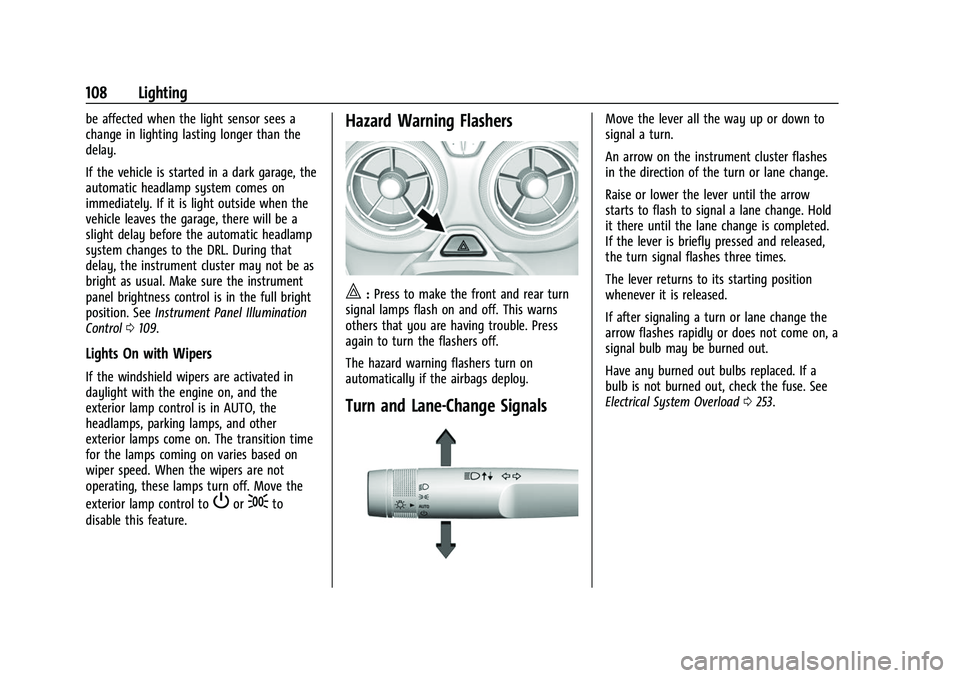
Move the lever all the way up or down to
signal a turn.
An arrow on the instrument cluster flashes
in the direction of the turn or lane change.
Raise or lower the lever until the arrow
starts to flash to signal a lane change. Hold
it there until the lane change is completed.
If the lever is briefly pressed and released,
the turn signal flashes three times.
The lever returns to its starting position
whenever it is released.
If after signaling a turn or lane change the
arrow flashes rapidly or does not come on, a
signal bulb may be burned out.
Have any burned out bulbs replaced. If a
bulb is not burned out, check the fuse. See
Electrical System Overload 0253.
Page 128 of 345
Chevrolet Camaro Owner Manual (GMNA-Localizing-U.S./Canada/Mexico-
16408685) - 2023 - CRC - 3/28/22
Infotainment System 127
.3D Heading Up, 2D Heading Up, 2D North
.Show on Map
.Traffic Events (available with Connected
Navigation)
.Settings
.Edit Destination (if a route has been set)
.Avoid on Route (if a route has been set)
Touch Settings to view Map and Navigation
Settings. The following may display:
.Destination Card Preferences
.Map Preferences
.Route Preferences
.Navigation Voice Control
.Traffic Preferences
.Alert Preferences
.Fuel Grade Preferences
.Manage History
.Predictive Navigation: See “Predictive
Navigation (If Equipped)” previously in
this section.
.About
To exit a list, touch
zin the top right
corner to return to the main map view.
Make sure to set up preferences before
setting a destination and starting active
guidance. Map Preferences
Touch to choose between basic map feature
configurations:
Map Colors
.Auto
–Touch to automatically change
modes based on lighting conditions.
.Day (Light)
.Night (Dark)
3D Landmark (Default is On) : Touch On or
Off. When turned on, the system will
display all 3D Landmarks on the map
depending on the zoom level.
3D Building (Default is Off) : Touch On or
Off. When turned on, the system will
display all of the possible 3D building shapes
on the map depending on the zoom level.
Show Terrain in 3D (Default is Off) :
If equipped, touch On or Off. When turned
on, the system will display terrain
information on the map in 3D view.
Auto-Zoom (Default is On) : Touch On or
Off. When turned on, the system will
automatically adjust the zoom level when
the vehicle is approaching a turn. After the
turn is completed, the system automatically
brings the zoom back to the originally set
level. If the vehicle is approaching a turn with the next turn occurring shortly after,
the Auto-Zoom will remain on until both
turns are completed.
Route Preferences
Touch to access the Route Preferences. The
choices are:
.Preferred Route
–Choose from two
different route options: Fastest or
Eco-Friendly.
‐ Fastest would be the route with the
shortest drive time.
‐ Eco-Friendly would be the most
fuel-efficient route.
.Avoid on Current Route –Choose any of
the road features to avoid while on route:
‐ Highways
‐ Unpaved Roads
‐ Ferries
‐ Carpool Lanes
‐ Toll Roads
‐ Tunnels
‐ Country Borders
Navigation Voice Control
Touch to access the voice control setting
display.
Page 133 of 345
Chevrolet Camaro Owner Manual (GMNA-Localizing-U.S./Canada/Mexico-
16408685) - 2023 - CRC - 3/28/22
132 Infotainment System
2D North Up Route View, the Recenter icon
will appear in the middle of the display.
Touch either the Recenter icon or the traffic
bar again to return to the previous view,
either 2D or 3D.
Lane Guidance
The map will display the lane information
for the upcoming maneuver if it is available.
Junction View
When a vehicle is on the highway and
approaching the exit, an image displays the
lane that the vehicle must stay in to
complete the next maneuver.
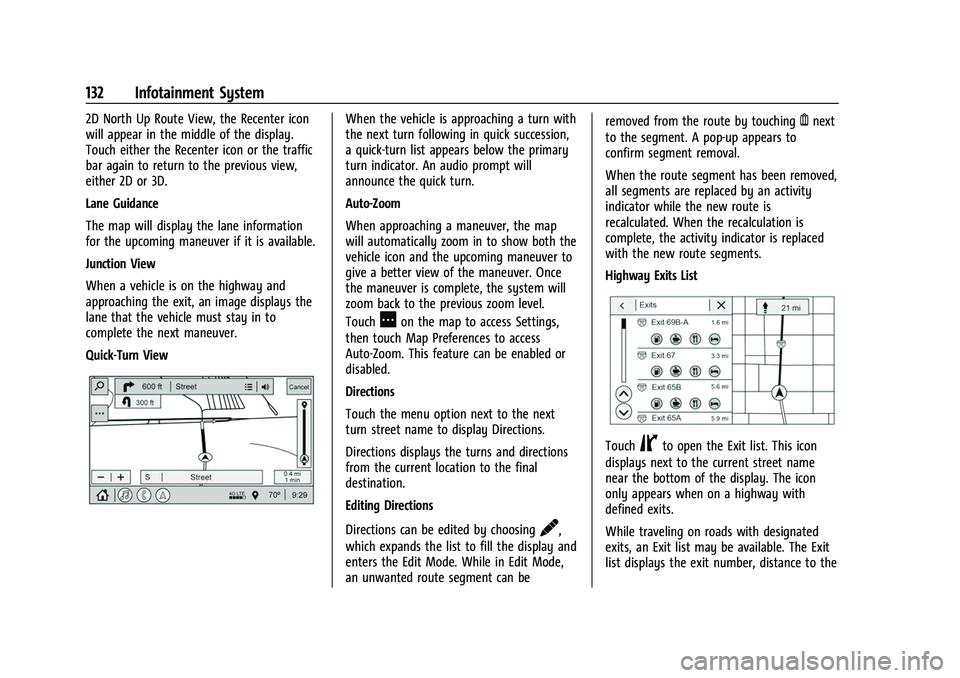
Quick-Turn ViewWhen the vehicle is approaching a turn with
the next turn following in quick succession,
a quick-turn list appears below the primary
turn indicator. An audio prompt will
announce the quick turn.
Auto-Zoom
When approaching a maneuver, the map
will automatically zoom in to show both the
vehicle icon and the upcoming maneuver to
give a better view of the maneuver. Once
the maneuver is complete, the system will
zoom back to the previous zoom level.
Touch
Aon the map to access Settings,
then touch Map Preferences to access
Auto-Zoom. This feature can be enabled or
disabled.
Directions
Touch the menu option next to the next
turn street name to display Directions.
Directions displays the turns and directions
from the current location to the final
destination.
Editing Directions
Directions can be edited by choosing
y,
which expands the list to fill the display and
enters the Edit Mode. While in Edit Mode,
an unwanted route segment can be removed from the route by touching
Ynext
to the segment. A pop-up appears to
confirm segment removal.
When the route segment has been removed,
all segments are replaced by an activity
indicator while the new route is
recalculated. When the recalculation is
complete, the activity indicator is replaced
with the new route segments.
Highway Exits List
TouchCto open the Exit list. This icon
displays next to the current street name
near the bottom of the display. The icon
only appears when on a highway with
defined exits.
While traveling on roads with designated
exits, an Exit list may be available. The Exit
list displays the exit number, distance to the