change time CHEVROLET CAMARO SS 2018 User Guide
[x] Cancel search | Manufacturer: CHEVROLET, Model Year: 2018, Model line: CAMARO SS, Model: CHEVROLET CAMARO SS 2018Pages: 386, PDF Size: 5.57 MB
Page 147 of 386
Chevrolet Camaro Owner Manual (GMNA-Localizing-U.S./Canada/Mexico-
11348325) - 2018 - crc - 4/11/17
146 Instruments and Controls
Programming the Universal
Remote System
For questions or help programming
the Universal Remote system, call
1-800-355-3515 or see
www.homelink.com.
Programming involves
time-sensitive actions, and may time
out causing the procedure to be
repeated.
To program up to three devices:1. Hold the end of the hand-held transmitter about 3 to 8 cm
(1 to 3 in) away from the
Universal Remote system
buttons with the indicator light
in view. The hand-held
transmitter was supplied by the
manufacturer of the garage
door opener receiver.
2. At the same time, press and hold both the hand-held
transmitter button and one of
the three Universal Remote
system buttons to be used to
operate the garage door. Do
not release either button until the indicator light changes from
a slow to a rapid flash. Then
release both buttons.
Some garage door openers
may require substitution of
Step 2 with the procedure in
“Radio Signals for Canada and
Some Gate Operators”
later in
this section.
3. Press and hold the newly programmed Universal Remote
system button for five seconds
while watching the indicator
light and garage door
activation.
.If the indicator light stays on
continuously or the garage
door moves when the
button is pressed, then
programming is complete.
There is no need to
complete Steps 4–6.
. If the indicator light does
not come on or the garage
door does not move, a
second button press may
be required. For a second
time, press and hold the
newly programmed button for five seconds. If the light
stays on or the garage door
moves, programming is
complete.
. If the indicator light blinks
rapidly for two seconds,
then changes to a solid light
and the garage door does
not move, continue with
programming Steps 4–6.
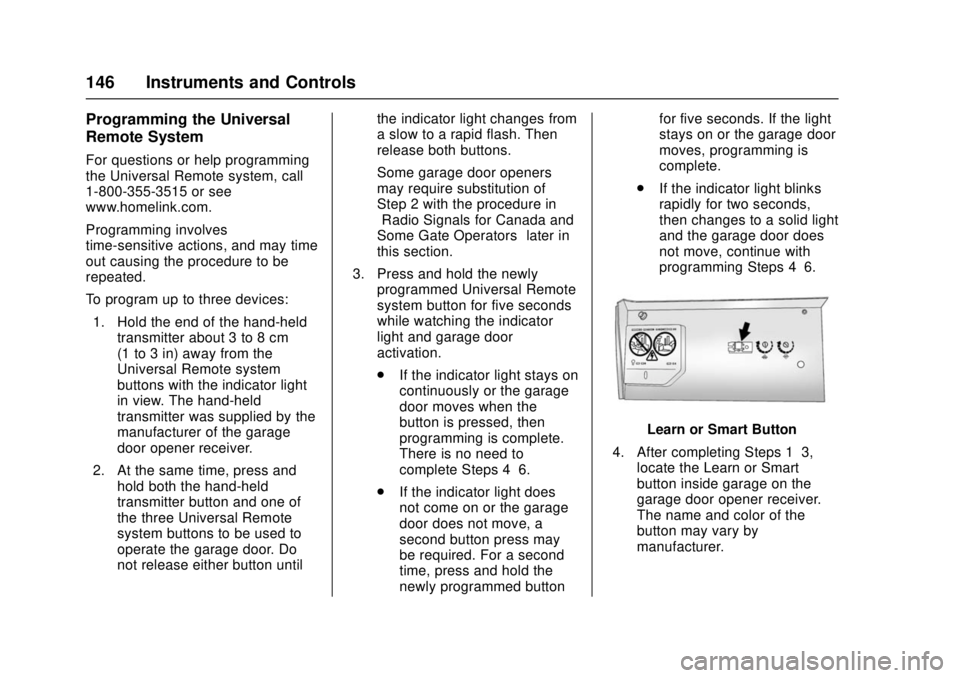
Learn or Smart Button
4. After completing Steps 1–3, locate the Learn or Smart
button inside garage on the
garage door opener receiver.
The name and color of the
button may vary by
manufacturer.
Page 150 of 386
Chevrolet Camaro Owner Manual (GMNA-Localizing-U.S./Canada/Mexico-
11348325) - 2018 - crc - 4/11/17
Lighting 149
Lighting
Exterior Lighting
Exterior Lamp Controls . . . . . . . 149
Headlamp High/Low-BeamChanger . . . . . . . . . . . . . . . . . . . . 149
Flash-to-Pass . . . . . . . . . . . . . . . . 150
Daytime Running Lamps (DRL) . . . . . . . . . . . . . . . 150
Automatic Headlamp System . . . . . . . . . . . . . . . . . . . . . . 150
Hazard Warning Flashers . . . . . 151
Turn and Lane-Change Signals . . . . . . . . . . . . . . . . . . . . . . 151
Interior Lighting
Instrument Panel IlluminationControl . . . . . . . . . . . . . . . . . . . . . . 152
Interior Lamps . . . . . . . . . . . . . . . . 152
Reading Lamps . . . . . . . . . . . . . . 153
Lighting Features
Entry Lighting . . . . . . . . . . . . . . . . 153
Exit Lighting . . . . . . . . . . . . . . . . . . 153
Theater Dimming . . . . . . . . . . . . . 153
Battery Load Management . . . 153
Battery Power Protection . . . . . 154
Exterior Lighting Battery Saver . . . . . . . . . . . . . . . . . . . . . . . 154
Exterior Lighting
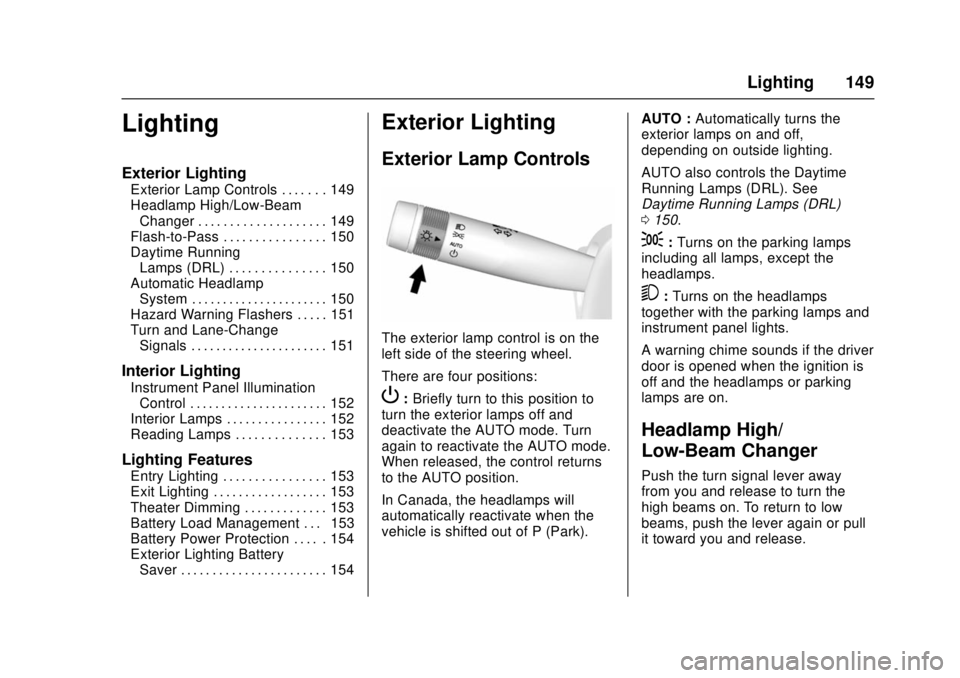
Exterior Lamp Controls
The exterior lamp control is on the
left side of the steering wheel.
There are four positions:
P: Briefly turn to this position to
turn the exterior lamps off and
deactivate the AUTO mode. Turn
again to reactivate the AUTO mode.
When released, the control returns
to the AUTO position.
In Canada, the headlamps will
automatically reactivate when the
vehicle is shifted out of P (Park). AUTO :
Automatically turns the
exterior lamps on and off,
depending on outside lighting.
AUTO also controls the Daytime
Running Lamps (DRL). See
Daytime Running Lamps (DRL)
0 150.
;:Turns on the parking lamps
including all lamps, except the
headlamps.
5: Turns on the headlamps
together with the parking lamps and
instrument panel lights.
A warning chime sounds if the driver
door is opened when the ignition is
off and the headlamps or parking
lamps are on.
Headlamp High/
Low-Beam Changer
Push the turn signal lever away
from you and release to turn the
high beams on. To return to low
beams, push the lever again or pull
it toward you and release.
Page 151 of 386

Chevrolet Camaro Owner Manual (GMNA-Localizing-U.S./Canada/Mexico-
11348325) - 2018 - crc - 4/11/17
150 Lighting
This indicator light turns on in the
instrument cluster when the
high-beam headlamps are on.
Flash-to-Pass
The flash-to-pass feature works with
the low beams or Daytime Running
Lamps (DRL) on or off.
To flash the high beams, pull the
turn signal lever all the way toward
you, then release it.
Daytime Running
Lamps (DRL)
DRL can make it easier for others to
see the front of your vehicle during
the day. DRL are required on all
vehicles first sold in Canada.
A light sensor on top of the
instrument panel makes the DRL
work, so be sure it is not covered.The dedicated DRL will come on
when all of the following conditions
are met:
.
The ignition is on.
. The exterior lamps control is in
AUTO, or has been briefly
turned to
Pto turn the
automatic light control on again.
. The engine is running and the
transmission is not in P (Park).
When the DRL are on, the
headlamps, taillamps, sidemarker
lamps, instrument panel lights, and
other lamps will not be on.
The headlamps automatically
change from DRL to the regular
headlamps depending on the
darkness of the surroundings. The
other lamps that come on with the
headlamps will also come on.
When it is bright enough outside,
the headlamps will go off and the
DRL will come on.
To turn the DRL off or on again, turn
the exterior lamps control to
Pand
then release. For vehicles first sold in Canada, the DRL can only be
turned off when the vehicle is
parked.
The regular headlamp system
should be turned on when needed.
Automatic Headlamp
System
When it is dark enough outside and
the headlamp switch is in AUTO,
the automatic headlamp system will
turn on the headlamps at the normal
brightness along with other lamps
such as the taillamps, sidemarker
lamps, parking lamps, license plate
lamps, and the instrument panel
lights. The radio lights will also
be dim.
To turn off the automatic headlamp
system, turn the exterior lamps
switch to the
Pposition and then
release. For vehicles first sold in
Canada, the transmission must be
in P (Park), before the automatic
headlamp system can be turned off.
Page 152 of 386
Chevrolet Camaro Owner Manual (GMNA-Localizing-U.S./Canada/Mexico-
11348325) - 2018 - crc - 4/11/17
Lighting 151
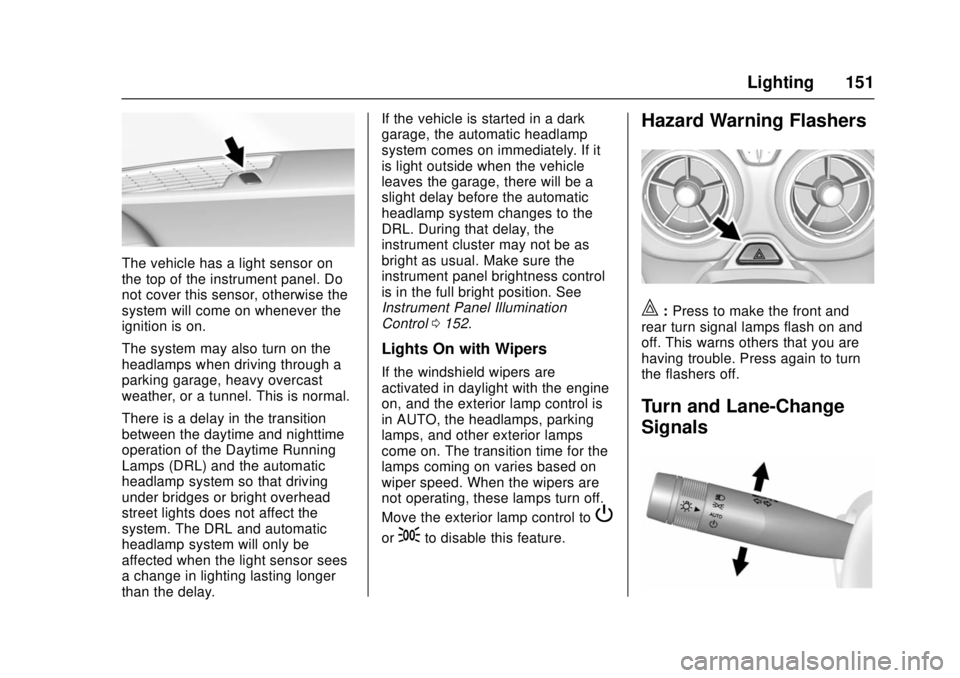
The vehicle has a light sensor on
the top of the instrument panel. Do
not cover this sensor, otherwise the
system will come on whenever the
ignition is on.
The system may also turn on the
headlamps when driving through a
parking garage, heavy overcast
weather, or a tunnel. This is normal.
There is a delay in the transition
between the daytime and nighttime
operation of the Daytime Running
Lamps (DRL) and the automatic
headlamp system so that driving
under bridges or bright overhead
street lights does not affect the
system. The DRL and automatic
headlamp system will only be
affected when the light sensor sees
a change in lighting lasting longer
than the delay.If the vehicle is started in a dark
garage, the automatic headlamp
system comes on immediately. If it
is light outside when the vehicle
leaves the garage, there will be a
slight delay before the automatic
headlamp system changes to the
DRL. During that delay, the
instrument cluster may not be as
bright as usual. Make sure the
instrument panel brightness control
is in the full bright position. See
Instrument Panel Illumination
Control
0152.
Lights On with Wipers
If the windshield wipers are
activated in daylight with the engine
on, and the exterior lamp control is
in AUTO, the headlamps, parking
lamps, and other exterior lamps
come on. The transition time for the
lamps coming on varies based on
wiper speed. When the wipers are
not operating, these lamps turn off.
Move the exterior lamp control to
P
or;to disable this feature.
Hazard Warning Flashers
|:Press to make the front and
rear turn signal lamps flash on and
off. This warns others that you are
having trouble. Press again to turn
the flashers off.
Turn and Lane-Change
Signals
Page 153 of 386
Chevrolet Camaro Owner Manual (GMNA-Localizing-U.S./Canada/Mexico-
11348325) - 2018 - crc - 4/11/17
152 Lighting
Move the lever all the way up or
down to signal a turn.
An arrow on the instrument cluster
flashes in the direction of the turn or
lane change.
Raise or lower the lever until the
arrow starts to flash to signal a lane
change. Hold it there until the lane
change is completed. If the lever is
briefly pressed and released, the
turn signal flashes three times.
The turn and lane-change signal
can be turned off manually by
moving the lever back to its original
position.
If after signaling a turn or lane
change, the arrow flashes rapidly or
does not come on, a signal bulb
may be burned out.
Replace any burned out bulbs. If a
bulb is not burned out, check the
fuse. SeeFuses and Circuit
Breakers 0279.Interior Lighting
Instrument Panel
Illumination Control
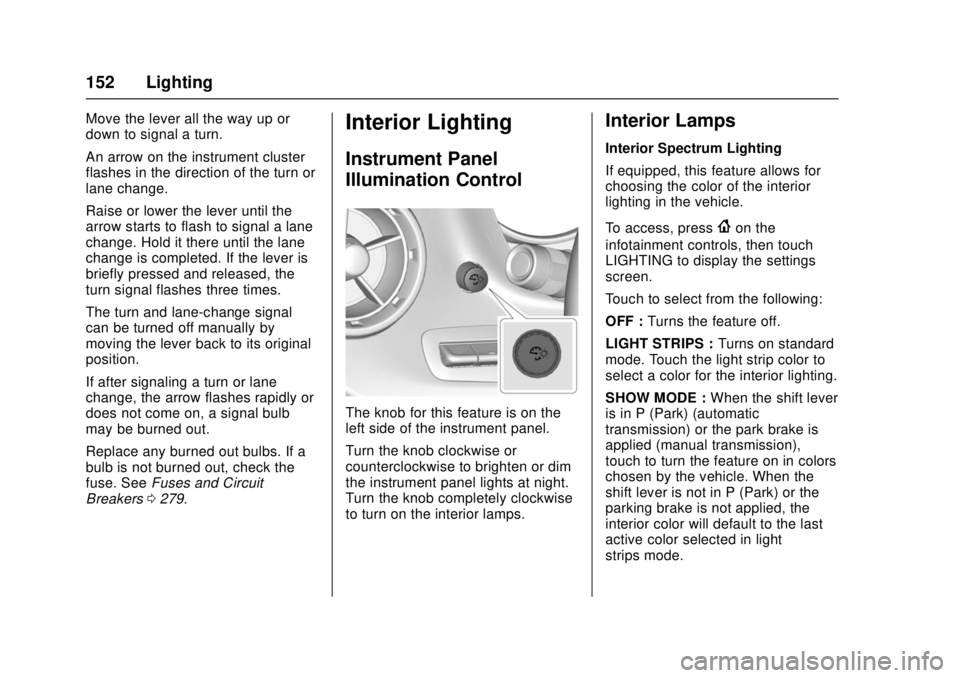
The knob for this feature is on the
left side of the instrument panel.
Turn the knob clockwise or
counterclockwise to brighten or dim
the instrument panel lights at night.
Turn the knob completely clockwise
to turn on the interior lamps.
Interior Lamps
Interior Spectrum Lighting
If equipped, this feature allows for
choosing the color of the interior
lighting in the vehicle.
To access, press
{on the
infotainment controls, then touch
LIGHTING to display the settings
screen.
Touch to select from the following:
OFF : Turns the feature off.
LIGHT STRIPS : Turns on standard
mode. Touch the light strip color to
select a color for the interior lighting.
SHOW MODE : When the shift lever
is in P (Park) (automatic
transmission) or the park brake is
applied (manual transmission),
touch to turn the feature on in colors
chosen by the vehicle. When the
shift lever is not in P (Park) or the
parking brake is not applied, the
interior color will default to the last
active color selected in light
strips mode.
Page 154 of 386
Chevrolet Camaro Owner Manual (GMNA-Localizing-U.S./Canada/Mexico-
11348325) - 2018 - crc - 4/11/17
Lighting 153
LINK TO DRIVE MODE :The light
color is matched to the color being
used for the drive mode.
Reading Lamps
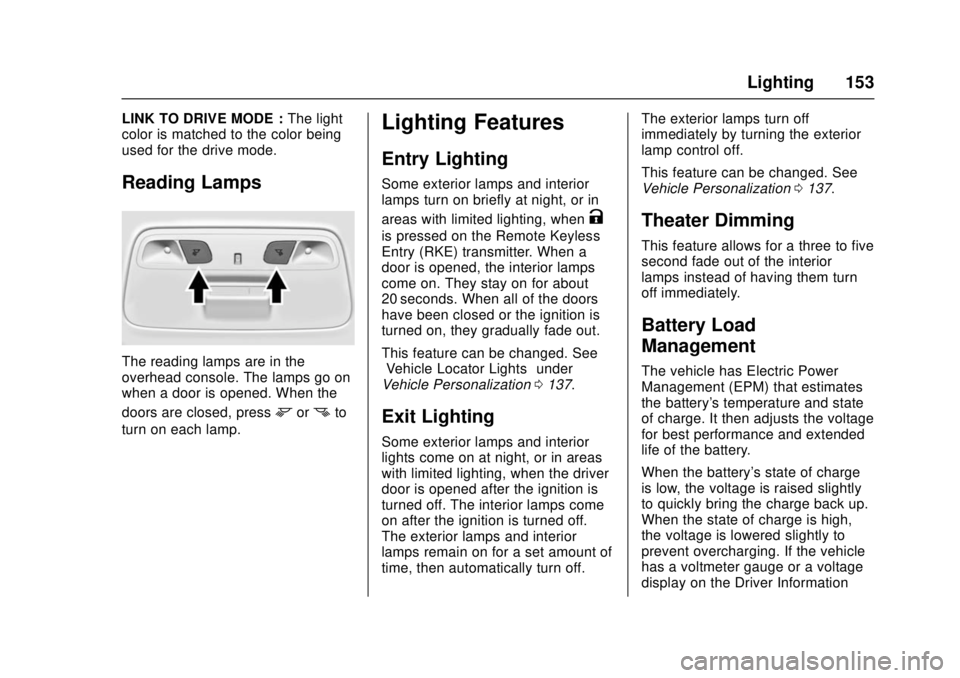
The reading lamps are in the
overhead console. The lamps go on
when a door is opened. When the
doors are closed, press
mornto
turn on each lamp.
Lighting Features
Entry Lighting
Some exterior lamps and interior
lamps turn on briefly at night, or in
areas with limited lighting, when
K
is pressed on the Remote Keyless
Entry (RKE) transmitter. When a
door is opened, the interior lamps
come on. They stay on for about
20 seconds. When all of the doors
have been closed or the ignition is
turned on, they gradually fade out.
This feature can be changed. See
“Vehicle Locator Lights” under
Vehicle Personalization 0137.
Exit Lighting
Some exterior lamps and interior
lights come on at night, or in areas
with limited lighting, when the driver
door is opened after the ignition is
turned off. The interior lamps come
on after the ignition is turned off.
The exterior lamps and interior
lamps remain on for a set amount of
time, then automatically turn off. The exterior lamps turn off
immediately by turning the exterior
lamp control off.
This feature can be changed. See
Vehicle Personalization
0137.
Theater Dimming
This feature allows for a three to five
second fade out of the interior
lamps instead of having them turn
off immediately.
Battery Load
Management
The vehicle has Electric Power
Management (EPM) that estimates
the battery's temperature and state
of charge. It then adjusts the voltage
for best performance and extended
life of the battery.
When the battery's state of charge
is low, the voltage is raised slightly
to quickly bring the charge back up.
When the state of charge is high,
the voltage is lowered slightly to
prevent overcharging. If the vehicle
has a voltmeter gauge or a voltage
display on the Driver Information
Page 168 of 386
Chevrolet Camaro Owner Manual (GMNA-Localizing-U.S./Canada/Mexico-
11348325) - 2018 - crc - 4/11/17
Infotainment System 167
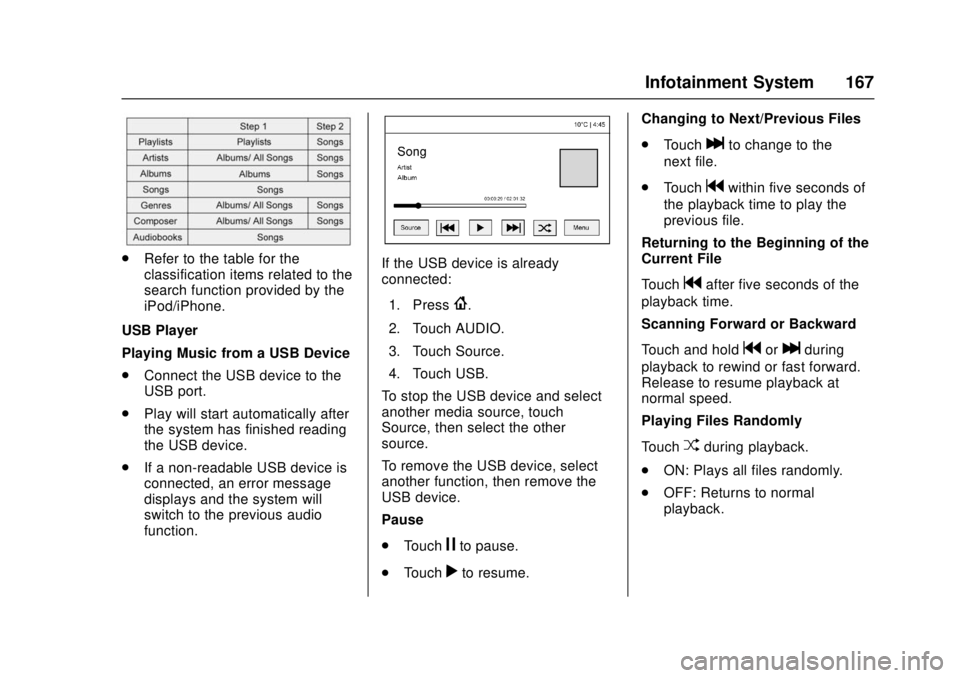
.Refer to the table for the
classification items related to the
search function provided by the
iPod/iPhone.
USB Player
Playing Music from a USB Device
. Connect the USB device to the
USB port.
. Play will start automatically after
the system has finished reading
the USB device.
. If a non-readable USB device is
connected, an error message
displays and the system will
switch to the previous audio
function.If the USB device is already
connected:
1. Press
{.
2. Touch AUDIO.
3. Touch Source.
4. Touch USB.
To stop the USB device and select
another media source, touch
Source, then select the other
source.
To remove the USB device, select
another function, then remove the
USB device.
Pause
. Touch
jto pause.
. Touch
rto resume. Changing to Next/Previous Files
.
Touch
lto change to the
next file.
. Touch
gwithin five seconds of
the playback time to play the
previous file.
Returning to the Beginning of the
Current File
Touch
gafter five seconds of the
playback time.
Scanning Forward or Backward
Touch and hold
gorlduring
playback to rewind or fast forward.
Release to resume playback at
normal speed.
Playing Files Randomly
Touch
Zduring playback.
. ON: Plays all files randomly.
. OFF: Returns to normal
playback.
Page 170 of 386
Chevrolet Camaro Owner Manual (GMNA-Localizing-U.S./Canada/Mexico-
11348325) - 2018 - crc - 4/11/17
Infotainment System 169
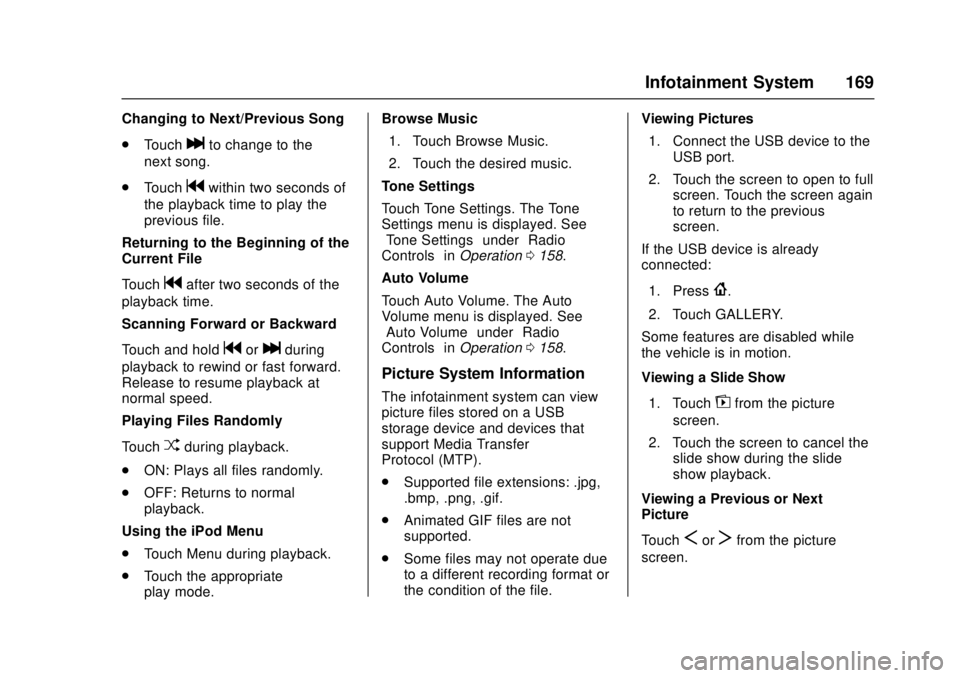
Changing to Next/Previous Song
.Touch
lto change to the
next song.
. Touch
gwithin two seconds of
the playback time to play the
previous file.
Returning to the Beginning of the
Current File
Touch
gafter two seconds of the
playback time.
Scanning Forward or Backward
Touch and hold
gorlduring
playback to rewind or fast forward.
Release to resume playback at
normal speed.
Playing Files Randomly
Touch
Zduring playback.
. ON: Plays all files randomly.
. OFF: Returns to normal
playback.
Using the iPod Menu
. Touch Menu during playback.
. Touch the appropriate
play mode. Browse Music
1. Touch Browse Music.
2. Touch the desired music.
Tone Settings
Touch Tone Settings. The Tone
Settings menu is displayed. See
“Tone Settings” under“Radio
Controls” inOperation 0158.
Auto Volume
Touch Auto Volume. The Auto
Volume menu is displayed. See
“Auto Volume” under“Radio
Controls” inOperation 0158.
Picture System Information
The infotainment system can view
picture files stored on a USB
storage device and devices that
support Media Transfer
Protocol (MTP).
.
Supported file extensions: .jpg,
.bmp, .png, .gif.
. Animated GIF files are not
supported.
. Some files may not operate due
to a different recording format or
the condition of the file. Viewing Pictures
1. Connect the USB device to the USB port.
2. Touch the screen to open to full screen. Touch the screen again
to return to the previous
screen.
If the USB device is already
connected:
1. Press
{.
2. Touch GALLERY.
Some features are disabled while
the vehicle is in motion.
Viewing a Slide Show
1. Touch
zfrom the picture
screen.
2. Touch the screen to cancel the slide show during the slide
show playback.
Viewing a Previous or Next
Picture
Touch
SorTfrom the picture
screen.
Page 174 of 386
Chevrolet Camaro Owner Manual (GMNA-Localizing-U.S./Canada/Mexico-
11348325) - 2018 - crc - 4/11/17
Infotainment System 173
A list of recordings displays.
Select the recording to start
playback.
Touch
znext to an item to delete
that recording. Touch Yes to delete
or No to cancel on the confirmation
screen.
Video playback is not allowed while
the vehicle is in motion.
Tap the screen while the video is
playing to display the video controls:
Video Scrubber : Changes the
position and playback. The length of
the bar corresponds to the time of
the video. Advance or rewind the
video by dragging along the bar.
Delete Recording : Touch to delete
the video. A confirmation screen
displays. Touch Yes to delete or No
to cancel.
Pause/Play : Touch to play or
pause the video. The button will
change when touched.
/: Touch to display the previous
screen.
Exit : Touch to exit the current
display.
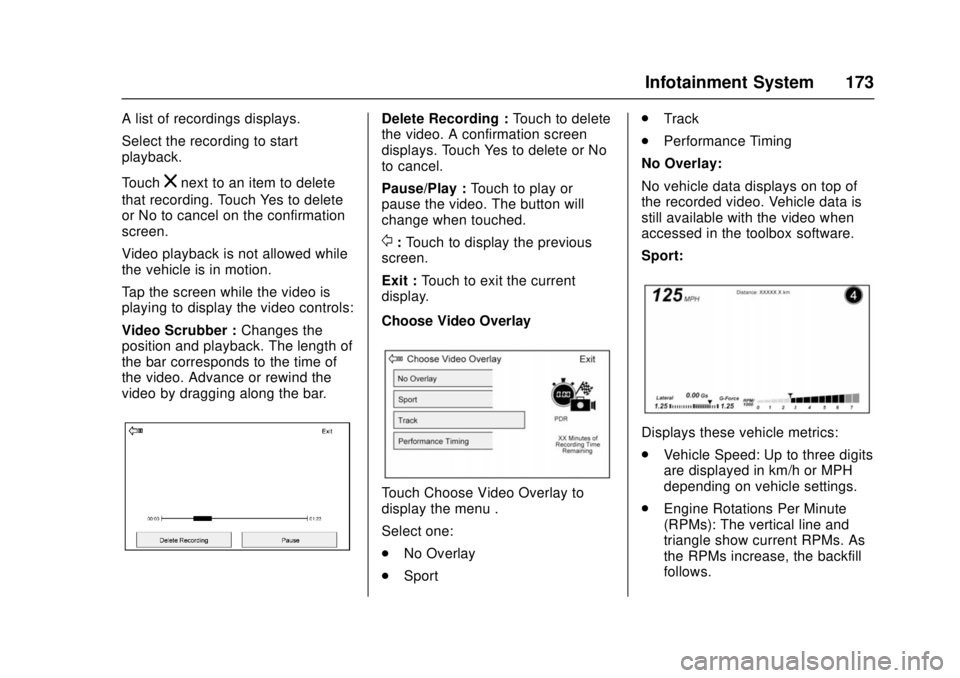
Choose Video Overlay
Touch Choose Video Overlay to
display the menu .
Select one:
. No Overlay
. Sport .
Track
. Performance Timing
No Overlay:
No vehicle data displays on top of
the recorded video. Vehicle data is
still available with the video when
accessed in the toolbox software.
Sport:
Displays these vehicle metrics:
. Vehicle Speed: Up to three digits
are displayed in km/h or MPH
depending on vehicle settings.
. Engine Rotations Per Minute
(RPMs): The vertical line and
triangle show current RPMs. As
the RPMs increase, the backfill
follows.
Page 178 of 386
Chevrolet Camaro Owner Manual (GMNA-Localizing-U.S./Canada/Mexico-
11348325) - 2018 - crc - 4/11/17
Infotainment System 177
support all functions and not all
phones work with the Bluetooth
system. In the U.S. and Canada,
see www.gm.com/bluetooth for more
information about compatible
phones.
The Bluetooth system range can be
up to 9.1 m (30 ft).
There may be restrictions on using
Bluetooth wireless technology in
some locations.
Due to the variety of Bluetooth
devices and their firmware versions,
the device may respond differently
when performing over Bluetooth.
On a current phone call, an image
of the current contact from the
phone's contact list may be
displayed. Not all phones are
compatible with this feature.
Refer to the cell phone
manufacturer’s user guide for
questions about the phone's
Bluetooth functionality.Bluetooth Controls
If equipped with Bluetooth capability,
use the infotainment controls on the
center stack and the steering wheel
to operate the system.
Steering Wheel Controls
See Steering Wheel Controls 0104.
Bluetooth (Infotainment
Controls)
To use infotainment controls to
access the menu system, see
Overview 0157.
Pairing
A Bluetooth-enabled cell phone
must be paired to the Bluetooth
system and then connected to the
vehicle before it can be used. See
your cell phone manufacturer's user
guide for Bluetooth functions before
pairing the cell phone. If a Bluetooth
phone is not connected, calls will be
made using OnStar Hands-Free
Calling, if available. See OnStar
Overview 0362. Pairing Information
.
A Bluetooth phone with MP3
capability cannot be paired to
the vehicle as a phone and an
MP3 player at the same time.
. Up to 10 cell phones can be
paired to the Bluetooth system.
. The pairing process is disabled
when the vehicle is moving.
. Pairing only needs to be
completed once, unless the
pairing information on the cell
phone changes or the cell phone
is deleted from the system.
. Only one paired cell phone can
be connected to the Bluetooth
system at a time.
. If multiple paired cell phones are
within range of the system, the
system connects to the first
available paired cell phone in the
order that they were first paired.
When the Bluetooth device and
infotainment system are
successfully paired, the phone book
is downloaded automatically. This is
dependent on the type of phone
paired. If the automatic download