clock CHEVROLET CAMARO SS 2018 Owners Manual
[x] Cancel search | Manufacturer: CHEVROLET, Model Year: 2018, Model line: CAMARO SS, Model: CHEVROLET CAMARO SS 2018Pages: 386, PDF Size: 5.57 MB
Page 44 of 386
Chevrolet Camaro Owner Manual (GMNA-Localizing-U.S./Canada/Mexico-
11348325) - 2018 - crc - 4/11/17
Keys, Doors, and Windows 43
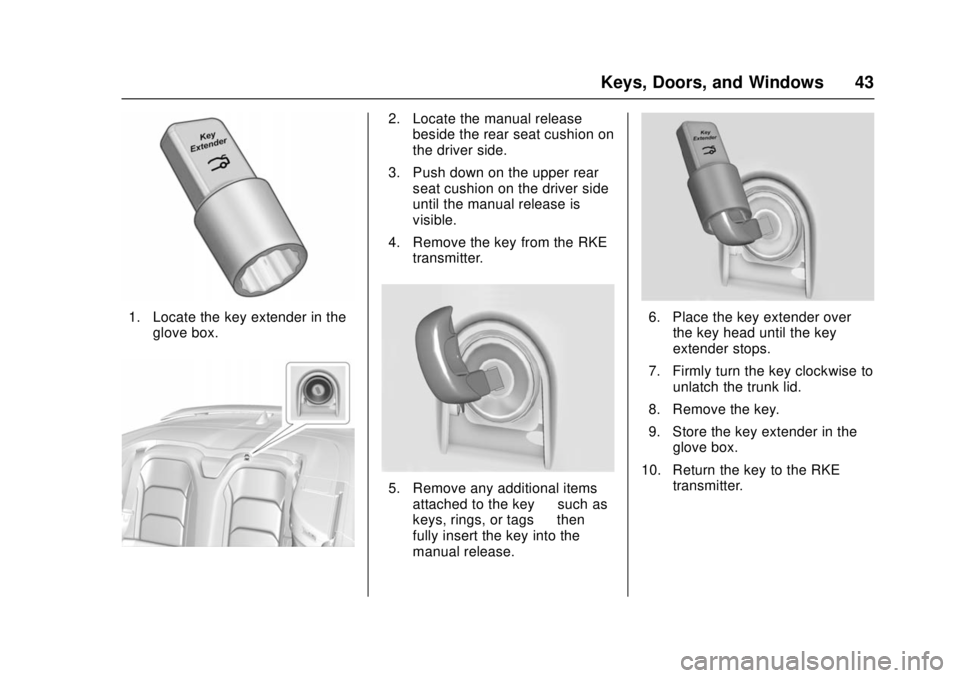
1. Locate the key extender in theglove box.
2. Locate the manual releasebeside the rear seat cushion on
the driver side.
3. Push down on the upper rear seat cushion on the driver side
until the manual release is
visible.
4. Remove the key from the RKE transmitter.
5. Remove any additional items
attached to the key —such as
keys, rings, or tags —then
fully insert the key into the
manual release.
6. Place the key extender over the key head until the key
extender stops.
7. Firmly turn the key clockwise to unlatch the trunk lid.
8. Remove the key.
9. Store the key extender in the glove box.
10. Return the key to the RKE transmitter.
Page 58 of 386
Chevrolet Camaro Owner Manual (GMNA-Localizing-U.S./Canada/Mexico-
11348325) - 2018 - crc - 4/11/17
Keys, Doors, and Windows 57
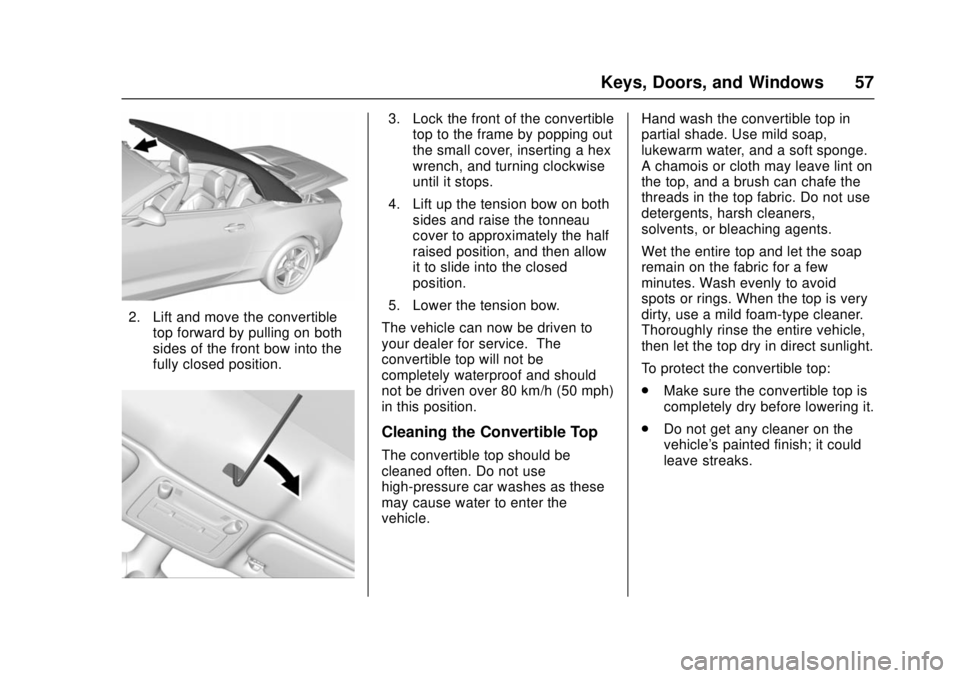
2. Lift and move the convertibletop forward by pulling on both
sides of the front bow into the
fully closed position.
3. Lock the front of the convertibletop to the frame by popping out
the small cover, inserting a hex
wrench, and turning clockwise
until it stops.
4. Lift up the tension bow on both sides and raise the tonneau
cover to approximately the half
raised position, and then allow
it to slide into the closed
position.
5. Lower the tension bow.
The vehicle can now be driven to
your dealer for service. The
convertible top will not be
completely waterproof and should
not be driven over 80 km/h (50 mph)
in this position.
Cleaning the Convertible Top
The convertible top should be
cleaned often. Do not use
high-pressure car washes as these
may cause water to enter the
vehicle. Hand wash the convertible top in
partial shade. Use mild soap,
lukewarm water, and a soft sponge.
A chamois or cloth may leave lint on
the top, and a brush can chafe the
threads in the top fabric. Do not use
detergents, harsh cleaners,
solvents, or bleaching agents.
Wet the entire top and let the soap
remain on the fabric for a few
minutes. Wash evenly to avoid
spots or rings. When the top is very
dirty, use a mild foam-type cleaner.
Thoroughly rinse the entire vehicle,
then let the top dry in direct sunlight.
To protect the convertible top:
.
Make sure the convertible top is
completely dry before lowering it.
. Do not get any cleaner on the
vehicle's painted finish; it could
leave streaks.
Page 104 of 386
Chevrolet Camaro Owner Manual (GMNA-Localizing-U.S./Canada/Mexico-
11348325) - 2018 - crc - 4/11/17
Instruments and Controls 103
Instruments and
Controls
Controls
Steering Wheel Adjustment . . . 104
Steering Wheel Controls . . . . . . 104
Heated Steering Wheel . . . . . . . 105
Horn . . . . . . . . . . . . . . . . . . . . . . . . . . 105
Windshield Wiper/Washer . . . . 105
Compass . . . . . . . . . . . . . . . . . . . . . 106
Clock . . . . . . . . . . . . . . . . . . . . . . . . . 107
Power Outlets . . . . . . . . . . . . . . . . 108
Wireless Charging . . . . . . . . . . . . 109
Warning Lights, Gauges, and
Indicators
Warning Lights, Gauges, andIndicators . . . . . . . . . . . . . . . . . . . . 111
Instrument Cluster . . . . . . . . . . . . 112
Speedometer . . . . . . . . . . . . . . . . . 116
Odometer . . . . . . . . . . . . . . . . . . . . . 116
Trip Odometer . . . . . . . . . . . . . . . . 116
Tachometer . . . . . . . . . . . . . . . . . . . 116
Fuel Gauge . . . . . . . . . . . . . . . . . . . 116
Boost Gauge (Uplevel Cluster Only) . . . . . . . . . . . . . . . . 117
Engine Oil Pressure Gauge (Uplevel Cluster Only) . . . . . . . 118 Engine Coolant Temperature
Gauge . . . . . . . . . . . . . . . . . . . . . . 119
Voltmeter Gauge (Uplevel Cluster Only) . . . . . . . . . . . . . . . . 120
Seat Belt Reminders . . . . . . . . . 121
Airbag Readiness Light . . . . . . . 121
Passenger Airbag Status
Indicator . . . . . . . . . . . . . . . . . . . . 122
Charging System Light . . . . . . . 123
Malfunction Indicator Lamp . . . 123
Brake System Warning Light . . . . . . . . . . . . . . . . . . . . . . . . 125
Electric Parking Brake Light . . . . . . . . . . . . . . . . . . . . . . . . 125
Service Electric Parking Brake Light . . . . . . . . . . . . . . . . . . . . . . . . 126
Antilock Brake System (ABS) Warning Light . . . . . . . . . . . . . . . 126
Traction Off Light . . . . . . . . . . . . . 126
StabiliTrak OFF Light . . . . . . . . . 127
Traction Control System (TCS)/ StabiliTrak Light . . . . . . . . . . . . . 127
Tire Pressure Light . . . . . . . . . . . 127
Engine Oil Pressure Light . . . . 128
Low Fuel Warning Light . . . . . . 128
Security Light . . . . . . . . . . . . . . . . . 128
High-Beam On Light . . . . . . . . . . 129
Lamps On Reminder . . . . . . . . . 129
Cruise Control Light . . . . . . . . . . 129
Door Ajar Light . . . . . . . . . . . . . . . 129
Information Displays
Driver Information Center (DIC) . . . . . . . . . . . . . . . . 130
Head-Up Display (HUD) . . . . . . 132
Vehicle Messages
Vehicle Messages . . . . . . . . . . . . 136
Engine Power Messages . . . . . 137
Vehicle Speed Messages . . . . . 137
Vehicle Personalization
Vehicle Personalization . . . . . . . 137
Universal Remote System
Universal Remote System . . . . 145
Universal Remote System Programming . . . . . . . . . . . . . . . 145
Universal Remote System Operation . . . . . . . . . . . . . . . . . . . 147
Page 108 of 386
Chevrolet Camaro Owner Manual (GMNA-Localizing-U.S./Canada/Mexico-
11348325) - 2018 - crc - 4/11/17
Instruments and Controls 107
will automatically determine when
the GPS signal is restored and
provide a heading again.
Clock
Base Radio
The infotainment system controls
are used to access the time and
date settings through the menu
system. SeeOperation0158 on
how to use the menu system.
Setting the Time and Date
When Auto Set is enabled the time
cannot be manually set.
1. Press
{, then touch
SETTINGS.
2. Touch Time and Date, then Set Time or Set Date.
3. Touch + or −to adjust the
value.
4. Touch
RorQto adjust AM or
PM for 12 hour format.
5. Touch
0.
Using Auto Set
1. Press{, then touch
SETTINGS.
2. Touch Time and Date, then Auto Set.
3. Select from the available selections.
4. Touch
0.
Setting the 12/24 Hour Format
1. Press{, then touch
SETTINGS.
2. Touch Time and Date, then select 12h or 24h format.
3. Touch
0.
Setting the Month and Day
Format
1. Press{, then touch
SETTINGS.
2. Touch Time and Date, then Set Date Format. 3. Select DD/MM/YYYY (day/
month/year), MM/DD/YYYY
(month/day/year), or YYYY/
MM/DD (year/month/day)
format.
4. Touch
0.
Uplevel Radio Using Center
Stack Controls
The infotainment system controls
are used to access the time and
date settings through the menu
system. See “Using the System”
under “Introduction” in the
infotainment manual.
To set the time or date:
1. Press
{, then select
SETTINGS.
2. Select Time and Date, then the desired function.
3. Turn the MENU knob to increase or decrease the value.
4. Press the MENU knob to go to the next value. After the last
value is selected, the system
will update and return to the
Page 109 of 386
Chevrolet Camaro Owner Manual (GMNA-Localizing-U.S./Canada/Mexico-
11348325) - 2018 - crc - 4/11/17
108 Instruments and Controls
Settings menu. PressoBACK
to go to the last menu and
save the changes.
Auto Set requires an OnStar
subscription.
If auto timing is set, the time
displayed on the clock may not
update immediately when driving
into a new time zone.
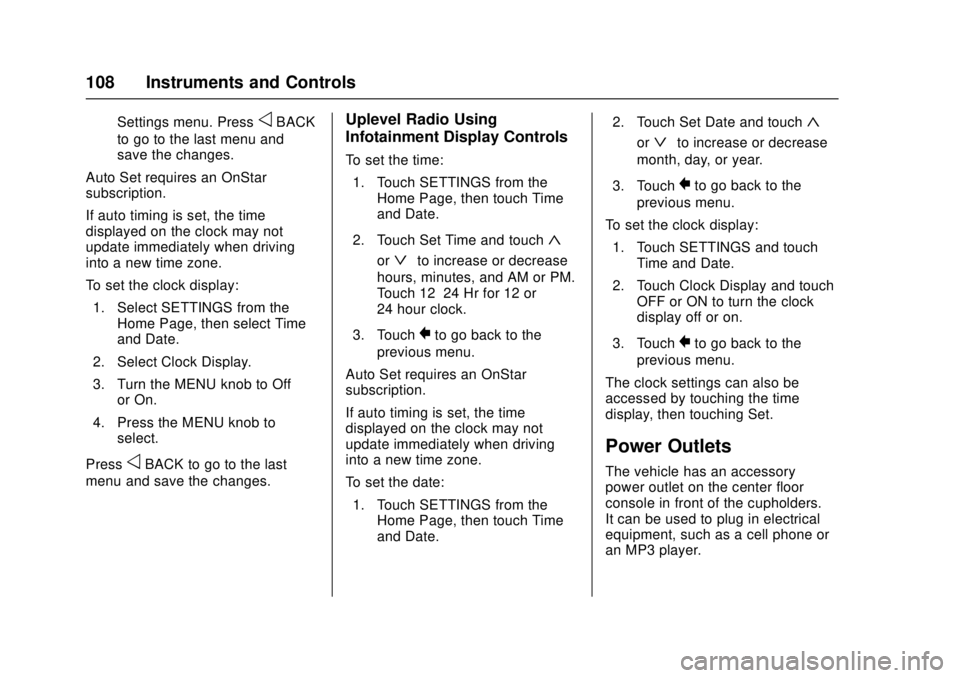
To set the clock display: 1. Select SETTINGS from the Home Page, then select Time
and Date.
2. Select Clock Display.
3. Turn the MENU knob to Off or On.
4. Press the MENU knob to select.
Press
oBACK to go to the last
menu and save the changes.
Uplevel Radio Using
Infotainment Display Controls
To set the time:
1. Touch SETTINGS from the Home Page, then touch Time
and Date.
2. Touch Set Time and touch
«
orªto increase or decrease
hours, minutes, and AM or PM.
Touch 12–24 Hr for 12 or
24 hour clock.
3. Touch
}to go back to the
previous menu.
Auto Set requires an OnStar
subscription.
If auto timing is set, the time
displayed on the clock may not
update immediately when driving
into a new time zone.
To set the date:
1. Touch SETTINGS from the Home Page, then touch Time
and Date. 2. Touch Set Date and touch
«
orªto increase or decrease
month, day, or year.
3. Touch
}to go back to the
previous menu.
To set the clock display:
1. Touch SETTINGS and touch Time and Date.
2. Touch Clock Display and touch OFF or ON to turn the clock
display off or on.
3. Touch
}to go back to the
previous menu.
The clock settings can also be
accessed by touching the time
display, then touching Set.
Power Outlets
The vehicle has an accessory
power outlet on the center floor
console in front of the cupholders.
It can be used to plug in electrical
equipment, such as a cell phone or
an MP3 player.
Page 139 of 386
Chevrolet Camaro Owner Manual (GMNA-Localizing-U.S./Canada/Mexico-
11348325) - 2018 - crc - 4/11/17
138 Instruments and Controls
3. PressSBACK on the center
stack or touch
0to return to
the previous menu or exit.
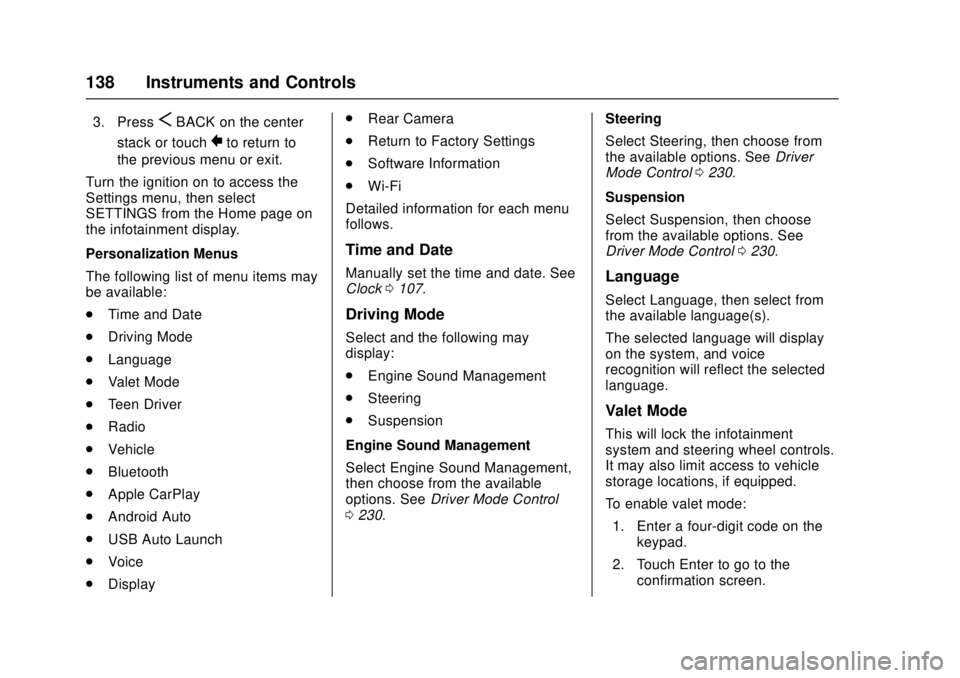
Turn the ignition on to access the
Settings menu, then select
SETTINGS from the Home page on
the infotainment display.
Personalization Menus
The following list of menu items may
be available:
. Time and Date
. Driving Mode
. Language
. Valet Mode
. Teen Driver
. Radio
. Vehicle
. Bluetooth
. Apple CarPlay
. Android Auto
. USB Auto Launch
. Voice
. Display .
Rear Camera
. Return to Factory Settings
. Software Information
. Wi-Fi
Detailed information for each menu
follows.
Time and Date
Manually set the time and date. See
Clock 0107.
Driving Mode
Select and the following may
display:
.
Engine Sound Management
. Steering
. Suspension
Engine Sound Management
Select Engine Sound Management,
then choose from the available
options. See Driver Mode Control
0 230. Steering
Select Steering, then choose from
the available options. See
Driver
Mode Control 0230.
Suspension
Select Suspension, then choose
from the available options. See
Driver Mode Control 0230.
Language
Select Language, then select from
the available language(s).
The selected language will display
on the system, and voice
recognition will reflect the selected
language.
Valet Mode
This will lock the infotainment
system and steering wheel controls.
It may also limit access to vehicle
storage locations, if equipped.
To enable valet mode:
1. Enter a four-digit code on the keypad.
2. Touch Enter to go to the confirmation screen.
Page 153 of 386
Chevrolet Camaro Owner Manual (GMNA-Localizing-U.S./Canada/Mexico-
11348325) - 2018 - crc - 4/11/17
152 Lighting
Move the lever all the way up or
down to signal a turn.
An arrow on the instrument cluster
flashes in the direction of the turn or
lane change.
Raise or lower the lever until the
arrow starts to flash to signal a lane
change. Hold it there until the lane
change is completed. If the lever is
briefly pressed and released, the
turn signal flashes three times.
The turn and lane-change signal
can be turned off manually by
moving the lever back to its original
position.
If after signaling a turn or lane
change, the arrow flashes rapidly or
does not come on, a signal bulb
may be burned out.
Replace any burned out bulbs. If a
bulb is not burned out, check the
fuse. SeeFuses and Circuit
Breakers 0279.Interior Lighting
Instrument Panel
Illumination Control
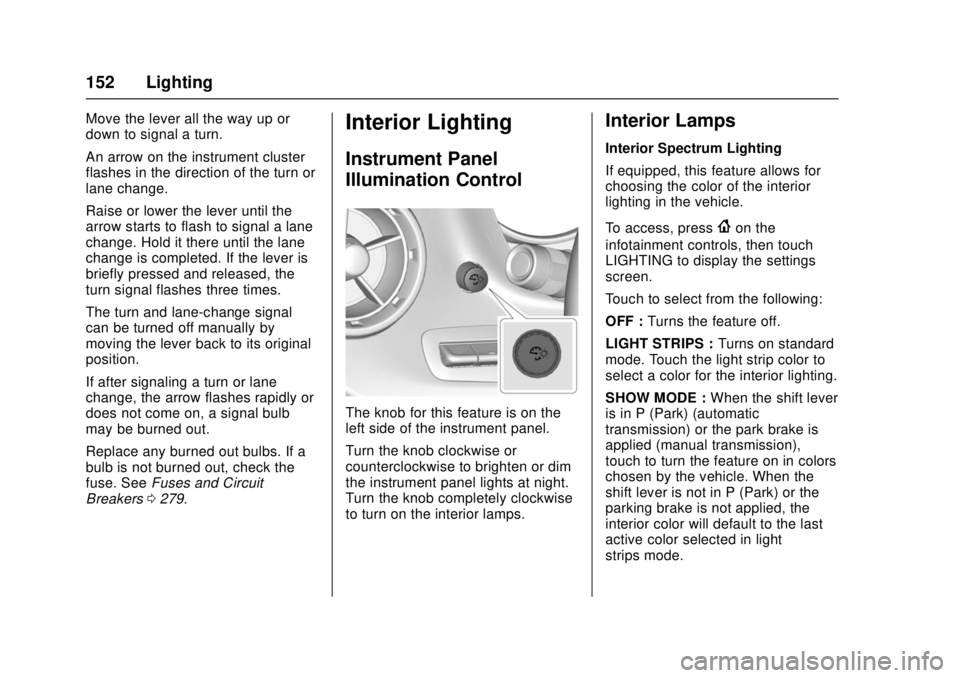
The knob for this feature is on the
left side of the instrument panel.
Turn the knob clockwise or
counterclockwise to brighten or dim
the instrument panel lights at night.
Turn the knob completely clockwise
to turn on the interior lamps.
Interior Lamps
Interior Spectrum Lighting
If equipped, this feature allows for
choosing the color of the interior
lighting in the vehicle.
To access, press
{on the
infotainment controls, then touch
LIGHTING to display the settings
screen.
Touch to select from the following:
OFF : Turns the feature off.
LIGHT STRIPS : Turns on standard
mode. Touch the light strip color to
select a color for the interior lighting.
SHOW MODE : When the shift lever
is in P (Park) (automatic
transmission) or the park brake is
applied (manual transmission),
touch to turn the feature on in colors
chosen by the vehicle. When the
shift lever is not in P (Park) or the
parking brake is not applied, the
interior color will default to the last
active color selected in light
strips mode.
Page 171 of 386
Chevrolet Camaro Owner Manual (GMNA-Localizing-U.S./Canada/Mexico-
11348325) - 2018 - crc - 4/11/17
170 Infotainment System
Rotating a Picture
Touch
wfrom the picture screen.
Enlarging a Picture
Touch
xfrom the picture screen.
Using the USB Picture Menu 1. Touch MENU from the picture screen.
2. Touch the appropriate menu: .Slide Show Time: Allows
selection of the slide show
interval.
. Clock, Temp. Display:
Allows selection of On or
Off to show the clock and
temperature on the full
screen.
. Display Settings: Adjusts
for Brightness and Contrast.
3. Touch Back on the infotainment display to exit.
Auxiliary Devices
Using the Auxiliary Input Jack
Settings menus and functions may
vary depending on vehicle options.
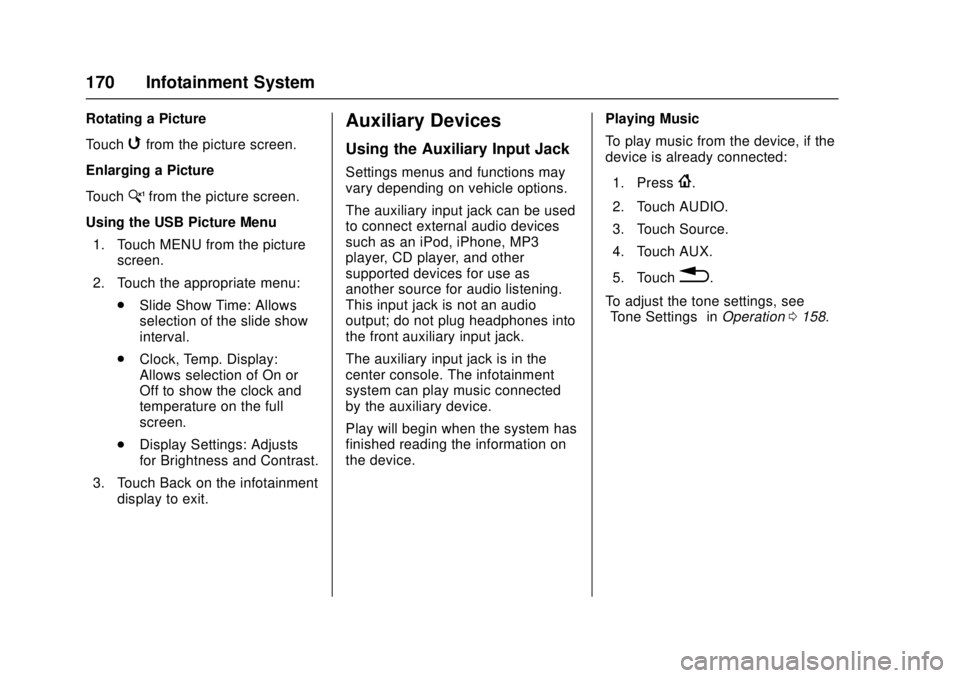
The auxiliary input jack can be used
to connect external audio devices
such as an iPod, iPhone, MP3
player, CD player, and other
supported devices for use as
another source for audio listening.
This input jack is not an audio
output; do not plug headphones into
the front auxiliary input jack.
The auxiliary input jack is in the
center console. The infotainment
system can play music connected
by the auxiliary device.
Play will begin when the system has
finished reading the information on
the device. Playing Music
To play music from the device, if the
device is already connected:
1. Press{.
2. Touch AUDIO.
3. Touch Source.
4. Touch AUX.
5. Touch
0.
To adjust the tone settings, see
“Tone Settings” inOperation 0158.
Page 188 of 386
Chevrolet Camaro Owner Manual (GMNA-Localizing-U.S./Canada/Mexico-
11348325) - 2018 - crc - 4/11/17
Climate Controls 187
Automatic Operation
The system automatically controls
the fan speed, air delivery, air
conditioning, and recirculation in
order to heat or cool the vehicle to
the desired temperature:
When AUTO is lit, all four functions
operate automatically. Each function
can also be manually set and the
setting is displayed. Functions not
manually set will continue to be
automatically controlled, even if the
AUTO indicator is not lit.
For automatic operation:1. Press AUTO.
2. Set the temperature. Allow the system time to stabilize. Adjust
the temperature as needed for
best comfort.
O:Press to turn the fan off or on.
Temperature Control : Turn the
outer ring of the air vent clockwise
or counterclockwise to increase or
decrease the temperature setting. Fan Control :
Turn the outer ring of
the air vent clockwise or
counterclockwise to increase or
decrease the fan speed.
Air Delivery Mode Controls :
Press
X,Y, or[to change the
direction of the airflow. Any
combination of the three buttons
can be selected. The indicator light
in the button will turn on. The
current mode appears in the display
screen. Pressing any of the three
buttons cancels automatic air
delivery control and the direction of
the airflow is controlled manually.
Press AUTO to return to automatic
operation.
To change the current mode, select
one or more of the following:
X: Clears the windows of fog or
moisture. Air is directed to the
windshield and side window outlets.
Y: Air is directed to the instrument
panel outlets.
[: Air is directed to the floor
outlets.
0: Clears the windshield of fog or
frost more quickly. Air is only
directed to the windshield and side
window outlets. The air conditioning
may turn on automatically to
remove fog.
For best results, clear all snow and
ice from the windshield before
defrosting.
Do not drive the vehicle until all
windows are clear.
Air Conditioning
A/C : Press to turn the air
conditioning on or off. An indicator
light turns on. If the fan is turned off
or the outside temperature falls
below freezing, the air conditioning
will not run, but the indicator light
will be lit.
The air conditioning might
automatically come on when
0is
selected.
@: Press to turn on recirculation.
An indicator light comes on. Air is
recirculated inside the vehicle.
Page 190 of 386
Chevrolet Camaro Owner Manual (GMNA-Localizing-U.S./Canada/Mexico-
11348325) - 2018 - crc - 4/11/17
Climate Controls 189
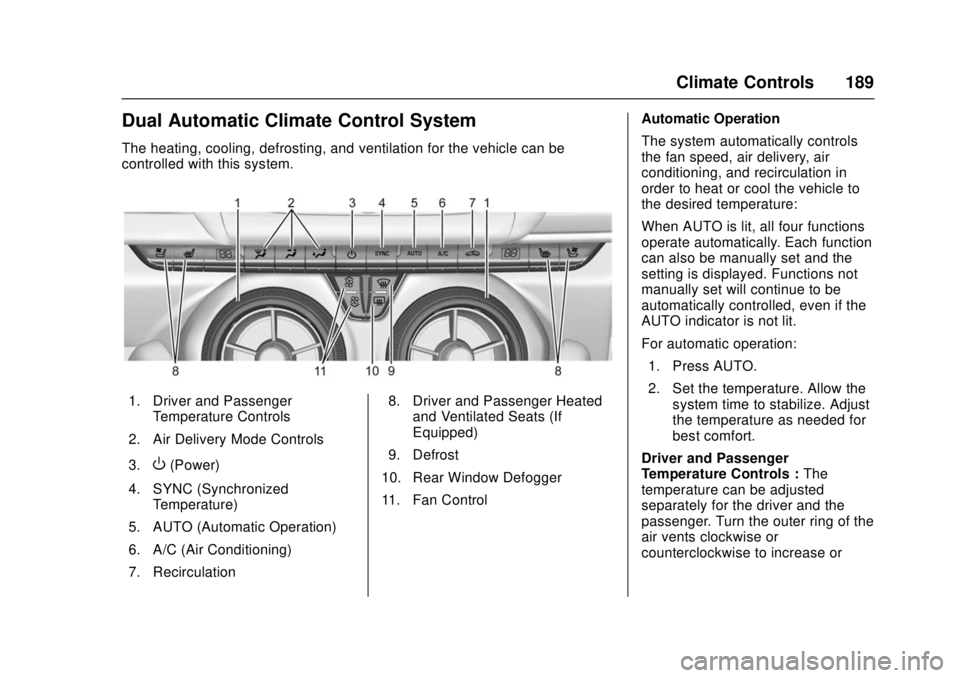
Dual Automatic Climate Control System
The heating, cooling, defrosting, and ventilation for the vehicle can be
controlled with this system.
1. Driver and PassengerTemperature Controls
2. Air Delivery Mode Controls
3.
O(Power)
4. SYNC (Synchronized Temperature)
5. AUTO (Automatic Operation)
6. A/C (Air Conditioning)
7. Recirculation 8. Driver and Passenger Heated
and Ventilated Seats (If
Equipped)
9. Defrost
10. Rear Window Defogger
11. Fan Control Automatic Operation
The system automatically controls
the fan speed, air delivery, air
conditioning, and recirculation in
order to heat or cool the vehicle to
the desired temperature:
When AUTO is lit, all four functions
operate automatically. Each function
can also be manually set and the
setting is displayed. Functions not
manually set will continue to be
automatically controlled, even if the
AUTO indicator is not lit.
For automatic operation:
1. Press AUTO.
2. Set the temperature. Allow the system time to stabilize. Adjust
the temperature as needed for
best comfort.
Driver and Passenger
Temperature Controls : The
temperature can be adjusted
separately for the driver and the
passenger. Turn the outer ring of the
air vents clockwise or
counterclockwise to increase or