audio CHEVROLET CAPTIVA SPORT 2014 Infotainment System Guide
[x] Cancel search | Manufacturer: CHEVROLET, Model Year: 2014, Model line: CAPTIVA SPORT, Model: CHEVROLET CAPTIVA SPORT 2014Pages: 92, PDF Size: 0.7 MB
Page 18 of 92
Black plate (18,1)Chevrolet Captiva Sport Infotainment System (GMNA-Localizing-US/Canada-
6225549) - 2014 - 2nd crc - 9/16/13
18 Infotainment System
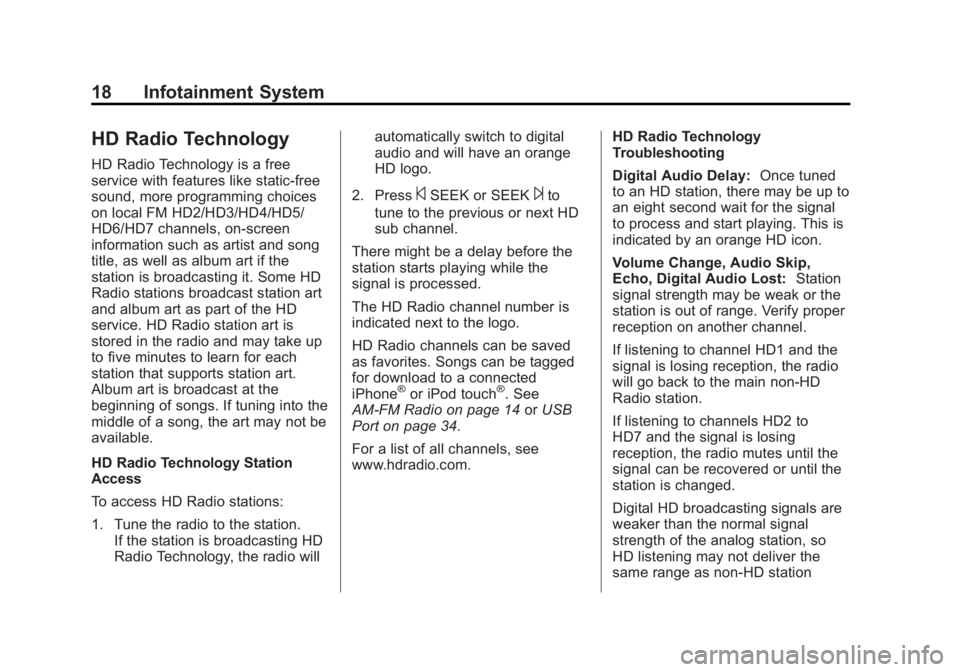
HD Radio Technology
HD Radio Technology is a free
service with features like static-free
sound, more programming choices
on local FM HD2/HD3/HD4/HD5/
HD6/HD7 channels, on-screen
information such as artist and song
title, as well as album art if the
station is broadcasting it. Some HD
Radio stations broadcast station art
and album art as part of the HD
service. HD Radio station art is
stored in the radio and may take up
to five minutes to learn for each
station that supports station art.
Album art is broadcast at the
beginning of songs. If tuning into the
middle of a song, the art may not be
available.
HD Radio Technology Station
Access
To access HD Radio stations:
1. Tune the radio to the station.If the station is broadcasting HD
Radio Technology, the radio will automatically switch to digital
audio and will have an orange
HD logo.
2. Press
©SEEK or SEEK¨to
tune to the previous or next HD
sub channel.
There might be a delay before the
station starts playing while the
signal is processed.
The HD Radio channel number is
indicated next to the logo.
HD Radio channels can be saved
as favorites. Songs can be tagged
for download to a connected
iPhone
®or iPod touch®. See
AM-FM Radio on page 14 orUSB
Port on page 34.
For a list of all channels, see
www.hdradio.com. HD Radio Technology
Troubleshooting
Digital Audio Delay:
Once tuned
to an HD station, there may be up to
an eight second wait for the signal
to process and start playing. This is
indicated by an orange HD icon.
Volume Change, Audio Skip,
Echo, Digital Audio Lost: Station
signal strength may be weak or the
station is out of range. Verify proper
reception on another channel.
If listening to channel HD1 and the
signal is losing reception, the radio
will go back to the main non-HD
Radio station.
If listening to channels HD2 to
HD7 and the signal is losing
reception, the radio mutes until the
signal can be recovered or until the
station is changed.
Digital HD broadcasting signals are
weaker than the normal signal
strength of the analog station, so
HD listening may not deliver the
same range as non-HD station
Page 23 of 92
Black plate (23,1)Chevrolet Captiva Sport Infotainment System (GMNA-Localizing-US/Canada-
6225549) - 2014 - 2nd crc - 9/16/13
Infotainment System 23
.Check that there is good signal
strength. The signal strength and
phone battery level can be
checked on the radio screen.
.Have at least one station
created.
.For Android and BlackBerry
devices, check that the device is
paired with the vehicle, and the
Bluetooth icon on the display is
highlighted.
.For iPhone, iPod touch, or iPad
devices, check that the USB
cable is connected to the USB
port and the screen is unlocked.
.Close Pandora on the device
and launch again. Devices that
allow multitasking may require
an extra step to quit the Pandora
application. See the cell phone
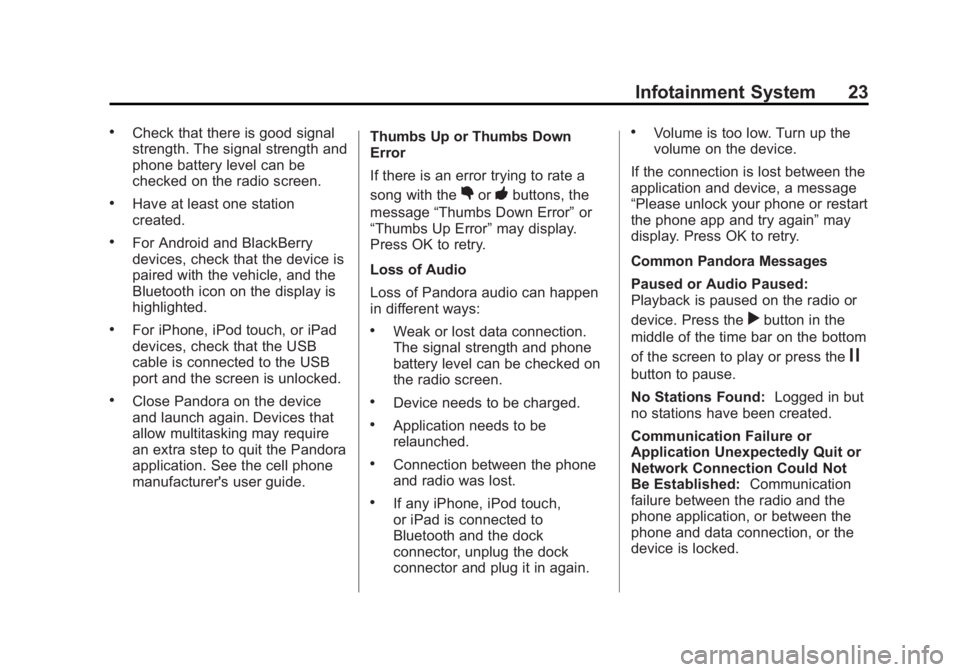
manufacturer's user guide.Thumbs Up or Thumbs Down
Error
If there is an error trying to rate a
song with the
,or-buttons, the
message “Thumbs Down Error” or
“Thumbs Up Error” may display.
Press OK to retry.
Loss of Audio
Loss of Pandora audio can happen
in different ways:
.Weak or lost data connection.
The signal strength and phone
battery level can be checked on
the radio screen.
.Device needs to be charged.
.Application needs to be
relaunched.
.Connection between the phone
and radio was lost.
.If any iPhone, iPod touch,
or iPad is connected to
Bluetooth and the dock
connector, unplug the dock
connector and plug it in again.
.Volume is too low. Turn up the
volume on the device.
If the connection is lost between the
application and device, a message
“Please unlock your phone or restart
the phone app and try again” may
display. Press OK to retry.
Common Pandora Messages
Paused or Audio Paused:
Playback is paused on the radio or
device. Press the
rbutton in the
middle of the time bar on the bottom
of the screen to play or press the
j
button to pause.
No Stations Found: Logged in but
no stations have been created.
Communication Failure or
Application Unexpectedly Quit or
Network Connection Could Not
Be Established: Communication
failure between the radio and the
phone application, or between the
phone and data connection, or the
device is locked.
Page 24 of 92
Black plate (24,1)Chevrolet Captiva Sport Infotainment System (GMNA-Localizing-US/Canada-
6225549) - 2014 - 2nd crc - 9/16/13
24 Infotainment System
See www.pandora.com/help for
more information. If the service will
not work, see your dealer for
assistance.
Stitcher Internet Radio
Stitcher
Stitcher SmartRadio is an Internet
radio service that streams news,
sports, and entertainment shows
through the audio system. Create
personalized, on-demand stations or
discover new shows through
Stitcher’s preset stations. To set up
an account, or for more information,
see www.stitcher.com. Stitcher may
be available as a worldwide Internet
service.
A phone or tablet with Internet
connection is required for this
application. Personal cell phone
data plans are used. Make sure the
latest version is installed on the
device and the volume is turned up. To install Stitcher:
.On an Android phone or Android
Tablet, go to the Google Play
Market and search for Stitcher.
Install to the phone, not to the
SD card.
.On an iPhone, iPad, or iPod
touch, go to the iTunes Store
and search for Stitcher.
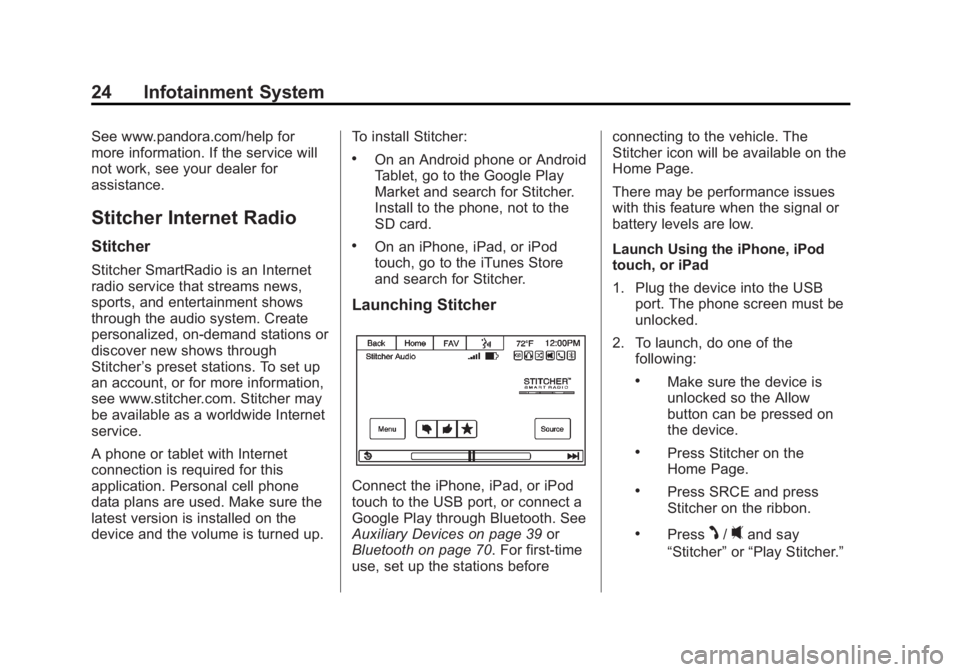
Launching Stitcher
Connect the iPhone, iPad, or iPod
touch to the USB port, or connect a
Google Play through Bluetooth. See
Auxiliary Devices on page 39
or
Bluetooth on page 70. For first-time
use, set up the stations before connecting to the vehicle. The
Stitcher icon will be available on the
Home Page.
There may be performance issues
with this feature when the signal or
battery levels are low.
Launch Using the iPhone, iPod
touch, or iPad
1. Plug the device into the USB
port. The phone screen must be
unlocked.
2. To launch, do one of the following:
.Make sure the device is
unlocked so the Allow
button can be pressed on
the device.
.Press Stitcher on the
Home Page.
.Press SRCE and press
Stitcher on the ribbon.
.PressJ/0and say
“Stitcher” or“Play Stitcher.”
Page 27 of 92
Black plate (27,1)Chevrolet Captiva Sport Infotainment System (GMNA-Localizing-US/Canada-
6225549) - 2014 - 2nd crc - 9/16/13
Infotainment System 27
.For Android devices, check that
the device is paired with the
vehicle, and the Bluetooth icon
on the display is highlighted.
.For iPhone, iPod touch, or iPad
devices, check that the USB
cable is connected to the USB
port and the screen is unlocked.
.Close Stitcher on the device and
launch again. Devices that allow
multitasking may require an
extra step to quit the Stitcher
application. See the cell phone
manufacturer's user guide.
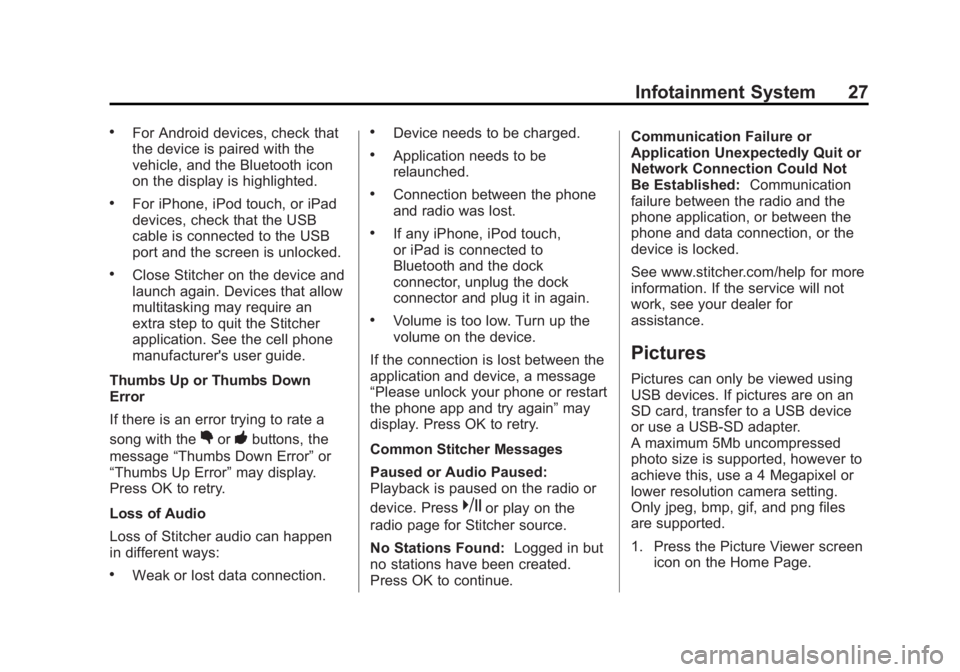
Thumbs Up or Thumbs Down
Error
If there is an error trying to rate a
song with the
,or-buttons, the
message “Thumbs Down Error” or
“Thumbs Up Error” may display.
Press OK to retry.
Loss of Audio
Loss of Stitcher audio can happen
in different ways:
.Weak or lost data connection.
.Device needs to be charged.
.Application needs to be
relaunched.
.Connection between the phone
and radio was lost.
.If any iPhone, iPod touch,
or iPad is connected to
Bluetooth and the dock
connector, unplug the dock
connector and plug it in again.
.Volume is too low. Turn up the
volume on the device.
If the connection is lost between the
application and device, a message
“Please unlock your phone or restart
the phone app and try again” may
display. Press OK to retry.
Common Stitcher Messages
Paused or Audio Paused:
Playback is paused on the radio or
device. Press
kor play on the
radio page for Stitcher source.
No Stations Found: Logged in but
no stations have been created.
Press OK to continue. Communication Failure or
Application Unexpectedly Quit or
Network Connection Could Not
Be Established:
Communication
failure between the radio and the
phone application, or between the
phone and data connection, or the
device is locked.
See www.stitcher.com/help for more
information. If the service will not
work, see your dealer for
assistance.
Pictures
Pictures can only be viewed using
USB devices. If pictures are on an
SD card, transfer to a USB device
or use a USB-SD adapter.
A maximum 5Mb uncompressed
photo size is supported, however to
achieve this, use a 4 Megapixel or
lower resolution camera setting.
Only jpeg, bmp, gif, and png files
are supported.
1. Press the Picture Viewer screen icon on the Home Page.
Page 28 of 92
Black plate (28,1)Chevrolet Captiva Sport Infotainment System (GMNA-Localizing-US/Canada-
6225549) - 2014 - 2nd crc - 9/16/13
28 Infotainment System
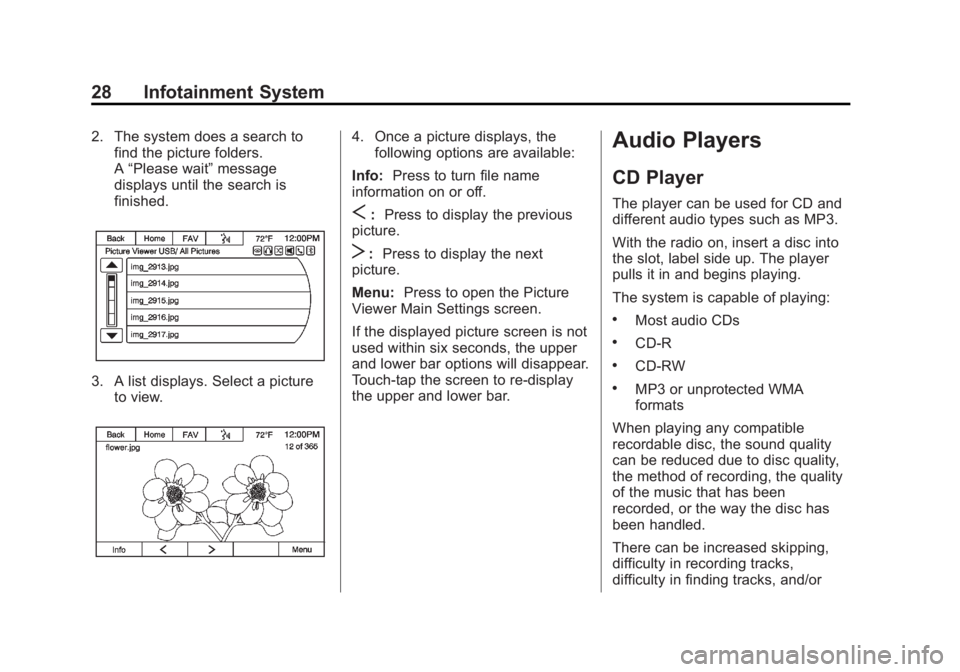
2. The system does a search tofind the picture folders.
A“Please wait” message
displays until the search is
finished.
3. A list displays. Select a picture to view.
4. Once a picture displays, thefollowing options are available:
Info: Press to turn file name
information on or off.
S: Press to display the previous
picture.
T: Press to display the next
picture.
Menu: Press to open the Picture
Viewer Main Settings screen.
If the displayed picture screen is not
used within six seconds, the upper
and lower bar options will disappear.
Touch-tap the screen to re-display
the upper and lower bar.
Audio Players
CD Player
The player can be used for CD and
different audio types such as MP3.
With the radio on, insert a disc into
the slot, label side up. The player
pulls it in and begins playing.
The system is capable of playing:
.Most audio CDs
.CD-R
.CD-RW
.MP3 or unprotected WMA
formats
When playing any compatible
recordable disc, the sound quality
can be reduced due to disc quality,
the method of recording, the quality
of the music that has been
recorded, or the way the disc has
been handled.
There can be increased skipping,
difficulty in recording tracks,
difficulty in finding tracks, and/or
Page 29 of 92
Black plate (29,1)Chevrolet Captiva Sport Infotainment System (GMNA-Localizing-US/Canada-
6225549) - 2014 - 2nd crc - 9/16/13
Infotainment System 29
difficulty in loading and ejecting.
If these problems occur, check the
disc for damage or try a known
good disc.
To avoid damage to the CD player:
.Do not use scratched or
damaged discs.
.Do not apply labels to discs. The
labels could get caught in the
player.
.Insert only one disc at a time.
.Keep the loading slot free of
foreign materials, liquids, and
debris.
.Use a marking pen to label the
top of the disc.
Loading and Ejecting Discs
To load a disc:
1. Turn the radio on.
2. Insert a disc into the slot, labelside up. The player pulls it in the
rest of the way. If the disc is damaged or improperly loaded,
an error message displays,
“Disc
error.” The disc ejects.
The disc automatically plays once
loaded.
Press
Zto eject a disc from the
CD player. If the disc is not removed
within a short period of time, it is
automatically pulled back into the
player.
Playing an Audio CD
1. Make sure the disc is inserted in the player. Press the Disc
screen icon from the Home Page
or from the SRCE/Source
banner.
2. From the CD screen, press the Menu screen button to display
the list of Tracks/Songs.
3. Press on the desired track to play. On the CD main page, a track
number displays at the beginning of
each track. Song, Artist, elapsed
time, and Album information
displays when available.
Use the following controls to select
or manipulate the desired track:
©SEEK (Previous):
.Press to seek to the beginning of
the current or previous track.
If the track has been playing for
less than eight seconds, it seeks
to the previous track. If longer
than eight seconds, the current
track starts from the beginning.
SEEK
¨(Next):
.Press to seek to the next track.
To fast forward or reverse through a
track, press the
[orrat the
bottom of the screen. Press the
Play/Pause button at the bottom of
the screen to resume play or pause
if not fast forwarding or fast
reversing.
Page 30 of 92
Black plate (30,1)Chevrolet Captiva Sport Infotainment System (GMNA-Localizing-US/Canada-
6225549) - 2014 - 2nd crc - 9/16/13
30 Infotainment System
PUSH/SEL (Select):When turning
to the left by one click, if the track
has been playing for more than
eight seconds, it will go to the
beginning of the current song.
Error Messages
If Disc Error displays and/or the disc
comes out, it could be for one of the
following reasons:
.The disc has an invalid or
unknown format.
.The disc is very hot. Try the disc
again when the temperature
returns to normal.
.The road is very rough. Try the
disc again when the road is
smoother.
.The disc is dirty, scratched, wet,
or upside down.
.The air is very humid. Try the
disc again later.
.There was a problem while
burning the disc.
.The label is caught in the CD
player.
If the CD is not playing correctly, for
any other reason, try a known
good CD.
If any error continues, contact your
dealer.
MP3
Playing an MP3 CD
To play an MP3 CD, follow the same
instructions as “Playing an
Audio CD.”
The following guidelines must be
met when creating an MP3 disc,
otherwise the CD might not play:
.Sampling rate: 16 kHz,
22.05 kHz, 24 kHz, 32 kHz,
44.1 kHz, and 48 kHz.
.Bit rates supported: 8, 16, 24,
32, 40, 48, 56, 64, 80, 96, 112,
128, 144, 160, 192, 224, 256,
and 320 kbps.
.Maximum number of folders:
eight folders with 255 files per
folder.
.Maximum of 1,000 files on
a disc.
.Recorded on a CD-R or CD-RW
with a maximum capacity of
700 MB.
.The Artist/Album/Song Titles/
Genre information requires a CD
to be fully scanned before the
music navigator works with
these menus.
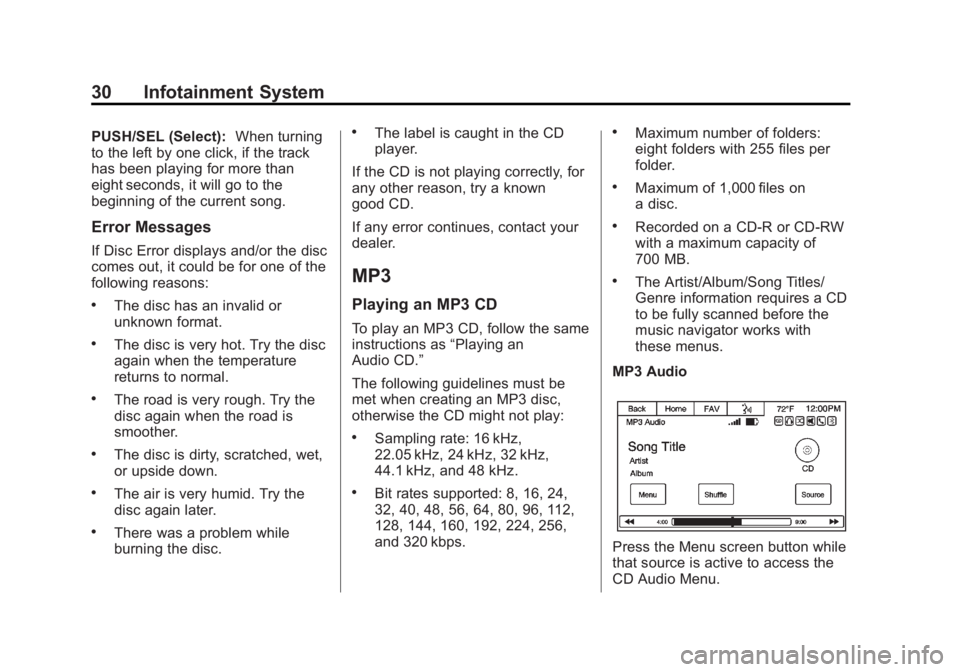
MP3 Audio
Press the Menu screen button while
that source is active to access the
CD Audio Menu.
Page 31 of 92
Black plate (31,1)Chevrolet Captiva Sport Infotainment System (GMNA-Localizing-US/Canada-
6225549) - 2014 - 2nd crc - 9/16/13
Infotainment System 31
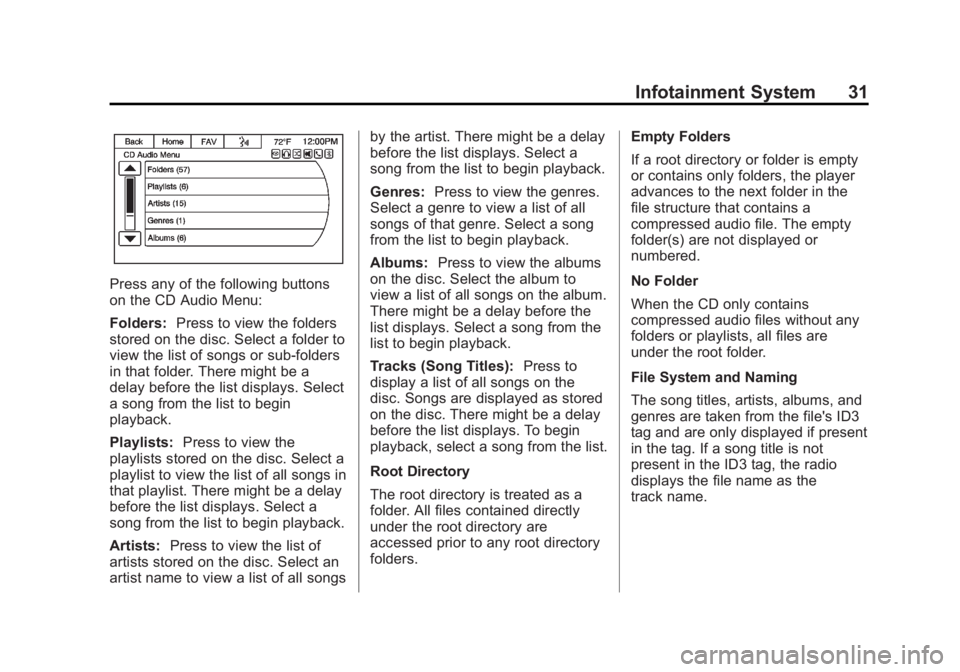
Press any of the following buttons
on the CD Audio Menu:
Folders:Press to view the folders
stored on the disc. Select a folder to
view the list of songs or sub-folders
in that folder. There might be a
delay before the list displays. Select
a song from the list to begin
playback.
Playlists: Press to view the
playlists stored on the disc. Select a
playlist to view the list of all songs in
that playlist. There might be a delay
before the list displays. Select a
song from the list to begin playback.
Artists: Press to view the list of
artists stored on the disc. Select an
artist name to view a list of all songs by the artist. There might be a delay
before the list displays. Select a
song from the list to begin playback.
Genres:
Press to view the genres.
Select a genre to view a list of all
songs of that genre. Select a song
from the list to begin playback.
Albums: Press to view the albums
on the disc. Select the album to
view a list of all songs on the album.
There might be a delay before the
list displays. Select a song from the
list to begin playback.
Tracks (Song Titles): Press to
display a list of all songs on the
disc. Songs are displayed as stored
on the disc. There might be a delay
before the list displays. To begin
playback, select a song from the list.
Root Directory
The root directory is treated as a
folder. All files contained directly
under the root directory are
accessed prior to any root directory
folders. Empty Folders
If a root directory or folder is empty
or contains only folders, the player
advances to the next folder in the
file structure that contains a
compressed audio file. The empty
folder(s) are not displayed or
numbered.
No Folder
When the CD only contains
compressed audio files without any
folders or playlists, all files are
under the root folder.
File System and Naming
The song titles, artists, albums, and
genres are taken from the file's ID3
tag and are only displayed if present
in the tag. If a song title is not
present in the ID3 tag, the radio
displays the file name as the
track name.
Page 32 of 92
Black plate (32,1)Chevrolet Captiva Sport Infotainment System (GMNA-Localizing-US/Canada-
6225549) - 2014 - 2nd crc - 9/16/13
32 Infotainment System
Preprogrammed Playlists
The radio recognizes
preprogrammed playlists; however,
there is no editing capability. These
playlists are treated as special
folders containing compressed
audio song files.
Music Navigator
Folders
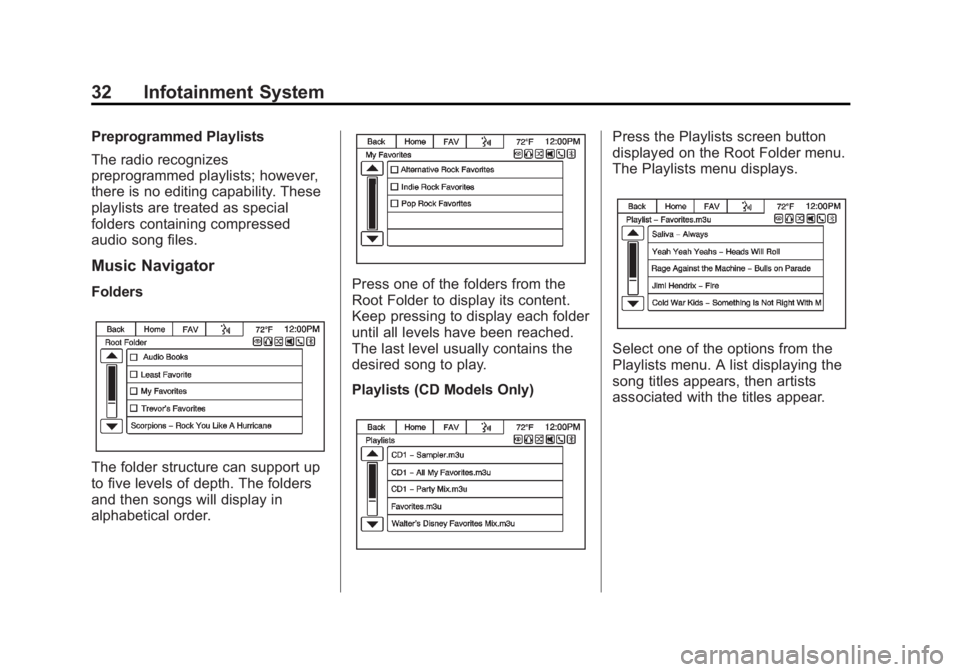
The folder structure can support up
to five levels of depth. The folders
and then songs will display in
alphabetical order.
Press one of the folders from the
Root Folder to display its content.
Keep pressing to display each folder
until all levels have been reached.
The last level usually contains the
desired song to play.
Playlists (CD Models Only)
Press the Playlists screen button
displayed on the Root Folder menu.
The Playlists menu displays.
Select one of the options from the
Playlists menu. A list displaying the
song titles appears, then artists
associated with the titles appear.
Page 34 of 92
Black plate (34,1)Chevrolet Captiva Sport Infotainment System (GMNA-Localizing-US/Canada-
6225549) - 2014 - 2nd crc - 9/16/13
34 Infotainment System
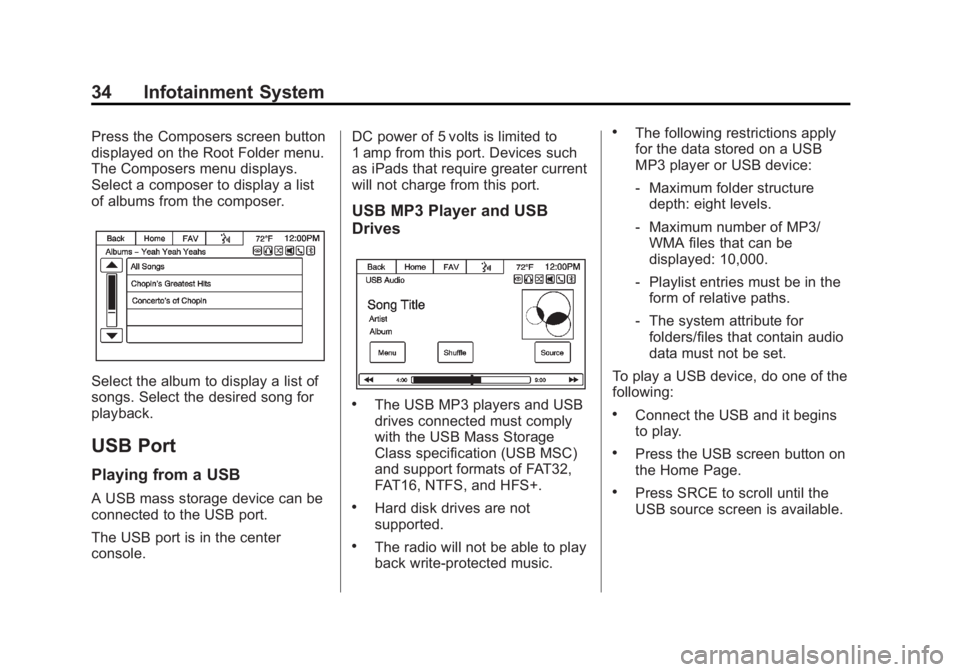
Press the Composers screen button
displayed on the Root Folder menu.
The Composers menu displays.
Select a composer to display a list
of albums from the composer.
Select the album to display a list of
songs. Select the desired song for
playback.
USB Port
Playing from a USB
A USB mass storage device can be
connected to the USB port.
The USB port is in the center
console.DC power of 5 volts is limited to
1 amp from this port. Devices such
as iPads that require greater current
will not charge from this port.
USB MP3 Player and USB
Drives
.The USB MP3 players and USB
drives connected must comply
with the USB Mass Storage
Class specification (USB MSC)
and support formats of FAT32,
FAT16, NTFS, and HFS+.
.Hard disk drives are not
supported.
.The radio will not be able to play
back write-protected music.
.The following restrictions apply
for the data stored on a USB
MP3 player or USB device:
‐
Maximum folder structure
depth: eight levels.
‐ Maximum number of MP3/
WMA files that can be
displayed: 10,000.
‐ Playlist entries must be in the
form of relative paths.
‐ The system attribute for
folders/files that contain audio
data must not be set.
To play a USB device, do one of the
following:
.Connect the USB and it begins
to play.
.Press the USB screen button on
the Home Page.
.Press SRCE to scroll until the
USB source screen is available.