audio CHEVROLET CAPTIVA SPORT 2014 Infotainment System Guide
[x] Cancel search | Manufacturer: CHEVROLET, Model Year: 2014, Model line: CAPTIVA SPORT, Model: CHEVROLET CAPTIVA SPORT 2014Pages: 92, PDF Size: 0.7 MB
Page 35 of 92
Black plate (35,1)Chevrolet Captiva Sport Infotainment System (GMNA-Localizing-US/Canada-
6225549) - 2014 - 2nd crc - 9/16/13
Infotainment System 35
.PressJ/0on the steering
wheel controls to play USB,
Artist, Album, Song Title,
or Song Genre. See Voice
Recognition on page 63.
The following playlist formats are
supported:
.M3U (Standard and Extended)
.iTunes
.PLS (Standard)
While the USB source is active, use
the following to operate:
PUSH/SEL Knob: Turn to scroll
through the list. Turn quickly to fast
scroll alphabetically through large
lists.
©SEEK (Previous/Reverse):
.Press to seek to the beginning of
the current or previous track.
If the track has been playing for
less than eight seconds, the
previous track plays. If playing
longer than eight seconds, the
current track restarts.
.Press and hold to reverse
quickly through tracks. Release
to play the track landed upon.
SEEK
¨(Next/Forward):
.Press to seek to the next track.
.Press and hold to advance
quickly through tracks. Release
to play the track landed upon.
Shuffle: Press to play the tracks
randomly. Press again to stop
shuffle. Look for the shuffle icon to
turn on in the radio display.
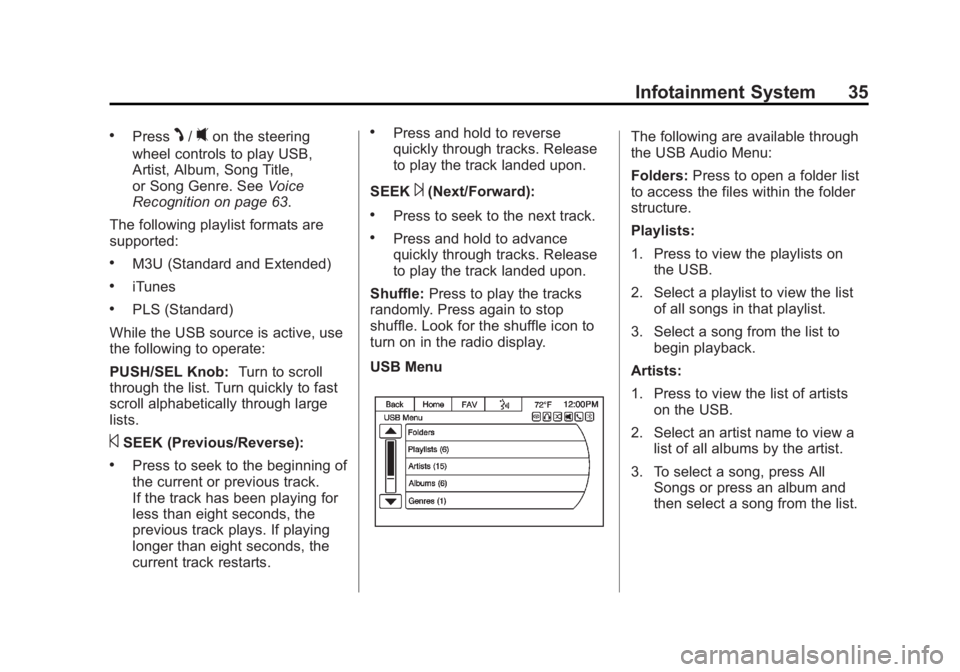
USB Menu
The following are available through
the USB Audio Menu:
Folders: Press to open a folder list
to access the files within the folder
structure.
Playlists:
1. Press to view the playlists on the USB.
2. Select a playlist to view the list of all songs in that playlist.
3. Select a song from the list to begin playback.
Artists:
1. Press to view the list of artists on the USB.
2. Select an artist name to view a list of all albums by the artist.
3. To select a song, press All Songs or press an album and
then select a song from the list.
Page 37 of 92

Black plate (37,1)Chevrolet Captiva Sport Infotainment System (GMNA-Localizing-US/Canada-
6225549) - 2014 - 2nd crc - 9/16/13
Infotainment System 37
There may be problems with the
operation and function in the
following situations:
.When connecting an iPod on
which a more recent version of
the firmware is installed than is
supported by the infotainment
system.
.When connecting an iPod on
which firmware from other
providers is installed.
To connect an iPod:
1. Connect one end of the standard iPod USB cable to the iPod's
dock connector.
2. Connect the other end to the USB port in the center console.
Shuffle: Press to play the tracks
randomly. The shuffle icon should
turn on in the display. Press again to
stop shuffle.
iPod music information displays on
the radio’s display and begins
playing through the vehicle’s audio
system. The iPod battery recharges
automatically while the vehicle is on.
The iPod shuts off and stops
charging when the vehicle is
shut off.
If the iPod is an unsupported model,
it can still be listened to in the
vehicle by connecting to the
auxiliary input jack using a standard
3.5 mm (1/8 in) stereo cable.
iPod Menu
Use the iPod Audio Menu to select:
Playlists:
1. Press to view the playlists on
the iPod. 2. Select a playlist name to view a
list of all songs in the playlist.
3. Select the song from the list to begin playback.
Artists:
1. Press to view the artists on the iPod.
2. Select an artist name to view a list of all albums with songs by
the artist.
3. Select an album.
4. Select the song from the list to begin playback.
Albums:
1. Press to view the albums on the iPod.
2. Select an album name to view a list of all songs on the album.
3. Select the song from the list to begin playback.
Page 38 of 92
Black plate (38,1)Chevrolet Captiva Sport Infotainment System (GMNA-Localizing-US/Canada-
6225549) - 2014 - 2nd crc - 9/16/13
38 Infotainment System
Genres:
1. Press to view the genres onthe iPod.
2. Select a genre name to view a list of artists of that genre.
3. Select an artist to view albums or All Songs to view all songs of
that genre.
4. Select Album to view songs.
5. Select the song from the list to begin playback.
Podcasts:
1. Press to view the podcasts on the iPod.
2. Select a podcast name to begin playback.
Song Titles:
1. Press to view a list of all songs on the iPod.
2. Select the song from the list to begin playback. Composers:
1. Press to view the composers on
the iPod.
2. Select the composer to view a list of songs by that composer.
3. Select a song from the list to begin playback.
Audio Books:
1. Press to view the audio books on the iPod.
2. Select the audio book from the list to begin playback.
Playing from an iPhone or iPad
This feature supports iPhone 3G,
iPhone 3GS, iPhone 4, iPhone 4S,
iPhone 5, and iPad.
If music is available on the iPhone,
it can be heard through the radio.
Follow the same instructions as
stated earlier for using an iPod. To
use voice recognition to play music,
say “Play USB,” “Play Artist,” PlayAlbum,” “Play Song,”
or“Play
Genre.” SeeVoice Recognition on
page 63.
When an iPhone and iPod touch are
connected through USB and
Bluetooth, the audio may not be
heard when iPod source on the
radio is selected. Select either dock
connector on the phone or
disconnect and reconnect the
device.
The USB jack will charge Apple
®
devices drawing up to 1 amp of
current. iPads will not charge
because the USB jack does not
provide enough amperage.
Bluetooth Audio and Voice
Recognition
See Bluetooth Audio on page 39
and Voice Recognition on page 63
for information on using voice
recognition with Bluetooth Audio.
Make sure all devices have the
latest software download.
Page 39 of 92
Black plate (39,1)Chevrolet Captiva Sport Infotainment System (GMNA-Localizing-US/Canada-
6225549) - 2014 - 2nd crc - 9/16/13
Infotainment System 39
Auxiliary Devices
This vehicle has an auxiliary input
jack in the front of the radio.
This jack is not an audio output. Do
not plug headphones into the
auxiliary input jack. Set up any
auxiliary device while the vehicle is
in P (Park).
The device volume may need
adjusting for good sound.
Connect a 3.5 mm (1/8 in) cable
from the auxiliary device to the
auxiliary input jack. When a device
is connected, the system
automatically begins playing audio
from the device over the vehicle
speakers.
If an auxiliary device has already
been connected, but a different
source is currently active, do one of
the following:
.Press SRCE to scroll all of the
available audio source screens,
until the AUX source screen is
selected.
.Say“Play Front AUX” using
voice recognition to play the
auxiliary device.
.Press on the Front AUX icon
through the Home Page.
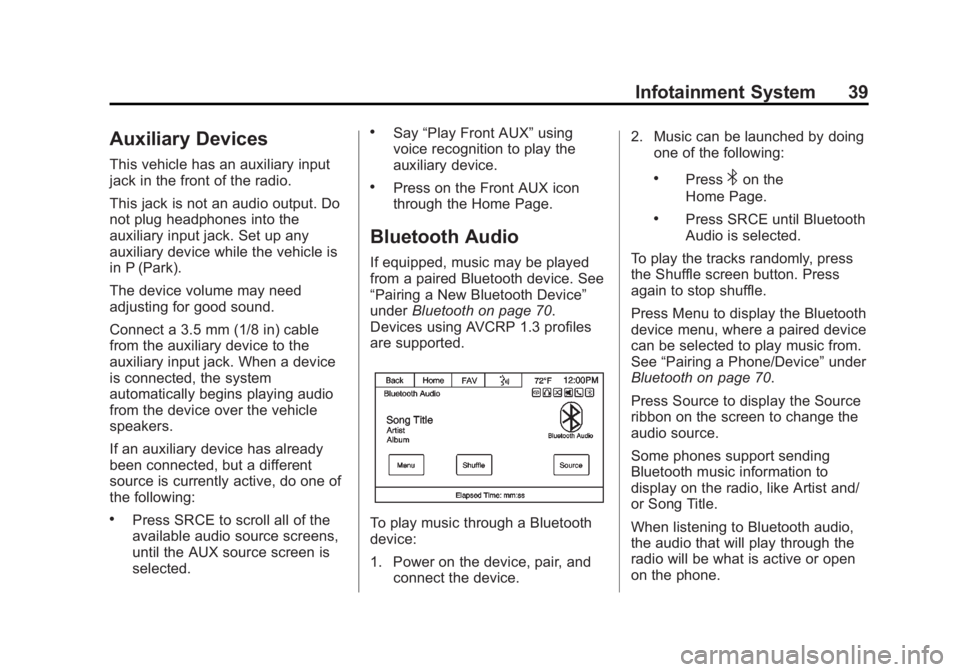
Bluetooth Audio
If equipped, music may be played
from a paired Bluetooth device. See
“Pairing a New Bluetooth Device”
under Bluetooth on page 70.
Devices using AVCRP 1.3 profiles
are supported.
To play music through a Bluetooth
device:
1. Power on the device, pair, and connect the device. 2. Music can be launched by doing
one of the following:
.Press4on the
Home Page.
.Press SRCE until Bluetooth
Audio is selected.
To play the tracks randomly, press
the Shuffle screen button. Press
again to stop shuffle.
Press Menu to display the Bluetooth
device menu, where a paired device
can be selected to play music from.
See “Pairing a Phone/Device” under
Bluetooth on page 70.
Press Source to display the Source
ribbon on the screen to change the
audio source.
Some phones support sending
Bluetooth music information to
display on the radio, like Artist and/
or Song Title.
When listening to Bluetooth audio,
the audio that will play through the
radio will be what is active or open
on the phone.
Page 42 of 92
Black plate (42,1)Chevrolet Captiva Sport Infotainment System (GMNA-Localizing-US/Canada-
6225549) - 2014 - 2nd crc - 9/16/13
42 Infotainment System
There are two methods to change
the map scale:
.Press + or−next to the map
scale button on the left bottom
corner of the map screen to
change the zoom level.
.Press the actual scale bar at the
bottom of the map to the desired
increment of zoom.
The map scale bar times out if
the zoom level is not changed
within a few seconds.
The scale can be configured for
metric or English units. To change
from metric to English or vice versa,
see “Driver Information Center
(DIC)” in the owner manual.
Scroll Features
.To scroll within the map, touch
anywhere on the map screen
and the scroll symbol displays.
.Press the map to center at the
desired location.
.Press and hold the screen in any
direction outside the scroll
symbol to scroll the map in that
direction.
.Scroll speed increases when
touching closer to the edge of
the screen.
.Press NAV on the faceplate to
exit map scrolling and return to
the current vehicle location on
the map.
Press the cycling arrows at the top
of the map screen to toggle from the
normal top bar (audio information
bar) to the Back, Home, FAV, and
local voice recognition icon.
Maps
This section includes basic
information about the map
database.
The maps are stored in the
navigation system.
Detailed Areas
Road network attributes are
contained in the map database for
detailed areas. Attributes include
information such as street names,
street addresses, and turn
restrictions. A detailed area includes
all major highways, service roads,
and residential roads. The detailed
areas include points of interest
(POIs) such as restaurants, airports,
banks, hospitals, police stations,
gas stations, tourist attractions, and
historical monuments. The map
database may not include data for
newly constructed areas or map
database corrections that are
completed after production of the
Page 50 of 92
Black plate (50,1)Chevrolet Captiva Sport Infotainment System (GMNA-Localizing-US/Canada-
6225549) - 2014 - 2nd crc - 9/16/13
50 Infotainment System
Save:Press to save the displayed
destination into the address book.
If the displayed destination is
already stored in the address book,
Edit will show as the menu item.
Save as Home: Press to save the
displayed destination as your home
destination. The home destination
will be stored at the top of the list of
destinations in the address book.
Route Preview: Press to preview
the selected route on the map.
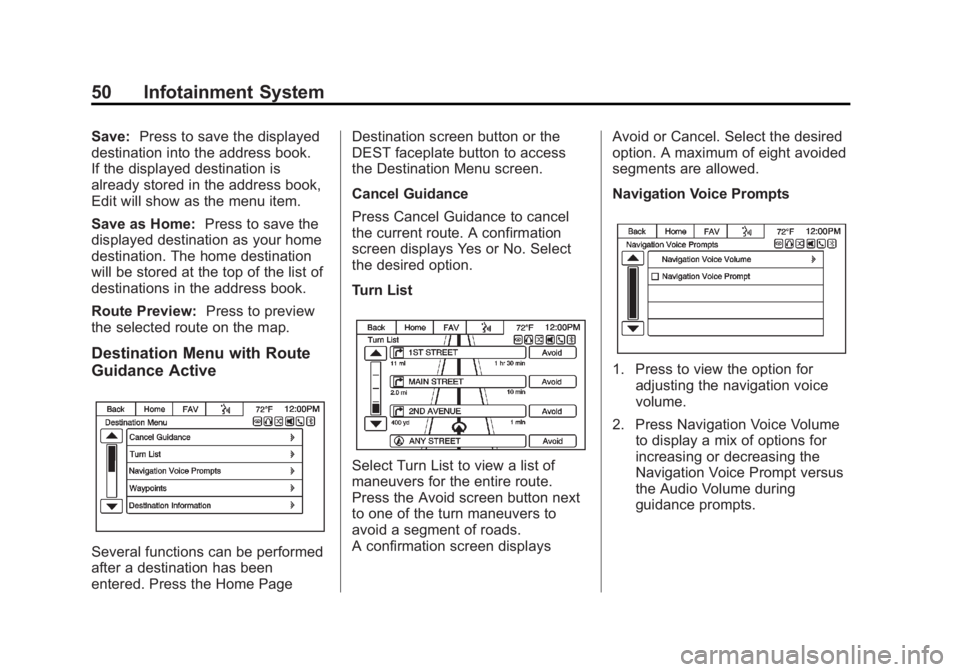
Destination Menu with Route
Guidance Active
Several functions can be performed
after a destination has been
entered. Press the Home Page Destination screen button or the
DEST faceplate button to access
the Destination Menu screen.
Cancel Guidance
Press Cancel Guidance to cancel
the current route. A confirmation
screen displays Yes or No. Select
the desired option.
Turn List
Select Turn List to view a list of
maneuvers for the entire route.
Press the Avoid screen button next
to one of the turn maneuvers to
avoid a segment of roads.
A confirmation screen displays
Avoid or Cancel. Select the desired
option. A maximum of eight avoided
segments are allowed.
Navigation Voice Prompts
1. Press to view the option for
adjusting the navigation voice
volume.
2. Press Navigation Voice Volume to display a mix of options for
increasing or decreasing the
Navigation Voice Prompt versus
the Audio Volume during
guidance prompts.
Page 54 of 92
Black plate (54,1)Chevrolet Captiva Sport Infotainment System (GMNA-Localizing-US/Canada-
6225549) - 2014 - 2nd crc - 9/16/13
54 Infotainment System
Prvw (Preview):Press to begin
route preview that creates a
maneuver and audio prompt with
the corresponding icons.
Dest (Destination): Press to show
the destination address and
distance to destination with
corresponding audio prompt.
Previous Destinations
Previously downloaded OnStar
destinations are saved under
Previous Destinations in the OnStar
system, where they can be
accessed or saved to the address
book in the OnStar system.
OnStar Destination Download
Navigation radios can use the
OnStar destination download and
enter a destination while underway
through an OnStar Advisor.
For activated systems:
.Press the OnStar call button to
ask for an OnStar Advisor.
.State the destination and
request it to be downloaded to
the navigation system.
.The destination will then display
in detail on the Destination Entry
screen where Start Guidance,
Show On Map, Save, etc., can
be used.
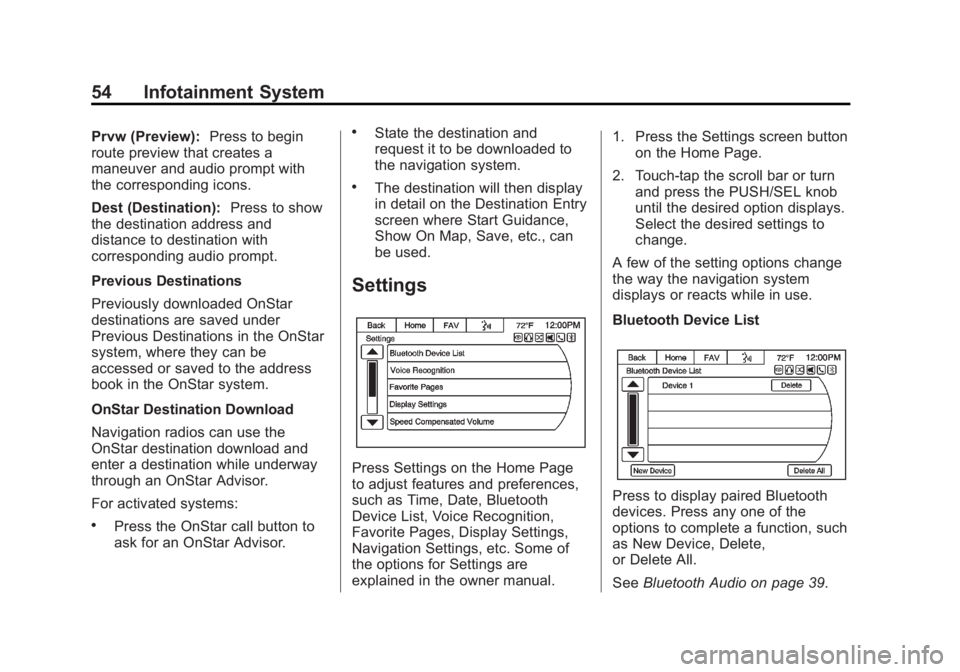
Settings
Press Settings on the Home Page
to adjust features and preferences,
such as Time, Date, Bluetooth
Device List, Voice Recognition,
Favorite Pages, Display Settings,
Navigation Settings, etc. Some of
the options for Settings are
explained in the owner manual. 1. Press the Settings screen button
on the Home Page.
2. Touch-tap the scroll bar or turn and press the PUSH/SEL knob
until the desired option displays.
Select the desired settings to
change.
A few of the setting options change
the way the navigation system
displays or reacts while in use.
Bluetooth Device List
Press to display paired Bluetooth
devices. Press any one of the
options to complete a function, such
as New Device, Delete,
or Delete All.
See Bluetooth Audio on page 39.
Page 55 of 92
Black plate (55,1)Chevrolet Captiva Sport Infotainment System (GMNA-Localizing-US/Canada-
6225549) - 2014 - 2nd crc - 9/16/13
Infotainment System 55
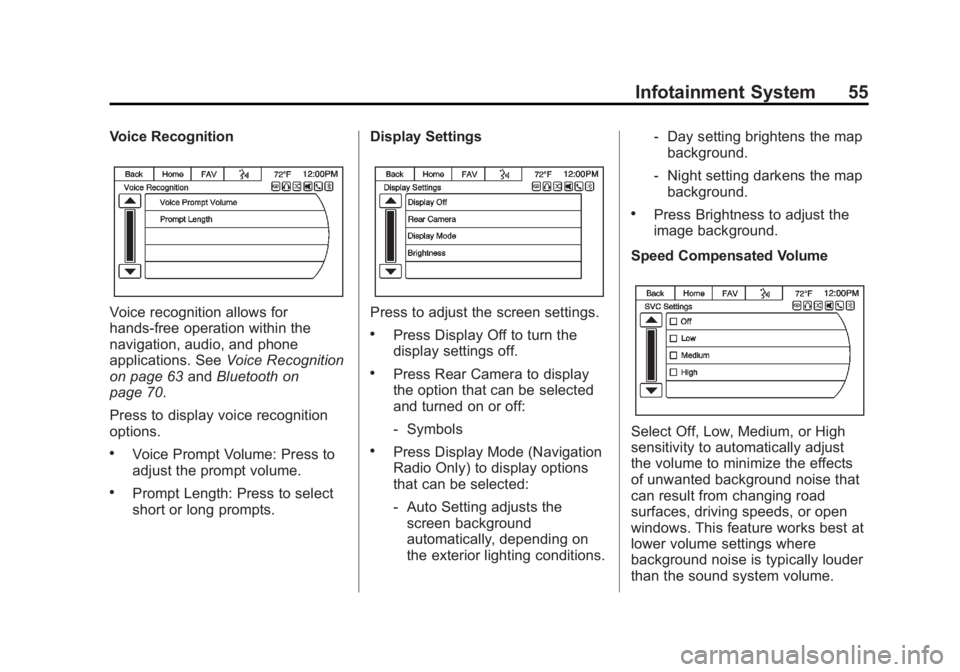
Voice Recognition
Voice recognition allows for
hands-free operation within the
navigation, audio, and phone
applications. SeeVoice Recognition
on page 63 andBluetooth on
page 70.
Press to display voice recognition
options.
.Voice Prompt Volume: Press to
adjust the prompt volume.
.Prompt Length: Press to select
short or long prompts. Display Settings
Press to adjust the screen settings.
.Press Display Off to turn the
display settings off.
.Press Rear Camera to display
the option that can be selected
and turned on or off:
‐
Symbols
.Press Display Mode (Navigation
Radio Only) to display options
that can be selected:
‐Auto Setting adjusts the
screen background
automatically, depending on
the exterior lighting conditions. ‐
Day setting brightens the map
background.
‐ Night setting darkens the map
background.
.Press Brightness to adjust the
image background.
Speed Compensated Volume
Select Off, Low, Medium, or High
sensitivity to automatically adjust
the volume to minimize the effects
of unwanted background noise that
can result from changing road
surfaces, driving speeds, or open
windows. This feature works best at
lower volume settings where
background noise is typically louder
than the sound system volume.
Page 57 of 92
Black plate (57,1)Chevrolet Captiva Sport Infotainment System (GMNA-Localizing-US/Canada-
6225549) - 2014 - 2nd crc - 9/16/13
Infotainment System 57
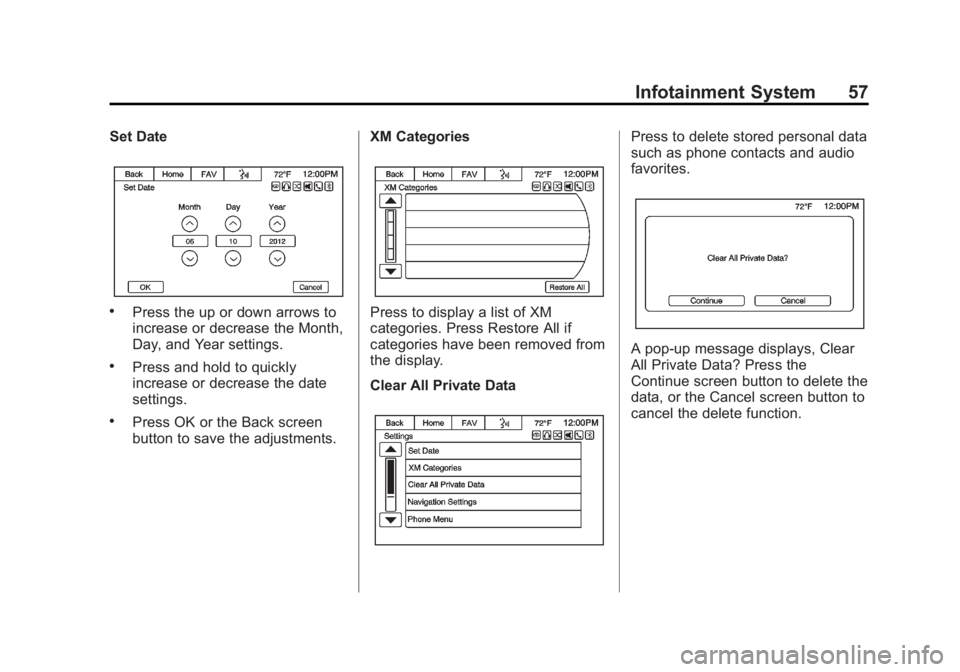
Set Date
.Press the up or down arrows to
increase or decrease the Month,
Day, and Year settings.
.Press and hold to quickly
increase or decrease the date
settings.
.Press OK or the Back screen
button to save the adjustments.XM Categories
Press to display a list of XM
categories. Press Restore All if
categories have been removed from
the display.
Clear All Private Data
Press to delete stored personal data
such as phone contacts and audio
favorites.
A pop-up message displays, Clear
All Private Data? Press the
Continue screen button to delete the
data, or the Cancel screen button to
cancel the delete function.
Page 63 of 92
Black plate (63,1)Chevrolet Captiva Sport Infotainment System (GMNA-Localizing-US/Canada-
6225549) - 2014 - 2nd crc - 9/16/13
Infotainment System 63
Voice Recognition
Voice recognition allows for
hands-free operation within the
audio and phone applications. This
feature can be started by pressing
either the
J/0button on the
steering wheel or the voice
recognition icon on the touch screen
display.
However, not all features within
these areas are supported by voice
commands. Generally, only complex
tasks that require multiple manual
interactions to complete are
supported by voice commands.
For example, tasks that take more
than one or two button presses such
as selecting a song or artist to play
from a media device would be
supported by voice commands.
Other tasks, like adjusting the
volume or seeking up or down are
audio features that are easily
performed by pressing one or two
buttons, and are not supported by
voice commands. Most voice commands, except for
voice keypad, can be completed in
a single command. If the task takes
more than one command to
complete, the first command would
be to indicate the kind of task that is
to be performed. The system will
reply, prompting dialog to help
speak the necessary information.
Voice recognition can be used when
the ignition is on or when Retained
Accessory Power (RAP) is active.
See
“Retained Accessory Power
(RAP)” in the owner manual.
Using Voice Recognition
Voice recognition becomes available
once the system has been
initialized. Initialization takes place
when the ignition is turned on. This
may take a few moments.
1. Press
J/0on the steering
wheel control to activate voice
recognition, or press the voice recognition icon on the
infotainment touch screen on the
radio.
.If voice recognition is
started, the lists and
controls are verbal and the
visual displays through the
radio. The commands may
then be touched or spoken.
2. The audio system mutes and the system plays a prompt followed
by a beep.
3. Wait until after the beep completes, then clearly speak
one of the commands described
in this section.
Press
J/0to interrupt any
voice recognition. This will
terminate the prompt. The beep
is heard immediately, and a
command can be stated without
having to wait.