phone CHEVROLET CAPTIVA SPORT 2014 Infotainment System Guide
[x] Cancel search | Manufacturer: CHEVROLET, Model Year: 2014, Model line: CAPTIVA SPORT, Model: CHEVROLET CAPTIVA SPORT 2014Pages: 92, PDF Size: 0.7 MB
Page 23 of 92
Black plate (23,1)Chevrolet Captiva Sport Infotainment System (GMNA-Localizing-US/Canada-
6225549) - 2014 - 2nd crc - 9/16/13
Infotainment System 23
.Check that there is good signal
strength. The signal strength and
phone battery level can be
checked on the radio screen.
.Have at least one station
created.
.For Android and BlackBerry
devices, check that the device is
paired with the vehicle, and the
Bluetooth icon on the display is
highlighted.
.For iPhone, iPod touch, or iPad
devices, check that the USB
cable is connected to the USB
port and the screen is unlocked.
.Close Pandora on the device
and launch again. Devices that
allow multitasking may require
an extra step to quit the Pandora
application. See the cell phone
manufacturer's user guide.Thumbs Up or Thumbs Down
Error
If there is an error trying to rate a
song with the
,or-buttons, the
message “Thumbs Down Error” or
“Thumbs Up Error” may display.
Press OK to retry.
Loss of Audio
Loss of Pandora audio can happen
in different ways:
.Weak or lost data connection.
The signal strength and phone
battery level can be checked on
the radio screen.
.Device needs to be charged.
.Application needs to be
relaunched.
.Connection between the phone
and radio was lost.
.If any iPhone, iPod touch,
or iPad is connected to
Bluetooth and the dock
connector, unplug the dock
connector and plug it in again.
.Volume is too low. Turn up the
volume on the device.
If the connection is lost between the
application and device, a message
“Please unlock your phone or restart
the phone app and try again” may
display. Press OK to retry.
Common Pandora Messages
Paused or Audio Paused:
Playback is paused on the radio or
device. Press the
rbutton in the
middle of the time bar on the bottom
of the screen to play or press the
j
button to pause.
No Stations Found: Logged in but
no stations have been created.
Communication Failure or
Application Unexpectedly Quit or
Network Connection Could Not
Be Established: Communication
failure between the radio and the
phone application, or between the
phone and data connection, or the
device is locked.
Page 24 of 92
Black plate (24,1)Chevrolet Captiva Sport Infotainment System (GMNA-Localizing-US/Canada-
6225549) - 2014 - 2nd crc - 9/16/13
24 Infotainment System
See www.pandora.com/help for
more information. If the service will
not work, see your dealer for
assistance.
Stitcher Internet Radio
Stitcher
Stitcher SmartRadio is an Internet
radio service that streams news,
sports, and entertainment shows
through the audio system. Create
personalized, on-demand stations or
discover new shows through
Stitcher’s preset stations. To set up
an account, or for more information,
see www.stitcher.com. Stitcher may
be available as a worldwide Internet
service.
A phone or tablet with Internet
connection is required for this
application. Personal cell phone
data plans are used. Make sure the
latest version is installed on the
device and the volume is turned up. To install Stitcher:
.On an Android phone or Android
Tablet, go to the Google Play
Market and search for Stitcher.
Install to the phone, not to the
SD card.
.On an iPhone, iPad, or iPod
touch, go to the iTunes Store
and search for Stitcher.
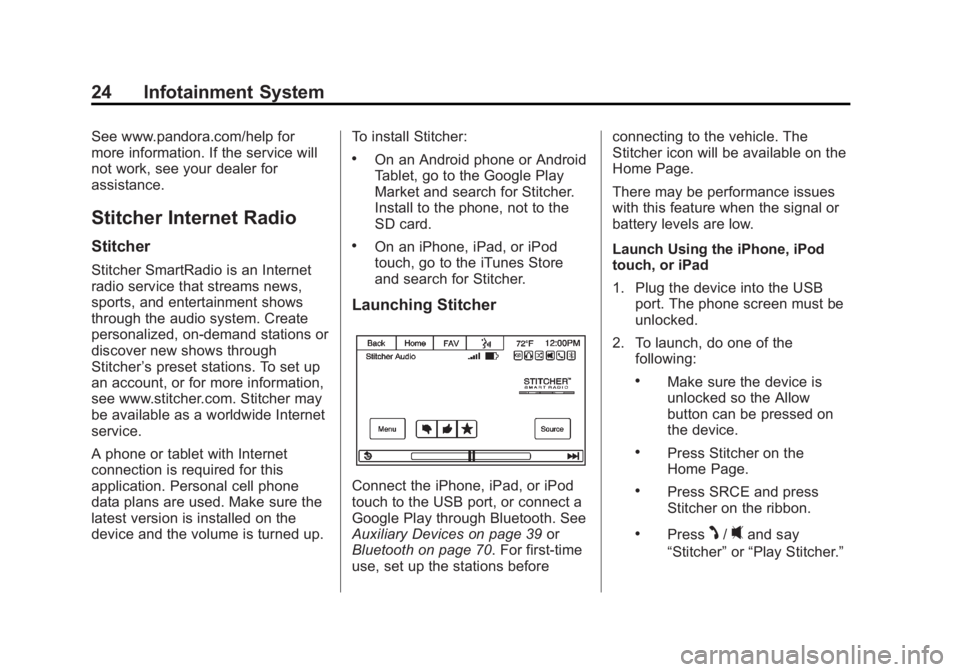
Launching Stitcher
Connect the iPhone, iPad, or iPod
touch to the USB port, or connect a
Google Play through Bluetooth. See
Auxiliary Devices on page 39
or
Bluetooth on page 70. For first-time
use, set up the stations before connecting to the vehicle. The
Stitcher icon will be available on the
Home Page.
There may be performance issues
with this feature when the signal or
battery levels are low.
Launch Using the iPhone, iPod
touch, or iPad
1. Plug the device into the USB
port. The phone screen must be
unlocked.
2. To launch, do one of the following:
.Make sure the device is
unlocked so the Allow
button can be pressed on
the device.
.Press Stitcher on the
Home Page.
.Press SRCE and press
Stitcher on the ribbon.
.PressJ/0and say
“Stitcher” or“Play Stitcher.”
Page 25 of 92
Black plate (25,1)Chevrolet Captiva Sport Infotainment System (GMNA-Localizing-US/Canada-
6225549) - 2014 - 2nd crc - 9/16/13
Infotainment System 25
To relaunch Stitcher, press the
Stitcher source again from either the
Home Page or source ribbon.
If nothing happens when the
available Stitcher screen button is
pressed, download the latest
Stitcher application to the device
and retry. Also, verify you are in a
good signal area.
Stitcher will always be highlighted
on the Home Page when an iPhone,
iPad, or iPod touch is connected
using the USB port. To use, log into
your account.
If the“Please See Device” message
is shown, the login screen may
display on the device.
Launch Using an Android Phone
1. Pair the Android phone using Bluetooth.
2. Use one of the following to launch:
.Press Stitcher on the
Home Page.
.Press SRCE and press
Stitcher on the ribbon.
.PressJ/0and say
“Stitcher” or“Play Stitcher.”
After Stitcher has been launched,
press the Stitcher icon to access
Stitcher features.
If nothing happens when the
available Stitcher screen button is
pressed, download the latest
Stitcher application to the device
and retry. Also, verify you are in a
good signal area.
If the “Please See Device” message
is shown, the login screen may
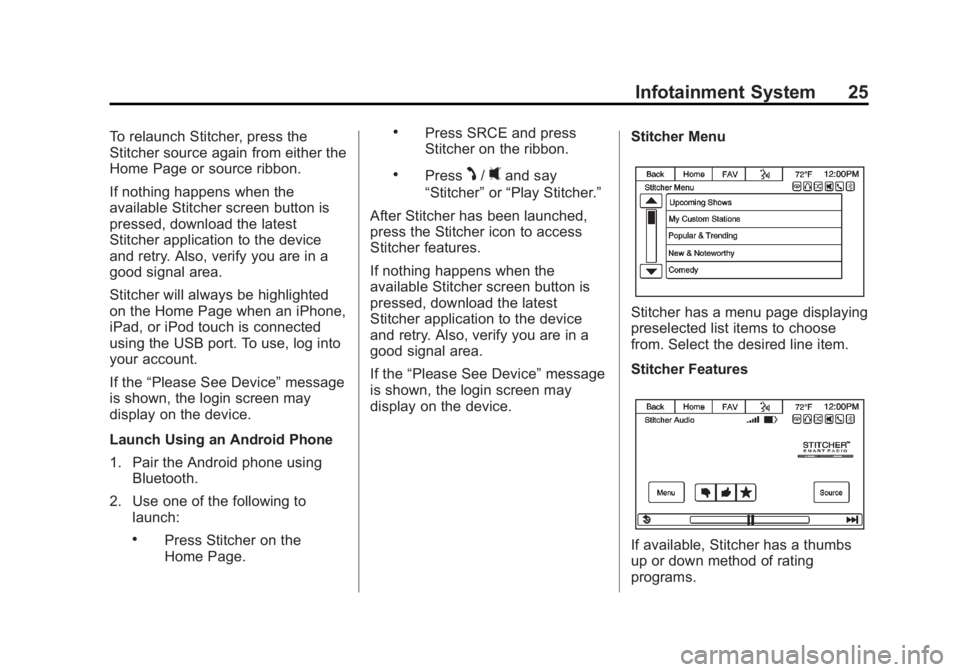
display on the device. Stitcher Menu
Stitcher has a menu page displaying
preselected list items to choose
from. Select the desired line item.
Stitcher Features
If available, Stitcher has a thumbs
up or down method of rating
programs.
Page 27 of 92
Black plate (27,1)Chevrolet Captiva Sport Infotainment System (GMNA-Localizing-US/Canada-
6225549) - 2014 - 2nd crc - 9/16/13
Infotainment System 27
.For Android devices, check that
the device is paired with the
vehicle, and the Bluetooth icon
on the display is highlighted.
.For iPhone, iPod touch, or iPad
devices, check that the USB
cable is connected to the USB
port and the screen is unlocked.
.Close Stitcher on the device and
launch again. Devices that allow
multitasking may require an
extra step to quit the Stitcher
application. See the cell phone
manufacturer's user guide.
Thumbs Up or Thumbs Down
Error
If there is an error trying to rate a
song with the
,or-buttons, the
message “Thumbs Down Error” or
“Thumbs Up Error” may display.
Press OK to retry.
Loss of Audio
Loss of Stitcher audio can happen
in different ways:
.Weak or lost data connection.
.Device needs to be charged.
.Application needs to be
relaunched.
.Connection between the phone
and radio was lost.
.If any iPhone, iPod touch,
or iPad is connected to
Bluetooth and the dock
connector, unplug the dock
connector and plug it in again.
.Volume is too low. Turn up the
volume on the device.
If the connection is lost between the
application and device, a message
“Please unlock your phone or restart
the phone app and try again” may
display. Press OK to retry.
Common Stitcher Messages
Paused or Audio Paused:
Playback is paused on the radio or
device. Press
kor play on the
radio page for Stitcher source.
No Stations Found: Logged in but
no stations have been created.
Press OK to continue. Communication Failure or
Application Unexpectedly Quit or
Network Connection Could Not
Be Established:
Communication
failure between the radio and the
phone application, or between the
phone and data connection, or the
device is locked.
See www.stitcher.com/help for more
information. If the service will not
work, see your dealer for
assistance.
Pictures
Pictures can only be viewed using
USB devices. If pictures are on an
SD card, transfer to a USB device
or use a USB-SD adapter.
A maximum 5Mb uncompressed
photo size is supported, however to
achieve this, use a 4 Megapixel or
lower resolution camera setting.
Only jpeg, bmp, gif, and png files
are supported.
1. Press the Picture Viewer screen icon on the Home Page.
Page 36 of 92
Black plate (36,1)Chevrolet Captiva Sport Infotainment System (GMNA-Localizing-US/Canada-
6225549) - 2014 - 2nd crc - 9/16/13
36 Infotainment System
Albums:
1. Press to view the albums onthe USB.
2. Select the album to view a list of all songs on the album.
3. Select a song from the list to begin playback.
Genres:
1. Press to view the genres on the USB.
2. Select a genre to view a list of all songs of that genre.
3. Select a song from the list to begin playback.
Song Titles:
1. Press to display a list of all songs on the USB.
2. Songs are displayed as they are stored on the device. To begin
playback, select a song from
the list. Composers:
1. Press to view the list of
composers on the USB.
2. Select a composer name to view a list of all compositions by the
artist.
3. To select a song, press All Songs or press an album and
then select a song from the list.
File System and Naming
The songs, artists, albums, and
genres are taken from the file’s
song information and are only
displayed if present. The radio
displays the file name as the track
name if the song information is not
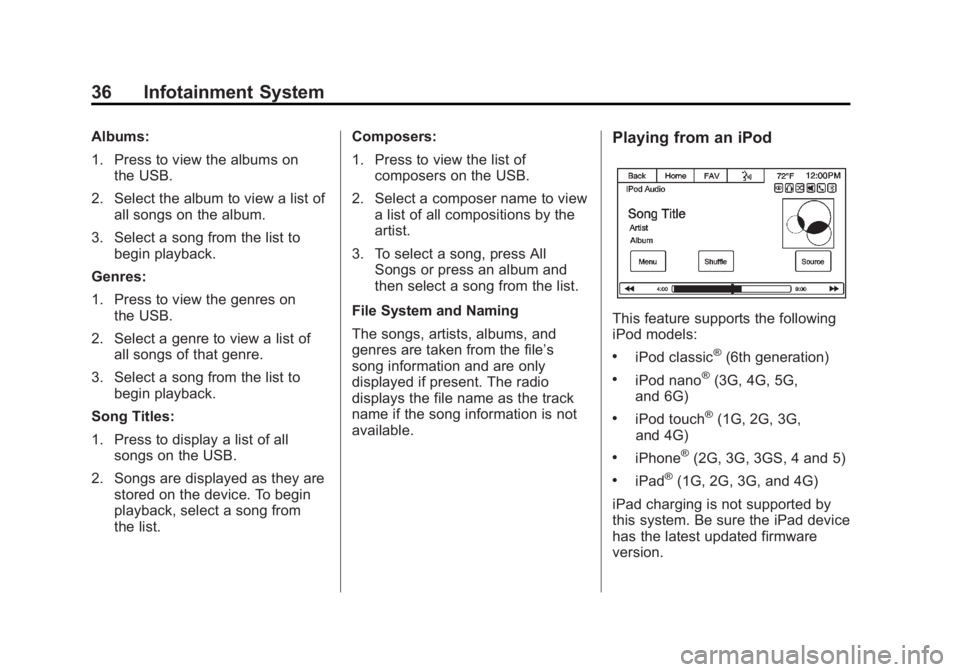
available.Playing from an iPod
This feature supports the following
iPod models:
.iPod classic®(6th generation)
.iPod nano®(3G, 4G, 5G,
and 6G)
.iPod touch®(1G, 2G, 3G,
and 4G)
.iPhone®(2G, 3G, 3GS, 4 and 5)
.iPad®(1G, 2G, 3G, and 4G)
iPad charging is not supported by
this system. Be sure the iPad device
has the latest updated firmware
version.
Page 38 of 92
Black plate (38,1)Chevrolet Captiva Sport Infotainment System (GMNA-Localizing-US/Canada-
6225549) - 2014 - 2nd crc - 9/16/13
38 Infotainment System
Genres:
1. Press to view the genres onthe iPod.
2. Select a genre name to view a list of artists of that genre.
3. Select an artist to view albums or All Songs to view all songs of
that genre.
4. Select Album to view songs.
5. Select the song from the list to begin playback.
Podcasts:
1. Press to view the podcasts on the iPod.
2. Select a podcast name to begin playback.
Song Titles:
1. Press to view a list of all songs on the iPod.
2. Select the song from the list to begin playback. Composers:
1. Press to view the composers on
the iPod.
2. Select the composer to view a list of songs by that composer.
3. Select a song from the list to begin playback.
Audio Books:
1. Press to view the audio books on the iPod.
2. Select the audio book from the list to begin playback.
Playing from an iPhone or iPad
This feature supports iPhone 3G,
iPhone 3GS, iPhone 4, iPhone 4S,
iPhone 5, and iPad.
If music is available on the iPhone,
it can be heard through the radio.
Follow the same instructions as
stated earlier for using an iPod. To
use voice recognition to play music,
say “Play USB,” “Play Artist,” PlayAlbum,” “Play Song,”
or“Play
Genre.” SeeVoice Recognition on
page 63.
When an iPhone and iPod touch are
connected through USB and
Bluetooth, the audio may not be
heard when iPod source on the
radio is selected. Select either dock
connector on the phone or
disconnect and reconnect the
device.
The USB jack will charge Apple
®
devices drawing up to 1 amp of
current. iPads will not charge
because the USB jack does not
provide enough amperage.
Bluetooth Audio and Voice
Recognition
See Bluetooth Audio on page 39
and Voice Recognition on page 63
for information on using voice
recognition with Bluetooth Audio.
Make sure all devices have the
latest software download.
Page 39 of 92
Black plate (39,1)Chevrolet Captiva Sport Infotainment System (GMNA-Localizing-US/Canada-
6225549) - 2014 - 2nd crc - 9/16/13
Infotainment System 39
Auxiliary Devices
This vehicle has an auxiliary input
jack in the front of the radio.
This jack is not an audio output. Do
not plug headphones into the
auxiliary input jack. Set up any
auxiliary device while the vehicle is
in P (Park).
The device volume may need
adjusting for good sound.
Connect a 3.5 mm (1/8 in) cable
from the auxiliary device to the
auxiliary input jack. When a device
is connected, the system
automatically begins playing audio
from the device over the vehicle
speakers.
If an auxiliary device has already
been connected, but a different
source is currently active, do one of
the following:
.Press SRCE to scroll all of the
available audio source screens,
until the AUX source screen is
selected.
.Say“Play Front AUX” using
voice recognition to play the
auxiliary device.
.Press on the Front AUX icon
through the Home Page.
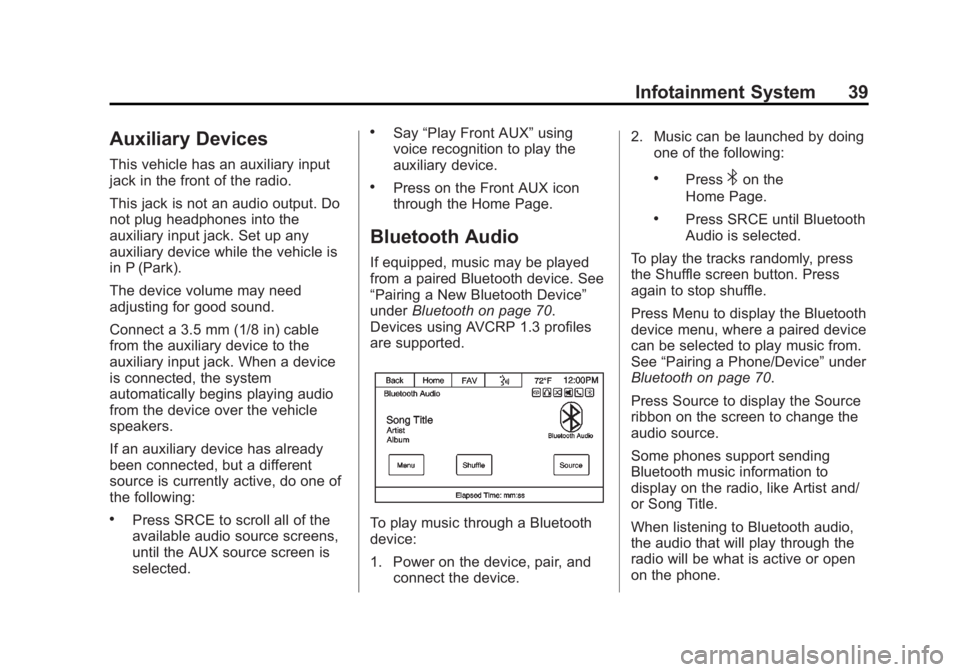
Bluetooth Audio
If equipped, music may be played
from a paired Bluetooth device. See
“Pairing a New Bluetooth Device”
under Bluetooth on page 70.
Devices using AVCRP 1.3 profiles
are supported.
To play music through a Bluetooth
device:
1. Power on the device, pair, and connect the device. 2. Music can be launched by doing
one of the following:
.Press4on the
Home Page.
.Press SRCE until Bluetooth
Audio is selected.
To play the tracks randomly, press
the Shuffle screen button. Press
again to stop shuffle.
Press Menu to display the Bluetooth
device menu, where a paired device
can be selected to play music from.
See “Pairing a Phone/Device” under
Bluetooth on page 70.
Press Source to display the Source
ribbon on the screen to change the
audio source.
Some phones support sending
Bluetooth music information to
display on the radio, like Artist and/
or Song Title.
When listening to Bluetooth audio,
the audio that will play through the
radio will be what is active or open
on the phone.
Page 49 of 92
Black plate (49,1)Chevrolet Captiva Sport Infotainment System (GMNA-Localizing-US/Canada-
6225549) - 2014 - 2nd crc - 9/16/13
Infotainment System 49
4. Press the Start Trip screenbutton. The route calculates.
Deleting a trip:
Current routes must be canceled
before deleting a trip.
1. Press the Home Page Destination icon or DEST
faceplate button to display the
Trips screen button.
2. Press this button to display the list of available trips.
3. Select the trip to be deleted.
4. Press Edit Trip.
5. Press Delete Trip.
Changing the trip name:
1. Press the Home Page Destination or DEST faceplate
button to display the Trips
screen button. Press this button
to display the list of available
trips. Select the trip to edit.
2. Press Edit Trip.
3. Select Edit Name. 4. Using the keypad, enter
the name.
5. Press OK. The new name will be in the Trips List.
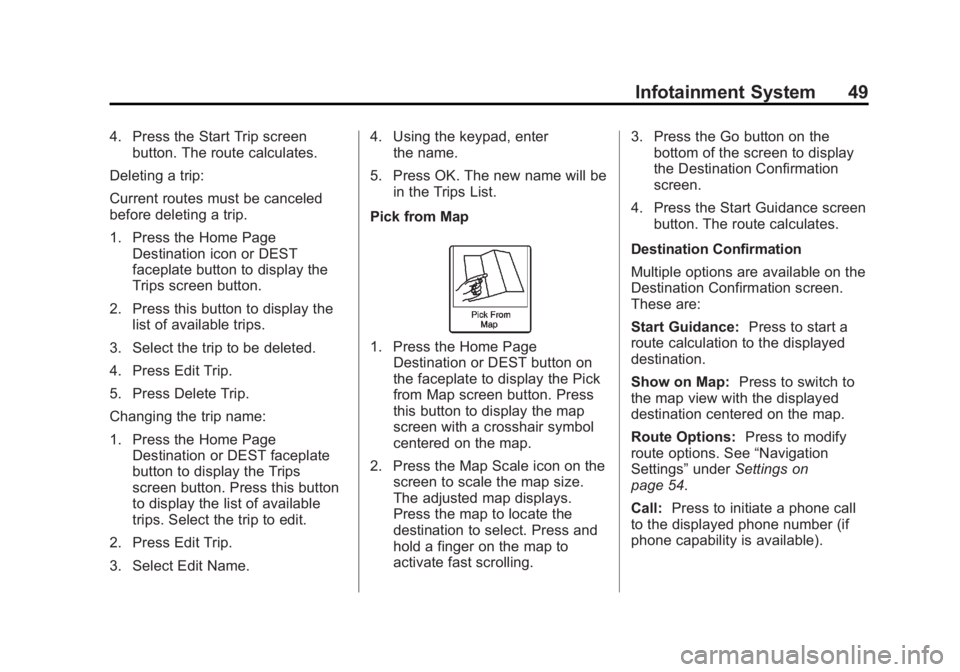
Pick from Map
1. Press the Home Page Destination or DEST button on
the faceplate to display the Pick
from Map screen button. Press
this button to display the map
screen with a crosshair symbol
centered on the map.
2. Press the Map Scale icon on the screen to scale the map size.
The adjusted map displays.
Press the map to locate the
destination to select. Press and
hold a finger on the map to
activate fast scrolling. 3. Press the Go button on the
bottom of the screen to display
the Destination Confirmation
screen.
4. Press the Start Guidance screen button. The route calculates.
Destination Confirmation
Multiple options are available on the
Destination Confirmation screen.
These are:
Start Guidance: Press to start a
route calculation to the displayed
destination.
Show on Map: Press to switch to
the map view with the displayed
destination centered on the map.
Route Options: Press to modify
route options. See “Navigation
Settings” underSettings on
page 54.
Call: Press to initiate a phone call
to the displayed phone number (if
phone capability is available).
Page 55 of 92
Black plate (55,1)Chevrolet Captiva Sport Infotainment System (GMNA-Localizing-US/Canada-
6225549) - 2014 - 2nd crc - 9/16/13
Infotainment System 55
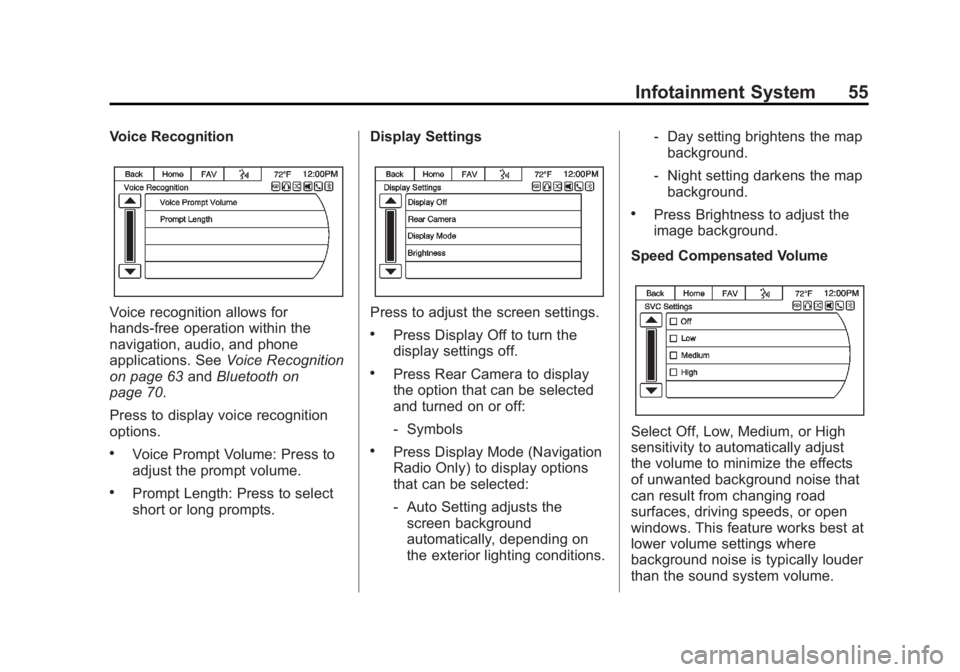
Voice Recognition
Voice recognition allows for
hands-free operation within the
navigation, audio, and phone
applications. SeeVoice Recognition
on page 63 andBluetooth on
page 70.
Press to display voice recognition
options.
.Voice Prompt Volume: Press to
adjust the prompt volume.
.Prompt Length: Press to select
short or long prompts. Display Settings
Press to adjust the screen settings.
.Press Display Off to turn the
display settings off.
.Press Rear Camera to display
the option that can be selected
and turned on or off:
‐
Symbols
.Press Display Mode (Navigation
Radio Only) to display options
that can be selected:
‐Auto Setting adjusts the
screen background
automatically, depending on
the exterior lighting conditions. ‐
Day setting brightens the map
background.
‐ Night setting darkens the map
background.
.Press Brightness to adjust the
image background.
Speed Compensated Volume
Select Off, Low, Medium, or High
sensitivity to automatically adjust
the volume to minimize the effects
of unwanted background noise that
can result from changing road
surfaces, driving speeds, or open
windows. This feature works best at
lower volume settings where
background noise is typically louder
than the sound system volume.
Page 56 of 92
Black plate (56,1)Chevrolet Captiva Sport Infotainment System (GMNA-Localizing-US/Canada-
6225549) - 2014 - 2nd crc - 9/16/13
56 Infotainment System
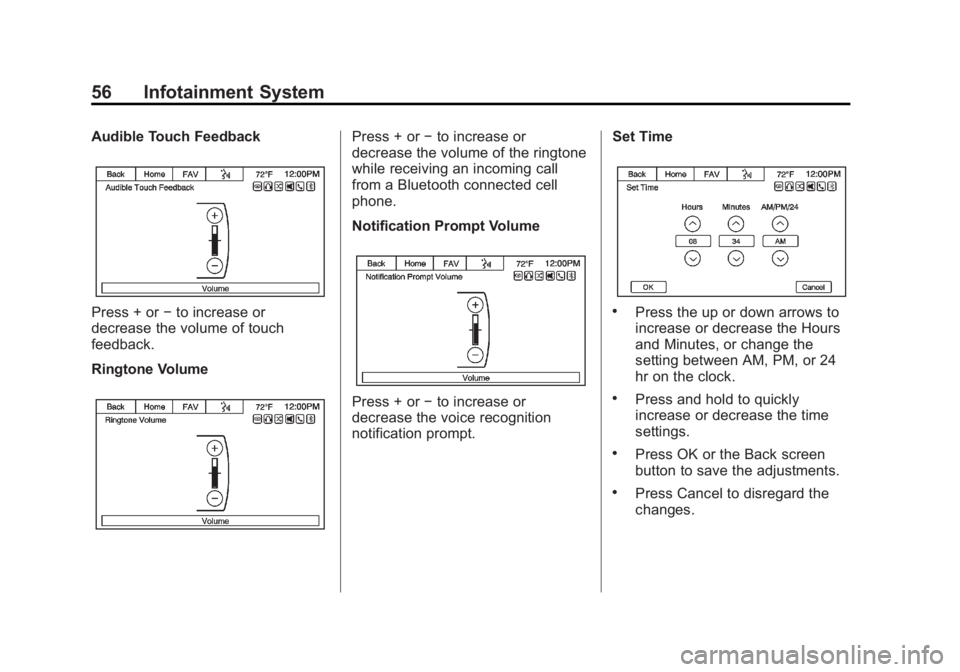
Audible Touch Feedback
Press + or−to increase or
decrease the volume of touch
feedback.
Ringtone Volume
Press + or −to increase or
decrease the volume of the ringtone
while receiving an incoming call
from a Bluetooth connected cell
phone.
Notification Prompt Volume
Press + or −to increase or
decrease the voice recognition
notification prompt. Set Time
.Press the up or down arrows to
increase or decrease the Hours
and Minutes, or change the
setting between AM, PM, or 24
hr on the clock.
.Press and hold to quickly
increase or decrease the time
settings.
.Press OK or the Back screen
button to save the adjustments.
.Press Cancel to disregard the
changes.