phone CHEVROLET CAPTIVA SPORT 2014 Infotainment System Guide
[x] Cancel search | Manufacturer: CHEVROLET, Model Year: 2014, Model line: CAPTIVA SPORT, Model: CHEVROLET CAPTIVA SPORT 2014Pages: 92, PDF Size: 0.7 MB
Page 57 of 92
Black plate (57,1)Chevrolet Captiva Sport Infotainment System (GMNA-Localizing-US/Canada-
6225549) - 2014 - 2nd crc - 9/16/13
Infotainment System 57
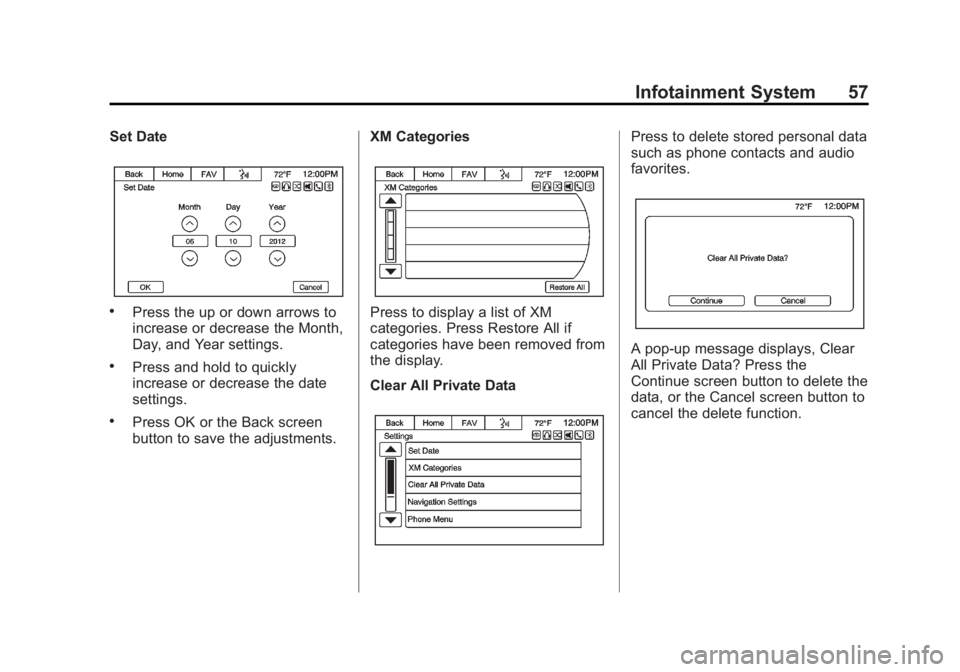
Set Date
.Press the up or down arrows to
increase or decrease the Month,
Day, and Year settings.
.Press and hold to quickly
increase or decrease the date
settings.
.Press OK or the Back screen
button to save the adjustments.XM Categories
Press to display a list of XM
categories. Press Restore All if
categories have been removed from
the display.
Clear All Private Data
Press to delete stored personal data
such as phone contacts and audio
favorites.
A pop-up message displays, Clear
All Private Data? Press the
Continue screen button to delete the
data, or the Cancel screen button to
cancel the delete function.
Page 59 of 92
Black plate (59,1)Chevrolet Captiva Sport Infotainment System (GMNA-Localizing-US/Canada-
6225549) - 2014 - 2nd crc - 9/16/13
Infotainment System 59
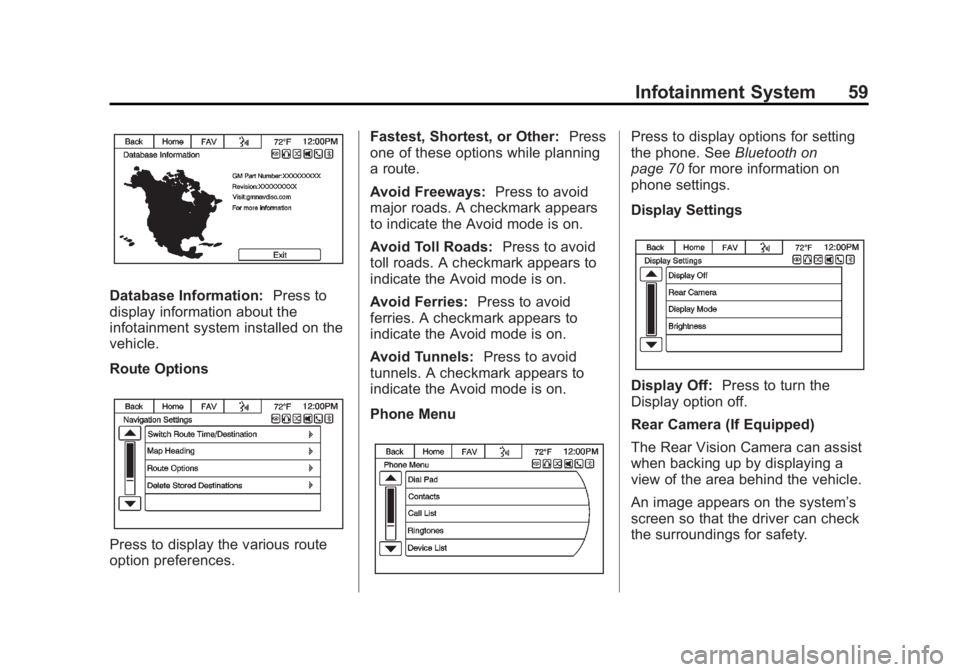
Database Information:Press to
display information about the
infotainment system installed on the
vehicle.
Route Options
Press to display the various route
option preferences. Fastest, Shortest, or Other:
Press
one of these options while planning
a route.
Avoid Freeways: Press to avoid
major roads. A checkmark appears
to indicate the Avoid mode is on.
Avoid Toll Roads: Press to avoid
toll roads. A checkmark appears to
indicate the Avoid mode is on.
Avoid Ferries: Press to avoid
ferries. A checkmark appears to
indicate the Avoid mode is on.
Avoid Tunnels: Press to avoid
tunnels. A checkmark appears to
indicate the Avoid mode is on.
Phone Menu
Press to display options for setting
the phone. See Bluetooth on
page 70 for more information on
phone settings.
Display Settings
Display Off: Press to turn the
Display option off.
Rear Camera (If Equipped)
The Rear Vision Camera can assist
when backing up by displaying a
view of the area behind the vehicle.
An image appears on the system’s
screen so that the driver can check
the surroundings for safety.
Page 62 of 92
Black plate (62,1)Chevrolet Captiva Sport Infotainment System (GMNA-Localizing-US/Canada-
6225549) - 2014 - 2nd crc - 9/16/13
62 Infotainment System
.The route prohibits the entry of a
vehicle due to a regulation by
time or season or any other
regulation that may be given.
.Some routes might not be
searched.
.The route to the destination
might not be shown if there are
new roads, if roads have
recently changed, or if certain
roads are not listed in the map
data. SeeMaps on page 42.
To recalibrate the vehicle's position
on the map, park with the vehicle
running for two to five minutes, until
the vehicle position updates.
If the System Needs
Service
If the navigation system needs
service and the steps listed here
have been followed but there are
still problems, see your dealer for
assistance.
Map Data Updates
The map data in the vehicle is the
most up-to-date information
available when the vehicle was
produced. The map data is updated
periodically, provided that the map
information has changed.
For questions about the operation of
the navigation system or the update
process, contact the GM Nav Disc
Center toll-free phone number,
1-877-NAV-DISC (1-877-628-3472)
or go to the center's website,
www.gmnavdisc.com. If updates are
needed, call the GM Nav Disc
Center or order a new SD memory
stick online. To order map data,
have the vehicle's Vehicle
Identification Number (VIN)
available. See “Vehicle Identification
Number (VIN)” in the owner manual.
After receiving the updated map
data, see Maps on page 42.
Database Coverage
Explanations
Coverage areas vary with respect to
the level of map detail available for
any given area. Some areas feature
greater levels of detail than others.
If this happens, it does not mean
there is a problem with the system.
As the map data is updated, more
detail can become available for
areas that previously had limited
detail. See Map Data Updates on
page 62.
Page 63 of 92
Black plate (63,1)Chevrolet Captiva Sport Infotainment System (GMNA-Localizing-US/Canada-
6225549) - 2014 - 2nd crc - 9/16/13
Infotainment System 63
Voice Recognition
Voice recognition allows for
hands-free operation within the
audio and phone applications. This
feature can be started by pressing
either the
J/0button on the
steering wheel or the voice
recognition icon on the touch screen
display.
However, not all features within
these areas are supported by voice
commands. Generally, only complex
tasks that require multiple manual
interactions to complete are
supported by voice commands.
For example, tasks that take more
than one or two button presses such
as selecting a song or artist to play
from a media device would be
supported by voice commands.
Other tasks, like adjusting the
volume or seeking up or down are
audio features that are easily
performed by pressing one or two
buttons, and are not supported by
voice commands. Most voice commands, except for
voice keypad, can be completed in
a single command. If the task takes
more than one command to
complete, the first command would
be to indicate the kind of task that is
to be performed. The system will
reply, prompting dialog to help
speak the necessary information.
Voice recognition can be used when
the ignition is on or when Retained
Accessory Power (RAP) is active.
See
“Retained Accessory Power
(RAP)” in the owner manual.
Using Voice Recognition
Voice recognition becomes available
once the system has been
initialized. Initialization takes place
when the ignition is turned on. This
may take a few moments.
1. Press
J/0on the steering
wheel control to activate voice
recognition, or press the voice recognition icon on the
infotainment touch screen on the
radio.
.If voice recognition is
started, the lists and
controls are verbal and the
visual displays through the
radio. The commands may
then be touched or spoken.
2. The audio system mutes and the system plays a prompt followed
by a beep.
3. Wait until after the beep completes, then clearly speak
one of the commands described
in this section.
Press
J/0to interrupt any
voice recognition. This will
terminate the prompt. The beep
is heard immediately, and a
command can be stated without
having to wait.
Page 65 of 92
Black plate (65,1)Chevrolet Captiva Sport Infotainment System (GMNA-Localizing-US/Canada-
6225549) - 2014 - 2nd crc - 9/16/13
Infotainment System 65
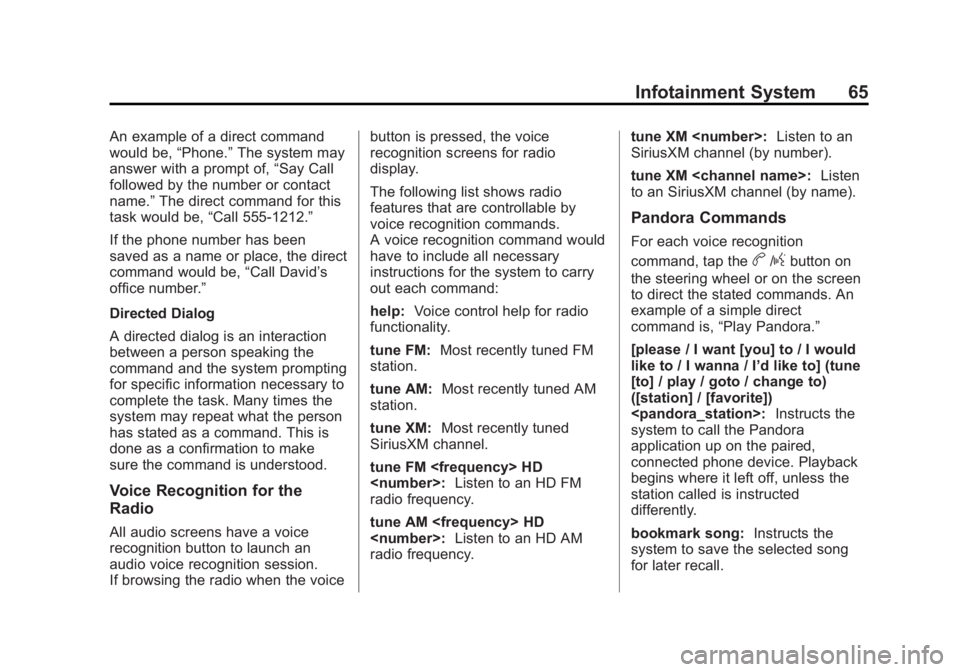
An example of a direct command
would be,“Phone.”The system may
answer with a prompt of, “Say Call
followed by the number or contact
name.” The direct command for this
task would be, “Call 555-1212.”
If the phone number has been
saved as a name or place, the direct
command would be, “Call David’s
office number.”
Directed Dialog
A directed dialog is an interaction
between a person speaking the
command and the system prompting
for specific information necessary to
complete the task. Many times the
system may repeat what the person
has stated as a command. This is
done as a confirmation to make
sure the command is understood.
Voice Recognition for the
Radio
All audio screens have a voice
recognition button to launch an
audio voice recognition session.
If browsing the radio when the voice button is pressed, the voice
recognition screens for radio
display.
The following list shows radio
features that are controllable by
voice recognition commands.
A voice recognition command would
have to include all necessary
instructions for the system to carry
out each command:
help:
Voice control help for radio
functionality.
tune FM: Most recently tuned FM
station.
tune AM: Most recently tuned AM
station.
tune XM: Most recently tuned
SiriusXM channel.
tune FM
radio frequency.
tune AM
radio frequency. tune XM
Listen to an
SiriusXM channel (by number).
tune XM
to an SiriusXM channel (by name).
Pandora Commands
For each voice recognition
command, tap the
b/gbutton on
the steering wheel or on the screen
to direct the stated commands. An
example of a simple direct
command is, “Play Pandora.”
[please / I want [you] to / I would
like to / I wanna / I’d like to] (tune
[to] / play / goto / change to)
([station] / [favorite])
system to call the Pandora
application up on the paired,
connected phone device. Playback
begins where it left off, unless the
station called is instructed
differently.
bookmark song: Instructs the
system to save the selected song
for later recall.
Page 67 of 92
![CHEVROLET CAPTIVA SPORT 2014 Infotainment System Guide Black plate (67,1)Chevrolet Captiva Sport Infotainment System (GMNA-Localizing-US/Canada-
6225549) - 2014 - 2nd crc - 9/16/13
Infotainment System 67
[no] [select / [it’s] selection]
[number] two / [](/img/24/35789/w960_35789-66.png "CHEVROLET CAPTIVA SPORT 2014 Infotainment System Guide Black plate (67,1)Chevrolet Captiva Sport Infotainment System (GMNA-Localizing-US/Canada-
6225549) - 2014 - 2nd crc - 9/16/13
Infotainment System 67
[no] [select / [it’s] selection]
[number] two / [")
Black plate (67,1)Chevrolet Captiva Sport Infotainment System (GMNA-Localizing-US/Canada-
6225549) - 2014 - 2nd crc - 9/16/13
Infotainment System 67
[no] [select / [it’s] selection]
[number] two / [[no] select]
system to select the number two
line on a menu.
[no] [select / [it’ s] selection]
[number] three / [[no] select]
system to select the number three
line on a menu.
[no] [select / [it’ s] selection]
[number] four / [[no] select]
system to select the number four
line on a menu.
no / incorrect / wrong / negative /
none are correct / none of these /
not really / no I said / did not /
nope / na / no way: Instructs the
system to select the system to reject
the result and switch the screen.
Voice Recognition for My
Media
All audio screens have a voice
recognition button to launch an
audio voice recognition session. If browsing My Media when the
voice button is pressed, the voice
recognition screens for My Media
display.
The following list shows My Media
features that are controllable by
voice recognition commands.
A voice recognition command would
have to include all necessary
instructions for the system to carry
out each command:
help:
Voice control help for My
Media functionality.
play
specific device including disc, AUX,
Bluetooth USB, and iPod.
play genre: Play music from a
specific genre.
play artist: Play music by a
specific artist.
play album: Play music from the
specific album.
play song: Play track including CD
and DVD. play playlist:
Play music in a
pre-defined playlist.
play audio book: Play an audio
book by Title.
play podcast: Listen to a Podcast.
Voice Recognition for Phone
((call / dial) [number] / phone)
a standard phone number.
((call / dial) [phone] / contact)
an entered contact.
The voice command must match
how the contact is stored in the
phone device. For example, “call
(call / dial)
home / ’s (home [phone / number]
/ house): Initiate a call to an
entered contact and location at
home, at work, on mobile device,
or on another phone.
Page 68 of 92
![CHEVROLET CAPTIVA SPORT 2014 Infotainment System Guide Black plate (68,1)Chevrolet Captiva Sport Infotainment System (GMNA-Localizing-US/Canada-
6225549) - 2014 - 2nd crc - 9/16/13
68 Infotainment System
((pair [my / this] / add) [[a] new] /
connect [new]](/img/24/35789/w960_35789-67.png "CHEVROLET CAPTIVA SPORT 2014 Infotainment System Guide Black plate (68,1)Chevrolet Captiva Sport Infotainment System (GMNA-Localizing-US/Canada-
6225549) - 2014 - 2nd crc - 9/16/13
68 Infotainment System
((pair [my / this] / add) [[a] new] /
connect [new]")
Black plate (68,1)Chevrolet Captiva Sport Infotainment System (GMNA-Localizing-US/Canada-
6225549) - 2014 - 2nd crc - 9/16/13
68 Infotainment System
((pair [my / this] / add) [[a] new] /
connect [new]) phone:Begin the
Bluetooth pairing process. Follow
instructions on the radio display.
((switch / change) [phone] to / use
/ select / connect)
different phone for outgoing calls.
(switch / to [my] other) / change)
phone: Select to another owned
phone.
redial [the] last (number / contact
/ number): Initiate a call to the last
dialed number.
(call / dial) [a] contact [open]
(address / phone) book: Go to a
sub-menu location for contact
information.
[goto / start / use] [voice] keypad /
international call: Go to a
sub-menu location for international
contact information.General Commands
cancel: Instructs the system to
cancel the command.
cancel / stop / end / cancel
request: Instructs the system to
end the speech session.
[no] go back / back / previous
screen: Instructs the system to go
back to the Previous Menu /
Selection.
yes / correct / that is correct /
yeah / ya / yep / yup / sure / right /
OK / positive / you got it /
probably / you bet: Any of these
commands will be accepted by the
system as an answer of yes.
[no] [select / [it’ s] selection]
[number] one / [[no] select]
system to select the number one
line on a menu.
[no] [select / [it’ s] selection]
[number] two / [[no] select]
system to select the number two
line on a menu. [no] [select / [it’
s] selection]
[number] three / [[no] select]
system to select the number three
line on a menu.
[no] [select / [it’ s] selection]
[number] four / [[no] select]
system to select the number four
line on a menu.
no / incorrect / wrong / negative /
none are correct / none of these /
not really / no I said / did not /
nope / na / no way: Instructs the
system to select the system to reject
the result and switch the screen.
Voice Recognition for
Navigation
If the voice button is pressed while
on a map screen, the system begins
a voice recognition session.
Page 70 of 92
Black plate (70,1)Chevrolet Captiva Sport Infotainment System (GMNA-Localizing-US/Canada-
6225549) - 2014 - 2nd crc - 9/16/13
70 Infotainment System
Text Messaging Commands
play text:Plays a new text
message through the radio.
text
predefined text message to a phone
contact.
text
predfined text message to a phone
number.
OnStar Command
(If Equipped)
OnStar: Instructs the system to
connect to OnStar. Enter the OnStar
voice recognition system. See
“OnStar” in the owner manual.
Help Commands
help:Instructs the system to state
commands that can be used for
accomplishing system functions.
[[entertainment] system] help /
help with entertainment [system] /
how do I use the entertainment
system: Instructs the system to
state instructions for using the
entertainment system.
cancel / stop / end / cancel
request: Instructs the system to
end the speech session.
[no] go back / back / previous
screen: Instructs the system to go
back to the Previous Menu /
Selection.
Bluetooth Phone/
Devices
Bluetooth
For vehicles equipped with
Bluetooth capability, the system can
interact with many cell phones,
allowing:
.Placement and receipt of calls in
a hands-free mode.
.Sharing of the address book or
contact list with the vehicle. Not
all phones are compatible for
contacts list downloading.
.Control of and playback of
Pandora and Stitcher
applications.
.Audio streaming.
.Playback and viewing of text
messages. Not all phones are
compatible with text messaging
from the radio.
Page 71 of 92
Black plate (71,1)Chevrolet Captiva Sport Infotainment System (GMNA-Localizing-US/Canada-
6225549) - 2014 - 2nd crc - 9/16/13
Infotainment System 71
To minimize driver distraction,
before driving, and with the vehicle
parked:
.Become familiar with the
features of the cell phone.
Organize the phone book and
contact lists clearly and delete
duplicate or rarely used entries.
If possible, program speed dial
or other shortcuts.
.Review the controls and
operation of the infotainment
system.
.Pair cell phone(s) to the vehicle.
The system may not work with
all cell phones. See“Pairing”in
this section.
.See “Deleting a Paired Phone”
in this section.
{Warning
When using a cell phone, it can
be distracting to look too long or
too often at the screen of the
phone or the infotainment system.
Taking your eyes off the road too
long or too often could cause a
crash resulting in injury or death.
Focus your attention on driving.
Vehicles with a Bluetooth system
can use a Bluetooth-capable cell
phone with a Hands-Free Profile to
make and receive phone calls. The
infotainment system and voice
recognition are used to control the
system. The system can be used
while in ON/RUN or ACC/
ACCESSORY. The range of the
Bluetooth system can be up to 9.1 m
(30 ft). Not all phones support all
functions and not all phones work
with the Bluetooth system. See
www.gm.com/bluetooth for more
information about compatible
phones.
Bluetooth Controls
Use the buttons on the infotainment
system and the steering wheel to
operate the Bluetooth system.
Steering Wheel Controls
b/g(Mute/Push to Talk):
.Press to answer incoming calls,
confirm system information, and
start voice recognition.
.Press and hold to mute the
radio.
Infotainment System Controls
For information about how to
navigate the menu system using the
infotainment controls, see Overview
on page 4.
Using Voice Recognition
The voice recognition system uses
commands to control the system
and dial phone numbers.
To use voice recognition, press
b
/gon the steering wheel.
Page 72 of 92
Black plate (72,1)Chevrolet Captiva Sport Infotainment System (GMNA-Localizing-US/Canada-
6225549) - 2014 - 2nd crc - 9/16/13
72 Infotainment System
If you know the command you
would like to execute, say the
command. If the command is not
known, say“Help”while in any voice
recognition menu.
See Voice Recognition on page 63.
Noise: The system may not
recognize voice commands if there
is too much background noise.
When to Speak: A tone sounds to
indicate that the system is ready for
a voice command. Wait for the tone
and then speak.
How to Speak: Speak clearly in a
calm and natural voice.
Audio System
When using the Bluetooth system,
sound comes through the vehicle's
front audio system speakers and
overrides the audio system. Use the
volume bar during a call to change
the volume level. The adjusted
volume level remains in memory for
later calls. The system maintains a
minimum volume level.
Other Information
The Bluetooth®word mark and
logos are owned by the Bluetooth®
SIG, Inc. and any use of such marks
by General Motors is under license.
Other trademarks and trade names
are those of their respective owners.
Pairing a Phone Using the
Infotainment System
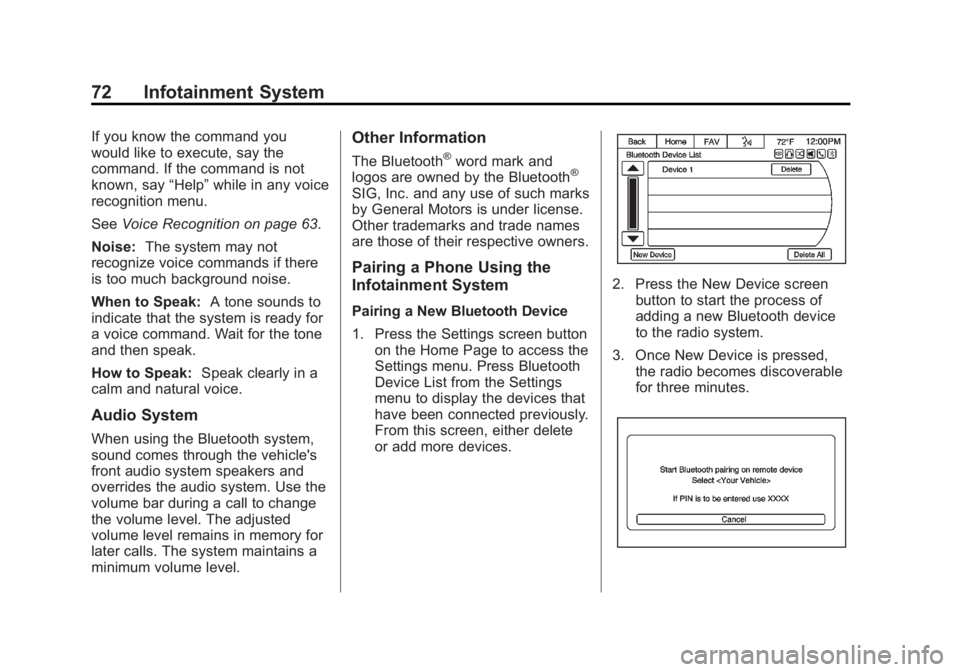
Pairing a New Bluetooth Device
1. Press the Settings screen button on the Home Page to access the
Settings menu. Press Bluetooth
Device List from the Settings
menu to display the devices that
have been connected previously.
From this screen, either delete
or add more devices.
2. Press the New Device screenbutton to start the process of
adding a new Bluetooth device
to the radio system.
3. Once New Device is pressed, the radio becomes discoverable
for three minutes.