display CHEVROLET CAPTIVA SPORT 2014 Infotainment System Guide
[x] Cancel search | Manufacturer: CHEVROLET, Model Year: 2014, Model line: CAPTIVA SPORT, Model: CHEVROLET CAPTIVA SPORT 2014Pages: 92, PDF Size: 0.7 MB
Page 76 of 92
Black plate (76,1)Chevrolet Captiva Sport Infotainment System (GMNA-Localizing-US/Canada-
6225549) - 2014 - 2nd crc - 9/16/13
76 Infotainment System
be a delay for this information to
appear, especially after first pairing
the device, and depends on how
many contact entries are stored in
the phone.
The Contacts menu allows you to
access the contacts stored in the
cell phone to make a call.
The Call List menu allows you to
access the phone numbers from the
Incoming Calls, Outgoing Calls, and
Missed Calls menus on your cell
phone to make a call.
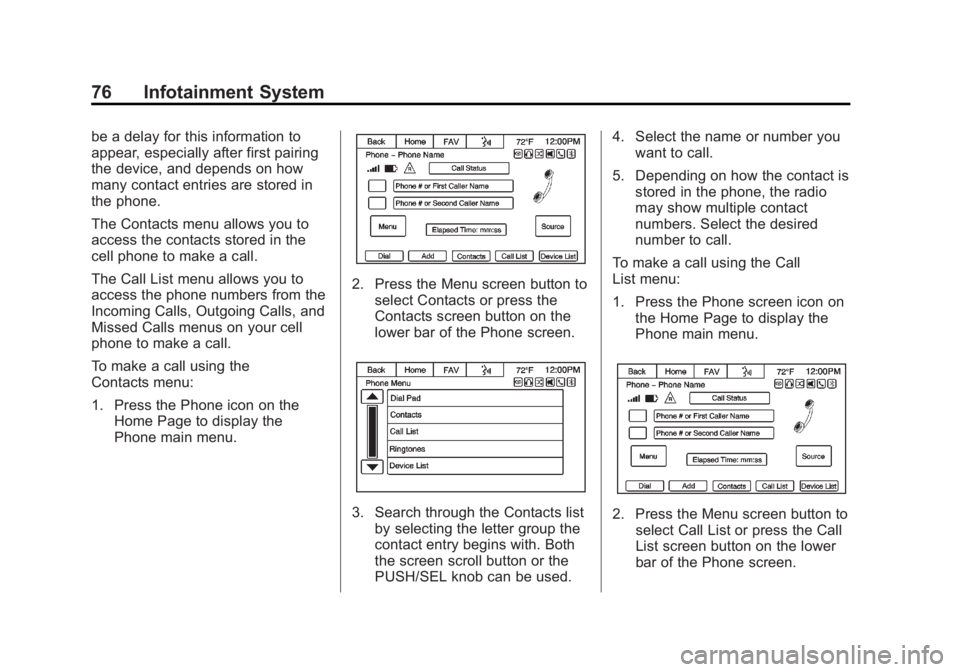
To make a call using the
Contacts menu:
1. Press the Phone icon on theHome Page to display the
Phone main menu.
2. Press the Menu screen button to
select Contacts or press the
Contacts screen button on the
lower bar of the Phone screen.
3. Search through the Contacts listby selecting the letter group the
contact entry begins with. Both
the screen scroll button or the
PUSH/SEL knob can be used. 4. Select the name or number you
want to call.
5. Depending on how the contact is stored in the phone, the radio
may show multiple contact
numbers. Select the desired
number to call.
To make a call using the Call
List menu:
1. Press the Phone screen icon on the Home Page to display the
Phone main menu.2. Press the Menu screen button toselect Call List or press the Call
List screen button on the lower
bar of the Phone screen.
Page 77 of 92
Black plate (77,1)Chevrolet Captiva Sport Infotainment System (GMNA-Localizing-US/Canada-
6225549) - 2014 - 2nd crc - 9/16/13
Infotainment System 77
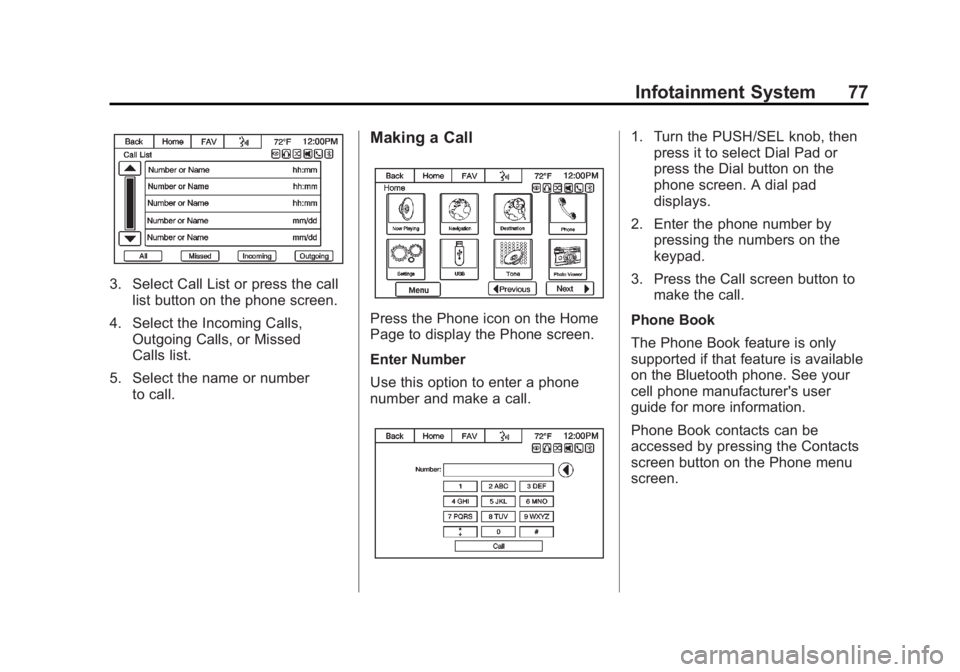
3. Select Call List or press the calllist button on the phone screen.
4. Select the Incoming Calls, Outgoing Calls, or Missed
Calls list.
5. Select the name or number to call.
Making a Call
Press the Phone icon on the Home
Page to display the Phone screen.
Enter Number
Use this option to enter a phone
number and make a call.
1. Turn the PUSH/SEL knob, thenpress it to select Dial Pad or
press the Dial button on the
phone screen. A dial pad
displays.
2. Enter the phone number by pressing the numbers on the
keypad.
3. Press the Call screen button to make the call.
Phone Book
The Phone Book feature is only
supported if that feature is available
on the Bluetooth phone. See your
cell phone manufacturer's user
guide for more information.
Phone Book contacts can be
accessed by pressing the Contacts
screen button on the Phone menu
screen.
Page 78 of 92
Black plate (78,1)Chevrolet Captiva Sport Infotainment System (GMNA-Localizing-US/Canada-
6225549) - 2014 - 2nd crc - 9/16/13
78 Infotainment System
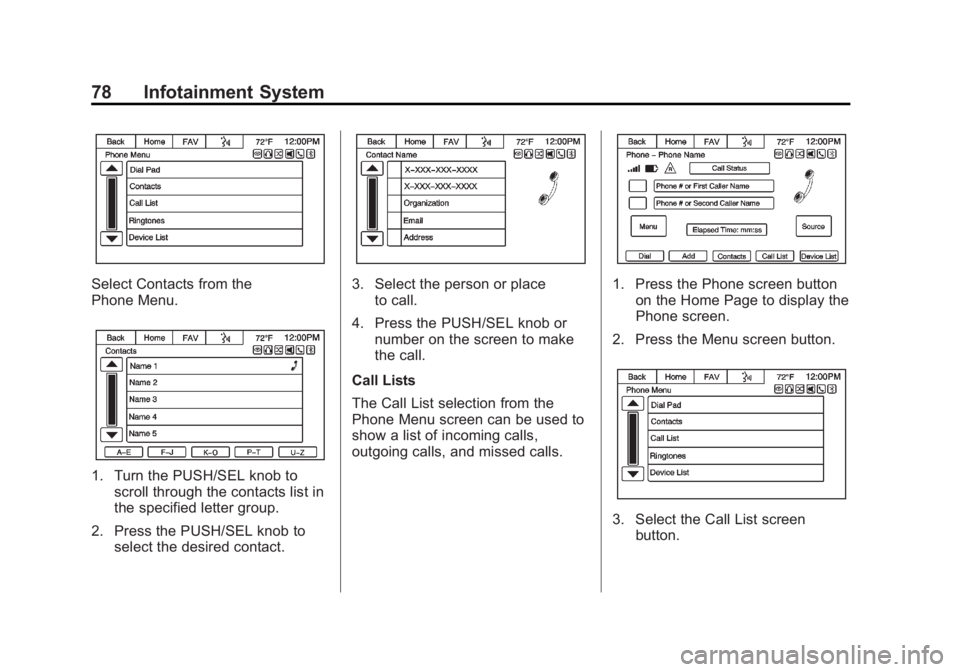
Select Contacts from the
Phone Menu.
1. Turn the PUSH/SEL knob toscroll through the contacts list in
the specified letter group.
2. Press the PUSH/SEL knob to select the desired contact.
3. Select the person or placeto call.
4. Press the PUSH/SEL knob or number on the screen to make
the call.
Call Lists
The Call List selection from the
Phone Menu screen can be used to
show a list of incoming calls,
outgoing calls, and missed calls.1. Press the Phone screen button on the Home Page to display the
Phone screen.
2. Press the Menu screen button.
3. Select the Call List screen button.
Page 79 of 92
Black plate (79,1)Chevrolet Captiva Sport Infotainment System (GMNA-Localizing-US/Canada-
6225549) - 2014 - 2nd crc - 9/16/13
Infotainment System 79
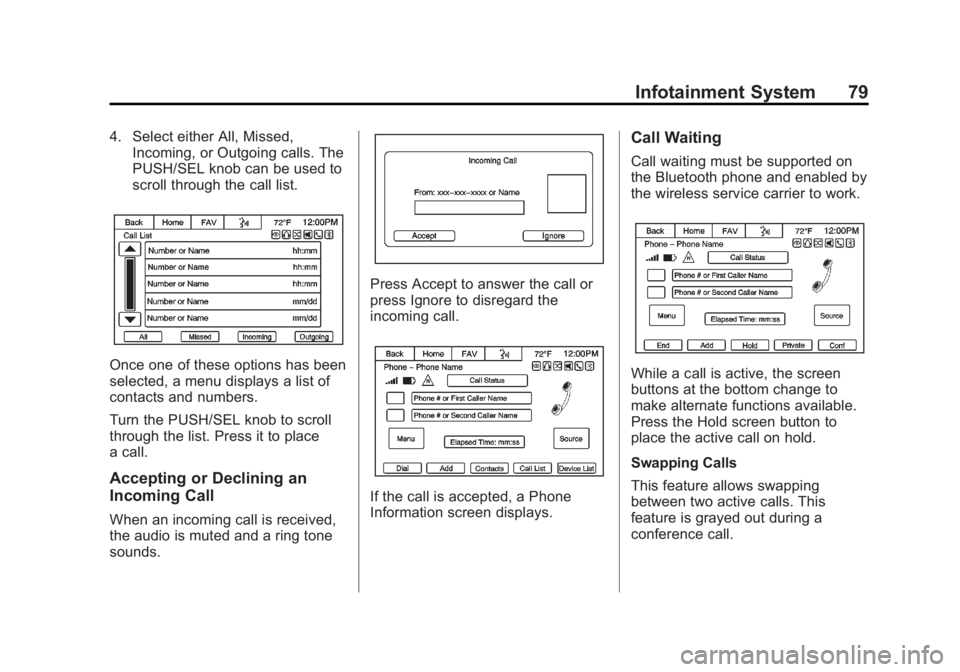
4. Select either All, Missed,Incoming, or Outgoing calls. The
PUSH/SEL knob can be used to
scroll through the call list.
Once one of these options has been
selected, a menu displays a list of
contacts and numbers.
Turn the PUSH/SEL knob to scroll
through the list. Press it to place
a call.
Accepting or Declining an
Incoming Call
When an incoming call is received,
the audio is muted and a ring tone
sounds.
Press Accept to answer the call or
press Ignore to disregard the
incoming call.
If the call is accepted, a Phone
Information screen displays.
Call Waiting
Call waiting must be supported on
the Bluetooth phone and enabled by
the wireless service carrier to work.
While a call is active, the screen
buttons at the bottom change to
make alternate functions available.
Press the Hold screen button to
place the active call on hold.
Swapping Calls
This feature allows swapping
between two active calls. This
feature is grayed out during a
conference call.
Page 80 of 92
Black plate (80,1)Chevrolet Captiva Sport Infotainment System (GMNA-Localizing-US/Canada-
6225549) - 2014 - 2nd crc - 9/16/13
80 Infotainment System
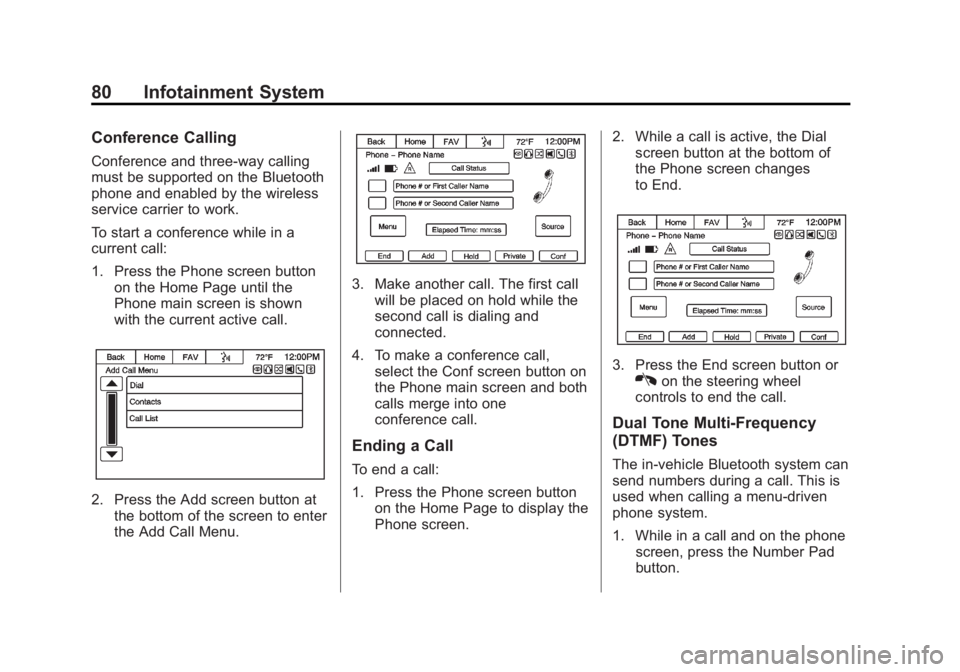
Conference Calling
Conference and three-way calling
must be supported on the Bluetooth
phone and enabled by the wireless
service carrier to work.
To start a conference while in a
current call:
1. Press the Phone screen buttonon the Home Page until the
Phone main screen is shown
with the current active call.
2. Press the Add screen button atthe bottom of the screen to enter
the Add Call Menu.
3. Make another call. The first callwill be placed on hold while the
second call is dialing and
connected.
4. To make a conference call, select the Conf screen button on
the Phone main screen and both
calls merge into one
conference call.
Ending a Call
To end a call:
1. Press the Phone screen button
on the Home Page to display the
Phone screen. 2. While a call is active, the Dial
screen button at the bottom of
the Phone screen changes
to End.
3. Press the End screen button orKon the steering wheel
controls to end the call.
Dual Tone Multi-Frequency
(DTMF) Tones
The in-vehicle Bluetooth system can
send numbers during a call. This is
used when calling a menu-driven
phone system.
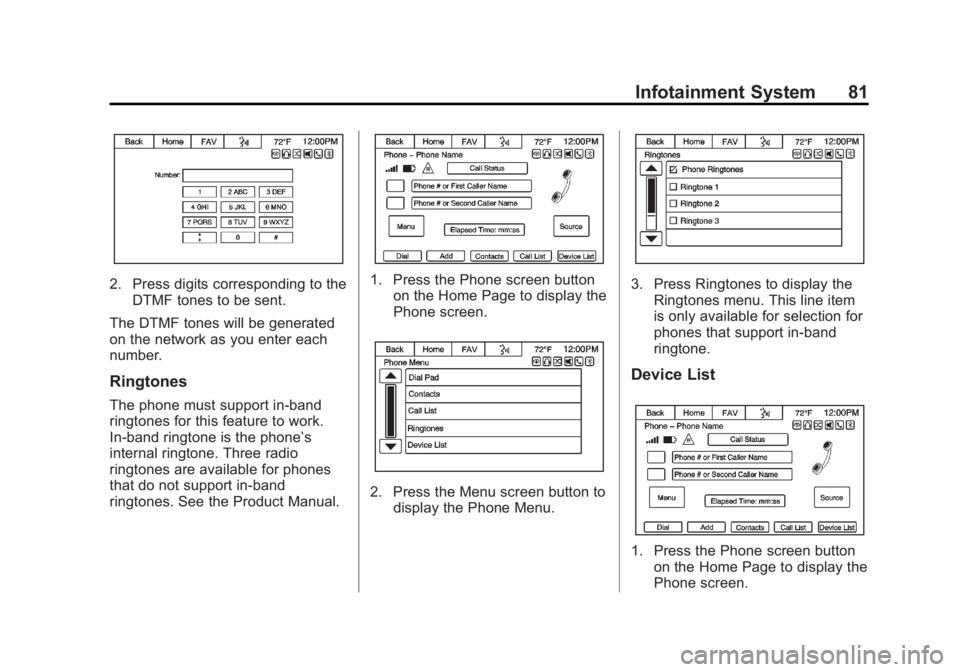
1. While in a call and on the phone screen, press the Number Pad
button.
Page 81 of 92
Black plate (81,1)Chevrolet Captiva Sport Infotainment System (GMNA-Localizing-US/Canada-
6225549) - 2014 - 2nd crc - 9/16/13
Infotainment System 81
2. Press digits corresponding to theDTMF tones to be sent.
The DTMF tones will be generated
on the network as you enter each
number.
Ringtones
The phone must support in-band
ringtones for this feature to work.
In-band ringtone is the phone’s
internal ringtone. Three radio
ringtones are available for phones
that do not support in-band
ringtones. See the Product Manual.
1. Press the Phone screen button on the Home Page to display the
Phone screen.
2. Press the Menu screen button todisplay the Phone Menu.
3. Press Ringtones to display the
Ringtones menu. This line item
is only available for selection for
phones that support in-band
ringtone.
Device List
1. Press the Phone screen buttonon the Home Page to display the
Phone screen.
Page 82 of 92
Black plate (82,1)Chevrolet Captiva Sport Infotainment System (GMNA-Localizing-US/Canada-
6225549) - 2014 - 2nd crc - 9/16/13
82 Infotainment System
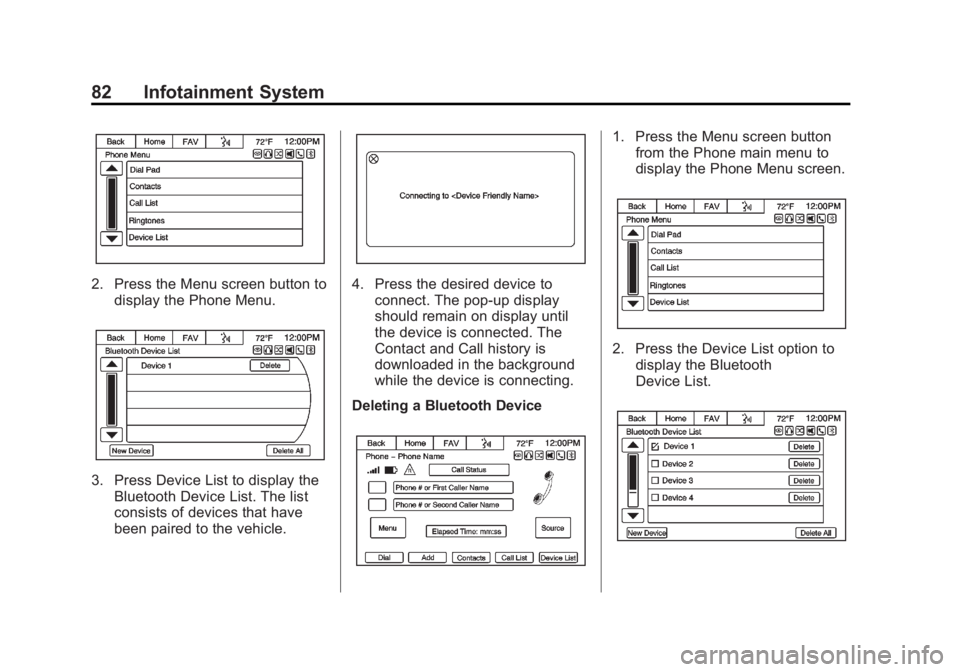
2. Press the Menu screen button todisplay the Phone Menu.
3. Press Device List to display theBluetooth Device List. The list
consists of devices that have
been paired to the vehicle.
4. Press the desired device toconnect. The pop-up display
should remain on display until
the device is connected. The
Contact and Call history is
downloaded in the background
while the device is connecting.
Deleting a Bluetooth Device
1. Press the Menu screen button from the Phone main menu to
display the Phone Menu screen.
2. Press the Device List option to
display the Bluetooth
Device List.
Page 83 of 92
Black plate (83,1)Chevrolet Captiva Sport Infotainment System (GMNA-Localizing-US/Canada-
6225549) - 2014 - 2nd crc - 9/16/13
Infotainment System 83
3. Select the device, and press theDelete screen button associated
with the selected device.
4. To Delete all devices, press the Delete All screen button at the
bottom of the display.
Text Messaging
For vehicles equipped with
Bluetooth capability, the system can
display text messages, play back a
message over the audio system,
and send a predefined message.
Not all phones support all functions
and work with Bluetooth. The radio
only supports the receipt of SMS
text messages. A request may need
to accepted on the phone or some
phone settings may need to be
changed to allow for text messaging
to function. See the cell phone
manufacturer ’s user guide. Text
messaging features can also be
initiated via Voice Recognition.
Users can play, reply, and forward a
message through Voice
Recognition. Using Text Messaging
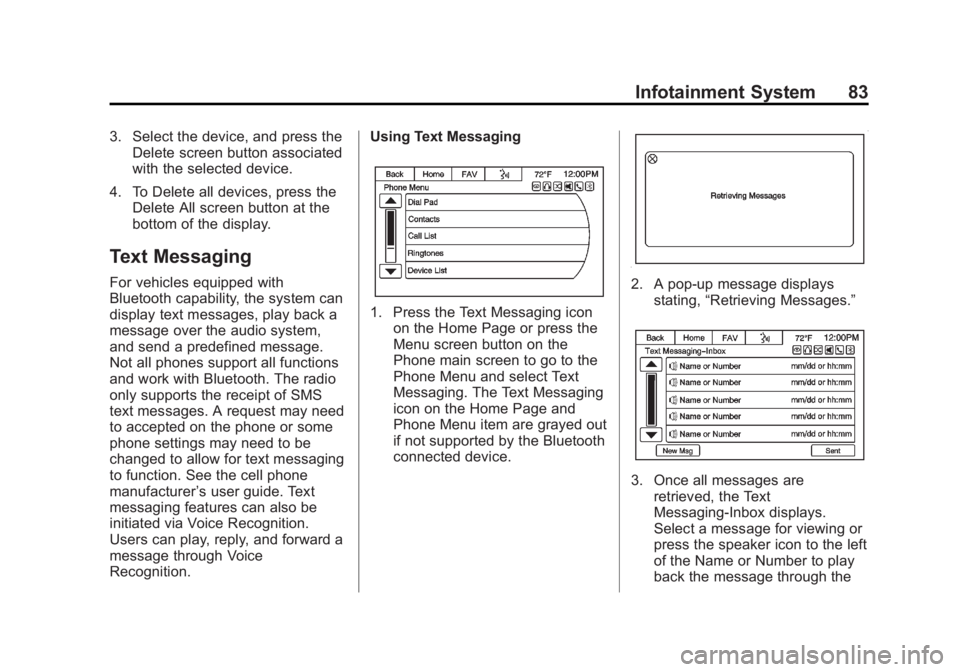
1. Press the Text Messaging icon
on the Home Page or press the
Menu screen button on the
Phone main screen to go to the
Phone Menu and select Text
Messaging. The Text Messaging
icon on the Home Page and
Phone Menu item are grayed out
if not supported by the Bluetooth
connected device.
2. A pop-up message displays
stating, “Retrieving Messages.”
3. Once all messages are
retrieved, the Text
Messaging-Inbox displays.
Select a message for viewing or
press the speaker icon to the left
of the Name or Number to play
back the message through the
Page 84 of 92
Black plate (84,1)Chevrolet Captiva Sport Infotainment System (GMNA-Localizing-US/Canada-
6225549) - 2014 - 2nd crc - 9/16/13
84 Infotainment System
audio system. Viewing
messages is only available while
the vehicle is not in motion.
Press the Sent screen button to
view a listing of sent messages.
Not all phones allow access to
previous messages.
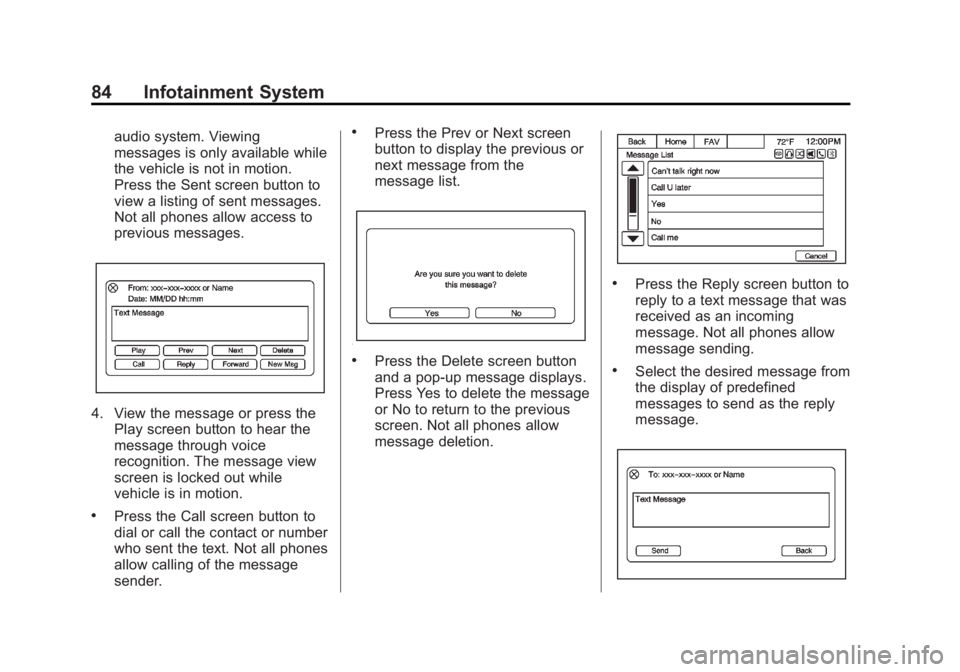
4. View the message or press thePlay screen button to hear the
message through voice
recognition. The message view
screen is locked out while
vehicle is in motion.
.Press the Call screen button to
dial or call the contact or number
who sent the text. Not all phones
allow calling of the message
sender.
.Press the Prev or Next screen
button to display the previous or
next message from the
message list.
.Press the Delete screen button
and a pop-up message displays.
Press Yes to delete the message
or No to return to the previous
screen. Not all phones allow
message deletion.
.Press the Reply screen button to
reply to a text message that was
received as an incoming
message. Not all phones allow
message sending.
.Select the desired message from
the display of predefined
messages to send as the reply
message.
Page 85 of 92
Black plate (85,1)Chevrolet Captiva Sport Infotainment System (GMNA-Localizing-US/Canada-
6225549) - 2014 - 2nd crc - 9/16/13
Infotainment System 85
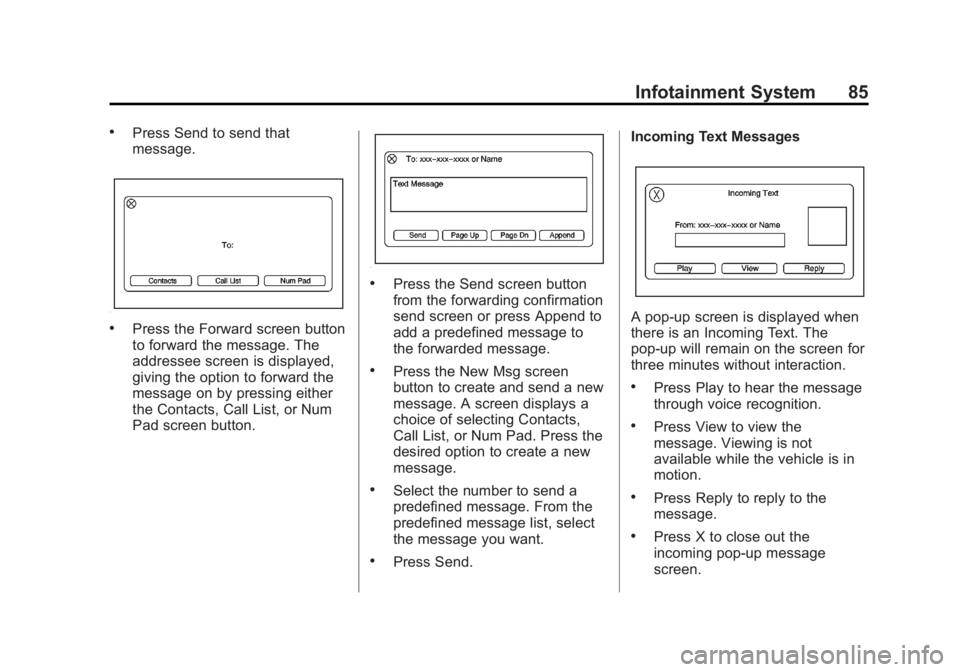
.Press Send to send that
message.
.Press the Forward screen button
to forward the message. The
addressee screen is displayed,
giving the option to forward the
message on by pressing either
the Contacts, Call List, or Num
Pad screen button.
.Press the Send screen button
from the forwarding confirmation
send screen or press Append to
add a predefined message to
the forwarded message.
.Press the New Msg screen
button to create and send a new
message. A screen displays a
choice of selecting Contacts,
Call List, or Num Pad. Press the
desired option to create a new
message.
.Select the number to send a
predefined message. From the
predefined message list, select
the message you want.
.Press Send.Incoming Text Messages
A pop-up screen is displayed when
there is an Incoming Text. The
pop-up will remain on the screen for
three minutes without interaction.
.Press Play to hear the message
through voice recognition.
.Press View to view the
message. Viewing is not
available while the vehicle is in
motion.
.Press Reply to reply to the
message.
.Press X to close out the
incoming pop-up message
screen.