turn signal CHEVROLET CAVALIER 2003 3.G Owners Manual
[x] Cancel search | Manufacturer: CHEVROLET, Model Year: 2003, Model line: CAVALIER, Model: CHEVROLET CAVALIER 2003 3.GPages: 364, PDF Size: 2.44 MB
Page 103 of 364

Instrument Panel Overview...............................3-2
Hazard Warning Flashers................................3-3
Other Warning Devices...................................3-4
Horn.............................................................3-4
Tilt Wheel.....................................................3-5
Turn Signal/Multifunction Lever.........................3-5
Exterior Lamps.............................................3-12
Interior Lamps..............................................3-14
Accessory Power Outlets...............................3-16
Ashtrays and Cigarette Lighter........................3-16
Climate Controls............................................3-17
Climate Control System.................................3-17
Outlet Adjustment.........................................3-20
Warning Lights, Gages and Indicators.............3-21
Instrument Panel Cluster................................3-22
Speedometer and Odometer...........................3-23
Tachometer.................................................3-23
Safety Belt Reminder Light.............................3-24
Air Bag Readiness Light................................3-24
Charging System Light..................................3-25
Up-Shift Light...............................................3-26
Brake System Warning Light..........................3-26
Anti-Lock Brake System Warning Light.............3-27
Enhanced Traction System Warning Light.........3-28
Enhanced Traction System Active Light............3-29
Engine Coolant Temperature Gage..................3-29
Low Coolant Warning Light............................3-30Malfunction Indicator Lamp.............................3-30
Oil Pressure Light.........................................3-33
Passlock
žWarning Light................................3-34
Check Gages Warning Light...........................3-34
Service Vehicle Soon Light............................3-35
Fuel Gage...................................................3-35
Audio System(s).............................................3-36
Setting the Time for Radios without Radio
Data Systems (RDS)..................................3-36
Setting the Time for Radios with Radio Data
Systems (RDS).........................................3-36
AM-FM Radio...............................................3-37
Radio with CD (Base Level)...........................3-39
Radio with CD (MP3)....................................3-49
Radio with Cassette and CD..........................3-63
Personal Choice Radio Controls......................3-75
Theft-Deterrent Feature (Non RDS Radios).......3-76
Theft-Deterrent Feature (RDS Radios).............3-76
Understanding Radio Reception......................3-76
Care of Your Cassette Tape Player.................3-77
Care of Your CDs.........................................3-78
Care of Your CD Player................................3-78
Fixed Mast Antenna......................................3-78
XMŸ Satellite Radio Antenna System
(United States Only)..................................3-79
Chime Level Adjustment................................3-79
Section 3 Instrument Panel
3-1
Page 105 of 364
The main components of your instrument panel are the
following:
A. Fog Lamp Button
B. Instrument Panel Brightness Control
C. Turn Signal/Multifunction Lever
D. Instrument Panel Cluster
E. Hazard Warning Flashers Switch
F. Ignition Switch
G. Windshield Wiper/Washer Controls
H. Cigarette Lighter
I. Audio System
J. Climate Controls and Rear Window Defogger
K. Fuse Panel
L. Remote Trunk Release Button
M. Hood Release Lever
N. Tilt Steering Wheel Lever
O. Parking Brake Lever
P. Accessory Power Outlet
Q. Shift LeverHazard Warning Flashers
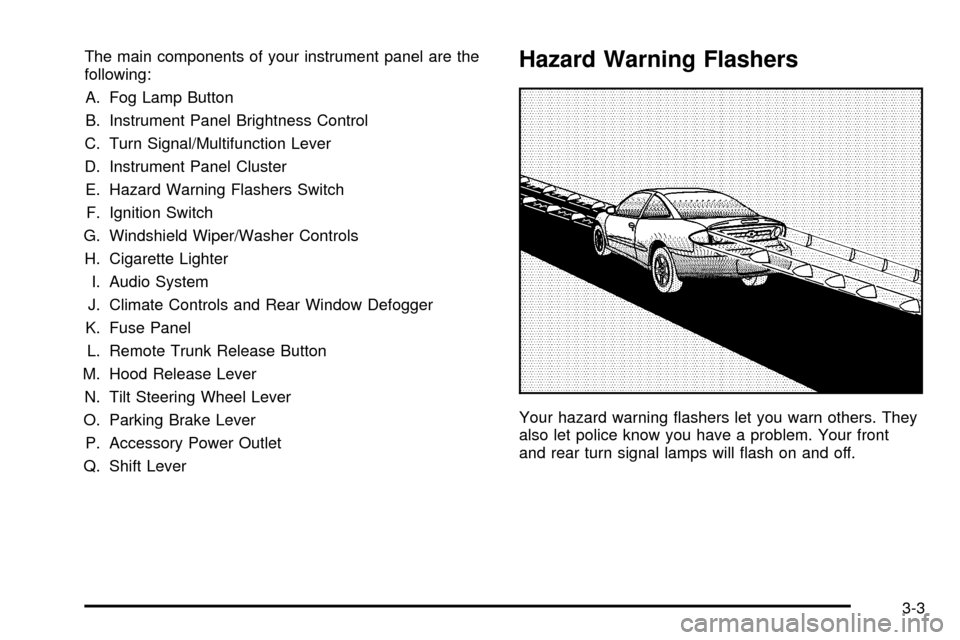
Your hazard warning ¯ashers let you warn others. They
also let police know you have a problem. Your front
and rear turn signal lamps will ¯ash on and off.
3-3
Page 106 of 364
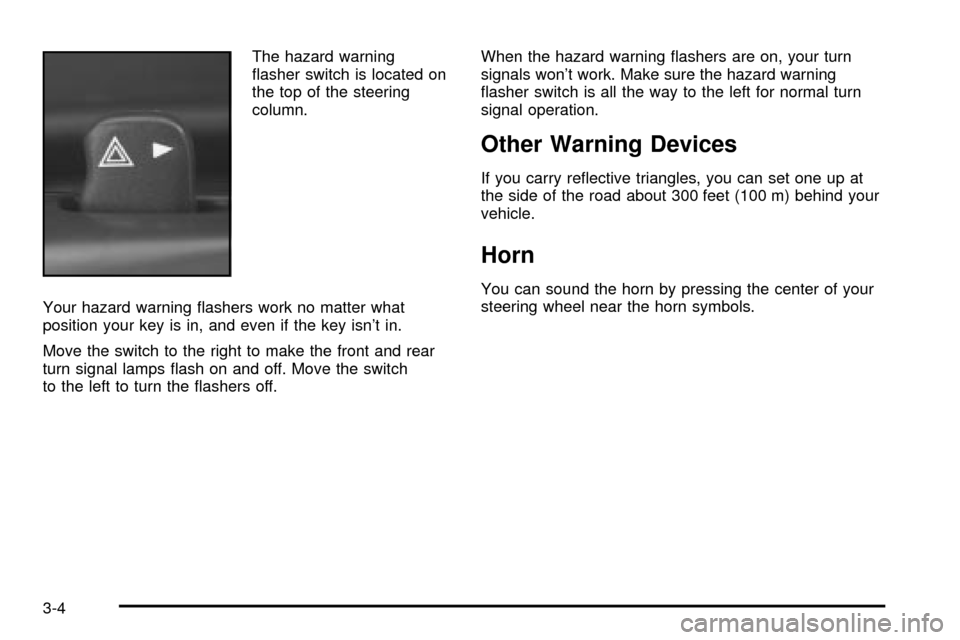
The hazard warning
¯asher switch is located on
the top of the steering
column.
Your hazard warning ¯ashers work no matter what
position your key is in, and even if the key isn't in.
Move the switch to the right to make the front and rear
turn signal lamps ¯ash on and off. Move the switch
to the left to turn the ¯ashers off.When the hazard warning ¯ashers are on, your turn
signals won't work. Make sure the hazard warning
¯asher switch is all the way to the left for normal turn
signal operation.
Other Warning Devices
If you carry re¯ective triangles, you can set one up at
the side of the road about 300 feet (100 m) behind your
vehicle.
Horn
You can sound the horn by pressing the center of your
steering wheel near the horn symbols.
3-4
Page 107 of 364
Tilt Wheel
Your vehicle may have a tilt wheel which allows you to
adjust the steering wheel before you drive. You can
raise it to the highest level to give your legs more room
when you exit and enter the vehicle.
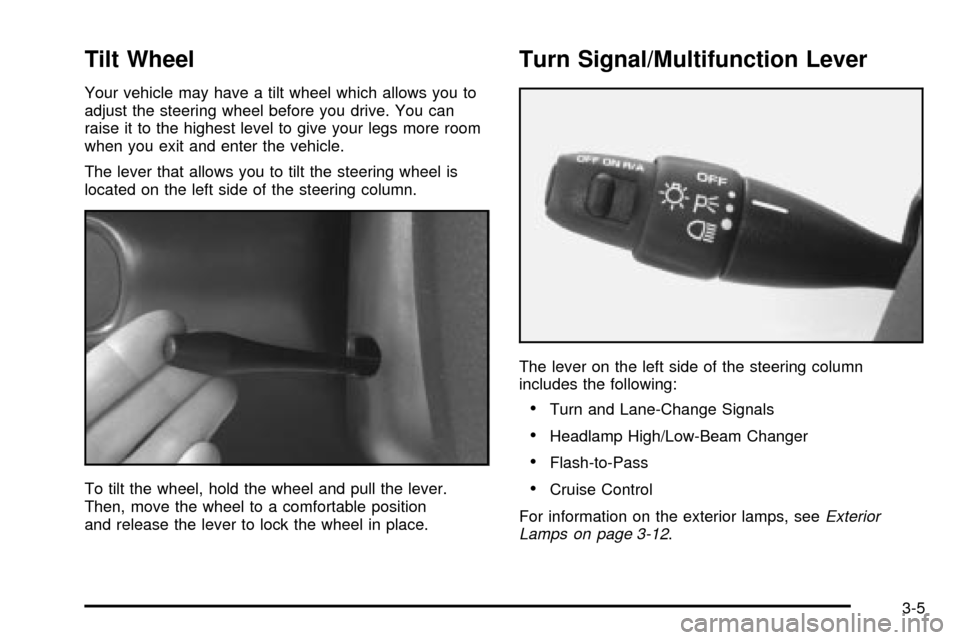
The lever that allows you to tilt the steering wheel is
located on the left side of the steering column.
To tilt the wheel, hold the wheel and pull the lever.
Then, move the wheel to a comfortable position
and release the lever to lock the wheel in place.
Turn Signal/Multifunction Lever
The lever on the left side of the steering column
includes the following:
·Turn and Lane-Change Signals
·Headlamp High/Low-Beam Changer
·Flash-to-Pass
·Cruise Control
For information on the exterior lamps, see
Exterior
Lamps on page 3-12.
3-5
Page 108 of 364
Turn and Lane-Change Signals
The turn signal has two upward (for right) and two
downward (for left) positions. These positions allow you
to signal a turn or a lane change.
To signal a turn, move the lever all the way up or down.
When the turn is ®nished, the lever will return
automatically.
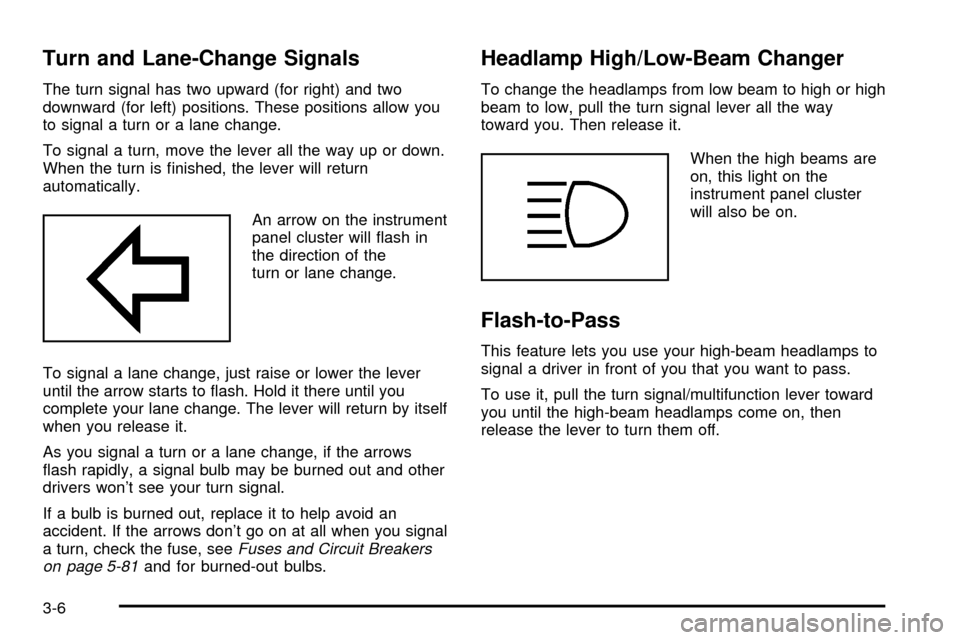
An arrow on the instrument
panel cluster will ¯ash in
the direction of the
turn or lane change.
To signal a lane change, just raise or lower the lever
until the arrow starts to ¯ash. Hold it there until you
complete your lane change. The lever will return by itself
when you release it.
As you signal a turn or a lane change, if the arrows
¯ash rapidly, a signal bulb may be burned out and other
drivers won't see your turn signal.
If a bulb is burned out, replace it to help avoid an
accident. If the arrows don't go on at all when you signal
a turn, check the fuse, see
Fuses and Circuit Breakers
on page 5-81and for burned-out bulbs.
Headlamp High/Low-Beam Changer
To change the headlamps from low beam to high or high
beam to low, pull the turn signal lever all the way
toward you. Then release it.
When the high beams are
on, this light on the
instrument panel cluster
will also be on.
Flash-to-Pass
This feature lets you use your high-beam headlamps to
signal a driver in front of you that you want to pass.
To use it, pull the turn signal/multifunction lever toward
you until the high-beam headlamps come on, then
release the lever to turn them off.
3-6
Page 114 of 364
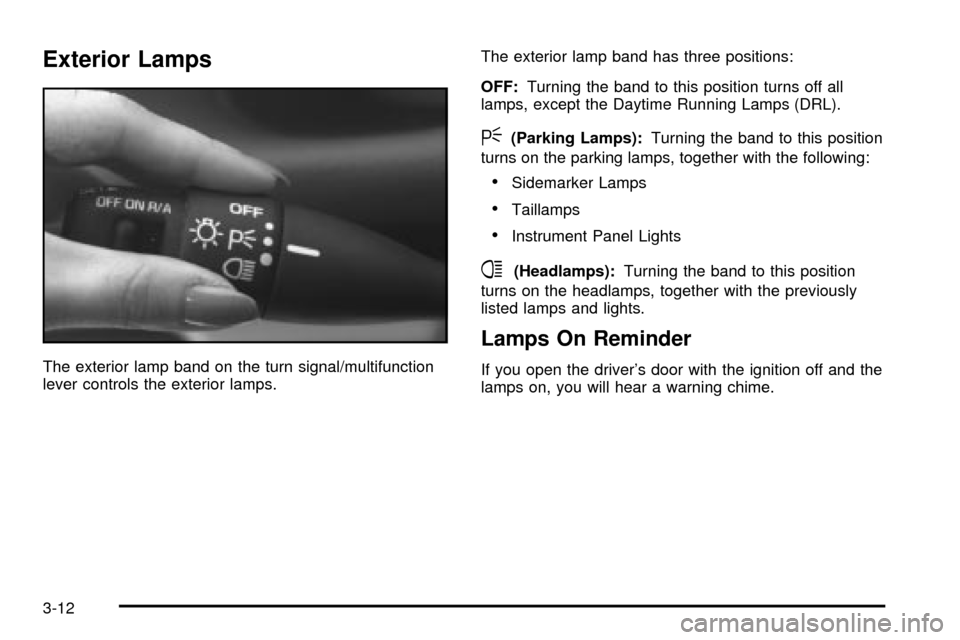
Exterior Lamps
The exterior lamp band on the turn signal/multifunction
lever controls the exterior lamps.The exterior lamp band has three positions:
OFF:Turning the band to this position turns off all
lamps, except the Daytime Running Lamps (DRL).
<(Parking Lamps):Turning the band to this position
turns on the parking lamps, together with the following:
·Sidemarker Lamps
·Taillamps
·Instrument Panel Lights
4(Headlamps):Turning the band to this position
turns on the headlamps, together with the previously
listed lamps and lights.
Lamps On Reminder
If you open the driver's door with the ignition off and the
lamps on, you will hear a warning chime.
3-12
Page 139 of 364
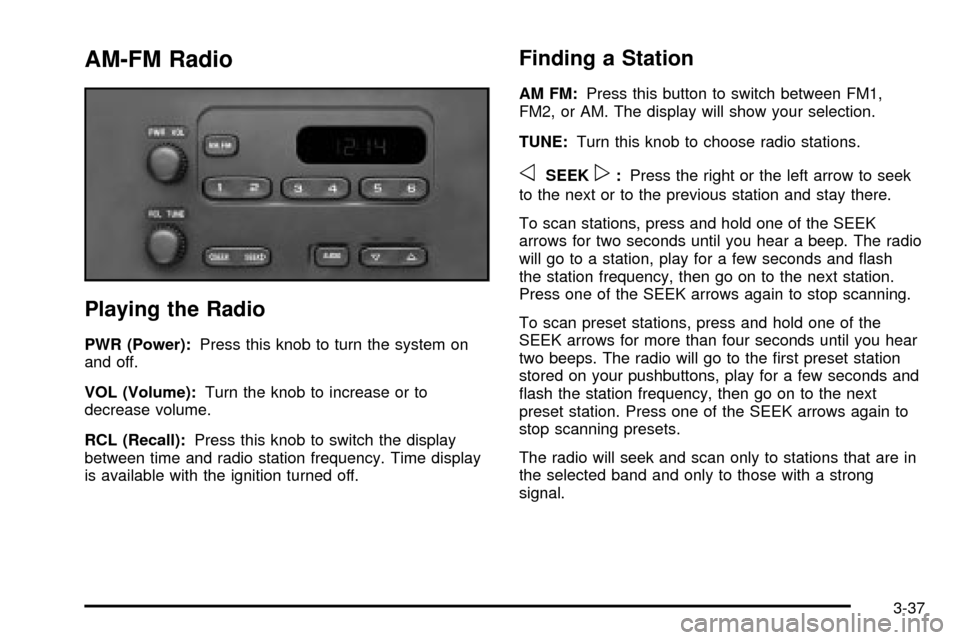
AM-FM Radio
Playing the Radio
PWR (Power):Press this knob to turn the system on
and off.
VOL (Volume):Turn the knob to increase or to
decrease volume.
RCL (Recall):Press this knob to switch the display
between time and radio station frequency. Time display
is available with the ignition turned off.
Finding a Station
AM FM:Press this button to switch between FM1,
FM2, or AM. The display will show your selection.
TUNE:Turn this knob to choose radio stations.
oSEEKp:Press the right or the left arrow to seek
to the next or to the previous station and stay there.
To scan stations, press and hold one of the SEEK
arrows for two seconds until you hear a beep. The radio
will go to a station, play for a few seconds and ¯ash
the station frequency, then go on to the next station.
Press one of the SEEK arrows again to stop scanning.
To scan preset stations, press and hold one of the
SEEK arrows for more than four seconds until you hear
two beeps. The radio will go to the ®rst preset station
stored on your pushbuttons, play for a few seconds and
¯ash the station frequency, then go on to the next
preset station. Press one of the SEEK arrows again to
stop scanning presets.
The radio will seek and scan only to stations that are in
the selected band and only to those with a strong
signal.
3-37
Page 143 of 364

For XMŸ (USA only, if equipped), press this button
while in XM mode to retrieve various pieces of
information related to the current song or channel. By
pressing and releasing this button, you may retrieve four
different categories of information: Artist, Song Title,
Category or PTY, Channel Number/Channel Name.
To change the default on the display, press this button
until you see the display you want, then hold this
button for two seconds. The radio will produce one beep
and the selected display will now be the default.
Finding a Station
BAND:Press this button to switch between AM, FM1,
FM2, or XM1, XM2 (USA only, if equipped). The
display will show your selection.
TUNE:Turn this knob to choose radio stations.
qSEEKr:Press the right or the left arrow to seek
to the next or to the previous station and stay there.
The radio will seek only to stations that are in the
selected band and only to those with a strong signal.
qPSCAN (Preset Scan)r:Press and hold one of
the arrows for more than two seconds and the radio
will produce one beep. The radio will scan to the
®rst preset station stored on the pushbuttons, play for a
few seconds and ¯ash the station frequency, then goon to the next preset station. SCAN will be displayed.
Press one of the arrows again or one of the pushbuttons
to stop scanning presets.
The radio will scan only to the preset stations that are in
the selected band and only to those with a strong
signal.
Setting Preset Stations
The six numbered pushbuttons let you return to your
favorite stations. You can set up to 30 stations (six AM,
six FM1 and six FM2, six XM1 and six XM2 (USA
only, if equipped), by performing the following steps:
1. Turn the radio on.
2. Press BAND to select AM, FM1, FM2, or XM1,
or XM2.
3. Tune in the desired station.
4. Press AUTO TONE to choose the bass and treble
equalization that best suits the type of station you
are listening to.
5. Press and hold one of the six numbered
pushbuttons. The radio will produce one beep.
Whenever you press that numbered pushbutton, the
station you set will return and the bass and treble
equalization that you selected will also be
automatically selected for that pushbutton.
6. Repeat the steps for each pushbutton.
3-41
Page 147 of 364
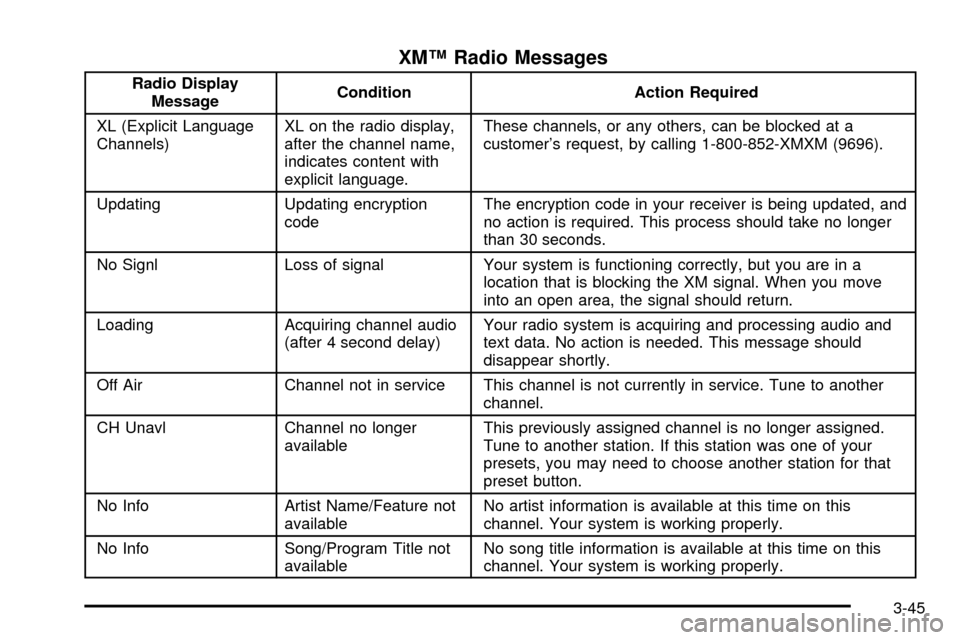
XMŸ Radio Messages
Radio Display
MessageCondition Action Required
XL (Explicit Language
Channels)XL on the radio display,
after the channel name,
indicates content with
explicit language.These channels, or any others, can be blocked at a
customer's request, by calling 1-800-852-XMXM (9696).
Updating Updating encryption
codeThe encryption code in your receiver is being updated, and
no action is required. This process should take no longer
than 30 seconds.
No Signl Loss of signal Your system is functioning correctly, but you are in a
location that is blocking the XM signal. When you move
into an open area, the signal should return.
Loading Acquiring channel audio
(after 4 second delay)Your radio system is acquiring and processing audio and
text data. No action is needed. This message should
disappear shortly.
Off Air Channel not in service This channel is not currently in service. Tune to another
channel.
CH Unavl Channel no longer
availableThis previously assigned channel is no longer assigned.
Tune to another station. If this station was one of your
presets, you may need to choose another station for that
preset button.
No Info Artist Name/Feature not
availableNo artist information is available at this time on this
channel. Your system is working properly.
No Info Song/Program Title not
availableNo song title information is available at this time on this
channel. Your system is working properly.
3-45
Page 153 of 364

Finding a Station
BAND:Press this button to switch between FM1, FM2,
AM or XM1, XM2 (USA only, if equipped). The display
will show your selection.
TUNE:Turn this knob to choose radio stations.
qSEEKr:Press the right or the left arrow to seek
to the next or to the previous station and stay there.
The radio will seek only to stations that are in the
selected band and only to those with a strong signal.
qPSCAN (Preset Scan)r:Press and hold one of
the arrows for more than two seconds and the radio
will produce one beep. The radio will scan to the
®rst preset station stored on the pushbuttons, play for a
few seconds and ¯ash the station frequency, then go
on to the next preset station. SCAN will be displayed.
Press one of the arrows again or one of the pushbuttons
to stop scanning presets.
The radio will scan only to the preset stations that are in
the selected band and only to those with a strong
signal.
Setting Preset Stations
The six numbered pushbuttons let you return to your
favorite stations. You can set up to 30 stations (six FM1,
six FM2, and six AM, six XM1 and six XM2 (USA
only, if equipped), by performing the following steps:
1. Turn the radio on.
2. Press BAND to select FM1, FM2, AM or XM1,
or XM2.
3. Tune in the desired station.
4. Press AUTO TONE to choose the bass and treble
equalization that best suits the type of station you
are listening to.
5. Press and hold one of the six numbered
pushbuttons. The radio will produce one beep.
Whenever you press that numbered pushbutton, the
station you set will return and the bass and treble
equalization that you selected will also be
automatically selected for that pushbutton.
6. Repeat the steps for each pushbutton.
3-51