phone CHEVROLET CITY EXPRESS 2018 Infotainment System Guide
[x] Cancel search | Manufacturer: CHEVROLET, Model Year: 2018, Model line: CITY EXPRESS, Model: CHEVROLET CITY EXPRESS 2018Pages: 74, PDF Size: 0.86 MB
Page 49 of 74
Chevrolet City Express Infotainment System (GMNA-Localizing-U.S./Canada-
11683801) - 2018 - crc - 7/12/17
48 Navigation
From the SiriusXM Travel Link
menu, touch SiriusXM Movie. The
system displays the Movie and
Theater search page.
To search movies:
.Touch Movie to choose a
movie name.
. Touch Theater to choose a
specific theater.
. Touch Date to choose which
date to search movies and/or
theaters.
. Touch Search to view a list of
movies or theaters.
When searching by movie, a list will
display movies to select. When a
movie is selected, a theater list will
appear with a direction arrow and
distance from the current vehicle
location. The direction and distance
will update every 10 seconds as the
vehicle is moving. The direction
arrow represents the location of the
theater from the current vehicle
location. The distance represents
the straight line distance between
the vehicle location and the theater. Movie details are available when a
movie is selected. The details
include Cast, Synopsis, and Theater
Information. Touch the appropriate
icon to display more information.
Cast and Synopsis:
.
Actors
. Show Times
. Rating (G, PG-13, R, etc.)
. Length of movie
Theater information includes
address, phone number, distance,
and amenities.
Troubleshooting
XM Travel Link services use the
SiriusXM Satellite Signal and GPS
Satellite Signal to provide this
feature.
When the vehicle is started, it can
take up to five minutes for the radio
to receive the Travel Link services.
Travel Link Messages
No GPS Signal : Move the vehicle
into a position that is visible to
the sky. Acquiring Signal :
Radio is
downloading the activation
information or not receiving a good
signal. Move the vehicle to an open
area and restart the vehicle.
No XM Signal : Reception is
blocked. Move the vehicle into an
open area.
Global Positioning
System (GPS)
This navigation system combines
the data obtained from the vehicle
and from GPS (Global Positioning
System) satellites to calculate the
current location of the vehicle. This
position is then displayed
throughout route guidance to a
destination.
Vehicle Positioning
At times, the position of the vehicle
on the map could be inaccurate due
to one or more of the following
reasons:
. The road system has changed.
Page 61 of 74
Chevrolet City Express Infotainment System (GMNA-Localizing-U.S./Canada-
11683801) - 2018 - crc - 7/12/17
60 Bluetooth Phone/Devices
Bluetooth Phone/
Devices
Bluetooth
Overview
The vehicle may be equipped with
the Bluetooth Hands-Free Phone
System. If there is a compatible
Bluetooth enabled cellular phone, it
can be set up with a wireless
connection between your cellular
phone and the in-vehicle phone
module. With Bluetooth wireless
technology, hands-free telephone
calls can be made with the cellular
phone in the vehicle.
Once the cell phone is connected to
the in-vehicle phone module, no
other phone connecting procedure
is required. The phone is
automatically connected with the
in-vehicle phone module when the
ignition is turned on with the
connected cell phone turned on and
carried in the vehicle.Up to five different Bluetooth cell
phones can be registered to the
in-vehicle phone module. However,
only one cell phone can be used at
a time.
Before using the Bluetooth
Hands-Free Phone System:
.
Set up the wireless connection
between a cellular phone and
the in-vehicle phone module
before using the hands-free
phone system.
. Some Bluetooth enabled cellular
phones may not be recognized
by the in-vehicle phone module.
. The hands-free phone will not be
usable under the following
conditions:
‐The vehicle is outside of the
cellular service area.
‐ The vehicle is in an area
where it is difficult to receive a
cellular signal; such as in a
tunnel, in an underground
parking garage, near a tall
building, or in a
mountainous area. ‐
The cellular phone is locked to
prevent it from being dialed.
. When the radio wave condition
is not ideal or ambient sound is
too loud, it may be difficult to
hear the other person’s voice
during a call.
. Immediately after the ignition is
turned on, it may be impossible
to receive a call for a short
period of time.
. Do not place the cellular phone
in an area surrounded by metal
or far away from the in-vehicle
phone module to prevent tone
quality degradation and wireless
connection disruption.
. While a cellular phone is
connected through the Bluetooth
wireless connection, the battery
power of the cellular phone may
discharge quicker than usual.
The Bluetooth Hands-Free
Phone System cannot charge
cellular phones.
. Some cellular phones or other
devices may cause interference
or a buzzing noise to come from
Page 62 of 74
Chevrolet City Express Infotainment System (GMNA-Localizing-U.S./Canada-
11683801) - 2018 - crc - 7/12/17
Bluetooth Phone/Devices 61
the audio system speakers.
Storing the device in a different
location may reduce or eliminate
the noise.
. Refer to the cellular phone
owner ’s manual regarding the
telephone charges, cellular
phone antenna, and cellular
phone.
. The signal strength display on
the monitor will not match the
signal strength display of some
cellular phones.
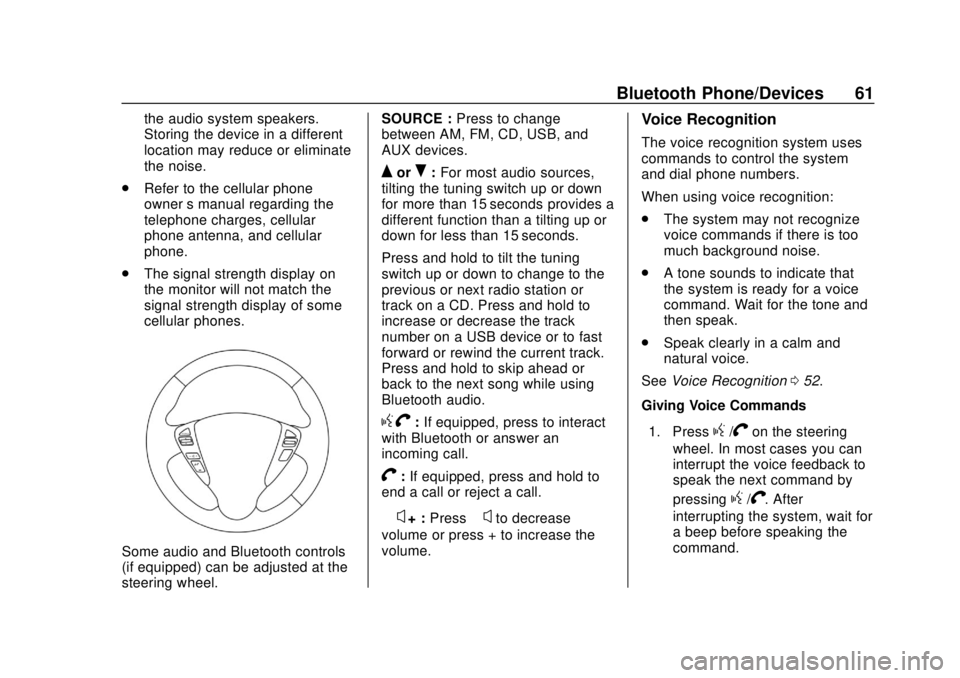
Some audio and Bluetooth controls
(if equipped) can be adjusted at the
steering wheel. SOURCE :
Press to change
between AM, FM, CD, USB, and
AUX devices.
QorR: For most audio sources,
tilting the tuning switch up or down
for more than 15 seconds provides a
different function than a tilting up or
down for less than 15 seconds.
Press and hold to tilt the tuning
switch up or down to change to the
previous or next radio station or
track on a CD. Press and hold to
increase or decrease the track
number on a USB device or to fast
forward or rewind the current track.
Press and hold to skip ahead or
back to the next song while using
Bluetooth audio.
g V:If equipped, press to interact
with Bluetooth or answer an
incoming call.
V: If equipped, press and hold to
end a call or reject a call.
−
x+ : Press −xto decrease
volume or press + to increase the
volume.
Voice Recognition
The voice recognition system uses
commands to control the system
and dial phone numbers.
When using voice recognition:
. The system may not recognize
voice commands if there is too
much background noise.
. A tone sounds to indicate that
the system is ready for a voice
command. Wait for the tone and
then speak.
. Speak clearly in a calm and
natural voice.
See Voice Recognition 052.
Giving Voice Commands
1. Press
g/Von the steering
wheel. In most cases you can
interrupt the voice feedback to
speak the next command by
pressing
g/V. After
interrupting the system, wait for
a beep before speaking the
command.
Page 63 of 74
Chevrolet City Express Infotainment System (GMNA-Localizing-U.S./Canada-
11683801) - 2018 - crc - 7/12/17
62 Bluetooth Phone/Devices
Audio System
Sound comes through the vehicle's
front audio system speakers and
overrides the audio system. Use the
PUSH/ON-OFF VOL knob during a
call to change the volume level. The
adjusted volume level remains in
memory for later calls. The system
maintains a minimum volume level.
Connecting with Infotainment
Controls
A Bluetooth-enabled cell phone
must be connected to the vehicle
before it can be used. The
connecting procedure must be
performed when the vehicle is
stationary. If the vehicle starts
moving during the procedure, the
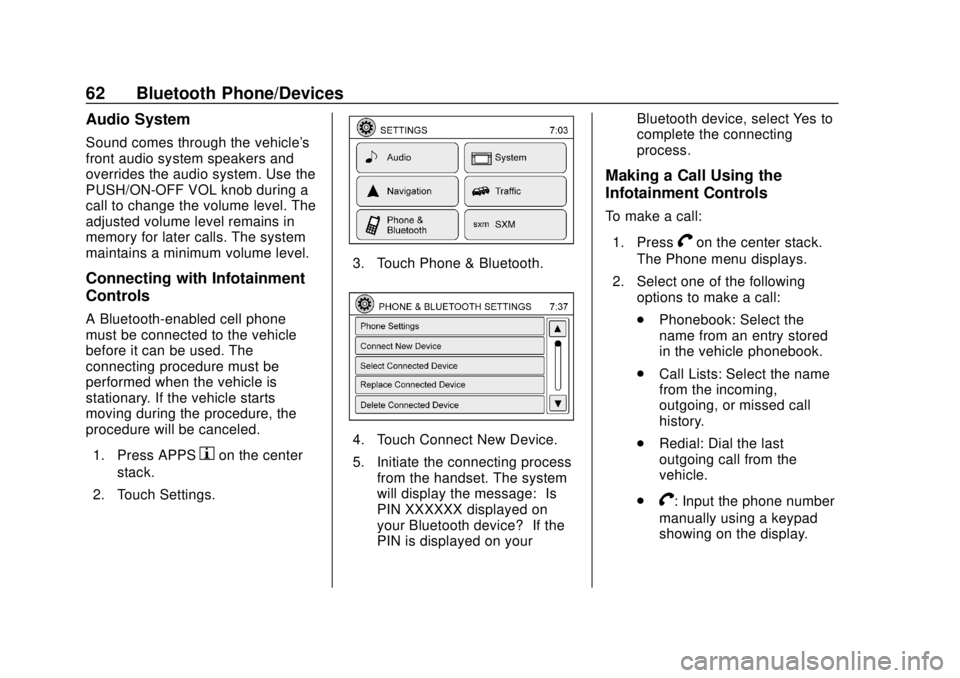
procedure will be canceled.1. Press APPS
hon the center
stack.
2. Touch Settings.
3. Touch Phone & Bluetooth.
4. Touch Connect New Device.
5. Initiate the connecting process from the handset. The system
will display the message: “Is
PIN XXXXXX displayed on
your Bluetooth device?” If the
PIN is displayed on your Bluetooth device, select Yes to
complete the connecting
process.
Making a Call Using the
Infotainment Controls
To make a call:
1. Press
Von the center stack.
The Phone menu displays.
2. Select one of the following options to make a call:
.Phonebook: Select the
name from an entry stored
in the vehicle phonebook.
. Call Lists: Select the name
from the incoming,
outgoing, or missed call
history.
. Redial: Dial the last
outgoing call from the
vehicle.
.
V: Input the phone number
manually using a keypad
showing on the display.
Page 64 of 74
Chevrolet City Express Infotainment System (GMNA-Localizing-U.S./Canada-
11683801) - 2018 - crc - 7/12/17
Bluetooth Phone/Devices 63
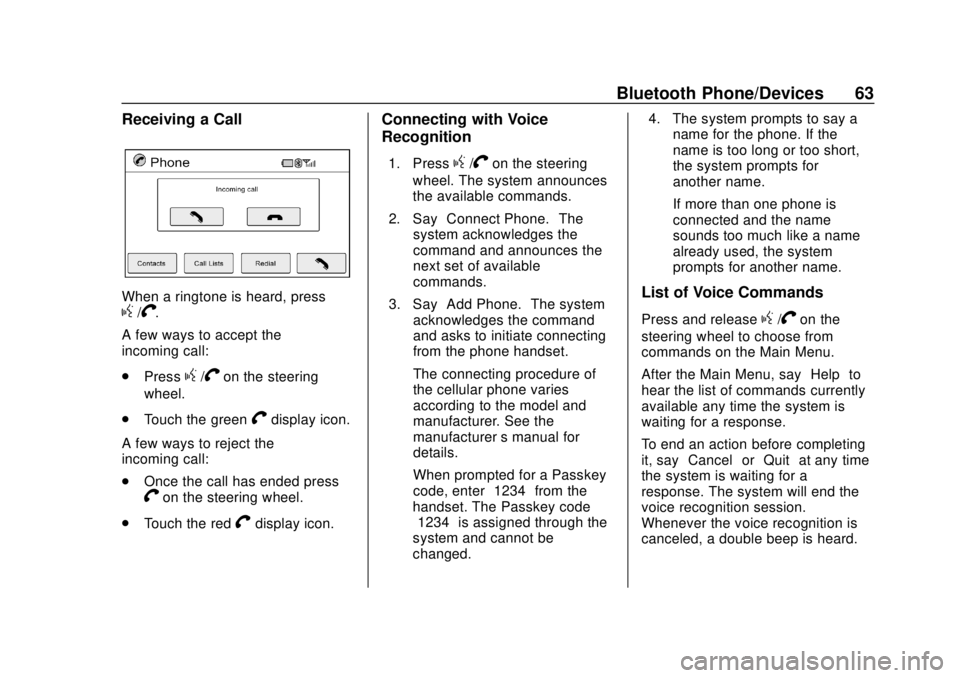
Receiving a Call
When a ringtone is heard, pressg/V.
A few ways to accept the
incoming call:
. Press
g/Von the steering
wheel.
. Touch the green
Vdisplay icon.
A few ways to reject the
incoming call:
. Once the call has ended press
Von the steering wheel.
. Touch the red
Vdisplay icon.
Connecting with Voice
Recognition
1. Pressg/Von the steering
wheel. The system announces
the available commands.
2. Say “Connect Phone.” The
system acknowledges the
command and announces the
next set of available
commands.
3. Say “Add Phone.” The system
acknowledges the command
and asks to initiate connecting
from the phone handset.
The connecting procedure of
the cellular phone varies
according to the model and
manufacturer. See the
manufacturer ’s manual for
details.
When prompted for a Passkey
code, enter “1234”from the
handset. The Passkey code
“1234” is assigned through the
system and cannot be
changed. 4. The system prompts to say a
name for the phone. If the
name is too long or too short,
the system prompts for
another name.
If more than one phone is
connected and the name
sounds too much like a name
already used, the system
prompts for another name.
List of Voice Commands
Press and releaseg/Von the
steering wheel to choose from
commands on the Main Menu.
After the Main Menu, say “Help”to
hear the list of commands currently
available any time the system is
waiting for a response.
To end an action before completing
it, say “Cancel” or“Quit” at any time
the system is waiting for a
response. The system will end the
voice recognition session.
Whenever the voice recognition is
canceled, a double beep is heard.
Page 65 of 74
Chevrolet City Express Infotainment System (GMNA-Localizing-U.S./Canada-
11683801) - 2018 - crc - 7/12/17
64 Bluetooth Phone/Devices
To go back to the previous
command, say“Go Back”or
“Correction” any time the system is
waiting for a response.
Call by Entering a Phone Number
1. Press
g/Von the steering
wheel. A tone will be heard.
2. Say “Call.”The system
acknowledges the command
and announces the next set of
available commands.
3. Say “Phone Number.” The
system acknowledges the
command and announces the
next set of available
commands.
4. Say the number to call starting with the area code in single
digit format. If the system has
trouble recognizing the correct
phone number, try entering the
number in the following groups:
three digit area code, three digit
prefix, and the last four digits.
To dial more than 10 digits or
any special characters, say
“Special Number.” 5. When finished speaking the
phone number, the system
repeats it back and announces
the available commands.
6. Say “Dial.”The system
acknowledges the command
and makes the call.
Call by Speaking the Name
If there are stored entries in the
phonebook, a number associated
with a name can be dialed.
When prompted by the system, say
the name of the phonebook entry to
be called. The system
acknowledges the name.
Once the name and location is
confirmed, the system begins
the call.
Call by Speaking the Digits
When prompted by the system, say
the number to be called. To dial
more than 10 digits or any special
characters, say “Special Number.”
When the system acknowledges the
command, the system will prompt to
speak the number. Redial
Use the Redial command to call the
last number that was dialed. The
system acknowledges the
command, repeats the number, and
begins dialing.
If the redial number does not exist,
the system announces,
“There is no
number to redial” and ends the
voice recognition session.
Hands-Free Phone
Using Bluetooth Voice
Recognition
To use voice recognition, press
g
/Von the steering wheel. Use the
commands below for the various
voice features. For additional
information, say “Help”while in a
voice recognition menu.
Making a Call
Calls can be made using the
following commands.
Dial or Call : These commands can
be used interchangeably to dial a
phone number.
Page 66 of 74
Chevrolet City Express Infotainment System (GMNA-Localizing-U.S./Canada-
11683801) - 2018 - crc - 7/12/17
Bluetooth Phone/Devices 65
Dial :This command allows a
phone number to be dialed by
entering the digits one at a time.
Redial : This command dials the
last number used on the cell phone.
Using the “Dial”or“Call”
Command
To call a number:
1. Press
Von the center stack.
The system responds “Please
say a command,” followed by
a tone.
2. Say “Dial”or“Call.”
3. Say the entire number without pausing, followed by “Dial.”
Once connected, the person called
will be heard through the audio
speakers. To call using a name tag:
1. Press
Von the center stack.
The system responds “Please
say a command,” followed by
a tone.
2. Say “Dial”or“Call” and then
say the name tag. For
example, “Call John at Work.”
Once connected, the person called
will be heard through the audio
speakers.
Using the “Digit Dial” Command
This allows a phone number to be
dialed by entering the digits one at
a time.
1. Press
Von the center stack.
The system responds “Please
say a command,” followed by
a tone.
2. Say “Dial.” 3. Say each digit, one at a time,
to dial. After each digit is
entered, the system repeats
back the digit it heard followed
by a tone. After the last digit
has been entered, say “Dial.”
If an unwanted number is repeated
back, say “Clear”to clear the last
number.
Once connected, the person called
will be heard through the audio
speakers.
Using the “Redial”Command
1. Press
Von the center stack.
The system responds “Please
say a command,” followed by
a tone.
2. After the tone, say “Redial.”
The system dials the last
number called from the
connected cell phone.
Once connected, the person called
will be heard through the audio
speakers.
Page 67 of 74
Chevrolet City Express Infotainment System (GMNA-Localizing-U.S./Canada-
11683801) - 2018 - crc - 7/12/17
66 Trademarks and License Agreements
Trademarks and
License Agreements
FCC Information
See“Radio Frequency Statement”
in the owner's manual.
"Made for iPod," and "Made for
iPhone," mean that an electronic
accessory has been designed to
connect specifically to iPod or
iPhone, respectively, and has been
certified by the developer to meet
Apple performance standards.
Apple is not responsible for the
operation of this device or its
compliance with safety and
regulatory standards. Please note
that the use of this accessory with
iPod or iPhone may affect wireless
performance. iPhone, iPod, iPod
classic, iPod nano, iPod shuffle, and iPod touch are trademarks of Apple
Inc., registered in the U.S. and other
countries.
Fees and Taxes: Subscription fee,
taxes, one time activation fee, and
other fees may apply. Subscription
fee is consumer only. All fees and
programming subject to change.
Subscriptions subject to Customer
Agreement available at
www.siriusxm.com. SiriusXM
service only available in the
48 contiguous United States and
Canada.
In Canada: Some deterioration of
service may occur in extreme
northern latitudes. This is beyond
the control of SiriusXM Satellite
Radio.
Explicit Language Notice: Channels
with frequent explicit language are
indicated with an
“XL”preceding the channel name. Channel blocking is
available for SiriusXM Satellite
Radio receivers by notifying
SiriusXM:
.
USA: 1-888-601-6296 or see
www.siriusxm.com.
. Canada: 1-877-438-9677 or see
www.siriusxm.ca.
It is prohibited to copy, decompile,
disassemble, reverse engineer,
hack, manipulate, or otherwise
make available any technology or
software incorporated in receivers
compatible with the SiriusXM
Satellite Radio System or that
support the SiriusXM website, the
Online Service or any of its content.
Furthermore, the AMBER voice
compression software included in
this product is protected by
intellectual property rights including
patent rights, copyrights, and trade
secrets of Digital Voice
Systems, Inc.
General Requirements:
1. A License Agreement from SiriusXM is required for any
product that incorporates
Page 69 of 74
Chevrolet City Express Infotainment System (GMNA-Localizing-U.S./Canada-
11683801) - 2018 - crc - 7/12/17
68 Trademarks and License Agreements
TERMS AND CONDITIONS
Personal Use Only. You agree to
use this Data together with the
General Motors Automotive
Products for the solely personal,
non-commercial purposes for which
you were licensed, and not for
service bureau, time-sharing or
other similar purposes. Accordingly,
but subject to the restrictions set
forth in the following paragraphs,
you agree not to otherwise
reproduce, copy, modify, decompile,
disassemble, create any derivative
works of, or reverse engineer any
portion of this Data, and may not
transfer or distribute it in any form,
for any purpose, except to the
extent such restrictions are
expressly prohibited or limited by
applicable law.
Restrictions
Except where you have been
specifically licensed to do so by
General Motors and without limiting
the preceding paragraph, you
may not:You may not (a) use this Data with
any products, systems,
or applications installed or otherwise
connected to or in communication
with vehicles, capable of vehicle
navigation, positioning, dispatch,
real time route guidance, fleet
management or similar applications;
or (b) with or in communication with
any positioning devices or any
mobile or wireless-connected
electronic or computer devices,
including without limitation cellular
phones, palmtop and handheld
computers, pagers, and personal
digital assistants or PDAs
Warning
The Data may contain inaccurate or
incomplete information due to the
passage of time, changing
circumstances, sources used and
the nature of collecting
comprehensive geographic data,
any of which may lead to incorrect
results.
No Warranty
This Data is provided to you
“as is,”
and you agree to use it at your own
risk. Its licensors (and their licensors
and suppliers) make no guarantees,
representations or warranties of any
kind, express or implied, arising by
law or otherwise, including but not
limited to, content, quality, accuracy,
completeness, effectiveness,
reliability, fitness for a particular
purpose, usefulness, use or results
to be obtained from this Data,
or that the Data or server will be
uninterrupted or error-free.
Disclaimer of Warranty
BOSCH AND ITS LICENSORS
(INCLUDING THEIR LICENSORS
AND SUPPLIERS) DISCLAIM ANY
WARRANTIES, EXPRESS OR
IMPLIED, OF QUALITY,
PERFORMANCE,
MERCHANTABILITY, FITNESS
FOR A PARTICULAR PURPOSE
OR NON-INFRINGEMENT. Some
States, Territories and Countries do
not allow certain warranty
Page 71 of 74

Chevrolet City Express Infotainment System (GMNA-Localizing-U.S./Canada-
11683801) - 2018 - crc - 7/12/17
70 Index
IndexA
AgreementsTrademarks and License . . . . . . . . 66
Alpha-Numeric Keyboard . . . . . . . . 31
AM . . . . . . . . . . . . . . . . . . . . . . . . . . . . . . 12
AM-FM Radio . . . . . . . . . . . . . . . . . . . . . 8
Antenna Fixed Mast . . . . . . . . . . . . . . . . . . . . . . 13
Audio Bluetooth. . . . . . . . . . . . . . . . . . . . . . . . 21
Audio Players CD . . . . . . . . . . . . . . . . . . . . . . . . . . . . . . 14
Audio System . . . . . . . . . . . . . . . . . . . . 62
Audio System Voice Commands . . . . . . . . . . . . . . . . . . . . . 54
Auxiliary Devices . . . . . . . . . . . . . . . . . . . . . . . . . 21
Avoiding Untrusted Media Devices . . . . . . . . . . . . . . . . . . . . . . . . 14
B
Bluetooth . . . . . . . . . . . . . . . . . . . . 60, 67
Bluetooth Audio . . . . . . . . . . . . . . . . . 21
Brightness . . . . . . . . . . . . . . . . . . . . . . . 57
C
CD Care and Cleaning . . . . . . . . . . 15
CD Player . . . . . . . . . . . . . . . . . . . . . . . 14
CD/MP3 Display Mode . . . . . . . . . . 15
Cellular Phone Usage . . . . . . . . . . . 13
Cleaning High Gloss Surfaces
and Vehicle Information and
Radio Displays . . . . . . . . . . . . . . . . . . 7
Clock Settings . . . . . . . . . . . . . . . . . . . 58
Connecting with Infotainment Controls . . . . . . . . . . . . . . . . . . . . . . . . 62
Connecting with Voice Recognition . . . . . . . . . . . . . . . . . . . . 63
Controls
Steering Wheel. . . . . . . . . . . . . . . . . . . 5
Coverage Explanations . . . . . . . . . . 51
D
Database Coverage Explanations . . . . . . . . . . . . . . . . . . . 51
Destination . . . . . . . . . . . . . . . . . . . . . . 30
Detailed Areas . . . . . . . . . . . . . . . . . . . 30
Devices Auxiliary. . . . . . . . . . . . . . . . . . . . . . . . . 21
USB. . . . . . . . . . . . . . . . . . . . . . . . . . . . . 17