audio CHEVROLET COLORADO 2017 2.G Owner's Manual
[x] Cancel search | Manufacturer: CHEVROLET, Model Year: 2017, Model line: COLORADO, Model: CHEVROLET COLORADO 2017 2.GPages: 419, PDF Size: 7.38 MB
Page 170 of 419
Chevrolet Colorado Owner Manual (GMNA-Localizing-U.S./Canada/Mexico-10122675) - 2017 - crc - 8/22/16
Infotainment System 169
Advertisement on Pandora
Pandora may displayadvertisements. The artist nameand track title will not be displayedand the skip track button will not beavailable.
Pandora Troubleshooting
Unable to Connect Device toVehicle
If the device is unable to connect tothe USB or Bluetooth:
1. Turn the vehicle off.
2. Take the Remote Keyless Entry(RKE) transmitter at least 6 m(20 ft) away from the vehicle.
3. Wait about 30 seconds, and tryto connect the device again.SeeBluetooth (Overview)0187orBluetooth(Infotainment Controls - BaseRadio)0188orBluetooth(Voice Recognition)0192orBluetooth (InfotainmentControls - Base Radio withTo u c h s c r e e n )0197.
Unable to Start Pandora
If the device is unable to launchPandora:
.Check that the latest version ofPandora is installed.
.Check that there is an activeaccount logged into Pandora.
.Have at least one stationcreated.
.For Android and BlackBerrydevices, check that the device ispaired with the vehicle, andwhether the device displays inthe Connected phone sourceslist under the Phone icon fromthe Home Page.
.For an iPhone, check that theUSB cable is connected to theUSB port and the screen isunlocked.
.Close Pandora on the deviceand launch again. Devices thatallow multitasking may requirean extra step to quit the Pandoraapplication. See the cell phonemanufacturer's user guide.
Thumbs Up or Thumbs DownError
If there is an error trying to rate a
track with,or-,themessage
“Thumbs Down Error”or“ThumbsUp Error”will display. Touch OK todismiss.
Loss of Audio
Loss of Pandora audio can happenin different ways:
.Weak or lost data connection.
.Device needs to be charged.
.Application needs to berelaunched.
.Connection between phone andradio lost.
.An iPhone is connected to bothBluetooth and the USB port.
Playback can be resumed fromalossofaudiobydoubletapping the iPhone home buttonthen scrolling through the iconsto find an icon that allows achange of flow betweenBluetooth and USB cable.
Page 171 of 419
Chevrolet Colorado Owner Manual (GMNA-Localizing-U.S./Canada/Mexico-10122675) - 2017 - crc - 8/22/16
170 Infotainment System
Volume and song selection maybe controlled using theinfotainment controls or thephone/device. If Pandora isselected and nothing is heard,check the volume setting on thephone/device and theinfotainment system.
Common Pandora Messages
Pandora Error/Please CheckDevice :Not signed in or Pandorais down for maintenance.
No Stations Available :No stationsare available on the Pandora serverthrough the connected device.
Action Unavailable. Please CheckDevice Connection :Afewconditions for loss of Internetconnection are:
.The connected device loses itscellular connection.
.The device does not supportInternet connectivity.
.The device is not in the vehicle.
.The Bluetooth signal is lost.
No Skips Remaining For ThisStation or Permitted DuringAdvertisements :
.The maximum Pandora skip limithas been reached according tothe plan that was obtained.
.Skipping an advertisement wastried.
See www.pandora.com/help. If theservice will not work, see yourdealer for assistance.
Audio Players
Avoiding Untrusted Media
Devices
When using media devices such asCDs, DVDs, Blu-ray Discs®,SDcards, USB devices, and mobiledevices, consider the source.Untrusted media devices couldcontain files that affect systemoperation or performance. Avoid useif the content or origin cannot betrusted.
USB Port (Base Radio)
If equipped, there is a USB port fordata and charging in the centerstack, inside the center console,and/or at the rear of the centerconsole. For uplevel radios, see theinfotainment manual.
Playing from a USB
AUSBmassstoragedeviceorMedia Transfer Protocol (MTP)device can be connected to theUSB port.
Page 172 of 419
Chevrolet Colorado Owner Manual (GMNA-Localizing-U.S./Canada/Mexico-10122675) - 2017 - crc - 8/22/16
Infotainment System 171
The USB port uses the USB 2.0standard. External devices such asiPhones/iPods®and USB storagedevices may be connected.
USB MP3 Player and USB Drives
.The USB MP3 players and USBdrives connected must complywith the USB Mass StorageClass specification (USB MSC).
.Hard disk drives are notsupported.
.Supported file system is FAT32.
To p l a y a U S B d e v i c e :
1. Connect the USB.
2. Press MEDIA on the faceplateuntil the connected device isshown.
While the USB source is active,press the corresponding faceplatebutton for the icons on the screen tooperate USB function:
.t
.u
.j/r
.Z
USB Menu
Press MENU to display the USBmenu and the following may display:
Browse :Select to display the filesand folders on the USB device.
To n e S e t t i n g s :Select to adjustBass, Midrange, Treble, Balance,Fade, and EQ (Equalizer). See“To n e S e t t i n g s”inAM-FM Radio(Base Radio)0161orAM-FMRadio (Base Radio withTo u c h s c r e e n )0163.
Auto Volume :If equipped, see“Auto Volume”inAM-FM Radio(Base Radio)0161orAM-FMRadio (Base Radio withTo u c h s c r e e n )0163.
EQ :If equipped, this featureadjusts the equalizer settings. See“EQ (Equalizer) Settings”inAM-FMRadio (Base Radio)0161orAM-FM Radio (Base Radio withTo u c h s c r e e n )0163.
Playing from an iPod®/iPad®/
iPhone®
For supported devices, see yourdealer.
There may be problems withoperation and function in thefollowing situations:
.When connecting a device withamorerecentversionofthefirmware installed than issupported by the infotainmentsystem.
.When connecting a device onwhich firmware from otherproviders is installed.
To c o n n e c t a n d c o n t r o l a d e v i c e :
1. Connect one end of thestandard USB cable to thedevice's dock connector.
2. Connect the other end to theUSB port in the center stack.
3. Press MEDIA to select thesource.
The music information displays onthe radio’sdisplayandbeginsplaying through the vehicle’saudiosystem.
Page 175 of 419
Chevrolet Colorado Owner Manual (GMNA-Localizing-U.S./Canada/Mexico-10122675) - 2017 - crc - 8/22/16
174 Infotainment System
To c o n n e c t a n i P o d / i P h o n e , c o n n e c tone end of the device’scabletotheiPod/iPhone and the other end tothe USB port.
The iPod/iPhone charges while it isconnected to the vehicle if thevehicle is in ACC/ACCESSORY orON/RUN. SeeIgnition Positions0233.Whenthevehicleisturnedoff, the iPod/iPhone automaticallypowers off and will not charge ordraw power from the vehicle'sbattery.
For more information on USBusage, see“Audio SystemInformation”following.
Audio System Information
The infotainment system can playthe music files contained in the USBstorage device or iPod/iPhoneproducts.
Using MP3/WMA/OGG/WAV Files
.Music files with .mp3, .wma,.ogg, and .wav file nameextensions can be played.
.MP3 files that can be played: Bitrate: 8 kbps to 320 kbps.Sampling frequency: 48 kHz,44.1 kHz, 32 kHz, 24 kHz, 22.05kHz, and 16 kHz.
.Files with a bit rate above128 kbps will result in higherquality sound.
.ID3 Tag information for MP3files, such as the album nameand the artist, can be played.
.To d i s p l a y a l b u m t i t l e , t r a c k t i t l e ,and artist information, the fileshould be compatible with theID3 Tag V1 and V2 formats.
Using a USB Storage Device oriPod/iPhone
.Use a USB or flash memory typestorage device. Do not connectusing a USB adaptor.
.Do not connect and reconnectthe USB device repeatedly in ashort time, as this may causestatic electricity and problemsusing the device.
.Use a USB device with a metalconnecting terminal.
.Connection with i-Stick TypeUSB storage devices may befaulty due to vehicle vibration.
.Do not touch the USBconnecting terminal.
.Only USB storage devicesformatted in FAT16/32 or exFATfile systems are recognized.NTFS and other file systems arenot recognized.
.The time it takes to process fileswill depend on the USB storagedevice type and capacity, andthe type of files stored.
.Some USB storage device filesmay not be compatible.
.Up to two USB devices and oneiPod can be played through aUSB hub. All devices may not besupported, depending on theperformance of the USB hub.If there is not enough powersupply, it may not operatenormally.
Page 177 of 419
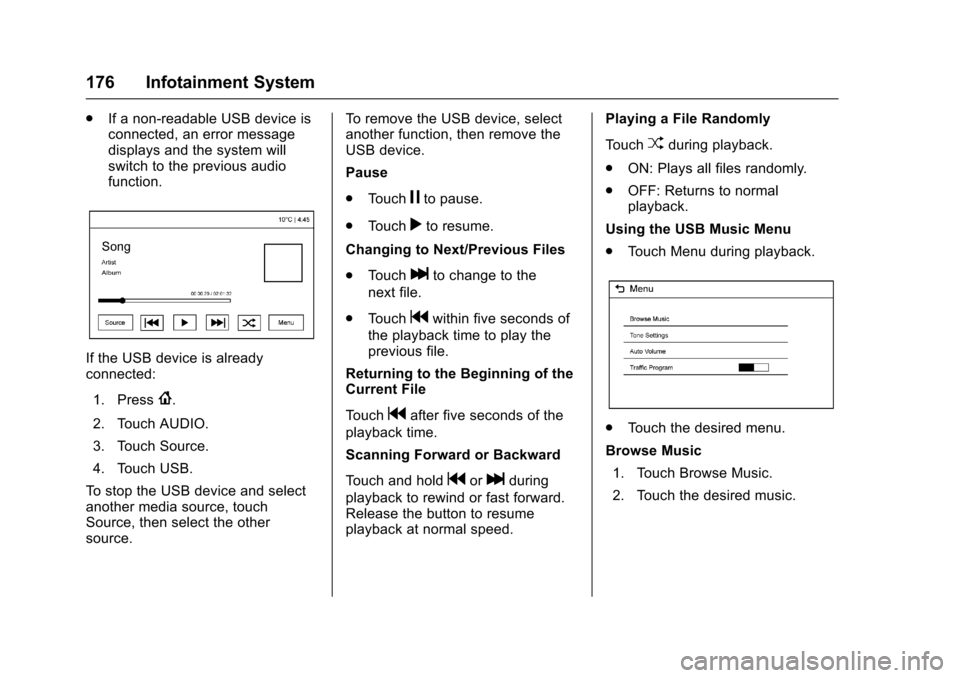
Chevrolet Colorado Owner Manual (GMNA-Localizing-U.S./Canada/Mexico-10122675) - 2017 - crc - 8/22/16
176 Infotainment System
.If a non-readable USB device isconnected, an error messagedisplays and the system willswitch to the previous audiofunction.
If the USB device is alreadyconnected:
1. Press{.
2. Touch AUDIO.
3. Touch Source.
4. Touch USB.
To s t o p t h e U S B d e v i c e a n d s e l e c tanother media source, touchSource, then select the othersource.
To r e m o v e t h e U S B d e v i c e , s e l e c tanother function, then remove theUSB device.
Pause
.To u c hjto pause.
.To u c hrto resume.
Changing to Next/Previous Files
.To u c hlto change to the
next file.
.To u c hgwithin five seconds of
the playback time to play theprevious file.
Returning to the Beginning of theCurrent File
To u c hgafter five seconds of the
playback time.
Scanning Forward or Backward
To u c h a n d h o l dgorlduring
playback to rewind or fast forward.Release the button to resumeplayback at normal speed.
Playing a File Randomly
To u c hZduring playback.
.ON: Plays all files randomly.
.OFF: Returns to normalplayback.
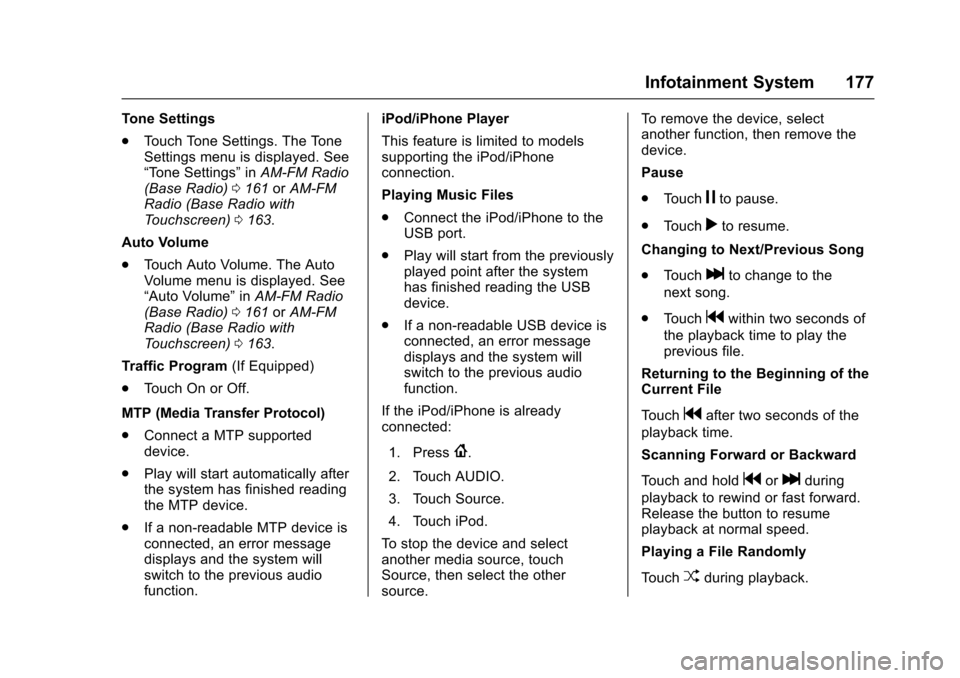
Using the USB Music Menu
.To u c h M e n u d u r i n g p l a y b a c k .
.To u c h t h e d e s i r e d m e n u .
Browse Music
1. Touch Browse Music.
2. Touch the desired music.
Page 178 of 419
Chevrolet Colorado Owner Manual (GMNA-Localizing-U.S./Canada/Mexico-10122675) - 2017 - crc - 8/22/16
Infotainment System 177
To n e S e t t i n g s
.To u c h To n e S e t t i n g s . T h e To n eSettings menu is displayed. See“To n e S e t t i n g s”inAM-FM Radio(Base Radio)0161orAM-FMRadio (Base Radio withTo u c h s c r e e n )0163.
Auto Volume
.To u c h A u t o V o l u m e . T h e A u t oVolume menu is displayed. See“Auto Volume”inAM-FM Radio(Base Radio)0161orAM-FMRadio (Base Radio withTo u c h s c r e e n )0163.
Tr a f f i c P r o g r a m(If Equipped)
.To u c h O n o r O f f .
MTP (Media Transfer Protocol)
.Connect a MTP supporteddevice.
.Play will start automatically afterthe system has finished readingthe MTP device.
.If a non-readable MTP device isconnected, an error messagedisplays and the system willswitch to the previous audiofunction.
iPod/iPhone Player
This feature is limited to modelssupporting the iPod/iPhoneconnection.
Playing Music Files
.Connect the iPod/iPhone to theUSB port.
.Play will start from the previouslyplayed point after the systemhas finished reading the USBdevice.
.If a non-readable USB device isconnected, an error messagedisplays and the system willswitch to the previous audiofunction.
If the iPod/iPhone is alreadyconnected:
1. Press{.
2. Touch AUDIO.
3. Touch Source.
4. Touch iPod.
To s t o p t h e d e v i c e a n d s e l e c tanother media source, touchSource, then select the othersource.
To r e m o v e t h e d e v i c e , s e l e c tanother function, then remove thedevice.
Pause
.To u c hjto pause.
.To u c hrto resume.
Changing to Next/Previous Song
.To u c hlto change to the
next song.
.To u c hgwithin two seconds of
the playback time to play theprevious file.
Returning to the Beginning of theCurrent File
To u c hgafter two seconds of the
playback time.
Scanning Forward or Backward
To u c h a n d h o l dgorlduring
playback to rewind or fast forward.Release the button to resumeplayback at normal speed.
Playing a File Randomly
To u c hZduring playback.
Page 180 of 419
Chevrolet Colorado Owner Manual (GMNA-Localizing-U.S./Canada/Mexico-10122675) - 2017 - crc - 8/22/16
Infotainment System 179
.Clock, Temp. Display:Allows selection of On orOff to show the clock andtemperature on the fullscreen.
.Display Settings: Adjustsfor Brightness and Contrast.
3. Touch0to exit.
Auxiliary Jack
If equipped, an AUX jack is locatedon the center stack or in the centerconsole storage. SeeCenterConsole Storage0101.
Possible auxiliary audio sourcesinclude:
.Laptop computer
.Audio music player
This jack is not an audio output. Donot plug headphones into theauxiliary input jack. Auxiliarydevices should be set up while thevehicle is in P (Park).
Connect a 3.5 mm (1/8 in) cablefrom the auxiliary device to theauxiliary input jack.
Base Radio
Playing from the AUX Jack
An auxiliary device is playedthrough the audio system andcontrolled through the device itself.
If an auxiliary device has alreadybeen connected, but a differentsource is currently active, press theMEDIA faceplate button repeatedlyto scroll through all of the availableaudio source screens, until the AUXsource screen is shown.
AUX Menu
Press the MENU knob to display theAUX menu and the following maydisplay:
To n e S e t t i n g s :Select to adjustBass, Midrange, Treble, Balance,Fade, and EQ (Equalizer). See“To n e S e t t i n g s”inAM-FM Radio(Base Radio)0161orAM-FMRadio (Base Radio withTo u c h s c r e e n )0163.
Auto Volume :If equipped, see“Auto Volume”under“Base Radio”inAM-FM Radio (Base Radio)0161orAM-FM Radio (Base Radio withTo u c h s c r e e n )0163.
DSP :If equipped, this featureadjusts the pre-defined settings.See“DSP”inAM-FM Radio (BaseRadio)0161orAM-FM Radio(Base Radio withTo u c h s c r e e n )0163.
EQ :If equipped, this featureadjusts the pre-defined equalizersettings. See“EQ (Equalizer)”inAM-FM Radio (Base Radio)0161orAM-FM Radio (Base Radio withTo u c h s c r e e n )0163.
Base Radio with Touchscreen
Play will begin when the system hasfinished reading the information onthe device.
Playing Music
To p l a y t h e m u s i c f r o m t h e d e v i c e ,if the device is already connected:
1. Press{.
2. Touch AUDIO.
Page 181 of 419
Chevrolet Colorado Owner Manual (GMNA-Localizing-U.S./Canada/Mexico-10122675) - 2017 - crc - 8/22/16
180 Infotainment System
3. Touch Source.
4. Touch AUX.
To a d j u s t t h e t o n e s e t t i n g s , s e e“Audio Settings”in“SystemSettings”underAM-FM Radio (BaseRadio)0161orAM-FM Radio(Base Radio withTo u c h s c r e e n )0163.
To a d j u s t t h e a u t o v o l u m e s e t t i n g s ,see“Auto Volume”under“BaseRadio with Touchscreen”inAM-FMRadio (Base Radio)0161orAM-FM Radio (Base Radio withTo u c h s c r e e n )0163.
Bluetooth Audio
If equipped, music may be playedfrom a paired Bluetooth device. See“Pairing”under“Bluetooth(Infotainment Controls - BaseRadio)”or“Bluetooth (InfotainmentControls - Base Radio withTo u c h s c r e e n )”inBluetooth(Overview)0187orBluetooth(Infotainment Controls - BaseRadio)0188orBluetooth (VoiceRecognition)0192orBluetooth
(Infotainment Controls - Base Radiowith Touchscreen)0197for helppairing a device.
Volume and song selection may becontrolled by using the infotainmentcontrols or the phone/device.If Bluetooth Audio is selected andnothing is heard, check the volumesetting on both the phone/deviceand the infotainment system.
Launch music by touching theMEDIA screen button on theHome Page.
To p l a y m u s i c v i a B l u e t o o t h :
1. Power on the device, and pairto connect the device.
2. Once paired, go into the audioapplication from the HomePage or via the application tray.Select MEDIA until Bluetoothdisplays.
Bluetooth Audio Menu
To u c h t h e M E N U s c r e e n b u t t o n t odisplay the Bluetooth Audio menu.The following may be available:
To n e :Turn the MENU knob toadjust the tone settings.
To u c hoBACK to go back to the
previous menu.
Manage Bluetooth Devices:Selectto go to the Bluetooth page to addor delete devices.
When selecting Bluetooth Audio, theradio may not be able to launch theaudio player on the connecteddevice to start playing. When thevehicle is not moving, use thephone to begin playback.
All devices launch audio differently.When selecting Bluetooth Audio asasource,theradiomayshowaspaused on the screen. Press play
on the device or pressrto begin
playback.
Some phones support sendingBluetooth music information todisplay on the radio. When the radioreceives this information, it willcheck to see if any is available anddisplay it. For more informationabout supported Bluetooth features,see www.gm.com/bluetooth in theU.S. and Canada only.
Page 182 of 419
Chevrolet Colorado Owner Manual (GMNA-Localizing-U.S./Canada/Mexico-10122675) - 2017 - crc - 8/22/16
Infotainment System 181
Voice Recognition
If equipped, voice recognition allowsfor hands-free operation within theaudio and phone applications. Thisfeature can be started by pressinggon the steering wheel or by
selectinggon the infotainment
display.
However, not all features withinthese areas are supported by voicecommands. Generally, only complextasks that require multiple manualinteractions to complete aresupported by voice commands.
For example, tasks that take morethan one or two button presses suchas selecting a song or artist to playfrom a media device would besupported by voice commands.Other tasks, like adjusting thevolume or seeking up or down areaudio features that are easilyperformed by pressing one or twobuttons, and are not supported byvoice commands.
In general there are flexible ways tospeak commands for completing thetasks. Most of them, except
destination entry and voice keypad,can be completed in a singlecommand. If the task takes morethan one command to complete, thefirst command would be to indicatethe kind of task that is to beperformed. The system replies withprompts that lead through a dialogto enter the necessary information.
Voice recognition can be used whenthe ignition is on or when RetainedAccessory Power (RAP) is active.SeeRetained Accessory Power(RAP)0237.
Using Voice Recognition
Voice recognition becomes availableonce the system has beeninitialized. This begins when theignition is turned on. Initializationmay take a few moments.
1. Pressgon the steering wheel
to activate voice recognition,
or selectgon the infotainment
display.
.If voice recognition isstarted from the steeringwheel control, the
instrument cluster displaysthe selections and visualdialog content.
.If voice recognition isstarted from theinfotainment display, theselections and visual dialogcontent appear on both theinfotainment display andthe instrument clusterdisplay.
2. The audio system mutes andthe system plays a promptfollowed by a beep.
3. Wait until after the beepcompletes, then clearly speakone of the commandsdescribed in this section.
Pressgto interrupt any voice
recognition system prompt. Forexample, if the prompt seemsto be taking too long to finish,
pressgagain and the beep
should happen right away.
There are two voice prompt modessupported:
Page 184 of 419
Chevrolet Colorado Owner Manual (GMNA-Localizing-U.S./Canada/Mexico-10122675) - 2017 - crc - 8/22/16
Infotainment System 183
.Speak the command naturally,not too fast, not too slow. Usedirect commands without a lot ofextra words.
.Usually Phone and Audiocommands can be spoken in asingle command.
For example,“Call Dave Smithat work,”“Play”followed by theartist or song name, or“Tune”followed by the radio stationnumber.
There is no need to memorizespecific command words. Directcommands might be more clearlyunderstood by the system. Anexample of a direct command wouldbe“Call 555-1212.”Examples ofthese direct commands aredisplayed on most of the screenswhile a voice session is active.If“Phone”or“Phone Commands,”isstated, the system understands thataphonecallisrequestedandwillrespond with questions until enoughdetails are gathered.
If the phone number has beensaved with a name and a place, thedirect command should includeboth, for example“Call Dave Smithat work.”
Using Voice Recognition for
List Options
When a list is displayed, a voiceprompt will ask to confirm or selectan option from that list. A selectioncan be made by manually selectingthe item, or by speaking the linenumber for the item to select.
When a screen contains a list,options may be available but notdisplayed. The list on a voicerecognition screen functions thesame as a list on other screens.Scrolling can be used to helpdisplay other entries from the list.
Manually scrolling or paging the liston a screen during a voicerecognition session suspends thecurrent voice recognition event andplays the prompt“Make yourselection from the list using themanual controls or press the Backbutton to try again.”
If manual selection takes more than15 seconds, the session terminatesand prompts that it has timed out.The screen returns back to thescreen where voice recognition wasinitiated.
The Back Command
Say“Back”or press the Back buttonto go to the previous screen.
If in voice recognition, and“Back”isstated all the way through to theinitial screen, then“Back”is statedone more time, the voice recognitionsession will cancel.
Help
Say“Help”on any voice recognitionscreen and the help prompt for thescreen is played. Additionally, apop-up displays a text version of thehelp prompt. Depending on howvoice recognition was initiated, theHelp pop-up will appear either onthe instrument cluster or theinfotainment display. Press theDismiss button to make the pop-upgo away.