light CHEVROLET COLORADO 2017 2.G Repair Manual
[x] Cancel search | Manufacturer: CHEVROLET, Model Year: 2017, Model line: COLORADO, Model: CHEVROLET COLORADO 2017 2.GPages: 419, PDF Size: 7.38 MB
Page 153 of 419
Chevrolet Colorado Owner Manual (GMNA-Localizing-U.S./Canada/Mexico-10122675) - 2017 - crc - 8/22/16
152 Lighting
automatically turn off. The interiorlamps do not come on if the domelamp control is in the Off position.
The exterior lamps turn offimmediately by turning the exteriorlamps control off.
This feature can be changed. SeeVehicle Personalization0139.
Battery Load
Management
The vehicle has Electric PowerManagement (EPM), whichestimates the battery's temperatureand state of charge. It then adjuststhe voltage for best performanceand extended life of the battery.
When the battery's state of chargeis low, the voltage is raised slightlyto quickly bring the charge back up.When the state of charge is high,the voltage is lowered slightly toprevent overcharging. The voltmetergauge or the voltage display on theDriver Information Center (DIC),if equipped, may show the voltage
moving up or down. This is normal.If there is a problem, an alert will bedisplayed.
The battery can be discharged atidle if the electrical loads are veryhigh. This is true for all vehicles.This is because the generator(alternator) may not be spinning fastenough at idle to produce all thepower that is needed for very highelectrical loads.
Ahighelectricalloadoccurswhenseveral of the following are on, suchas: headlamps, high beams, foglamps, rear window defogger,climate control fan at high speed,heated seats, engine cooling fans,trailer loads, and loads plugged intoaccessory power outlets.
EPM works to prevent excessivedischarge of the battery. It does thisby balancing the generator's outputand the vehicle's electrical needs.It can increase engine idle speed togenerate more power, wheneverneeded. It can temporarily reducethe power demands of someaccessories.
Normally, these actions occur insteps or levels, without beingnoticeable. In rare cases at thehighest levels of corrective action,this action may be noticeable to thedriver. If so, a DIC message mightbe displayed and it is recommendedthat the driver reduce the electricalloads as much as possible. SeeBattery Voltage and ChargingMessages0132.
Battery Power Protection
This feature shuts off the dome andreading lamps, if they are left on formore than 10 minutes after theignition is turned off. The cargolamp shuts off after 20 minutes. Thisprevents the battery fromrunning down.
Page 156 of 419
Chevrolet Colorado Owner Manual (GMNA-Localizing-U.S./Canada/Mexico-10122675) - 2017 - crc - 8/22/16
Infotainment System 155
Overview (Base Radio)
Infotainment System Overview
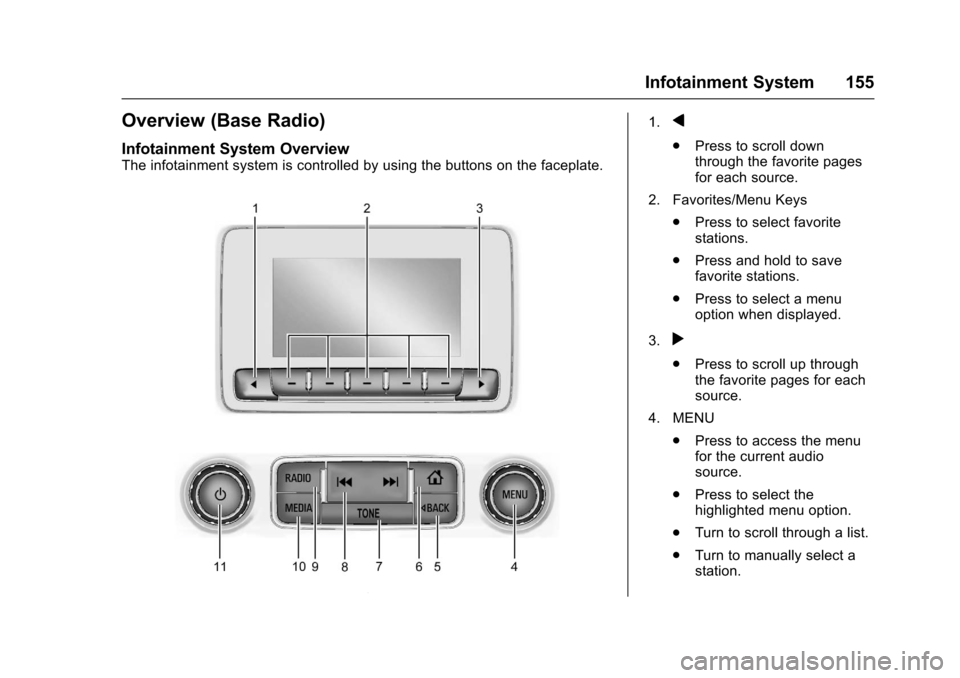
The infotainment system is controlled by using the buttons on the faceplate.
1.q
.Press to scroll downthrough the favorite pagesfor each source.
2. Favorites/Menu Keys
.Press to select favoritestations.
.Press and hold to savefavorite stations.
.Press to select a menuoption when displayed.
3.r
.Press to scroll up throughthe favorite pages for eachsource.
4. MENU
.Press to access the menufor the current audiosource.
.Press to select thehighlighted menu option.
.Turn to scroll through a list.
.Turn to manually select astation.
Page 159 of 419
Chevrolet Colorado Owner Manual (GMNA-Localizing-U.S./Canada/Mexico-10122675) - 2017 - crc - 8/22/16
158 Infotainment System
4.6
.Radio: Press and release togo to the next station orchannel. Press and hold tofast seek the next strongeststation or channel.
.USB/BT Music/Pictures:Press and hold to go to thenext content. Press andhold to fast forward.
5.#
.Press and release toaccess the phone screen,answer an incoming call,or access the device homescreen. Press and hold toaccess Press to Talk.
Home Page (Base Radio)
Home Page Features
The infotainment system displays aHome Page to access all of theapplications. Turn the MENU knobto highlight feature icons. Press theMENU knob to access the feature’soptions.
Va r i o u s f u n c t i o n s a r e d i s a b l e d w h e nthe vehicle is moving.
AUDIO :Select the AUDIO screenicon to display the active sourcepage. The sources available areAM, FM, SXM (if equipped), USB/iPod, AUX Input, and BluetoothAudio (if equipped). SeeAM-FMRadio (Base Radio)0161orAM-FM Radio (Base Radio withTo u c h s c r e e n )0163,Satellite Radio(Base Radio)0164orSatelliteRadio (Base Radio withTo u c h s c r e e n )0165,Auxiliary Jack0179,andBluetooth Audio0180.
PHONE :Select the PHONE screenicon to display the Phone mainpage. SeeBluetooth (Overview)0187orBluetooth (InfotainmentControls - Base Radio)0188orBluetooth (Voice Recognition)0192orBluetooth (Infotainment Controls -Base Radio withTo u c h s c r e e n )0197.
NAV (Navigation, If Equipped) :Select the NAV screen icon todisplay the OnStar Turn-by-TurnNavigation. SeeOnStar Overview0397,ifequipped.
SETTINGS :Select the SETTINGSscreen icon to display the Settingsmain page. See“Setting RadioPreferences”following.
Pandora (If Equipped)
Select the PANDORA icon to beginPandora. SeePandora InternetRadio0167.
Setting Radio Preferences
Select the SETTINGS screen iconto display the Settings menu andthe following may display:
Time and Date :SeeClock0106.
Language (Current Language) :This will set the display language inthe radio and instrument cluster.Select to display a list of languages.
SelectoBACK to go back to the
previous menu.
Valet Mode:
Using the circular numeric keypad,enter a four-digit code:
1. Turn the MENU knob tohighlight a number.
Page 161 of 419
Chevrolet Colorado Owner Manual (GMNA-Localizing-U.S./Canada/Mexico-10122675) - 2017 - crc - 8/22/16
160 Infotainment System
displays stating all vehiclecustomization settings will berestored to the factory settings.Select Cancel or Confirm.
Clear All Private Data (IfEquipped) :This option clears allprivate information from the vehicle.Select Clear All Private Data. SelectCancel or Confirm.
Restore Radio Settings :Thisoption will restore factory radiosettings. Select Restore RadioSettings. A screen displays statingall personalized radio settings willbe restored back to the factorysettings. Select Cancel or Confirm.
English and Metric Unit
Conversion
To c h a n g e t h e d i s p l a y u n i t s b e t w e e nEnglish and metric units, seeDriverInformation Center (DIC) (BaseLevel)0126orDriver InformationCenter (DIC) (Uplevel)0129orInstrument Cluster (Base Level)011 0orInstrument Cluster(Uplevel)011 2.
Home Page (Base Radio
with Touchscreen)
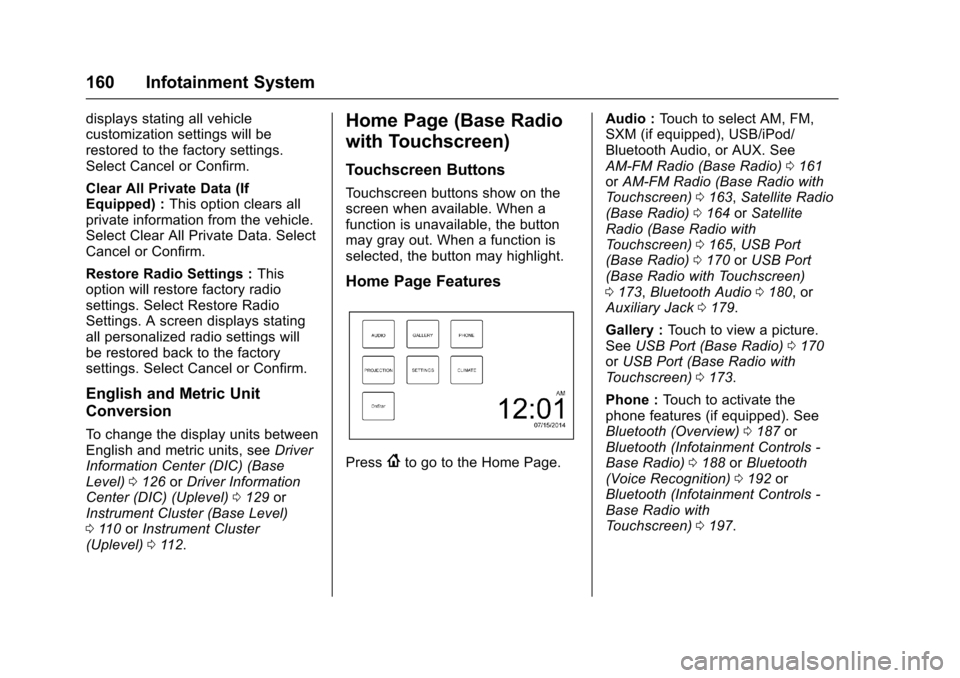
Touchscreen Buttons
To u c h s c r e e n b u t t o n s s h o w o n t h escreen when available. When afunction is unavailable, the buttonmay gray out. When a function isselected, the button may highlight.
Home Page Features
Press{to go to the Home Page.
Audio :To u c h t o s e l e c t A M , F M ,SXM (if equipped), USB/iPod/Bluetooth Audio, or AUX. SeeAM-FM Radio (Base Radio)0161orAM-FM Radio (Base Radio withTo u c h s c r e e n )0163,Satellite Radio(Base Radio)0164orSatelliteRadio (Base Radio withTo u c h s c r e e n )0165,USB Port(Base Radio)0170orUSB Port(Base Radio with Touchscreen)0173,Bluetooth Audio0180,orAuxiliary Jack0179.
Gallery :To u c h t o v i e w a p i c t u r e .SeeUSB Port (Base Radio)0170orUSB Port (Base Radio withTo u c h s c r e e n )0173.
Phone :To u c h t o a c t i v a t e t h ephone features (if equipped). SeeBluetooth (Overview)0187orBluetooth (Infotainment Controls -Base Radio)0188orBluetooth(Voice Recognition)0192orBluetooth (Infotainment Controls -Base Radio withTo u c h s c r e e n )0197.
Page 162 of 419
Chevrolet Colorado Owner Manual (GMNA-Localizing-U.S./Canada/Mexico-10122675) - 2017 - crc - 8/22/16
Infotainment System 161
Projection :To u c h t o a c c e s ssupported devices when connected.SeeUSB Port (Base Radio)0170orUSB Port (Base Radio withTo u c h s c r e e n )0173.
Settings :To u c h t o a c c e s s t h ePersonalization menu. SeeVehiclePersonalization0139.
Climate :To u c h t o a c c e s s t h eClimate menu. SeeClimate ControlSystems0208orAutomaticClimate Control System0210.
OnStar :If equipped, touch toaccess the OnStar menu. SeeOnStar Overview0397.
Software Updates
See the website for moreinformation.
Website Information
In the U.S., see www.chevrolet.com
In Canada, seewww.chevrolet.gm.ca
In Mexico, seewww.chevrolet.com.mx
Radio
AM-FM Radio (Base
Radio)
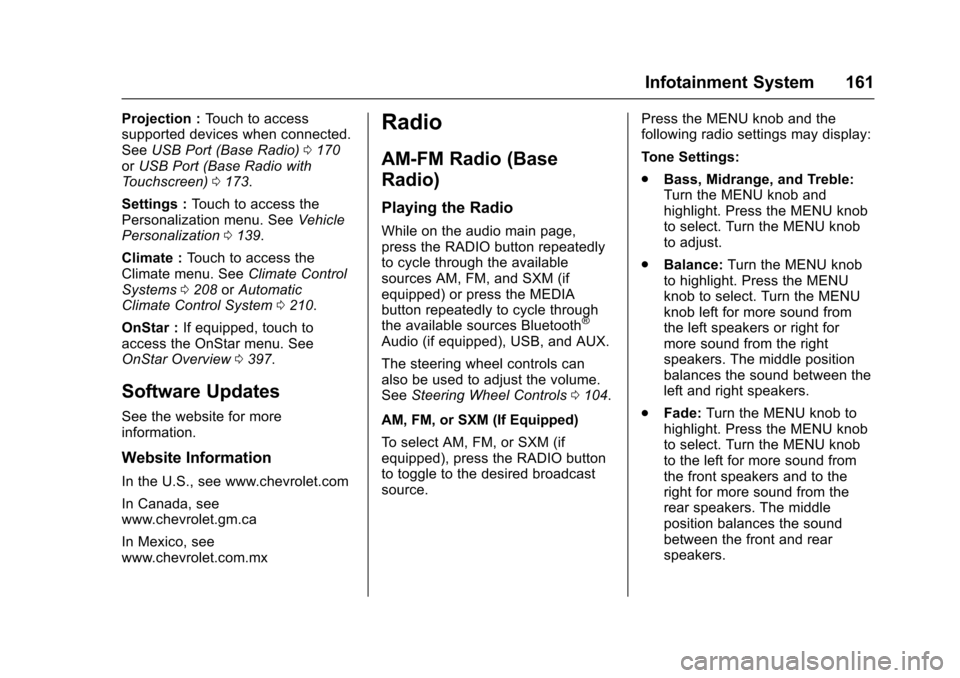
Playing the Radio
While on the audio main page,press the RADIO button repeatedlyto cycle through the availablesources AM, FM, and SXM (ifequipped) or press the MEDIAbutton repeatedly to cycle throughthe available sources Bluetooth®
Audio (if equipped), USB, and AUX.
The steering wheel controls canalso be used to adjust the volume.SeeSteering Wheel Controls0104.
AM, FM, or SXM (If Equipped)
To s e l e c t A M , F M , o r S X M ( i fequipped), press the RADIO buttonto toggle to the desired broadcastsource.
Press the MENU knob and thefollowing radio settings may display:
To n e S e t t i n g s :
.Bass, Midrange, and Treble:Turn the MENU knob andhighlight. Press the MENU knobto select. Turn the MENU knobto adjust.
.Balance:Turn the MENU knobto highlight. Press the MENUknob to select. Turn the MENUknob left for more sound fromthe left speakers or right formore sound from the rightspeakers. The middle positionbalances the sound between theleft and right speakers.
.Fade:Turn the MENU knob tohighlight. Press the MENU knobto select. Turn the MENU knobto the left for more sound fromthe front speakers and to theright for more sound from therear speakers. The middleposition balances the soundbetween the front and rearspeakers.
Page 163 of 419
Chevrolet Colorado Owner Manual (GMNA-Localizing-U.S./Canada/Mexico-10122675) - 2017 - crc - 8/22/16
162 Infotainment System
.DSP:IfequippedwithaBoseSurround®sound system, it willhave three DSP modesincluding:
⇣Normal: Adjusts the audio toprovide the best sound for allseating positions.
⇣Driver: Adjusts the audio toprovide the best sound for thedriver.
⇣Centerpoint: Creates asurround sound from nearlyany audio source.
.EQ (Equalizer):IfequippedwithaBosesoundsystem,turntheMENU knob to highlight. Turnthe MENU knob to scroll throughthe options. Press the MENU
knob to select. Press theo
BACK button to go to theprevious menu.
Station List :Select to display a list
of AM or FM stations. Presso
BACK to go to the previous menu.
Auto Volume :If equipped, thisfeature adjusts the volume based onthe vehicle speed. Select the level
between Off, Low, Medium-Low,Medium, Medium-High, and High.
PressoBACK to go to the
previous menu.
EQ (Equalizer) Settings :In certainconfigurations, the available choicesare Manual and Talk.
Options for SXM Only
SXM View :SXM view allows thechannel list to be viewed by channelname, artist playing on channel,or song playing on channel. Turnthe MENU knob to highlight andpress the MENU knob to select.
PressoBACK to go to the
previous menu.
SXM Channel List :Select todisplay a list of SXM channels. Turnthe MENU knob to highlight andpress the MENU knob to select.
PressoBACK to go to the
previous menu.
Also see the radio settings commonfor all sources earlier in this section.
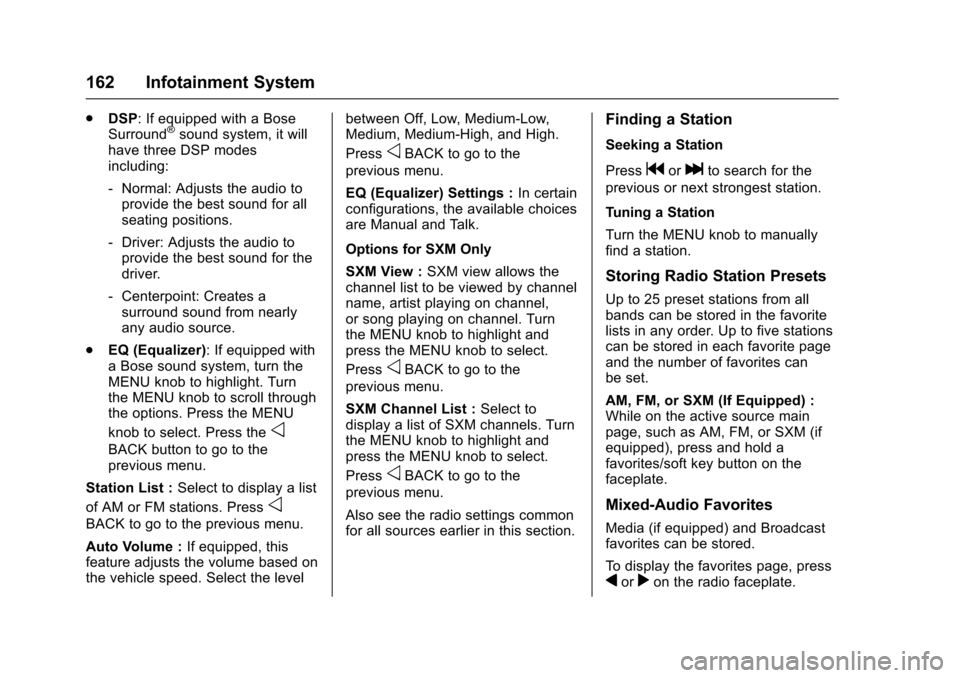
Finding a Station
Seeking a Station
Pressgorlto search for the
previous or next strongest station.
Tuning a Station
Turn the MENU knob to manuallyfind a station.
Storing Radio Station Presets
Up to 25 preset stations from allbands can be stored in the favoritelists in any order. Up to five stationscan be stored in each favorite pageand the number of favorites canbe set.
AM, FM, or SXM (If Equipped) :While on the active source mainpage, such as AM, FM, or SXM (ifequipped), press and hold afavorites/soft key button on thefaceplate.
Mixed-Audio Favorites
Media (if equipped) and Broadcastfavorites can be stored.
To d i s p l a y t h e f a v o r i t e s p a g e , p r e s sqorron the radio faceplate.
Page 166 of 419
Chevrolet Colorado Owner Manual (GMNA-Localizing-U.S./Canada/Mexico-10122675) - 2017 - crc - 8/22/16
Infotainment System 165
1-888-601-6296 (U.S.); or seewww.siriusxm.ca or call1-877-438-9677 (Canada).
When SiriusXM is active, thechannel name and number,category name, song title, and artistdisplay on the screen.
Browsing SiriusXM Channels
To b r o w s e t h e S i r i u s X M c h a n n e l s :
1. Press the MENU knob.
2. Turn the MENU knob tohighlight SXM Channel List.
3. Turn the MENU knob tohighlight the desired SXMChannels.
Satellite Radio (Base
Radio with Touchscreen)
SiriusXM®Satellite Radio
Service
Vehicles with an SXM SatelliteRadio tuner and a valid SiriusXM®
Satellite Radio subscription canreceive SiriusXM programming.
SiriusXM is a satellite radio servicebased in the 48 contiguous UnitedStates and 10 Canadian provinces.SiriusXM Satellite Radio has a widevariety of programming andcommercial-free music, coast tocoast, and in digital-quality sound.Aservicefeeisrequiredtoreceivethe SiriusXM service. Seewww.siriusxm.com or call1-888-601-6296 (U.S.); or seewww.siriusxm.ca or call1-877-438-9677 (Canada).
When SiriusXM is active, thechannel name and number,category name, song title, and artistdisplay on the screen.
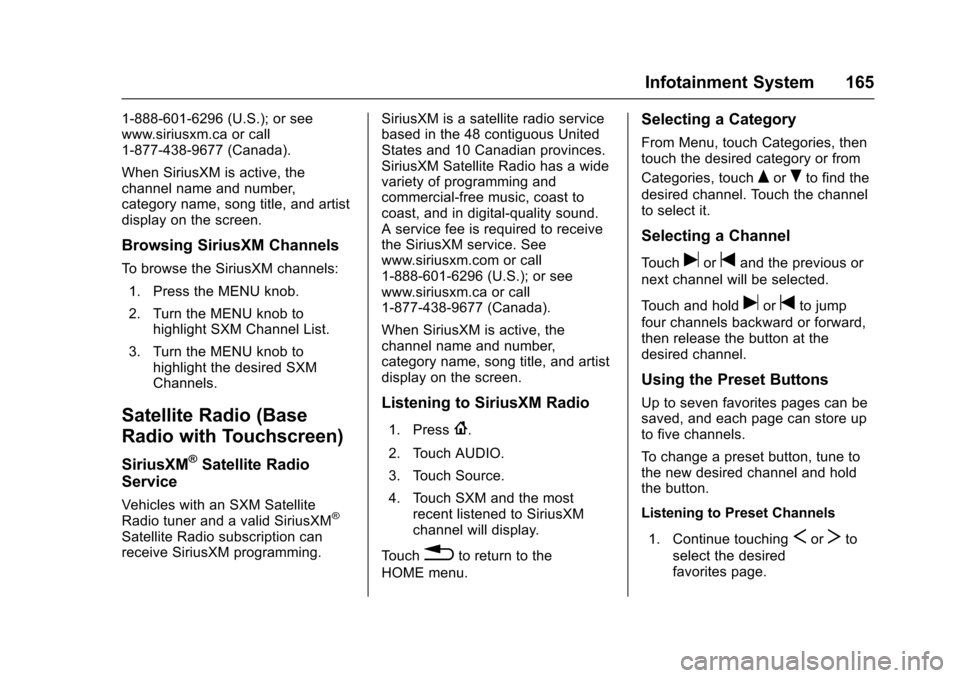
Listening to SiriusXM Radio
1. Press{.
2. Touch AUDIO.
3. Touch Source.
4. Touch SXM and the mostrecent listened to SiriusXMchannel will display.
To u c h0to return to the
HOME menu.
Selecting a Category
From Menu, touch Categories, thentouch the desired category or from
Categories, touchQorRto find the
desired channel. Touch the channelto select it.
Selecting a Channel
To u c huortand the previous or
next channel will be selected.
To u c h a n d h o l duortto jump
four channels backward or forward,then release the button at thedesired channel.
Using the Preset Buttons
Up to seven favorites pages can besaved, and each page can store upto five channels.
To c h a n g e a p r e s e t b u t t o n , t u n e t othe new desired channel and holdthe button.
Listening to Preset Channels
1. Continue touchingSorTto
select the desiredfavorites page.
Page 169 of 419
Chevrolet Colorado Owner Manual (GMNA-Localizing-U.S./Canada/Mexico-10122675) - 2017 - crc - 8/22/16
168 Infotainment System
Using an iPhone
1. Plug the device into the USBport. The phone screen mustbe unlocked.
2. Launch Pandora from theHome Page by selecting thePandora icon.
If nothing happens when theavailable Pandora screen button istouched, download the latestPandora application and retry.
The login screen may display on thedevice.
Using an Android or BlackBerryPhone
The BlackBerry phone must beunlocked to launch Pandora service.
1. Pair the phone using Bluetooth.
2. Launch Pandora by selectingPandora on the Home Page.
If nothing happens when theavailable Pandora screen button isselected, download the latestPandora application and retry.
The login screen may display on thedevice.
Pandora Menus
Press MENU.
Pandora has a menu with thefollowing:
To n e S e t t i n g s :Select to adjust thetone settings. SeeAM-FM Radio(Base Radio)0161orAM-FMRadio (Base Radio withTo u c h s c r e e n )0163.
Bookmark Artist :Select tobookmark the artist.
Bookmark Song :Select tobookmark the song.
Auto Volume :This feature sets theauto volume based on the speed ofthe vehicle and noise in the vehicle.SeeAM-FM Radio (Base Radio)0161orAM-FM Radio (Base Radiowith Touchscreen)0163.
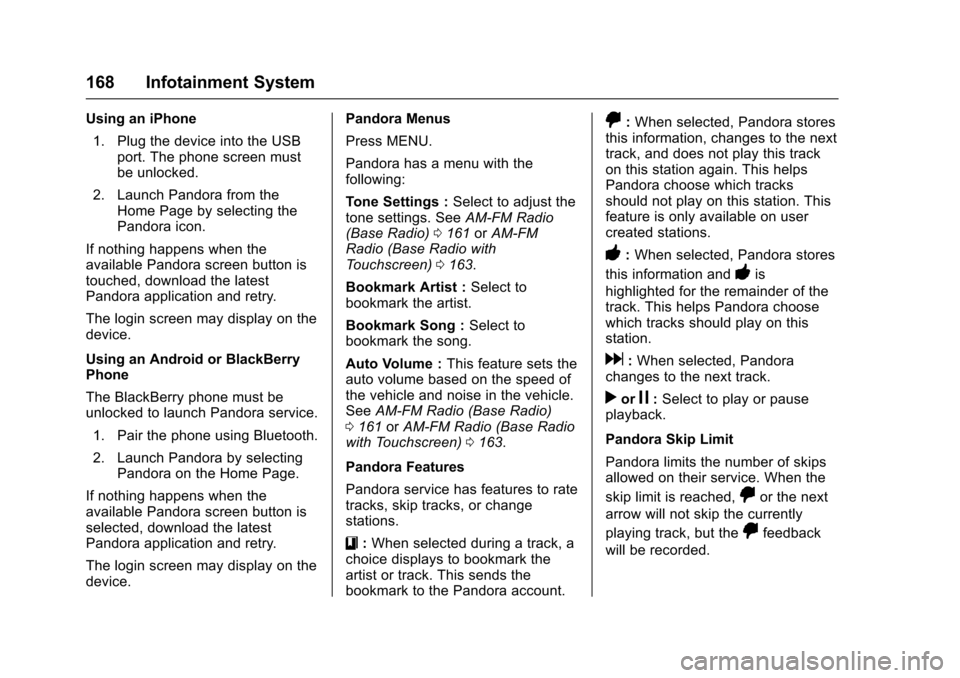
Pandora Features
Pandora service has features to ratetracks, skip tracks, or changestations.
}:When selected during a track, achoice displays to bookmark theartist or track. This sends thebookmark to the Pandora account.
,:When selected, Pandora storesthis information, changes to the nexttrack, and does not play this trackon this station again. This helpsPandora choose which tracksshould not play on this station. Thisfeature is only available on usercreated stations.
-:When selected, Pandora stores
this information and-is
highlighted for the remainder of thetrack. This helps Pandora choosewhich tracks should play on thisstation.
d:When selected, Pandorachanges to the next track.
rorj:Select to play or pauseplayback.
Pandora Skip Limit
Pandora limits the number of skipsallowed on their service. When the
skip limit is reached,,or the next
arrow will not skip the currently
playing track, but the,feedback
will be recorded.
Page 173 of 419
Chevrolet Colorado Owner Manual (GMNA-Localizing-U.S./Canada/Mexico-10122675) - 2017 - crc - 8/22/16
172 Infotainment System
The device battery rechargesautomatically while the vehicle is on.When the vehicle is off while adevice is connected using the USBcable, the device battery stopscharging and the device willautomatically turn off.
If the device is an unsupportedmodel, it can still be listened to inthe vehicle by connecting to theauxiliary input jack using a standard3.5 mm (1/8 in) stereo cable.
Menu
Press MENU to display the deviceMenu and the following may display:
Browse :Select to display the filesor songs on the device. See“Browse Device Media”later in thissection.
To n e S e t t i n g s :Select to adjustBass, Midrange, Treble, Balance,Fade, and EQ (Equalizer). See“To n e S e t t i n g s”inAM-FM Radio(Base Radio)0161orAM-FMRadio (Base Radio withTo u c h s c r e e n )0163.
EQ :If equipped, this featureadjusts the Equalizer settings. See“EQ (Equalizer)”inAM-FM Radio(Base Radio)0161orAM-FMRadio (Base Radio withTo u c h s c r e e n )0163.
Browse Device Media
Use the following to browse:
Playlists:
1. Turn MENU to highlight andpress to view the playlistsstored on the device.
2. Turn MENU to highlight andpress to select a playlist nameto view a list of all songs in theplaylist.
3. Turn MENU to highlight andpress to select the song fromthe list to begin playback.
Artists:
1. Turn MENU to highlight andpress to view the artists storedon the device.
2. Turn MENU to highlight andpress to select an artist nameto view a list of all albums bythe artist.
3. Turn MENU to highlight andpress to select an album nameto view a list of all songs on thealbum.
4. Turn MENU to highlight andpress to select the song fromthe list to begin playback.
Albums:
1. Turn MENU to highlight andpress to view the albumsstored on the device.
2. Turn MENU to highlight andpress to select an album nameto view a list of all songs on thealbum.
3. Turn MENU to highlight andpress to select the song fromthe list to begin playback.
Genres:
1. Turn MENU to highlight andpress to view the genres storedon the device.
2. Turn MENU to highlight andpress to select a genre nameto view a list of artists of thatgenre.
Page 174 of 419
Chevrolet Colorado Owner Manual (GMNA-Localizing-U.S./Canada/Mexico-10122675) - 2017 - crc - 8/22/16
Infotainment System 173
3. Turn MENU to highlight andpress to select to view albumsby that artist.
4. Turn MENU to highlight andpress to select an album toview songs.
5. Turn MENU to highlight andpress to select the song fromthe list to begin playback.
Songs:
1. Turn MENU to highlight andpress to view a list of all songsstored on the device.
2. Turn MENU to highlight andpress to select the song fromthe list to begin playback.
USB Port (Base Radio
with Touchscreen)
If equipped, there is a USB port fordata and charging in the centerstack, inside the center console,and/or at the rear of the centerconsole. For uplevel radios, see theinfotainment manual.
Using the USB Port
The infotainment system can playmusic by connecting an auxiliarydevice to the USB port.
USB Support
The USB port uses the USB 2.0standard. External devices such asiPhones/iPods®and USB storagedevices may be connected.
USB Supported Devices
.USB flash drives
.Portable USB hard drives
.iPod/iPhone devices
Not all iPods and USB drives arecompatible with the USB port.
Make sure the iPod has the latestfirmware from Apple®for properoperation. iPod firmware can beupdated using the latest iTunes®
application. See www.apple.com/itunes.
For help with identifying your iPod,go to www.apple.com/support.
The USB port can play both lowerand upper case .mp3, .wma, .ogg,and .wav files stored on a USBstorage device.
Supported Apple®Devices
To v i e w s u p p o r t e d d e v i c e s i n t h eU.S., see www.my.chevrolet.com/learned.
To v i e w s u p p o r t e d d e v i c e s i nCanada, seewww.chevroletowner.ca.
For supported devices in Mexico,see your dealer.
USB Supported File and FolderStructure
The infotainment system supports:
.FAT 1 6 .
.FAT 3 2 .
.exFAT.
Connecting a USB Storage
Device or iPod/iPhone
To c o n n e c t a U S B s t o r a g e d e v i c e ,connect the device to the USB port.