ECU CHEVROLET COLORADO 2017 2.G Manual PDF
[x] Cancel search | Manufacturer: CHEVROLET, Model Year: 2017, Model line: COLORADO, Model: CHEVROLET COLORADO 2017 2.GPages: 419, PDF Size: 7.38 MB
Page 354 of 419
Chevrolet Colorado Owner Manual (GMNA-Localizing-U.S./Canada/Mexico-10122675) - 2017 - crc - 8/22/16
Vehicle Care 353
(Drive). There should be nomovement of the vehicle whileshifting.
5. Shift the transmission into D(Drive). Turn the engine off.Then shift the transmission intoP(Park).
6. Wait for at least 10 seconds,then restart the engine.
7. Shift the transmission to D(Drive), then turn the engine offagain.
Caution
Failure to disconnect the negative
battery cable or to have it contact
the terminals can cause damage
to the vehicle.
8. Disconnect the negativebattery cable at the battery andsecure the nut and bolt. Coverthe negative battery post with anon-conductive material toprevent any contact with thenegative battery terminal.
9. Shift the transmission toP(Park).
Caution
If the steering column is locked,
vehicle damage may occur.
10. Move the steering wheel tomake sure the steering columnis unlocked.
11 . W i t h a f o o t o n t h e b r a k e p e d a l ,release the parking brake.Keep the ignition key in thetowed vehicle in ACC/ACCESSORY to prevent thesteering column from locking.
Disconnecting the Towed Vehicle
Before disconnecting the towedvehicle:
1. Park on a level surface.
2. Set the parking brake, thenshift the transmission toP(Park),andmovetheignitionkey to OFF.
3. Connect the battery.
4. Apply the brake pedal.
5. Shift the transfer case out ofN(Neutral) to Two-Wheel DriveHigh. See“Shifting out ofN(Neutral)”underFour-WheelDrive0247.Seeyourdealerifthe transfer case cannot beshifted out of N (Neutral).
6. Check that the vehicle is inTw o - W h e e l D r i v e H i g h b yshifting the transmission toR(Reverse)andthentoD(Drive). There should bemovement of the vehicle whileshifting.
7. Shift the transmission toP(Park)andturnofftheignition.
8. Disconnect the vehicle from thetow vehicle.
9. Release the parking brake.
10. Reset any lost presets.
The outside temperaturedisplay will default to 0 °C(32 °F) but will reset withnormal usage.
Page 356 of 419
Chevrolet Colorado Owner Manual (GMNA-Localizing-U.S./Canada/Mexico-10122675) - 2017 - crc - 8/22/16
Vehicle Care 355
6. Secure the vehicle to the dollyfollowing the manufacturer'sinstructions.
7. Shift the transfer case toN(Neutral). See“Shifting intoN(Neutral)”underFour-WheelDrive0247for the properprocedure.
8. Release the parking brake onlyafter the vehicle being towed isfirmly attached to the towvehicle.
9. Turn the ignition to LOCK/OFF.
Rear Towing (Rear Wheels Off
the Ground)
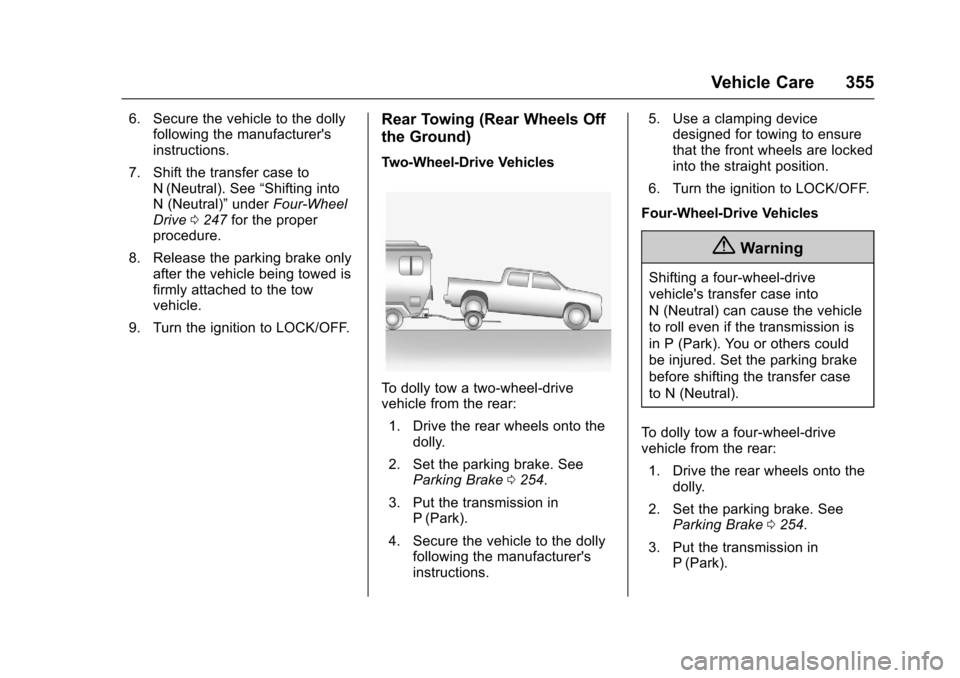
Two-Wheel-Drive Vehicles
To d o l l y t o w a t w o - w h e e l - d r i v evehicle from the rear:
1. Drive the rear wheels onto thedolly.
2. Set the parking brake. SeeParking Brake0254.
3. Put the transmission inP(Park).
4. Secure the vehicle to the dollyfollowing the manufacturer'sinstructions.
5. Use a clamping devicedesigned for towing to ensurethat the front wheels are lockedinto the straight position.
6. Turn the ignition to LOCK/OFF.
Four-Wheel-Drive Vehicles
{Warning
Shifting a four-wheel-drive
vehicle's transfer case into
N(Neutral)cancausethevehicle
to roll even if the transmission is
in P (Park). You or others could
be injured. Set the parking brake
before shifting the transfer case
to N (Neutral).
To d o l l y t o w a f o u r - w h e e l - d r i v evehicle from the rear:
1. Drive the rear wheels onto thedolly.
2. Set the parking brake. SeeParking Brake0254.
3. Put the transmission inP(Park).
Page 357 of 419
Chevrolet Colorado Owner Manual (GMNA-Localizing-U.S./Canada/Mexico-10122675) - 2017 - crc - 8/22/16
356 Vehicle Care
4. Secure the vehicle to the dollyfollowing the manufacturer'sinstructions.
5. Use a clamping devicedesigned for towing to ensurethat the front wheels are lockedinto the straight position.
6. Shift the transfer case toN(Neutral). See“Shifting intoN(Neutral)”underFour-WheelDrive0247for the properprocedure.
7. Turn the ignition to LOCK/OFF.
Appearance Care
Exterior Care
Locks
Locks are lubricated at the factory.Use a de-icing agent only whenabsolutely necessary, and have thelocks greased after using. SeeRecommended Fluids andLubricants0375.
Washing the Vehicle
To p r e s e r v e t h e v e h i c l e ' s f i n i s h ,wash it often and out of directsunlight.
Caution
Do not use petroleum-based,
acidic, or abrasive cleaning
agents as they can damage the
vehicle's paint, metal, or plastic
parts. If damage occurs, it would
not be covered by the vehicle
warranty. Approved cleaning
products can be obtained from
(Continued)
Caution (Continued)
your dealer. Follow all
manufacturer directions regarding
correct product usage, necessary
safety precautions, and
appropriate disposal of any
vehicle care product.
Caution
Avoid using high-pressure
washes closer than 30 cm (12 in)
to the surface of the vehicle. Use
of power washers exceeding
8,274 kPa (1,200 psi) can result
in damage or removal of paint
and decals.
Page 365 of 419
Chevrolet Colorado Owner Manual (GMNA-Localizing-U.S./Canada/Mexico-10122675) - 2017 - crc - 8/22/16
364 Vehicle Care
Floor Mats
{Warning
If a floor mat is the wrong size or
is not properly installed, it can
interfere with the pedals.
Interference with the pedals can
cause unintended acceleration
and/or increased stopping
distance which can cause a crash
and injury. Make sure the floor
mat does not interfere with the
pedals.
Use the following guidelines forproper floor mat usage:
.The original equipment floormats were designed for yourvehicle. If the floor mats needreplacing, it is recommendedthat GM certified floor mats bepurchased. Non-GM floor matsmay not fit properly and mayinterfere with the pedals. Alwayscheck that the floor mats do notinterfere with the pedals.
.Do not use a floor mat if thevehicle is not equipped with afloor mat retainer on the driverside floor.
.Use the floor mat with thecorrect side up. Do not turnit over.
.Do not place anything on top ofthe driver side floor mat.
.Use only a single floor mat onthe driver side.
.Do not place one floor mat ontop of another.
Removing and Replacing the
Floor Mats
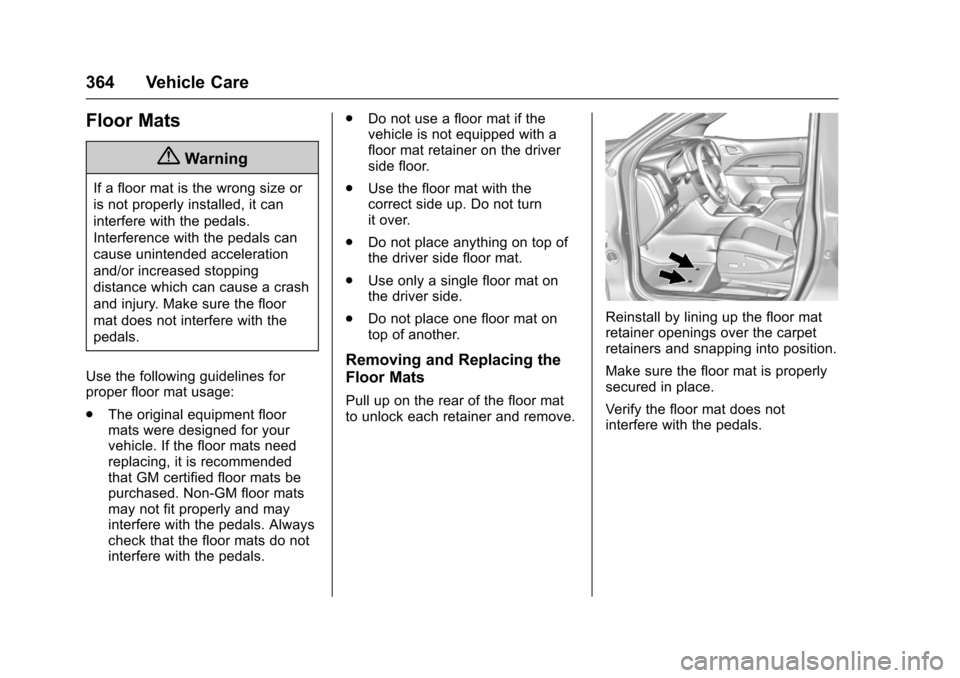
Pull up on the rear of the floor matto unlock each retainer and remove.
Reinstall by lining up the floor matretainer openings over the carpetretainers and snapping into position.
Make sure the floor mat is properlysecured in place.
Verify the floor mat does notinterfere with the pedals.
Page 389 of 419
Chevrolet Colorado Owner Manual (GMNA-Localizing-U.S./Canada/Mexico-10122675) - 2017 - crc - 8/22/16
388 Customer Information
Services Provided
.Emergency Fuel Delivery:Delivery of enough fuel for thevehicle to get to the nearestservice station.
.Lock-Out Service:Service tounlock the vehicle if you arelocked out. A remote unlock maybe available if you have OnStar.For security reasons, the drivermust present identificationbefore this service is given.
.Emergency Tow from a PublicRoad or Highway:To w t o t h enearest Chevrolet dealer forwarranty service, or if the vehiclewas in a crash and cannot bedriven. Assistance is not givenwhen the vehicle is stuck in thesand, mud, or snow.
.Flat Tire Change:Service tochange a flat tire with the sparetire. The spare tire, if equipped,must be in good condition andproperly inflated. It is the owner'sresponsibility for the repair orreplacement of the tire if it is notcovered by the warranty.
.Battery Jump Start:Service tojump start a dead battery.
.Tr i p I n t e r r u p t i o n B e n e f i t s a n dAssistance:If your trip isinterrupted due to a warrantyevent, incidental expenses maybe reimbursed within thePowertrain warranty period.Items considered are reasonableand customary hotel, meals,rental car, or a vehicle beingdelivered back to the customer,up to 805 km (500 mi).
Services Not Included in
Roadside Assistance
.Impound towing caused byviolation of any laws.
.Legal fines.
.Mounting, dismounting,or changing of snow tires,chains, or other traction devices.
Service is not provided if a vehicleis in an area that is not accessibleto the service vehicle or is not aregularly traveled or maintainedpublic road, which includes ice andwinter roads. Off-road use is notcovered.
Services Specific to
Canadian-Purchased Vehicles
.Fuel Delivery:Reimbursementis up to 7 liters. If available,diesel fuel delivery may berestricted. Propane and otherfuels are not provided throughthis service.
.Lock-Out Service:Vehicleregistration is required.
.Tr i p I n t e r r u p t i o n B e n e f i t s a n dAssistance:Must be over150 km from where your trip wasstarted to qualify.Pre-authorization, originaldetailed receipts, and a copy ofthe repair orders are required.Once authorization has beenreceived, the RoadsideAssistance advisor will help tomake arrangements and explainhow to receive payment.
.Alternative Service:Ifassistance cannot be providedright away, the RoadsideAssistance advisor may givepermission to get localemergency road service. You willreceive payment, up to $100,
Page 398 of 419
Chevrolet Colorado Owner Manual (GMNA-Localizing-U.S./Canada/Mexico-10122675) - 2017 - crc - 8/22/16
OnStar 397
OnStar
OnStar Overview
OnStar Overview . . . . . . . . . . . . . 397
OnStar Services
Emergency . . . . . . . . . . . . . . . . . . . 398Security . . . . . . . . . . . . . . . . . . . . . . 398Navigation . . . . . . . . . . . . . . . . . . . . 399Connections . . . . . . . . . . . . . . . . . . 399Diagnostics . . . . . . . . . . . . . . . . . . . 401
OnStar Additional Information
OnStar AdditionalInformation . . . . . . . . . . . . . . . . . . 402
OnStar Overview
=Voice Command Button
QBlue OnStar Button
>Red Emergency Button
This vehicle may be equipped with acomprehensive, in-vehicle systemthat can connect to an OnStarAdvisor for Emergency, Security,Navigation, Connections, andDiagnostics Services. OnStarservices may require a paidsubscription and data plan. OnStarrequires the vehicle battery andelectrical system, cellular service,and GPS satellite signals to beavailable and operating. OnStar actsas a link to existing emergencyservice providers. OnStar maycollect information about you andyour vehicle, including locationinformation. See OnStar User
Te r m s , P r i v a c y S t a t e m e n t , a n dSoftware Terms for more detailsincluding system limitations atwww.onstar.com (U.S.) orwww.onstar.ca (Canada).
The OnStar system status light isnext to the OnStar buttons. If thestatus light is:
.Solid Green: System is ready.
.Flashing Green: On a call.
.Red: Indicates a problem.
.Off: System is active. PressQ
twice to speak with an OnStarAdvisor.
PressQor call 1-888-4ONSTAR
(1-888-466-7827) to speak to anAdvisor.
Press=to:
.Make a call, end a call,or answer an incoming call.
.Give OnStar Hands-Free Callingvoice commands.
.Give OnStar Turn-by-TurnNavigation voice commands.
Page 399 of 419
Chevrolet Colorado Owner Manual (GMNA-Localizing-U.S./Canada/Mexico-10122675) - 2017 - crc - 8/22/16
398 OnStar
.Obtain and customize the Wi-Fi®
hotspot name or SSID andpassword, if equipped.
PressQto connect to an
Advisor to:
.Verify account information orupdate contact information.
.Get driving directions.
.Receive a Diagnostic check ofthe vehicle's key operatingsystems.
.Receive Roadside Assistance.
.Manage Wi-Fi Settings,if equipped.
Press>to get a priority connection
to an OnStar Advisor available24/7 to:
.Get help for an emergency.
.Be a Good Samaritan orrespond to an AMBER Alert.
.Get assistance in severeweather or other crisis situationsand find evacuation routes.
OnStar Services
Emergency
Emergency Services require anactive, OnStar service plan(excludes Basic Plan). WithAutomatic Crash Response, built-insensors can automatically alert aspecially trained OnStar Advisorwho is immediately connected in tothe vehicle to help.
Press>for a priority connection to
an OnStar Advisor who can contactemergency service providers, directthem to your exact location, andrelay important information.
With OnStar Crisis Assist, speciallytrained Advisors are available24 hours a day, 7 days a week, toprovide a central point of contact,assistance, and information during acrisis.
With Roadside Assistance, Advisorscan locate a nearby service providerto help with a flat tire, a batteryjump, or an empty gas tank.
Security
If equipped, OnStar provides theseservices:
.With Stolen Vehicle Assistance,OnStar Advisors can use GPS topinpoint the vehicle and helpauthorities quickly recover it.
.With Remote Ignition Block™,if equipped, OnStar can blockthe engine from being restarted.
.With Stolen Vehicle Slowdown®,if equipped, OnStar can workwith law enforcement togradually slow the vehicle down.
Theft Alarm Notification
If equipped, if the doors are lockedand the vehicle alarm sounds, anotification by text, e-mail, or phonecall will be sent. If the vehicle isstolen, an OnStar Advisor can workwith authorities to recover thevehicle.
Page 400 of 419
Chevrolet Colorado Owner Manual (GMNA-Localizing-U.S./Canada/Mexico-10122675) - 2017 - crc - 8/22/16
OnStar 399
Navigation
OnStar navigation requires aspecific OnStar service plan.
PressQto receive Turn-by-Turn
directions or have them sent to thevehicle’snavigationscreen,if equipped.
Turn-by-Turn Navigation
1. PressQto connect to an
Advisor.
2. Request directions to bedownloaded to the vehicle.
3. Follow the voice-guidedcommands.
Using Voice Commands
During a Planned Route
Cancel Route
1. Press=.Systemresponds:
“OnStar ready,”then a tone.
2. Say“Cancel route.”Systemresponds:“Do you want tocancel directions?”
3. Say“Ye s .”System responds:“OK, request completed, thankyou, goodbye.”
Route Preview
1. Press=.Systemresponds:
“OnStar ready,”then a tone.
2. Say“Route preview.”Systemresponds with the next threemaneuvers.
Repeat
1. Press=.Systemresponds:
“OnStar ready,”then a tone.
2. Say“Repeat.”Systemresponds with the last directiongiven, then responds with“OnStar ready,”then a tone.
Get My Destination
1. Press=.Systemresponds:
“OnStar ready,”then a tone.
2. Say“Get my destination.”System responds with theaddress and distance to thedestination, then responds with“OnStar ready,”then a tone.
Send Destination to Vehicle
Subscribers can have directionssent to the vehicle’snavigationscreen, if equipped.
PressQ,thenasktheAdvisorto
download directions to the vehicle’snavigation system, if equipped. Afterthe call ends, the navigation screenwill provide prompts to begin drivingdirections. Routes that are sent tothe navigation screen can only becanceled through the navigationsystem.
See www.onstar.com (U.S.) orwww.onstar.ca (Canada).
Connections
The following OnStar services helpwith staying connected.
For coverage maps, seewww.onstar.com (U.S.) orwww.onstar.ca (Canada).
Ensuring Security
.Change the default passwordsfor the Wi-Fi hotspot andRemoteLink mobile application.Make these passwords different
Page 401 of 419
Chevrolet Colorado Owner Manual (GMNA-Localizing-U.S./Canada/Mexico-10122675) - 2017 - crc - 8/22/16
400 OnStar
from each other and use acombination of letters, numbers,and symbols to increase thesecurity.
.Change the default name of theSSID (Service Set Identifier).This is your network’snamethatis visible to other wirelessdevices. Choose a unique nameand avoid family names orvehicle descriptions.
OnStar Wi-Fi®Hotspot (IfEquipped)
The vehicle may have a built-inWi-Fi hotspot that provides accessto the Internet and web content at4G LTE speed. Up to seven mobiledevices can be connected. A dataplan is required. Use the in-vehiclecontrols only when it is safe todo so.
1. To retrieve Wi-Fi hotspot
information, press=,waitfor
the prompt, then say“Wi-Fisettings.”On some vehicles,touch Wi-Fi Settings on thescreen.
2. The Wi-Fi settings will displaythe Wi-Fi hotspot name (SSID),password, and on somevehicles, the connection type(no Internet connection, 3G,4G, 4G LTE), and signal quality(poor, good, excellent).
3. To change the SSID or
password, pressQor call
1-888-4ONSTAR to connectwith an Advisor.
After initial set-up, your vehicle’sWi-Fi hotspot will connectautomatically to your mobiledevices. Manage data usage byturning Wi-Fi on or off on yourmobile device, using theRemoteLink mobile app, or bycontacting an OnStar Advisor.
OnStar RemoteLink®Mobile App(If Equipped)
Download the OnStar RemoteLinkmobile app to select Apple®iOS,Android™,BlackBerry®,or Windows®mobile devices.
OnStar Subscribers can access thefollowing services from a mobiledevice:
.Remotely start/stop the vehicle,if factory-equipped.
.Lock/unlock doors, if equippedwith automatic locks.
.Activate the horn and lamps.
.Check the vehicle’sfuellevel,oillife, or tire pressure,if factory-equipped with the TirePressure Monitor System.
.Send directions to the vehicle.
.Locate the vehicle on a map(U.S. market only).
.Turn the vehicle's Wi-Fi hotspoton/off, manage settings, andmonitor data consumption,if equipped.
For OnStar RemoteLink informationand compatibility, seewww.onstar.com (U.S.) orwww.onstar.ca (Canada).
Page 405 of 419
Chevrolet Colorado Owner Manual (GMNA-Localizing-U.S./Canada/Mexico-10122675) - 2017 - crc - 8/22/16
404 OnStar
AtemporarylossofGPScancauseloss of the ability to send aTurn-by-Turn Navigation route. TheAdvisor may give a verbal route ormay ask for a call back after thevehicle is driven into an open area.
Cellular and GPS Antennas
Cellular reception is required forOnStar to send remote signals tothe vehicle. Do not place items overor near the antenna to preventblocking cellular and GPS signalreception.
Unable to Connect to OnStar
Message
If there is limited cellular coverageor the cellular network has reachedmaximum capacity, this message
may come on. PressQto try the
call again or try again after driving afew miles into another cellular area.
Vehicle and Power Issues
OnStar services require a vehicleelectrical system, wireless service,and GPS satellite technologies to beavailable and operating for features
to function properly. These systemsmay not operate if the battery isdischarged or disconnected.
Add-on Electrical Equipment
The OnStar system is integratedinto the electrical architecture of thevehicle. Do not add any electricalequipment. SeeAdd-On ElectricalEquipment0278.Addedelectricalequipment may interfere with theoperation of the OnStar system andcause it to not operate.
Vehicle Software Updates
OnStar or GM may remotely deliversoftware updates or changes to thevehicle without further notice orconsent. These updates or changesmay enhance or maintain safety,security, or the operation of thevehicle or the vehicle systems.Software updates or changes mayaffect or erase data or settings thatare stored in the vehicle, such asOnStar Hands-Free Calling nametags, saved navigation destinations,or pre-set radio stations. NeitherOnStar nor GM is responsible forany affected or erased data or
settings. These updates or changesmay also collect personalinformation. Such collection isdescribed in the OnStar privacystatement or separately disclosed atthe time of installation. Theseupdates or changes may also causeasystemtoautomaticallycommunicate with GM servers tocollect information about vehiclesystem status, identify whetherupdates or changes are available,or deliver updates or changes. Anactive OnStar agreement constitutesconsent to these software updatesor changes and agreement thateither OnStar or GM may remotelydeliver them to the vehicle.
Privacy
The complete OnStar PrivacyStatement may be found atwww.onstar.com (U.S.),or www.onstar.ca (Canada). Werecommend that you review it. If youhave any questions, call1-888-4ONSTAR (1-888-466-7827)
or pressQto speak with an
Advisor. Users of wirelesscommunications are cautioned that