infotainment CHEVROLET COLORADO 2017 2.G Owners Manual
[x] Cancel search | Manufacturer: CHEVROLET, Model Year: 2017, Model line: COLORADO, Model: CHEVROLET COLORADO 2017 2.GPages: 419, PDF Size: 7.38 MB
Page 2 of 419

Chevrolet Colorado Owner Manual (GMNA-Localizing-U.S./Canada/Mexico-10122675) - 2017 - crc - 8/22/16
ContentsIntroduction . . . . . . . . . . . . . . . . . . . . . . 2
In Brief . . . . . . . . . . . . . . . . . . . . . . . . . . . 5
Keys, Doors, and Windows . . . . . 27
Seats and Restraints . . . . . . . . . . . 44
Storage . . . . . . . . . . . . . . . . . . . . . . . 100
Instruments and Controls . . . . . . 102
Lighting . . . . . . . . . . . . . . . . . . . . . . . 146
Infotainment System . . . . . . . . . . 153
Climate Controls . . . . . . . . . . . . . . 208
Driving and Operating . . . . . . . . . 214
Vehicle Care . . . . . . . . . . . . . . . . . . 279
Service and Maintenance . . . . . 365
Te c h n i c a l D a t a . . . . . . . . . . . . . . . . 3 7 9
Customer Information . . . . . . . . . 383
Reporting Safety Defects . . . . . . 393
OnStar . . . . . . . . . . . . . . . . . . . . . . . . 397
Index . . . . . . . . . . . . . . . . . . . . 407
Page 6 of 419
Chevrolet Colorado Owner Manual (GMNA-Localizing-U.S./Canada/Mexico-10122675) - 2017 - crc - 8/22/16
In Brief 5
In Brief
Instrument Panel
Instrument Panel . . . . . . . . . . . . . . . . 6
Initial Drive Information
Initial Drive Information . . . . . . . . . . 8Remote Keyless Entry (RKE)System . . . . . . . . . . . . . . . . . . . . . . . . 8Remote Vehicle Start . . . . . . . . . . . 8Door Locks . . . . . . . . . . . . . . . . . . . . . 9Windows . . . . . . . . . . . . . . . . . . . . . . . . 9Seat Adjustment . . . . . . . . . . . . . . . . 9Heated Seats . . . . . . . . . . . . . . . . . . 11Head Restraint Adjustment . . . . 11Safety Belts . . . . . . . . . . . . . . . . . . . . 11Passenger Sensing System . . . 12Mirror Adjustment . . . . . . . . . . . . . . 12Steering Wheel Adjustment . . . . 13Interior Lighting . . . . . . . . . . . . . . . . 14Exterior Lighting . . . . . . . . . . . . . . . 14Windshield Wiper/Washer . . . . . . 15Climate Controls . . . . . . . . . . . . . . . 15Transmission . . . . . . . . . . . . . . . . . . 17Four-Wheel Drive . . . . . . . . . . . . . . 18
Vehicle Features
Infotainment System . . . . . . . . . . . 19Radio(s) . . . . . . . . . . . . . . . . . . . . . . . 19Satellite Radio . . . . . . . . . . . . . . . . . 19
Portable Audio Devices . . . . . . . . 20Bluetooth®..................... 20Steering Wheel Controls . . . . . . . 20Cruise Control . . . . . . . . . . . . . . . . . 21Driver Information Center (DIC)(Base Level) . . . . . . . . . . . . . . . . . 21Driver Information Center (DIC)(Uplevel) . . . . . . . . . . . . . . . . . . . . . 22Forward Collision Alert (FCA)System . . . . . . . . . . . . . . . . . . . . . . . 22Lane DepartureWarning (LDW) . . . . . . . . . . . . . . . 23Rear Vision Camera (RVC) . . . . 23Power Outlets . . . . . . . . . . . . . . . . . 23
Performance and Maintenance
Traction Control/ElectronicStability Control . . . . . . . . . . . . . . 23Tire Pressure Monitor . . . . . . . . . . 24Fuel (Gasoline) . . . . . . . . . . . . . . . . 24Fuel (Diesel) . . . . . . . . . . . . . . . . . . . 24E85 or FlexFuel . . . . . . . . . . . . . . . . 24Engine Oil Life System . . . . . . . . 25Driving for Better FuelEconomy . . . . . . . . . . . . . . . . . . . . . 25Roadside AssistanceProgram . . . . . . . . . . . . . . . . . . . . . . 26
Page 8 of 419

Chevrolet Colorado Owner Manual (GMNA-Localizing-U.S./Canada/Mexico-10122675) - 2017 - crc - 8/22/16
In Brief 7
1.Air Vents0212.
2. Turn Signal Lever. SeeTu r nand Lane-ChangeSignals0149.
Driver Information Center (DIC)Controls. SeeDriverInformation Center (DIC) (BaseLevel)0126orDriverInformation Center (DIC)(Uplevel)0129.
3.Instrument Cluster (BaseLevel)011 0orInstrumentCluster (Uplevel)011 2.
4.Windshield Wiper/Washer0104.
5. Light Sensor. SeeAutomaticHeadlamp System0148.
Vehicle Alarm System Indicator(If Equipped). SeeVehicleAlarm System036.
6.Infotainment0153.
7.Climate Control Systems0208(If Equipped).
Automatic Climate ControlSystem0210(If Equipped).
8.Heated Front Seats048(IfEquipped).
9.Power Outlets0107(IfEquipped).
10. Shift Lever. SeeAutomaticTr a n s m i s s i o n0241orManualTr a n s m i s s i o n0246.
11 .Auxiliary Jack0179.
USB Port (Base Radio)0170orUSB Port (Base Radio withTo u c h s c r e e n )0173.
12.Hazard WarningFlashers0149.
Tr a c t i o n C o n t r o l / E l e c t r o n i cStability Control0256.
Cargo Lamp0150.
Lane Departure Warning(LDW)0264(If Equipped).
Hill Descent Control (HDC)0258(If Equipped).
To w / H a u l M o d e0245(IfEquipped).
13.Steering Wheel Controls0104(If Equipped).
14.Horn0104.
15.Steering Wheel Adjustment0103(Out of View).
16.Cruise Control0259.
Forward Collision Alert (FCA)System0263(If Equipped).
17. Transfer Case Knob (IfEquipped). SeeFour-WheelDrive0247.
18. Hood Release. SeeHood0282.
19.Parking Brake0254.
20. Data Link Connector (DLC)(Out of View). SeeMalfunctionIndicator Lamp (Check EngineLight)011 8.
21.Exterior Lamp Controls0146.
Fog Lamps0149(IfEquipped).
22.Instrument Panel IlluminationControl0150.
Page 20 of 419
Chevrolet Colorado Owner Manual (GMNA-Localizing-U.S./Canada/Mexico-10122675) - 2017 - crc - 8/22/16
In Brief 19
Vehicle Features
Infotainment System
The base radio and base radio withtouchscreen information is includedin this manual. See the infotainmentmanual for information on theuplevel radios, audio players,phone, navigation system, RearSeat Entertainment (RSE), andvoice or speech recognition,if equipped.
Radio(s)
O:Press to turn the system on.Press and hold to turn it off. Whenon, press to mute; press again tounmute. Turn to increase ordecrease the volume.
RADIO :Press to choose betweenFM, AM, and SXM, if equipped.
MEDIA :Press to change the audiosource between USB, AUX, andBluetooth®Audio, if equipped.
{:Press to go to the Home Page.
MENU :Press to select a menu.
g:Press to seek the previousstation.
l:Press to seek the next station.
SeeOverview (Base Radio)0155orOverview (Base Radio withTo u c h s c r e e n )0157about theseand other radio features.
Storing Radio Station Presets
Up to 25 preset stations from allbands can be stored in the favoritelists in any order. Up to five stationscan be stored in each favorite pageand the number of favorite pagescan be set.
To s t o r e t h e s t a t i o n t o a p o s i t i o n i nthe list, while on the active sourcemain page, such as AM, FM,or SXM (if equipped), press andhold a favorites/soft key button onthe faceplate.
See“Storing Radio Station Presets”underAM-FM Radio (Base Radio)0161orAM-FM Radio (Base Radiowith Touchscreen)0163.
Setting the Clock
SeeClock0106.
Satellite Radio
Vehicles with a SiriusXM®satelliteradio tuner and a valid SiriusXMsatellite radio subscription canreceive SiriusXM programming.
SiriusXM Satellite Radio
Service
SiriusXM is a satellite radio servicebased in the 48 contiguous UnitedStates and 10 Canadian provinces.SiriusXM satellite radio has a widevariety of programming andcommercial-free music, coast tocoast, and in digital-quality sound.AfeeisrequiredtoreceivetheSiriusXM service.
For more information refer to:
.www.siriusxm.com or call1-888-601-6296 (U.S.).
.www.siriusxm.ca or call1-877-438-9677 (Canada).
SeeSatellite Radio (Base Radio)0164orSatellite Radio (BaseRadio with Touchscreen)0165.
Page 21 of 419
Chevrolet Colorado Owner Manual (GMNA-Localizing-U.S./Canada/Mexico-10122675) - 2017 - crc - 8/22/16
20 In Brief
Portable Audio Devices
There is a 3.5 mm (1/8 in) auxiliaryinput jack and USB port on thecenter stack. External devices suchas iPods®,laptopcomputers,MP3players, and USB storage devicesmay be connected, depending onthe audio system.
SeeUSB Port (Base Radio)0170orUSB Port (Base Radio withTo u c h s c r e e n )0173andAuxiliaryJack0179.
Bluetooth®
The Bluetooth®system allows userswith a Bluetooth-enabled cell phoneto make and receive hands-freecalls using the vehicle audio systemand controls.
The Bluetooth-enabled cell phonemust be paired with the in-vehicleBluetooth system before it can beused in the vehicle. Not all phoneswill support all functions.
SeeBluetooth (Overview)0187orBluetooth (Infotainment Controls -Base Radio)0188orBluetooth(Voice Recognition)0192orBluetooth (Infotainment Controls -Base Radio withTo u c h s c r e e n )0197.
Steering Wheel Controls
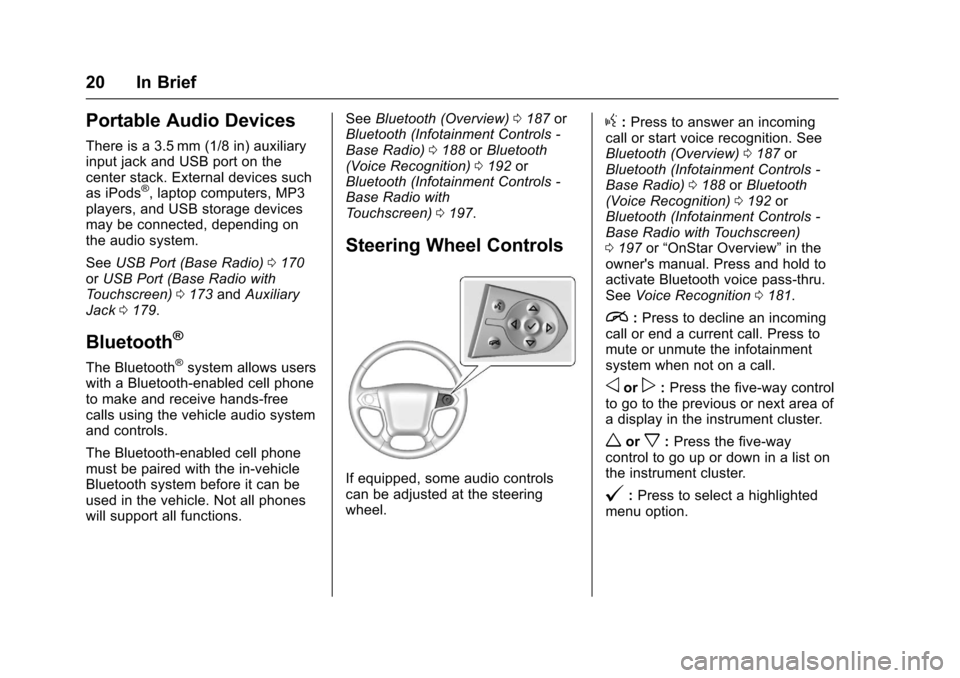
If equipped, some audio controlscan be adjusted at the steeringwheel.
g:Press to answer an incomingcall or start voice recognition. SeeBluetooth (Overview)0187orBluetooth (Infotainment Controls -Base Radio)0188orBluetooth(Voice Recognition)0192orBluetooth (Infotainment Controls -Base Radio with Touchscreen)0197or“OnStar Overview”in theowner's manual. Press and hold toactivate Bluetooth voice pass-thru.SeeVoice Recognition0181.
i:Press to decline an incomingcall or end a current call. Press tomute or unmute the infotainmentsystem when not on a call.
oorp:Press the five-way controlto go to the previous or next area ofadisplayintheinstrumentcluster.
worx:Press the five-waycontrol to go up or down in a list onthe instrument cluster.
@:Press to select a highlightedmenu option.
Page 24 of 419
Chevrolet Colorado Owner Manual (GMNA-Localizing-U.S./Canada/Mexico-10122675) - 2017 - crc - 8/22/16
In Brief 23
Lane Departure
Warning (LDW)
If equipped, LDW may help avoidunintentional lane departures atspeeds of 56 km/h (35 mph) orgreater. LDW uses a camera sensorto detect the lane markings. The
LDW light,@,isgreenifalane
marking is detected. If the vehicledeparts the lane without using a turnsignal in that direction, the light willchange to amber and flash. Inaddition, beeps will sound.
SeeLane Departure Warning(LDW)0264.
Rear Vision
Camera (RVC)
If equipped, RVC displays a view ofthe area behind the vehicle, on theinfotainment display, when thevehicle is shifted into R (Reverse).
SeeRear Vision Camera(RVC)0261.
Power Outlets
Accessory power outlets can beused to plug in electrical equipment,such as a cell phone, MP3player, etc.
The vehicle may have accessorypower outlets:
.On the center stack below theclimate control system,if equipped.
.On the center floor console,if equipped.
.On the rear of the center storageconsole.
Lift the cover to access and replacewhen not in use.
SeePower Outlets0107.
Performance and
Maintenance
Traction Control/
Electronic Stability
Control
The Traction Control System (TCS)limits wheel spin. The system is onwhen the vehicle is started.
The StabiliTrak system assists withdirectional control of the vehicle indifficult driving conditions. Thesystem is on when the vehicle isstarted.
.To t u r n o f f T C S , p r e s s a n drelease the TCS/StabiliTrak
buttongon the center stack.i
illuminates in the instrumentcluster.
.To t u r n o f f b o t h T C S a n d
StabiliTrak, press and holdgon
the center stack, untiliandg
illuminate in the instrumentcluster.
Page 105 of 419
Chevrolet Colorado Owner Manual (GMNA-Localizing-U.S./Canada/Mexico-10122675) - 2017 - crc - 8/22/16
104 Instruments and Controls
Steering Wheel Controls
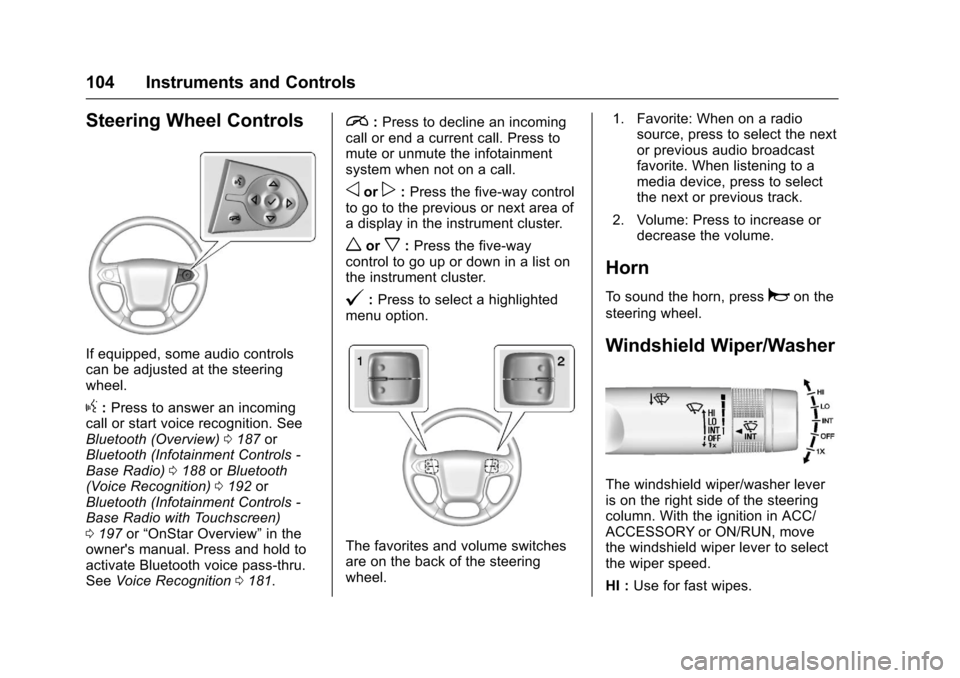
If equipped, some audio controlscan be adjusted at the steeringwheel.
g:Press to answer an incomingcall or start voice recognition. SeeBluetooth (Overview)0187orBluetooth (Infotainment Controls -Base Radio)0188orBluetooth(Voice Recognition)0192orBluetooth (Infotainment Controls -Base Radio with Touchscreen)0197or“OnStar Overview”in theowner's manual. Press and hold toactivate Bluetooth voice pass-thru.SeeVoice Recognition0181.
i:Press to decline an incomingcall or end a current call. Press tomute or unmute the infotainmentsystem when not on a call.
oorp:Press the five-way controlto go to the previous or next area ofadisplayintheinstrumentcluster.
worx:Press the five-waycontrol to go up or down in a list onthe instrument cluster.
@:Press to select a highlightedmenu option.
The favorites and volume switchesare on the back of the steeringwheel.
1. Favorite: When on a radiosource, press to select the nextor previous audio broadcastfavorite. When listening to amedia device, press to selectthe next or previous track.
2. Volume: Press to increase ordecrease the volume.
Horn
To s o u n d t h e h o r n , p r e s saon the
steering wheel.
Windshield Wiper/Washer
The windshield wiper/washer leveris on the right side of the steeringcolumn. With the ignition in ACC/ACCESSORY or ON/RUN, movethe windshield wiper lever to selectthe wiper speed.
HI :Use for fast wipes.
Page 141 of 419
Chevrolet Colorado Owner Manual (GMNA-Localizing-U.S./Canada/Mexico-10122675) - 2017 - crc - 8/22/16
140 Instruments and Controls
3. PressoBACK on the
faceplate or touch0screen
button to return to the previousmenu or exit.
Turn the vehicle to ON/RUN toaccess the Settings menu, thenselect SETTINGS from the Homepage on the infotainment display.
Personalization Menus
The following list of menu items maybe available:
.Time and Date
.Language (Language)
.Rear Seat Reminder
.Te e n D r i v e r
.Va l e t M o d e
.Radio
.Vehicle
.Bluetooth
.Apple CarPlay
.Android Auto
.Voice
.Display
.Rear Camera
.Return to Factory Settings
.Software Information
Detailed information for each menufollows.
Time and Date
Manually set the time and date. SeeClock0106.
Language (Language)
Select Language, then select fromthe available language(s).
The selected language will displayon the system, and voicerecognition will reflect the selectedlanguage.
Rear Seat Reminder
This allows for a chime and amessage“Look in Rear Seat”whenthe rear door has been openedbefore or during operation of thevehicle.
Select Off or On.
Teen Driver
See“Te e n D r i v e r”under“Settings”in the infotainment manual.
Valet Mode (If Equipped)
This will lock the infotainmentsystem and steering wheel controls.It may also limit access to vehiclestorage locations (if equipped).
To e n a b l e v a l e t m o d e :
1. Enter a four-digit code on thekeypad.
2. Select Enter to go to theconfirmation screen.
3. Re-enter the four-digit code.
To u c h L O C K o r U N L O C K t o l o c k o runlock the system. Touch Back togo back to the previous menu.
Radio
To u c h t o d i s p l a y t h e R a d i o m e n uand the following may display:
.Manage Favorites
.Number of Favorites Shown
.Audible Touch Feedback
.Auto Volume
Page 142 of 419
Chevrolet Colorado Owner Manual (GMNA-Localizing-U.S./Canada/Mexico-10122675) - 2017 - crc - 8/22/16
Instruments and Controls 141
.Maximum Startup Volume
Manage Favorites
This allows favorites to be edited.See“Manage Favorites”in“RadioSetup”underHome Page (BaseRadio)0158orHome Page (BaseRadio with Touchscreen)0160or“Manage Favorites”in“Settings”under“Radio”in the infotainmentmanual.
Number of Favorites Shown
To u c h t o s e t t h e n u m b e r o f f a v o r i t e sto display.
Select the desired number or selectAuto and the infotainment systemwill automatically adjust the numberof favorites shown.
Audible Touch Feedback
This allows Audible TouchFeedback to be turned on or off.
Select Off or On.
Auto Volume
This feature adjusts the volumebased on vehicle speed andambient noise.
Select Off, Low, Medium-Low,Medium, Medium-High, or High.
Maximum Startup Volume
This feature sets the maximumstartup volume. If the vehicle isstarted and the volume is greaterthan this level, the volume isadjusted to this level. To set themaximum startup volume, touch +or✓to increase or decrease.
Vehicle
Select and the following maydisplay:
.Climate and Air Quality
.Comfort and Convenience
.Lighting
.Power Door Locks
.Remote Lock, Unlock, Start
Climate and Air Quality
Select and the following maydisplay:
.Auto Fan Speed
.Auto Defog
.Auto Rear Defog
Auto Fan Speed
This feature will set the maximumauto fan speed.
Select Low, Medium, or High.
Auto Defog
This allows the feature to be turnedon or off.
Select Off or On.
Auto Rear Defog
This allows the feature to be turnedon or off.
Select Off or On.
Comfort and Convenience
Select and the following maydisplay:
.Chime Volume
Chime Volume
This allows the selection of thechime volume level.
Select + or✓to adjust the volume.
Page 144 of 419
Chevrolet Colorado Owner Manual (GMNA-Localizing-U.S./Canada/Mexico-10122675) - 2017 - crc - 8/22/16
Instruments and Controls 143
Remote Start Auto Heat Seats
If equipped and turned on, thisfeature will turn the heated seats onwhen using remote start oncold days.
Select Off or On.
Bluetooth
Select and the following maydisplay:
.Pair New Device
.Device Management
.Ringtones
.Voice Mail Numbers
.Te x t M e s s a g e A l e r t s
Pair New Device
Select to pair a new device. See“Pairing”underBluetooth(Overview)0187orBluetooth(Infotainment Controls - BaseRadio)0188orBluetooth (VoiceRecognition)0192orBluetooth(Infotainment Controls - Base Radiowith Touchscreen)0197or“Pairing”
in“Infotainment Controls”under“Bluetooth”in the infotainmentmanual.
Device Management
Select to connect to a differentphone source, disconnect a phone,or delete a phone.
Ringtones
To u c h t o c h a n g e t h e r i n g t o n e f o rthe specific phone. The phone doesnot need to be connected to changethe ring tones.
Voice Mail Numbers
This feature displays the voice mailnumber for all connected phones.To c h a n g e t h e v o i c e m a i l n u m b e r ,select EDIT or touch the EDITbutton. Type a new number, thenselect SAVE or touch the SAVEbutton.
Text Message Alerts
This allows the feature to be turnedon or off.
Select Off or On.
Apple CarPlay™
Select and the following maydisplay:
.Apple CarPlay
.Manage Apple CarPlay Devices
Apple CarPlay
This feature allows Apple devices tobe connected to the infotainmentsystem through a USB port. See“Apple CarPlay and Android Auto”under“Phone”in the infotainmentmanual.
Select Off or On.
Manage Apple CarPlay Devices
Select to manage Apple devices.Apple CarPlay must be on for thisfeature to be accessed. See“AppleCarPlay and Android Auto”under“Phone”in the infotainment manual.
Android Auto™
Select and the following maydisplay:
.Android Auto
.Manage Android Auto Devices