steering CHEVROLET COLORADO 2018 Owner's Guide
[x] Cancel search | Manufacturer: CHEVROLET, Model Year: 2018, Model line: COLORADO, Model: CHEVROLET COLORADO 2018Pages: 421, PDF Size: 5.58 MB
Page 123 of 421
Chevrolet Colorado Owner Manual (GMNA-Localizing-U.S./Canada/Mexico-
11349743) - 2018 - crc - 10/12/17
122 Instruments and Controls
the atmosphere. A few driving
trips with the adapter removed
may turn off the light.
. Poor fuel quality can cause
inefficient engine operation and
poor driveability, which may go
away once the engine is warmed
up. If this occurs, change the
fuel brand. It may require at
least one full tank of the proper
fuel to turn the light off. See Fuel
0 255.
If the light remains on, see your
dealer.
Emissions Inspection and
Maintenance Programs
If the vehicle requires an Emissions
Inspection/Maintenance test, the
test equipment will likely connect to
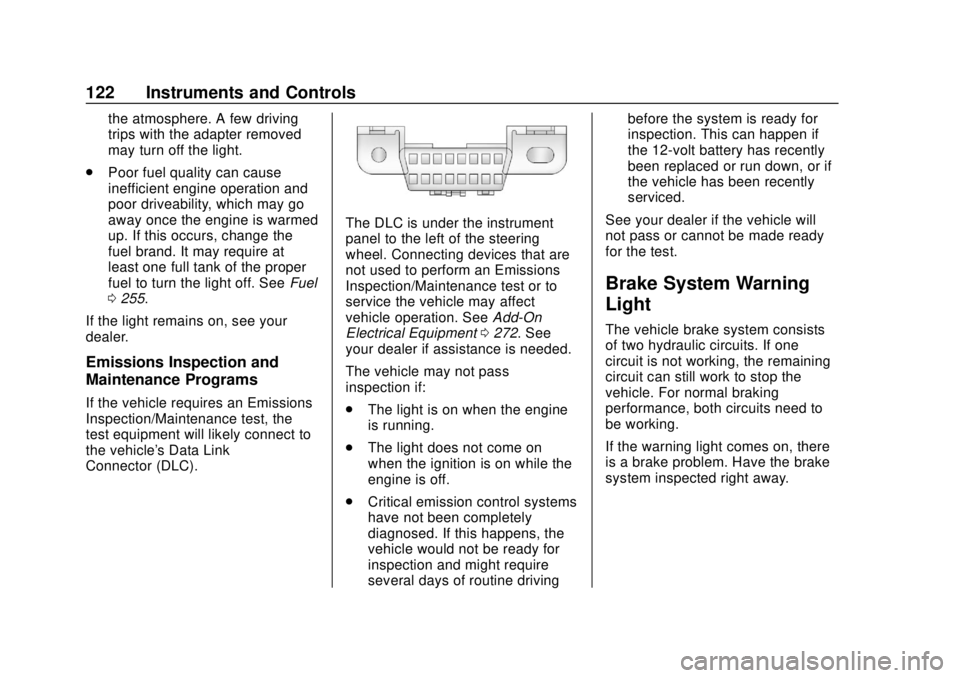
the vehicle's Data Link
Connector (DLC).
The DLC is under the instrument
panel to the left of the steering
wheel. Connecting devices that are
not used to perform an Emissions
Inspection/Maintenance test or to
service the vehicle may affect
vehicle operation. See Add-On
Electrical Equipment 0272. See
your dealer if assistance is needed.
The vehicle may not pass
inspection if:
. The light is on when the engine
is running.
. The light does not come on
when the ignition is on while the
engine is off.
. Critical emission control systems
have not been completely
diagnosed. If this happens, the
vehicle would not be ready for
inspection and might require
several days of routine driving before the system is ready for
inspection. This can happen if
the 12-volt battery has recently
been replaced or run down, or if
the vehicle has been recently
serviced.
See your dealer if the vehicle will
not pass or cannot be made ready
for the test.
Brake System Warning
Light
The vehicle brake system consists
of two hydraulic circuits. If one
circuit is not working, the remaining
circuit can still work to stop the
vehicle. For normal braking
performance, both circuits need to
be working.
If the warning light comes on, there
is a brake problem. Have the brake
system inspected right away.
Page 135 of 421
Chevrolet Colorado Owner Manual (GMNA-Localizing-U.S./Canada/Mexico-
11349743) - 2018 - crc - 10/12/17
134 Instruments and Controls
Presspto select the distance or
reset best value. Use
wandxto
choose the distance and press
V.
Press
wandxto select “Reset
Best Score.” Press
Vto reset the
best average fuel economy. After
reset, the best value displays “-,-”
until the selected distance has been
traveled.
The display provides information on
how current driving behavior affects
the running average and how well
recent driving compares to the best
that has been achieved for the
selected distance.
Timer : This display can be used as
a timer. To start the timer, press
V
while this display is active. The
display will show the amount of time
that has passed since the timer was
last reset. To stop the timer, press
V
briefly while this display is active
and the timer is running. To reset
the timer to zero, press and hold
V
while this display is active, or presspand select reset. Speed Limit :
Shows sign
information, which comes from a
roadway database in the onboard
navigation, if equipped.
Battery Voltage : Displays the
current battery voltage, if equipped.
Battery voltage changes are normal
while driving. See Charging System
Light 0120. If there is a problem
with the battery charging system,
the DIC will display a message.
Oil Pressure : Oil pressure is
displayed in either kilopascal (kPa)
or in pounds per square inch (psi).
Engine Hours : Shows the total
number of hours the engine has run.
Off Road Page : This page shows
the traction, four wheel drive, and
steering angle states. When the
front or rear axles are locked, a lock
icon is displayed. See Off-Road
Driving 0201.
Transmission Fluid
Temperature : Shows the
temperature of the automatic
transmission fluid in either degrees
Celsius (°C) or degrees
Fahrenheit (°F). Trailer Brake (If Equipped) :
TRAILER GAIN shows the trailer
gain setting. This setting can be
adjusted from 0.0 to 10.0 with either
a trailer connected or disconnected.
OUTPUT shows the power output to
the trailer anytime a trailer with
electric brakes is connected. Output
is displayed as a bar graph. Dashes
may appear in the OUTPUT display
if a trailer is not connected.
Blank Page :
Shows no
information.
Page 138 of 421
Chevrolet Colorado Owner Manual (GMNA-Localizing-U.S./Canada/Mexico-
11349743) - 2018 - crc - 10/12/17
Instruments and Controls 137
Valet Mode
This will lock the infotainment
system and steering wheel controls.
It may also limit access to vehicle
storage locations, if equipped.
To enable valet mode:1. Enter a four-digit code on the keypad.
2. Select Enter to go to the confirmation screen.
3. Re-enter the four-digit code.
Touch LOCK or UNLOCK to lock or
unlock the system. Touch Back to
go back to the previous menu.
Teen Driver
See “Teen Driver” under“Settings”
in the infotainment manual.
Radio
Touch to display the Radio menu
and the following may display:
. Manage Favorites
. Number of Favorites Shown
. Audible Touch Feedback .
Auto Volume
. Maximum Startup Volume
Manage Favorites
This allows favorites to be edited.
See “Manage Favorites” in“Radio
Setup” underHome Page 0153 or
“Manage Favorites” in“Settings”
under “Radio” in the infotainment
manual.
Number of Favorites Shown
Touch to set the number of favorites
to display.
Select the desired number or select
Auto and the infotainment system
will automatically adjust the number
of favorites shown.
Audible Touch Feedback
This allows Audible Touch
Feedback to be turned on or off.
Select Off or On.
Auto Volume
This feature adjusts the volume
based on vehicle speed and
ambient noise. Select Off, Low, Medium-Low,
Medium, Medium-High, or High.
Maximum Startup Volume
This feature sets the maximum
startup volume. If the vehicle is
started and the volume is greater
than this level, the volume is
adjusted to this level. To set the
maximum startup volume, touch +
or
−to increase or decrease.
Vehicle
Select and the following may
display:
.
Climate and Air Quality
. Comfort and Convenience
. Lighting
. Power Door Locks
. Remote Lock, Unlock, Start
Climate and Air Quality
Select and the following may
display:
.Auto Fan Speed
. Auto Defog
Page 143 of 421
Chevrolet Colorado Owner Manual (GMNA-Localizing-U.S./Canada/Mexico-
11349743) - 2018 - crc - 10/12/17
142 Lighting
Lighting
Exterior Lighting
Exterior Lamp Controls . . . . . . . 142
Exterior Lamps OffReminder . . . . . . . . . . . . . . . . . . . 143
Headlamp High/Low-Beam Changer . . . . . . . . . . . . . . . . . . . . 143
Flash-to-Pass . . . . . . . . . . . . . . . . 143
Daytime Running Lamps (DRL) . . . . . . . . . . . . . . . 144
Automatic Headlamp System . . . . . . . . . . . . . . . . . . . . . . 144
Hazard Warning Flashers . . . . . 145
Turn and Lane-Change Signals . . . . . . . . . . . . . . . . . . . . . . 145
Fog Lamps . . . . . . . . . . . . . . . . . . . 146
Interior Lighting
Instrument Panel Illumination Control . . . . . . . . . . . . . . . . . . . . . . 147
Cargo Lamp . . . . . . . . . . . . . . . . . . 147
Dome Lamps . . . . . . . . . . . . . . . . . 147
Reading Lamps . . . . . . . . . . . . . . 148
Lighting Features
Entry Lighting . . . . . . . . . . . . . . . . 148
Exit Lighting . . . . . . . . . . . . . . . . . . 148
Battery Load Management . . . 148 Battery Power Protection . . . . . 149
Exterior Lighting Battery
Saver . . . . . . . . . . . . . . . . . . . . . . . 149
Exterior Lighting
Exterior Lamp Controls
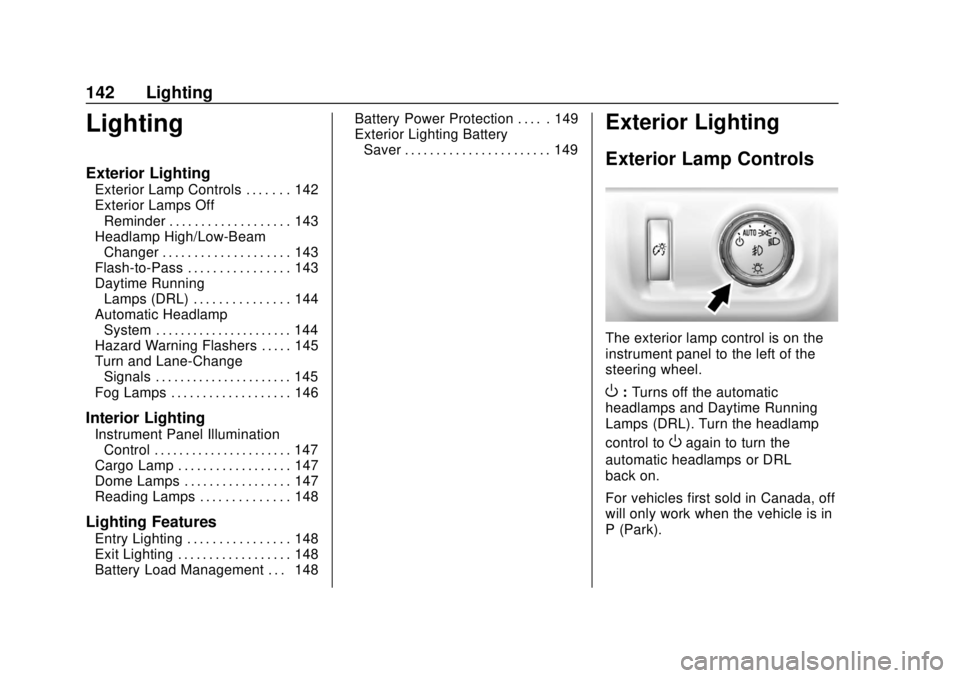
The exterior lamp control is on the
instrument panel to the left of the
steering wheel.
O: Turns off the automatic
headlamps and Daytime Running
Lamps (DRL). Turn the headlamp
control to
Oagain to turn the
automatic headlamps or DRL
back on.
For vehicles first sold in Canada, off
will only work when the vehicle is in
P (Park).
Page 147 of 421
Chevrolet Colorado Owner Manual (GMNA-Localizing-U.S./Canada/Mexico-
11349743) - 2018 - crc - 10/12/17
146 Lighting
If after signaling a turn or a lane
change the arrows flash rapidly or
do not come on, a signal bulb could
be burned out.
Replace any burned out bulbs. If a
bulb is not burned out, check the
fuse. SeeFuses and Circuit
Breakers 0305.
Turn Signal On Chime
If the turn signal is left on for more
than 1.2 km (0.75 mi), a chime
sounds at each flash of the turn
signal. The message TURN
SIGNAL ON will also appear in the
Driver Information Center (DIC). To
turn the chime and message off,
move the turn signal lever to the off
position.Fog Lamps
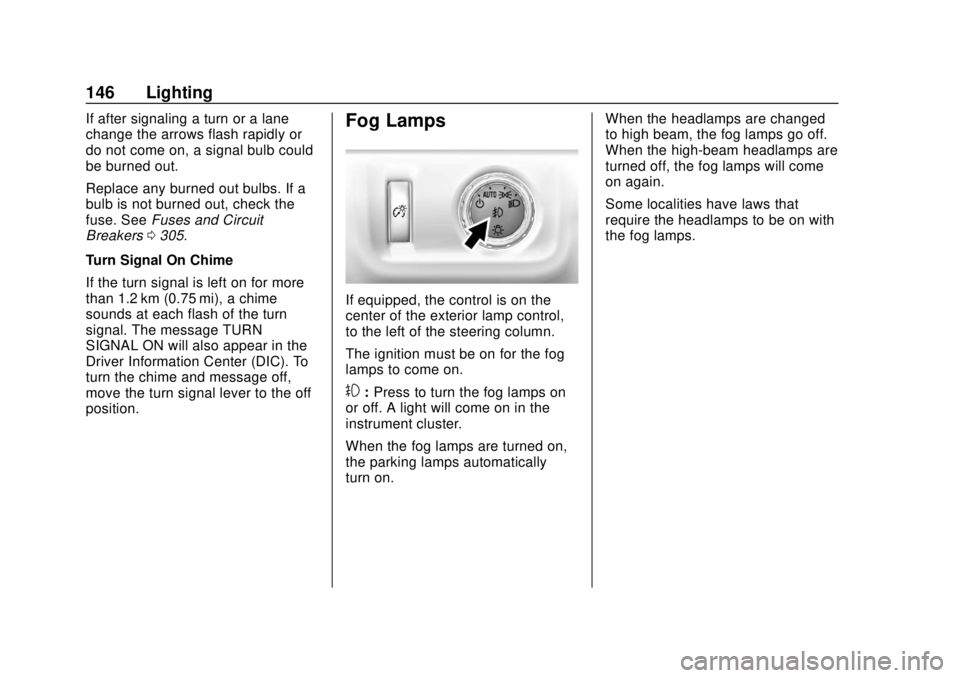
If equipped, the control is on the
center of the exterior lamp control,
to the left of the steering column.
The ignition must be on for the fog
lamps to come on.
#: Press to turn the fog lamps on
or off. A light will come on in the
instrument cluster.
When the fog lamps are turned on,
the parking lamps automatically
turn on. When the headlamps are changed
to high beam, the fog lamps go off.
When the high-beam headlamps are
turned off, the fog lamps will come
on again.
Some localities have laws that
require the headlamps to be on with
the fog lamps.
Page 148 of 421
Chevrolet Colorado Owner Manual (GMNA-Localizing-U.S./Canada/Mexico-
11349743) - 2018 - crc - 10/12/17
Lighting 147
Interior Lighting
Instrument Panel
Illumination Control
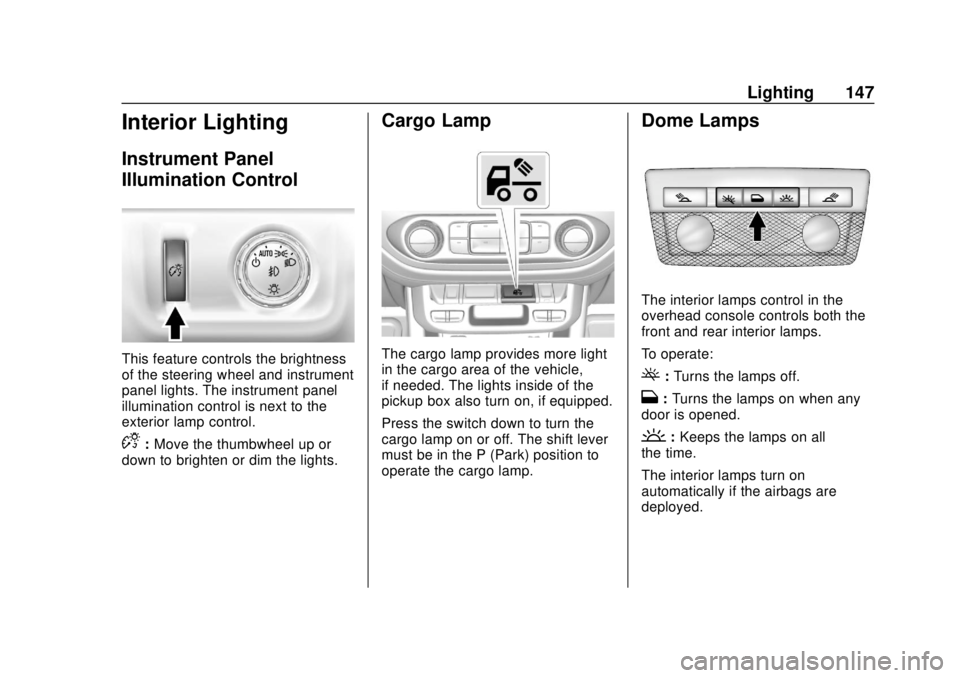
This feature controls the brightness
of the steering wheel and instrument
panel lights. The instrument panel
illumination control is next to the
exterior lamp control.
D:Move the thumbwheel up or
down to brighten or dim the lights.
Cargo Lamp
The cargo lamp provides more light
in the cargo area of the vehicle,
if needed. The lights inside of the
pickup box also turn on, if equipped.
Press the switch down to turn the
cargo lamp on or off. The shift lever
must be in the P (Park) position to
operate the cargo lamp.
Dome Lamps
The interior lamps control in the
overhead console controls both the
front and rear interior lamps.
To operate:
(: Turns the lamps off.
H: Turns the lamps on when any
door is opened.
': Keeps the lamps on all
the time.
The interior lamps turn on
automatically if the airbags are
deployed.
Page 152 of 421
Chevrolet Colorado Owner Manual (GMNA-Localizing-U.S./Canada/Mexico-
11349743) - 2018 - crc - 10/12/17
Infotainment System 151
functions when driving. These
functions may gray out when they
are unavailable. Many infotainment
features are also available through
the instrument cluster and steering
wheel controls.
Before driving:
.Become familiar with the
operation, center stack controls,
and infotainment display
controls.
. Set up the audio by presetting
favorite stations, setting the
tone, and adjusting the
speakers.
. Set up phone numbers in
advance so they can be called
easily by pressing a single
control or by using a single voice
command if equipped with
Bluetooth phone capability.
See Defensive Driving 0199.
To play the infotainment system with
the ignition off, see Retained
Accessory Power (RAP) 0220.Theft-Deterrent Feature
TheftLock is designed to discourage
theft of the vehicle's radio by
learning a portion of the Vehicle
Identification Number (VIN). The
radio does not operate if it is stolen
or moved to a different vehicle.
Page 167 of 421
Chevrolet Colorado Owner Manual (GMNA-Localizing-U.S./Canada/Mexico-
11349743) - 2018 - crc - 10/12/17
166 Infotainment System
All devices launch audio differently.
When selecting Bluetooth Audio as
a source, the radio may show as
paused on the screen. Press play
on the device or touch
ron the
infotainment display to begin
playback.
Some phones support sending
Bluetooth music information to
display on the radio. When the radio
receives this information, it will
check to see if any is available and
display it. For more information
about supported Bluetooth features,
see www.gm.com/bluetooth in the
U.S. and Canada only.
Voice Recognition
If equipped, voice recognition allows
for hands-free operation within the
audio and phone applications. This
feature can be started by pressing
gon the steering wheel or by
selecting
gon the infotainment
display.
However, not all features within
these areas are supported by voice
commands. Generally, only complex
tasks that require multiple manual
interactions to complete are
supported by voice commands.
For example, tasks that take more
than one or two button presses such
as selecting a song or artist to play
from a media device would be
supported by voice commands.
Other tasks, like adjusting the
volume or seeking up or down are
audio features that are easily
performed by pressing one or two
buttons, and are not supported by
voice commands. In general there are flexible ways to
speak commands for completing the
tasks. Most of them, except
destination entry and voice keypad,
can be completed in a single
command. If the task takes more
than one command to complete, the
first command would be to indicate
the kind of task that is to be
performed. The system replies with
prompts that lead through a dialog
to enter the necessary information.
Voice recognition can be used when
the ignition is on or when Retained
Accessory Power (RAP) is active.
See
Retained Accessory Power
(RAP) 0220.
Using Voice Recognition
Voice recognition becomes available
once the system has been
initialized. This begins when the
ignition is turned on. Initialization
may take a few moments.
Page 168 of 421
Chevrolet Colorado Owner Manual (GMNA-Localizing-U.S./Canada/Mexico-
11349743) - 2018 - crc - 10/12/17
Infotainment System 167
1. Pressgon the steering wheel
to activate voice recognition,
or select
gon the infotainment
display.
. If voice recognition is
started from the steering
wheel control, the
instrument cluster displays
the selections and visual
dialog content.
. If voice recognition is
started from the
infotainment display, the
selections and visual dialog
content appear on both the
infotainment display and
the instrument cluster
display.
2. The audio system mutes and the system plays a prompt
followed by a beep.
3. Wait until after the beep completes, then clearly speak
one of the commands
described in this section. Press
gto interrupt any voice
recognition system prompt. For
example, if the prompt seems
to be taking too long to finish,
press
gagain and the beep
should happen right away.
There are two voice prompt modes
supported:
. Long verbal prompts: The longer
prompts provide more
information regarding the
supported actions.
. Short prompts: The short
prompts provide simple
instructions about what can be
stated.
If a command is not spoken, the
voice recognition system says a
help prompt.
Prompts and Screen Displays
While a voice recognition session is
active, there will be corresponding
buttons on screens displayed.
Manual interaction in the voice
recognition session is permitted.
Interaction during a voice session
may be completed entirely using voice commands, or some
selections may expedite a session.
If a selection is made using a
manual control, the dialog will
progress in the same way as if the
selection was made through a voice
command. Once the system is able
to complete the task, or the session
is terminated, the voice recognition
dialog stops.
An example of this type of manual
intervention is pressing displayed
number list entry instead of
speaking the number associated
with the entry desired.
Canceling Voice Recognition
.
Touch the Home screen button
to terminate the voice
recognition session which was
initiated by touching
gon the
infotainment display.
. Touch or say “Cancel”or“Exit”
to terminate the voice
recognition session and display
the screen from which voice
recognition was initiated.
Page 169 of 421
Chevrolet Colorado Owner Manual (GMNA-Localizing-U.S./Canada/Mexico-
11349743) - 2018 - crc - 10/12/17
168 Infotainment System
.Pression the steering wheel
to terminate the voice session
and display the screen from
which voice recognition was
initiated.
Helpful Hints for Speaking
Commands
Voice recognition can understand
commands that are either naturally
stated in sentence form (English
only), or direct commands that state
the application and the task.
For languages that do not support
natural language commands in
sentence form, use the direct
commands shown as examples on
the display screen.
For best results:
. Listen for the prompt and wait
for the beep before saying a
command or reply.
. Say “Help” or look at the screen
display for commands.
. Voice recognition system prompt
can be interrupted during a
prompt by pressing
gagain. For example, if the prompt
seems to be taking too long to
finish, or if what is being
prompted causes a need for an
immediate reply, press
gagain
and wait for the beep.
. Speak the command naturally,
not too fast, not too slow. Use
direct commands without a lot of
extra words.
. Usually Phone and Audio
commands can be spoken in a
single command.
For example, “Call Dave Smith
at work,” “Play” followed by the
artist or song name, or “Tune”
followed by the radio station
number.
There is no need to memorize
specific command words. Direct
commands might be more clearly
understood by the system. An
example of a direct command would
be “Call 555-1212.” Examples of
these direct commands are
displayed on most of the screens
while a voice session is active.
If “Phone” or“Phone Commands,” isstated, the system understands that
a phone call is requested and will
respond with questions until enough
details are gathered.
If the phone number has been
saved with a name and a place, the
direct command should include
both, for example
“Call Dave Smith
at work.”
Using Voice Recognition for
List Options
When a list is displayed, a voice
prompt will ask to confirm or select
an option from that list. A selection
can be made by manually selecting
the item, or by speaking the line
number for the item to select.
When a screen contains a list,
options may be available but not
displayed. The list on a voice
recognition screen functions the
same as a list on other screens.
Scrolling can be used to help
display other entries from the list.
Manually scrolling or paging the list
on a screen during a voice
recognition session suspends the
current voice recognition event and