Onstar CHEVROLET COLORADO 2018 Owner's Manual
[x] Cancel search | Manufacturer: CHEVROLET, Model Year: 2018, Model line: COLORADO, Model: CHEVROLET COLORADO 2018Pages: 421, PDF Size: 5.58 MB
Page 2 of 421

Chevrolet Colorado Owner Manual (GMNA-Localizing-U.S./Canada/Mexico-
11349743) - 2018 - crc - 10/12/17
ContentsIntroduction . . . . . . . . . . . . . . . . . . . . . . 2
In Brief . . . . . . . . . . . . . . . . . . . . . . . . . . . 5
Keys, Doors, and Windows . . . . . 27
Seats and Restraints . . . . . . . . . . . 45
Storage . . . . . . . . . . . . . . . . . . . . . . . 103
Instruments and Controls . . . . . . 105
Lighting . . . . . . . . . . . . . . . . . . . . . . . 142
Infotainment System . . . . . . . . . . 150
Climate Controls . . . . . . . . . . . . . . 191
Driving and Operating . . . . . . . . . 197
Vehicle Care . . . . . . . . . . . . . . . . . . 274
Service and Maintenance . . . . . 363
Technical Data . . . . . . . . . . . . . . . . 378
Customer Information . . . . . . . . . 382
Reporting Safety Defects . . . . . . 393
OnStar . . . . . . . . . . . . . . . . . . . . . . . . 396
Index . . . . . . . . . . . . . . . . . . . . 408
Page 21 of 421
Chevrolet Colorado Owner Manual (GMNA-Localizing-U.S./Canada/Mexico-
11349743) - 2018 - crc - 10/12/17
20 In Brief
Satellite Radio
Vehicles with a SiriusXM satellite
radio tuner and a valid SiriusXM
satellite radio subscription can
receive SiriusXM programming.
SiriusXM Satellite Radio
Service
SiriusXM is a satellite radio service
based in the 48 contiguous United
States and 10 Canadian provinces.
SiriusXM satellite radio has a wide
variety of programming and
commercial-free music, coast to
coast, and in digital-quality sound.
A fee is required to receive the
SiriusXM service.
For more information refer to:
.www.siriusxm.com or call
1-888-601-6296 (U.S.).
. www.siriusxm.ca or call
1-877-438-9677 (Canada).
See Satellite Radio 0156.
Portable Audio Devices
There is a 3.5 mm (1/8 in) auxiliary
input jack and USB port on the
center stack. External devices such
as iPods
®, laptop computers, MP3
players, and USB storage devices
may be connected, depending on
the audio system.
See USB Port 0159 andAuxiliary
Jack 0165.
Bluetooth®
The Bluetooth system allows users
with a Bluetooth-enabled cell phone
to make and receive hands-free
calls using the vehicle audio system
and controls.
The Bluetooth-enabled cell phone
must be paired with the in-vehicle
Bluetooth system before it can be
used in the vehicle. Not all phones
will support all functions.
See Bluetooth (Infotainment
Controls) 0178 orBluetooth
(Overview) 0172 orBluetooth
(Voice Recognition) 0174.
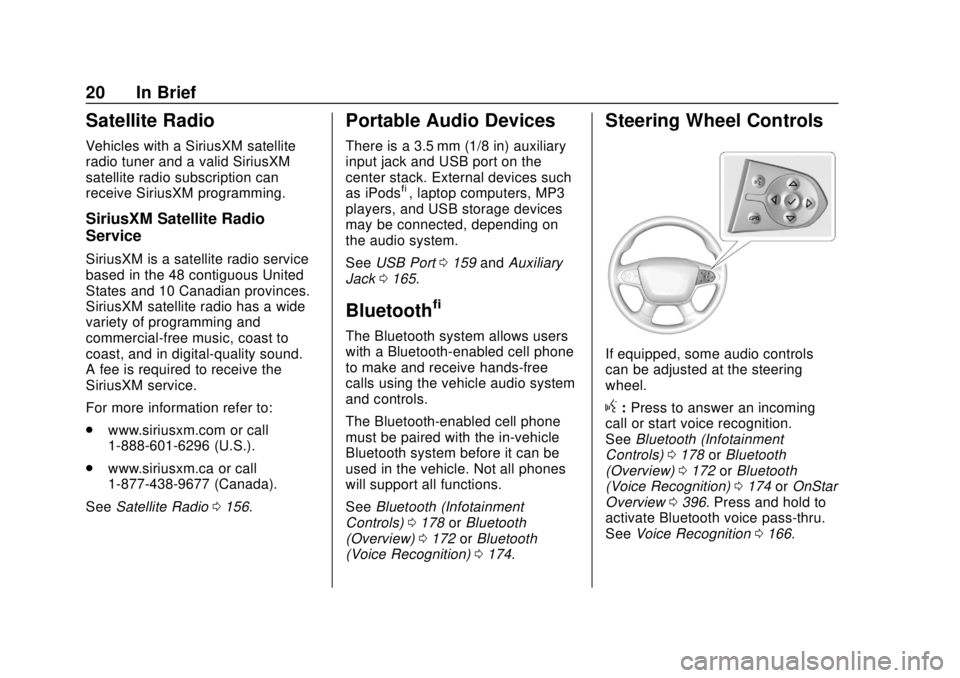
Steering Wheel Controls
If equipped, some audio controls
can be adjusted at the steering
wheel.
g:Press to answer an incoming
call or start voice recognition.
See Bluetooth (Infotainment
Controls) 0178 orBluetooth
(Overview) 0172 orBluetooth
(Voice Recognition) 0174 orOnStar
Overview 0396. Press and hold to
activate Bluetooth voice pass-thru.
See Voice Recognition 0166.
Page 31 of 421
Chevrolet Colorado Owner Manual (GMNA-Localizing-U.S./Canada/Mexico-
11349743) - 2018 - crc - 10/12/17
30 Keys, Doors, and Windows
learned and all previously
known keys will no longer work
with the vehicle.
6. To learn the second key, turn the ignition off. Insert the
second key to be learned and
turn the ignition on.
After two keys are learned, the
remaining keys can be learned by
following the procedure in
“Programming with Two
Recognized Keys.”
The key has a bar-coded key tag
that the dealer or qualified locksmith
can use to make new keys. Store
this information in a safe place, not
in the vehicle.
If it becomes difficult to turn a key,
inspect the key blade for debris.
Periodically clean with a brush
or pick.
See your dealer if a replacement
key or additional key is needed.
If locked out of the vehicle, see
Roadside Assistance Program
0 386. With an active OnStar service plan,
an OnStar Advisor may remotely
unlock the vehicle. See
OnStar
Overview 0396.
Remote Keyless Entry
(RKE) System
See Radio Frequency Statement
0 392.
If there is a decrease in the Remote
Keyless Entry (RKE) operating
range:
. Check the distance. The
transmitter may be too far from
the vehicle.
. Check the location. Other
vehicles or objects may be
blocking the signal.
. Check the transmitter's battery.
See “Battery Replacement” later
in this section.
. If the transmitter is still not
working correctly, see your
dealer or a qualified technician
for service.
Remote Keyless Entry
(RKE) System Operation
The RKE transmitter functions may
work up to 60 m (197 ft) away from
the vehicle.
Other conditions can affect the
performance of the transmitter. See
Remote Keyless Entry (RKE)
System 030.
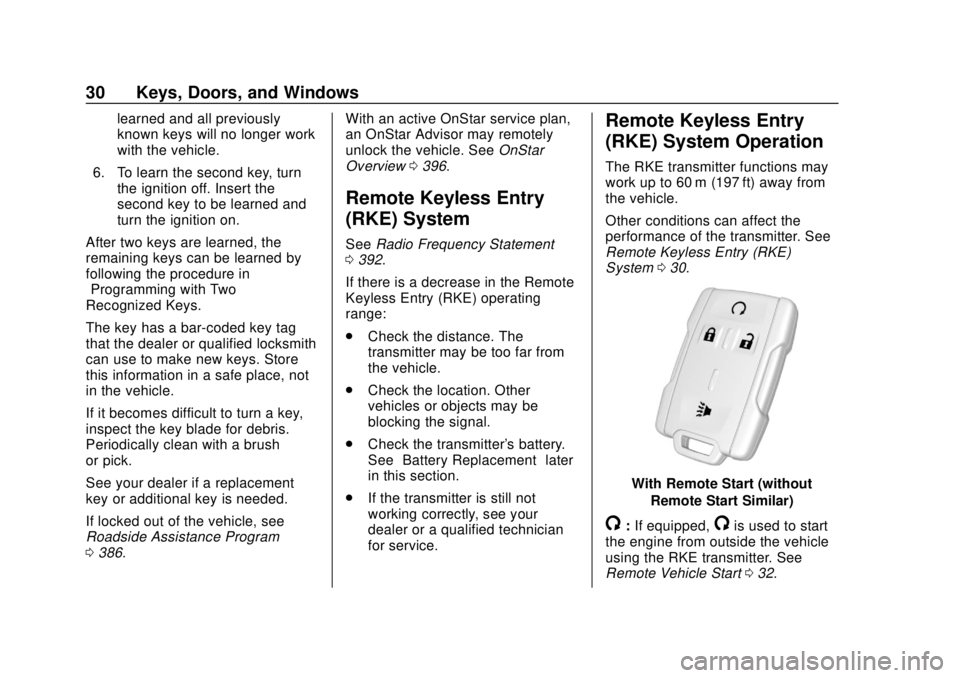
With Remote Start (without
Remote Start Similar)
/:If equipped,/is used to start
the engine from outside the vehicle
using the RKE transmitter. See
Remote Vehicle Start 032.
Page 42 of 421
Chevrolet Colorado Owner Manual (GMNA-Localizing-U.S./Canada/Mexico-
11349743) - 2018 - crc - 10/12/17
Keys, Doors, and Windows 41
Interior Mirrors
Interior Rearview Mirrors
Adjust the rearview mirror for a clear
view of the area behind your
vehicle.
If equipped with OnStar, the vehicle
may have three control buttons at
the bottom of the mirror. See your
dealer for more information about
OnStar and how to subscribe to it.
SeeOnStar Overview 0396.
Do not spray glass cleaner directly
on the mirror. Use a soft towel
dampened with water.
Manual Rearview Mirror
If equipped, push the tab forward for
daytime use and pull it rearward for
nighttime use to avoid glare from
the headlamps from behind.
Automatic Dimming
Rearview Mirror
If equipped, the mirror will
automatically reduce the glare of the
headlamps from behind. The
dimming feature comes on each
time the vehicle is started.
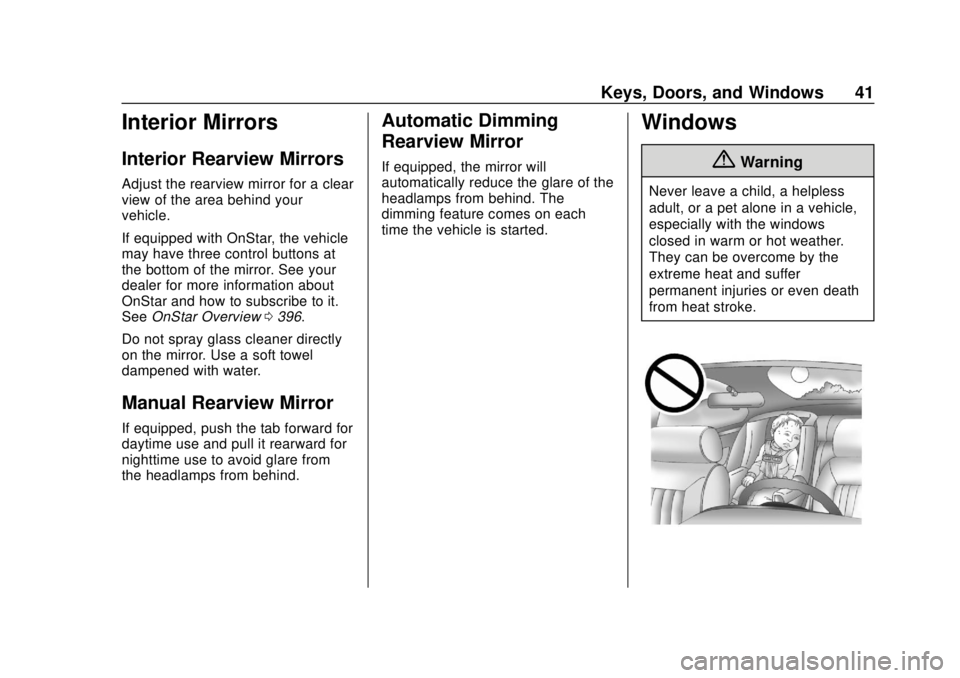
Windows
{Warning
Never leave a child, a helpless
adult, or a pet alone in a vehicle,
especially with the windows
closed in warm or hot weather.
They can be overcome by the
extreme heat and suffer
permanent injuries or even death
from heat stroke.
Page 107 of 421
Chevrolet Colorado Owner Manual (GMNA-Localizing-U.S./Canada/Mexico-
11349743) - 2018 - crc - 10/12/17
106 Instruments and Controls
Controls
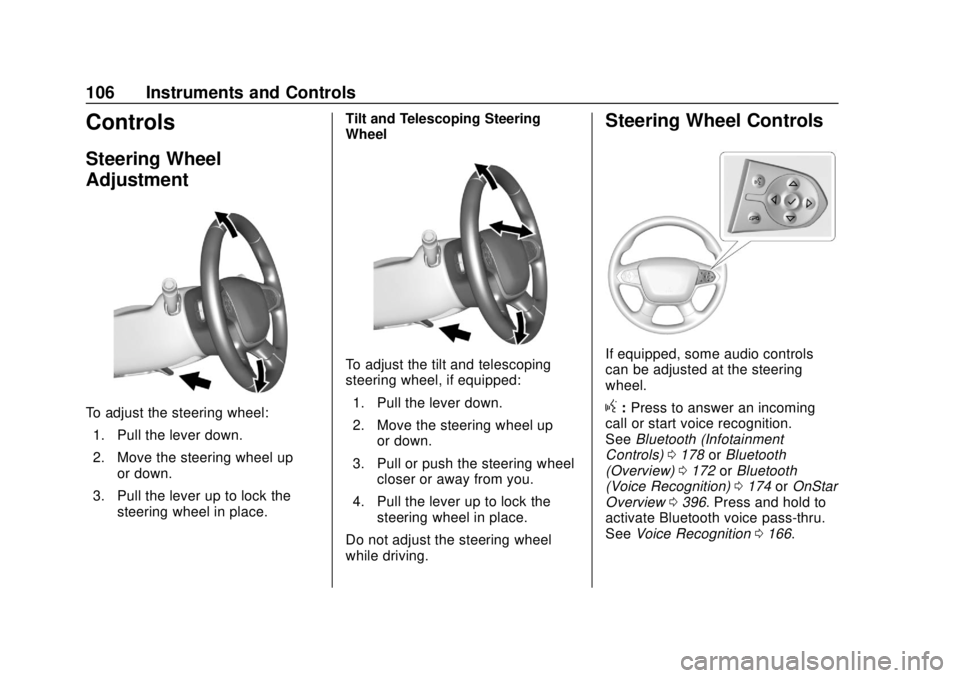
Steering Wheel
Adjustment
To adjust the steering wheel:1. Pull the lever down.
2. Move the steering wheel up or down.
3. Pull the lever up to lock the steering wheel in place. Tilt and Telescoping Steering
Wheel
To adjust the tilt and telescoping
steering wheel, if equipped:
1. Pull the lever down.
2. Move the steering wheel up or down.
3. Pull or push the steering wheel closer or away from you.
4. Pull the lever up to lock the steering wheel in place.
Do not adjust the steering wheel
while driving.
Steering Wheel Controls
If equipped, some audio controls
can be adjusted at the steering
wheel.
g: Press to answer an incoming
call or start voice recognition.
See Bluetooth (Infotainment
Controls) 0178 orBluetooth
(Overview) 0172 orBluetooth
(Voice Recognition) 0174 orOnStar
Overview 0396. Press and hold to
activate Bluetooth voice pass-thru.
See Voice Recognition 0166.
Page 109 of 421
Chevrolet Colorado Owner Manual (GMNA-Localizing-U.S./Canada/Mexico-
11349743) - 2018 - crc - 10/12/17
108 Instruments and Controls
windshield washer had been
activated. SeeWasher Fluid0293
for information on filling the
windshield washer fluid reservoir.
{Warning
In freezing weather, do not use
the washer until the windshield is
warmed. Otherwise the washer
fluid can form ice on the
windshield, blocking your vision.
Clear snow and ice from the wiper
blades and windshield before using
them. If frozen to the windshield,
carefully loosen or thaw them.
Damaged blades should be
replaced. See Wiper Blade
Replacement 0300.
Heavy snow or ice can overload the
wiper motor.
Wiper Parking
If the ignition is turned off while the
wipers are on LO, HI, or INT, they
will immediately stop. If the windshield wiper lever is then
moved to OFF before the driver
door is opened or within 10 minutes,
the wipers will restart and move to
the base of the windshield.
If the ignition is turned off while the
wipers are performing wipes due to
windshield washing, the wipers
continue to run until they reach the
base of the windshield.
Compass
The vehicle may have a compass
display on the Driver Information
Center (DIC). The compass receives
its heading and other information
from the Global Positioning
System (GPS) antenna, StabiliTrak,
and vehicle speed information.
The compass system is designed to
operate for a certain number of
miles or degrees of turn before
needing a signal from the GPS
satellites. When the compass
display shows CAL, drive the
vehicle for a short distance in an
open area where it can receive a
GPS signal. The compass systemwill automatically determine when a
GPS signal is restored and provide
a heading again.
Clock
Setting the Time and Date
To set the time:
1. Touch SETTINGS on the Home Page, then touch Time
and Date.
2. Touch Set Time, then touch
«
orªto increase or decrease
hours, minutes, and AM or PM.
Touch 12–24 Hr for 12 or
24 hour clock.
3. Touch
Sto go back to the
previous menu.
Auto Set requires an OnStar
service plan.
If auto timing is set, the time
displayed on the clock may not
update immediately when driving
into a new time zone.
Page 131 of 421
Chevrolet Colorado Owner Manual (GMNA-Localizing-U.S./Canada/Mexico-
11349743) - 2018 - crc - 10/12/17
130 Instruments and Controls
and the amount of fuel remaining in
the fuel tank. Fuel range cannot be
reset.
Average Vehicle Speed :Displays
the average vehicle speed of the
vehicle in kilometers per hour (km/h)
or miles per hour (mph). This
average is based on the various
vehicle speeds recorded since the
last reset. Reset the average speed
by pressing SET/CLR when it is
displayed.
Timer : To start the timer, press
SET/CLR while Timer is displayed.
The display will show the amount of
time that has passed since the timer
was last reset, not including time the
ignition is off. Time will continue to
be counted as long as the ignition is
on, even if another display is being
shown on the DIC. The timer will
record up to 99 hours, 59 minutes,
and 59 seconds (99:59:59) after
which the display will return to zero.
To stop the timer, press SET/CLR
briefly while Timer is displayed. To
reset the timer to zero, press and
hold SET/CLR. Navigation :
Used for the OnStar
Turn-by-Turn guidance. See OnStar
Overview 0396.
Blank Display : Displays no
information.
Vehicle Information Menu
(VEHICLE) Items
Press MENU on the turn signal
lever until the VEHICLE menu is
displayed. Use
w xto scroll
through the menu items. Not all
items are available on every vehicle.
The following is a list of all possible
menu items:
Remaining Oil Life : Displays an
estimate of the oil's remaining useful
life. If REMAINING OIL LIFE 99% is
displayed, that means 99% of the
current oil life remains.
When the remaining oil life is low,
the CHANGE ENGINE OIL SOON
message will appear on the display.
The oil should be changed as soon
as possible. See Engine Oil0281.
In addition to the engine oil life
system monitoring the oil life,
additional maintenance is recommended in the Maintenance
Schedule in this manual. See
Maintenance Schedule
0365.
The Oil Life display must be reset
after each oil change. Do not reset
the Oil Life display accidentally at
any time other than when the oil has
just been changed. It cannot be
reset accurately until the next oil
change. To reset the engine oil life
system, see Engine Oil Life System
0 283.
Oil Pressure : Oil pressure is
displayed in either kilopascal (kPa)
or in pounds per square inch (psi).
Tire Pressure : Displays a vehicle
with the approximate pressures of
all four tires. Tire pressure is
displayed in either kilopascal (kPa)
or in pounds per square inch (psi).
See Tire Pressure Monitor System
0 321 andTire Pressure Monitor
Operation 0322.
Battery Voltage : Displays the
current battery voltage, if equipped.
Battery voltage changes are normal
Page 154 of 421
Chevrolet Colorado Owner Manual (GMNA-Localizing-U.S./Canada/Mexico-
11349743) - 2018 - crc - 10/12/17
Infotainment System 153
4.6
.Radio: Press and release to
go to the next station or
channel. Press and hold to
fast seek the next strongest
station or channel.
. USB/BT Music/Pictures:
Press and hold to go to the
next content. Press and
hold to fast forward.
5.
#
. Press and release to
access the phone screen,
answer an incoming call,
or access the device home
screen. Press and hold to
access Press to Talk.
Home Page
Infotainment Display Buttons
Infotainment display buttons show
on the screen when available. When
a function is unavailable, the button
may gray out. When a function is
selected, the button may highlight.
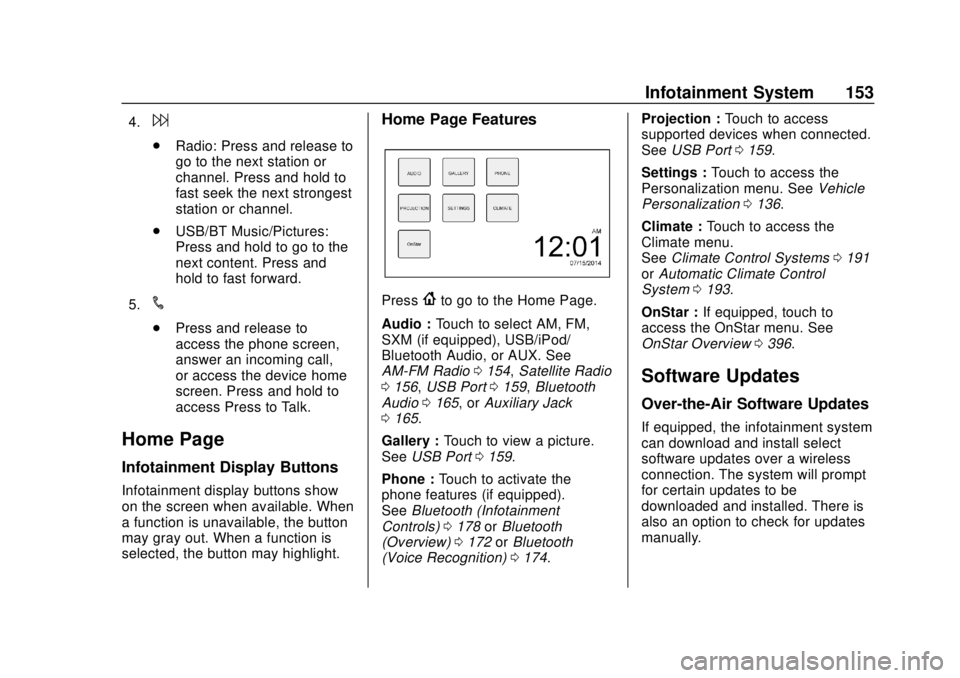
Home Page Features
Press{to go to the Home Page.
Audio : Touch to select AM, FM,
SXM (if equipped), USB/iPod/
Bluetooth Audio, or AUX. See
AM-FM Radio 0154, Satellite Radio
0 156, USB Port 0159, Bluetooth
Audio 0165, or Auxiliary Jack
0 165.
Gallery : Touch to view a picture.
See USB Port 0159.
Phone : Touch to activate the
phone features (if equipped).
See Bluetooth (Infotainment
Controls) 0178 orBluetooth
(Overview) 0172 orBluetooth
(Voice Recognition) 0174. Projection :
Touch to access
supported devices when connected.
See USB Port 0159.
Settings : Touch to access the
Personalization menu. See Vehicle
Personalization 0136.
Climate : Touch to access the
Climate menu.
See Climate Control Systems 0191
or Automatic Climate Control
System 0193.
OnStar : If equipped, touch to
access the OnStar menu. See
OnStar Overview 0396.
Software Updates
Over-the-Air Software Updates
If equipped, the infotainment system
can download and install select
software updates over a wireless
connection. The system will prompt
for certain updates to be
downloaded and installed. There is
also an option to check for updates
manually.
Page 155 of 421
Chevrolet Colorado Owner Manual (GMNA-Localizing-U.S./Canada/Mexico-
11349743) - 2018 - crc - 10/12/17
154 Infotainment System
To manually check for updates,
touch SETTINGS on the Home
Page, followed by Software
Information, and then System
Update. Follow the on-screen
prompts. The steps to check for,
download and install updates may
vary by vehicle.
Downloading Over-the-Air vehicle
software updates requires Internet
connectivity, which can be accessed
through the vehicle’s built-in OnStar
4G LTE connection, if equipped and
active. If required, data plans are
provided by a third party. Optionally,
a secure Wi-Fi hotspot such as a
compatible mobile device hotspot,
home hotspot, or public hotspot can
be used. Applicable data rates may
apply.
To connect the infotainment system
to a secured mobile device hotspot,
home hotspot, or public hotspot,
touch SETTINGS on the Home
Page, followed by Wi-Fi, and then
Manage Wi-Fi Networks. Select the
appropriate Wi-Fi network, and
follow the on-screen prompts.
Download speeds may vary. On most compatible mobile devices,
activation of the Wi-Fi hotspot is in
the Settings menu under Mobile
Network Sharing, Personal Hotspot,
Mobile Hotspot, or similar.
Availability of Over-the-Air vehicle
software updates varies by vehicle
and country. For more information
on this feature, see
www.my.chevrolet.com/learn.Radio
AM-FM Radio
Playing the Radio
Audio Source Menu
{:
Press to go to the Home Page.
O:Press to turn on, mute,
or unmute the system. Press and
hold to turn off the system.
Selecting a Band
Press{, then touch AUDIO,
Source, then select AM, FM,
or SXM (if equipped). The last
station that was playing starts
playing again.
System Settings
Auto Volume
This feature automatically adjusts
the radio volume to compensate for
road and wind noise.
The level of volume compensation
can be selected, or the feature can
be turned off.
Page 159 of 421
Chevrolet Colorado Owner Manual (GMNA-Localizing-U.S./Canada/Mexico-
11349743) - 2018 - crc - 10/12/17
158 Infotainment System
accessories, and external electronic
devices are plugged into the
accessory power outlet. If there is
interference or static, unplug the
item from the accessory power
outlet.
FM
FM signals only reach about 16 to
65 km (10 to 40 mi). Although the
radio has a built-in electronic circuit
that automatically works to reduce
interference, some static can occur,
especially around tall buildings or
hills, causing the sound to fade in
and out.
AM
The range for most AM stations is
greater than for FM, especially at
night. The longer range can cause
station frequencies to interfere with
each other. Static can occur when
things like storms and power lines
interfere with radio reception. When
this happens, try reducing the treble
on the radio.
SiriusXM Satellite Radio
Service
If equipped, SiriusXM Satellite
Radio Service provides digital radio
reception. Tall buildings or hills can
interfere with satellite radio signals,
causing the sound to fade in and
out. In addition, traveling or standing
under heavy foliage, bridges,
garages, or tunnels may cause loss
of the SiriusXM signal for a period
of time.
Cell Phone Usage
Cell phone usage, such as making
or receiving phone calls, charging,
or just having the phone on may
cause static interference with the
radio. Unplug the phone or turn it off
if this happens.
Multi-Band Antenna
The multi-band antenna is on the
roof of the vehicle. The antenna is
used for OnStar, the SiriusXM
Satellite Radio Service System, and
GPS (Global Positioning System),if the vehicle has these features.
Keep the antenna clear of
obstructions for clear reception.
Items on the roof of the vehicle can
interfere with the performance of the
radio system and OnStar (if
equipped). Make sure the
multi-band antenna is not
obstructed.