USB port CHEVROLET COLORADO 2018 Owner's Manual
[x] Cancel search | Manufacturer: CHEVROLET, Model Year: 2018, Model line: COLORADO, Model: CHEVROLET COLORADO 2018Pages: 421, PDF Size: 5.58 MB
Page 8 of 421

Chevrolet Colorado Owner Manual (GMNA-Localizing-U.S./Canada/Mexico-
11349743) - 2018 - crc - 10/12/17
In Brief 7
1.Air Vents 0195.
2. Turn Signal Lever. See Turn
and Lane-Change Signals
0 145.
Driver Information Center (DIC)
(Base Level) Controls (If
Equipped).
See Driver Information Center
(DIC) (Base Level) 0129 or
Driver Information Center (DIC)
(Uplevel) 0131.
3. Instrument Cluster (Upevel)
0114 orInstrument Cluster
(Base Level) 0112.
4. Windshield Wiper/Washer
0107.
5. Light Sensor. See Automatic
Headlamp System 0144.
Vehicle Alarm System Indicator
(If Equipped). See Vehicle
Alarm System 036.
6. Infotainment 0150.
7. Climate Control Systems 0191
(If Equipped).
Automatic Climate Control
System 0193 (If Equipped). 8.
Heated Front Seats 049 (If
Equipped).
9. Power Outlets 0109 (If
Equipped).
10. Shift Lever. SeeAutomatic Transmission
0 224 orManual Transmission
0 229.
11. Auxiliary Jack 0165.
USB Port 0159.
12. Hazard Warning Flashers
0145.
Traction Control/Electronic
Stability Control 0240.
Cargo Lamp 0147.
Lane Departure Warning
(LDW) 0253 (If Equipped).
Hill Descent Control (HDC)
0 243 (If Equipped).
Tow/Haul Mode 0229 (If
Equipped).
Locking Front Axle 0246 (If
Equipped).
Locking Rear Axle 0245 (If
Equipped). 13.
Steering Wheel Controls 0106
(If Equipped).
Driver Information Center (DIC)
(Uplevel) Controls (If
Equipped).
See Driver Information Center
(DIC) (Base Level) 0129 or
Driver Information Center (DIC)
(Uplevel) 0131.
14. Horn 0107.
15. Steering Wheel Adjustment
0106 (Out of View).
16. Cruise Control 0247.
Forward Collision Alert (FCA)
System 0251 (If Equipped).
17. Transfer Case Knob (If Equipped). See Four-Wheel
Drive 0231.
Driver Mode Control (ZR2
Only) 0244 (If Equipped).
18. Hood Release. See Hood
0 277.
19. Parking Brake 0239.
Page 21 of 421
Chevrolet Colorado Owner Manual (GMNA-Localizing-U.S./Canada/Mexico-
11349743) - 2018 - crc - 10/12/17
20 In Brief
Satellite Radio
Vehicles with a SiriusXM satellite
radio tuner and a valid SiriusXM
satellite radio subscription can
receive SiriusXM programming.
SiriusXM Satellite Radio
Service
SiriusXM is a satellite radio service
based in the 48 contiguous United
States and 10 Canadian provinces.
SiriusXM satellite radio has a wide
variety of programming and
commercial-free music, coast to
coast, and in digital-quality sound.
A fee is required to receive the
SiriusXM service.
For more information refer to:
.www.siriusxm.com or call
1-888-601-6296 (U.S.).
. www.siriusxm.ca or call
1-877-438-9677 (Canada).
See Satellite Radio 0156.
Portable Audio Devices
There is a 3.5 mm (1/8 in) auxiliary
input jack and USB port on the
center stack. External devices such
as iPods
®, laptop computers, MP3
players, and USB storage devices
may be connected, depending on
the audio system.
See USB Port 0159 andAuxiliary
Jack 0165.
Bluetooth®
The Bluetooth system allows users
with a Bluetooth-enabled cell phone
to make and receive hands-free
calls using the vehicle audio system
and controls.
The Bluetooth-enabled cell phone
must be paired with the in-vehicle
Bluetooth system before it can be
used in the vehicle. Not all phones
will support all functions.
See Bluetooth (Infotainment
Controls) 0178 orBluetooth
(Overview) 0172 orBluetooth
(Voice Recognition) 0174.
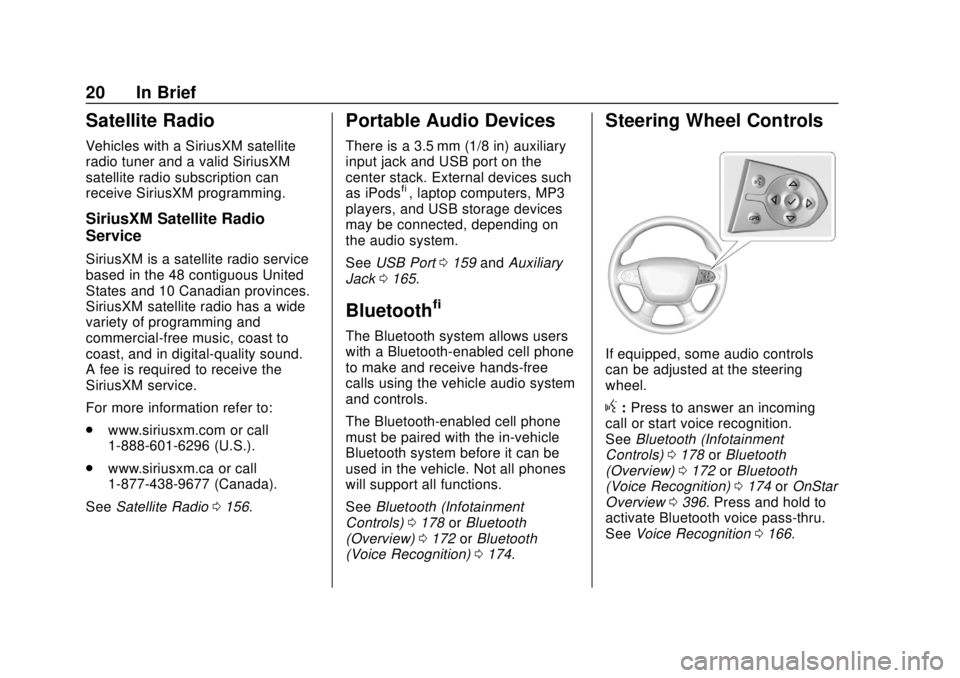
Steering Wheel Controls
If equipped, some audio controls
can be adjusted at the steering
wheel.
g:Press to answer an incoming
call or start voice recognition.
See Bluetooth (Infotainment
Controls) 0178 orBluetooth
(Overview) 0172 orBluetooth
(Voice Recognition) 0174 orOnStar
Overview 0396. Press and hold to
activate Bluetooth voice pass-thru.
See Voice Recognition 0166.
Page 105 of 421
Chevrolet Colorado Owner Manual (GMNA-Localizing-U.S./Canada/Mexico-
11349743) - 2018 - crc - 10/12/17
104 Storage
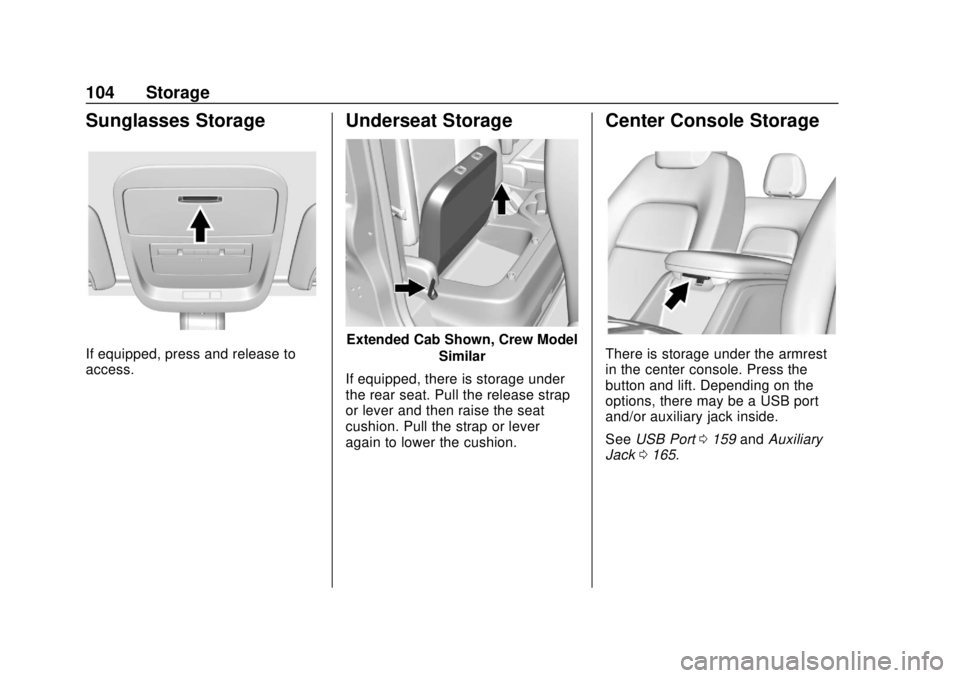
Sunglasses Storage
If equipped, press and release to
access.
Underseat Storage
Extended Cab Shown, Crew ModelSimilar
If equipped, there is storage under
the rear seat. Pull the release strap
or lever and then raise the seat
cushion. Pull the strap or lever
again to lower the cushion.
Center Console Storage
There is storage under the armrest
in the center console. Press the
button and lift. Depending on the
options, there may be a USB port
and/or auxiliary jack inside.
See USB Port 0159 andAuxiliary
Jack 0165.
Page 110 of 421
Chevrolet Colorado Owner Manual (GMNA-Localizing-U.S./Canada/Mexico-
11349743) - 2018 - crc - 10/12/17
Instruments and Controls 109
To set the date:1. Touch SETTINGS on the Home Page, then touch Time
and Date.
2. Touch Set Date, then touch
«
orªto increase or decrease
month, day, or year.
3. Touch
Sto go back to the
previous menu.
To set the clock display:
1. Touch SETTINGS on the Home Page, then touch Time
and Date.
2. Touch Clock Display, then touch Off or On to turn the
clock display off or on.
3. Touch
Sto go back to the
previous menu.
Power Outlets
For USB charging port locations,
see USB Port 0159. Accessory power outlets can be
used to plug in electrical equipment,
such as a cell phone, MP3
player, etc.
The vehicle may have accessory
power outlets:
.
On the center stack below the
climate control system,
if equipped.
. On the center floor console,
if equipped.
. On the rear of the center storage
console.
Lift the cover to access and replace
when not in use.
{Warning
Power is always supplied to the
outlets. Do not leave electrical
equipment plugged in when the
vehicle is not in use because the
vehicle could catch fire and cause
injury or death.
Caution
Leaving electrical equipment
plugged in for an extended period
of time while the vehicle is off will
drain the battery. Always unplug
electrical equipment when not in
use and do not plug in equipment
that exceeds the maximum
15 amp rating.
Certain power accessory plugs may
not be compatible with the
accessory power outlet and could
overload vehicle or adapter fuses.
If a problem is experienced, see
your dealer.
When adding electrical equipment,
be sure to follow the proper
installation instructions included with
the equipment. See Add-On
Electrical Equipment 0272.
Page 141 of 421
Chevrolet Colorado Owner Manual (GMNA-Localizing-U.S./Canada/Mexico-
11349743) - 2018 - crc - 10/12/17
140 Instruments and Controls
Text Message Alerts
This allows the feature to be turned
on or off.
Select Off or On.
Apple CarPlay
Select and the following may
display:
.Apple CarPlay
. Manage Apple CarPlay Devices
Apple CarPlay
This feature allows Apple devices to
be connected to the infotainment
system through a USB port. See
Apple CarPlay and Android Auto
0 184.
Select Off or On.
Manage Apple CarPlay Devices
Select to manage Apple devices.
Apple CarPlay must be on for this
feature to be accessed. See Apple
CarPlay and Android Auto 0184.
Android Auto
Select and the following may
display:
.
Android Auto
. Manage Android Auto Devices
Android Auto
This feature allows Android devices
to be connected to the infotainment
system through a USB port. See
Apple CarPlay and Android Auto
0 184.
Select Off or On.
Manage Android Auto Devices
Select to manage Android devices.
Android Auto must be on for this
feature to be accessed. See Apple
CarPlay and Android Auto 0184.
Voice
Select and the following may
display:
.
Confidence Threshold
. Prompt Length
. Audio Feedback Speed .
Display “What Can I Say?” Tips
Confidence Threshold
This feature allows the adjustment
of the sensitivity of the speech
recognition system.
Select Confirm More or
Confirm Less.
Prompt Length
This feature adjusts the voice
prompt length.
Select Short or Long.
Audio Feedback Speed
This feature adjusts the audio
feedback speed.
Select Slow, Medium, or Fast.
Display “What Can I Say?” Tips
This feature gives voice
command tips.
Select Off or On.
Display
Select and the following may
display:
. Mode
Page 151 of 421
Chevrolet Colorado Owner Manual (GMNA-Localizing-U.S./Canada/Mexico-
11349743) - 2018 - crc - 10/12/17
150 Infotainment System
Infotainment
System
Introduction
Infotainment . . . . . . . . . . . . . . . . . . 150
Theft-Deterrent Feature . . . . . . 151
Overview . . . . . . . . . . . . . . . . . . . . . 152
Home Page . . . . . . . . . . . . . . . . . . 153
Software Updates . . . . . . . . . . . . 153
Radio
AM-FM Radio . . . . . . . . . . . . . . . . 154
Satellite Radio . . . . . . . . . . . . . . . . 156
Radio Reception . . . . . . . . . . . . . . 157
Multi-Band Antenna . . . . . . . . . . 158
Audio Players
Avoiding Untrusted MediaDevices . . . . . . . . . . . . . . . . . . . . . 159
USB Port . . . . . . . . . . . . . . . . . . . . . 159
Auxiliary Jack . . . . . . . . . . . . . . . . 165
Bluetooth Audio . . . . . . . . . . . . . . 165
Voice Recognition
Voice Recognition . . . . . . . . . . . . 166
Phone
Bluetooth (Overview) . . . . . . . . . 172 Bluetooth (Voice
Recognition) . . . . . . . . . . . . . . . . 174
Bluetooth (Infotainment Controls) . . . . . . . . . . . . . . . . . . . . 178
Text Messaging . . . . . . . . . . . . . . . 183
Apple CarPlay and
Android Auto . . . . . . . . . . . . . . . . 184
Trademarks and License
Agreements
Trademarks and LicenseAgreements . . . . . . . . . . . . . . . . . 185
Introduction
Infotainment
Base radio information is included in
this manual. See the infotainment
manual for information on other
available infotainment systems.
Read the following pages to
become familiar with the features.
{Warning
Taking your eyes off the road for
too long or too often while using
any infotainment feature can
cause a crash. You or others
could be injured or killed. Do not
give extended attention to
infotainment tasks while driving.
Limit your glances at the vehicle
displays and focus your attention
on driving. Use voice commands
whenever possible.
The infotainment system has built-in
features intended to help avoid
distraction by disabling some
Page 154 of 421
Chevrolet Colorado Owner Manual (GMNA-Localizing-U.S./Canada/Mexico-
11349743) - 2018 - crc - 10/12/17
Infotainment System 153
4.6
.Radio: Press and release to
go to the next station or
channel. Press and hold to
fast seek the next strongest
station or channel.
. USB/BT Music/Pictures:
Press and hold to go to the
next content. Press and
hold to fast forward.
5.
#
. Press and release to
access the phone screen,
answer an incoming call,
or access the device home
screen. Press and hold to
access Press to Talk.
Home Page
Infotainment Display Buttons
Infotainment display buttons show
on the screen when available. When
a function is unavailable, the button
may gray out. When a function is
selected, the button may highlight.
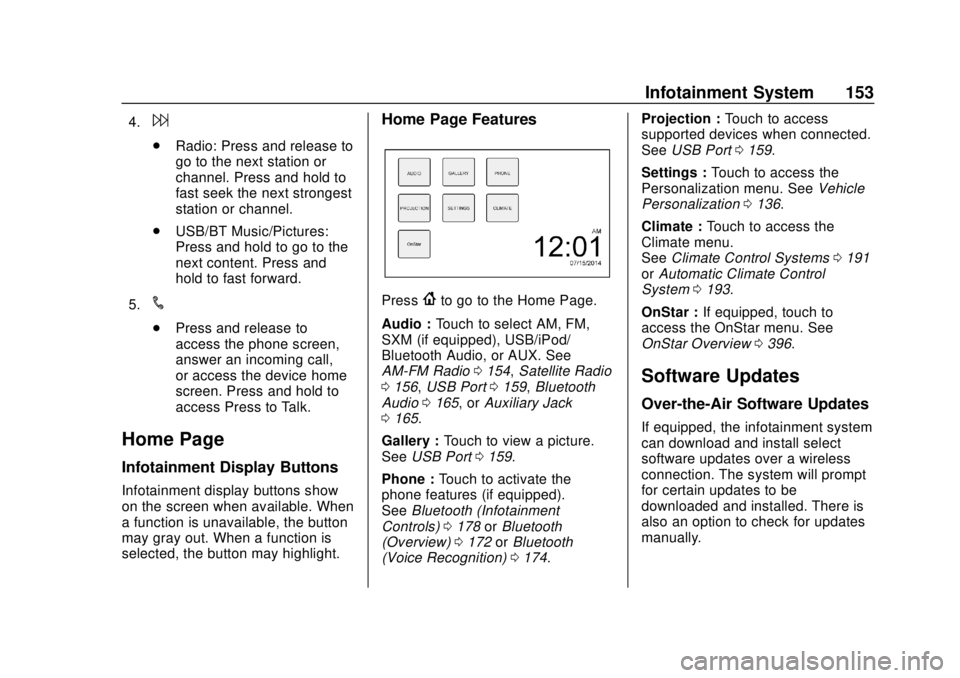
Home Page Features
Press{to go to the Home Page.
Audio : Touch to select AM, FM,
SXM (if equipped), USB/iPod/
Bluetooth Audio, or AUX. See
AM-FM Radio 0154, Satellite Radio
0 156, USB Port 0159, Bluetooth
Audio 0165, or Auxiliary Jack
0 165.
Gallery : Touch to view a picture.
See USB Port 0159.
Phone : Touch to activate the
phone features (if equipped).
See Bluetooth (Infotainment
Controls) 0178 orBluetooth
(Overview) 0172 orBluetooth
(Voice Recognition) 0174. Projection :
Touch to access
supported devices when connected.
See USB Port 0159.
Settings : Touch to access the
Personalization menu. See Vehicle
Personalization 0136.
Climate : Touch to access the
Climate menu.
See Climate Control Systems 0191
or Automatic Climate Control
System 0193.
OnStar : If equipped, touch to
access the OnStar menu. See
OnStar Overview 0396.
Software Updates
Over-the-Air Software Updates
If equipped, the infotainment system
can download and install select
software updates over a wireless
connection. The system will prompt
for certain updates to be
downloaded and installed. There is
also an option to check for updates
manually.
Page 160 of 421
Chevrolet Colorado Owner Manual (GMNA-Localizing-U.S./Canada/Mexico-
11349743) - 2018 - crc - 10/12/17
Infotainment System 159
Audio Players
Avoiding Untrusted Media
Devices
When using media devices such as
CDs, DVDs, Blu-ray Discs, SD
cards, USB devices, and mobile
devices, consider the source.
Untrusted media devices could
contain files that affect system
operation or performance. Avoid use
if the content or origin cannot be
trusted.
USB Port
If equipped, there is a USB port for
data and charging in the center
stack, inside the center console,
and/or at the rear of the center
console. For uplevel radios, see the
infotainment manual.
Using the USB Port
The infotainment system can play
music by connecting an auxiliary
device to the USB port.USB Support
The USB port uses the USB 2.0
standard. External devices such as
iPhones/iPods and USB storage
devices may be connected.
USB Supported Devices
.
USB flash drives
. Portable USB hard drives
. iPod/iPhone devices
Not all iPods and USB drives are
compatible with the USB port.
Make sure the iPod has the latest
firmware from Apple for proper
operation. iPod firmware can be
updated using the latest iTunes
application. See www.apple.com/
itunes.
For help with identifying your iPod,
go to www.apple.com/support.
The USB port can play both lower
and upper case .mp3, .wma, .ogg,
and .wav files stored on a USB
storage device. Supported Apple Devices
To view supported devices in the
U.S., see www.my.chevrolet.com/
learned.
To view supported devices in
Canada, see
www.chevroletowner.ca.
For supported devices in Mexico,
see your dealer.
USB Supported File and Folder
Structure
The infotainment system supports:
.
FAT16.
. FAT32.
. exFAT.
Connecting a USB Storage
Device or iPod/iPhone
To connect a USB storage device,
connect the device to the USB port.
To connect an iPod/iPhone, connect
one end of the device’ s cable to the
iPod/iPhone and the other end to
the USB port.
Page 161 of 421
Chevrolet Colorado Owner Manual (GMNA-Localizing-U.S./Canada/Mexico-
11349743) - 2018 - crc - 10/12/17
160 Infotainment System
The iPod/iPhone charges while it is
connected to the vehicle if the
vehicle is in ACC/ACCESSORY or
ignition is on. SeeIgnition Positions
0 216. When the vehicle is turned
off, the iPod/iPhone automatically
powers off and will not charge or
draw power from the vehicle's
battery.
For more information on USB
usage, see “Audio System
Information” following.
Audio System Information
The infotainment system can play
the music files contained in the USB
storage device or iPod/iPhone
products.
Using MP3/WMA/OGG/WAV Files
.
Music files with .mp3, .wma,
.ogg, and .wav file name
extensions can be played.
. MP3 files that can be played: Bit
rate: 8 kbps to 320 kbps.
Sampling frequency: 48 kHz,
44.1 kHz, 32 kHz, 24 kHz, 22.05
kHz, and 16 kHz. .
Files with a bit rate above
128 kbps will result in higher
quality sound.
. ID3 Tag information for MP3
files, such as the album name
and the artist, can be played.
. To display album title, track title,
and artist information, the file
should be compatible with the
ID3 Tag V1 and V2 formats.
Using a USB Storage Device or
iPod/iPhone
. Use a USB or flash memory type
storage device. Do not connect
using a USB adaptor.
. Do not connect and reconnect
the USB device repeatedly in a
short time, as this may cause
static electricity and problems
using the device.
. Use a USB device with a metal
connecting terminal.
. Connection with i-Stick Type
USB storage devices may be
faulty due to vehicle vibration.
. Do not touch the USB
connecting terminal. .
Only USB storage devices
formatted in FAT16/32 or exFAT
file systems are recognized.
NTFS and other file systems are
not recognized.
. The time it takes to process files
will depend on the USB storage
device type and capacity, and
the type of files stored.
. Some USB storage device files
may not be compatible.
. Up to two USB devices and one
iPod can be played through a
USB hub. All devices may not be
supported, depending on the
performance of the USB hub.
If there is not enough power
supply, it may not operate
normally.
. Do not disconnect the USB
storage device while it is playing.
This may cause damage to the
product or affect the
performance of the USB device.
. Disconnect the USB storage
device when the ignition is
turned off. If the ignition is turned
on while the USB device is
Page 162 of 421
Chevrolet Colorado Owner Manual (GMNA-Localizing-U.S./Canada/Mexico-
11349743) - 2018 - crc - 10/12/17
Infotainment System 161
connected, the USB device may
be damaged or may not operate
normally.
. USB storage devices can only
be connected for playing music,
viewing photo files,
or upgrading.
. Do not use the USB terminal to
charge USB accessory
equipment. The heat generated
may cause performance issues
or damage.
. Music files to which Digital Right
Management (DRM) is applied
cannot be played.
. USB storage device with a
capacity limit of 5,000 files, such
as music, photo, video, and
15 stages of folder structure.
Normal usage cannot be
guaranteed for a storage device
that exceeds this limit. The iPod/
iPhone can play all music files
that are supported. The music
file lists will only display up to
5,000 files on the screen. These
files are sorted in alphabetical
order. .
Some iPod/iPhone models may
not support the connectivity or
functionality of this product.
. Only connect the iPod/iPhone
with connection cables
supported by iPod/iPhone
products. Other connection
cables cannot be used.
. The iPod/iPhone may be
damaged if it is connected to the
vehicle with the ignition on.
When not in use, disconnect the
iPod/iPhone.
. When the iPod/iPhone is
connected to the USB port by
using the iPod/iPhone cable, the
Bluetooth music is not
supported.
. The iPod/iPhone playback
functions and the information
displayed may be different when
played on the infotainment
system.
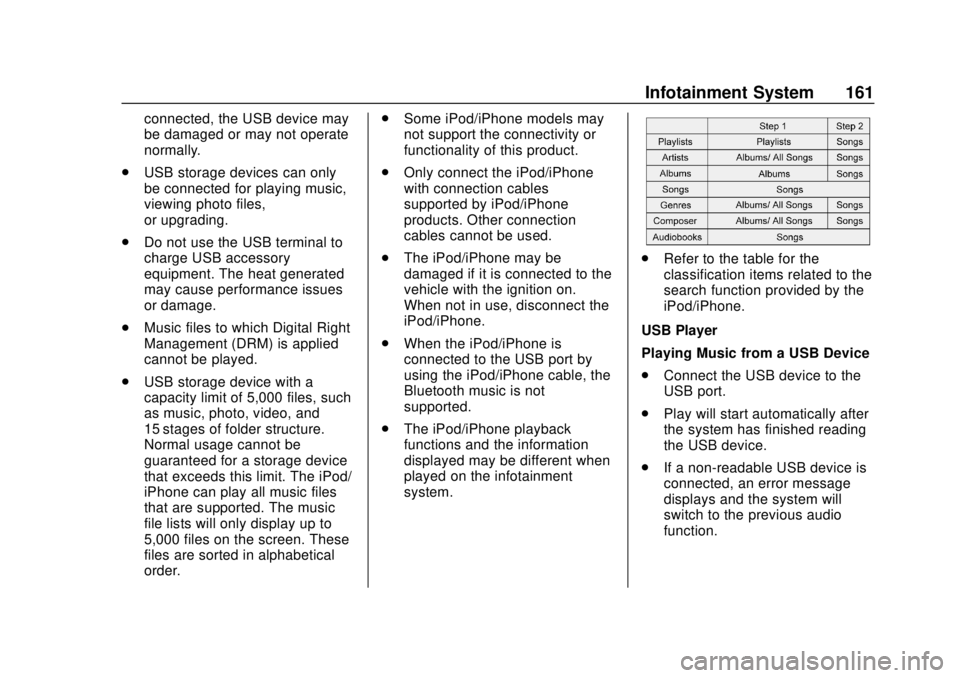
.Refer to the table for the
classification items related to the
search function provided by the
iPod/iPhone.
USB Player
Playing Music from a USB Device
. Connect the USB device to the
USB port.
. Play will start automatically after
the system has finished reading
the USB device.
. If a non-readable USB device is
connected, an error message
displays and the system will
switch to the previous audio
function.