ESP CHEVROLET CORVETTE 2007 6.G User Guide
[x] Cancel search | Manufacturer: CHEVROLET, Model Year: 2007, Model line: CORVETTE, Model: CHEVROLET CORVETTE 2007 6.GPages: 488, PDF Size: 2.62 MB
Page 234 of 488
DIC Vehicle Personalization
Many features on your vehicle can be personalized.
This means that the operation of these features can
be set to operate differently depending on who is
driving the vehicle. See “Personal Options” later in
this section for the features that you can
personalize.
The personalization settings for other features are
automatically updated and saved as the driver
adjusts them. These include the following settings
and presets:
The radio presets, tone, volume, fade,
balance, equalization (EQ) settings and source
(radio or CD)
The last climate control setting
The Head-Up Display (HUD) position and
dimming level, if your vehicle has this feature
The instrument panel cluster dimming level and
last selected DIC display
Separate personalization settings are saved for two
different drivers. One of the keyless access
transmitters is assigned to driver 1. The other is
assigned to driver 2. The back of the keyless
access transmitters are labelled 1 or 2 to
correspond to each driver.The current driver’s preferences are recalled when
one of the following occurs:
The lock or unlock button on the keyless
access transmitter, labelled 1 or 2, is pressed.
The appropriate memory button, 1 or 2, located
on the driver’s door is pressed. SeeMemory
Seat, Mirrors and Steering Wheel on
page 10for more information.
A valid keyless access transmitter is detected
upon opening the driver’s door.
If more than one valid keyless access transmitter
is detected upon opening the driver’s door, the
driver preferences for the lowest driver number will
be recalled.
If a keyless access transmitter that is not
labelled 1 or 2 is used, the personalization system
will not recognize the transmitter. The Driver
Information Center (DIC) will not display a current
driver number and the features that are normally
programmed through the DIC will be set to
the default states. Also, if the OPTION button is
pressed, the DIC does not display the menus used
to set personalizations, but instead displays
OPTIONS UNAVAILABLE for a few seconds.
234
Page 242 of 488
Language:This option allows you to select the
language the DIC, the Head-Up Display (HUD), if
your vehicle has this feature, and the radio
uses to display messages. Each language mode
will be displayed in its own language. For example,
English will be displayed as ENGLISH, Spanish
as ESPANOL, etc. If your vehicle has the
navigation system, you will not have the Japanese
language mode.
Press the OPTION button until LANGUAGE
appears on the display, then press the RESET
button to scroll through the following modes:
ENGLISH (default)
DEUTSCH (German)
FRANCAIS (French)
ITALIANO (Italian)
ESPANOL (Spanish)
If you choose a language that you do not
understand, press the OPTION and RESET
buttons for ve seconds. The DIC will begin
displaying all of the various languages one by one
for as long as the buttons are pressed. When
the desired language is displayed, release
the buttons and the DIC will set to this language.When the mode you want is selected, press the
OPTION button to set your choice and advance to
the next personal option.
Personalize Name:This option allows you to
type in a name or greeting that will appear on
the DIC display whenever the corresponding
keyless access transmitter (1 or 2) is used or one
of the memory buttons (1 or 2) located on the
driver’s door is pressed.
Press the OPTION button until PERSONALIZE
NAME appears on the display, then press
the RESET button to scroll through the following
modes:
YES
NO (default)
If you choose YES, you can type in a name that
will appear on the DIC display.
To program a name, use the following procedure:
1. Enter the PERSONAL OPTIONS menu
and select the driver number (1 or 2) that you
would like to program by following the
instructions listed previously under “Entering
the Personal Options Menu”.
242
Page 243 of 488
2. Press the OPTION button until the
PERSONALIZE NAME option appears on the
display.
3. Select YES under PERSONALIZE NAME by
pressing the RESET button.
4. Press the OPTION button and a cursor will
display where you can insert a letter.
5. Press the OPTION button again until the letter
you want is displayed. To scroll through the
letters faster and without a beeping noise,
keep the OPTIONS button depressed. There
are alpha/numeric characters and a blank
space available.
6. Then press the RESET button to select the
letter of your choice and proceed on to the
next space to the right.
If you make a mistake and would like to clear
or replace a letter, perform the following
steps:
6.1. Press the RESET button to reach the
letter you would like to change.
6.2. Press the OPTION button to scroll
through the letter choices.6.3. Press the RESET button to select the
letter and proceed on to the next space
to the right.
7. Repeat Steps 5 and 6 until the name or
greeting you want is complete. After the name
or greeting is complete, keep pressing the
RESET button until the display turns blank and
exits out of this option. You can program up
to 20 characters.
If you choose NO, this option will turn off.
If a customized name or greeting is not
programmed, the DIC display will show Driver 1 or
Driver 2 to correspond with either the number
on the back of the keyless access
transmitter (1 or 2) that is being used or to the
memory button (1 or 2) that is pressed.
PERSONALIZE NAME is the last option available
to program in the PERSONAL OPTIONS menu.
Pressing the OPTION button after this setting will
exit you from the PERSONAL OPTIONS menu. The
last item you were in prior to entering PERSONAL
OPTIONS will then display on the DIC.
243
Page 257 of 488

Playing a Specic Loaded CD
For every CD loaded, a number displays. To play
a specic CD press the numbered pushbutton
that corresponds to the CD.
If an error displays, see “CD Messages” later in
this section.
X(Eject):Press theXbutton to eject CD(s).
To eject the CD that is currently playing, press and
release the
Xbutton.
To eject multiple CDs, do the following:
1. Press and hold the
Xbutton for two seconds.
A beep sounds and EJECT ALL DISCS
displays.
2. When REMOVE DISC displays, the CD ejects
and can be removed.
To stop ejecting the CDs, press the
Mor
the
Xbutton.If the CD is not removed, after 25 seconds, the
CD is automatically pulled back into the player.
If the CD is pushed back into the player, before the
25 second time period is complete, the player
senses an error and tries to eject the CD several
times before stopping.
Do not repeatedly press the
Xbutton to eject a
CD after you have tried to push it in manually.
The player’s 25-second eject timer resets at each
press of eject, causing the player not to eject
the CD until the 25-second time period has
elapsed.
O/e(Tune):Turn theO/eknob to go
to the next or previous track.
{(Reverse):Press and hold the{button to
reverse within the current track.
|(Fast Forward):Press and hold the|button
to fast forward through the current track.
257
Page 270 of 488
To scan presets, press and hold either the downx
or upwarrow for four seconds until PRESET
SCAN displays and a beep sounds. The radio goes
to a station, plays for a few seconds, then goes to
the next station. Press either the down
xor upw
arrow again to stop scanning.
When a CD is playing, press the down
xor upw
arrow to go to the previous or next track.
To scan the current CD, press and hold either the
down
xor upwarrow for more than two seconds.
The CD goes to the next track, plays the rst
10 seconds, then goes to the next track. Press
either the down
xor upwarrow again to stop
scanning.
To scan all of the CDs loaded, press and hold
either the down
xor upwarrow for more than
four seconds. The CD goes to the next CD, plays
the rst 10 seconds of each track, then goes to the
next CD. Press either the down
xor upwarrow
again to stop scanning.
+−(Volume):Press the + (plus) or−(minus)
button to increase or to decrease the volume.1–6 (Preset Pushbuttons):Press this button
to play stations that are programmed on the
radio preset pushbuttons. The radio only seeks
preset stations with a strong signal that are in
the selected band.
Radio Reception
You may experience frequency interference and
static during normal radio reception if items
such as cellphone chargers, vehicle convenience
accessories, and external electronic devices
are plugged into the accessory power outlet.
If there is interference or static, unplug the item
from the accessory power outlet.
AM
The range for most AM stations is greater than for
FM, especially at night. The longer range can
cause station frequencies to interfere with each
other. For better radio reception, most AM
radio stations will boost the power levels during
the day, and then reduce these levels during
the night. Static can also occur when things like
storms and power lines interfere with radio
reception. When this happens, try reducing the
treble on your radio.
270
Page 277 of 488
But the ability to drive is affected well below a
BAC of 0.10 percent. Research shows that
the driving skills of many people are impaired
at a BAC approaching 0.05 percent, and that
the effects are worse at night. All drivers
are impaired at BAC levels above 0.05 percent.
Statistics show that the chance of being in a
collision increases sharply for drivers who have a
BAC of 0.05 percent or above. A driver with a
BAC level of 0.06 percent has doubled his or her
chance of having a collision. At a BAC level of
0.10 percent, the chance of this driver having
a collision is 12 times greater; at a level of
0.15 percent, the chance is 25 times greater!
The body takes about an hour to rid itself of the
alcohol in one drink. No amount of coffee or
number of cold showers will speed that up.
“I will be careful” is not the right answer. What if
there is an emergency, a need to take sudden
action, as when a child darts into the street?
A person with even a moderate BAC might not be
able to react quickly enough to avoid the collision.There is something else about drinking and driving
that many people do not know. Medical research
shows that alcohol in a person’s system can make
crash injuries worse, especially injuries to the
brain, spinal cord, or heart. This means that
when anyone who has been drinking — driver
or passenger — is in a crash, that person’s chance
of being killed or permanently disabled is higher
than if the person had not been drinking.
{CAUTION:
Drinking and then driving is very
dangerous. Your reexes, perceptions,
attentiveness, and judgment can be
affected by even a small amount of
alcohol. You can have a serious — or even
fatal — collision if you drive after drinking.
Please do not drink and drive or ride
with a driver who has been drinking.
Ride home in a cab; or if you are with a
group, designate a driver who will not drink.
277
Page 281 of 488
Remember: ABS does not change the time you
need to get your foot up to the brake pedal
or always decrease stopping distance. If you get
too close to the vehicle in front of you, you will
not have time to apply the brakes if that vehicle
suddenly slows or stops. Always leave enough
room up ahead to stop, even though you
have ABS.
Using ABS
Do not pump the brakes. Just hold the brake
pedal down rmly and let anti-lock work for you.
You might hear a motor or clicking noise and
feel the brake pedal move a little during a stop,
but this is normal.
Braking in Emergencies
With ABS, you can steer and brake at the same
time. In many emergencies, steering can help you
more than even the very best braking.
Traction Control System (TCS)
Your vehicle has a traction control system called
TCS that limits wheel spin. This is especially useful
in slippery road conditions. The system operates
only if it senses that the rear wheels are spinning
too much or are beginning to lose traction.
When this happens, the system works the rear
brakes and reduces engine power (by closing the
throttle and managing engine spark) to limit
wheel spin.
The TRACTION SYSTEM ACTIVE message
displays on the Driver Information Center (DIC)
when the TCS system is limiting wheel spin.
SeeDIC Warnings and Messages on page 214.
You may feel or hear the system working,
but this is normal.
If your vehicle is in cruise control when the
TCS system begins to limit wheel spin, the cruise
control will automatically disengage. When
road conditions allow you to safely use it again,
you may re-engage the cruise control. See
Turn Signal/Multifunction Lever on page 160.
281
Page 282 of 488
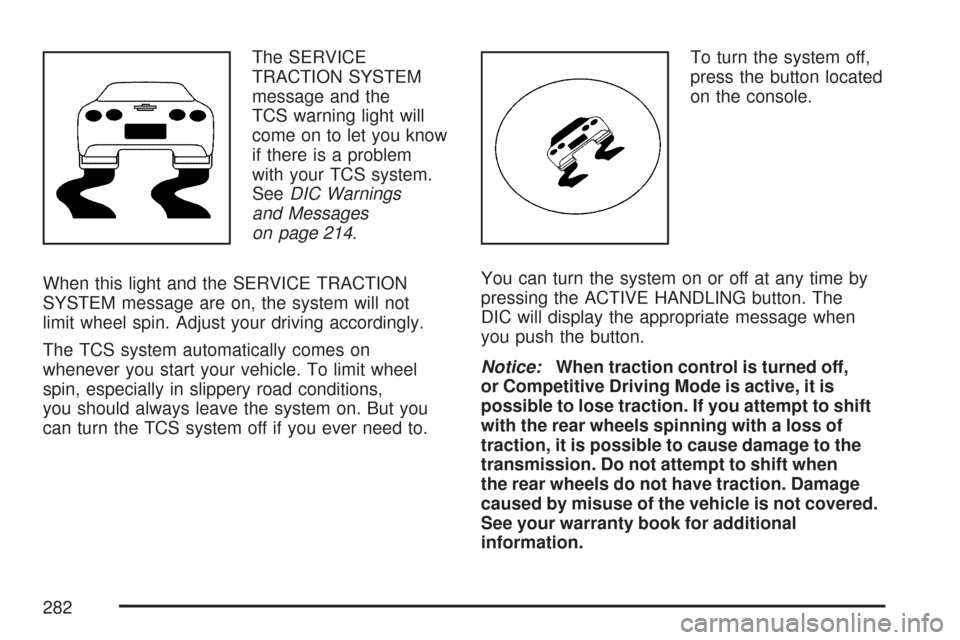
The SERVICE
TRACTION SYSTEM
message and the
TCS warning light will
come on to let you know
if there is a problem
with your TCS system.
SeeDIC Warnings
and Messages
on page 214.
When this light and the SERVICE TRACTION
SYSTEM message are on, the system will not
limit wheel spin. Adjust your driving accordingly.
The TCS system automatically comes on
whenever you start your vehicle. To limit wheel
spin, especially in slippery road conditions,
you should always leave the system on. But you
can turn the TCS system off if you ever need to.To turn the system off,
press the button located
on the console.
You can turn the system on or off at any time by
pressing the ACTIVE HANDLING button. The
DIC will display the appropriate message when
you push the button.
Notice:When traction control is turned off,
or Competitive Driving Mode is active, it is
possible to lose traction. If you attempt to shift
with the rear wheels spinning with a loss of
traction, it is possible to cause damage to the
transmission. Do not attempt to shift when
the rear wheels do not have traction. Damage
caused by misuse of the vehicle is not covered.
See your warranty book for additional
information.
282
Page 286 of 488
Selective Ride Control
You may have a ride control system on your
vehicle called Magnetic Selective Ride Control.
The system provides the following performance
benets:
Reduced Impact Harshness
Improved Road Isolation
Improved High-Speed Stability
Improved Handling Response
Better Control of Body Ride Motions
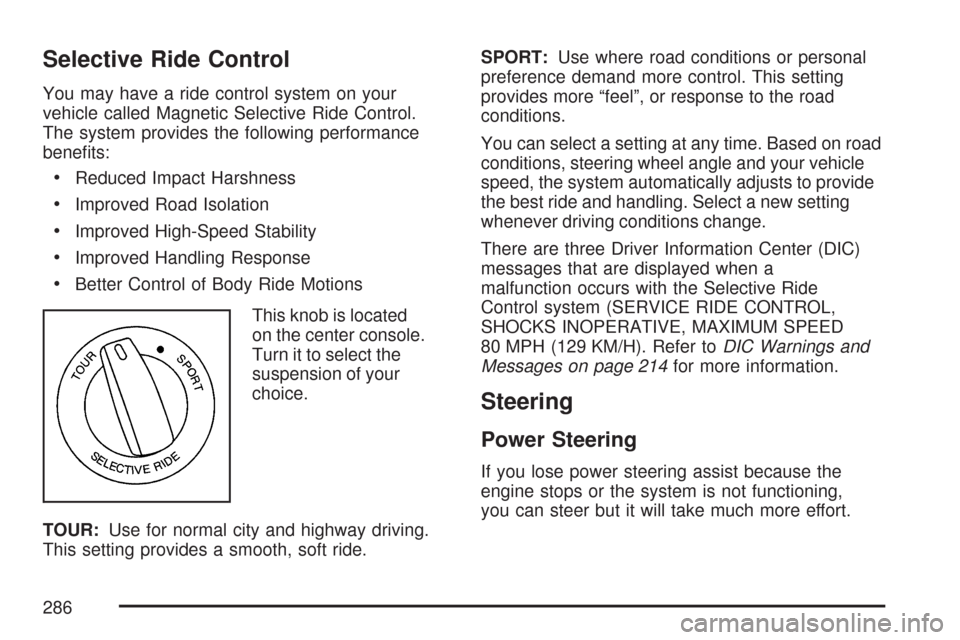
This knob is located
on the center console.
Turn it to select the
suspension of your
choice.
TOUR:Use for normal city and highway driving.
This setting provides a smooth, soft ride.SPORT:Use where road conditions or personal
preference demand more control. This setting
provides more “feel”, or response to the road
conditions.
You can select a setting at any time. Based on road
conditions, steering wheel angle and your vehicle
speed, the system automatically adjusts to provide
the best ride and handling. Select a new setting
whenever driving conditions change.
There are three Driver Information Center (DIC)
messages that are displayed when a
malfunction occurs with the Selective Ride
Control system (SERVICE RIDE CONTROL,
SHOCKS INOPERATIVE, MAXIMUM SPEED
80 MPH (129 KM/H). Refer toDIC Warnings and
Messages on page 214for more information.
Steering
Power Steering
If you lose power steering assist because the
engine stops or the system is not functioning,
you can steer but it will take much more effort.
286
Page 290 of 488
So here are some tips for passing:
Drive ahead. Look down the road, to the
sides, and to crossroads for situations
that might affect your passing patterns. If you
have any doubt whatsoever about making
a successful pass, wait for a better time.
Watch for traffic signs, pavement markings,
and lines. If you can see a sign up ahead
that might indicate a turn or an intersection,
delay your pass. A broken center line
usually indicates it is all right to pass, providing
the road ahead is clear. Never cross a solid
line on your side of the lane or a double
solid line, even if the road seems empty of
approaching traffic.
Do not get too close to the vehicle you want to
pass while you are awaiting an opportunity. For
one thing, following too closely reduces your
area of vision, especially if you are following a
larger vehicle. Also, you will not have adequate
space if the vehicle ahead suddenly slows or
stops. Keep back a reasonable distance.
When it looks like a chance to pass is coming
up, start to accelerate but stay in the right lane
and do not get too close. Time your move soyou will be increasing speed as the time comes
to move into the other lane. If the way is clear to
pass, you will have a running start that more
than makes up for the distance you would lose
by dropping back. And if something happens to
cause you to cancel your pass, you need only
slow down and drop back again and wait for
another opportunity.
If other vehicles are lined up to pass a slow
vehicle, wait your turn. But take care that
someone is not trying to pass you as you pull
out to pass the slow vehicle. Remember to
glance over your shoulder and check the
blind spot.
Check your vehicle’s mirrors, glance over your
shoulder, and start your left lane change signal
before moving out of the right lane to pass.
When you are far enough ahead of the passed
vehicle to see its front in your vehicle’s inside
mirror, activate the right lane change signal and
move back into the right lane. Remember that
an outside convex mirror makes the vehicle
you just passed seem farther away from you
than it really is.
290