radio CHEVROLET CORVETTE 2008 6.G User Guide
[x] Cancel search | Manufacturer: CHEVROLET, Model Year: 2008, Model line: CORVETTE, Model: CHEVROLET CORVETTE 2008 6.GPages: 432, PDF Size: 2.4 MB
Page 202 of 432
NO FOB - OFF OR RUN?
This message displays when the keyless access
transmitter is not detected inside the vehicle while you
are trying to turn the ignition off. Your vehicle may
be near a strong radio antenna signal causing
the keyless access system to be jammed. The vehicle
will remain in ACCESSORY until the vehicle is turned off
or is restarted, or ve minutes has expired. If you turn
the ignition off and you cannot nd the keyless access
transmitter, you will not be able to restart the vehicle.
The keyless access transmitter needs to be inside of the
vehicle in order for the vehicle to start. SeeStarting
the Engine on page 2-23for more information.
OPTIONS UNAVAILABLE
This message displays for a few seconds if a keyless
access transmitter that is not labelled 1 or 2 is used and
you try to personalize the features on your vehicle by
pressing the OPTION button. The personalization
system will not recognize the transmitter and the
DIC will not display the current driver number or the
menus used to set personalizations. The personalization
features will then be set to the default states. SeeDIC
Vehicle Personalization on page 3-75for more
information.
PRESS BRAKE TO START ENGINE
(Automatic Transmission Only)
This message displays if you try to start the engine by
pressing the keyless ignition start button without
having the brake pressed. The brake needs to be
pressed when starting the engine. SeeIgnition Positions
on page 2-22for more information.
REDUCED ENGINE POWER
If this message displays and the check engine light
comes on, a noticeable reduction in the vehicle’s
performance may occur. If the REDUCED ENGINE
POWER message is displayed, but there is no reduction
in performance, proceed to your destination. The
performance may be reduced the next time the vehicle
is driven.
The vehicle may be driven at a reduced speed while the
REDUCED ENGINE POWER message is displayed,
but acceleration and speed may be reduced. Anytime
the check engine light stays on, the vehicle should
be taken to your dealer/retailer as soon as possible for
diagnosis and repair. SeeMalfunction Indicator
Lamp on page 3-45for more information.
Multiple chimes sound when this message is displayed.
3-66
Page 204 of 432
SERVICE CHARGING SYSTEM
If this message displays while you are driving, there
may be a problem with the electrical charging system.
It could mean that there is a loose or broken drive belt or
that there is another electrical problem. Have your
vehicle checked right away by your dealer/retailer.
Driving while this message is on could drain the battery.
If you must drive a short distance with the message
on, be certain to turn off the vehicle’s accessories, such
as the radio and air conditioner.
Multiple chimes sound when this message is displayed.
To acknowledge the message, press the RESET
button. The message reappears every 10 minutes until
this condition changes.
SERVICE ELECTRICAL SYSTEM
This message displays if an electrical problem has
occurred within the Powertrain Control Module (PCM).
Have your vehicle serviced by your dealer/retailer.
SERVICE FUEL SYSTEM
This message displays if the Powertrain Control Module
(PCM) has detected a problem within the fuel system.
Have your vehicle serviced by your dealer/retailer.
This message also displays when the cluster is
not getting fuel information from the PCM.
SERVICE RIDE CONTROL
This message displays when the Selective Ride Control
system has detected a malfunction and the system
must be serviced. See your dealer/retailer. If a fault is
present in the Selective Ride Control system which
causes the shocks to be in their full soft condition,
the messages SERVICE RIDE CONTROL, SHOCKS
INOPERATIVE, and MAXIMUM SPEED 80 MPH
(129 km/h) will display together. SeeSelective Ride
Control on page 4-10for more information.
SERVICE TIRE MONITOR
This message displays if a part on the Tire Pressure
Monitor System (TPMS) is not working properly. The tire
pressure light also ashes and then remains on during
the same ignition cycle. SeeTire Pressure Light on
page 3-44. Several conditions may cause this message
to appear. SeeTire Pressure Monitor Operation on
page 5-70for more information. If the warning comes on
and stays on, there may be a problem with the TPMS.
See your dealer/retailer.
3-68
Page 211 of 432
DIC Vehicle Personalization
Many features on your vehicle can be personalized.
This means that the operation of these features can be
set to operate differently depending on who is driving
the vehicle. See “Personal Options” later in this section
for the features that you can personalize.
The personalization settings for other features are
automatically updated and saved as the driver adjusts
them. These include the following settings and presets:
The radio presets, tone, volume, fade, balance,
equalization (EQ) settings and source (radio or CD)
The last climate control setting
The Head-Up Display (HUD) position and dimming
level, if your vehicle has this feature
The instrument panel cluster dimming level and last
selected DIC display
Separate personalization settings are saved for
two different drivers. One of the keyless access
transmitters is assigned to driver 1. The other is
assigned to driver 2. The back of the keyless access
transmitters are labelled 1 or 2 to correspond to
each driver.The current driver’s preferences are recalled when one
of the following occurs:
The lock or unlock button on the keyless access
transmitter, labelled 1 or 2, is pressed.
The appropriate memory button, 1 or 2, located on
the driver’s door is pressed. SeeMemory Seat,
Mirrors and Steering Wheel on page 1-4for more
information.
A valid keyless access transmitter is detected upon
opening the driver’s door.
If more than one valid keyless access transmitter is
detected upon opening the driver’s door, the driver
preferences for the lowest driver number will be recalled.
If a keyless access transmitter that is not labelled 1 or 2
is used, the personalization system will not recognize
the transmitter. The Driver Information Center (DIC) will
not display a current driver number and the features
that are normally programmed through the DIC will be
set to the default states. Also, if the OPTION button
is pressed, the DIC does not display the menus used to
set personalizations, but instead displays OPTIONS
UNAVAILABLE for a few seconds.
3-75
Page 218 of 432
If you choose BOTH, on automatic transmission
vehicles, both doors will automatically unlock when the
shift lever is moved into PARK (P). On manual
transmission vehicles, both doors will automatically
unlock when the ignition is turned off or is in RAP.
When the mode you want is selected, press the OPTION
button to set your choice and advance to the next
personal option.
Language:This option allows you to select the
language the DIC, the Head-Up Display (HUD), if your
vehicle has this feature, and the radio uses to display
messages. Each language mode will be displayed in its
own language. For example, English will be displayed
as ENGLISH, Spanish as ESPANOL, etc. If your vehicle
has the navigation system, you will not have the
Japanese language mode.
Press the OPTION button until LANGUAGE appears on
the display, then press the RESET button to scroll
through the following modes:
ENGLISH (default)
DEUTSCH (German)
FRANCAIS (French)
ITALIANO (Italian)
ESPANOL (Spanish)If you choose a language that you do not understand,
press the OPTION and RESET buttons for ve seconds.
The DIC will begin displaying all of the various
languages one by one for as long as the buttons are
pressed. When the desired language is displayed,
release the buttons and the DIC will set to this language.
When the mode you want is selected, press the
OPTION button to set your choice and advance to the
next personal option.
Personalize Name:This option allows you to type in a
name or greeting that will appear on the DIC display
whenever the corresponding keyless access
transmitter (1 or 2) is used or one of the memory
buttons (1 or 2) located on the driver’s door is pressed.
Press the OPTION button until PERSONALIZE
NAME appears on the display, then press the RESET
button to scroll through the following modes:
YES
NO (default)
If you choose YES, you can type in a name that will
appear on the DIC display.
3-82
Page 220 of 432
Audio System(s)
Determine which radio your vehicle has and then read
the pages following to familiarize yourself with its
features.
{CAUTION:
This system provides you with far greater
access to audio stations and song listings.
Giving extended attention to entertainment
tasks while driving can cause a crash and you
or others can be injured or killed. Always keep
your eyes on the road and your mind on the
drive — avoid engaging in extended searching
while driving.
Keeping your mind on the drive is important for
safe driving. SeeDefensive Driving on page 4-2.
Here are some ways in which you can help avoid
distraction while driving.While your vehicle is parked:
Familiarize yourself with all of its controls.
Familiarize yourself with its operation.
Set up your audio system by presetting your
favorite radio stations, setting the tone, and
adjusting the speakers. Then, when driving
conditions permit, you can tune to your favorite
radio stations using the presets and steering wheel
controls if the vehicle has them.
Notice:Before adding any sound equipment to
your vehicle, such as an audio system, CD player,
CB radio, mobile telephone, or two-way radio, make
sure that it can be added by checking with your
dealer/retailer. Also, check federal rules covering
mobile radio and telephone units. If sound
equipment can be added, it is very important to do
it properly. Added sound equipment may interfere
with the operation of your vehicle’s engine, radio,
or other systems, and even damage them. Your
vehicle’s systems may interfere with the operation
of sound equipment that has been added.
Your vehicle has a feature called Retained Accessory
Power (RAP). With RAP, the audio system can be
played even after the ignition is turned off. SeeRetained
Accessory Power (RAP) on page 2-23for more
information.
3-84
Page 221 of 432
Setting the Clock
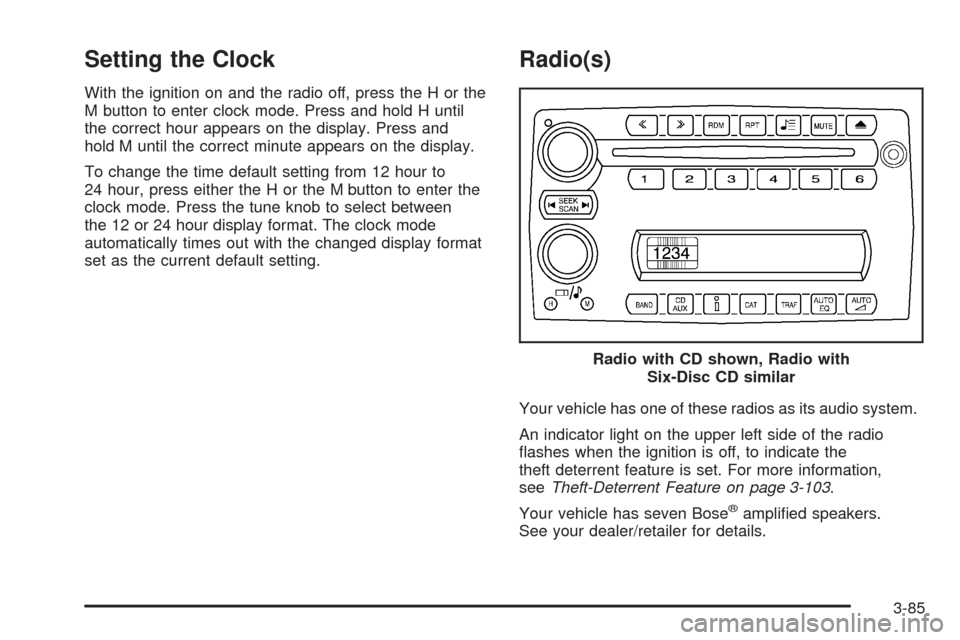
With the ignition on and the radio off, press the H or the
M button to enter clock mode. Press and hold H until
the correct hour appears on the display. Press and
hold M until the correct minute appears on the display.
To change the time default setting from 12 hour to
24 hour, press either the H or the M button to enter the
clock mode. Press the tune knob to select between
the 12 or 24 hour display format. The clock mode
automatically times out with the changed display format
set as the current default setting.
Radio(s)
Your vehicle has one of these radios as its audio system.
An indicator light on the upper left side of the radio
ashes when the ignition is off, to indicate the
theft deterrent feature is set. For more information,
seeTheft-Deterrent Feature on page 3-103.
Your vehicle has seven Bose
®amplied speakers.
See your dealer/retailer for details.Radio with CD shown, Radio with
Six-Disc CD similar
3-85
Page 222 of 432
Radio Data System (RDS)
The audio system has a Radio Data System (RDS).
RDS features are available for use only on FM stations
that broadcast RDS information.
With RDS, the radio can do the following:
Seek to stations broadcasting the selected type of
programming.
Receive announcements concerning local and
national emergencies.
Display messages from radio stations.
Seek to stations with traffic announcements.
This system relies upon receiving specic information
from these stations and works only when the information
is available. In rare cases, a radio station can broadcast
incorrect information that causes the radio features
to work improperly. If this happens, contact the radio
station.
While the radio is tuned to an RDS station, the station
name or call letters display. RDS stations can also
provide the time of day, a program type (PTY) for current
programming, and the name of the program being
broadcast.
Playing the Radio
Top Knob (Power/Volume):Press to turn the system
on and off. Turn clockwise or counterclockwise to
increase or decrease the volume.
4(Information):For RDS, press to change what
display while using RDS. The display options are station
name, RDS station frequency, PTY, and the name of
the program (if available).
For XM™ (if equipped), press while in XM™ mode to
retrieve four different categories of information related to
the current song or channel: Artist, Song Title,
Category or PTY, Channel Number/Channel Name.
To change the default on the display, press until you
see the desired display, then hold for two seconds.
The radio produces one beep and the selected display
is now the default.
AUTO
n(Automatic Volume):Automatic volume
automatically adjusts the audio system to make up
for road and wind noise as you drive, by increasing the
volume as vehicle speed increases.
Set the volume at the desired level. Press this button
to select AUTO VOLUME MIN (minimum), AUTO
VOLUME MED (medium), or AUTO VOLUME MAX
(maximum). Each higher setting provides more volume
compensation at faster vehicle speeds. To turn
automatic volume off, press this until AUTO VOLUME
OFF displays.
3-86
Page 223 of 432
If your vehicle has the Bose®sound system, it includes
Bose®AudioPilot®noise compensation technology.
When turned on, AudioPilot®continuously adjusts
the audio system equalization to compensate for
background noise, so that the music always sounds the
same at the set volume level. This feature is most
effective at lower radio volume settings where
background noise can affect how well you hear the
music being played. At higher volume settings, where
the music is much louder than the background noise,
there could be little or no adjustments by AudioPilot
®.
To use AudioPilot
®, set the radio volume to the desired
level. Turn AudioPilot®on by pressing the automatic
volume button until AVOL ON displays. As the
vehicle goes faster, the background noise increases.
AudioPilot
®adjusts the audio system’s equalization
to overcome background noise. To turn AudioPilot®off,
press the automatic volume button until AVOL OFF
displays. For additional information on AudioPilot
®,
visit www.bose.com/audiopilot.
MUTE:Press to silence the system. Press again to
turn the sound on.
This button is not available on the Radio with
Six-Disc CD.
Finding a Station
BAND:Press to switch between AM, XM1 or XM2
(if equipped), FM1, or FM2. The display shows
the selection.
O/e(Tune):Turn to select radio stations.
tSEEKu:Press the arrows to go to the previous or
to the next station and stay there.
The radio only seeks stations with a strong signal that
are in the selected band.
tSCANu:Press and hold either arrow for
two seconds until FREQUENCY SCAN displays.
The radio goes to a station, plays for a few seconds,
then goes on to the next station. Press either arrow
again to stop scanning.
To scan preset stations, press and hold either arrow for
four seconds until PRESET SCAN displays. The radio
goes to the next preset station, plays for a few seconds,
then goes to the next preset station. Press either arrow
again or one of the pushbuttons to stop scanning
presets.
The radio only scans stations with a strong signal that
are in the selected band.
3-87
Page 224 of 432
Setting Preset Stations
Up to 30 stations (six AM, six XM1 and six XM2
(if equipped), six FM1, and six FM2), can be
programmed on the six numbered pushbuttons, by
performing the following steps:
1. Turn the radio on.
2. Press BAND to select AM, XM1 or XM2
(if equipped), FM1, or FM2.
3. Tune in the desired station.
4. Press AUTO EQ to select the equalization.
5. Press and hold one of the six numbered
pushbuttons until a beep sounds. When that
numbered pushbutton is pressed, the station that
was set, returns and the equalization that was
selected is stored for that pushbutton.
6. Repeat the steps for each pushbutton.
Setting the Tone (Bass/Treble)
O
/e(Bass/Treble):Press to select BASS or
TREBLE. Turn to increase or to decrease the tone.
If a station is weak or has static, decrease the treble.
To adjust the bass and treble to the middle position,
press and hold when the tone control is on the display.
The level changes to the middle position.
To adjust all tone and speaker controls to the middle
position, press and hold when no tone or speaker control
is displayed. AUDIO SETTINGS CENTERED displays.
AUTO EQ (Automatic Equalization):Press to
select customized equalization settings designed for
CLASSICAL, POP, ROCK, JAZZ, TALK, and
COUNTRY. Selecting CUSTOM or changing bass or
treble, returns the EQ to the manual bass and
treble settings.
The radio saves separate AUTO EQ settings for each
preset and source.
If the radio has the Bose
®sound system, the
equalization settings are EQ1 through EQ6 and
CUSTOM.
3-88
Page 225 of 432
Adjusting the Speakers (Balance/Fade)
O
/e(Balance/Fade):To adjust the balance
between the right and the left speakers, press until
BALANCE displays. Turn to move the sound toward the
right or the left speakers.
To adjust the fade between the front and the rear
speakers, press until FADE displays. Turn to move the
sound toward the front or the rear speakers.
To adjust the balance and fade to the middle position,
press and hold when the speaker control is on the
display. The level changes to the middle position.
To adjust all tone and speaker controls to the middle
position, press and hold when no tone or speaker control
is displayed. AUDIO SETTINGS CENTERED displays.
Finding a Category Station
(RDS and XM™ (if equipped))
To select and nd a desired category perform the
following:
1. Press the CAT (category) button. The last selected
category displays.
2. Turn the tune knob to select the category.
3. Once the desired category displays, press either
SEEK arrow to go to a category’s station. SEEKING
CATEGORY displays.
4. To go to another station within that category, press
the CAT button to display the category, then press
either SEEK arrow to go to another station.
If both category and traffic are on, the radio searches
for stations with the selected category and traffic
announcements.
If the radio cannot nd the desired category, NONE
displays and the radio returns to the last station tuned.
3-89