buttons CHEVROLET CORVETTE 2010 6.G Owner's Manual
[x] Cancel search | Manufacturer: CHEVROLET, Model Year: 2010, Model line: CORVETTE, Model: CHEVROLET CORVETTE 2010 6.GPages: 472, PDF Size: 11.44 MB
Page 220 of 472
Press and hold the RESET button to reset to
0.0 km/h (mph).
Engine Oil Life : Press the TRIP button until the engine
oil life is displayed, such as OIL LIFE REMAINING 89%.
This is an estimate of the engine oil's remaining useful
life. It will show 100% when the system is reset after
an oil change. It will alert you to change the oil on a
schedule consistent with your driving conditions.
When the remaining oil life is low, the system will alert
you with the message CHANGE ENGINE OIL.
Remember, you must reset the engine oil life system
yourself after each oil change. It will not reset itself.
To reset the system, see Engine Oil Life System
on
page 6‑25. Be careful not to reset the engine oil life
system accidentally at any time other than when the oil
has just been changed. It cannot be reset accurately
until the next oil change.
See Scheduled Maintenance
on page 7‑3andEngine
Oilon page 6‑19for more information.
OPTION Button
The OPTION button allows you to access the
PERSONAL OPTIONS menu and customize the
personalization settings on your vehicle. See DIC
Vehicle Personalization
on page 4‑71for more
information.
RESET Button
The RESET button, used along with other buttons, will
reset system functions and turn off or acknowledge
messages on the DIC.
DIC Warnings and Messages
Messages are displayed on the DIC to notify the driver
that the status of the vehicle has changed and that
some action may be needed by the driver to correct the
condition. Multiple messages may appear one after
another. You can scroll through the messages that
may have been sent at the same time. The DIC is
continuously updated with the vehicle performance
status.
Some messages may not require immediate action, but
you can press the RESET button to acknowledge that
you received the messages and to clear them from the
display.
Some messages cannot be cleared from the DIC
display because they are more urgent. These
messages require action before they can be cleared.
You should take any messages that appear on the
display seriously and remember that clearing the
messages will only make the messages disappear,
not correct the problem.
The following are the possible messages that can be
displayed and some information about them.
4-52
Page 227 of 472
MAXIMUM SPEED 129 km/h (80 MPH)
This message displays when a malfunction is present in
the Selective Ride Control system. The vehicle speed
will be limited to a value determined by the vehicle
when the shock absorber system has failed and the
shocks are in their full soft mode. Have the vehicle
serviced by your dealer/retailer as soon as possible.
To acknowledge the message, press the RESET button.
The message reappears every 10 minutes until this
condition changes.
NO FOBS DETECTED
This message displays if the vehicle does not detect the
presence of a keyless access transmitter when you
have attempted to start the vehicle or a vehicle door
has just closed. The following conditions may cause this
message to appear:
.Driver-added equipment plugged into the
accessory power outlet on the center console
is causing interference. Examples of these
devices are cell phones and cell phone chargers,
two-way radios, power inverters, or similar items.
Try moving the keyless access transmitter away
from these devices when starting the vehicle.
In addition, PDA devices and remote garage and
gate openers may also generate Electromagnetic
Interference (EMI) that may interfere with the keyless access transmitter. Do not carry the
keyless access transmitter in the same pocket or
bag as these devices.
.The vehicle is experiencing Electromagnetic
Interference (EMI). Some locations, such as
airports, automatic toll booths, and some gas
stations have EMI fields which may interfere
with the keyless access transmitter.
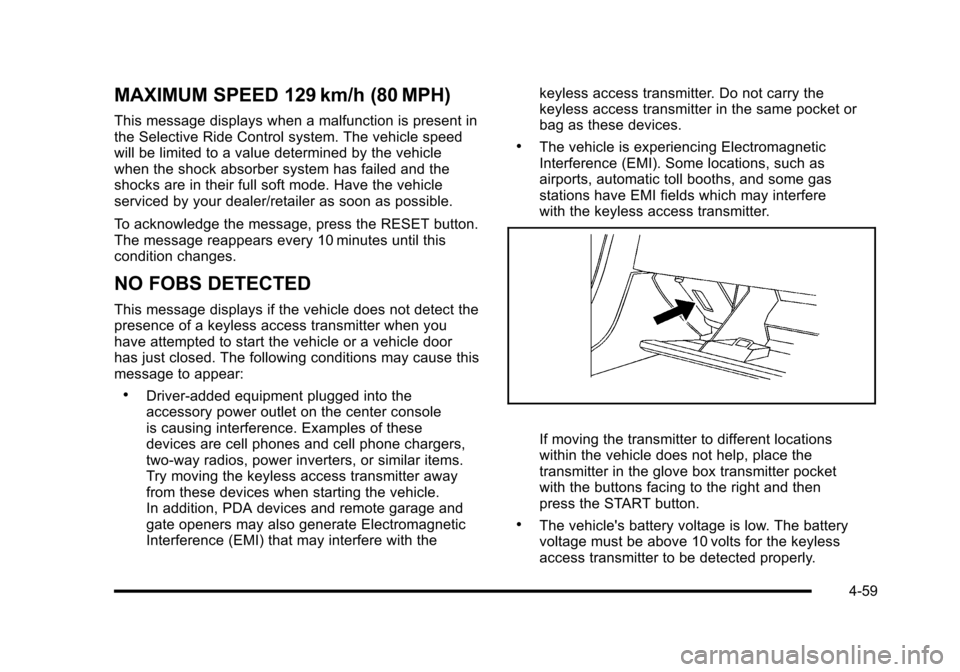
If moving the transmitter to different locations
within the vehicle does not help, place the
transmitter in the glove box transmitter pocket
with the buttons facing to the right and then
press the START button.
.The vehicle's battery voltage is low. The battery
voltage must be above 10 volts for the keyless
access transmitter to be detected properly.
4-59
Page 240 of 472
Entering the Personal Options Menu
To enter the personal options menu, use the following
steps: 1. If you have an automatic transmission vehicle, turn the vehicle on with the shift lever in P (Park).
If you have a manual transmission vehicle, turn the
vehicle on with the parking brake set.
To avoid excessive drain on the battery, it is
recommended that the headlamps are turned off.
2. Press the OPTION button and you will enter the PERSONAL OPTIONS menu.
The DIC will display the current driver
number (1 or 2) for a few seconds and then will
display instructions on which buttons to use for
setting the personalizations. The RESET button
is used to select a setting for a particular feature.
The OPTION button is used to move to the next
feature.
3. Press the OPTION button while the instruction screen is displayed to enter the first
personalization menu item.
4. Once you have cycled through all of the personal options, pressing the OPTION button a final time
exits the personal options menu. In addition, if no
button is pressed within 45 seconds, the DIC will
exit the personal options menu.
Personal Options
The following options are available for programming:
Display Units : This option allows you to choose the
measurement units.
Press the OPTION button until DISPLAY UNITS
appears on the display, then press the RESET button
to scroll through the following modes:
.ENGLISH (default)
.METRIC
If you choose ENGLISH, all information will be
displayed in English units.
If you choose METRIC, all information will be displayed
in metric units.
When the mode you want is selected, press the
OPTION button to set your choice and advance to the
next personal option.
Auto Memory Recall (Automatic Transmission
only) : If your automatic transmission vehicle has the
memory package, you may have this option. This option
allows the driver's seat, the telescopic steering column,
if your vehicle has this feature, and the outside rearview
mirrors to automatically move to the current driver's set
position when the engine starts.
4-72
Page 246 of 472
When the mode you want is selected, press the
OPTION button to set your choice and advance to the
next personal option.
Language : This option allows you to select the
language the DIC, the Head-Up Display (HUD), if your
vehicle has this feature, and the radio uses to display
messages. Each language mode will be displayed in its
own language. For example, English will be displayed
as ENGLISH, Spanish as ESPANOL, etc. If your vehicle
has the navigation system, you will not have the
Japanese language mode.
Press the OPTION button until LANGUAGE appears on
the display, then press the RESET button to scroll
through the following modes:
.ENGLISH (default)
.DEUTSCH (German)
.FRANCAIS (French)
.ITALIANO (Italian)
.ESPANOL (Spanish)
If you choose a language that you do not understand,
press the OPTION and RESET buttons for
five seconds. The DIC will begin displaying all of the
various languages one by one for as long as the
buttons are pressed. When the desired language is
displayed, release the buttons and the DIC will set to
this language. When the mode you want is selected, press the
OPTION button to set your choice and advance
to the next personal option.
Personalize Name :
This option allows you to type
in a name or greeting that will appear on the DIC
display whenever the corresponding keyless access
transmitter (1 or 2) is used or one of the memory
buttons (1 or 2) located on the driver's door is pressed.
Press the OPTION button until PERSONALIZE NAME
appears on the display, then press the RESET button to
scroll through the following modes:
.YES
.NO (default)
If you choose YES, you can type in a name that will
appear on the DIC display.
To program a name, use the following procedure: 1. Enter the PERSONAL OPTIONS menu and select the driver number (1 or 2) that you would like to
program by following the instructions listed
previously under “Entering the Personal
Options Menu”.
2. Press the OPTION button until the PERSONALIZE NAME option appears on the display.
3. Select YES under PERSONALIZE NAME by pressing the RESET button.
4-78
Page 253 of 472
To scan preset stations:
Press and hold
torufor four seconds until PRESET
SCAN displays. The radio goes to the next preset
station, plays for a few seconds, then goes to the next
preset station. Press
toruagain or one of the
pushbuttons to stop scanning presets.
The radio only scans stations with a strong signal.
1-6 (Preset Pushbuttons) : Press to play stations that
are programmed to the radio preset pushbuttons.
Setting Preset Stations
Up to 30 stations (six FM1, six FM2, and six AM,
six XM1 and six XM2), and equalization settings for
each station can be programmed on the six numbered
pushbuttons.
To set presets:
1. Turn the radio on.
2. Press BAND to select FM1, FM2, AM, or XM1 or XM2.
3. Tune in the desired station. 4. Press AUTO EQ to select the equalization.
5. Press and hold one of the six numbered
pushbuttons until the radio beeps once.
6. Repeat the steps for each pushbutton.
Finding a Category (CAT) Station
(XM Satellite Radio Service Only)
To select an XM station by category: 1. Press CAT. The last selected category displays.
2. Turn the
O eknob to select a category.
3. Press
toruto go to a category's station.
SEEKING CATEGORY displays.
4. To go to another station within that category, press the CAT button to display the category, then press
toruto go to another station.
If the radio cannot find the desired category, NONE
displays and the radio returns to the last station tuned.
4-85
Page 264 of 472
Navigation/Radio System
For vehicles with a navigation radio system, see the
separate Navigation System manual.
Bluetooth®
Vehicles with a Bluetooth system can use a Bluetooth
capable cell phone with a Hands Free Profile to make
and receive phone calls. The system can be used while
the key is in ON/RUN or ACC/ACCESSORY position.
The range of the Bluetooth system can be up to
9.1 m (30 ft). Not all phones support all functions,
and not all phones are guaranteed to work with
the in-vehicle Bluetooth system. See www.gm.com/
bluetooth for more information on compatible phones.
Voice Recognition
The Bluetooth system uses voice recognition to
interpret voice commands to dial phone numbers and
name tags.
Noise : Keep interior noise levels to a minimum.
The system may not recognize voice commands
if there is too much background noise.
When to Speak : A short tone sounds after the system
responds indicating when it is waiting for a voice
command. Wait until the tone and then speak.
How to Speak : Speak clearly in a calm and natural
voice.
Audio System
When using the in‐vehicle Bluetooth system, sound
comes through the vehicle's front audio system
speakers and over‐rides the audio system. Use the
audio system volume knob, during a call, to change
the volume level. The adjusted volume level remains
in memory for later calls. To prevent missed calls, a
minimum volume level is used if the volume is turned
down too low.
Bluetooth Controls
Use the buttons located on the steering wheel to
operate the in‐vehicle Bluetooth system. See Audio
Steering Wheel Controls
on page 4‑107for more
information.
b g(Push To Talk) : Press to answer incoming calls,
to confirm system information, and to start speech
recognition.
c(Phone On Hook): Press to end a call, reject a
call, or to cancel an operation.
4-96
Page 276 of 472
To select tracks on a CD:
.Pressworxto go to the next or to the previous
track when a CD is playing.
.Press and holdworxfor more than
two seconds to scan the current CD. The CD
goes to the next track, plays the first 10 seconds,
then goes to the next track. Press again to stop
scanning.
.Press and holdworxfor more than
four seconds to scan all of the CDs loaded. The
CD goes to the next CD, plays the first 10 seconds
of each track, then goes to the next CD. Press
again to stop scanning.
+
e−e(Volume): Press to increase or to decrease
the radio volume.
1 to 6 (Preset Pushbuttons) : Press to play stations
that are programmed on the radio preset pushbuttons.
Radio Reception
Frequency interference and static can occur during
normal radio reception if items such as cell phone
chargers, vehicle convenience accessories, and
external electronic devices are plugged into the
accessory power outlet. If there is interference or static,
unplug the item from the accessory power outlet.
AM
The range for most AM stations is greater than for FM,
especially at night. The longer range can cause station
frequencies to interfere with each other. For better radio
reception, most AM radio stations boost the power
levels during the day, and then reduce these levels
during the night. Static can also occur when things like
storms and power lines interfere with radio reception.
When this happens, try reducing the treble on the radio.
FM Stereo
FM signals only reach about 10 to 40 miles
(16 to 65 km). Although the radio has a built-in electronic
circuit that automatically works to reduce interference,
some static can occur, especially around tall buildings
or hills, causing the sound to fade in and out.
4-108
Page 402 of 472
Appearance Care
Interior Cleaning
The vehicle's interior will continue to look its best if
it is cleaned often. Although not always visible, dust
and dirt can accumulate on the upholstery. Dirt can
damage carpet, fabric, leather, and plastic surfaces.
Regular vacuuming is recommended to remove
particles from the upholstery. It is important to keep
the upholstery from becoming and remaining heavily
soiled. Soils should be removed as quickly as possible.
The vehicle's interior may experience extremes of heat
that could cause stains to set rapidly.
Lighter colored interiors may require more frequent
cleaning. Use care because newspapers and garments
that transfer color to home furnishings may also transfer
color to the vehicle's interior.
When cleaning the vehicle's interior, only use cleaners
specifically designed for the surfaces being cleaned.
Permanent damage may result from using cleaners
on surfaces for which they were not intended. Use
glass cleaner only on glass. Remove any accidental
over-spray from other surfaces immediately. To prevent
over-spray, apply cleaner directly to the cleaning cloth. Notice:
Using abrasive cleaners when cleaning
glass surfaces on the vehicle, could scratch the
glass and/or cause damage to the rear window
defogger. When cleaning the glass on the vehicle,
use only a soft cloth and glass cleaner.
Many cleaners contain solvents that may become
concentrated in the vehicle's breathing space.
Before using cleaners, read and adhere to all safety
instructions on the label. While cleaning the vehicle's
interior, maintain adequate ventilation by opening the
vehicle's doors and windows.
Dust may be removed from small buttons and knobs
using a small brush with soft bristles.
Products that remove odors from the vehicle's
upholstery and clean the vehicle's glass can be
obtained from your dealer/retailer.
6-90