phone CHEVROLET CORVETTE 2010 6.G Owners Manual
[x] Cancel search | Manufacturer: CHEVROLET, Model Year: 2010, Model line: CORVETTE, Model: CHEVROLET CORVETTE 2010 6.GPages: 472, PDF Size: 11.44 MB
Page 24 of 472
Portable Audio Devices
This vehicle may have an auxiliary input jack, located
on the audio faceplate. External devices such as iPod®,
MP3 players, etc. can be connected to the auxiliary
input jack using a 3.5 mm (1/8 in) input jack cable.
See “Using the Auxiliary Input Jack” underRadio(s)
on
page 4‑81.
Steering Wheel Controls
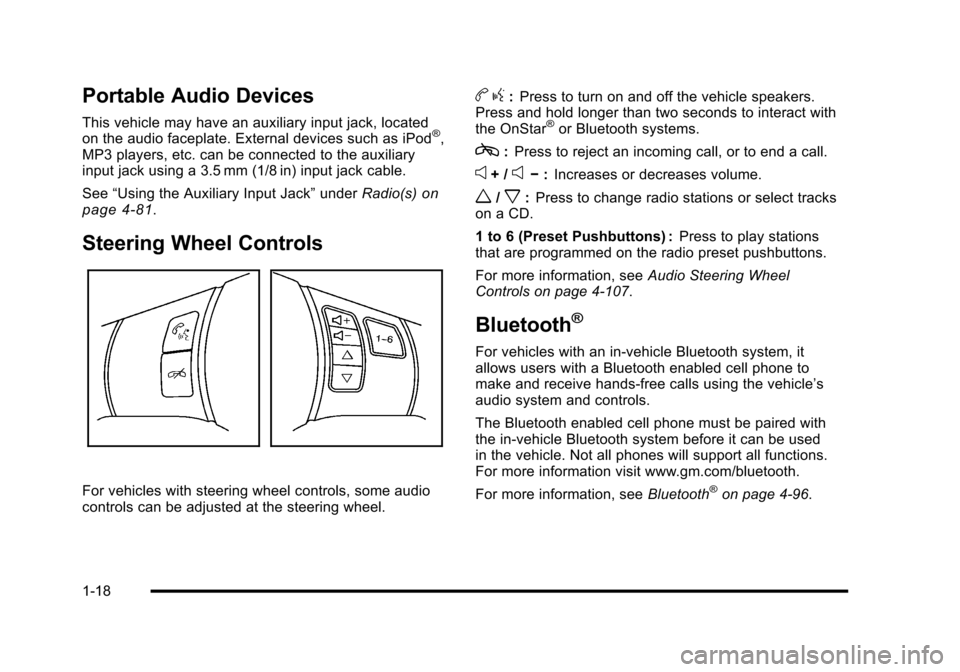
For vehicles with steering wheel controls, some audio
controls can be adjusted at the steering wheel.
b g:Press to turn on and off the vehicle speakers.
Press and hold longer than two seconds to interact with
the OnStar
®or Bluetooth systems.
c: Press to reject an incoming call, or to end a call.
e+ /e− :Increases or decreases volume.
w/x:Press to change radio stations or select tracks
on a CD.
1 to 6 (Preset Pushbuttons) : Press to play stations
that are programmed on the radio preset pushbuttons.
For more information, see Audio Steering Wheel
Controls on page 4‑107.
Bluetooth®
For vehicles with an in-vehicle Bluetooth system, it
allows users with a Bluetooth enabled cell phone to
make and receive hands-free calls using the vehicle’s
audio system and controls.
The Bluetooth enabled cell phone must be paired with
the in-vehicle Bluetooth system before it can be used
in the vehicle. Not all phones will support all functions.
For more information visit www.gm.com/bluetooth.
For more information, see Bluetooth
®on page 4‑96.
1-18
Page 27 of 472
Power Outlets
The accessory power outlet can be used to connect
electrical equipment, such as a cellular phone.
The accessory power outlet is located inside the center
console storage compartment, on the forward left side.
To use the outlet, remove the tethered cap.
See Accessory Power Outlet(s) on page 4‑20.
Roof Panel
On vehicles with a removable roof panel, there are
three release latches. Two are located on the front of
the roof panel and the other is located on the back of
the roof panel. See Removing the Roof Panel
on
page 3‑54.
Until you are sure you can remove the roof panel by
yourself, have someone help you. Once removed, the
roof panel should always be stored properly in the rear
storage compartment.
For more information, see:
.Storing the Roof Panel on page 3‑56.
.Installing the Roof Panel on page 3‑58.
Convertible
If equipped, the convertible top can be lowered and
stowed under the tonneau cover behind the seats.
For step-by-step instructions, see Convertible Top
(Manual)
on page 3‑59or Convertible Top (Power)on
page 3‑66.
Performance and Maintenance
Traction Control System (TCS)
The traction control system limits wheel spin.
The system turns on automatically every time the
vehicle is started.
.To turn off traction control, press and releasedon
the console.
dilluminates and the appropriate
DIC message displays. See DIC Warnings and
Messages on page 4‑52.
.Press and release the button again to turn on
traction control.
See Traction Control System (TCS) on page 5‑6.
The vehicle has an Active Handling System that helps
maintain directional control of the vehicle in difficult
driving conditions. See Active Handling System
on
page 5‑8.
1-21
Page 33 of 472
Location information about the vehicle is only available
if the GPS satellite signals are unobstructed and
available.
The vehicle must have a working electrical system,
including adequate battery power, for the OnStar
equipment to operate. There are other problems OnStar
cannot control that may prevent OnStar from providing
OnStar service at any particular time or place. Some
examples are damage to important parts of the vehicle
in a crash, hills, tall buildings, tunnels, weather or
wireless phone network congestion.
OnStar Steering Wheel Controls
This vehicle may have a Talk/Mute button that can
be used to interact with OnStar hands-free calling.
See Audio Steering Wheel Controls
on page 4‑107for
more information.
On some vehicles, the mute button can be used to dial
numbers into voice mail systems, or to dial phone
extensions. See the OnStar Owner's Guide for more
information.
Your Responsibility
Increase the volume of the radio if the OnStar advisor
cannot be heard.
If the light next to the OnStar buttons is red, the system
may not be functioning properly. Press
Qand request a
vehicle diagnostic. If the light appears clear (no light is
appearing), your OnStar subscription has expired and
all services have been deactivated. Press
Qto confirm
that the OnStar equipment is active.
1-27
Page 93 of 472
Adding Equipment to Your
Airbag-Equipped Vehicle
Q: Is there anything I might add to or change about the vehicle that could keep the airbags from
working properly?
A: Yes. If you add things that change your vehicle's
frame, bumper system, height, front end or side
sheet metal, they may keep the airbag system from
working properly. Changing or moving any parts of
the front seats, safety belts, the airbag sensing and
diagnostic module, steering wheel, instrument panel,
the inside review mirror, front sensors, or airbag
wiring can affect the operation of the airbag system.
In addition, the vehicle has a passenger sensing
system for the right front passenger position, which
includes sensors that are part of the passenger seat.
The passenger sensing system may not operate
properly if the original seat trim is replaced with
non-GM covers, upholstery or trim, or with
GM covers, upholstery or trim designed for a
different vehicle. Any object, such as an aftermarket
seat heater or a comfort enhancing pad or device,
installed under or on top of the seat fabric, could also interfere with the operation of the passenger
sensing system. This could either prevent proper
deployment of the passenger airbag(s) or prevent
the passenger sensing system from properly turning
off the passenger airbag(s). See
Passenger Sensing
System
on page 2‑53.
If you have any questions about this, you should
contact Customer Assistance before you modify
your vehicle. The phone numbers and addresses
for Customer Assistance are in Step Two of the
Customer Satisfaction Procedure in this manual.
See Customer Satisfaction Procedure on page 8‑2.
Q: Because I have a disability, I have to get my vehicle modified. How can I find out whether this
will affect my airbag system?
A: If you have questions, call Customer Assistance.
The phone numbers and addresses for Customer
Assistance are in Step Two of the Customer
Satisfaction Procedure in this manual. See
Customer Satisfaction Procedure on page 8‑2.
Your dealer/retailer and the service manual have
information about the location of the airbag sensors,
sensing and diagnostic module and airbag wiring.
2-59
Page 120 of 472
Retained Accessory Power (RAP)
These vehicle accessories can be used for up to
10 minutes after the engine is turned off:
.Audio System
.Power Windows
These features continue to work up to 10 minutes after
the engine is turned off or until either door is opened.
If a door is opened, the power windows and audio
system will shut off.
Starting the Engine
Move the shift lever to P (Park) or N (Neutral) for an
automatic transmission. For a manual transmission the
vehicle can be started in Neutral or any other gear as
long as the clutch pedal is pressed. To restart a vehicle
with a manual transmission when you are already
moving, use the Neutral position only. To restart a
vehicle with an automatic transmission when you
are already moving, use N (Neutral).
Notice: Do not try to shift to P (Park) if the vehicle
is moving. If you do, you could damage the
transmission. Shift to P (Park) only when the
vehicle is stopped.
The keyless access transmitter must be inside the
vehicle for the ignition to work. Cell phone chargers can interfere with the operation of
the Keyless Access System. Battery chargers should
not be plugged in when starting or turning off the
engine.
To start the vehicle, do the following:
1. For vehicles with an automatic transmission, with your foot on the brake pedal, press the
START button located on the instrument panel.
For vehicles with a manual transmission, you must
also press in the clutch pedal while pressing the
START button.
If there is not a keyless access transmitter in
the vehicle or if there is something causing
interference with it, the DIC will display NO FOBS
DETECTED. See DIC Warnings and Messages
on
page 4‑52for more information.
2. When the engine begins cranking, let go of the button and the engine cranks automatically until
it starts. If the battery in the keyless access
transmitter is weak, the DIC displays FOB
BATTERY LOW. You can still drive the vehicle.
See “Battery Replacement” underKeyless Access
System Operation
on page 3‑5for more
information. If the fob battery is dead, you need to
insert the fob into the fob slot to enable engine
starting. See “No Fobs Detected” underDIC
Warnings and Messages on page 4‑52.
3-24
Page 145 of 472
Using Universal Home Remote
Press and hold the appropriate button for at least
half of a second. The indicator light comes on while
the signal is being transmitted.
Operation can occur:
.If the vehicle is in accessory mode.
.If the vehicle is in running.
.If the vehicle is in Retained Accessory Mode
(RAP). See Retained Accessory Power (RAP)on
page 3‑24for more information.
.Up to an additional 10 minutes after RAP finishes.
.Up to 10 minutes after any door is opened.
Reprogramming Universal Home
Remote Buttons
Any of the three buttons can be reprogrammed by
repeating the instructions.
Erasing Universal Home Remote
Buttons
The programmed buttons should be erased when the
vehicle is sold or the lease ends.
To erase either Rolling Code or Fixed Code on the
Universal Home Remote device:
1. Press and hold the two outside buttons at the same time for approximately 20 seconds, until the
indicator lights, located directly above the buttons,
begin to blink rapidly.
2. Once the indicator lights begin to blink, release both buttons. The codes from all buttons are
erased.
For help or information on the Universal Home Remote
System, call the customer assistance phone number
under Customer Assistance Offices on page 8‑6.
3-49
Page 188 of 472
To change the language and unit selections, see
“OPTION” underDIC Operation and Displayson
page 4‑47.
Clean the inside of the windshield as needed to remove
any dirt or film that reduces the sharpness or clarity of
the HUD image.
To clean the HUD, spray household glass cleaner on a
soft, clean cloth. Wipe the HUD lens gently, then dry it.
Do not spray cleaner directly on the lens because the
cleaner could leak into the unit.
If the ignition is on and the HUD image cannot be seen,
check to see if:
.Something is covering the HUD unit.
.The HUD dimmer control is adjusted properly.
.The HUD image is adjusted to the proper height.
.Ambient light is low, in the direction the vehicle is
facing.
.A fuse is blown. See Fuses and Circuit Breakerson page 6‑101.
Keep in mind that the windshield is part of the HUD
system. See Windshield Replacement on page 6‑59.
Accessory Power Outlet(s)
The accessory power outlet can be used to connect
electrical equipment, such as a cellular phone.
The accessory power outlet is located inside the center
console storage compartment, on the forward left side.
To use the outlet, remove the tethered cap. When not
using it, always cover the outlet with the protective cap.
Notice: Leaving electrical equipment plugged in for
an extended period of time while the vehicle is off
will drain the battery. Power is always supplied to
the outlets. Always unplug electrical equipment
when not in use and do not plug in equipment that
exceeds the maximum 20 ampere rating.
Certain electrical accessories may not be compatible
with the accessory power outlet and could result in
blown vehicle or adapter fuses. If you experience
a problem, see your dealer/retailer for additional
information on accessory power outlets.
4-20
Page 227 of 472
MAXIMUM SPEED 129 km/h (80 MPH)
This message displays when a malfunction is present in
the Selective Ride Control system. The vehicle speed
will be limited to a value determined by the vehicle
when the shock absorber system has failed and the
shocks are in their full soft mode. Have the vehicle
serviced by your dealer/retailer as soon as possible.
To acknowledge the message, press the RESET button.
The message reappears every 10 minutes until this
condition changes.
NO FOBS DETECTED
This message displays if the vehicle does not detect the
presence of a keyless access transmitter when you
have attempted to start the vehicle or a vehicle door
has just closed. The following conditions may cause this
message to appear:
.Driver-added equipment plugged into the
accessory power outlet on the center console
is causing interference. Examples of these
devices are cell phones and cell phone chargers,
two-way radios, power inverters, or similar items.
Try moving the keyless access transmitter away
from these devices when starting the vehicle.
In addition, PDA devices and remote garage and
gate openers may also generate Electromagnetic
Interference (EMI) that may interfere with the keyless access transmitter. Do not carry the
keyless access transmitter in the same pocket or
bag as these devices.
.The vehicle is experiencing Electromagnetic
Interference (EMI). Some locations, such as
airports, automatic toll booths, and some gas
stations have EMI fields which may interfere
with the keyless access transmitter.
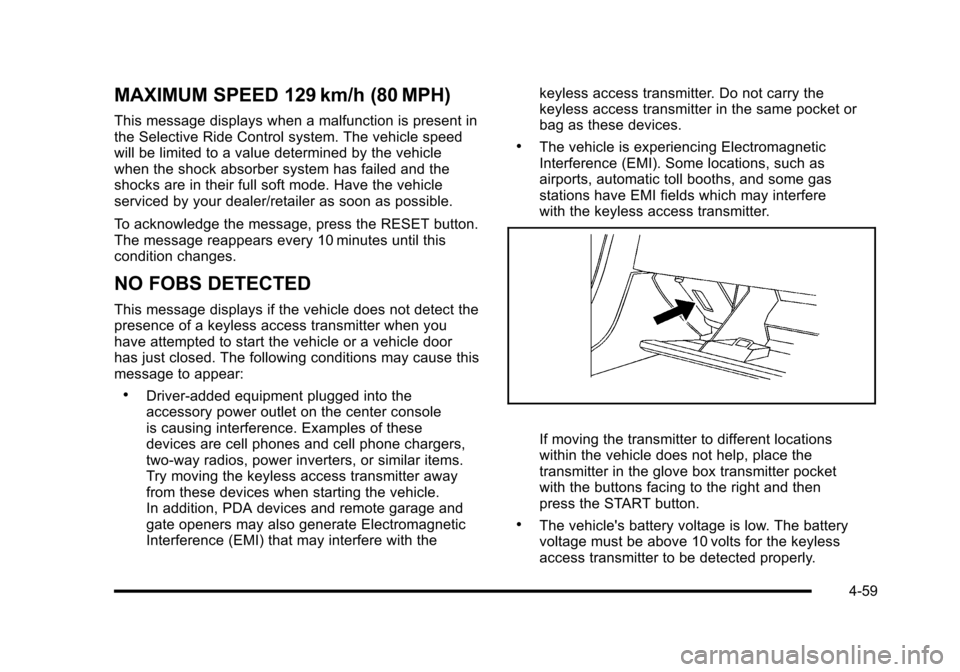
If moving the transmitter to different locations
within the vehicle does not help, place the
transmitter in the glove box transmitter pocket
with the buttons facing to the right and then
press the START button.
.The vehicle's battery voltage is low. The battery
voltage must be above 10 volts for the keyless
access transmitter to be detected properly.
4-59
Page 248 of 472
Audio System(s)
Determine which radio the vehicle has and read the
following pages to become familiar with its features.
{WARNING:
Taking your eyes off the road for extended periods
could cause a crash resulting in injury or death to
you or others. Do not give extended attention to
entertainment tasks while driving.
This system provides access to many audio and non
audio listings.
To minimize taking your eyes off the road while driving,
do the following while the vehicle is parked:
.Become familiar with the operation and controls of
the audio system.
.Set up the tone, speaker adjustments, and preset
radio stations.
For more information, see Defensive Driving
on
page 5‑2. Notice:
Contact your dealer/retailer before adding
any equipment.
Adding audio or communication equipment could
interfere with the operation of the vehicle's engine,
radio, or other systems, and could damage them.
Follow federal rules covering mobile radio and
telephone equipment.
The vehicle has Retained Accessory Power (RAP). With
RAP, the audio system can be played even after the
ignition is turned off. See Retained Accessory Power
(RAP)
on page 3‑24for more information.
Setting the Clock
To set the clock:
1. Press and hold H until the correct hour displays.
2. Press and hold M until the correct minute displays.
The clock mode automatically times out with the
changed display format set as the current default
setting.
4-80
Page 254 of 472
SCAN :To scan the stations within a category:
1. Press CAT. The last selected category displays.
2. Turn the
O eknob to select a category.
3. Press and hold
toruuntil a beep sounds and
SCAN CATEGORY displays. The radio begins
scanning the stations in the category.
4. Press
toruto stop scanning.
Radio Messages
CAL ERR (Calibration Error) : Displays if the
radio is no longer configured properly for the vehicle.
The vehicle must be returned to your dealer/retailer
for service.
LOC (Locked) : Displays when the THEFTLOCK
®
system has locked up. The vehicle must be returned to
your dealer/retailer for service.
If any error occurs repeatedly or cannot be corrected,
contact your dealer/retailer.
RDS Messages
ALERT! : Alert warns of local or national emergencies.
When an alert announcement comes on the current
radio station, ALERT! displays. The announcement
is heard, even if the volume is low or a CD is playing.
If a CD is playing, play stops during the announcement.
Alert announcements cannot be turned off.
ALERT! is not affected by tests of the emergency
broadcast system. This feature is not supported by all
RDS stations.
4(Information): If the current station has a message,
INFO (information) displays. Press
4to see the
message. The message can display the artist, song
title, call in phone numbers, etc.
If the entire message is not displayed, parts of the
message appears every three seconds. To scroll
through the message, press and release
4. A new
group of words display after every press of the button.
Once the complete message has displayed, INFO
disappears from the display until another new message
is received. The last message can be displayed by
pressing this button. The last message until a new
message is received or the radio is tuned to a different
station.
NO INFO displays when a message is not available
from a station.
4-86