buttons CHEVROLET CORVETTE 2013 6.G Owner's Manual
[x] Cancel search | Manufacturer: CHEVROLET, Model Year: 2013, Model line: CORVETTE, Model: CHEVROLET CORVETTE 2013 6.GPages: 414, PDF Size: 6.97 MB
Page 163 of 414
Black plate (59,1)Chevrolet Corvette Owner Manual - 2013 - crc2 - 11/8/12
Instruments and Controls 5-59
Personalize Name:This option
allows you to type in a name or
greeting that will appear on the DIC
display whenever the corresponding
RKE transmitter (1 or 2) is used or
one of the memory buttons (1 or 2)
located on the driver door is
pressed.
Press the OPTION button until
PERSONALIZE NAME appears on
the display, then press the RESET
button to scroll through the following
modes:
.YES
.NO (default)
If you choose YES, you can type in
a name that will appear on the DIC
display.
To program a name, use the
following procedure:
1. Enter the PERSONAL OPTIONS menu and select the driver
number (1 or 2) that you would
like to program by following the instructions listed previously
under
“Entering the Personal
Options Menu”.
2. Press the OPTION button until the PERSONALIZE NAME
option appears on the display.
3. Select YES under PERSONALIZE NAME by
pressing the RESET button.
4. Press the OPTION button and a cursor will display where you
can insert a letter.
5. Press the OPTION button again until the letter you want is
displayed. To scroll through the
letters faster and without a
beeping noise, keep the
OPTIONS button depressed.
There are alpha/numeric
characters and a blank space
available. 6. Press the RESET button to
select the letter of your choice
and proceed on to the next
space to the right.
If you make a mistake and would
like to clear or replace a letter,
perform the following steps:
6.1. Press the RESET button to reach the letter you would
like to change.
6.2. Press the OPTION button to scroll through the letter
choices.
6.3. Press the RESET button to select the letter and
proceed on to the next
space to the right.
7. Repeat Steps 5 and 6 until the name or greeting you want is
complete. After the name or
greeting is complete, keep
pressing the RESET button until
the display turns blank and exits
out of this option. You can
program up to 20 characters.
Page 165 of 414
Black plate (61,1)Chevrolet Corvette Owner Manual - 2013 - crc2 - 11/8/12
Instruments and Controls 5-61
Read the instructions completely
before attempting to program the
transmitter. Because of the steps
involved, it may be helpful to have
another person assist with
programming the transmitter.
Be sure to keep the original remote
control transmitter for use in other
vehicles, as well as for future
programming. Only the original
remote control transmitter is needed
for Fixed Code programming. The
programmed buttons should be
erased when the vehicle is sold or
the lease ends. See“Erasing
Universal Home Remote Buttons” in
this section.
Park the vehicle outside of the
garage when programming a garage
door. Be sure that people and
objects are clear of the garage door
or gate being programmed.Programming Universal Home
Remote —Rolling Code
For questions or help programming
the Universal Home Remote
System, call 1-866-572-2728 or go
to www.learcar2u.com.
Most garage door openers sold
after 1996 are Rolling Code units.
Programming a garage door opener
involves time-sensitive actions, so
read the entire procedure before
starting. Otherwise, the device will
time out and the procedure will have
to be repeated.
To program up to three devices:
1. Press START or put the vehicle
in accessory mode. See Ignition
Positions on page 9‑18 for
additional information.
Programming can only occur
when the vehicle is running or in
accessory mode.
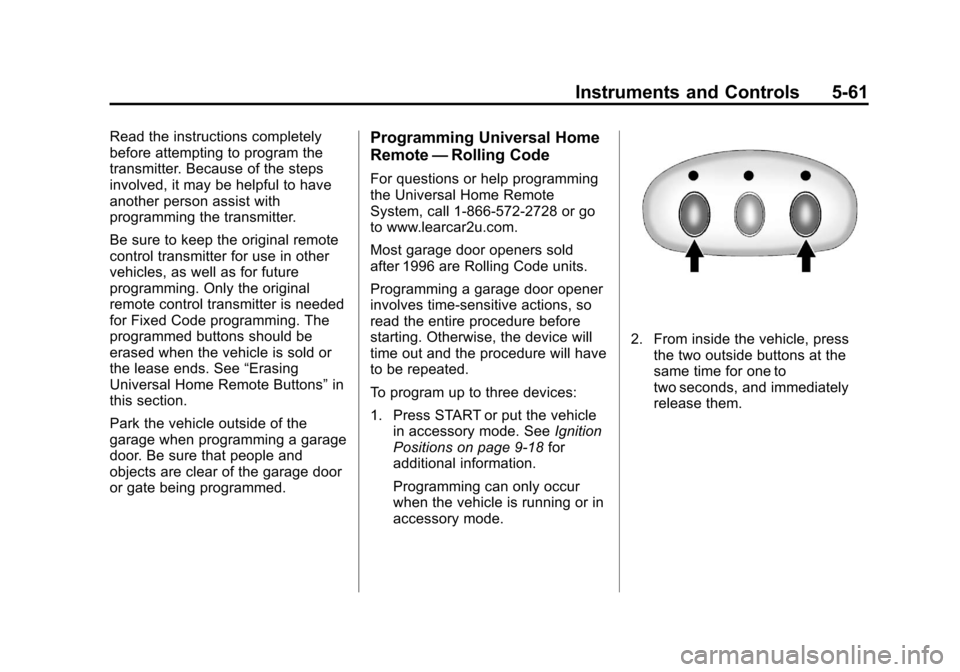
2. From inside the vehicle, press the two outside buttons at the
same time for one to
two seconds, and immediately
release them.
Page 168 of 414
Black plate (64,1)Chevrolet Corvette Owner Manual - 2013 - crc2 - 11/8/12
5-64 Instruments and Controls
.A switch in the down
position could be labeled as
“Down,” “−,”or“Off.”
.A switch in the middle
position could be labeled as
“Middle,” “0,” or“Neutral.”
3. Write down the eight to 12 switch settings from left to right as
follows:
.When a switch is in the up
position, write “Left.”
.When a switch is in the
down position, write “Right.”
.If a switch is set between
the up and down position,
write“Middle.”
The switch settings written
down in Step 3 now
become the button strokes
to be entered into the
Universal Home Remote in
Step 5. Be sure to enter the
switch settings written down
in Step 3, in order from left to right, into the Universal
Home Remote, when
completing Step 5.
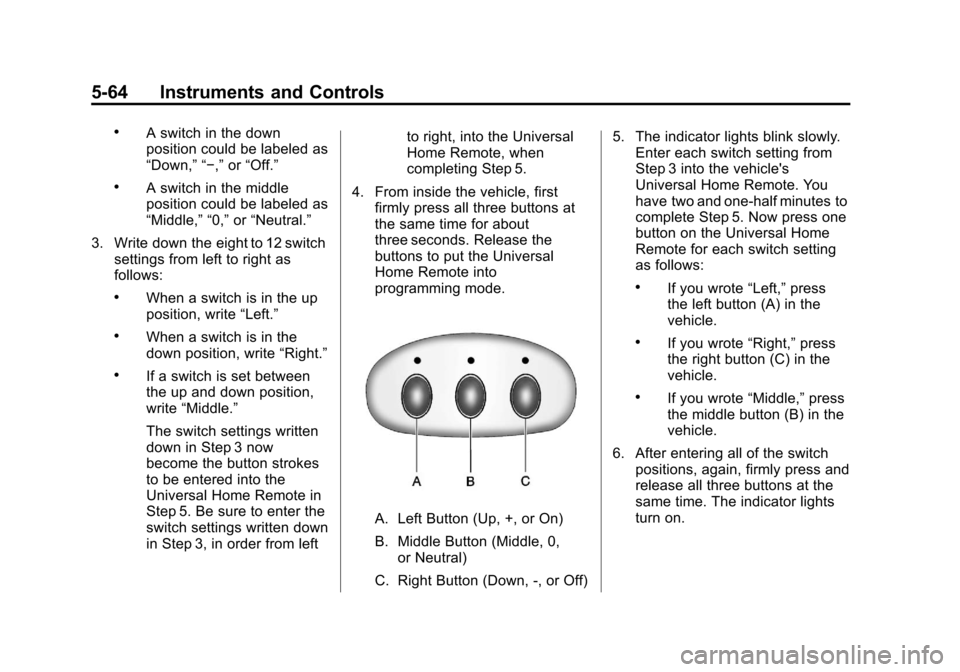
4. From inside the vehicle, first firmly press all three buttons at
the same time for about
three seconds. Release the
buttons to put the Universal
Home Remote into
programming mode.
A. Left Button (Up, +, or On)
B. Middle Button (Middle, 0,or Neutral)
C. Right Button (Down, -, or Off) 5. The indicator lights blink slowly.
Enter each switch setting from
Step 3 into the vehicle's
Universal Home Remote. You
have two and one-half minutes to
complete Step 5. Now press one
button on the Universal Home
Remote for each switch setting
as follows:
.If you wrote “Left,”press
the left button (A) in the
vehicle.
.If you wrote “Right,”press
the right button (C) in the
vehicle.
.If you wrote “Middle,”press
the middle button (B) in the
vehicle.
6. After entering all of the switch positions, again, firmly press and
release all three buttons at the
same time. The indicator lights
turn on.
Page 169 of 414
Black plate (65,1)Chevrolet Corvette Owner Manual - 2013 - crc2 - 11/8/12
Instruments and Controls 5-65
7. Press and hold the button thatwill be used to control the
garage door until the garage
door moves. The indicator light
above the selected button
should slowly blink. This button
may need to be held for up to
55 seconds.
8. Immediately release the button when the garage door moves.
The indicator light blinks rapidly
until programming is complete.
9. Press and release the same button again. The garage door
should move, confirming that
programming is successful and
complete.
To program another Fixed Code
device such as an additional garage
door opener, a security device,
or home automation device, repeat
Steps 1 through 9, choosing a
different button in Step 7 than what
was used for the garage door
opener.Universal Remote System
Operation
Press and hold the appropriate
button for at least one-half second.
The indicator light comes on while
the signal is being transmitted.
Operation can occur:
.If the vehicle is in
accessory mode.
.If the vehicle is running.
.If the vehicle is in Retained
Accessory Mode (RAP). See
Retained Accessory Power
(RAP) on page 9‑21 for more
information.
.Up to an additional 10 minutes
after RAP finishes.
.Up to 10 minutes after any door
is opened.
Reprogramming Universal
Home Remote Buttons
Any of the three buttons can be
reprogrammed by repeating the
instructions.
Erasing Universal Home
Remote Buttons
The programmed buttons should be
erased when the vehicle is sold or
the lease ends.
To erase either Rolling Code or
Fixed Code on the Universal Home
Remote device:
1. Press and hold the two outside buttons at the same time for
approximately 20 seconds, until
the indicator lights, located
directly above the buttons, begin
to blink rapidly.
2. Once the indicator lights begin to blink, release both buttons. The
codes from all buttons are
erased.
For help or information on the
Universal Home Remote System,
call the customer assistance phone
number under Customer Assistance
Offices (U.S. and Canada) on
page 13‑5 orCustomer Assistance
Offices (Mexico) on page 13‑5.
Page 181 of 414

Black plate (3,1)Chevrolet Corvette Owner Manual - 2013 - crc2 - 11/8/12
Infotainment System 7-3
B. Power/Volume Knob
.Press to turn the system
on or off.
.Turn to adjust the volume.
C. Buttons 1−6
.Press to recall a favorite
station.
.Press and hold to save the
current station.
D. CD Slot
E.
{
.Radio: Press to seek the
previous station. Press and
hold to scan backward
through the strongest
stations.
.CD: Press to go to the
previous track. Press and
hold to go fast backward
within a track. F.
|
.Radio: Press to seek the
next station. Press and
hold to scan forward
through the strongest
stations.
.CD: Press to go to the next
track. Press and hold to
fast forward within a track.
G. RDM (Random)
.Press to play the CD
tracks in random order.
H. RPT (Repeat)
.Press to repeat the current
CD track.
I.
X(Song List)
.The Song List feature can
save 20 track selections.
J. MUTE
.Press to mute and unmute
the system.
K.
X(Eject)
.Press to eject the CD. L. Auxiliary Port
.3.5 mm (1/8 in) Auxiliary
Input Jack.
M.
O/e(Tune/Tone Menu)
.Press to open the Tone
Settings menu.
.Turn to manually find a
station.
N. BAND
.Press to scroll through the
available bands AM, FM,
or XM if equipped.
O. CD/AUX
.Press to listen to a CD or
an auxiliary source.
P.
V(Information)
.Press to display
information on the current
station or track.
Q. CAT (Category)
.Press to display a list of
XM categories.
Page 186 of 414
Black plate (8,1)Chevrolet Corvette Owner Manual - 2013 - crc2 - 11/8/12
7-8 Infotainment System
The radio only stops at stations with
a strong signal.
tSCANu:Press and holdtorufor two seconds until
FREQUENCY SCAN displays. The
radio goes to a station, plays for a
few seconds, then goes on to the
next station. Press
toruagain to
stop scanning.
To scan preset stations:
Press and hold
torufor
four seconds until PRESET SCAN
displays. The radio goes to the next
preset station, plays for a few
seconds, then goes to the next
preset station. Press
toruagain
or press one of the pushbuttons to
stop scanning presets.
The radio only scans stations with a
strong signal.
1–6 (Preset Pushbuttons): Press
to play stations that are
programmed to the radio preset
pushbuttons.
Storing Radio Stations
Drivers are encouraged to store
radio station while the vehicle is
parked. See Defensive Driving on
page 9‑3. Tune to stored radio
stations using the presets, favorites
button, and steering wheel controls,
if the vehicle has this feature.
Up to 30 stations (six FM1, six FM2,
six AM, six M1, and six XM2), and
equalization settings for each
station can be programmed on the
six numbered pushbuttons.To set
presets:
1. Turn the radio on.
2. Press BAND to select FM1, FM2, AM, XM1, or XM2.
3. Tune in the desired station.
4. Press AUTO EQ to select the equalization.
5. Press and hold one of the six numbered pushbuttons until the
radio beeps once.
6. Repeat the steps for each pushbutton.
Satellite Radio
SiriusXM™ Satellite Radio
Service
SiriusXM is a satellite radio service
based in the 48 contiguous United
States and 10 Canadian provinces.
SiriusXM Satellite Radio has a wide
variety of programming and
commercial-free music, coast to
coast, and in digital-quality sound.
A service fee is required to receive
the SiriusXM service. If SiriusXM
Service needs to be reactivated, the
radio will display "No Subscription
Please Renew" on channel XM1.
For more information, contact
SiriusXM at www.siriusxm.com or
1-800-929-2100 in the U.S., and
www.xmradio.ca or
1-877-438-9677 in Canada.
Finding an SiriusXM Channel
BAND: Press to switch between
FM1, FM2, AM, XM1, or XM2.
O/e(Tune): Turn to manually
select an XM channel.
Page 187 of 414
Black plate (9,1)Chevrolet Corvette Owner Manual - 2013 - crc2 - 11/8/12
Infotainment System 7-9
tSEEKu:Press to go to the
previous or to the next XM channel.
tSCANu: Press and holdtorufor two seconds until
FREQUENCY SCAN displays. The
radio goes to a channel, plays for a
few seconds, then goes on to the
next station. Press
toruagain to
stop scanning.
To scan preset stations:
Press and hold
torufor
four seconds until PRESET SCAN
displays. The radio goes to the next
preset station, plays for a few
seconds, then goes to the next
preset station. Press
toruagain
or press one of the pushbuttons to
stop scanning presets.
1–6 (Preset Pushbuttons): Press
to play channels that are
programmed to the radio preset
pushbuttons.
Finding a Category (CAT)
Station
To select an SiriusXM station by
category:
1. Press the CAT button. The last selected category displays.
2. Turn the
O/eknob to select
a category.
3. Press
toruto go to a
category's station. SEEKING
CATEGORY displays.
4. To go to another station within that category, press the CAT
button to display the category,
then press
toruto go to
another station.
If the radio cannot find the desired
category, NONE displays and the
radio returns to the last station
tuned. SCAN:
To scan the stations within
a category:
1. Press CAT. The last selected
category displays.
2. Turn the
O/eknob to select
a category.
3. Press and hold
toruuntil a
beep sounds and SCAN
CATEGORY displays. The radio
begins scanning the stations in
the category.
4. Press
toruto stop scanning.
Storing SiriusXM Channels
Drivers are encouraged to store XM
channels while the vehicle is
parked. See Defensive Driving on
page 9‑3. Tune to stored radio
stations using the presets, favorites
button, and steering wheel controls,
if the vehicle has this feature.
Page 188 of 414
Black plate (10,1)Chevrolet Corvette Owner Manual - 2013 - crc2 - 11/8/12
7-10 Infotainment System
Up to 30 stations (six FM1, six FM2,
and six AM, six XM1 and six XM2),
and equalization settings for each
station can be programmed on the
six numbered pushbuttons.
To set presets:
1. Tune to a channel.
2. Press AUTO EQ to select theequalization.
3. Press and hold one of the six numbered pushbuttons until the
radio beeps once.
4. Repeat the steps for each pushbutton.
SiriusXM Radio Messages
XL (Explicit Language
Channels): These channels, or any
others, can be blocked by calling
1-800-929-2100 in the U.S. and
1-877-438-9677 in Canada.
Updating: The encryption code in
the receiver is being updated, and
no action is required. This process
should take no longer than
30 seconds. No Signal:
The system is
functioning correctly, but the vehicle
is in a location that is blocking the
XM signal. When the vehicle is
moved into an open area, the signal
should return.
Loading XM: The audio system is
acquiring and processing audio and
text data. No action is needed. This
message should disappear shortly.
CH Off Air: This channel is not
currently in service. Tune in to
another channel.
CH Unauth: This channel is
blocked or cannot be received with
your SiriusXM Subscription
package.
CH Unavail: This previously
assigned channel is no longer
assigned. Tune to another station.
If this station was one of the
presets, choose another station for
that preset button. No Info:
No artist, song title,
category, or text information is
available at this time on this
channel. The system is working
properly.
No Subscription Please Renew:
SiriusXM subscription needs to be
reactivated. Contact SiriusXM at
www.siriusxm.com or call
1-800-929-2100 in the U.S. and
www.xmradio.ca or call
1-877-438-9677 in Canada.
Not Found: There are no channels
available for the selected category.
The system is working properly.
XM Locked: The SiriusXM receiver
in the vehicle may have previously
been in another vehicle. For security
purposes, SiriusXM receivers
cannot be swapped between
vehicles. If this message is received
after having the vehicle serviced,
check with your dealer.
Page 196 of 414
Black plate (18,1)Chevrolet Corvette Owner Manual - 2013 - crc2 - 11/8/12
7-18 Infotainment System
.Pair cell phone(s) to the vehicle.
The system may not work with
all cell phones. See“Pairing”in
this section for more information.
.If the cell phone has voice
dialing capability, learn to use
that feature to access the
address book or contact list. See
“Voice Pass-Thru” in this section
for more information.
.See “Storing and Deleting Phone
Numbers” in this section for
more information.
{WARNING
When using a cell phone, it can
be distracting to look too long or
too often at the screen of the
phone or the infotainment
(navigation) system. Taking your
eyes off the road too long or too
often could cause a crash
resulting in injury or death. Focus
your attention on driving. A Bluetooth system can use a
Bluetooth-capable cell phone with a
Hands-Free Profile to make and
receive phone calls. The system
can be used while the key is in the
ON/RUN or ACC/ACCESSORY
position. The range of the Bluetooth
system can be up to 9.1 m (30 ft).
Not all phones support all functions,
and not all phones work with the
in-vehicle Bluetooth system. See
www.gm.com/bluetooth for more
information on compatible phones.
Voice Recognition
The Bluetooth system uses voice
recognition to interpret voice
commands to dial phone numbers
and name tags.
For additional information, say
“Help”
while you are in a voice
recognition menu.
Noise: Keep interior noise levels to
a minimum. The system may not
recognize voice commands if there
is too much background noise. When to Speak:
A short tone
sounds after the system responds
indicating when it is waiting for a
voice command. Wait until the tone
and then speak.
How to Speak: Speak clearly in a
calm and natural voice.
Audio System
When using the in-vehicle Bluetooth
system, sound comes through the
vehicle's front audio system
speakers and overrides the audio
system. Use the audio system
volume knob, during a call, to
change the volume level. The
adjusted volume level remains in
memory for later calls. To prevent
missed calls, a minimum volume
level is used if the volume is turned
down too low.
Bluetooth Controls
Use the buttons located on the
steering wheel to operate the
in-vehicle Bluetooth system. See
Steering Wheel Controls on
page 5‑3 for more information.
Page 395 of 414
Black plate (1,1)Chevrolet Corvette Owner Manual - 2013 - crc2 - 11/8/12
OnStar 14-1
OnStar
OnStar Overview
OnStar Overview . . . . . . . . . . . . 14-1
OnStar Services
Emergency . . . . . . . . . . . . . . . . . . 14-2
Security . . . . . . . . . . . . . . . . . . . . . . 14-2
Navigation . . . . . . . . . . . . . . . . . . . 14-2
Connections . . . . . . . . . . . . . . . . . 14-4
Diagnostics . . . . . . . . . . . . . . . . . . 14-5
OnStar Additional Information
OnStar AdditionalInformation . . . . . . . . . . . . . . . . . 14-5
OnStar Overview
If equipped, this vehicle has a
comprehensive, in-vehicle system
that can connect to a live Advisor
for Emergency, Security, Navigation,
Connection, and Diagnostic
Services.
The OnStar system status light is
next to the OnStar buttons. If the
status light is:
.Solid Green: System is ready.
.Flashing Green: On a call.
.Red: Indicates a problem.
Press
Qor call 1-888-4ONSTAR
(1-888-466-7827) to speak to an
Advisor. Press
=to:
.Make a call, end a call,
or answer an incoming call.
.Give OnStar Hands-Free Calling
voice commands.
.Give OnStar Turn-by-Turn
Navigation voice commands.
Requires the available Directions
and Connections service plan.
Press
Qto connect to a live
Advisor to:
.Verify account information or
update contact information.
.Get driving directions. Requires
the available Directions and
Connections service plan.
.Receive On-Demand
Diagnostics for a check of the
vehicle’s key operating systems.
.Receive Roadside Assistance.