display CHEVROLET CORVETTE 2013 6.G Repair Manual
[x] Cancel search | Manufacturer: CHEVROLET, Model Year: 2013, Model line: CORVETTE, Model: CHEVROLET CORVETTE 2013 6.GPages: 414, PDF Size: 6.97 MB
Page 180 of 414
Black plate (2,1)Chevrolet Corvette Owner Manual - 2013 - crc2 - 11/8/12
7-2 Infotainment System
Theft-Deterrent Feature
TheftLock®is designed to
discourage theft of the vehicle's
radio by learning a portion of the
Vehicle Identification Number (VIN).
The radio does not operate and
LOCKED displays if the radio is
stolen or moved to a different
vehicle.
When the when the ignition is in the
off position, a blinking red light on
the upper left side of the radio
indicates that TheftLock is armed.
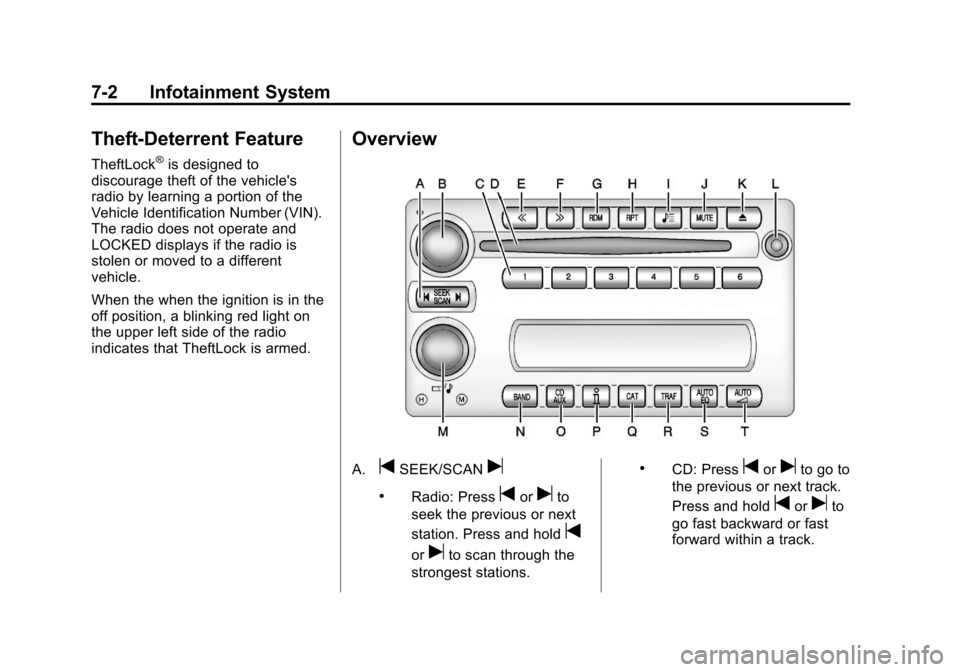
Overview
A.tSEEK/SCANu
.Radio: Presstoruto
seek the previous or next
station. Press and hold
t
oruto scan through the
strongest stations.
.CD: Presstoruto go to
the previous or next track.
Press and hold
toruto
go fast backward or fast
forward within a track.
Page 181 of 414

Black plate (3,1)Chevrolet Corvette Owner Manual - 2013 - crc2 - 11/8/12
Infotainment System 7-3
B. Power/Volume Knob
.Press to turn the system
on or off.
.Turn to adjust the volume.
C. Buttons 1−6
.Press to recall a favorite
station.
.Press and hold to save the
current station.
D. CD Slot
E.
{
.Radio: Press to seek the
previous station. Press and
hold to scan backward
through the strongest
stations.
.CD: Press to go to the
previous track. Press and
hold to go fast backward
within a track. F.
|
.Radio: Press to seek the
next station. Press and
hold to scan forward
through the strongest
stations.
.CD: Press to go to the next
track. Press and hold to
fast forward within a track.
G. RDM (Random)
.Press to play the CD
tracks in random order.
H. RPT (Repeat)
.Press to repeat the current
CD track.
I.
X(Song List)
.The Song List feature can
save 20 track selections.
J. MUTE
.Press to mute and unmute
the system.
K.
X(Eject)
.Press to eject the CD. L. Auxiliary Port
.3.5 mm (1/8 in) Auxiliary
Input Jack.
M.
O/e(Tune/Tone Menu)
.Press to open the Tone
Settings menu.
.Turn to manually find a
station.
N. BAND
.Press to scroll through the
available bands AM, FM,
or XM if equipped.
O. CD/AUX
.Press to listen to a CD or
an auxiliary source.
P.
V(Information)
.Press to display
information on the current
station or track.
Q. CAT (Category)
.Press to display a list of
XM categories.
Page 182 of 414
Black plate (4,1)Chevrolet Corvette Owner Manual - 2013 - crc2 - 11/8/12
7-4 Infotainment System
R. TRAF (Traffic)
.Press to find a station with
traffic information. See
AM-FM Radio on page 7‑6.
S. AUTO EQ (Auto Equalizer)
.Press to customize the EQ.
See Operation on
page 7‑4.
T. AUTO
3(Auto Volume)
.Press to set the automatic
volume to adjust for road
and wind noise. See
Operation on page 7‑4.
Operation
An indicator light on the upper left
side of the radio flashes when the
ignition is off, to indicate the
theft-deterrent feature is set. See
Theft-Deterrent Feature on
page 7‑2.
Playing the Radio
Power/Volume Knob: Press to
turn the system on and off. Turn to
increase or decrease the volume.
MUTE: Press to silence the
system. Press again to turn the
sound on.
This button is not available on the
Six-Disc CD Radio.
V(Information): Press until the
desired display is shown, then hold
for two seconds until the radio
beeps once to change the default
display. The selected display is now
the default.
For RDS:
Press
Vto change the display. The
display options are station name,
RDS station frequency, PTY, and
the name of the program (if
available).
Audio Settings
Press and holdO/ewhen no
tone or speaker control is displayed
to adjust all tone and speaker
controls to the middle position.
AUDIO SETTINGS CENTERED
displays.
Adjusting the Tone (Bass/
Treble)
O/e(Bass/Treble): To adjust
the bass or treble:
Press and release
O/euntil
BASS or TREBLE displays.
.Turn theO/eknob to
increase or to decrease the
level.
.Press and hold theO/eknob
until the level changes to the
middle position.
Page 183 of 414
Black plate (5,1)Chevrolet Corvette Owner Manual - 2013 - crc2 - 11/8/12
Infotainment System 7-5
Adjusting the Speakers
(Balance/Fade)
O/e(Balance/Fade):To adjust
the balance:
Press and release
O/euntil
BALANCE displays.
.Turn theO/eknob to move
the sound toward the right or the
left speakers.
.Press and hold theO/eknob
until the level changes to the
middle position.
To adjust the fade:
Press and release
O/euntil
FADE displays
.Turn theO/eknob to move
the sound toward the front or the
rear speakers.
.Press and hold theO/eknob
until the level changes to the
middle position. AUTO EQ (Automatic
Equalization):
The radio saves
separate AUTO EQ settings for
each preset and source.
For vehicles without the Bose
®
sound system:
.Press AUTO EQ to select
equalization settings designed
for CLASSICAL, POP, ROCK,
JAZZ, TALK, and COUNTRY.
.Select CUSTOM or change bass
or treble to return the EQ to the
manual bass and treble settings.
For vehicles with the Bose sound
system:
.Press AUTO EQ to select
equalization settings from EQ1
through EQ6.
.Select CUSTOM or change bass
or treble to return the EQ to the
manual bass and treble settings. AUTO
n(Automatic Volume):
Automatic volume automatically
adjusts the audio system to make
up for road and wind noise, by
increasing the volume as vehicle
speed increases.
For vehicles without the Bose sound
system:
1. Set the volume at the desired level.
2. Press AUTO
nto select
AUTO VOLUME MIN (minimum),
AUTO VOLUME MED (medium),
or AUTO VOLUME MAX
(maximum). Each higher setting
provides more volume
compensation at faster vehicle
speeds.
3. Press AUTO
nuntil AUTO
VOLUME OFF displays to turn
automatic volume off.
Page 184 of 414
Black plate (6,1)Chevrolet Corvette Owner Manual - 2013 - crc2 - 11/8/12
7-6 Infotainment System
For vehicles with the Bose sound
system:
Vehicles with the Bose sound
system include Bose AudioPilot
®
noise compensation technology.
AudioPilot continuously adjusts the
audio system equalization to
compensate for background noise.
This feature is most effective at
lower radio volume settings where
background noise can affect how
well the audio is heard. At higher
volume settings, there may be little
or no adjustments by AudioPilot. For
additional information on AudioPilot,
visit bose.com/audiopilot.
To use AudioPilot:
1. Set the volume at the desiredlevel.
2. Press AUTO
nuntil AUTO
VOLUME ON displays.
3. Press AUTO
nuntil AUTO
VOLUME OFF displays to turn
off AudioPilot.
Radio Messages
CAL ERR (Calibration Error):
Displays if the radio is no longer
configured properly for the vehicle.
The vehicle must be returned to
your dealer for service.
LOC (Locked): Displays when the
TheftLock system has locked up.
The vehicle must be returned to
your dealer for service.
If any error occurs repeatedly or
cannot be corrected, contact your
dealer.
Radio
AM-FM Radio
Radio Data System (RDS)
RDS features are available for use
only on FM stations that broadcast
RDS information. The station name
or call letters display while the radio
is tuned to an RDS station.
This system relies upon receiving
specific information from these
stations and works only when the
information is available. In rare
cases, a radio station can broadcast
incorrect information that causes the
radio features to work improperly.
If this happens, contact the radio
station.
With RDS, the radio can:
.Seek to stations broadcasting
the selected type of
programming.
.Receive announcements
concerning local and national
emergencies.
Page 185 of 414
Black plate (7,1)Chevrolet Corvette Owner Manual - 2013 - crc2 - 11/8/12
Infotainment System 7-7
.Display messages from radio
stations.
.Seek to stations with traffic
announcements.
.Provide the time of day.
.Provide a program type (PTY)
for current programming.
.Provide the name of the program
being broadcast.
RDS Messages
ALERT!:Alert warns of local or
national emergencies. When an
alert announcement comes on the
current radio station, ALERT!
displays. The announcement is
heard, even if the volume is low or a
CD is playing. If a CD is playing,
play stops during the
announcement. Alert
announcements cannot be
turned off.
ALERT! is not affected by tests of
the emergency broadcast system.
This feature is not supported by all
RDS stations.
V(Information): If the current
station has a message, INFO
displays. Press
Vto see the
message. The message can display
the artist, song title, call in phone
numbers, etc.
If the entire message is not
displayed, parts of the message
appears every three seconds. To
scroll through the message, press
and release
V. A new group of words
displays after every press of the
button. Once the complete message
has displayed, INFO disappears
from the display until another new
message is received. The last
message can be displayed by
pressing this button. The last
message is displayed until a new
message is received or the radio is
tuned to a different station.
NO INFO displays when a message
is not available from a station.
TRAF (Traffic): TA (traffic) displays
when the station broadcasts traffic
announcements. Press TRAF and the radio seeks to
a station that broadcasts traffic
announcements. When a station is
found, the radio stops seeking and
TA displays. NO TRAFFIC INFO
displays if a station that broadcasts
traffic announcements cannot be
found.
Press TRAF to turn off the traffic
announcements if TA is on the
display.
The radio plays the traffic
announcement even if the volume is
low. The radio interrupts the play of
a CD if the last tuned station
broadcasts traffic announcements.
Finding a Station
BAND:
Press to switch between
FM1, FM2, or AM.
O/e(Tune): Turn to select radio
stations.
tSEEKu: Press to go to the
previous or to the next station and
stay there.
Page 186 of 414
Black plate (8,1)Chevrolet Corvette Owner Manual - 2013 - crc2 - 11/8/12
7-8 Infotainment System
The radio only stops at stations with
a strong signal.
tSCANu:Press and holdtorufor two seconds until
FREQUENCY SCAN displays. The
radio goes to a station, plays for a
few seconds, then goes on to the
next station. Press
toruagain to
stop scanning.
To scan preset stations:
Press and hold
torufor
four seconds until PRESET SCAN
displays. The radio goes to the next
preset station, plays for a few
seconds, then goes to the next
preset station. Press
toruagain
or press one of the pushbuttons to
stop scanning presets.
The radio only scans stations with a
strong signal.
1–6 (Preset Pushbuttons): Press
to play stations that are
programmed to the radio preset
pushbuttons.
Storing Radio Stations
Drivers are encouraged to store
radio station while the vehicle is
parked. See Defensive Driving on
page 9‑3. Tune to stored radio
stations using the presets, favorites
button, and steering wheel controls,
if the vehicle has this feature.
Up to 30 stations (six FM1, six FM2,
six AM, six M1, and six XM2), and
equalization settings for each
station can be programmed on the
six numbered pushbuttons.To set
presets:
1. Turn the radio on.
2. Press BAND to select FM1, FM2, AM, XM1, or XM2.
3. Tune in the desired station.
4. Press AUTO EQ to select the equalization.
5. Press and hold one of the six numbered pushbuttons until the
radio beeps once.
6. Repeat the steps for each pushbutton.
Satellite Radio
SiriusXM™ Satellite Radio
Service
SiriusXM is a satellite radio service
based in the 48 contiguous United
States and 10 Canadian provinces.
SiriusXM Satellite Radio has a wide
variety of programming and
commercial-free music, coast to
coast, and in digital-quality sound.
A service fee is required to receive
the SiriusXM service. If SiriusXM
Service needs to be reactivated, the
radio will display "No Subscription
Please Renew" on channel XM1.
For more information, contact
SiriusXM at www.siriusxm.com or
1-800-929-2100 in the U.S., and
www.xmradio.ca or
1-877-438-9677 in Canada.
Finding an SiriusXM Channel
BAND: Press to switch between
FM1, FM2, AM, XM1, or XM2.
O/e(Tune): Turn to manually
select an XM channel.
Page 187 of 414
Black plate (9,1)Chevrolet Corvette Owner Manual - 2013 - crc2 - 11/8/12
Infotainment System 7-9
tSEEKu:Press to go to the
previous or to the next XM channel.
tSCANu: Press and holdtorufor two seconds until
FREQUENCY SCAN displays. The
radio goes to a channel, plays for a
few seconds, then goes on to the
next station. Press
toruagain to
stop scanning.
To scan preset stations:
Press and hold
torufor
four seconds until PRESET SCAN
displays. The radio goes to the next
preset station, plays for a few
seconds, then goes to the next
preset station. Press
toruagain
or press one of the pushbuttons to
stop scanning presets.
1–6 (Preset Pushbuttons): Press
to play channels that are
programmed to the radio preset
pushbuttons.
Finding a Category (CAT)
Station
To select an SiriusXM station by
category:
1. Press the CAT button. The last selected category displays.
2. Turn the
O/eknob to select
a category.
3. Press
toruto go to a
category's station. SEEKING
CATEGORY displays.
4. To go to another station within that category, press the CAT
button to display the category,
then press
toruto go to
another station.
If the radio cannot find the desired
category, NONE displays and the
radio returns to the last station
tuned. SCAN:
To scan the stations within
a category:
1. Press CAT. The last selected
category displays.
2. Turn the
O/eknob to select
a category.
3. Press and hold
toruuntil a
beep sounds and SCAN
CATEGORY displays. The radio
begins scanning the stations in
the category.
4. Press
toruto stop scanning.
Storing SiriusXM Channels
Drivers are encouraged to store XM
channels while the vehicle is
parked. See Defensive Driving on
page 9‑3. Tune to stored radio
stations using the presets, favorites
button, and steering wheel controls,
if the vehicle has this feature.
Page 190 of 414
Black plate (12,1)Chevrolet Corvette Owner Manual - 2013 - crc2 - 11/8/12
7-12 Infotainment System
Diversity Antenna System
The AM-FM antenna is a hidden
self-tuning system. It optimizes the
AM and FM signals relative to the
vehicle's position and radio station
source. No maintenance or
adjustments are needed.
Satellite Radio Antenna
For vehicles with XM Satellite Radio
Service, the antenna is located on
the roof or on the trunk lid of the
vehicle. Keep the antenna clear of
obstructions for clear radio
reception.
Audio Players
CD Player
Care of the CD Player
Do not add labels to a CD; it could
get caught in the CD player. Use a
marking pen to write on the top of
the CD if a description is needed.
Do not use CD lens cleaners; they
could damage the CD player.
Notice:If a label is added to a
CD, more than one CD is inserted
into the slot at a time, or an
attempt is made to play scratched
or damaged CDs, the CD player
could be damaged. While using
the CD player, use only CDs in
good condition without any label,
load one CD at a time, and keep
the CD player and the loading slot
free of foreign materials, liquids,
and debris.
If an error displays, see “CD
Messages” later in this section.
Care of CDs
Store CDs in their original cases or
other protective cases and away
from direct sunlight and dust. The
CD player scans the bottom of the
disc. If the bottom of a CD is
damaged it may not play properly or
at all. Do not touch the bottom of a
CD while handling it. Pick up CDs
by grasping the outer edges or the
edge of the hole and the outer edge.
If the surface of a CD is dirty, take a
soft, lint-free cloth or dampen a
clean, soft cloth in a mild, neutral
detergent solution mixed with water,
and clean it. Make sure the wiping
process starts from the center to
the edge.
Using the CD Player
The CD player can play smaller
8 cm (3 in) single CDs with an
adapter ring.
Page 191 of 414
Black plate (13,1)Chevrolet Corvette Owner Manual - 2013 - crc2 - 11/8/12
Infotainment System 7-13
A CD in the player stays in the
player when the ignition is turned
off. When the ignition or radio is
turned on, the CD starts to play
where it stopped, if it was the last
selected audio source.
Loading a CD
Insert the CD partway into the slot,
label side up, until the player pulls
the CD in. The CD begins playing
automatically.
The CD symbol displays when a CD
is inserted, and the track number
displays when each new track starts
to play.
M(Load):Press to load a CD into
the CD player.
To insert a CD:
1. Press
M.
2. Load a CD and insert the CD partway into the slot, label side
up when INSERT CD displays.
The player pulls the CD in.
Playing a CD
O/e(Tune): Turn to go to the
next or previous track.
{(Reverse): Press and hold to
reverse within the current track.
|(Fast Forward): Press and hold
to fast forward through the current
track.
tSEEKu: Press the left arrow
to go to the start of the current track
if more than eight seconds have
played. Press the right arrow to go
to the start of the next track. If either
arrow is held or pressed more than
once, the player continues moving
backward or forward through
the CD.
tSCANu: To scan one CD,
press and hold either arrow for more
than two seconds until SCAN
displays and a beep sounds. The
radio goes to the next track, plays
for 10 seconds, then goes to the
next track. Press either arrow again
to stop scanning. AUTO EQ (Automatic
Equalization):
Press to select the
equalization setting while playing a
CD. The equalization is stored when
a CD is played. For more
information on AUTO EQ, see
“AUTO EQ” previously in this
section.
BAND: Press to listen to the radio
when a CD is playing. The inactive
CD remains inside the radio for
future listening.
CD AUX (Auxiliary): Press to play
a CD when listening to the radio.
CD displays when a CD is in the
player. If your system has a remote
playback device, pressing this
button a second time allows the
remote device to play.
X(Eject): Press to eject a CD
from the CD Radio.
RPT (Repeat): Press to hear a
track or an entire CD over again.