infotainment CHEVROLET CORVETTE 2020 Owner's Guide
[x] Cancel search | Manufacturer: CHEVROLET, Model Year: 2020, Model line: CORVETTE, Model: CHEVROLET CORVETTE 2020Pages: 336, PDF Size: 5.21 MB
Page 202 of 336
Chevrolet Corvette Owner Manual (GMNA-Localizing-U.S./Canada/Mexico-
12470550) - 2020 - CRC - 4/23/20
Driving and Operating 201
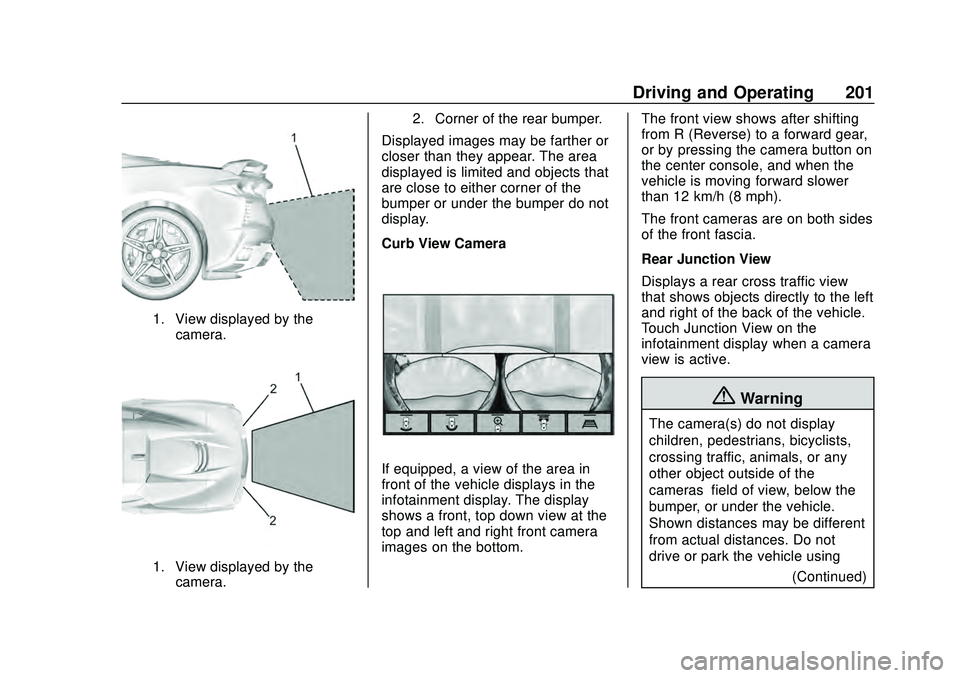
1. View displayed by thecamera.
1. View displayed by thecamera. 2. Corner of the rear bumper.
Displayed images may be farther or
closer than they appear. The area
displayed is limited and objects that
are close to either corner of the
bumper or under the bumper do not
display.
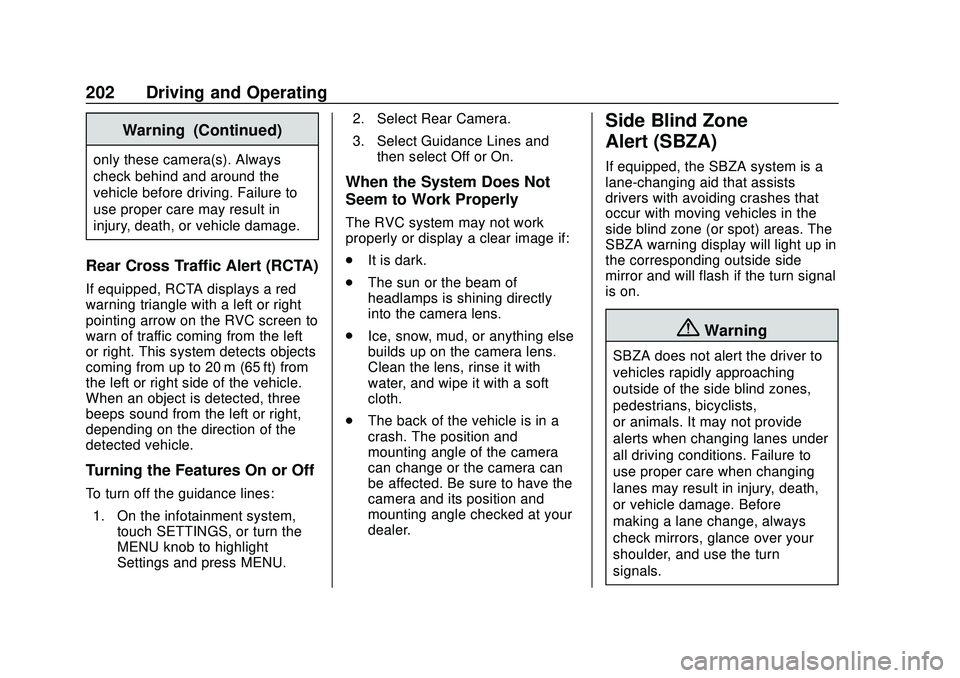
Curb View Camera
If equipped, a view of the area in
front of the vehicle displays in the
infotainment display. The display
shows a front, top down view at the
top and left and right front camera
images on the bottom.
The front view shows after shifting
from R (Reverse) to a forward gear,
or by pressing the camera button on
the center console, and when the
vehicle is moving forward slower
than 12 km/h (8 mph).
The front cameras are on both sides
of the front fascia.
Rear Junction View
Displays a rear cross traffic view
that shows objects directly to the left
and right of the back of the vehicle.
Touch Junction View on the
infotainment display when a camera
view is active.
{Warning
The camera(s) do not display
children, pedestrians, bicyclists,
crossing traffic, animals, or any
other object outside of the
cameras’
field of view, below the
bumper, or under the vehicle.
Shown distances may be different
from actual distances. Do not
drive or park the vehicle using
(Continued)
Page 203 of 336
Chevrolet Corvette Owner Manual (GMNA-Localizing-U.S./Canada/Mexico-
12470550) - 2020 - CRC - 4/23/20
202 Driving and Operating
Warning (Continued)
only these camera(s). Always
check behind and around the
vehicle before driving. Failure to
use proper care may result in
injury, death, or vehicle damage.
Rear Cross Traffic Alert (RCTA)
If equipped, RCTA displays a red
warning triangle with a left or right
pointing arrow on the RVC screen to
warn of traffic coming from the left
or right. This system detects objects
coming from up to 20 m (65 ft) from
the left or right side of the vehicle.
When an object is detected, three
beeps sound from the left or right,
depending on the direction of the
detected vehicle.
Turning the Features On or Off
To turn off the guidance lines:1. On the infotainment system, touch SETTINGS, or turn the
MENU knob to highlight
Settings and press MENU. 2. Select Rear Camera.
3. Select Guidance Lines and
then select Off or On.
When the System Does Not
Seem to Work Properly
The RVC system may not work
properly or display a clear image if:
.It is dark.
. The sun or the beam of
headlamps is shining directly
into the camera lens.
. Ice, snow, mud, or anything else
builds up on the camera lens.
Clean the lens, rinse it with
water, and wipe it with a soft
cloth.
. The back of the vehicle is in a
crash. The position and
mounting angle of the camera
can change or the camera can
be affected. Be sure to have the
camera and its position and
mounting angle checked at your
dealer.
Side Blind Zone
Alert (SBZA)
If equipped, the SBZA system is a
lane-changing aid that assists
drivers with avoiding crashes that
occur with moving vehicles in the
side blind zone (or spot) areas. The
SBZA warning display will light up in
the corresponding outside side
mirror and will flash if the turn signal
is on.
{Warning
SBZA does not alert the driver to
vehicles rapidly approaching
outside of the side blind zones,
pedestrians, bicyclists,
or animals. It may not provide
alerts when changing lanes under
all driving conditions. Failure to
use proper care when changing
lanes may result in injury, death,
or vehicle damage. Before
making a lane change, always
check mirrors, glance over your
shoulder, and use the turn
signals.
Page 303 of 336
Chevrolet Corvette Owner Manual (GMNA-Localizing-U.S./Canada/Mexico-
12470550) - 2020 - CRC - 4/23/20
302 Customer Information
Customer
Information
Customer Information
Customer SatisfactionProcedure . . . . . . . . . . . . . . . . . . . 302
Customer Assistance Offices . . . . . . . . . . . . . . . . . . . . . . 304
Customer Assistance for Text Telephone (TTY) Users . . . . . 305
Online Owner Center . . . . . . . . . 305
GM Mobility Reimbursement Program . . . . . . . . . . . . . . . . . . . . 306
Roadside Assistance Program . . . . . . . . . . . . . . . . . . . . 306
Scheduling Service Appointments . . . . . . . . . . . . . . . 308
Courtesy Transportation Program . . . . . . . . . . . . . . . . . . . . 308
Collision Damage Repair . . . . . 309
Publication Ordering Information . . . . . . . . . . . . . . . . . . 311
Radio Frequency Statement . . . . . . . . . . . . . . . . . . . 312
Reporting Safety Defects
Reporting Safety Defects tothe United States
Government . . . . . . . . . . . . . . . . . 312
Reporting Safety Defects to the Canadian
Government . . . . . . . . . . . . . . . . . 313
Reporting Safety Defects to General Motors . . . . . . . . . . . . . 313
Vehicle Data Recording and
Privacy
Vehicle Data Recording andPrivacy . . . . . . . . . . . . . . . . . . . . . . 314
Cybersecurity . . . . . . . . . . . . . . . . . 314
Event Data Recorders . . . . . . . . 314
OnStar . . . . . . . . . . . . . . . . . . . . . . . 315
Infotainment System . . . . . . . . . . 315
Customer Information
Customer Satisfaction
Procedure
Your satisfaction and goodwill are
important to your dealer and to
Chevrolet. Normally, any concerns
with the sales transaction or the
operation of the vehicle will be
resolved by your dealer's sales or
service departments. Sometimes,
however, despite the best intentions
of all concerned, misunderstandings
can occur. If your concern has not
been resolved to your satisfaction,
the following steps should be taken:
STEP ONE : Discuss your concern
with a member of dealership
management. Normally, concerns
can be quickly resolved at that level.
If the matter has already been
reviewed with the sales, service,
or parts manager, contact the owner
of your dealership or the general
manager.
STEP TWO : If after contacting a
member of dealership management,
it appears your concern cannot be
Page 312 of 336
Chevrolet Corvette Owner Manual (GMNA-Localizing-U.S./Canada/Mexico-
12470550) - 2020 - CRC - 4/23/20
Customer Information 311
.Vehicle make, model, and
model year
. Vehicle Identification
Number (VIN)
. Insurance company and policy
number
. General description of the
damage to the other vehicle
Choose a reputable repair facility
that uses quality replacement parts.
See “Collision Parts” earlier in this
section.
If the airbag has inflated, see What
Will You See after an Airbag
Inflates? 066.
Managing the Vehicle Damage
Repair Process
In the event that the vehicle requires
damage repairs, GM recommends
that you take an active role in its
repair. If you have a pre-determined
repair facility of choice, take the
vehicle there, or have it towed there.
Specify to the facility that any
required replacement collision parts
be original equipment parts, either
new Genuine GM parts or recycled original GM parts. Remember,
recycled parts will not be covered by
the GM vehicle warranty.
Insurance pays the bill for the repair,
but you must live with the repair.
Depending on your policy limits,
your insurance company may
initially value the repair using
aftermarket parts. Discuss this with
the repair professional, and insist on
Genuine GM parts. Remember,
if the vehicle is leased, you may be
obligated to have the vehicle
repaired with Genuine GM parts,
even if your insurance coverage
does not pay the full cost.
If another party's insurance
company is paying for the repairs,
you are not obligated to accept a
repair valuation based on that
insurance company's collision policy
repair limits, as you have no
contractual limits with that company.
In such cases, you can have control
of the repair and parts choices as
long as the cost stays within
reasonable limits.
Publication Ordering
Information
Service Manuals
Service manuals have the diagnosis
and repair information on the
engine, transmission, axle,
suspension, brakes, electrical
system, steering system, body, etc.
Customer Literature
Owner
’s manuals are written
specifically for owners and are
intended to provide basic
operational information about the
vehicle. The owner ’s manual
includes the Maintenance Schedule
for all models.
Customer literature publications
available for purchase include
owner ’s manuals, warranty
manuals, infotainment manuals, and
portfolios. Portfolios include an
owner ’s manual, warranty manual,
infotainment manual, if applicable,
and zip lock bag or pouch.
Page 316 of 336
Chevrolet Corvette Owner Manual (GMNA-Localizing-U.S./Canada/Mexico-
12470550) - 2020 - CRC - 4/23/20
Customer Information 315
.Whether or not the driver and
passenger safety belts were
buckled/fastened;
. How far (if at all) the driver was
depressing the accelerator and/
or brake pedal; and,
. How fast the vehicle was
traveling.
These data can help provide a
better understanding of the
circumstances in which crashes and
injuries occur.
Note
EDR data are recorded by your
vehicle only if a non-trivial crash
situation occurs; no data are
recorded by the EDR under normal
driving conditions and no personal
data (e.g., name, gender, age, and
crash location) are recorded.
However, other parties, such as law
enforcement, could combine the
EDR data with the type of
personally identifying data routinely
acquired during a crash
investigation. To read data recorded by an EDR,
special equipment is required, and
access to the vehicle or the EDR is
needed. In addition to the vehicle
manufacturer, other parties, such as
law enforcement, that have the
special equipment, can read the
information if they have access to
the vehicle or the EDR.
GM will not access these data or
share it with others except: with the
consent of the vehicle owner or,
if the vehicle is leased, with the
consent of the lessee; in response
to an official request by police or
similar government office; as part of
GM's defense of litigation through
the discovery process; or, as
required by law. Data that GM
collects or receives may also be
used for GM research needs or may
be made available to others for
research purposes, where a need is
shown and the data is not tied to a
specific vehicle or vehicle owner.OnStar
If the vehicle is equipped with
OnStar and has an active service
plan, additional data may be
collected and transmitted through
the OnStar system. This includes
information about the vehicle’s
operation; collisions involving the
vehicle; the use of the vehicle and
its features, including infotainment;
and the location and approximate
GPS speed of the vehicle. Refer to
the OnStar Terms and Conditions
and Privacy Statement on the
OnStar website.
See
OnStar Additional Information
0 318.
Infotainment System
If the vehicle is equipped with a
navigation system as part of the
infotainment system, use of the
system may result in the storage of
destinations, addresses, telephone
numbers, and other trip information.
See the infotainment manual for
information on stored data and for
deletion instructions.
Page 317 of 336
Chevrolet Corvette Owner Manual (GMNA-Localizing-U.S./Canada/Mexico-
12470550) - 2020 - CRC - 4/23/20
316 OnStar
OnStar
OnStar Overview
OnStar Overview . . . . . . . . . . . . . 316
OnStar Services
Emergency . . . . . . . . . . . . . . . . . . . 317
Security . . . . . . . . . . . . . . . . . . . . . . 318
OnStar Additional Information
OnStar AdditionalInformation . . . . . . . . . . . . . . . . . . 318
OnStar Overview
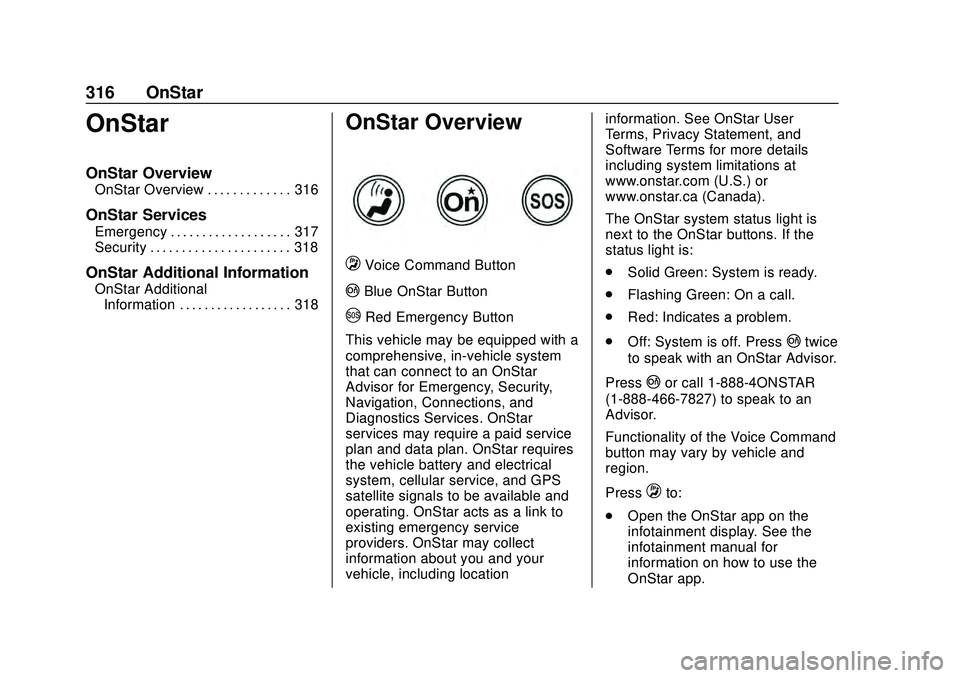
QVoice Command Button
|Blue OnStar Button
URed Emergency Button
This vehicle may be equipped with a
comprehensive, in-vehicle system
that can connect to an OnStar
Advisor for Emergency, Security,
Navigation, Connections, and
Diagnostics Services. OnStar
services may require a paid service
plan and data plan. OnStar requires
the vehicle battery and electrical
system, cellular service, and GPS
satellite signals to be available and
operating. OnStar acts as a link to
existing emergency service
providers. OnStar may collect
information about you and your
vehicle, including location information. See OnStar User
Terms, Privacy Statement, and
Software Terms for more details
including system limitations at
www.onstar.com (U.S.) or
www.onstar.ca (Canada).
The OnStar system status light is
next to the OnStar buttons. If the
status light is:
.
Solid Green: System is ready.
. Flashing Green: On a call.
. Red: Indicates a problem.
. Off: System is off. Press
|twice
to speak with an OnStar Advisor.
Press
|or call 1-888-4ONSTAR
(1-888-466-7827) to speak to an
Advisor.
Functionality of the Voice Command
button may vary by vehicle and
region.
Press
Qto:
. Open the OnStar app on the
infotainment display. See the
infotainment manual for
information on how to use the
OnStar app.
Page 320 of 336
Chevrolet Corvette Owner Manual (GMNA-Localizing-U.S./Canada/Mexico-
12470550) - 2020 - CRC - 4/23/20
OnStar 319
.Press|to speak with an
Advisor.
OnStar or connected services
cannot work unless the vehicle is in
a place where OnStar has an
agreement with a wireless service
provider for service in that area. The
wireless service provider must also
have coverage, network capacity,
reception, and technology
compatible with OnStar or
connected services. Service
involving location information about
the vehicle cannot work unless GPS
signals are available, unobstructed,
and compatible with the OnStar
hardware. OnStar or connected
services may not work if the OnStar
equipment is not properly installed
or it has not been properly
maintained. If equipment or software
is added, connected, or modified,
OnStar or connected services may
not work. Other problems beyond
the control of OnStar —such as
hills, tall buildings, tunnels, weather,
electrical system design and
architecture of the vehicle, damage to the vehicle in a crash, or wireless
phone network congestion or
jamming
—may prevent service.
See Radio Frequency Statement
0 312.
Services for People with
Disabilities
Advisors provide services to help
with physical disabilities and
medical conditions.
Press
|to help:
. Locate a gas station with an
attendant to pump gas.
. Find a hotel, restaurant, etc.,
that meets accessibility needs.
. Provide directions to the closest
hospital or pharmacy in urgent
situations.
TTY Users
OnStar has the ability to
communicate to deaf,
hard-of-hearing, or speech-impaired
customers while in the vehicle. The
available dealer-installed TTY
system can provide in-vehicle access to all OnStar services,
except Virtual Advisor and OnStar
Turn-by-Turn Navigation.
If equipped, TTY mode can be
turned on or off by touching
Settings, then Apps, and then
Phone. When TTY mode is on,
phone calls can be made or
received with OnStar using the
infotainment display.
OnStar Personal Identification
Number (PIN)
A PIN is needed to access some
OnStar services. The PIN will need
to be changed the first time when
speaking with an Advisor. To
change the OnStar PIN, contact an
OnStar Advisor by pressing
|or
calling 1-888-4ONSTAR.
Warranty
OnStar equipment may be
warranted as part of the vehicle
warranty.
Page 323 of 336
Chevrolet Corvette Owner Manual (GMNA-Localizing-U.S./Canada/Mexico-
12470550) - 2020 - CRC - 4/23/20
322 Connected Services
Connected
Services
Connected Services
Navigation . . . . . . . . . . . . . . . . . . . . 322
Connections . . . . . . . . . . . . . . . . . . 323
Diagnostics . . . . . . . . . . . . . . . . . . . 324
Connected Services
Navigation
Navigation requires a specific
OnStar or connected service plan.
Press
|to receive Turn-by-Turn
directions or have them sent to the
vehicle navigation screen,
if equipped.
Turn-by-Turn Navigation
1. Press|to connect to an
Advisor.
2. Request directions to be downloaded to the vehicle.
3. Follow the voice-guided commands.
Using Voice Commands
During a Planned Route
Functionality of the Voice Command
button, if equipped, may vary by
vehicle and region. For some
vehicles, press
Qto open the
OnStar app on the infotainment
display. For other vehicles press
Q
as follows. Cancel Route
1. Press
Q. System responds:
“OnStar ready,” then a tone.
2. Say “Cancel route.” System
responds: “Do you want to
cancel directions?”
3. Say “Yes.”System responds:
“OK, request completed, thank
you, goodbye.”
Route Preview
1. Press
Q. System responds:
“OnStar ready,” then a tone.
2. Say “Route preview.” System
responds with the next three
maneuvers.
Repeat
1. Press
Q. System responds:
“OnStar ready,” then a tone.
2. Say “Repeat.” System
responds with the last direction
given, then responds with
“OnStar ready,” then a tone.
Page 324 of 336
Chevrolet Corvette Owner Manual (GMNA-Localizing-U.S./Canada/Mexico-
12470550) - 2020 - CRC - 4/23/20
Connected Services 323
Get My Destination1. Press
Q. System responds:
“OnStar ready,” then a tone.
2. Say “Get my destination.”
System responds with the
address and distance to the
destination, then responds with
“OnStar ready,” then a tone.
Send Destination to Vehicle
Directions can be sent to the
vehicle’s navigation screen,
if equipped.
Press
|then ask the Advisor to
download directions to the vehicle’s
navigation system, if equipped. After
the call ends, the navigation screen
will provide prompts to begin driving
directions. Routes that are sent to
the navigation screen can only be
canceled through the navigation
system.
See www.onstar.com (U.S.) or
www.onstar.ca (Canada).
Connections
The following services help with
staying connected.
For coverage maps, see
www.onstar.com (U.S.) or
www.onstar.ca (Canada).
Ensuring Security
. Change the default passwords
for the Wi-Fi hotspot and
myChevrolet mobile application.
Make these passwords different
from each other and use a
combination of letters and
numbers to increase the
security.
. Change the default name of the
SSID (Service Set Identifier).
This is your network’s name that
is visible to other wireless
devices. Choose a unique name
and avoid family names or
vehicle descriptions.
Wi-Fi Hotspot (If Equipped)
The vehicle may have a built-in
Wi-Fi hotspot that provides access
to the Internet and web content at
4G LTE speed. Up to seven mobile devices can be connected. A data
plan is required. Use the in-vehicle
controls only when it is safe to
do so.
1. To retrieve Wi-Fi hotspot information, press
Qto open
the OnStar app on the
infotainment display, then
select Wi-Fi Hotspot. On some
vehicles, touch Wi-Fi or Wi-Fi
Settings on the screen.
2. The Wi-Fi settings will display the Wi-Fi hotspot name (SSID),
password, and on some
vehicles, the connection type
(no Internet connection, 3G,
4G, 4G LTE), and signal quality
(poor, good, excellent).
3. To change the SSID or password, press
|or call
1-888-4ONSTAR to connect
with an Advisor. On some
vehicles, the SSID and
password can be changed in
the Wi-Fi Hotspot menu.
After initial set-up, your vehicle’s
Wi-Fi hotspot will connect
automatically to your mobile
Page 328 of 336
Chevrolet Corvette Owner Manual (GMNA-Localizing-U.S./Canada/Mexico-
12470550) - 2020 - CRC - 4/23/20
Index 327
ControlHill Rollback . . . . . . . . . . . . . . . . . . 184
Traction and Electronic
Stability . . . . . . . . . . . . . . . . . . . . . 182
Control of a Vehicle . . . . . . . . . . . . . 148
Convenience Net . . . . . . . . . . . . . . . . 85
Convertible Top . . . . . . . . . . . . . . . . . . 41
Convex Mirrors . . . . . . . . . . . . . . . . . . 29
Coolant Engine Temperature Gauge . . . . 99
Cooling . . . . . . . . . . . . . . . . . . . . . . . . . 139
Cooling System . . . . . . . . . . . . . . . . . 226
Courtesy Lamps . . . . . . . . . . . . . . . . 129
Courtesy Transportation
Program . . . . . . . . . . . . . . . . . . . . . . . 308
Cruise Control . . . . . . . . . . . . . . . . . . 196
Light . . . . . . . . . . . . . . . . . . . . . . . . . . 108
Cupholders . . . . . . . . . . . . . . . . . . . . . . 83
Customer Assistance . . . . . . . . . . . 305 Offices . . . . . . . . . . . . . . . . . . . . . . . . 304
Text Telephone (TTY)Users . . . . . . . . . . . . . . . . . . . . . . . 305
Customer Information Publications OrderingInformation . . . . . . . . . . . . . . . . . . .311
Customer Satisfaction Procedure . . . . . . . . . . . . . . . . . . . . . 302
Cybersecurity . . . . . . . . . . . . . . . . . . . 314D
Damage Repair, Collision . . . . . . . 309
Danger, Warning, and Caution . . . . 3
Data Collection Infotainment System . . . . . . . . . . 315
OnStar . . . . . . . . . . . . . . . . . . . . . . . 315
Data Recorder Performance . . . . . . . . . . . . . . . . . . 132
Data Recorders, Event . . . . . . . . . 314
Daytime Running Lamps (DRL) . . . . . . . . . . . . . . . . . . 126
Defensive Driving . . . . . . . . . . . . . . . 147
Delayed Locking . . . . . . . . . . . . . . . . . 20
Diagnostics Connected Services . . . . . . . . . . 324
Differential, Limited-Slip . . . . . . . . 195
Distracted Driving . . . . . . . . . . . . . . . 146
Door Ajar Light . . . . . . . . . . . . . . . . . . . . . 108
Delayed Locking . . . . . . . . . . . . . . . . 20
Locks . . . . . . . . . . . . . . . . . . . . . . . . . . . 17
Drive Belt Routing, Engine . . . . . . 301
Driver Assistance Systems . . . . . 199
Driver Information Center (DIC) . . . . . . . . . . . . . . . . . . 108
Driver Mode Control . . . . . . . . . . . . 184
Driving Better Fuel Economy . . . . . . . . . 146 Driving (cont'd)
Competitive . . . . . . . . . . . . . . . . . . . 192
Defensive . . . . . . . . . . . . . . . . . . . . . 147
Drunk . . . . . . . . . . . . . . . . . . . . . . . . . 147
Hill and Mountain Roads . . . . . . 157
If the Vehicle is Stuck . . . . . . . . . 159
Loss of Control . . . . . . . . . . . . . . . 150
Off-Road Recovery . . . . . . . . . . . 149
Track Events and
Competitive . . . . . . . . . . . . . . . . . 150
Vehicle Load Limits . . . . . . . . . . . 160
Wet Roads . . . . . . . . . . . . . . . . . . . 156
Winter . . . . . . . . . . . . . . . . . . . . . . . . 158
Dual Automatic Climate Control System . . . . . . . . . . . . . . . . 139
Dual Clutch Transmission . . . . . . 171
Manual Mode . . . . . . . . . . . . . . . . . 174
Dual Clutch Transmission Fluid . . . . . . . . . . . . . . . . . . . . . . . . . . 222
Dual Clutch Transmission Fluid Life System . . . . . . . . . . . . . . 223
E
Electric Brake Boost . . . . . . . . . . . . 179
Electric Parking Brake . . . . . . . . . . 179
Electric Parking Brake Light . . . . 104
Electrical Equipment,
Add-On . . . . . . . . . . . . . . . . . . . . . . . 208