infotainment CHEVROLET CORVETTE 2020 User Guide
[x] Cancel search | Manufacturer: CHEVROLET, Model Year: 2020, Model line: CORVETTE, Model: CHEVROLET CORVETTE 2020Pages: 336, PDF Size: 5.21 MB
Page 134 of 336
Chevrolet Corvette Owner Manual (GMNA-Localizing-U.S./Canada/Mexico-
12470550) - 2020 - CRC - 4/23/20
Infotainment System 133
.Notify other drivers of your
vehicle about the above rules
and require them to comply.
. General Motors does not accept
any responsibility or liability in
connection with use that is not
permitted.
. Law enforcement authorities
may have the right to seize
video recordings and use them
as evidence of criminal/driving
offenses against you or third
parties.The PDR records video, audio, and
vehicle data. This data is stored on
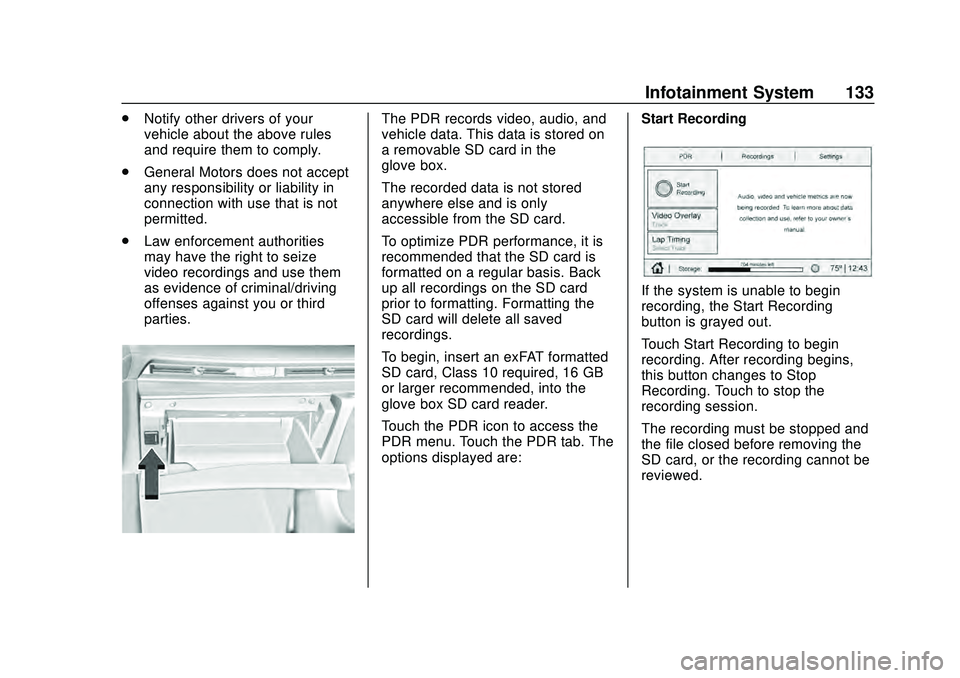
a removable SD card in the
glove box.
The recorded data is not stored
anywhere else and is only
accessible from the SD card.
To optimize PDR performance, it is
recommended that the SD card is
formatted on a regular basis. Back
up all recordings on the SD card
prior to formatting. Formatting the
SD card will delete all saved
recordings.
To begin, insert an exFAT formatted
SD card, Class 10 required, 16 GB
or larger recommended, into the
glove box SD card reader.
Touch the PDR icon to access the
PDR menu. Touch the PDR tab. The
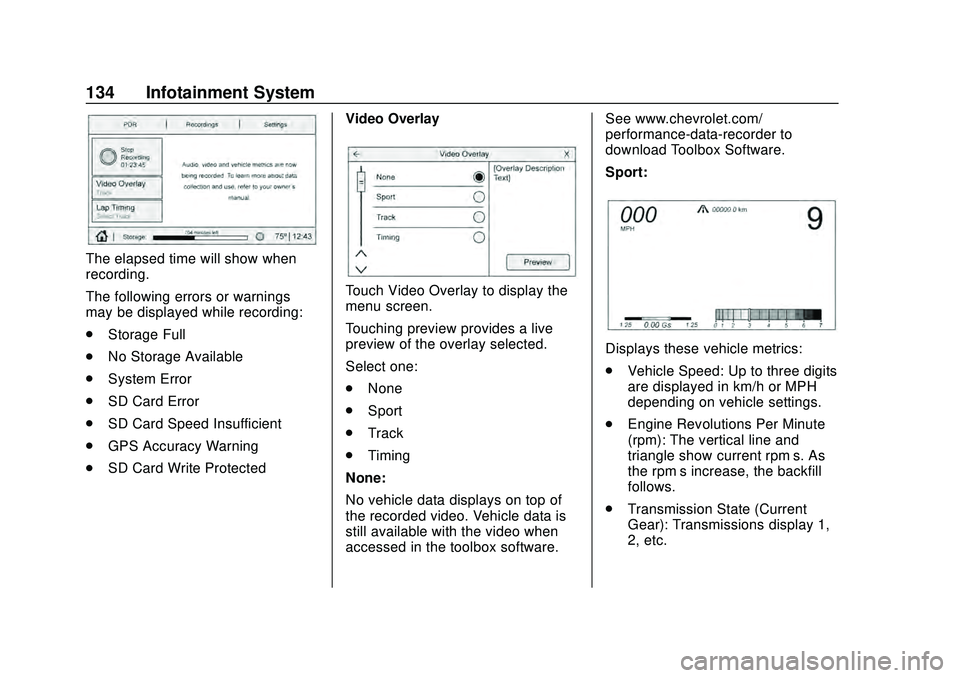
options displayed are: Start Recording
If the system is unable to begin
recording, the Start Recording
button is grayed out.
Touch Start Recording to begin
recording. After recording begins,
this button changes to Stop
Recording. Touch to stop the
recording session.
The recording must be stopped and
the file closed before removing the
SD card, or the recording cannot be
reviewed.
Page 135 of 336
Chevrolet Corvette Owner Manual (GMNA-Localizing-U.S./Canada/Mexico-
12470550) - 2020 - CRC - 4/23/20
134 Infotainment System
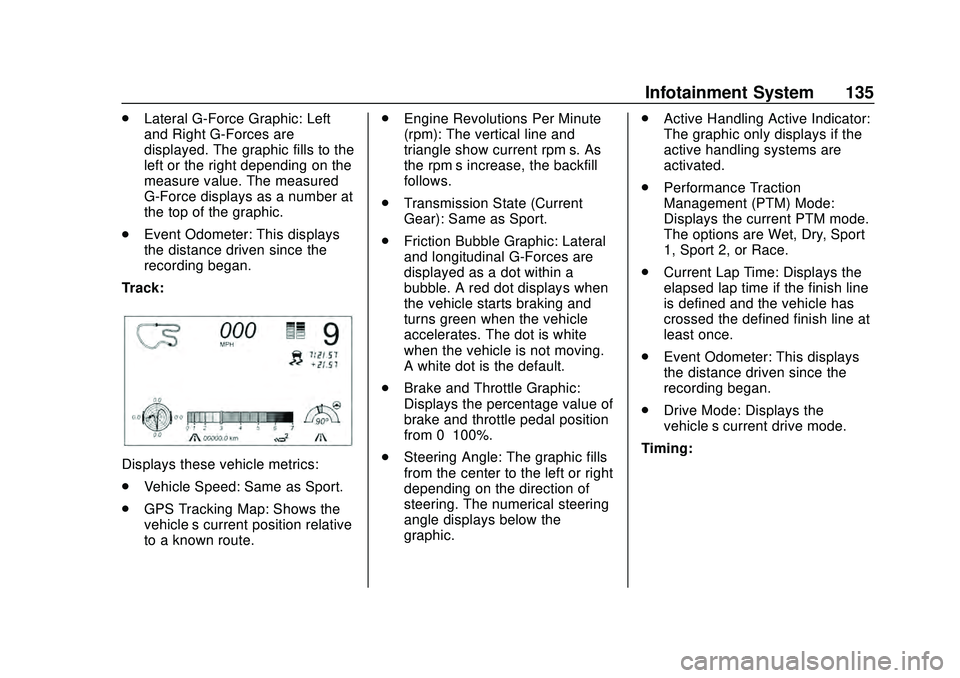
The elapsed time will show when
recording.
The following errors or warnings
may be displayed while recording:
.Storage Full
. No Storage Available
. System Error
. SD Card Error
. SD Card Speed Insufficient
. GPS Accuracy Warning
. SD Card Write Protected Video Overlay
Touch Video Overlay to display the
menu screen.
Touching preview provides a live
preview of the overlay selected.
Select one:
.
None
. Sport
. Track
. Timing
None:
No vehicle data displays on top of
the recorded video. Vehicle data is
still available with the video when
accessed in the toolbox software. See www.chevrolet.com/
performance-data-recorder to
download Toolbox Software.
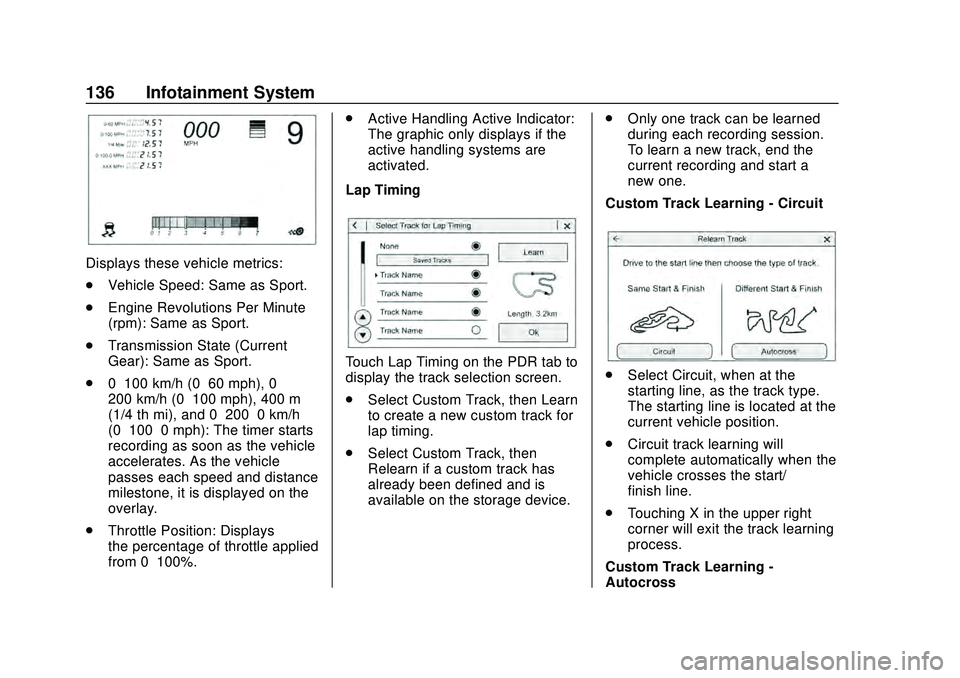
Sport:
Displays these vehicle metrics:
.
Vehicle Speed: Up to three digits
are displayed in km/h or MPH
depending on vehicle settings.
. Engine Revolutions Per Minute
(rpm): The vertical line and
triangle show current rpm’s. As
the rpm’ s increase, the backfill
follows.
. Transmission State (Current
Gear): Transmissions display 1,
2, etc.
Page 136 of 336
Chevrolet Corvette Owner Manual (GMNA-Localizing-U.S./Canada/Mexico-
12470550) - 2020 - CRC - 4/23/20
Infotainment System 135
.Lateral G-Force Graphic: Left
and Right G-Forces are
displayed. The graphic fills to the
left or the right depending on the
measure value. The measured
G-Force displays as a number at
the top of the graphic.
. Event Odometer: This displays
the distance driven since the
recording began.
Track:
Displays these vehicle metrics:
. Vehicle Speed: Same as Sport.
. GPS Tracking Map: Shows the
vehicle’s current position relative
to a known route. .
Engine Revolutions Per Minute
(rpm): The vertical line and
triangle show current rpm’s. As
the rpm’ s increase, the backfill
follows.
. Transmission State (Current
Gear): Same as Sport.
. Friction Bubble Graphic: Lateral
and longitudinal G-Forces are
displayed as a dot within a
bubble. A red dot displays when
the vehicle starts braking and
turns green when the vehicle
accelerates. The dot is white
when the vehicle is not moving.
A white dot is the default.
. Brake and Throttle Graphic:
Displays the percentage value of
brake and throttle pedal position
from 0–100%.
. Steering Angle: The graphic fills
from the center to the left or right
depending on the direction of
steering. The numerical steering
angle displays below the
graphic. .
Active Handling Active Indicator:
The graphic only displays if the
active handling systems are
activated.
. Performance Traction
Management (PTM) Mode:
Displays the current PTM mode.
The options are Wet, Dry, Sport
1, Sport 2, or Race.
. Current Lap Time: Displays the
elapsed lap time if the finish line
is defined and the vehicle has
crossed the defined finish line at
least once.
. Event Odometer: This displays
the distance driven since the
recording began.
. Drive Mode: Displays the
vehicle’s current drive mode.
Timing:
Page 137 of 336
Chevrolet Corvette Owner Manual (GMNA-Localizing-U.S./Canada/Mexico-
12470550) - 2020 - CRC - 4/23/20
136 Infotainment System
Displays these vehicle metrics:
.Vehicle Speed: Same as Sport.
. Engine Revolutions Per Minute
(rpm): Same as Sport.
. Transmission State (Current
Gear): Same as Sport.
. 0–100 km/h (0–60 mph), 0–
200 km/h (0–100 mph), 400 m
(1/4 th mi), and 0–200–0 km/h
(0–100–0 mph): The timer starts
recording as soon as the vehicle
accelerates. As the vehicle
passes each speed and distance
milestone, it is displayed on the
overlay.
. Throttle Position: Displays
the percentage of throttle applied
from 0–100%. .
Active Handling Active Indicator:
The graphic only displays if the
active handling systems are
activated.
Lap Timing
Touch Lap Timing on the PDR tab to
display the track selection screen.
. Select Custom Track, then Learn
to create a new custom track for
lap timing.
. Select Custom Track, then
Relearn if a custom track has
already been defined and is
available on the storage device. .
Only one track can be learned
during each recording session.
To learn a new track, end the
current recording and start a
new one.
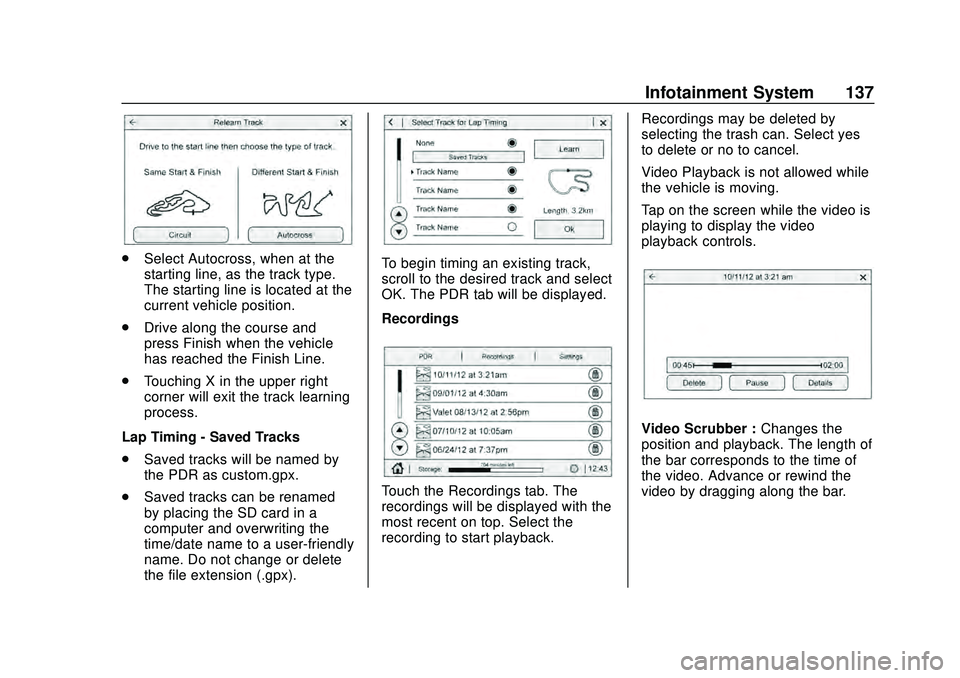
Custom Track Learning - Circuit. Select Circuit, when at the
starting line, as the track type.
The starting line is located at the
current vehicle position.
. Circuit track learning will
complete automatically when the
vehicle crosses the start/
finish line.
. Touching X in the upper right
corner will exit the track learning
process.
Custom Track Learning -
Autocross
Page 138 of 336
Chevrolet Corvette Owner Manual (GMNA-Localizing-U.S./Canada/Mexico-
12470550) - 2020 - CRC - 4/23/20
Infotainment System 137
.Select Autocross, when at the
starting line, as the track type.
The starting line is located at the
current vehicle position.
. Drive along the course and
press Finish when the vehicle
has reached the Finish Line.
. Touching X in the upper right
corner will exit the track learning
process.
Lap Timing - Saved Tracks
. Saved tracks will be named by
the PDR as custom.gpx.
. Saved tracks can be renamed
by placing the SD card in a
computer and overwriting the
time/date name to a user-friendly
name. Do not change or delete
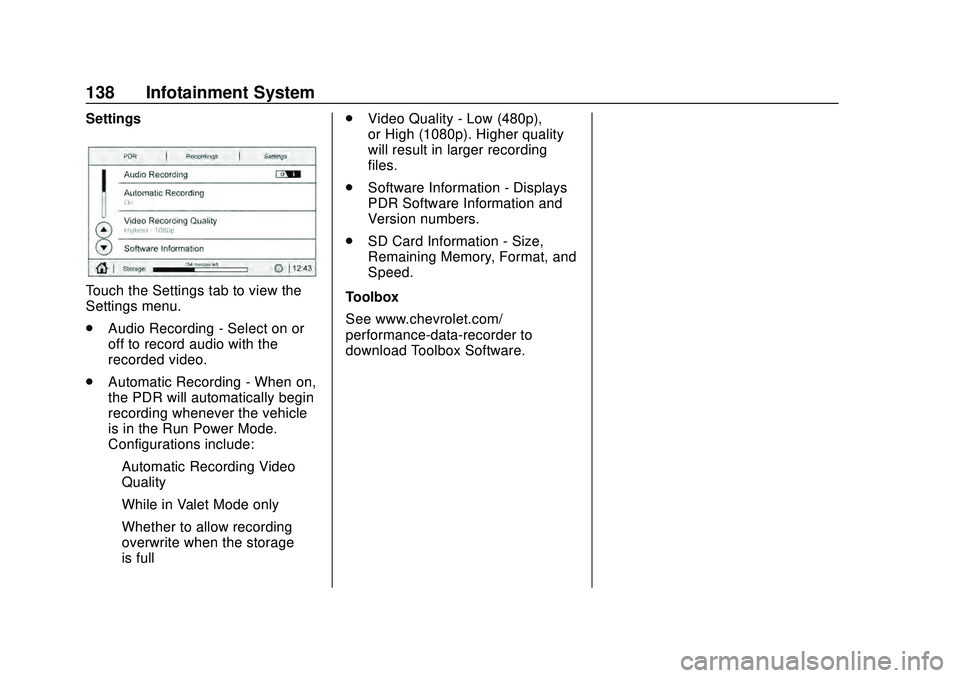
the file extension (.gpx).To begin timing an existing track,
scroll to the desired track and select
OK. The PDR tab will be displayed.
Recordings
Touch the Recordings tab. The
recordings will be displayed with the
most recent on top. Select the
recording to start playback. Recordings may be deleted by
selecting the trash can. Select yes
to delete or no to cancel.
Video Playback is not allowed while
the vehicle is moving.
Tap on the screen while the video is
playing to display the video
playback controls.
Video Scrubber :
Changes the
position and playback. The length of
the bar corresponds to the time of
the video. Advance or rewind the
video by dragging along the bar.
Page 139 of 336
Chevrolet Corvette Owner Manual (GMNA-Localizing-U.S./Canada/Mexico-
12470550) - 2020 - CRC - 4/23/20
138 Infotainment System
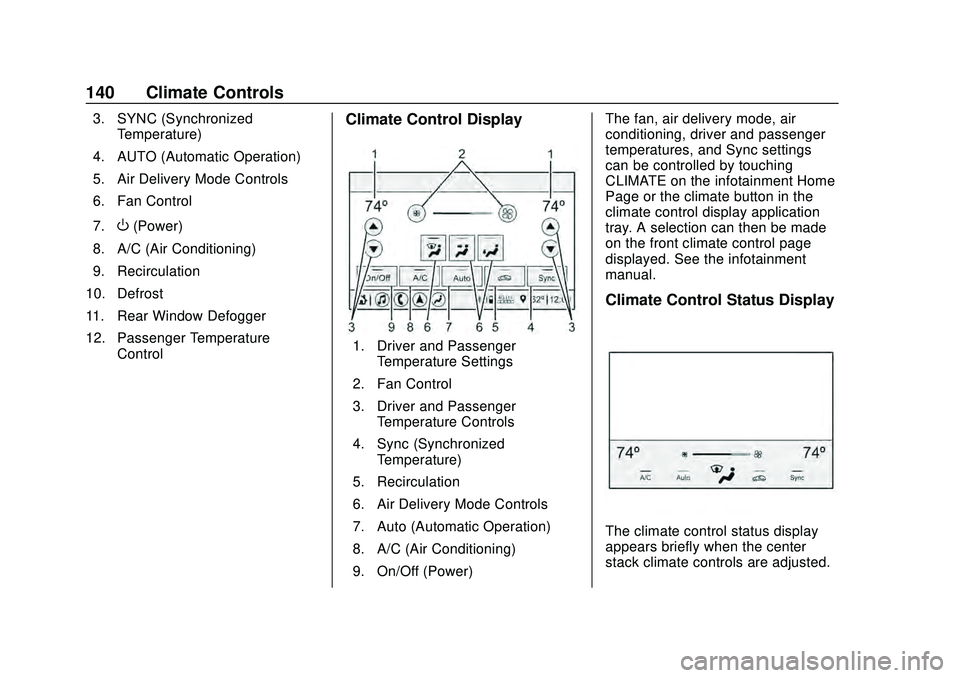
Settings
Touch the Settings tab to view the
Settings menu.
.Audio Recording - Select on or
off to record audio with the
recorded video.
. Automatic Recording - When on,
the PDR will automatically begin
recording whenever the vehicle
is in the Run Power Mode.
Configurations include:
‐Automatic Recording Video
Quality
‐ While in Valet Mode only
‐ Whether to allow recording
overwrite when the storage
is full .
Video Quality - Low (480p),
or High (1080p). Higher quality
will result in larger recording
files.
. Software Information - Displays
PDR Software Information and
Version numbers.
. SD Card Information - Size,
Remaining Memory, Format, and
Speed.
Toolbox
See www.chevrolet.com/
performance-data-recorder to
download Toolbox Software.
Page 141 of 336
Chevrolet Corvette Owner Manual (GMNA-Localizing-U.S./Canada/Mexico-
12470550) - 2020 - CRC - 4/23/20
140 Climate Controls
3. SYNC (SynchronizedTemperature)
4. AUTO (Automatic Operation)
5. Air Delivery Mode Controls
6. Fan Control
7.
O(Power)
8. A/C (Air Conditioning)
9. Recirculation
10. Defrost
11. Rear Window Defogger
12. Passenger Temperature Control
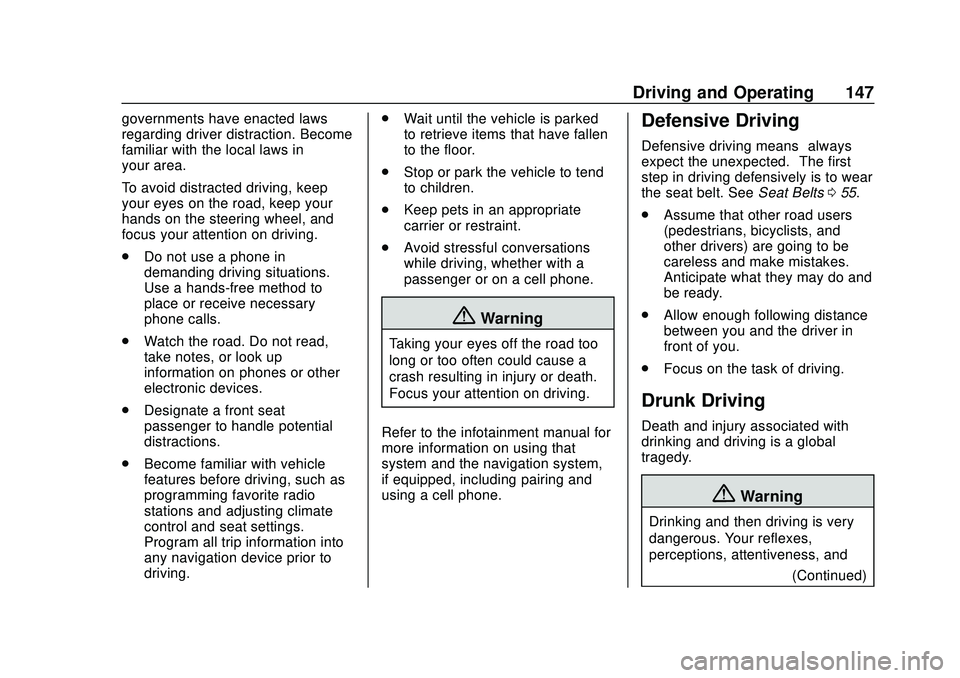
Climate Control Display
1. Driver and PassengerTemperature Settings
2. Fan Control
3. Driver and Passenger Temperature Controls
4. Sync (Synchronized Temperature)
5. Recirculation
6. Air Delivery Mode Controls
7. Auto (Automatic Operation)
8. A/C (Air Conditioning)
9. On/Off (Power) The fan, air delivery mode, air
conditioning, driver and passenger
temperatures, and Sync settings
can be controlled by touching
CLIMATE on the infotainment Home
Page or the climate button in the
climate control display application
tray. A selection can then be made
on the front climate control page
displayed. See the infotainment
manual.
Climate Control Status Display
The climate control status display
appears briefly when the center
stack climate controls are adjusted.
Page 148 of 336
Chevrolet Corvette Owner Manual (GMNA-Localizing-U.S./Canada/Mexico-
12470550) - 2020 - CRC - 4/23/20
Driving and Operating 147
governments have enacted laws
regarding driver distraction. Become
familiar with the local laws in
your area.
To avoid distracted driving, keep
your eyes on the road, keep your
hands on the steering wheel, and
focus your attention on driving.
.Do not use a phone in
demanding driving situations.
Use a hands-free method to
place or receive necessary
phone calls.
. Watch the road. Do not read,
take notes, or look up
information on phones or other
electronic devices.
. Designate a front seat
passenger to handle potential
distractions.
. Become familiar with vehicle
features before driving, such as
programming favorite radio
stations and adjusting climate
control and seat settings.
Program all trip information into
any navigation device prior to
driving. .
Wait until the vehicle is parked
to retrieve items that have fallen
to the floor.
. Stop or park the vehicle to tend
to children.
. Keep pets in an appropriate
carrier or restraint.
. Avoid stressful conversations
while driving, whether with a
passenger or on a cell phone.
{Warning
Taking your eyes off the road too
long or too often could cause a
crash resulting in injury or death.
Focus your attention on driving.
Refer to the infotainment manual for
more information on using that
system and the navigation system,
if equipped, including pairing and
using a cell phone.
Defensive Driving
Defensive driving means “always
expect the unexpected.” The first
step in driving defensively is to wear
the seat belt. See Seat Belts055.
. Assume that other road users
(pedestrians, bicyclists, and
other drivers) are going to be
careless and make mistakes.
Anticipate what they may do and
be ready.
. Allow enough following distance
between you and the driver in
front of you.
. Focus on the task of driving.
Drunk Driving
Death and injury associated with
drinking and driving is a global
tragedy.
{Warning
Drinking and then driving is very
dangerous. Your reflexes,
perceptions, attentiveness, and
(Continued)
Page 169 of 336
Chevrolet Corvette Owner Manual (GMNA-Localizing-U.S./Canada/Mexico-
12470550) - 2020 - CRC - 4/23/20
168 Driving and Operating
Retained Accessory
Power (RAP)
When the ignition is turned from on
to off, the following features (if
equipped) will continue to function
for up to 10 minutes, or until the
driver door is opened. These
features will also work when the
ignition is in RUN or ACC/
ACCESSORY:
.Infotainment System
. Power Windows (during RAP
this functionality will be lost
when any door is opened)
. Sunroof (during RAP this
functionality will be lost when
any door is opened)
. Auxiliary Power Outlet
. Audio System
. OnStar System
Shifting Into Park
{Warning
It is dangerous to get out of the
vehicle if the vehicle is not in
P (Park) with the parking brake
set. The vehicle can roll.
Do not leave the vehicle when the
engine is running. If you have left
the engine running, the vehicle
can move suddenly. You or others
could be injured. To be sure the
vehicle will not move, even when
you are on fairly level ground,
always set the parking brake and
shift to P (Park).
To shift into P (Park): 1. Hold the brake pedal down and set the parking brake. See
Electric Parking Brake 0179.
2. Press the P (Park) switch on the center console. See Dual
Clutch Transmission 0171.
3. Press ENGINE START/STOP to turn the engine off. If the vehicle is shifted into P (Park)
on a hill, the Electric Parking Brake
(EPB) may apply automatically. The
EPB may not release when the EPB
switch is used. The EPB should
automatically release when the
vehicle is shifted out of P (Park).
Leaving the Vehicle with the
Engine Running
{Warning
It can be dangerous to leave the
vehicle with the engine running.
It could overheat and catch fire.
It is dangerous to get out of the
vehicle if the vehicle is not in
P (Park) with the parking brake
firmly set. The vehicle can roll.
Do not leave the vehicle when the
engine is running. If you have left
the engine running, the vehicle
can move suddenly. You or others
could be injured. To be sure the
vehicle will not move, even when
(Continued)
Page 201 of 336
Chevrolet Corvette Owner Manual (GMNA-Localizing-U.S./Canada/Mexico-
12470550) - 2020 - CRC - 4/23/20
200 Driving and Operating
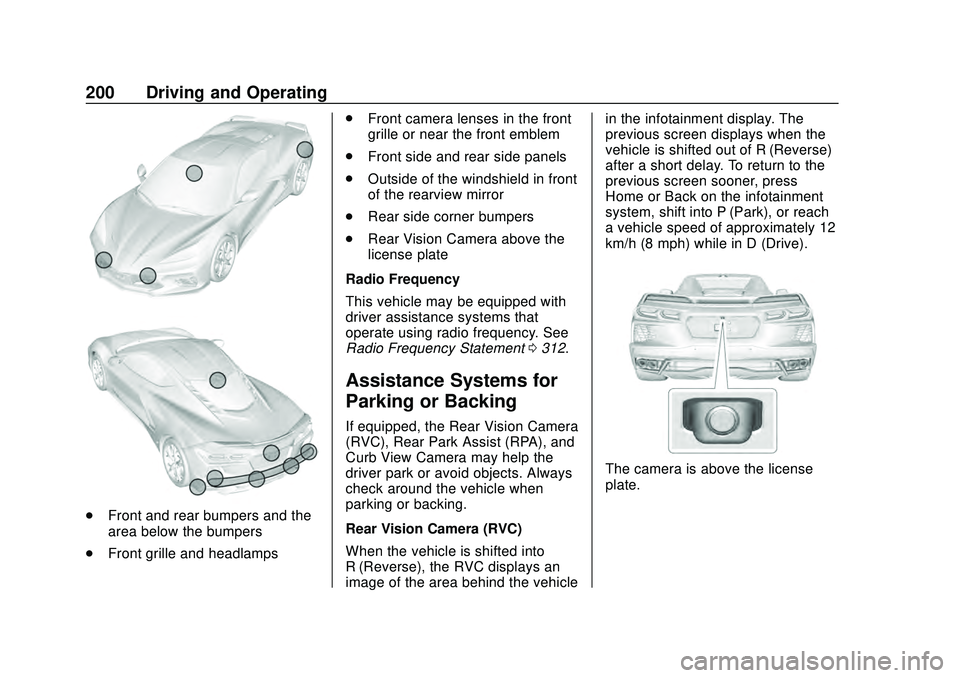
.Front and rear bumpers and the
area below the bumpers
. Front grille and headlamps .
Front camera lenses in the front
grille or near the front emblem
. Front side and rear side panels
. Outside of the windshield in front
of the rearview mirror
. Rear side corner bumpers
. Rear Vision Camera above the
license plate
Radio Frequency
This vehicle may be equipped with
driver assistance systems that
operate using radio frequency. See
Radio Frequency Statement 0312.
Assistance Systems for
Parking or Backing
If equipped, the Rear Vision Camera
(RVC), Rear Park Assist (RPA), and
Curb View Camera may help the
driver park or avoid objects. Always
check around the vehicle when
parking or backing.
Rear Vision Camera (RVC)
When the vehicle is shifted into
R (Reverse), the RVC displays an
image of the area behind the vehicle in the infotainment display. The
previous screen displays when the
vehicle is shifted out of R (Reverse)
after a short delay. To return to the
previous screen sooner, press
Home or Back on the infotainment
system, shift into P (Park), or reach
a vehicle speed of approximately 12
km/h (8 mph) while in D (Drive).
The camera is above the license
plate.