warning CHEVROLET CORVETTE 2021 Workshop Manual
[x] Cancel search | Manufacturer: CHEVROLET, Model Year: 2021, Model line: CORVETTE, Model: CHEVROLET CORVETTE 2021Pages: 338, PDF Size: 6.56 MB
Page 95 of 338
Chevrolet Corvette Owner Manual (GMNA-Localizing-U.S./Canada/Mexico-
14622938) - 2021 - CRC - 2/10/21
94 Instruments and Controls
Fuel Economy :Displays the average fuel
economy, the best fuel economy over the
selected distance, and a bar graph showing
instantaneous fuel economy. Pressing the
thumbwheel will open a menu to change
the selected distance or reset the current
values.
Timer/Fuel Used : This display can be used
as a timer. To start/stop the timer, press the
thumbwheel while this display is active and
then select the start/stop the timer. The
display will show the amount of time that
has passed since the timer was last reset. To
reset the timer to zero, press the
thumbwheel to access the menu while this
display is active.
Fuel Used displays the approximate liters (L)
or gallons (gal) of fuel that have been used
since last reset. The fuel used can be reset
by pressing the thumbwheel and selecting
Reset Fuel Used in the menu.
Economy Trend : Shows the instantaneous
fuel economy and current gas mileage.
Speed Limit : Displays sign information,
which comes from a roadway database in
the on-board navigation. Engine Hours/Lifetime Revs :
Displays the
total number of hours the engine has run.
It also shows total engine revolutions
divided by 10,000.
Head-Up Display (HUD)
{Warning
If the HUD image is too bright, or too
high in your field of view, it may take
you more time to see things you need to
see when it is dark outside. Be sure to
keep the HUD image dim and placed low
in your field of view.
If equipped with HUD, some information
concerning the operation of the vehicle is
projected onto the windshield.
The HUD information appears as an image
focused out toward the front of the vehicle.
Caution
If you try to use the HUD image as a
parking aid, you may misjudge the
distance and damage your vehicle. Do not
use the HUD image as a parking aid. The HUD information can be displayed in
various languages. The speedometer reading
and other numerical values can be displayed
in either English or metric units.
The language selection is changed through
the radio and the units of measurement is
changed through the instrument cluster. See
Vehicle Personalization
098 and “Settings”
under Instrument Cluster 080.
The HUD may display different alerts and
information for vehicles equipped with these
features:
.Speedometer
.Tachometer
.Manual Paddle Shift Gear Indicator
These displays on the HUD are for use
when using the manual paddle shift
controls to shift the transmission. See
“Manual Paddle Shift” inDual Clutch
Transmission 0198.
.G-Force Gauge
.Upcoming Maneuver from On-Board
Navigation
.Upcoming Maneuver from OnStar
.Incoming Call
Page 107 of 338
Chevrolet Corvette Owner Manual (GMNA-Localizing-U.S./Canada/Mexico-
14622938) - 2021 - CRC - 2/10/21
106 Lighting
Lighting
Exterior Lighting
Exterior Lamp Controls . . . . . . . . . . . . . . . . 106
Exterior Lamps Off Reminder . . . . . . . . . . 106
Headlamp High/Low-Beam Changer . . . 106
Flash-to-Pass . . . . . . . . . . . . . . . . . . . . . . . . . . . 107
Daytime Running Lamps (DRL) . . . . . . . . . 107
Automatic Headlamp System . . . . . . . . . . 107
Hazard Warning Flashers . . . . . . . . . . . . . . 108
Turn and Lane-Change Signals . . . . . . . . . 108
Interior Lighting
Instrument Panel IlluminationControl . . . . . . . . . . . . . . . . . . . . . . . . . . . . . . 109
Courtesy Lamps . . . . . . . . . . . . . . . . . . . . . . . 109
Reading Lamps . . . . . . . . . . . . . . . . . . . . . . . . 109
Engine Compartment Lamp . . . . . . . . . . . . 109
Lighting Features
Entry Lighting . . . . . . . . . . . . . . . . . . . . . . . . . 110
Exit Lighting . . . . . . . . . . . . . . . . . . . . . . . . . . . 110
Battery Power Protection . . . . . . . . . . . . . . 110
Exterior Lighting Battery Saver . . . . . . . . 110
Exterior Lighting
Exterior Lamp Controls
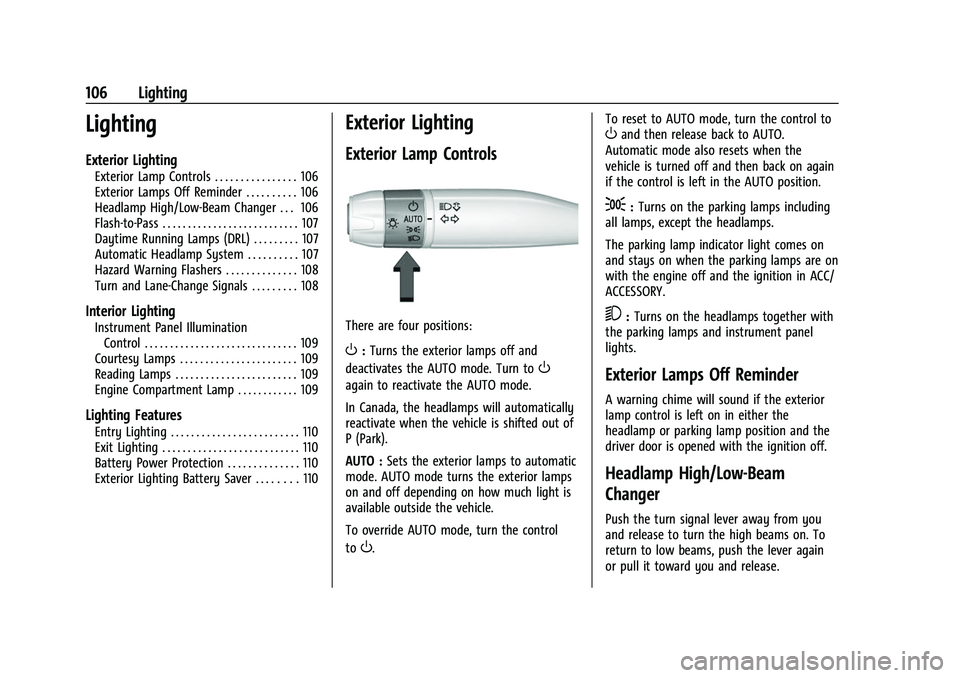
There are four positions:
O: Turns the exterior lamps off and
deactivates the AUTO mode. Turn to
O
again to reactivate the AUTO mode.
In Canada, the headlamps will automatically
reactivate when the vehicle is shifted out of
P (Park).
AUTO : Sets the exterior lamps to automatic
mode. AUTO mode turns the exterior lamps
on and off depending on how much light is
available outside the vehicle.
To override AUTO mode, turn the control
to
O. To reset to AUTO mode, turn the control to
Oand then release back to AUTO.
Automatic mode also resets when the
vehicle is turned off and then back on again
if the control is left in the AUTO position.
;: Turns on the parking lamps including
all lamps, except the headlamps.
The parking lamp indicator light comes on
and stays on when the parking lamps are on
with the engine off and the ignition in ACC/
ACCESSORY.
5: Turns on the headlamps together with
the parking lamps and instrument panel
lights.
Exterior Lamps Off Reminder
A warning chime will sound if the exterior
lamp control is left on in either the
headlamp or parking lamp position and the
driver door is opened with the ignition off.
Headlamp High/Low-Beam
Changer
Push the turn signal lever away from you
and release to turn the high beams on. To
return to low beams, push the lever again
or pull it toward you and release.
Page 109 of 338
Chevrolet Corvette Owner Manual (GMNA-Localizing-U.S./Canada/Mexico-
14622938) - 2021 - CRC - 2/10/21
108 Lighting
When it is bright enough outside, the
headlamps and parking lamps will turn off
or may change to Daytime Running
Lamps (DRL).
The automatic headlamp system turns off
when the exterior lamp control is turned to
Oor the ignition is off.
To turn automatic headlamp system back
on, turn the band to
Oagain, then
release it.
If the automatic headlamp system has the
headlamps turned on and you turn the
ignition off, the headlamps will turn off.
When the driver door is opened the
headlamps and parking lamps will illuminate
for a period of time.
The length of the delayed illumination
period can be changed. See “Exit Lighting”
under Vehicle Personalization 098.
The regular headlamp system should be
turned on when needed.
Lights On with Wipers
If the windshield wipers are activated in
daylight with the engine on and the exterior
lamp control is in AUTO, the headlamps,
parking lamps, and other exterior lamps will
come on. The time it takes for the lamps to turn on depends on the wiper speed. When
the wipers are turned off, the lamps turn
off. To disable, move the exterior lamp
control to
Oor;.
Hazard Warning Flashers
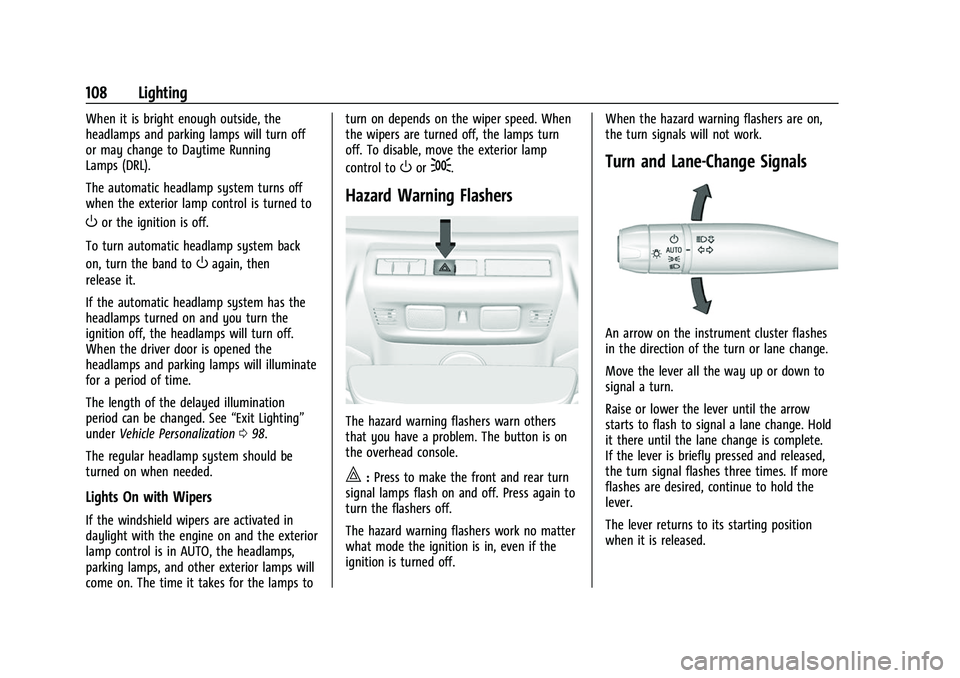
The hazard warning flashers warn others
that you have a problem. The button is on
the overhead console.
|:
Press to make the front and rear turn
signal lamps flash on and off. Press again to
turn the flashers off.
The hazard warning flashers work no matter
what mode the ignition is in, even if the
ignition is turned off. When the hazard warning flashers are on,
the turn signals will not work.
Turn and Lane-Change Signals
An arrow on the instrument cluster flashes
in the direction of the turn or lane change.
Move the lever all the way up or down to
signal a turn.
Raise or lower the lever until the arrow
starts to flash to signal a lane change. Hold
it there until the lane change is complete.
If the lever is briefly pressed and released,
the turn signal flashes three times. If more
flashes are desired, continue to hold the
lever.
The lever returns to its starting position
when it is released.
Page 112 of 338
Chevrolet Corvette Owner Manual (GMNA-Localizing-U.S./Canada/Mexico-
14622938) - 2021 - CRC - 2/10/21
Infotainment System 111
Infotainment System
Introduction
Introduction . . . . . . . . . . . . . . . . . . . . . . . . . . . . 111
Overview . . . . . . . . . . . . . . . . . . . . . . . . . . . . . . . 112
Steering Wheel Controls . . . . . . . . . . . . . . . 114
Using the System . . . . . . . . . . . . . . . . . . . . . . 115
Software Updates . . . . . . . . . . . . . . . . . . . . . . 117
Radio
AM-FM Radio . . . . . . . . . . . . . . . . . . . . . . . . . . . 117
HD Radio Technology . . . . . . . . . . . . . . . . . . 119
Radio Data System (RDS) . . . . . . . . . . . . . . 120
Satellite Radio . . . . . . . . . . . . . . . . . . . . . . . . . 120
Radio Reception . . . . . . . . . . . . . . . . . . . . . . . 120
Diversity Antenna System . . . . . . . . . . . . . . 121
Audio Players
Avoiding Untrusted Media Devices . . . . . 121
USB Port . . . . . . . . . . . . . . . . . . . . . . . . . . . . . . . 121
Auxiliary Jack . . . . . . . . . . . . . . . . . . . . . . . . . . 124
Bluetooth Audio . . . . . . . . . . . . . . . . . . . . . . . 124
OnStar System
OnStar System . . . . . . . . . . . . . . . . . . . . . . . . . 125
Navigation
Using the Navigation System . . . . . . . . . . 126
Maps . . . . . . . . . . . . . . . . . . . . . . . . . . . . . . . . . . 129
Navigation Symbols . . . . . . . . . . . . . . . . . . . 129
Destination . . . . . . . . . . . . . . . . . . . . . . . . . . . . 130OnStar System . . . . . . . . . . . . . . . . . . . . . . . . . 135
Global Positioning System (GPS) . . . . . . . 136
Vehicle Positioning . . . . . . . . . . . . . . . . . . . . 136
Problems with Route Guidance . . . . . . . . 137
If the System Needs Service . . . . . . . . . . . 137
Map Data Updates . . . . . . . . . . . . . . . . . . . . . 137
Database Coverage Explanations . . . . . . . 137
Voice Recognition
Voice Recognition . . . . . . . . . . . . . . . . . . . . . . 138
Performance Data Recorder (PDR)
Performance Data Recorder (PDR) . . . . . . 143
Phone
Bluetooth (Overview) . . . . . . . . . . . . . . . . . . 148
Bluetooth (Pairing and Using a
Phone) . . . . . . . . . . . . . . . . . . . . . . . . . . . . . . . 148
Apple CarPlay and Android Auto . . . . . . . 152
Settings
Settings . . . . . . . . . . . . . . . . . . . . . . . . . . . . . . . 154
Teen Driver . . . . . . . . . . . . . . . . . . . . . . . . . . . . 160
Trademarks and License Agreements
Trademarks and License Agreements . . . . . . . . . . . . . . . . . . . . . . . . . . 162
Introduction
Read the following pages to become familiar
with the features.
{Warning
Taking your eyes off the road for too
long or too often while using any
infotainment feature can cause a crash.
You or others could be injured or killed.
Do not give extended attention to
infotainment tasks while driving. Limit
your glances at the vehicle displays and
focus your attention on driving. Use voice
commands whenever possible.
The infotainment system has built-in
features intended to help avoid distraction
by disabling some features when driving.
These features may gray out when they are
unavailable. Many infotainment features are
also available through the instrument cluster
and steering wheel controls.
Before driving:
.Become familiar with the operation,
center stack controls, steering wheel
controls, and infotainment display.
Page 145 of 338
Chevrolet Corvette Owner Manual (GMNA-Localizing-U.S./Canada/Mexico-
14622938) - 2021 - CRC - 2/10/21
144 Infotainment System
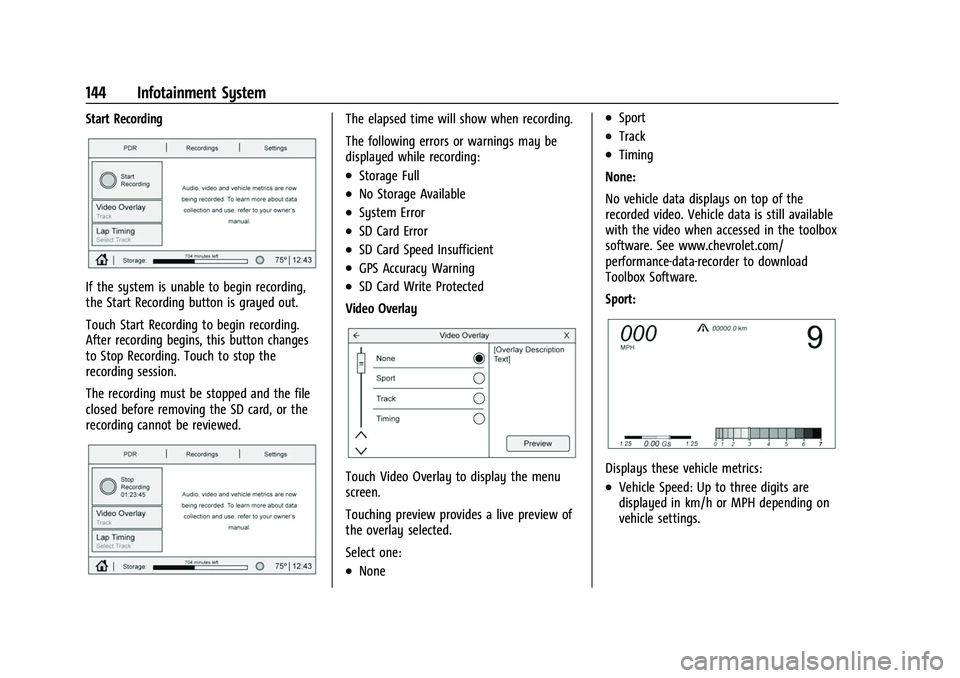
Start Recording
If the system is unable to begin recording,
the Start Recording button is grayed out.
Touch Start Recording to begin recording.
After recording begins, this button changes
to Stop Recording. Touch to stop the
recording session.
The recording must be stopped and the file
closed before removing the SD card, or the
recording cannot be reviewed.
The elapsed time will show when recording.
The following errors or warnings may be
displayed while recording:
.Storage Full
.No Storage Available
.System Error
.SD Card Error
.SD Card Speed Insufficient
.GPS Accuracy Warning
.SD Card Write Protected
Video Overlay
Touch Video Overlay to display the menu
screen.
Touching preview provides a live preview of
the overlay selected.
Select one:
.None
.Sport
.Track
.Timing
None:
No vehicle data displays on top of the
recorded video. Vehicle data is still available
with the video when accessed in the toolbox
software. See www.chevrolet.com/
performance-data-recorder to download
Toolbox Software.
Sport:
Displays these vehicle metrics:
.Vehicle Speed: Up to three digits are
displayed in km/h or MPH depending on
vehicle settings.
Page 162 of 338
Chevrolet Corvette Owner Manual (GMNA-Localizing-U.S./Canada/Mexico-
14622938) - 2021 - CRC - 2/10/21
Infotainment System 161
Manage Settings
Buckle To Drive :When turned ON, Buckle
to Drive prevents the driver from shifting
out of P (Park) for a period of time if driver
seat belt, and on some vehicles, the
passenger seat belt, is not buckled. See
Buckle To Drive 046 and
Vehicle Personalization 098.
Audio Volume Limit : Allows the audio
volume limit to be turned on or off. Touch
Set Audio Volume Limit to choose the
maximum allowable audio volume level.
Set Audio Volume Limit : Allows a
maximum radio volume to be set. Use the
arrows to choose the maximum allowable
level for the audio volume.
Teen Driver Speed Limiter : Limits the
maximum speed of the vehicle. When the
speed limiter is turned on and the vehicle is
started with a Teen Driver key, the DIC
displays a message that the top speed is
limited.
On certain vehicles, when the Speed Limiter
is turned ON, the vehicle’s maximum
acceleration will be limited. The DIC will
display a message that the acceleration is
limited. Teen Driver Speed Warning :
Allows the
speed warning to be turned on or off. Touch
Set Teen Driver Speed Warning to set the
warning speed.
Set Teen Driver Speed Warning : Displays a
warning in the DIC when exceeding a
selectable speed. Choose the desired speed
warning level. The speed warning does not
limit the speed of the vehicle.
SiriusXM Explicit Content Filter (if
equipped) : Allows the SiriusXM Explicit
Content Filter to be turned ON or OFF.
When ON, the teen driver will not be able
to listen to SiriusXM stations that contain
explicit content, and the Explicit Content
Filter selection in the Audio Settings will be
unavailable for change.
When Teen Driver is Active:
.The radio will mute when the driver, or in
some vehicles, the front passenger seat
belt, is not buckled. The audio from any
device paired to the vehicle will also be
muted.
.If an object, such as a briefcase, handbag,
grocery bag, laptop, or other electronic
device, is on the front passenger seat, it
could cause the radio to mute. If this
happens, remove the object from the
seat. See Passenger Sensing System 057.
.Some safety systems, such as Forward
Collision Alert, if equipped, cannot be
turned off.
.The gap setting for the Forward Collision
Alert and Adaptive Cruise Control,
if equipped, cannot be changed.
.When trying to change a safety feature
that is not configurable in Teen Driver,
the DIC displays a message indicating
that Teen Driver is active and the action
is not available.
.Super Cruise, if equipped, is not available.
.Enhanced Low Fuel Warning (if equipped)
–When the vehicle is low on fuel, the
low fuel light on the instrument cluster
flashes and the DIC low fuel warning
cannot be dismissed.
.Do not tow a trailer.
Report Card
The vehicle owner must secure the driver’s
consent to record certain vehicle data when
the vehicle is driven with a registered Teen
Driver key. There is one Report Card per
vehicle. Data is only recorded when a
registered Teen Driver key is used to
operate the vehicle.
Page 163 of 338
Chevrolet Corvette Owner Manual (GMNA-Localizing-U.S./Canada/Mexico-
14622938) - 2021 - CRC - 2/10/21
162 Infotainment System
The Report Card data is collected from the
time Teen Driver is activated or the last
time the Report Card was reset. The
following items may be recorded:
.Distance Driven–the total distance
driven.
.Maximum Speed –the maximum vehicle
speed detected.
.Overspeed Warnings –the number of
times the speed warning setting was
exceeded.
.Wide Open Throttle –the number of
times the accelerator pedal was pressed
nearly all the way down.
.Forward Collision Alerts –the number of
times the driver was notified when
approaching a vehicle ahead too quickly
and at potential risk for a crash.
.Forward Automatic Braking, also called
Automatic Emergency Braking (if
equipped) –the number of times the
vehicle detected that a forward collision
was imminent and applied the brakes.
.Reverse Automatic Braking (if equipped) –
the number of times the vehicle detected
that a rearward collision was imminent
and applied the brakes.
.Traction Control –the number of times
the Traction Control System activated to
reduce wheel spin or loss of traction.
.Stability Control –the number of events
which required the use of electronic
stability control.
.Antilock Braking System Active –The
number of Antilock Brake System
activations.
.Tailgating Alerts –the number of times
the driver was alerted for following a
vehicle ahead too closely.
Report Card Data
Cumulative Data is saved for all trips until
the Report Card is reset or until the
maximum count is exceeded. If the
maximum count is exceeded for a Report
Card line item, that item will no longer be
updated in the Report Card until it is reset.
Each item will report a maximum of
1,000 counts. The distance driven will report
a maximum of 64,374 km (40,000 mi).
To delete Report Card data, do one of the
following:
.From the Report Card display, touch
Reset.
.Touch Clear All Teen Keys and PIN from
the Teen Driver menu. This will also
unregister any Teen Driver keys and
delete the PIN.
Forgotten PIN
See your dealer to reset the PIN.
Trademarks and License
Agreements
FCC Information
See Radio Frequency Statement 0316.
"Made for iPod," and "Made for iPhone,"
mean that an electronic accessory has been
designed to connect specifically to iPod or
iPhone, respectively, and has been certified
by the developer to meet Apple
performance standards. Apple is not
responsible for the operation of this device
or its compliance with safety and regulatory
standards. Please note that the use of this
Page 168 of 338
Chevrolet Corvette Owner Manual (GMNA-Localizing-U.S./Canada/Mexico-
14622938) - 2021 - CRC - 2/10/21
Infotainment System 167
guidance, fleet management or similar
applications; or (b) with, or in
communication with, including without
limitation, cellular phones, palmtop and
handheld computers, pagers, and personal
digital assistants or PDAs.
Warning
This Data may contain inaccurate or
incomplete information due to the passage
of time, changing circumstances, sources
used, and the nature of collecting
comprehensive geographic data, any of
which may lead to incorrect results.
No Warranty
This Data is provided to you“as is,”and you
agree to use it at your own risk. HERE and
its licensors (and their licensors and
suppliers) make no guarantees,
representations, or warranties of any kind,
express or implied, arising by law or
otherwise, including but not limited to,
content, quality, accuracy, completeness,
effectiveness, reliability, fitness for a
particular purpose, usefulness, use or results
to be obtained from this Data, or that the
Data or server will be uninterrupted or
error free. Disclaimer of Warranty
THE DATABASE IS PROVIDED ON AN
“AS IS”
AND “WITH ALL FAULTS BASIS” AND
HARMAN (AND THEIR LICENSORS AND
SUPPLIERS) EXPRESSLY DISCLAIM ALL OTHER
WARRANTIES, EXPRESS OR IMPLIED,
INCLUDING BUT NOT LIMITED TO, THE
IMPLIED WARRANTIES OF
NON-INFRINGEMENT, MERCHANTABILITY,
SATISFACTORY QUALITY, ACCURACY, TITLE
AND FITNESS FOR A PARTICULAR PURPOSE.
NO ORAL OR WRITTEN ADVICE OR
INFORMATION PROVIDED BY HARMAN (OR
ANY OF THEIR LICENSORS, AGENTS,
EMPLOYEES, OR THIRD PARTY PROVIDERS)
SHALL CREATE A WARRANTY, AND YOU ARE
NOT ENTITLED TO RELY ON ANY SUCH
ADVICE OR INFORMATION. THIS DISCLAIMER
OF WARRANTIES IS AN ESSENTIAL CONDITION
OF THIS AGREEMENT.
Disclaimer of Liability
HERE AND ITS LICENSORS (INCLUDING THEIR
LICENSORS AND SUPPLIERS) SHALL NOT BE
LIABLE TO YOU IN RESPECT OF ANY CLAIM,
DEMAND OR ACTION, IRRESPECTIVE OF THE
NATURE OF THE CAUSE OF THE CLAIM,
DEMAND OR ACTION ALLEGING ANY LOSS,
INJURY OR DAMAGES, DIRECT OR INDIRECT,
WHICH MAY RESULT FROM THE USE OR POSSESSION OF THIS DATA; OR FOR ANY
LOSS OF PROFIT, REVENUE, CONTRACTS OR
SAVINGS, OR ANY OTHER DIRECT, INDIRECT,
INCIDENTAL, SPECIAL OR CONSEQUENTIAL
DAMAGES ARISING OUT OF YOUR USE OF OR
INABILITY TO USE THIS DATA, ANY DEFECT IN
THIS DATA, OR THE BREACH OF THESE
TERMS OR CONDITIONS, WHETHER IN AN
ACTION IN CONTRACT OR TORT OR BASED
ON A WARRANTY, EVEN IF HERE OR ITS
LICENSORS HAVE BEEN ADVISED OF THE
POSSIBILITY OF SUCH DAMAGES. Some
States, Territories, and Countries do not
allow certain liability exclusions or damages
limitations, so to that extent the above may
not apply to you.
Export Control
You agree not to export from anywhere any
part of the Data provided to you or any
direct product thereof except in compliance
with, and with all licenses and approvals
required under, applicable export laws, rules
and regulations. Entire Agreement: These
terms and conditions constitute the entire
agreement between HERE (and its licensors,
including their licensors and suppliers) and
you pertaining to the subject matter hereof,
and supersedes in their entirety any and all
Page 178 of 338
Chevrolet Corvette Owner Manual (GMNA-Localizing-U.S./Canada/Mexico-
14622938) - 2021 - CRC - 2/10/21
Driving and Operating 177
Driving Information
Driving for Better Fuel Economy
Driving habits can affect fuel mileage. Here
are some driving tips to get the best fuel
economy possible:
.Set the climate controls to the desired
temperature after the engine is started,
or turn them off when not required.
.Avoid fast starts and accelerate smoothly.
.Brake gradually and avoid abrupt stops.
.Avoid idling the engine for long periods
of time.
.When road and weather conditions are
appropriate, use cruise control.
.Always follow posted speed limits or
drive more slowly when conditions
require.
.Keep vehicle tires properly inflated.
.Combine several trips into a single trip.
.Replace the vehicle's tires with the same
TPC Spec number molded into the tire's
sidewall near the size.
.Follow recommended scheduled
maintenance.
.Using Tour mode rather than Sport or
Track modes, will result in better Active
Fuel Management operation. SeeActive
Fuel Management 0197.
.For recommended shift speeds, see Dual
Clutch Transmission 0198.
Premium Fuel
Use the recommended fuel. See
Recommended Fuel 0226.
Distracted Driving
Distraction comes in many forms and can
take your focus from the task of driving.
Exercise good judgment and do not let other
activities divert your attention away from
the road. Many local governments have
enacted laws regarding driver distraction.
Become familiar with the local laws in
your area.
To avoid distracted driving, keep your eyes
on the road, keep your hands on the
steering wheel, and focus your attention on
driving.
.Do not use a phone in demanding driving
situations. Use a hands-free method to
place or receive necessary phone calls.
.Watch the road. Do not read, take notes,
or look up information on phones or
other electronic devices.
.Designate a front seat passenger to
handle potential distractions.
.Become familiar with vehicle features
before driving, such as programming
favorite radio stations and adjusting
climate control and seat settings. Program
all trip information into any navigation
device prior to driving.
.Wait until the vehicle is parked to
retrieve items that have fallen to the
floor.
.Stop or park the vehicle to tend to
children.
.Keep pets in an appropriate carrier or
restraint.
.Avoid stressful conversations while
driving, whether with a passenger or on a
cell phone.
{Warning
Taking your eyes off the road too long or
too often could cause a crash resulting in
injury or death. Focus your attention on
driving.
Page 179 of 338
Chevrolet Corvette Owner Manual (GMNA-Localizing-U.S./Canada/Mexico-
14622938) - 2021 - CRC - 2/10/21
178 Driving and Operating
Refer to the infotainment section for more
information on using that system and the
navigation system, if equipped, including
pairing and using a cell phone.
Defensive Driving
Defensive driving means“always expect the
unexpected.” The first step in driving
defensively is to wear the seat belt. See
Seat Belts 045.
.Assume that other road users
(pedestrians, bicyclists, and other drivers)
are going to be careless and make
mistakes. Anticipate what they may do
and be ready.
.Allow enough following distance between
you and the driver in front of you.
.Focus on the task of driving.
Impaired Driving
Death and injury associated with impaired
driving is a global tragedy.
{Warning
Drinking alcohol or taking drugs and then
driving is very dangerous. Your reflexes,
perceptions, attentiveness, and judgment
(Continued)
Warning (Continued)
can be affected by even a small amount
of alcohol or drugs. You can have a
serious—or even fatal —collision if you
drive after drinking or taking drugs.
Do not drive while under the influence of
alcohol or drugs, or ride with a driver
who has been drinking or is impaired by
drugs. Find alternate transportation
home; or if you are with a group,
designate a driver who will remain sober.
Control of a Vehicle
Braking, steering, and accelerating are
important factors in helping to control a
vehicle while driving.
Braking
Braking action involves perception time and
reaction time. Deciding to push the brake
pedal is perception time. Actually doing it is
reaction time.
Average driver reaction time is about
three-quarters of a second. In that time, a
vehicle moving at 100 km/h (60 mph) travels
20 m (66 ft), which could be a lot of
distance in an emergency. Helpful braking tips to keep in mind include:
.Keep enough distance between you and
the vehicle in front of you.
.Avoid needless heavy braking.
.Keep pace with traffic.
If the engine ever stops or a brake fault
occurs, the brakes may lose power assist.
More effort will be required to stop the
vehicle. It may take longer to stop.
Steering
Caution
To avoid damage to the steering system,
do not drive over curbs, parking barriers,
or similar objects at speeds greater than
3 km/h (1 mph). Use care when driving
over other objects such as lane dividers
and speed bumps. Damage caused by
misuse of the vehicle is not covered by
the vehicle warranty.