steering CHEVROLET CORVETTE 2023 User Guide
[x] Cancel search | Manufacturer: CHEVROLET, Model Year: 2023, Model line: CORVETTE, Model: CHEVROLET CORVETTE 2023Pages: 351, PDF Size: 6.28 MB
Page 80 of 351
Chevrolet Corvette Owner Manual (GMNA-Localizing-U.S./Canada/Mexico-
16287457) - 2023 - CRC - 3/10/22
Instruments and Controls 79
Instrument Cluster
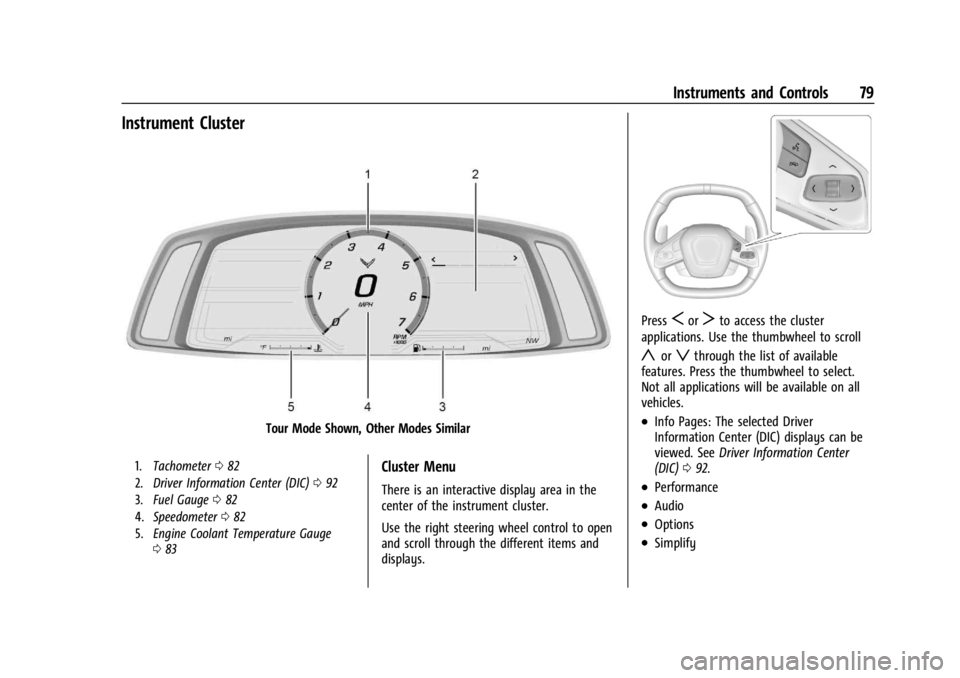
Tour Mode Shown, Other Modes Similar
1.Tachometer 082
2. Driver Information Center (DIC) 092
3. Fuel Gauge 082
4. Speedometer 082
5. Engine Coolant Temperature Gauge
083Cluster Menu
There is an interactive display area in the
center of the instrument cluster.
Use the right steering wheel control to open
and scroll through the different items and
displays.
PressSorTto access the cluster
applications. Use the thumbwheel to scroll
yorzthrough the list of available
features. Press the thumbwheel to select.
Not all applications will be available on all
vehicles.
.Info Pages: The selected Driver
Information Center (DIC) displays can be
viewed. See Driver Information Center
(DIC) 092.
.Performance
.Audio
.Options
.Simplify
Page 88 of 351
Chevrolet Corvette Owner Manual (GMNA-Localizing-U.S./Canada/Mexico-
16287457) - 2023 - CRC - 3/10/22
Instruments and Controls 87
brand. It may require at least one full
tank of the proper fuel to turn the light
off. SeeRecommended Fuel 0227.
If the light remains on, see your dealer.
Emissions Inspection and Maintenance
Programs
If the vehicle requires an Emissions
Inspection/Maintenance test, the test
equipment will likely connect to the
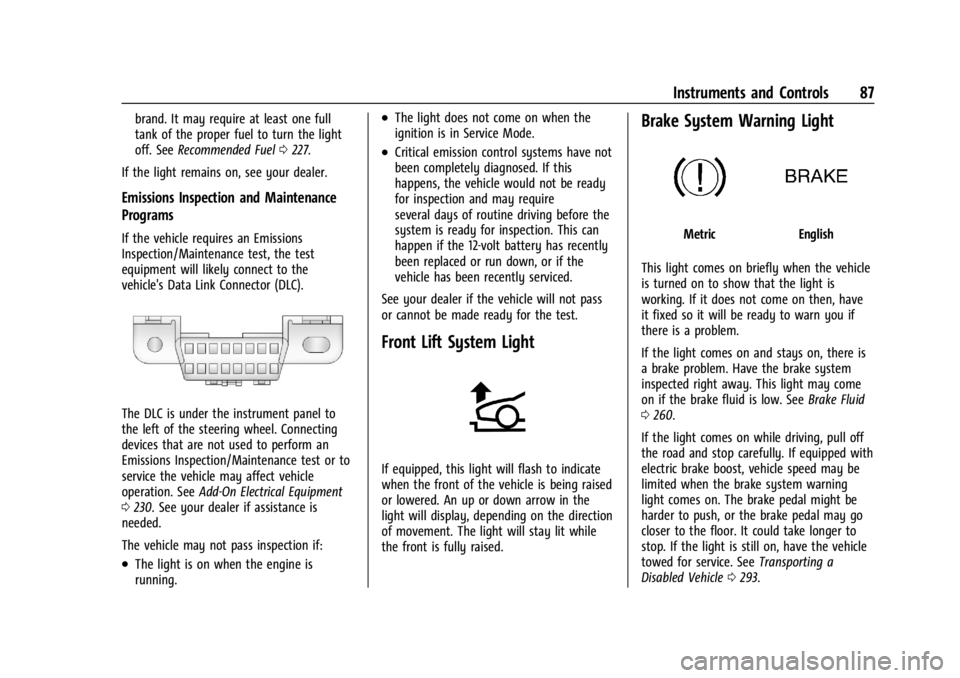
vehicle's Data Link Connector (DLC).
The DLC is under the instrument panel to
the left of the steering wheel. Connecting
devices that are not used to perform an
Emissions Inspection/Maintenance test or to
service the vehicle may affect vehicle
operation. See Add-On Electrical Equipment
0 230. See your dealer if assistance is
needed.
The vehicle may not pass inspection if:
.The light is on when the engine is
running.
.The light does not come on when the
ignition is in Service Mode.
.Critical emission control systems have not
been completely diagnosed. If this
happens, the vehicle would not be ready
for inspection and may require
several days of routine driving before the
system is ready for inspection. This can
happen if the 12-volt battery has recently
been replaced or run down, or if the
vehicle has been recently serviced.
See your dealer if the vehicle will not pass
or cannot be made ready for the test.
Front Lift System Light
If equipped, this light will flash to indicate
when the front of the vehicle is being raised
or lowered. An up or down arrow in the
light will display, depending on the direction
of movement. The light will stay lit while
the front is fully raised.
Brake System Warning Light
MetricEnglish
This light comes on briefly when the vehicle
is turned on to show that the light is
working. If it does not come on then, have
it fixed so it will be ready to warn you if
there is a problem.
If the light comes on and stays on, there is
a brake problem. Have the brake system
inspected right away. This light may come
on if the brake fluid is low. See Brake Fluid
0 260.
If the light comes on while driving, pull off
the road and stop carefully. If equipped with
electric brake boost, vehicle speed may be
limited when the brake system warning
light comes on. The brake pedal might be
harder to push, or the brake pedal may go
closer to the floor. It could take longer to
stop. If the light is still on, have the vehicle
towed for service. See Transporting a
Disabled Vehicle 0293.
Page 96 of 351
Chevrolet Corvette Owner Manual (GMNA-Localizing-U.S./Canada/Mexico-
16287457) - 2023 - CRC - 3/10/22
Instruments and Controls 95
Head-Up Display (HUD)
{Warning
If the HUD image is too bright, or too
high in your field of view, it may take
you more time to see things you need to
see when it is dark outside. Be sure to
keep the HUD image dim and placed low
in your field of view.
If equipped with HUD, some information
concerning the operation of the vehicle is
projected onto the windshield.
The HUD information appears as an image
focused out toward the front of the vehicle.
Caution
If you try to use the HUD image as a
parking aid, you may misjudge the
distance and damage your vehicle. Do not
use the HUD image as a parking aid.
The HUD information can be displayed in
various languages. The speedometer reading
and other numerical values can be displayed
in either English or metric units. The language selection is changed through
the radio and the units of measurement are
changed through the instrument cluster. See
Settings
0150 and “Options” under
Instrument Cluster 079.
The HUD may display different alerts and
information for vehicles equipped with these
features:
.Speedometer
.Tachometer
.Manual Paddle Shift Gear Indicator
These displays on the HUD are for use
when using the manual paddle shift
controls to shift the transmission. See
“Manual Paddle Shift” inDual Clutch
Transmission 0195.
.G-Force Gauge
.Upcoming Maneuver from On-Board
Navigation
.Upcoming Maneuver from OnStar
.Incoming Call
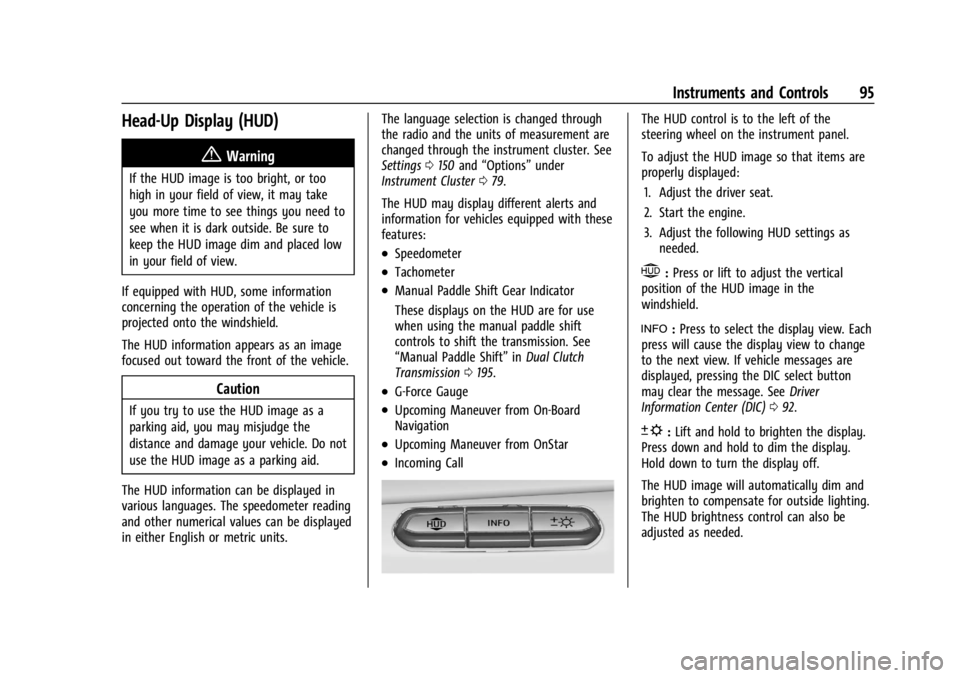
The HUD control is to the left of the
steering wheel on the instrument panel.
To adjust the HUD image so that items are
properly displayed:
1. Adjust the driver seat.
2. Start the engine.
3. Adjust the following HUD settings as needed.
$:Press or lift to adjust the vertical
position of the HUD image in the
windshield.
!: Press to select the display view. Each
press will cause the display view to change
to the next view. If vehicle messages are
displayed, pressing the DIC select button
may clear the message. See Driver
Information Center (DIC) 092.
D:Lift and hold to brighten the display.
Press down and hold to dim the display.
Hold down to turn the display off.
The HUD image will automatically dim and
brighten to compensate for outside lighting.
The HUD brightness control can also be
adjusted as needed.
Page 97 of 351
Chevrolet Corvette Owner Manual (GMNA-Localizing-U.S./Canada/Mexico-
16287457) - 2023 - CRC - 3/10/22
96 Instruments and Controls
The HUD image can temporarily light up
depending on the angle and position of the
sunlight on the HUD display. This is normal.
Polarized sunglasses could make the HUD
image harder to see.
Head-Up Display (HUD) Rotation Option
This feature allows for adjusting the angle
of the HUD image.
Use the right steering wheel controls to
open and scroll through different items and
displays.
The vehicle must be in P (Park).
While in the options menu, press
worx
to scroll to the HUD rotation page. Press the
thumbwheel while Head-Up Display Rotation
is highlighted to enter Adjust Mode.
Press
worxto adjust the angle of the
HUD display. Press SEL to save the setting.
To cancel the setting, press
o. See
Instrument Cluster 079. Display Views
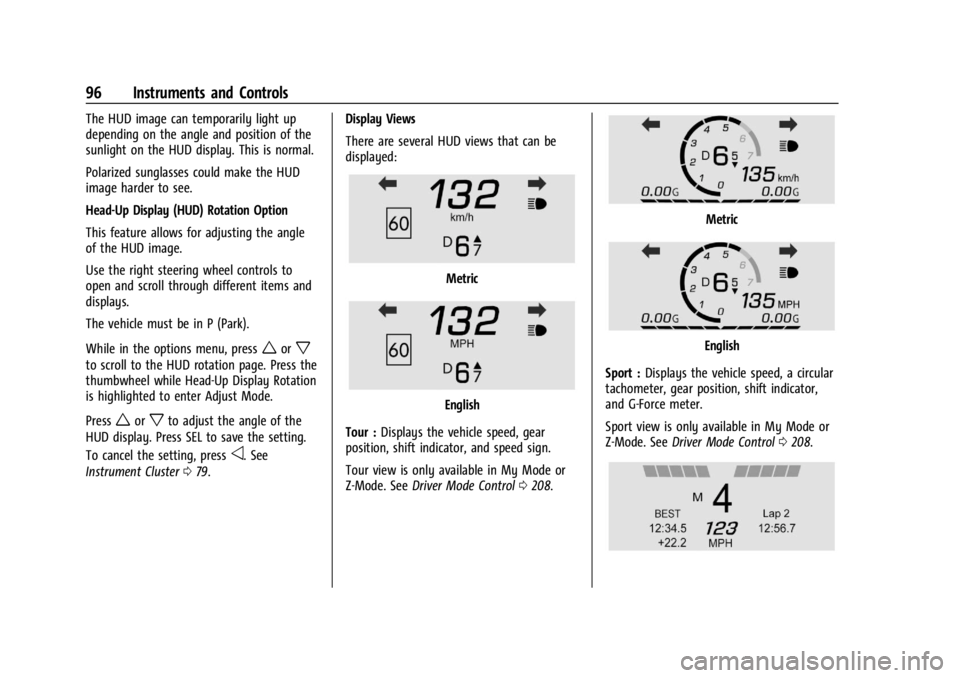
There are several HUD views that can be
displayed:
Metric
English
Tour : Displays the vehicle speed, gear
position, shift indicator, and speed sign.
Tour view is only available in My Mode or
Z-Mode. See Driver Mode Control 0208.
Metric
English
Sport : Displays the vehicle speed, a circular
tachometer, gear position, shift indicator,
and G-Force meter.
Sport view is only available in My Mode or
Z-Mode. See Driver Mode Control 0208.
Page 99 of 351
Chevrolet Corvette Owner Manual (GMNA-Localizing-U.S./Canada/Mexico-
16287457) - 2023 - CRC - 3/10/22
98 Instruments and Controls
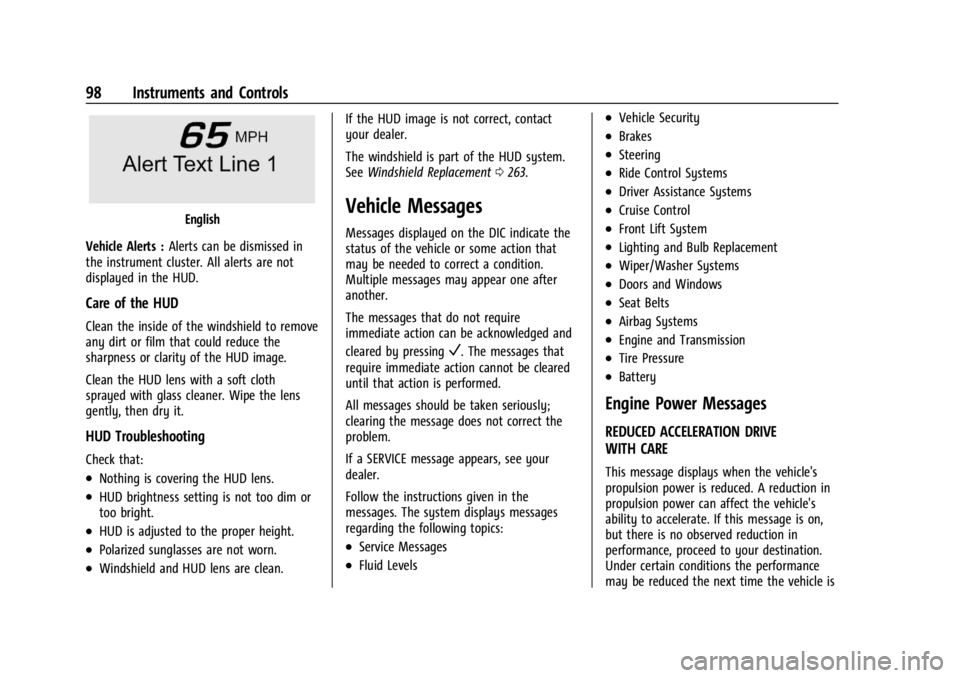
English
Vehicle Alerts : Alerts can be dismissed in
the instrument cluster. All alerts are not
displayed in the HUD.
Care of the HUD
Clean the inside of the windshield to remove
any dirt or film that could reduce the
sharpness or clarity of the HUD image.
Clean the HUD lens with a soft cloth
sprayed with glass cleaner. Wipe the lens
gently, then dry it.
HUD Troubleshooting
Check that:
.Nothing is covering the HUD lens.
.HUD brightness setting is not too dim or
too bright.
.HUD is adjusted to the proper height.
.Polarized sunglasses are not worn.
.Windshield and HUD lens are clean. If the HUD image is not correct, contact
your dealer.
The windshield is part of the HUD system.
See
Windshield Replacement 0263.
Vehicle Messages
Messages displayed on the DIC indicate the
status of the vehicle or some action that
may be needed to correct a condition.
Multiple messages may appear one after
another.
The messages that do not require
immediate action can be acknowledged and
cleared by pressing
V. The messages that
require immediate action cannot be cleared
until that action is performed.
All messages should be taken seriously;
clearing the message does not correct the
problem.
If a SERVICE message appears, see your
dealer.
Follow the instructions given in the
messages. The system displays messages
regarding the following topics:
.Service Messages
.Fluid Levels
.Vehicle Security
.Brakes
.Steering
.Ride Control Systems
.Driver Assistance Systems
.Cruise Control
.Front Lift System
.Lighting and Bulb Replacement
.Wiper/Washer Systems
.Doors and Windows
.Seat Belts
.Airbag Systems
.Engine and Transmission
.Tire Pressure
.Battery
Engine Power Messages
REDUCED ACCELERATION DRIVE
WITH CARE
This message displays when the vehicle's
propulsion power is reduced. A reduction in
propulsion power can affect the vehicle's
ability to accelerate. If this message is on,
but there is no observed reduction in
performance, proceed to your destination.
Under certain conditions the performance
may be reduced the next time the vehicle is
Page 109 of 351
Chevrolet Corvette Owner Manual (GMNA-Localizing-U.S./Canada/Mexico-
16287457) - 2023 - CRC - 3/10/22
108 Infotainment System
Infotainment System
Introduction
Introduction . . . . . . . . . . . . . . . . . . . . . . . . . . . 108
Overview . . . . . . . . . . . . . . . . . . . . . . . . . . . . . . 109
Steering Wheel Controls . . . . . . . . . . . . . . . . 111
Using the System . . . . . . . . . . . . . . . . . . . . . . 112
Software Updates . . . . . . . . . . . . . . . . . . . . . . 114
Radio
AM-FM Radio . . . . . . . . . . . . . . . . . . . . . . . . . . 114
HD Radio Technology . . . . . . . . . . . . . . . . . . 116
Radio Data System (RDS) . . . . . . . . . . . . . . . 117
Satellite Radio . . . . . . . . . . . . . . . . . . . . . . . . . . 117
Radio Reception . . . . . . . . . . . . . . . . . . . . . . . . 117
Diversity Antenna System . . . . . . . . . . . . . 118
Audio Players
Avoiding Untrusted Media Devices . . . . . 118
USB Port . . . . . . . . . . . . . . . . . . . . . . . . . . . . . . . 118
Auxiliary Jack . . . . . . . . . . . . . . . . . . . . . . . . . . 121
Bluetooth Audio . . . . . . . . . . . . . . . . . . . . . . . 121
Navigation
Using the Navigation System . . . . . . . . . . 122
Maps . . . . . . . . . . . . . . . . . . . . . . . . . . . . . . . . . . 125
Navigation Symbols . . . . . . . . . . . . . . . . . . . . 125
Destination . . . . . . . . . . . . . . . . . . . . . . . . . . . . 126
Global Positioning System (GPS) . . . . . . . 132
Vehicle Positioning . . . . . . . . . . . . . . . . . . . . . 132
Problems with Route Guidance . . . . . . . . 132If the System Needs Service . . . . . . . . . . . 133
Map Data Updates . . . . . . . . . . . . . . . . . . . . . 133
Database Coverage Explanations . . . . . . . 133
Voice Recognition
Voice Recognition . . . . . . . . . . . . . . . . . . . . . . 133
Performance Data Recorder (PDR)
Performance Data Recorder (PDR) . . . . . . 138
Phone
Bluetooth (Overview) . . . . . . . . . . . . . . . . . . 144
Bluetooth (Pairing and Using a
Phone) . . . . . . . . . . . . . . . . . . . . . . . . . . . . . . . 144
Apple CarPlay and Android Auto . . . . . . 148
Settings
Settings . . . . . . . . . . . . . . . . . . . . . . . . . . . . . . . 150
Teen Driver . . . . . . . . . . . . . . . . . . . . . . . . . . . . 153
Trademarks and License Agreements
Trademarks and License Agreements . . . . . . . . . . . . . . . . . . . . . . . . . . 156
Introduction
Read the following pages to become familiar
with the features.
{Warning
Taking your eyes off the road for too
long or too often while using any
infotainment feature can cause a crash.
You or others could be injured or killed.
Do not give extended attention to
infotainment tasks while driving. Limit
your glances at the vehicle displays and
focus your attention on driving. Use voice
commands whenever possible.
The infotainment system has built-in
features intended to help avoid distraction
by disabling some features when driving.
These features may gray out when they are
unavailable. Many infotainment features are
also available through the instrument cluster
and steering wheel controls.
Page 110 of 351
Chevrolet Corvette Owner Manual (GMNA-Localizing-U.S./Canada/Mexico-
16287457) - 2023 - CRC - 3/10/22
Infotainment System 109
Before driving:
.Become familiar with the operation,
center stack controls, steering wheel
controls, and infotainment display.
.Set up the audio by presetting favorite
stations, setting the tone, and adjusting
the speakers.
.Set up phone numbers in advance so they
can be called easily by pressing a single
control or by using a single voice
command.
See Distracted Driving 0169.
Active Noise Cancellation (ANC)
If equipped, ANC reduces engine noise in the
vehicle’s interior. ANC requires the
factory-installed audio system, radio,
speakers, amplifier (if equipped), induction
system, and exhaust system to work
properly. Deactivation is required by your
dealer if related aftermarket equipment is
installed.
Overview
Infotainment System
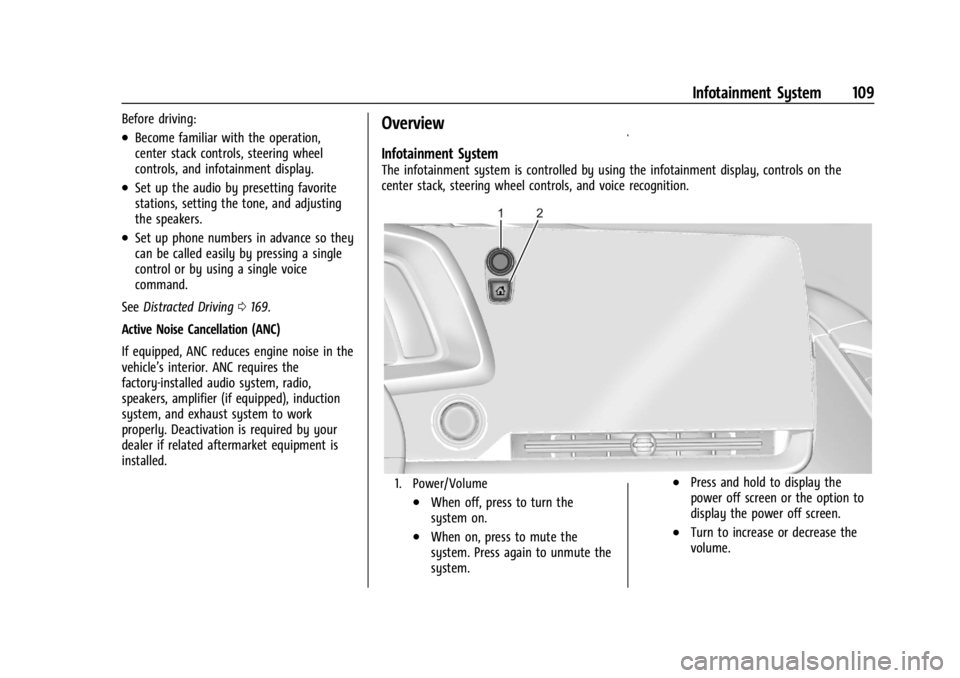
The infotainment system is controlled by using the infotainment display, controls on the
center stack, steering wheel controls, and voice recognition.
1. Power/Volume
.When off, press to turn the
system on.
.When on, press to mute the
system. Press again to unmute the
system.
.Press and hold to display the
power off screen or the option to
display the power off screen.
.Turn to increase or decrease the
volume.
Page 112 of 351
Chevrolet Corvette Owner Manual (GMNA-Localizing-U.S./Canada/Mexico-
16287457) - 2023 - CRC - 3/10/22
Infotainment System 111
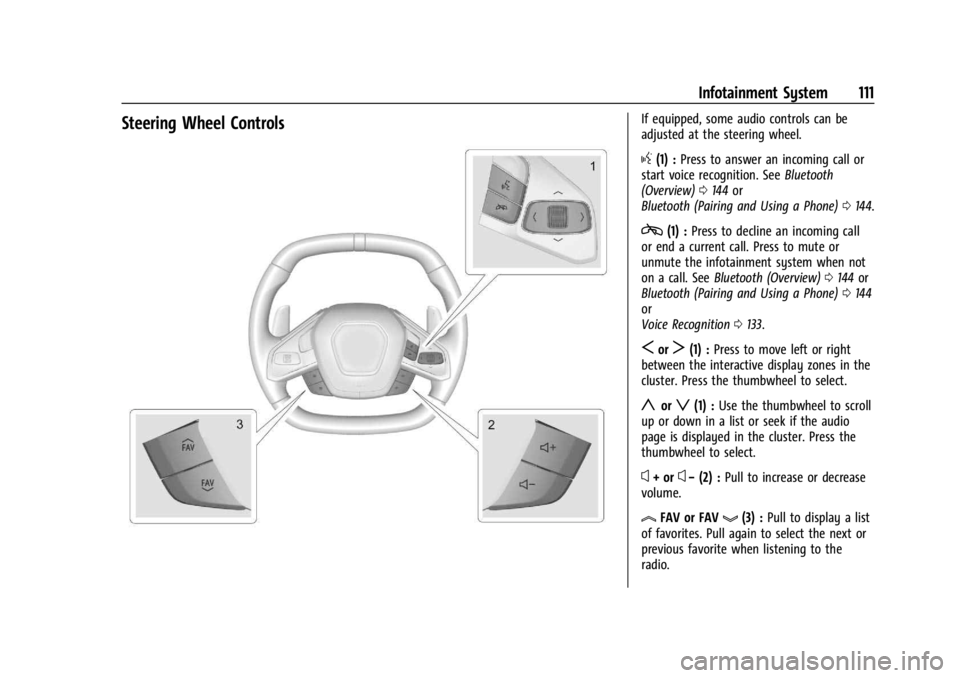
Steering Wheel ControlsIf equipped, some audio controls can be
adjusted at the steering wheel.
g(1) :Press to answer an incoming call or
start voice recognition. See Bluetooth
(Overview) 0144 or
Bluetooth (Pairing and Using a Phone) 0144.
c(1) : Press to decline an incoming call
or end a current call. Press to mute or
unmute the infotainment system when not
on a call. See Bluetooth (Overview) 0144 or
Bluetooth (Pairing and Using a Phone) 0144
or
Voice Recognition 0133.
SorT(1) : Press to move left or right
between the interactive display zones in the
cluster. Press the thumbwheel to select.
yorz(1) : Use the thumbwheel to scroll
up or down in a list or seek if the audio
page is displayed in the cluster. Press the
thumbwheel to select.
x+ orx− (2) : Pull to increase or decrease
volume.
lFAV or FAVg(3) : Pull to display a list
of favorites. Pull again to select the next or
previous favorite when listening to the
radio.
Page 122 of 351
Chevrolet Corvette Owner Manual (GMNA-Localizing-U.S./Canada/Mexico-
16287457) - 2023 - CRC - 3/10/22
Infotainment System 121
Albums :TouchHnext to any album to
store the album as a favorite. Touch a saved
favorite to recall a favorite album. The first
song in the album list begins to play.
Genres : Touch
Hnext to any genre to
store the genre as a favorite. Touch a saved
favorite to recall a favorite genre. The first
song of the genre begins to play.
Podcasts : Touch
Hnext to any podcast to
store the podcast as a favorite. Touch a
saved favorite to recall a favorite podcast.
The podcast begins to play.
Audiobooks : Touch
Hnext to any
audiobook to store the audiobook as a
favorite. Touch a saved favorite to recall a
favorite audiobook. The first chapter in the
audiobook begins to play.
Media Playback and Mute
USB playback will be paused if the system is
muted. If the steering wheel mute control is
pressed again, playback will resume.
If the source is changed while in mute,
playback resumes and audio will unmute.
Auxiliary Jack
If equipped, this vehicle has an auxiliary
input jack in the center console. Possible
auxiliary audio sources include:
.Laptop computer
.Audio music player
This jack is not an audio output. Do not
plug headphones into the auxiliary input
jack. Set up an auxiliary device while the
vehicle is in P (Park).
Connect a 3.5 mm (1/8 in) cable from the
auxiliary device to the auxiliary input jack.
When a device is connected, the system can
play audio from the device over the vehicle
speakers.
If an auxiliary device has already been
connected, but a different source is currently
active, touch More and then touch AUX to
make the source active.
Shuffle and Browse are not available in the
AUX source menu.
Bluetooth Audio
Music may be played from a paired
Bluetooth device. See Bluetooth (Overview)
0 144 or
Bluetooth (Pairing and Using a Phone) 0144
for help pairing a device.
Volume and song selection may be
controlled by using the infotainment
controls or the mobile device. If Bluetooth is
selected and no volume is present, check the
volume setting on the infotainment system.
Music can be launched by touching
Bluetooth from the recent sources list on
the left of the display or by touching the
More option and then touching the
Bluetooth device.
To play music via Bluetooth:
1. Power on the device, and pair to connect the device.
2. Once paired, touch Audio from the Home Page, then touch Bluetooth from the
recent sources list on the left of the
display.
Bluetooth Sound Menu
See “Infotainment System Sound Menu”
under AM-FM Radio 0114.
Page 125 of 351
Chevrolet Corvette Owner Manual (GMNA-Localizing-U.S./Canada/Mexico-
16287457) - 2023 - CRC - 3/10/22
124 Infotainment System
turn is completed, the system automatically
brings the zoom back to the originally set
level. If the vehicle is approaching a turn
with the next turn occurring shortly after,
the Auto-Zoom will remain on until both
turns are completed.
Route Preferences
Touch to access the Route Preferences. The
choices are:
.Preferred Route–Choose from two
different route options: Fastest or
Eco-Friendly.
‐ Fastest would be the route with the
shortest drive time.
‐ Eco-Friendly would be the most
fuel-efficient route.
.Avoid on Current Route –Choose any of
the road features to avoid while on route:
‐ Highways
‐ Unpaved Roads
‐ Ferries
‐ Carpool Lanes
‐ Toll Roads
‐ Tunnels
‐ Country Borders Navigation Voice Control
Touch to access the voice control setting
display.
.Navigation Volume
–To adjust the
volume level, touch the up and down
arrows. If the voice guidance prompt is
being heard, volume can also be adjusted
using the knob on the center stack or the
volume switch on the steering wheel.
.Navigation Voice Prompt Level during a
Call. Options available are:
‐ Full Prompt (Selected by default)
‐ Tone Only
‐ None
Traffic Events (If Equipped)
This feature provides a list of events that
are on the route or nearby. Touch
Aand
then select Traffic Events. An OnStar
connected Navigation service plan is
required.
Traffic Preferences (If Equipped)
While in Map View, touch
A, then Settings
and then Map and Navigation Settings to
access Traffic Preferences. When Show
Traffic on Map is turned on, the feature provides an overview of the traffic flow
using different coded colors. The following
options are available for rerouting:
.Auto Reroute to Better Route
–The
system will automatically reroute if the
system detects there is a traffic issue
ahead.
.Ask Before Rerouting (Default) –If the
system detects there is a traffic issue
ahead, it will display a pop-up with
details about the issue. Choose to reroute
or cancel the alert.
.Never Search for Better Route –The
system will not check for a better route
until one of the above options is selected.
Alert Preferences
Set alerts on or off during both inactive and
active guidance views. The following alerts
may be available:
.Road Safety Alerts –Touch to display
upcoming School Zones.
.Traffic Camera Alerts
Manage History
Touch Manage History to access the History
options:
.Clear Recent Destinations –Touch\to
clear the recent destinations.