steering CHEVROLET CORVETTE 2023 Owner's Manual
[x] Cancel search | Manufacturer: CHEVROLET, Model Year: 2023, Model line: CORVETTE, Model: CHEVROLET CORVETTE 2023Pages: 351, PDF Size: 6.28 MB
Page 134 of 351
Chevrolet Corvette Owner Manual (GMNA-Localizing-U.S./Canada/Mexico-
16287457) - 2023 - CRC - 3/10/22
Infotainment System 133
.Automatic rerouting might display a route
returning to the set waypoint if heading
for a destination without passing through
a set waypoint.
.The route prohibits the entry of a vehicle
due to a regulation by time or season or
any other regulation which may be given.
.Some routes might not be searched.
.The route to the destination might not be
shown if there are new roads, if roads
have recently changed, or if certain roads
are not listed in the map data. SeeMaps
0 125.
To recalibrate the vehicle's position on the
map, park with the vehicle running for two
to five minutes, until the vehicle position
updates. Make sure the vehicle is parked in
a location that is safe and has a clear view
of the sky and away from large
obstructions.
If the System Needs Service
If the navigation system needs service, see
your dealer.
Map Data Updates
The map data in the vehicle is the most
up-to-date information available when the
vehicle was produced. The map data is updated periodically, provided that the map
information has changed and the vehicle has
a relevant service plan.
See www.gmnavdisc.com for details on
ordering, purchasing, and installing a new or
replacement SD card. Features are subject to
change. For more information on this
feature, visit your brand website. See
Online
Account 0321 for details.
If the vehicle is equipped with Connected
Navigation, which is a subscription service
that enables certain features of the
navigation system, such as Traffic, Smart
Search/Routing, and Predictive Navigation,
then the system will download the latest
map data from the cloud.
Database Coverage Explanations
Coverage areas vary with respect to the
level of map detail available for any given
area. Some areas feature greater levels of
detail than others. If this happens, it does
not mean there is a problem with the
system. As the map data is updated, more
detail can become available for areas that
previously had limited detail. See Map Data
Updates 0133.
Voice Recognition
If equipped, voice recognition allows for
hands-free operation within the navigation,
audio, phone, and weather applications. This
feature can be started by pressing
gon the
steering wheel or touching
gon the
infotainment display.
However, not all features within these areas
are supported by voice commands.
Generally, only complex tasks that require
multiple manual interactions to complete
are supported by voice commands.
For example, tasks that take more than one
or two touches, such as a song or artist to
play from a media device, would be
supported by voice commands. Other tasks,
like adjusting the volume or seeking up or
down, are audio features that are easily
performed by touching one or two options,
and are not supported by voice commands.
In general there are flexible ways to speak
commands for completing the tasks.
If your language supports it, try stating a
One-Shot command, such as “Directions to
address
while stating the address during the
Page 135 of 351
Chevrolet Corvette Owner Manual (GMNA-Localizing-U.S./Canada/Mexico-
16287457) - 2023 - CRC - 3/10/22
134 Infotainment System
command. Another example of a One-Shot
Destination Entry command is,“Directions to
Place of Interest at
commands do not work, try saying, “Take
me to Place of Interest” or“Find address”
and the system will walk you through by
asking additional questions.
Hybrid Speech Recognition
If equipped, this feature helps distinguish
words by using Internet-based information
along with the system’s voice recognition
database. This allows you to speak more
naturally when using voice recognition.
Using Voice Recognition
Voice recognition becomes available once
the system has been initialized. This begins
when the ignition is turned on. Initialization
may take a few moments.
1. Press
gon the steering wheel controls
to activate voice recognition.
2. The audio system mutes and the system plays a prompt.
3. Clearly speak one of the commands described in this section.
A voice recognition system prompt can
be interrupted while it is playing by
pressing
gagain. Once voice recognition is started, both the
infotainment display and instrument cluster
show the selections and visual dialog
content. These displays can be turned on or
off in the Tutorial Mode under
Settings
0 150.
There are three voice prompt modes
supported:
.Informative verbal prompts: This type of
prompt will provide more information
regarding the supported actions.
.Short prompts: This type of prompt will
provide simple instructions about what
can be stated.
.Auto informative prompts: This type of
prompt plays during the first few speech
sessions, then automatically switches to
the short prompt after some experience
has been gained through using the
system.
If a command is not spoken, the voice
recognition system says a help prompt.
Prompts and Infotainment Displays
While a voice recognition session is active,
there may be corresponding options
showing on the displays. A selection can be
made by manually touching the option,
or by speaking the number for the option to select. Manual interaction in the voice
recognition session is permitted. Interaction
during a voice session may be completed
entirely using voice commands while some
manual commands may expedite a task. If a
selection is made using a manual control,
the voice recognition dialog will progress in
the same way as if the selection were made
using a voice command. Once the system
completes the task, or the session is
terminated, the voice recognition dialog
stops.
An example of this type of manual
intervention is touching an entry of a
displayed number list instead of speaking
the number associated with the entry
desired.
Canceling Voice Recognition
.Touch or say
“Cancel”or“Exit” to
terminate the voice recognition session
and show the display where voice
recognition was initiated.
.Presscon the steering wheel controls
to terminate the voice recognition session
and show the display where voice
recognition was initiated.
Page 139 of 351
Chevrolet Corvette Owner Manual (GMNA-Localizing-U.S./Canada/Mexico-
16287457) - 2023 - CRC - 3/10/22
138 Infotainment System
“Address”:Begin a dialog to enter a
specific destination address, which includes
the entire address consisting of the house
number, street name, city, state/province,
and country. Do not include the ZIP code.
“Place of Interest” :Begin a dialog to enter
a destination Place of Interest category or
major brand name.
The name must be precisely spoken.
Nicknames or short names for the
businesses will not likely be found. Lesser
known businesses might have to be located
by category, such as fast food, hotels,
or banks.
“Navigate to Contact” :Begin a dialog to
enter a specific destination contact name.
“Cancel Route” :End route guidance.
“Take Me Home” :Create a route to a
stored home location.
Voice Recognition for the Phone
“Call
stored contact. The command may include
location if the contact has location numbers
stored. “Call
Mobile,”
or“On Other” :Initiate a call to a
stored contact and location at home, at
work, on mobile device, or on another
phone.
“Call
to a cell phone number of seven digits, 10
digits, or three digit emergency numbers.
“Pair Phone” :Begin the Bluetooth pairing
process. Follow the instructions on the
infotainment display.
“Redial” :Initiate a call to the last dialed
number.
“Switch Phone” :Select a different
connected cell phone for outgoing calls.
“Voice Keypad” :Begin a dialog to enter
special numbers like international numbers.
The numbers can be entered in groups of
digits with each group of digits being
repeated back by the system. If the group
of digits is not correct, the command
“Delete” will remove the last group of digits
and allow them to be re-entered. Once the
entire number has been entered, the
command “Call”will start dialing the
number.
Phone Assistant Voice Recognition
Press and holdgon the steering wheel
controls to pass through and launch Google
phone assistant or Siri.
For the low radio, whether connected by
Bluetooth or phone projection, the only
available voice recognition is either Siri
(iPhone) or the Google Assistant (Android).
Performance Data
Recorder (PDR)
If equipped, the PDR icon displays on the
Home Page.
Important Information
Use of the PDR may be prohibited or legally
restricted in certain countries and situations.
Ensure compliance with applicable laws and
regulations, including, but not limited to:
privacy laws, laws related to camera
surveillance and recordings, road traffic and
security laws, and laws on the protection of
publicity and personality rights.
.Do not use the PDR if it causes
distraction.
.Do not rely on camera footage to steer
the vehicle.
Page 142 of 351
Chevrolet Corvette Owner Manual (GMNA-Localizing-U.S./Canada/Mexico-
16287457) - 2023 - CRC - 3/10/22
Infotainment System 141
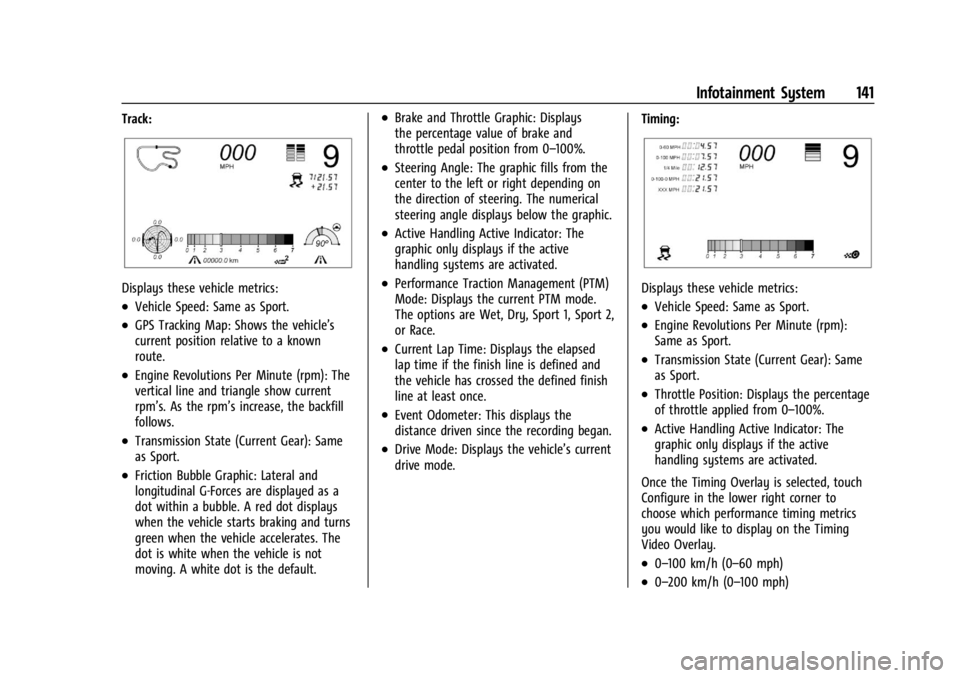
Track:
Displays these vehicle metrics:
.Vehicle Speed: Same as Sport.
.GPS Tracking Map: Shows the vehicle’s
current position relative to a known
route.
.Engine Revolutions Per Minute (rpm): The
vertical line and triangle show current
rpm’s. As the rpm’s increase, the backfill
follows.
.Transmission State (Current Gear): Same
as Sport.
.Friction Bubble Graphic: Lateral and
longitudinal G-Forces are displayed as a
dot within a bubble. A red dot displays
when the vehicle starts braking and turns
green when the vehicle accelerates. The
dot is white when the vehicle is not
moving. A white dot is the default.
.Brake and Throttle Graphic: Displays
the percentage value of brake and
throttle pedal position from 0–100%.
.Steering Angle: The graphic fills from the
center to the left or right depending on
the direction of steering. The numerical
steering angle displays below the graphic.
.Active Handling Active Indicator: The
graphic only displays if the active
handling systems are activated.
.Performance Traction Management (PTM)
Mode: Displays the current PTM mode.
The options are Wet, Dry, Sport 1, Sport 2,
or Race.
.Current Lap Time: Displays the elapsed
lap time if the finish line is defined and
the vehicle has crossed the defined finish
line at least once.
.Event Odometer: This displays the
distance driven since the recording began.
.Drive Mode: Displays the vehicle’s current
drive mode.Timing:
Displays these vehicle metrics:
.Vehicle Speed: Same as Sport.
.Engine Revolutions Per Minute (rpm):
Same as Sport.
.Transmission State (Current Gear): Same
as Sport.
.Throttle Position: Displays the percentage
of throttle applied from 0–100%.
.Active Handling Active Indicator: The
graphic only displays if the active
handling systems are activated.
Once the Timing Overlay is selected, touch
Configure in the lower right corner to
choose which performance timing metrics
you would like to display on the Timing
Video Overlay.
.0–100 km/h (0–60 mph)
.0–200 km/h (0–100 mph)
Page 145 of 351
Chevrolet Corvette Owner Manual (GMNA-Localizing-U.S./Canada/Mexico-
16287457) - 2023 - CRC - 3/10/22
144 Infotainment System
Phone
Bluetooth (Overview)
The Bluetooth-capable system can be paired
with up to 10 Bluetooth devices and two
active Bluetooth devices, allowing:
.Placement and receipt of calls in a
hands-free mode.
.Sharing of the device’s address book or
contact list with the vehicle.
To minimize driver distraction, before
driving, and with the vehicle parked:
.Become familiar with the features of the
mobile device. Organize the phone book
and contact lists clearly and delete
duplicate or rarely used entries.
If possible, program speed dial or other
shortcuts.
.Review the controls and operation of the
infotainment system.
.Pair mobile device(s) to the vehicle. The
system may not work with all mobile
devices. See “Pairing”later in this section.
Vehicles with a Bluetooth system can use a
Bluetooth-capable mobile device with a
Hands-Free Profile to make and receive
phone calls. The infotainment system and
voice recognition are used to control the system. The system can be used while the
ignition is on or in accessory mode. The
range of the Bluetooth system can be up to
9.1 m (30 ft). Not all mobile devices support
all functions and not all mobile devices work
with the Bluetooth system. Visit your brand
website for more information about
compatible mobile devices. See
Online
Account 0321.
Controls
Use the controls on the center stack and the
steering wheel to operate the Bluetooth
system.
Steering Wheel Controls
g:Press to answer incoming calls and start
voice recognition on your connected
Bluetooth mobile device.
i: Press to end a call, decline a call,
or cancel an operation. Press to mute or
unmute the infotainment system when not
on a call.
Infotainment System Controls
For information about how to navigate the
menu system using the infotainment
controls, see Overview0109.
Audio System
When using the Bluetooth mobile device
system, sound comes through the vehicle's
front audio system speakers and overrides
the audio system. The volume level while on
a mobile device call can be adjusted by
pressing the steering wheel controls or the
volume control on the center stack. The
adjusted volume level remains in memory
for later calls. The volume cannot be
lowered beyond a certain level.
Bluetooth (Pairing and Using a
Phone)
Pairing
A Bluetooth-enabled mobile device must be
paired to the Bluetooth system and then
connected to the vehicle before it can be
used. See the mobile device manufacturer's
user guide for Bluetooth functions before
pairing the device.
Pairing Information
.If no mobile device has been connected,
the Phone main page on the infotainment
display will show the Connect Phone
option. Touch this option to connect.
Page 149 of 351
Chevrolet Corvette Owner Manual (GMNA-Localizing-U.S./Canada/Mexico-
16287457) - 2023 - CRC - 3/10/22
148 Infotainment System
2. Touch Keypad and enter partial phonenumbers or contact names using the
digits on the keypad to search.
Results will show on the right side of the
display. Touch one to place a call.
Accepting or Declining a Call
When an incoming call is received, the
infotainment system mutes and a ring tone
is heard in the vehicle.
Accepting a Call
There are two ways to accept a call:
.Pressgon the steering wheel controls.
.Touch Answer on the infotainment
display.
Declining a Call
There are two ways to decline a call:
.Pression the steering wheel controls.
.Touch Ignore on the infotainment display.
Call Waiting
Call waiting must be supported on the
Bluetooth cell phone and enabled by the
wireless service carrier to work. Accepting a Call
Press
gto answer, then touch Switch on
the infotainment display.
Declining a Call
Press
ito decline, then touch Ignore on
the infotainment display
Switching Between Calls (Call Waiting
Calls Only)
To switch between calls, touch Phone on the
Home Page to display Call View. While in
Call View, touch the call information of the
call on hold to change calls.
Three-Way Calling
Three-way calling must be supported on the
Bluetooth cell phone and enabled by the
wireless service carrier to work.
To start a three-way call while in a
current call:
1. In the Call View, touch Add Call to add another call.
2. Initiate the second call by selecting from Recents, Contacts, or Keypad.
3. When the second call is active, touch the merge icon to conference the three-way
call together.
Ending a Call
.Pression the steering wheel controls.
.Touch#on the infotainment display,
next to a call, to end only that call.
Dual Tone Multi-Frequency (DTMF) Tones
The in-vehicle Bluetooth system can send
numbers during a call. This is used when
calling a menu-driven phone system. Use the
Keypad to enter the number.
Apple CarPlay and Android Auto
If equipped, Android Auto and/or Apple
CarPlay capability may be available through
a compatible smartphone. If available, the
Android Auto and Apple CarPlay icons will
change from gray to color on the Home
Page of the infotainment display.
To use Android Auto and/or Apple CarPlay:
For Wired Phone Projection
1. Download the Android Auto app to your smartphone from the Google Play store.
There is no app required for Apple
CarPlay.
2. Connect your Android phone or Apple iPhone by using the factory-provided
phone USB cable and plugging into a
Page 153 of 351
Chevrolet Corvette Owner Manual (GMNA-Localizing-U.S./Canada/Mexico-
16287457) - 2023 - CRC - 3/10/22
152 Infotainment System
Return to Factory Settings
Allows resetting the infotainment system
settings in the vehicle.
Apps
The menu may contain the following:
Android Auto
Allows interacting directly with a mobile
device on the infotainment display. See
Apple CarPlay and Android Auto0148.
Apple CarPlay
This feature allows you to interact directly
with your mobile device on the infotainment
display. See Apple CarPlay and Android Auto
0 148.
Apps
Shows app settings and information.
Audio
Adjusts different audio settings.
Climate
Adjusts different climate settings.
Navigation
Adjusts different navigation settings.
See Using the Navigation System 0122. Phone
Adjusts different phone settings.
Vehicle
The menu may contain the following:
Buckle to Drive
This feature can prevent shifting out of Park
when the driver, and if applicable the front
passenger, seat belt is not buckled. See
Buckle To Drive
045.
Driver Mode Customization
See “Driver Mode Customization” inDriver
Mode Control 0208.
Climate and Air Quality
Adjusts different climate settings.
Collision/Detection Systems
Adjusts different driver assistance system
settings.
Comfort and Convenience
Adjusts different comfort and convenience
settings.
Lighting
Adjusts different lighting settings. Power Door Locks
Adjusts different door lock settings.
Remote Lock, Unlock, and Start
Adjusts different remote lock settings.
Ride Height
See
Front Lift System 0214.
Seating Position
Adjusts different seat settings.
Teen Driver
See Teen Driver 0153.
Valet Mode
This will lock the infotainment system and
steering wheel controls. It may also limit
access to vehicle storage locations,
if equipped.
To enable valet mode: 1. Enter a four-digit code on the keypad.
2. Select Enter to go to the confirmation screen.
3. Re-enter the four-digit code.
Touch Lock or Unlock to lock or unlock the
system. Touch Back to go back to the
previous menu.
Page 167 of 351
Chevrolet Corvette Owner Manual (GMNA-Localizing-U.S./Canada/Mexico-
16287457) - 2023 - CRC - 3/10/22
166 Climate Controls
Caution
Using a razor blade or sharp object to
clear the inside rear window can damage
the rear window defogger. Repairs would
not be covered by the vehicle warranty.
Do not clear the inside rear window with
sharp objects.
Remote Start Climate Control Operation :
If equipped with remote start, the climate
control system may run when the vehicle is
started remotely. If equipped with heated or
ventilated seats or a heated steering wheel,
these features may come on during a
remote start. See Remote Vehicle Start 012,
Heated and Ventilated Front Seats 043, and
Heated Steering Wheel 073.
Afterblow Feature
If equipped, under certain conditions, the
fan may stay on or may turn on and off
several times after you turn off and lock the
vehicle. This is normal.
Air Vents
Use the tab on the air outlets to change the
direction of the airflow or shut the outlet. Operation Tips
.Clear away any ice, snow, or leaves from
the air inlets at the base of the
windshield that may block the flow of air
into the vehicle.
.Clear snow off the hood to improve
visibility and help decrease moisture
drawn into the vehicle.
.Use of non-GM approved hood deflectors
may adversely affect the performance of
the system.
.Keep the areas around the base of the
infotainment display and under the seats
clear to optimize air circulation.
Maintenance
Passenger Compartment Air Filter
The passenger compartment air filter
reduces dust, pollen, and other airborne
irritants from outside air that are pulled into
the vehicle. Reductions in airflow, which
may occur more often in dusty areas,
indicate that the filter may need to be
replaced. See
Maintenance Schedule 0306.
Caution
Driving without a passenger compartment
air filter in place can cause water and
small particles, like paper and leaves, to
be pulled into your climate control
system which may cause damage to it.
Make sure you always replace the old
filter with a new one.
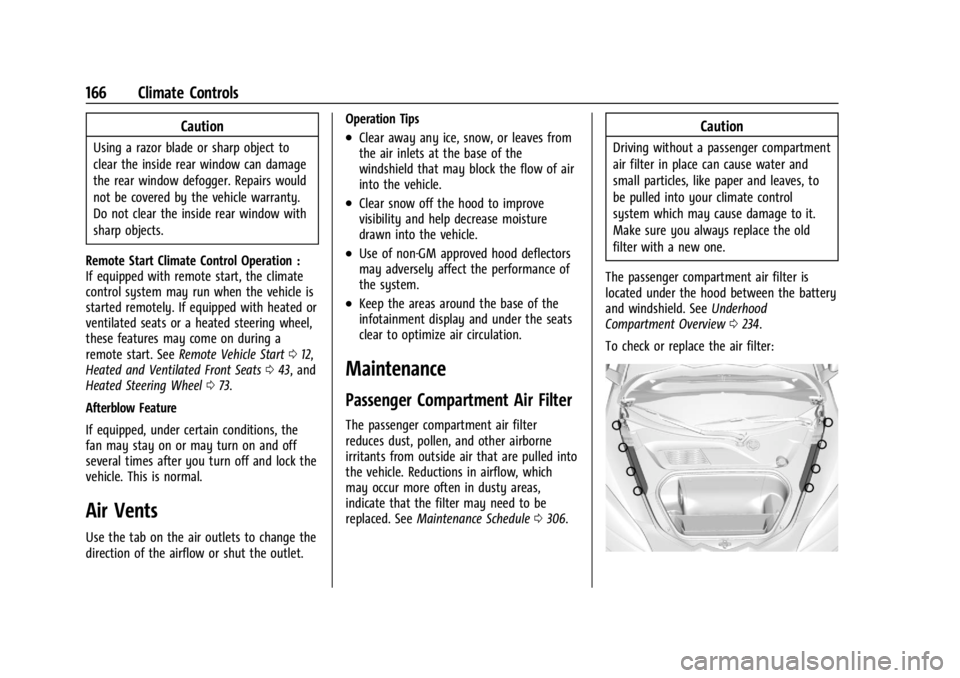
The passenger compartment air filter is
located under the hood between the battery
and windshield. See Underhood
Compartment Overview 0234.
To check or replace the air filter:
Page 169 of 351
Chevrolet Corvette Owner Manual (GMNA-Localizing-U.S./Canada/Mexico-
16287457) - 2023 - CRC - 3/10/22
168 Driving and Operating
Driving and Operating
Driving Information
Driving for Better Fuel Economy . . . . . . 169
Distracted Driving . . . . . . . . . . . . . . . . . . . . . 169
Defensive Driving . . . . . . . . . . . . . . . . . . . . . . 170
Impaired Driving . . . . . . . . . . . . . . . . . . . . . . . 170
Control of a Vehicle . . . . . . . . . . . . . . . . . . . 170
Braking . . . . . . . . . . . . . . . . . . . . . . . . . . . . . . . . 170
Steering . . . . . . . . . . . . . . . . . . . . . . . . . . . . . . . 170
Off-Road Recovery . . . . . . . . . . . . . . . . . . . . . . 171
Loss of Control . . . . . . . . . . . . . . . . . . . . . . . . . 172
Track Events and CompetitiveDriving . . . . . . . . . . . . . . . . . . . . . . . . . . . . . . . 172
Driving on Wet Roads . . . . . . . . . . . . . . . . . 183
Hill and Mountain Roads . . . . . . . . . . . . . . 184
Winter Driving . . . . . . . . . . . . . . . . . . . . . . . . 184
If the Vehicle Is Stuck . . . . . . . . . . . . . . . . . 185
Vehicle Load Limits . . . . . . . . . . . . . . . . . . . . 186
Starting and Operating
New Vehicle Break-In . . . . . . . . . . . . . . . . . . 189
Front Air Dam (and Splitter) . . . . . . . . . . . 189
Composite Materials . . . . . . . . . . . . . . . . . . . 189
Ignition Positions . . . . . . . . . . . . . . . . . . . . . . 190
Starting the Engine . . . . . . . . . . . . . . . . . . . . 191
Retained Accessory Power (RAP) . . . . . . . 192
Shifting Into Park . . . . . . . . . . . . . . . . . . . . . . 193
Shifting out of Park . . . . . . . . . . . . . . . . . . . 193
Parking over Things That Burn . . . . . . . . 194 Active Fuel Management . . . . . . . . . . . . . . 194
Extended Parking . . . . . . . . . . . . . . . . . . . . . . 194
Engine Exhaust
Engine Exhaust . . . . . . . . . . . . . . . . . . . . . . . . 194
Running the Vehicle While Parked . . . . . 195
Dual Clutch Transmission
Dual Clutch Transmission . . . . . . . . . . . . . . 195
Manual Mode . . . . . . . . . . . . . . . . . . . . . . . . . 198
Brakes
Electric Brake Boost . . . . . . . . . . . . . . . . . . . 203
Antilock Brake System (ABS) . . . . . . . . . . 204
Electric Parking Brake . . . . . . . . . . . . . . . . . 204
Brake Assist . . . . . . . . . . . . . . . . . . . . . . . . . . . 205
Hill Start Assist (HSA) . . . . . . . . . . . . . . . . . 205
Ride Control Systems
Traction Control/Electronic Stability
Control . . . . . . . . . . . . . . . . . . . . . . . . . . . . . . 206
Hill Rollback Control . . . . . . . . . . . . . . . . . . . 208
Driver Mode Control . . . . . . . . . . . . . . . . . . 208
Front Lift System . . . . . . . . . . . . . . . . . . . . . . 214
Competitive Driving Mode . . . . . . . . . . . . . 215
Limited-Slip Differential (Stingray Models Without Z51 Performance
Package) . . . . . . . . . . . . . . . . . . . . . . . . . . . . . 218
Limited-Slip Differential (Stingray With Z51 Performance Package and
Z06 model) . . . . . . . . . . . . . . . . . . . . . . . . . . 219
Cruise Control
Cruise Control . . . . . . . . . . . . . . . . . . . . . . . . . 219
Driver Assistance Systems
Driver Assistance Systems . . . . . . . . . . . . . 221
Assistance Systems for Parking orBacking . . . . . . . . . . . . . . . . . . . . . . . . . . . . . . 223
Rear Vision Camera (RVC) . . . . . . . . . . . . . . 223
Curb View Camera . . . . . . . . . . . . . . . . . . . . 224
Park Assist . . . . . . . . . . . . . . . . . . . . . . . . . . . . . 225
Rear Cross Traffic Alert (RCTA) System . . . . . . . . . . . . . . . . . . . . . . . . . . . . . . 225
Side Blind Zone Alert (SBZA) . . . . . . . . . . . 225
Fuel
Top Tier Fuel . . . . . . . . . . . . . . . . . . . . . . . . . . 227
Recommended Fuel . . . . . . . . . . . . . . . . . . . . 227
Prohibited Fuels . . . . . . . . . . . . . . . . . . . . . . . 227
Fuels in Foreign Countries . . . . . . . . . . . . . 228
Fuel Additives . . . . . . . . . . . . . . . . . . . . . . . . . 228
Filling the Tank . . . . . . . . . . . . . . . . . . . . . . . . 228
Filling a Portable Fuel Container . . . . . . . 229
Trailer Towing
General Towing Information . . . . . . . . . . . 230
Conversions and Add-Ons
Add-On Electrical Equipment . . . . . . . . . . 230
Page 170 of 351
Chevrolet Corvette Owner Manual (GMNA-Localizing-U.S./Canada/Mexico-
16287457) - 2023 - CRC - 3/10/22
Driving and Operating 169
Driving Information
Driving for Better Fuel Economy
Driving habits can affect fuel mileage. Here
are some driving tips to get the best fuel
economy possible:
.Set the climate controls to the desired
temperature after the engine is started,
or turn them off when not required.
.Avoid fast starts and accelerate smoothly.
.Brake gradually and avoid abrupt stops.
.Avoid idling the engine for long periods
of time.
.When road and weather conditions are
appropriate, use cruise control.
.Always follow posted speed limits or
drive more slowly when conditions
require.
.Keep vehicle tires properly inflated.
.Combine several trips into a single trip.
.Replace the vehicle's tires with the same
TPC Spec number molded into the tire's
sidewall near the size.
.Follow recommended scheduled
maintenance.
.Using Tour mode rather than Sport or
Track modes, will result in better Active
Fuel Management operation. SeeActive
Fuel Management 0194.
.For recommended shift speeds, see Dual
Clutch Transmission 0195.
Premium Fuel
Use the recommended fuel. See
Recommended Fuel 0227.
Distracted Driving
Distraction comes in many forms and can
take your focus from the task of driving.
Exercise good judgment and do not let other
activities divert your attention away from
the road. Many local governments have
enacted laws regarding driver distraction.
Become familiar with the local laws in
your area.
To avoid distracted driving, keep your eyes
on the road, keep your hands on the
steering wheel, and focus your attention on
driving.
.Do not use a phone in demanding driving
situations. Use a hands-free method to
place or receive necessary phone calls.
.Watch the road. Do not read, take notes,
or look up information on phones or
other electronic devices.
.Designate a front seat passenger to
handle potential distractions.
.Become familiar with vehicle features
before driving, such as programming
favorite radio stations and adjusting
climate control and seat settings. Program
all trip information into any navigation
device prior to driving.
.Wait until the vehicle is parked to
retrieve items that have fallen to the
floor.
.Stop or park the vehicle to tend to
children.
.Keep pets in an appropriate carrier or
restraint.
.Avoid stressful conversations while
driving, whether with a passenger or on a
cell phone.
{Warning
Taking your eyes off the road too long or
too often could cause a crash resulting in
injury or death. Focus your attention on
driving.