steering CHEVROLET CORVETTE 2024 Owner's Manual
[x] Cancel search | Manufacturer: CHEVROLET, Model Year: 2024, Model line: CORVETTE, Model: CHEVROLET CORVETTE 2024Pages: 362, PDF Size: 6.62 MB
Page 134 of 362
Chevrolet Corvette Owner Manual (GMNA-Localizing-U.S./Canada/Mexico-
17272984) - 2024 - CRC - 2/20/23
Infotainment System 133
.Event Odometer: This displays the
distance driven since the recording began.
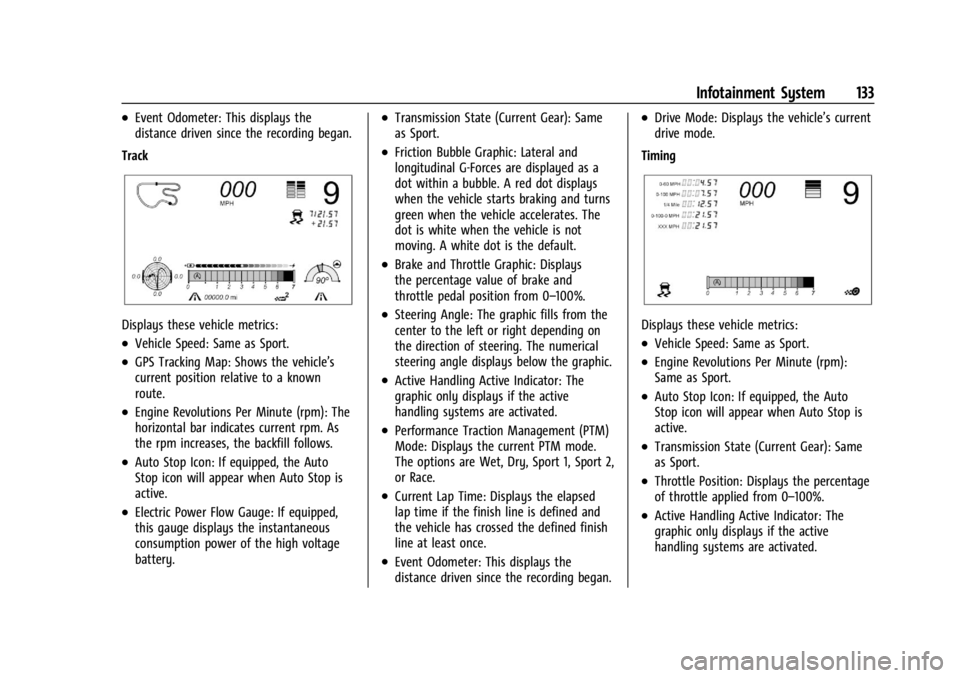
Track
Displays these vehicle metrics:
.Vehicle Speed: Same as Sport.
.GPS Tracking Map: Shows the vehicle’s
current position relative to a known
route.
.Engine Revolutions Per Minute (rpm): The
horizontal bar indicates current rpm. As
the rpm increases, the backfill follows.
.Auto Stop Icon: If equipped, the Auto
Stop icon will appear when Auto Stop is
active.
.Electric Power Flow Gauge: If equipped,
this gauge displays the instantaneous
consumption power of the high voltage
battery.
.Transmission State (Current Gear): Same
as Sport.
.Friction Bubble Graphic: Lateral and
longitudinal G-Forces are displayed as a
dot within a bubble. A red dot displays
when the vehicle starts braking and turns
green when the vehicle accelerates. The
dot is white when the vehicle is not
moving. A white dot is the default.
.Brake and Throttle Graphic: Displays
the percentage value of brake and
throttle pedal position from 0–100%.
.Steering Angle: The graphic fills from the
center to the left or right depending on
the direction of steering. The numerical
steering angle displays below the graphic.
.Active Handling Active Indicator: The
graphic only displays if the active
handling systems are activated.
.Performance Traction Management (PTM)
Mode: Displays the current PTM mode.
The options are Wet, Dry, Sport 1, Sport 2,
or Race.
.Current Lap Time: Displays the elapsed
lap time if the finish line is defined and
the vehicle has crossed the defined finish
line at least once.
.Event Odometer: This displays the
distance driven since the recording began.
.Drive Mode: Displays the vehicle’s current
drive mode.
Timing
Displays these vehicle metrics:
.Vehicle Speed: Same as Sport.
.Engine Revolutions Per Minute (rpm):
Same as Sport.
.Auto Stop Icon: If equipped, the Auto
Stop icon will appear when Auto Stop is
active.
.Transmission State (Current Gear): Same
as Sport.
.Throttle Position: Displays the percentage
of throttle applied from 0–100%.
.Active Handling Active Indicator: The
graphic only displays if the active
handling systems are activated.
Page 137 of 362
Chevrolet Corvette Owner Manual (GMNA-Localizing-U.S./Canada/Mexico-
17272984) - 2024 - CRC - 2/20/23
136 Infotainment System
Phone
Bluetooth (Overview)
The Bluetooth-capable system can interact
with many mobile devices to:
.Place and receive calls in a
hands-free mode.
.Share the device’s address book or
contact list with the vehicle.
.Stream audio (music, podcasts).
.Notify receipt of text messages.
To minimize driver distraction, before
driving, and with the vehicle parked:
.Become familiar with the features of the
mobile device. Organize the phone book
and contact lists clearly and delete
duplicate or rarely used entries.
.Review the controls and operation of the
infotainment system.
.Pair mobile device(s) to the vehicle. The
system may not work with all mobile
devices. See “Pairing”later in this section.
Vehicles with a Bluetooth system can use a
Bluetooth-capable mobile device with a
Hands-Free Profile to make and receive
phone calls. The infotainment system and
voice recognition are used to control the system. The system can be used while the
vehicle is on or in accessory mode. The
range of the Bluetooth system can be up to
9.1 m (30 ft). Not all mobile devices support
all functions and not all mobile devices work
with the Bluetooth system. See
Online
Account 0332 for more information about
compatible mobile devices.
Controls
Use the controls on the infotainment display
and the steering wheel to operate the
Bluetooth system.
Steering Wheel Controls
g: Press and release to answer incoming
calls on your connected Bluetooth mobile
device. Press and hold for mobile device
assistant.
c: Press to end a call, decline a call,
or cancel an operation. Press to mute or
unmute the infotainment system when not
on a call.
Infotainment System Controls
For information about how to navigate the
menu system using the infotainment
controls, see Using the System 0120.
Audio System
When using the Bluetooth mobile device
system, sound comes through the vehicle's
front audio system speakers and overrides
the audio system. The volume level while on
a mobile device call can be adjusted by
pressing the steering wheel controls or the
volume controls for the infotainment
system. The adjusted volume level remains
in memory for later calls. The volume
cannot be lowered beyond a certain level.
Bluetooth (Pairing and Using a
Phone)
Pairing
A Bluetooth-enabled mobile device must be
paired to the Bluetooth system and then
connected to the vehicle before it can be
used. See the mobile device manufacturer's
user guide for Bluetooth functions before
pairing the device.
Pairing Information
.Touch the Phone icon on the home page
of the infotainment display.
.If no mobile device has been paired, a
message on the infotainment display will
show the Manage Phones option. Touch
Page 140 of 362
Chevrolet Corvette Owner Manual (GMNA-Localizing-U.S./Canada/Mexico-
17272984) - 2024 - CRC - 2/20/23
Infotainment System 139
Switching to Handset or
Hands-Free Mode
To switch between handset or
hands-free mode:
.While the active call is hands-free, touch
the Audio Output option, then touch
Phone to switch to the handset mode.
The mute icon will not be available or
functional while Handset mode is active.
.While the active call is on the handset,
touch the Audio Output option, then
touch Car Speakers to switch to the
hands-free mode.
Making a Call Using Contacts
Calls can be made through the Bluetooth
system using personal cell phone contact
information for all cell phones that support
the Phone Book feature. Become familiar
with the cell phone settings and operation
and that the phone is set to allow the
sharing of contacts over Bluetooth with the
vehicle. Verify the cell phone supports this
feature and that the phone is set to allow
the sharing of contacts over Bluetooth with
the vehicle.
The Contacts menu accesses the phone book
stored in the cell phone.To make a call using the Contacts menu:
1. Touch the Phone icon on the Home Page or on the shortcut tray near the left of
the display.
2. Touch Contacts.
3. There are two methods to search for contacts:
.Search bar –Touch the search icon
on the top right of the Phones
window and type the name or
number of the contact on the
keyboard. Search results will be
displayed corresponding to the user
input. Touch the name to call.
.Scroll –Touch the list and scroll,
or use the scrollbar on the left side
of the Phones window. Touch the
name to call.
Making a Call Using the Recents Menu
The Recents menu accesses the recents call
list from your cell phone.
To make a call using the Recents menu:
1. Touch the Phone icon on the Home Page or on the shortcut tray near the left of
the display.
2. Touch Recents.
3. Touch the name or number to call.
Making a Call Using the Keypad
To make a call by dialing the numbers: 1. Touch the Phone icon on the Home Page or on the shortcut tray near the left of
the display.
2. Touch Keypad and enter a phone number.
3. Touch the phone icon on the infotainment display to start dialing the
number.
Searching Contacts Using the Keypad
To search for contacts using the keypad:
1. Touch the Phone icon on the Home Page.
2. Touch Keypad and enter partial phone numbers or contact names using the
digits on the keypad to search.
Results appear on the right side of the
display. Touch one to place a call.
Accepting or Declining a Call
When an incoming call is received, the
infotainment system mutes and a ring tone
is heard in the vehicle.
Accepting a Call
There are two ways to accept a call:
.Pressgon the steering wheel controls.
Page 141 of 362
Chevrolet Corvette Owner Manual (GMNA-Localizing-U.S./Canada/Mexico-
17272984) - 2024 - CRC - 2/20/23
140 Infotainment System
.Touch Answer on the infotainment
display.
Declining a Call
There are two ways to decline a call:
.Presscon the steering wheel controls.
.Touch Decline on the infotainment
display.
Call Waiting
Call waiting must be supported on the
Bluetooth cell phone and enabled by the
wireless service carrier to work.
Accepting a Call
Press
gto answer, then touch Switch on
the infotainment display.
Declining a Call
Press
cto decline, then touch Decline on
the infotainment display.
Switching Between Calls (Call Waiting
Calls Only)
To switch between calls, touch Phone on the
Home Page to display Call View. While in
Call View, touch the call information of the
call on hold to change calls.
Ending a Call
.Presscon the steering wheel controls.
.Touch#on the infotainment display,
next to a call, to end only that call.
Dual Tone Multi-Frequency (DTMF) Tones
The in-vehicle Bluetooth system can send
numbers during a call. This is used when
calling a menu-driven phone system. Use the
Keypad to enter the number.
Apple CarPlay and Android Auto
If equipped, Android Auto and/or Apple
CarPlay capability may be available through
a compatible smartphone. If available, the
Android Auto and Apple CarPlay icons will
change from gray to color on the Home
Page of the infotainment display.
To use Android Auto and/or Apple CarPlay:
For Wired Phone Projection
1. Download the Android Auto app to your smartphone from the Google Play store
for phones running Android 9 and below.
There is no app required for Apple
CarPlay. 2. Connect your Android phone or Apple
iPhone by using the factory-provided
phone USB cable and plugging into a
USB data port. For best performance, it is
highly recommended to use the device’s
factory-provided USB cable, which should
be replaced after significant wear to
maintain connection quality. Aftermarket
or third-party cables may not work.
3. When the phone is first connected to activate Apple CarPlay or Android Auto,
accept the terms and conditions on both
the infotainment system and the phone.
4. Follow the instructions on the phone.
The Android Auto and Apple CarPlay icons
on the Home Page will illuminate depending
on the smartphone. Android Auto and/or
Apple CarPlay may automatically launch the
next time the USB is connected. If not,
touch the Android Auto or Apple CarPlay
icon on the Home Page to launch.
Press
{on the center stack to return to the
Home Page.
For Wireless Phone Projection
Verify your phone is wireless compatible by
visiting the Android Auto or Apple CarPlay
support page.
Page 143 of 362
Chevrolet Corvette Owner Manual (GMNA-Localizing-U.S./Canada/Mexico-
17272984) - 2024 - CRC - 2/20/23
142 Infotainment System
Settings
To access the Settings menus:1. Touch Settings on the Home Page on the infotainment display.
2. Touch the desired category to display a list of available options.
3. Touch to select the desired feature setting.
4. Touch the options on the infotainment display to disable or enable a feature.
5. Touch
Sto go back.
The Settings menu may contain the
following:
Connections
The menu may contain the following:
Phones
Allows connecting to a different cell phone
or mobile device source, disconnect a cell
phone or media device, or delete a cell
phone or media device.
Wi-Fi Networks
Shows connected and available Wi-Fi
networks. Wi-Fi Hotspot
Allows adjustment of different Wi-Fi
features.
Vehicle-to-Phone Sharing
Allows GM apps to use vehicle data on the
listed phones shown.
Vehicle
The menu may contain the following:
Valet Mode
This will lock the infotainment system and
steering wheel controls. It may also limit
access to vehicle storage locations,
if equipped.
Motion Sensor
When activated and the vehicle is off, this
will activate the vehicle’s alarm when
movement is detected inside the vehicle.
Teen Driver
See
Teen Driver 0144.
Buckle to Drive
This feature can prevent shifting out of Park
when the driver’s, and if applicable the front
passenger’s, seat belt is not buckled. See
Buckle To Drive 046. Driver Mode Customization
See
“Driver Mode Customization” inDriver
Mode Control 0196.
Climate and Air Quality
Adjusts different climate settings.
Collision/Detection Systems
Adjusts different driver assistance system
settings.
Comfort and Convenience
Adjusts different comfort and convenience
settings.
Lighting
Adjusts different lighting settings.
Power Door Locks
Adjusts different door lock settings.
Remote Lock, Unlock, and Start
Adjusts different remote lock settings.
Ride Height
See Front Lift System 0205.
Seating Position
Adjusts different seating position settings.
Page 144 of 362
Chevrolet Corvette Owner Manual (GMNA-Localizing-U.S./Canada/Mexico-
17272984) - 2024 - CRC - 2/20/23
Infotainment System 143
Apps and Permissions
Shows a list of installed apps and the
permissions used.
Date / Time
Allows setting of the clock.
Display
Allows adjustment of the infotainment
display.
Sounds
Allows adjustment of the infotainment
system sounds.
Users
Modifies the infotainment system’s users.
Accounts
Allows adding or adjusting of the user
accounts.
Privacy
The menu may contain the following:
Location Services
Touch to view the Location Services screen.GM Privacy Statement
Touch to view the GM Privacy Statement
screen.
App permissions
Touch to view the Permission manager
screen.
Data Sharing with Google
Touch to manage data you share with
Google.
Google legal
Touch to view the Google legal screen.
Storage
This menu shows the storage info on the
infotainment system.
Security
This menu allows adjustment of the
infotainment security settings.
System
The menu may contain the following:
Language
This will set the display language used on
the infotainment display.Keyboard & speech
Touch to change keyboard and speech
settings.
Reset Options
Touch to change reset settings.
Quick Startup
This allows your infotainment system to
quickly resume its last session.
While the vehicle is in park, press and hold
the mute/end call button on the steering
wheel for 15 seconds to reboot the
infotainment system.
TTY Mode
Touch to turn off or on.
About
Touch to view the infotainment system
software information.
Legal Information
Touch to view legal and license information.Updates
This menu allows adjustment of the vehicle
update settings.
Page 153 of 362
Chevrolet Corvette Owner Manual (GMNA-Localizing-U.S./Canada/Mexico-
17272984) - 2024 - CRC - 2/20/23
152 Climate Controls
To change the current mode, select one or
more of the following:
Y:Air is directed to the A/C outlets.
[:Air is directed to the floor outlets,
with some air directed to the windshield,
and side window outlets.
z: Air is directed to the windshield and
side window outlets.
0MAX : Air is directed to the windshield
and the fan runs at a higher speed if not
already above a medium fan speed. This
mode overrides the previous mode selected
and clears fog or frost from the windshield
more quickly. When the control is pressed
again, the system returns to the previous
mode setting and fan speed.
For best results, clear all snow and ice from
the windshield before defrosting.
@: Press to turn on recirculation. An
indicator light comes on. Air is recirculated
to quickly cool the inside of the vehicle.
It can also be used to help reduce outside
air and odors that enter the vehicle. Avoid using recirculation for long periods of
time in cold or damp conditions. Using
recirculation in cold or damp conditions can
result in window fogging.
A/C :
Press to turn the air conditioning on
or off. An indicator light comes on to show
that the air conditioning is enabled. If the
fan is turned off, the air conditioner will not
run. The A/C light will stay on even if the
outside temperatures are below freezing.
If the A/C is turned off, the air temperature
coming through the climate control system
may be warmer than the ambient
temperature. It is recommended to use auto
climate control to maintain comfort.
Rear Window Defogger
1REAR : If equipped, press to turn the
rear window defogger on or off. An indicator
light on the button comes on to show that
the rear window defogger is on.
The rear window defogger only works when
the engine is running. The defogger can be
turned off by turning the vehicle off or to
accessory mode.
If equipped with heated outside mirrors,
press
1REAR to turn them on or off. See
Heated Mirrors 026.
Caution
Using a razor blade or sharp object to
clear the inside rear window can damage
the rear window defogger. Repairs would
not be covered by the vehicle warranty.
Do not clear the inside rear window with
sharp objects.
Remote Start Climate Control Operation :
If equipped with remote start, the climate
control system may run when the vehicle is
started remotely. If equipped with heated or
ventilated seats or a heated steering wheel,
these features may come on during a
remote start. See Remote Vehicle Start 012,
Heated and Ventilated Front Seats 044, and
Heated Steering Wheel 075.
Afterblow Feature
If equipped, under certain conditions, the
fan may stay on or may turn on and off
several times after you turn off and lock the
vehicle. This is normal.
Page 154 of 362
Chevrolet Corvette Owner Manual (GMNA-Localizing-U.S./Canada/Mexico-
17272984) - 2024 - CRC - 2/20/23
Climate Controls 153
E-Ray Stealth and Shuttle Modes Climate
Control Operation
Climate controls, including defrost, are not
functional while in Stealth and Shuttle
modes. Heated seats and steering wheel and
ventilated seats will remain functional.
If heat, A/C, or defrost controls are pressed
while in Stealth Mode, the engine will
automatically start and the climate controls
will be active. SeeDriver Mode Control
0 196.
Air Vents
Use the tab on the air outlets to change the
direction of the airflow or shut the outlet.
Operation Tips
.Clear away any ice, snow, or leaves from
the air inlets at the base of the
windshield that may block the flow of air
into the vehicle.
.Clear snow off the hood to improve
visibility and help decrease moisture
drawn into the vehicle.
.Use of non-GM approved hood deflectors
may adversely affect the performance of
the system.
.Keep the areas around the base of the
infotainment display and under the seats
clear to optimize air circulation.
Maintenance
Passenger Compartment Air Filter
The passenger compartment air filter
reduces dust, pollen, and other airborne
irritants from outside air that are pulled into
the vehicle. Reductions in airflow, which
may occur more often in dusty areas,
indicate that the filter may need to be
replaced. See Maintenance Schedule 0316.
Caution
Driving without a passenger compartment
air filter in place can cause water and
small particles, like paper and leaves, to
be pulled into your climate control
system which may cause damage to it.
Make sure you always replace the old
filter with a new one.
The passenger compartment air filter is
located under the hood between the battery
and windshield. See Underhood
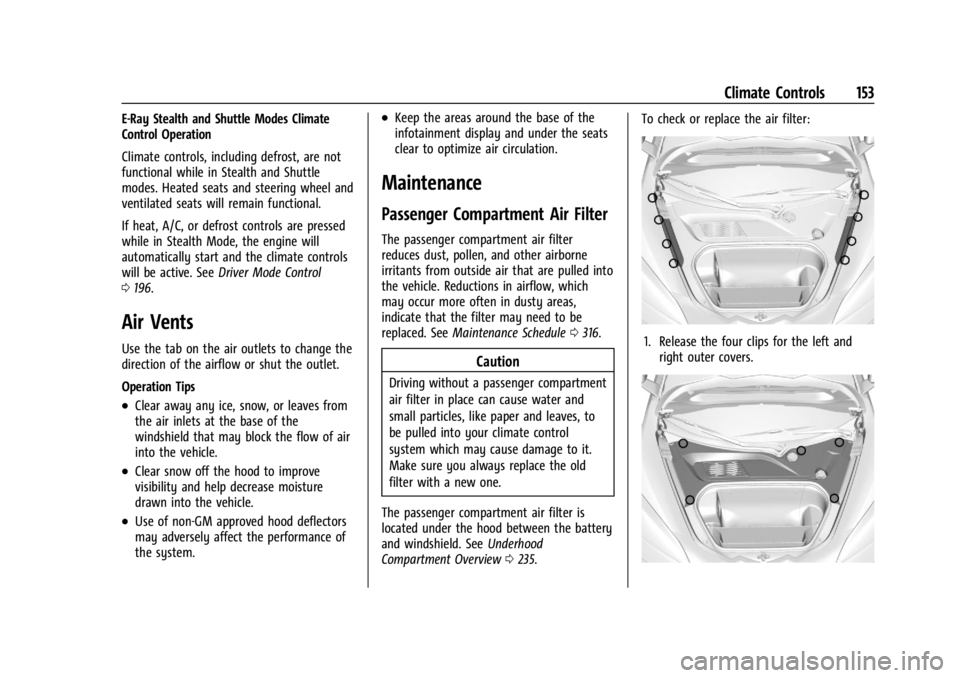
Compartment Overview 0235. To check or replace the air filter:
1. Release the four clips for the left and
right outer covers.
Page 156 of 362
Chevrolet Corvette Owner Manual (GMNA-Localizing-U.S./Canada/Mexico-
17272984) - 2024 - CRC - 2/20/23
Driving and Operating 155
Driving and Operating
Driving Information
Driving for Better Fuel Economy . . . . . . . 156
Distracted Driving . . . . . . . . . . . . . . . . . . . . . 156
Defensive Driving . . . . . . . . . . . . . . . . . . . . . . 157
Impaired Driving . . . . . . . . . . . . . . . . . . . . . . . 157
Control of a Vehicle . . . . . . . . . . . . . . . . . . . . 157
Braking . . . . . . . . . . . . . . . . . . . . . . . . . . . . . . . . 157
Steering . . . . . . . . . . . . . . . . . . . . . . . . . . . . . . . 158
Off-Road Recovery . . . . . . . . . . . . . . . . . . . . . 159
Loss of Control . . . . . . . . . . . . . . . . . . . . . . . . 159
Track Events and CompetitiveDriving . . . . . . . . . . . . . . . . . . . . . . . . . . . . . . 160
Driving on Wet Roads . . . . . . . . . . . . . . . . . . 171
Hill and Mountain Roads . . . . . . . . . . . . . . . 171
Winter Driving . . . . . . . . . . . . . . . . . . . . . . . . . 172
If the Vehicle Is Stuck . . . . . . . . . . . . . . . . . . 173
Vehicle Load Limits . . . . . . . . . . . . . . . . . . . . 174
Starting and Operating
New Vehicle Break-In . . . . . . . . . . . . . . . . . . 177
Front Air Dam (and Splitter) . . . . . . . . . . . 177
Composite Materials . . . . . . . . . . . . . . . . . . . 177
Ignition Positions . . . . . . . . . . . . . . . . . . . . . . 178
Starting the Engine . . . . . . . . . . . . . . . . . . . . 179
Stop/Start System . . . . . . . . . . . . . . . . . . . . . 180
Retained Accessory Power (RAP) . . . . . . . 181
Shifting Into Park . . . . . . . . . . . . . . . . . . . . . . 181
Shifting out of Park . . . . . . . . . . . . . . . . . . . . 182 Parking over Things That Burn . . . . . . . . . 182
Active Fuel Management . . . . . . . . . . . . . . 182
Extended Parking . . . . . . . . . . . . . . . . . . . . . . 183
Engine Exhaust
Engine Exhaust . . . . . . . . . . . . . . . . . . . . . . . . 183
Running the Vehicle While Parked . . . . . 184
Dual Clutch Transmission
Dual Clutch Transmission . . . . . . . . . . . . . . 184
Manual Mode . . . . . . . . . . . . . . . . . . . . . . . . . 187
Drive Systems
All-Wheel Drive . . . . . . . . . . . . . . . . . . . . . . . . 191
Brakes
Electric Brake Boost . . . . . . . . . . . . . . . . . . . . 192
Antilock Brake System (ABS) . . . . . . . . . . . 192
Electric Parking Brake . . . . . . . . . . . . . . . . . . 192
Brake Assist . . . . . . . . . . . . . . . . . . . . . . . . . . . 193
Hill Start Assist (HSA) . . . . . . . . . . . . . . . . . 194
Regenerative Braking . . . . . . . . . . . . . . . . . . 194
Ride Control Systems
Traction Control/Electronic Stability
Control . . . . . . . . . . . . . . . . . . . . . . . . . . . . . . 194
Hill Rollback Control . . . . . . . . . . . . . . . . . . . 196
Driver Mode Control . . . . . . . . . . . . . . . . . . . 196
Front Lift System . . . . . . . . . . . . . . . . . . . . . . 205
Performance Driving . . . . . . . . . . . . . . . . . . 206
Limited-Slip Differential . . . . . . . . . . . . . . . . 211
Cruise Control
Cruise Control . . . . . . . . . . . . . . . . . . . . . . . . . . 212
Advanced Driver Assistance Systems
Advanced Driver Assistance Systems . . . 214
Assistance Systems for Parking or Backing . . . . . . . . . . . . . . . . . . . . . . . . . . . . . . 215
Rear Vision Camera (RVC) . . . . . . . . . . . . . . 215
Curb View Camera . . . . . . . . . . . . . . . . . . . . . 217
Park Assist . . . . . . . . . . . . . . . . . . . . . . . . . . . . . 217
Rear Cross Traffic Alert (RCTA) System . . . . . . . . . . . . . . . . . . . . . . . . . . . . . . 218
Assistance Systems for Driving . . . . . . . . 218
Forward Collision Alert (FCA) System . . . . . . . . . . . . . . . . . . . . . . . . . . . . . . 218
Automatic Emergency Braking (AEB) . . . . . . . . . . . . . . . . . . . . . . . . 220
Front Pedestrian Braking (FPB)
System . . . . . . . . . . . . . . . . . . . . . . . . . . . . . . . 221
Side Blind Zone Alert (SBZA) . . . . . . . . . . . 223
Lane Keep Assist (LKA) . . . . . . . . . . . . . . . . . 225
Fuel
Top Tier Fuel . . . . . . . . . . . . . . . . . . . . . . . . . . 227
Recommended Fuel . . . . . . . . . . . . . . . . . . . . 227
Prohibited Fuels . . . . . . . . . . . . . . . . . . . . . . . 227
Fuels in Foreign Countries . . . . . . . . . . . . . 228
Fuel Additives . . . . . . . . . . . . . . . . . . . . . . . . . 228
Filling the Tank . . . . . . . . . . . . . . . . . . . . . . . . 228
Filling a Portable Fuel Container . . . . . . . 229
Page 157 of 362
Chevrolet Corvette Owner Manual (GMNA-Localizing-U.S./Canada/Mexico-
17272984) - 2024 - CRC - 2/20/23
156 Driving and Operating
Trailer Towing
General Towing Information . . . . . . . . . . . 230
Conversions and Add-Ons
Add-On Electrical Equipment . . . . . . . . . . 230
Driving Information
Driving for Better Fuel Economy
Driving habits can affect fuel mileage. Here
are some driving tips to get the best fuel
economy possible:
.Set the climate controls to the desired
temperature after the engine is started,
or turn them off when not required.
.Avoid fast starts and accelerate smoothly.
.Brake gradually and avoid abrupt stops.
.Avoid idling the engine for long periods
of time.
.When road and weather conditions are
appropriate, use cruise control.
.Always follow posted speed limits or
drive more slowly when conditions
require.
.Keep vehicle tires properly inflated.
.Combine several trips into a single trip.
.Replace the vehicle's tires with the same
TPC Spec number molded into the tire's
sidewall near the size.
.Follow recommended scheduled
maintenance.
.Using Tour mode rather than Sport or
Track modes, will result in better Active
Fuel Management operation. SeeActive
Fuel Management 0182.
.For recommended shift speeds, see Dual
Clutch Transmission 0184.
Premium Fuel
Use the recommended fuel. See
Recommended Fuel 0227.
Distracted Driving
Distraction comes in many forms and can
take your focus from the task of driving.
Exercise good judgment and do not let other
activities divert your attention away from
the road. Many local governments have
enacted laws regarding driver distraction.
Become familiar with the local laws in
your area.
To avoid distracted driving, keep your eyes
on the road, keep your hands on the
steering wheel, and focus your attention on
driving.
.Do not use a phone in demanding driving
situations. Use a hands-free method to
place or receive necessary phone calls.