infotainment CHEVROLET CORVETTE C7 2018 Owner's Manual
[x] Cancel search | Manufacturer: CHEVROLET, Model Year: 2018, Model line: CORVETTE C7, Model: CHEVROLET CORVETTE C7 2018Pages: 353, PDF Size: 6.48 MB
Page 147 of 353
Chevrolet Corvette Owner Manual (GMNA-Localizing-U.S./Canada/Mexico-
11374030) - 2018 - crc - 3/29/17
146 Infotainment System
.Throttle Position: Displays
the percentage of throttle applied
from 0–100%.
. Active Handling Active Indicator:
The graphic only displays if the
active handling systems are
activated.
Naming Convention
The recorded video file name is
stored as the recorded date and the
length of the recording.
If the recorded session was
recorded while the system was in
Valet Mode, the file name will
display the mode, date, and length
of time.
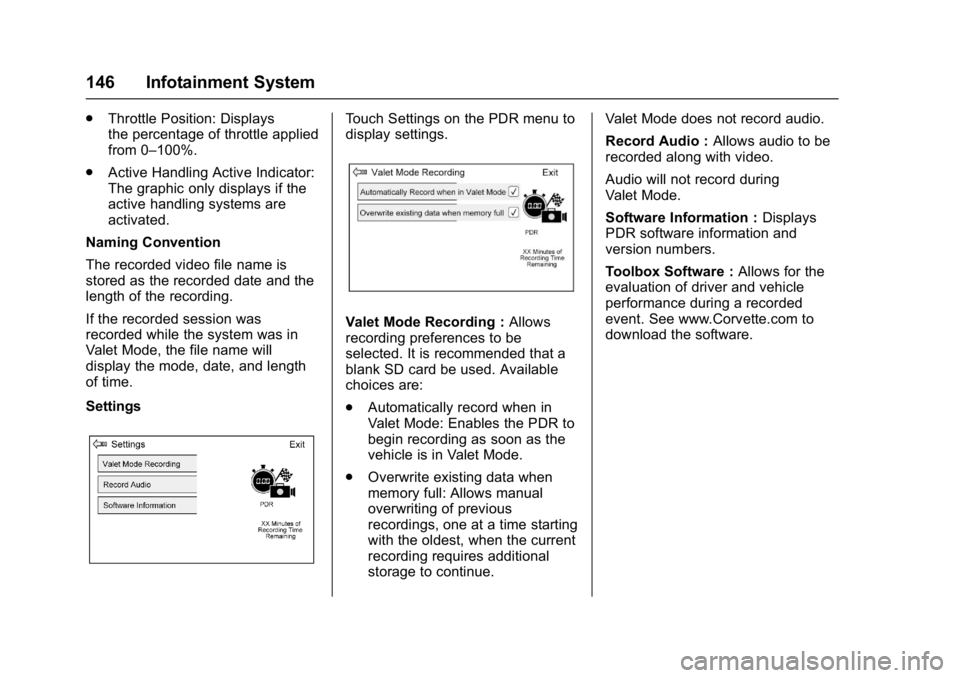
SettingsTouch Settings on the PDR menu to
display settings.
Valet Mode Recording : Allows
recording preferences to be
selected. It is recommended that a
blank SD card be used. Available
choices are:
. Automatically record when in
Valet Mode: Enables the PDR to
begin recording as soon as the
vehicle is in Valet Mode.
. Overwrite existing data when
memory full: Allows manual
overwriting of previous
recordings, one at a time starting
with the oldest, when the current
recording requires additional
storage to continue. Valet Mode does not record audio.
Record Audio :
Allows audio to be
recorded along with video.
Audio will not record during
Valet Mode.
Software Information : Displays
PDR software information and
version numbers.
Toolbox Software : Allows for the
evaluation of driver and vehicle
performance during a recorded
event. See www.Corvette.com to
download the software.
Page 155 of 353
Chevrolet Corvette Owner Manual (GMNA-Localizing-U.S./Canada/Mexico-
11374030) - 2018 - crc - 4/4/17
154 Driving and Operating
Driving Information
Distracted Driving
Distraction comes in many forms
and can take your focus from the
task of driving. Exercise good
judgment and do not let other
activities divert your attention away
from the road. Many local
governments have enacted laws
regarding driver distraction. Become
familiar with the local laws in
your area.
To avoid distracted driving, keep
your eyes on the road, keep your
hands on the steering wheel, and
focus your attention on driving.
.Do not use a phone in
demanding driving situations.
Use a hands-free method to
place or receive necessary
phone calls.
. Watch the road. Do not read,
take notes, or look up
information on phones or other
electronic devices. .
Designate a front seat
passenger to handle potential
distractions.
. Become familiar with vehicle
features before driving, such as
programming favorite radio
stations and adjusting climate
control and seat settings.
Program all trip information into
any navigation device prior to
driving.
. Wait until the vehicle is parked
to retrieve items that have fallen
to the floor.
. Stop or park the vehicle to tend
to children.
. Keep pets in an appropriate
carrier or restraint.
. Avoid stressful conversations
while driving, whether with a
passenger or on a cell phone.
{Warning
Taking your eyes off the road too
long or too often could cause a
crash resulting in injury or death.
Focus your attention on driving. Refer to the infotainment manual for
more information on using that
system and the navigation system,
if equipped, including pairing and
using a cell phone.
Defensive Driving
Defensive driving means
“always
expect the unexpected.” The first
step in driving defensively is to wear
the seat belt. See Seat Belts064.
. Assume that other road users
(pedestrians, bicyclists, and
other drivers) are going to be
careless and make mistakes.
Anticipate what they might do
and be ready.
. Allow enough following distance
between you and the driver in
front of you.
. Focus on the task of driving.
Page 179 of 353
Chevrolet Corvette Owner Manual (GMNA-Localizing-U.S./Canada/Mexico-
11374030) - 2018 - crc - 4/4/17
178 Driving and Operating
If the engine does not start
after five to 10 seconds,
especially in very cold weather
(below−18 °C or 0 °F), it could
be flooded with too much
gasoline. Try pushing the
accelerator pedal all the way to
the floor while cranking for up
to 15 seconds maximum. Wait
at least 15 seconds between
each try, to allow the cranking
motor to cool down. When the
engine starts, let go of the
accelerator. If the vehicle starts
briefly but then stops again,
repeat these steps. This clears
the extra gasoline from the
engine.
Caution
Cranking the engine for long
periods of time, by returning the
ignition to the START position
immediately after cranking has
ended, can overheat and damage
the cranking motor, and drain the
(Continued)
Caution (Continued)
battery. Wait at least 15 seconds
between each try, to let the
cranking motor cool down.
Stopping the Engine
If the vehicle has an automatic
transmission, move the shift lever to
P (Park) and press and hold
ENGINE START/STOP on the
instrument panel, until the engine
shuts off. If the shift lever is not in
P (Park), the engine shuts off and
the vehicle goes into the accessory
mode. The DIC displays SHIFT TO
PARK. Once the shift lever is moved
to P (Park), the vehicle turns off.
If the vehicle has a manual
transmission, move the shift lever to
R (Reverse) and set the parking
brake after turning off the engine by
pressing and holding ENGINE
START/STOP.
If the RKE transmitter is not
detected inside the vehicle when it
is turned off, the DIC displays a
message.
Retained Accessory
Power (RAP)
Some vehicle accessories may be
used after the ignition is turned off.
The power windows and sunroof,
if equipped, will continue to work for
up to 10 minutes or until any door is
opened.
The infotainment system will
continue to work for 10 minutes,
until the driver door is opened,
or until the ignition is turned on or
placed in ACC/ACCESSORY.
Shifting Into Park
1. Hold the brake pedal down andset the parking brake. See
Electric Parking Brake 0190.
2. Move the shift lever into P (Park) by holding the button
on the lever and pushing the
lever all the way toward the
front of the vehicle.
3. Press ENGINE START/STOP to turn the engine off.
Page 205 of 353
Chevrolet Corvette Owner Manual (GMNA-Localizing-U.S./Canada/Mexico-
11374030) - 2018 - crc - 4/4/17
204 Driving and Operating
Driver Assistance
Systems
Assistance Systems for
Parking or Backing
If equipped, the Rear Vision Camera
(RVC) and Curb View Camera may
help the driver park or avoid objects.
Always check around the vehicle
when parking or backing.
Rear Vision Camera (RVC)
When the vehicle is shifted into
R (Reverse), the RVC displays an
image of the area behind the vehicle
in the infotainment display. The
previous screen displays when the
vehicle is shifted out of R (Reverse)
after a short delay. To return to the
previous screen sooner, press any
button on the infotainment system,
shift into P (Park), or reach a vehicle
speed of 8 km/h (5 mph).
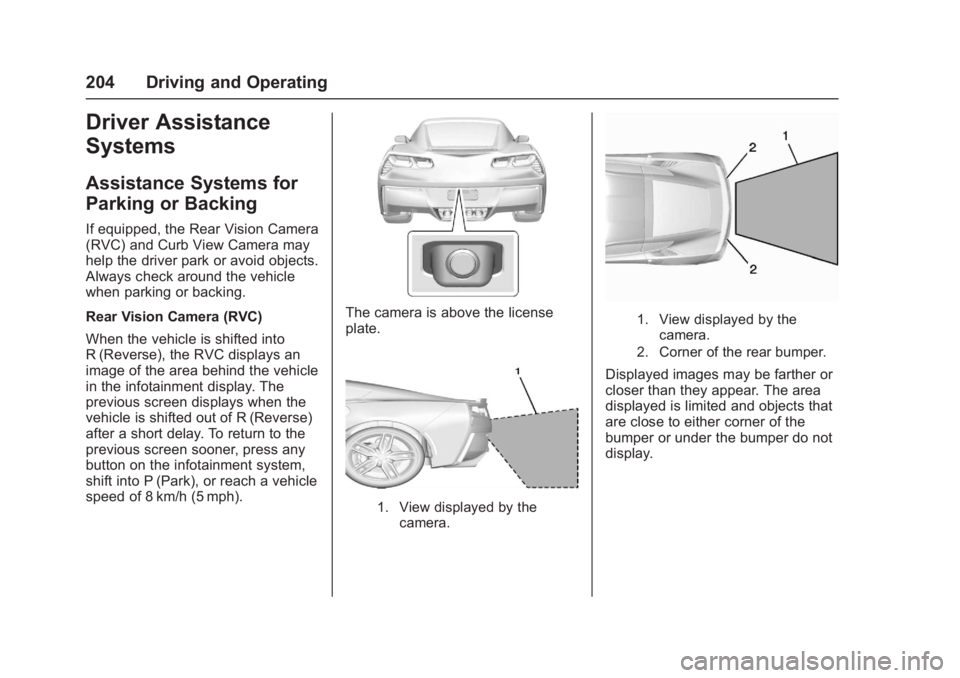
The camera is above the license
plate.
1. View displayed by thecamera.
1. View displayed by thecamera.
2. Corner of the rear bumper.
Displayed images may be farther or
closer than they appear. The area
displayed is limited and objects that
are close to either corner of the
bumper or under the bumper do not
display.
Page 206 of 353
Chevrolet Corvette Owner Manual (GMNA-Localizing-U.S./Canada/Mexico-
11374030) - 2018 - crc - 4/4/17
Driving and Operating 205
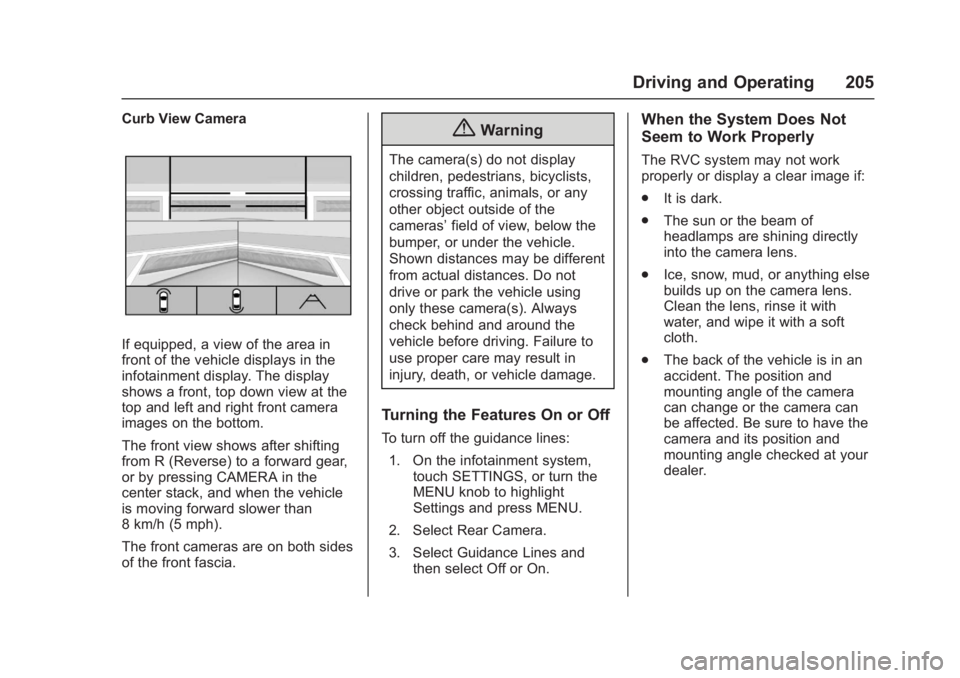
Curb View Camera
If equipped, a view of the area in
front of the vehicle displays in the
infotainment display. The display
shows a front, top down view at the
top and left and right front camera
images on the bottom.
The front view shows after shifting
from R (Reverse) to a forward gear,
or by pressing CAMERA in the
center stack, and when the vehicle
is moving forward slower than
8 km/h (5 mph).
The front cameras are on both sides
of the front fascia.
{Warning
The camera(s) do not display
children, pedestrians, bicyclists,
crossing traffic, animals, or any
other object outside of the
cameras’field of view, below the
bumper, or under the vehicle.
Shown distances may be different
from actual distances. Do not
drive or park the vehicle using
only these camera(s). Always
check behind and around the
vehicle before driving. Failure to
use proper care may result in
injury, death, or vehicle damage.
Turning the Features On or Off
To turn off the guidance lines:
1. On the infotainment system, touch SETTINGS, or turn the
MENU knob to highlight
Settings and press MENU.
2. Select Rear Camera.
3. Select Guidance Lines and then select Off or On.
When the System Does Not
Seem to Work Properly
The RVC system may not work
properly or display a clear image if:
.It is dark.
. The sun or the beam of
headlamps are shining directly
into the camera lens.
. Ice, snow, mud, or anything else
builds up on the camera lens.
Clean the lens, rinse it with
water, and wipe it with a soft
cloth.
. The back of the vehicle is in an
accident. The position and
mounting angle of the camera
can change or the camera can
be affected. Be sure to have the
camera and its position and
mounting angle checked at your
dealer.
Page 317 of 353
Chevrolet Corvette Owner Manual (GMNA-Localizing-U.S./Canada/Mexico-
11374030) - 2018 - crc - 3/29/17
316 Customer Information
Customer
Information
Customer Information
Customer SatisfactionProcedure . . . . . . . . . . . . . . . . . . . 316
Customer Assistance Offices . . . . . . . . . . . . . . . . . . . . . . 318
Customer Assistance for Text Telephone (TTY) Users . . . . . 319
Online Owner Center . . . . . . . . . 319
GM Mobility Reimbursement Program . . . . . . . . . . . . . . . . . . . . 320
Roadside Assistance Program . . . . . . . . . . . . . . . . . . . . 320
Scheduling Service Appointments . . . . . . . . . . . . . . . 322
Courtesy Transportation Program . . . . . . . . . . . . . . . . . . . . 322
Collision Damage Repair . . . . . 323
Service Publications Ordering Information . . . . . . . . . . . . . . . . . . 325
Radio Frequency Statement . . . . . . . . . . . . . . . . . . . 326
Reporting Safety Defects
Reporting Safety Defects tothe United States
Government . . . . . . . . . . . . . . . . . 326 Reporting Safety Defects to
the Canadian
Government . . . . . . . . . . . . . . . . . 327
Reporting Safety Defects to General Motors . . . . . . . . . . . . . 327
Vehicle Data Recording and
Privacy
Vehicle Data Recording and
Privacy . . . . . . . . . . . . . . . . . . . . . . 328
Event Data Recorders . . . . . . . . 328
OnStar . . . . . . . . . . . . . . . . . . . . . . . 329
Infotainment System . . . . . . . . . . 329
Customer Information
Customer Satisfaction
Procedure
Your satisfaction and goodwill are
important to your dealer and to
Chevrolet. Normally, any concerns
with the sales transaction or the
operation of the vehicle will be
resolved by your dealer's sales or
service departments. Sometimes,
however, despite the best intentions
of all concerned, misunderstandings
can occur. If your concern has not
been resolved to your satisfaction,
the following steps should be taken:
STEP ONE : Discuss your concern
with a member of dealership
management. Normally, concerns
can be quickly resolved at that level.
If the matter has already been
reviewed with the sales, service,
or parts manager, contact the owner
of your dealership or the general
manager.
STEP TWO : If after contacting a
member of dealership management,
it appears your concern cannot be
Page 330 of 353
Chevrolet Corvette Owner Manual (GMNA-Localizing-U.S./Canada/Mexico-
11374030) - 2018 - crc - 3/29/17
Customer Information 329
GM will not access these data or
share it with others except: with the
consent of the vehicle owner or,
if the vehicle is leased, with the
consent of the lessee; in response
to an official request by police or
similar government office; as part of
GM's defense of litigation through
the discovery process; or, as
required by law. Data that GM
collects or receives may also be
used for GM research needs or may
be made available to others for
research purposes, where a need is
shown and the data is not tied to a
specific vehicle or vehicle owner.
OnStar
If the vehicle is equipped with
OnStar and has an active
subscription, additional data may be
collected through the OnStar
system. This includes information
about the vehicle’s operation;
collisions involving the vehicle; the
use of the vehicle and its features;
and, in certain situations, the
location and approximate GPS
speed of the vehicle. Refer to theOnStar Terms and Conditions and
Privacy Statement on the OnStar
website.
See
OnStar Additional Information
0 336.
Infotainment System
If the vehicle is equipped with a
navigation system as part of the
infotainment system, use of the
system may result in the storage of
destinations, addresses, telephone
numbers, and other trip information.
See the infotainment manual for
information on stored data and for
deletion instructions.
Page 334 of 353
Chevrolet Corvette Owner Manual (GMNA-Localizing-U.S./Canada/Mexico-
11374030) - 2018 - crc - 3/29/17
OnStar 333
3. Say“Yes.”System responds:
“OK, request completed, thank
you, goodbye.”
Route Preview
1. Press
Q. System responds:
“OnStar ready,” then a tone.
2. Say “Route preview.” System
responds with the next three
maneuvers.
Repeat
1. Press
Q. System responds:
“OnStar ready,” then a tone.
2. Say “Repeat.” System
responds with the last direction
given, then responds with
“OnStar ready,” then a tone.
Get My Destination
1. Press
Q. System responds:
“OnStar ready,” then a tone.
2. Say “Get my destination.”
System responds with the
address and distance to the
destination, then responds with
“OnStar ready,” then a tone. Send Destination to Vehicle
Subscribers can have directions
sent to the vehicle’
s navigation
screen, if equipped.
Press
|then ask the Advisor to
download directions to the vehicle’s
navigation system, if equipped. After
the call ends, the navigation screen
will provide prompts to begin driving
directions. Routes that are sent to
the navigation screen can only be
canceled through the navigation
system.
See www.onstar.com (U.S.) or
www.onstar.ca (Canada).
Connections
The following OnStar services help
with staying connected.
For coverage maps, see
www.onstar.com (U.S.) or
www.onstar.ca (Canada).
Ensuring Security
. Change the default passwords
for the Wi-Fi hotspot and
myChevrolet mobile application.
Make these passwords different from each other and use a
combination of letters, numbers,
and symbols to increase the
security.
. Change the default name of the
SSID (Service Set Identifier).
This is your network’s name that
is visible to other wireless
devices. Choose a unique name
and avoid family names or
vehicle descriptions.
OnStar Wi-Fi Hotspot (If Equipped)
The vehicle may have a built-in
Wi-Fi hotspot that provides access
to the Internet and web content at
4G LTE speed. Up to seven mobile
devices can be connected. A data
plan is required. Use the in-vehicle
controls only when it is safe to
do so. 1. To retrieve Wi-Fi hotspot information, press
=to open
the OnStar app on the
infotainment display, then
select Wi-Fi Hotspot. On some
vehicles, touch Wi-Fi or
Settings on the screen.
Page 336 of 353
Chevrolet Corvette Owner Manual (GMNA-Localizing-U.S./Canada/Mexico-
11374030) - 2018 - crc - 3/29/17
OnStar 335
OnStar Hands-Free Calling
Make and receive calls with the
built-in wireless calling service,
which requires available minutes.
Functionality of the Voice Command
button may vary by vehicle and
region. For some vehicles, press
=
to open the OnStar app on the
infotainment display, then select
Hands-Free calling. For other
vehicles press
=as follows.
Make a Call
1. Press
=. System responds:
“OnStar ready.”
2. Say “Call.”System responds:
“Call. Please say the name or
number to call.”
3. Say the entire number without pausing, including a “1”and the
area code. System responds:
“OK, calling.”
Calling 911 Emergency
1. Press=. System responds:
“OnStar ready.” 2. Say
“Call.”System responds:
“Call. Please say the name or
number to call.”
3. Say “911”without pausing.
System responds: “911.”
4. Say “Call.”System responds:
“OK, dialing 911.”
Retrieve My Number
1. Press=. System responds:
“OnStar ready.”
2. Say “My number.” System
responds: “Your OnStar
Hands-Free Calling number is,”
then says the number.
End a Call
Press=. System responds: “Call
ended.”
Verify Minutes and Expiration
Press=and say “Minutes” then
“Verify” to check how many minutes
remain and their expiration date.
Diagnostics
By monitoring and reporting on the
vehicle’s key systems, OnStar
Advanced Diagnostics provides a
way to keep up on maintenance.
Capabilities vary by model. See
www.onstar.com for details and
system limitations. Message and
data rates may apply. Advanced
Diagnostics requires an active
OnStar paid subscription, e-mail
address on file, and enrollment in
Advanced Diagnostics.
Includes:
. Diagnostic Alerts: Set
preferences to receive real-time
e-mails, texts, or monthly
reports of the vehicle’s health.
Or press
Qto have an Advisor
initiate a remote diagnostic
report.
. Proactive Alerts: Receive a
real-time e-mail or text message
regarding potential issues with
key vehicle components, such
as the battery, fuel system,
or starter system. Alerts for
potential issues appear on the
Page 337 of 353
Chevrolet Corvette Owner Manual (GMNA-Localizing-U.S./Canada/Mexico-
11374030) - 2018 - crc - 3/29/17
336 OnStar
infotainment display. Proactive
Alerts are designed to help
predict specific types of issues
based on information collected
from the vehicle. Other factors
may affect vehicle performance.
Not all issues will deliver alerts.
In some cases, a dealer service
check may be required to
confirm the accuracy of the
alerts.
. Dealer Maintenance Notification:
Have the vehicle notify your
preferred dealer when it is time
for maintenance. Your dealer will
then contact you to set up an
appointment.
To begin, press
Qto speak to an
Advisor, or see www.onstar.com.
OnStar Additional
Information
OnStar Smart Driver
OnStar Smart Driver provides
information about driving behavior to
help maximize overall vehicle
performance, reduce wear and tear,
and enhance fuel efficiency. An
Insurance Discounts Eligibility
feature is also offered within OnStar
Smart Driver. See www.onstar.com
for details regarding vehicle
eligibility and system limitations.
OnStar, General Motors, and their
affiliates are not insurance
providers. Obtain insurance only
from licensed insurance providers.
In-Vehicle Audio Messages
Audio messages may play important
information at the following times:
. Prior to vehicle purchase.
Press
Qto set up an account.
. With the OnStar Basic Plan,
every 60 days. .
After change in ownership and
at 90 days.
Transferring Service
PressQto request account transfer
eligibility information. The Advisor
can cancel or change account
information.
Selling/Transferring the
Vehicle
Call 1-888-4ONSTAR
(1-888-466-7827) immediately to
terminate your OnStar services if
the vehicle is disposed of, sold,
transferred, or if the lease ends.
Reactivation for Subsequent
Owners
PressQand follow the prompts to
speak to an Advisor as soon as
possible. The Advisor will update
vehicle records and explain OnStar
service options.
How OnStar Service Works
Automatic Crash Response,
Emergency Services, Crisis Assist,
Stolen Vehicle Assistance,