radio controls CHEVROLET CORVETTE C8 2021 User Guide
[x] Cancel search | Manufacturer: CHEVROLET, Model Year: 2021, Model line: CORVETTE C8, Model: CHEVROLET CORVETTE C8 2021Pages: 339, PDF Size: 6.44 MB
Page 125 of 339
Chevrolet Corvette Owner Manual (GMNA-Localizing-U.S./Canada/Mexico-
14622938) - 2021 - CRC - 9/22/20
124 Infotainment System
Manage Bluetooth Devices
From the Home Page:1. Touch Audio.
2. Touch Devices to add or delete devices.
When touching Bluetooth, the radio may
not be able to launch the audio player on
the connected device to start playing. When
the vehicle is not moving, use the mobile
device to begin playback.
All devices launch audio differently. When
selecting Bluetooth as a source, the radio
may show as paused on the display. Touch
pon the display to begin playback.
Browse functionality will be provided where
supported by the Bluetooth device. This
media content will not be part of the
MyMedia source mode.
Some smartphones support sending
Bluetooth music information to display on
the radio. When the radio receives this
information, it will check to see if any is
available and display it. For more
information about supported Bluetooth
features, see my.chevrolet.com/learn.
OnStar System
4G LTE
If equipped with 4G LTE, up to seven
devices, such as smartphones, tablets, and
laptops, can be connected to high-speed
Internet through the vehicle’s built-in Wi-Fi
hotspot.
Call 1-888-4ONSTAR (1-888-466-7827) to
connect to an OnStar Advisor for assistance.
See www.onstar.com for vehicle availability,
details, and system limitations. Service and
connectivity may vary by make, model,
year, carrier, availability, and conditions.
4G LTE service is available in select markets.
4G LTE performance is based on industry
averages and vehicle systems design. Some
services require a data plan.
The OnStar App
If equipped, the infotainment system has
OnStar controls in the embedded OnStar app
on the Home Page. Most OnStar functions
that can be performed with the buttons can
be done using the app. To open the app,
touch the OnStar icon on the Home Page.
App updates require a corresponding service
plan. Features vary by region and model. Features are subject to change. For more
information, see my.chevrolet.com/learn or
press
Q.
Services
The Services tab displays the default view
for the app. Use this page to launch the
available OnStar services. Touch a service to
open its display. Touch Wi-Fi to launch the
connections manager. Turn-by-Turn and
Advisor Call are the other tiled options.
Account
The Account tab displays a snapshot of the
account linked with the vehicle. If there is
no such account, this tab will show all
values as ——. The advisor call icon will be
active even if there is no active account.
Advisor Call
Selecting Advisor Call is the same as
pressing
Qor calling 1-888-4ONSTAR
(1-888-466-7827). The X option in the upper
right corner of the screen does not end the
call, but returns to the previous screen.
Turn-by-Turn Directions
With a connected plan, an OnStar Advisor
can download a destination to the vehicle or
its embedded navigation system,
Page 139 of 339
Chevrolet Corvette Owner Manual (GMNA-Localizing-U.S./Canada/Mexico-
14622938) - 2021 - CRC - 9/22/20
138 Infotainment System
select. Manual interaction in the voice
recognition session is permitted. Interaction
during a voice session may be completed
entirely using voice commands while some
manual commands may expedite a task. If a
selection is made using a manual control,
the voice recognition dialog will progress in
the same way as if the selection were made
using a voice command. Once the system
completes the task, or the session is
terminated, the voice recognition dialog
stops.
An example of this type of manual
intervention is touching an entry of a
displayed number list instead of speaking
the number associated with the entry
desired.
Canceling Voice Recognition
.Touch or say“Cancel”or“Exit” to
terminate the voice recognition session
and show the display where voice
recognition was initiated.
.Presscon the steering wheel controls
to terminate the voice recognition session
and show the display where voice
recognition was initiated. Natural Language Commands
Most languages do not support natural
language commands in sentence form. For
those languages, use direct commands like
the examples shown on the display.
Helpful Hints for Speaking Commands
Voice recognition can understand commands
that are naturally stated in sentence form or
direct commands that state the application
and the task.
For best results:
.Listen for the prompt before saying a
command or reply.
.Speak the command naturally, not too
fast, not too slow.
.Use direct commands without a lot of
extra words. For example,
“Call
at work,” “Play” followed by the artist or
song name, or “Tune”followed by the
radio station number.
.Navigation destinations can be made in a
single command using keywords. A few
examples are: “I want directions to an
address,” “I need to find a place of
interest or (POI),” or“Find contact.” The system responds by requesting more
details. For other POIs, say the name of a
category like
“Restaurants,” “Shopping
Malls,” or“Hospitals.”
.Navigating to a destination outside of the
current country takes more than one
command. The first command is to tell
the system where the navigation will take
place, such as an Address, Intersection,
POI, or Contact. If Address or Intersection
is selected, the second command is to
say, “Change Country.” Once the system
responds, say the country before saying
the rest of the address and/or
intersection.
If POI is asked for, say “Change Location,”
then “Change Country.”
Direct commands might be more clearly
understood by the system. An example of a
direct command would be “Call
Examples of these direct commands are
displayed on most of the screens while a
voice session is active. If “Phone”or“Phone
Commands,” is spoken, the system
understands that a phone call is requested
and will respond with questions until
enough details are gathered to make a call.
Page 143 of 339
Chevrolet Corvette Owner Manual (GMNA-Localizing-U.S./Canada/Mexico-
14622938) - 2021 - CRC - 9/22/20
142 Infotainment System
Phone Assistant Voice Recognition
Press and holdgon the steering wheel
controls to pass through and launch Google
phone assistant or Siri.
For the low radio, whether connected by
Bluetooth or phone projection, the only
available voice recognition is either Siri
(iPhone) or the Google Assistant (Android).
Performance Data
Recorder (PDR)
If equipped, the PDR icon displays on the
Home Page.
Important Information
Use of the PDR may be prohibited or legally
restricted in certain countries and situations.
Ensure compliance with applicable laws and
regulations, including, but not limited to:
privacy laws, laws related to camera
surveillance and recordings, road traffic and
security laws, and laws on the protection of
publicity and personality rights.
.Do not use the PDR if it causes
distraction.
.Do not rely on camera footage to steer
the vehicle.
.Comply with any notice and consent
requirements before capturing and/or
recording the voices or images of other
persons or before collecting other
personal data.
.Notify other drivers of your vehicle about
the above rules and require them to
comply.
.General Motors does not accept any
responsibility or liability in connection
with use that is not permitted.
.Law enforcement authorities may have
the right to seize video recordings and
use them as evidence of criminal/driving
offenses against you or third parties.
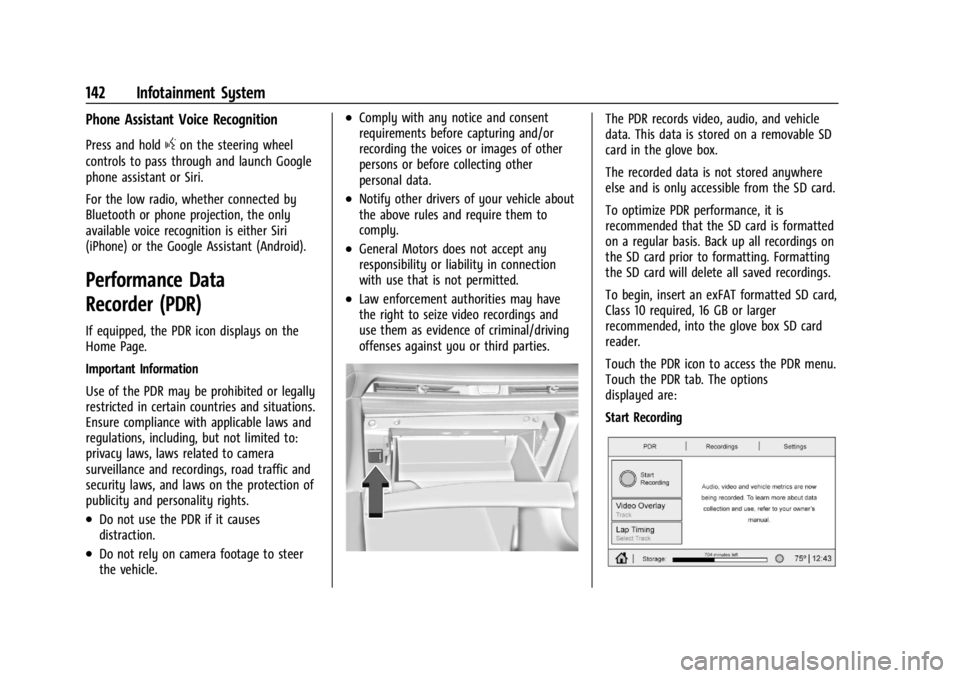
The PDR records video, audio, and vehicle
data. This data is stored on a removable SD
card in the glove box.
The recorded data is not stored anywhere
else and is only accessible from the SD card.
To optimize PDR performance, it is
recommended that the SD card is formatted
on a regular basis. Back up all recordings on
the SD card prior to formatting. Formatting
the SD card will delete all saved recordings.
To begin, insert an exFAT formatted SD card,
Class 10 required, 16 GB or larger
recommended, into the glove box SD card
reader.
Touch the PDR icon to access the PDR menu.
Touch the PDR tab. The options
displayed are:
Start Recording
Page 156 of 339
Chevrolet Corvette Owner Manual (GMNA-Localizing-U.S./Canada/Mexico-
14622938) - 2021 - CRC - 9/22/20
Infotainment System 155
.Audible Touch Feedback: This setting
determines if a sound plays when
touching the infotainment display or
radio controls. This feature can be turned
off or on.
Voice
Touch and the following may display:
.Confirm More/Less: This setting specifies
how often the voice recognition system
confirms commands. Touch Confirm More
to have the system check with you more
often before acting on your commands.
.Prompt Length: This setting specifies the
amount of detail the voice recognition
system provides when giving you
feedback. Touch Auto to have the system
automatically adjust to your speech
habits. Touch Informative, Short, or Auto.
.Audio Feedback Speed: Touch Slow,
Medium, or Fast to adjust how quickly
the voice recognition system speaks.
.Friendly Prompts: This setting adjusts the
formality of voice prompts. Touch Off for
shorter prompts. Touch On to hear
prompts with more personality. Touch
Auto to have the prompt match your
command style.
.Tutorial Mode: Touch Off or On to
provide tutorial feedback on the display.
.Allow Prompt Interruptions: This setting
controls whether voice commands can be
spoken before voice prompts finish. Turn
this on to speak commands without
hearing the full prompt. Speaking while
the prompt is still playing will
immediately stop playing the current
prompt and recognize your command.
Background noise may cause accidental
interruptions. Touch Off or On.
Favorites
Touch and the following may display:
.Manage Favorites: Touch to display a list
of Audio, Phone, and Navigation favorites.
Favorites can be moved, renamed,
or deleted.
To move, touch and hold the favorite, and
then drag up or down to rearrange the
position.
.Set Number of Audio Favorites: Touch to
select how many favorites pages can be
viewed from the audio application. The
Auto setting will automatically adjust this
number based on the number of favorites
you have saved. Touch Auto, 5, 10, 15, 20,
25, 30, 35, or 40. Updates
If equipped, the vehicle can download and
install select software updates over a
wireless connection. The system will prompt
for certain updates to be downloaded and
installed. There is also an option to check
for updates manually.
To manually check for updates, touch
Settings on the Home Page and select the
System tab. Go to the Vehicle Software
section and touch Updates. Follow the
on-screen prompts. The steps to check for,
download, and install updates may vary by
vehicle.
The vehicle can be used normally during the
software download. Once the download is
complete, there may be a prompt to accept
the installation of the update upon the next
ignition cycle or the next time the vehicle is
shifted into P (Park). For most updates, the
vehicle will be disabled and cannot be driven
during the installation. The system will
deliver messages indicating success or error
during and after the download and
installation processes.
Downloading Over-the-Air vehicle software
updates requires Internet connectivity, which
can be accessed through the vehicle’s
built-in 4G LTE connection, if equipped and
Page 158 of 339
Chevrolet Corvette Owner Manual (GMNA-Localizing-U.S./Canada/Mexico-
14622938) - 2021 - CRC - 9/22/20
Infotainment System 157
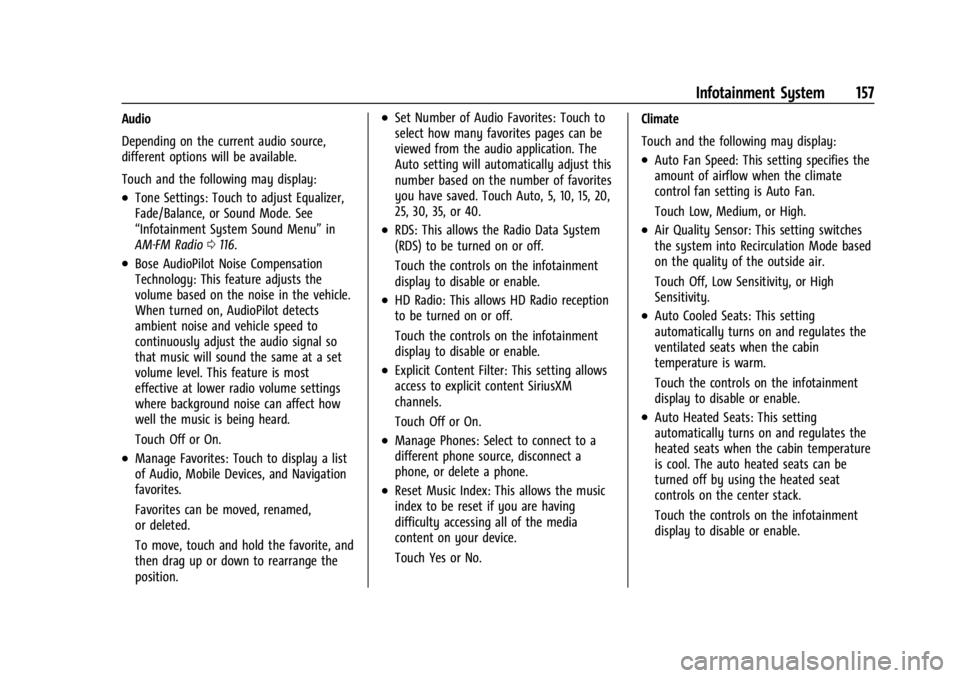
Audio
Depending on the current audio source,
different options will be available.
Touch and the following may display:
.Tone Settings: Touch to adjust Equalizer,
Fade/Balance, or Sound Mode. See
“Infotainment System Sound Menu”in
AM-FM Radio 0116.
.Bose AudioPilot Noise Compensation
Technology: This feature adjusts the
volume based on the noise in the vehicle.
When turned on, AudioPilot detects
ambient noise and vehicle speed to
continuously adjust the audio signal so
that music will sound the same at a set
volume level. This feature is most
effective at lower radio volume settings
where background noise can affect how
well the music is being heard.
Touch Off or On.
.Manage Favorites: Touch to display a list
of Audio, Mobile Devices, and Navigation
favorites.
Favorites can be moved, renamed,
or deleted.
To move, touch and hold the favorite, and
then drag up or down to rearrange the
position.
.Set Number of Audio Favorites: Touch to
select how many favorites pages can be
viewed from the audio application. The
Auto setting will automatically adjust this
number based on the number of favorites
you have saved. Touch Auto, 5, 10, 15, 20,
25, 30, 35, or 40.
.RDS: This allows the Radio Data System
(RDS) to be turned on or off.
Touch the controls on the infotainment
display to disable or enable.
.HD Radio: This allows HD Radio reception
to be turned on or off.
Touch the controls on the infotainment
display to disable or enable.
.Explicit Content Filter: This setting allows
access to explicit content SiriusXM
channels.
Touch Off or On.
.Manage Phones: Select to connect to a
different phone source, disconnect a
phone, or delete a phone.
.Reset Music Index: This allows the music
index to be reset if you are having
difficulty accessing all of the media
content on your device.
Touch Yes or No. Climate
Touch and the following may display:
.Auto Fan Speed: This setting specifies the
amount of airflow when the climate
control fan setting is Auto Fan.
Touch Low, Medium, or High.
.Air Quality Sensor: This setting switches
the system into Recirculation Mode based
on the quality of the outside air.
Touch Off, Low Sensitivity, or High
Sensitivity.
.Auto Cooled Seats: This setting
automatically turns on and regulates the
ventilated seats when the cabin
temperature is warm.
Touch the controls on the infotainment
display to disable or enable.
.Auto Heated Seats: This setting
automatically turns on and regulates the
heated seats when the cabin temperature
is cool. The auto heated seats can be
turned off by using the heated seat
controls on the center stack.
Touch the controls on the infotainment
display to disable or enable.
Page 177 of 339
Chevrolet Corvette Owner Manual (GMNA-Localizing-U.S./Canada/Mexico-
14622938) - 2021 - CRC - 9/22/20
176 Driving and Operating
Driving Information
Driving for Better Fuel Economy
Driving habits can affect fuel mileage. Here
are some driving tips to get the best fuel
economy possible:
.Set the climate controls to the desired
temperature after the engine is started,
or turn them off when not required.
.Avoid fast starts and accelerate smoothly.
.Brake gradually and avoid abrupt stops.
.Avoid idling the engine for long periods
of time.
.When road and weather conditions are
appropriate, use cruise control.
.Always follow posted speed limits or
drive more slowly when conditions
require.
.Keep vehicle tires properly inflated.
.Combine several trips into a single trip.
.Replace the vehicle's tires with the same
TPC Spec number molded into the tire's
sidewall near the size.
.Follow recommended scheduled
maintenance.
.Using Tour mode rather than Sport or
Track modes, will result in better Active
Fuel Management operation. SeeActive
Fuel Management 0195.
.For recommended shift speeds, see Dual
Clutch Transmission 0197.
Premium Fuel
Use the recommended fuel. See
Recommended Fuel 0225.
Distracted Driving
Distraction comes in many forms and can
take your focus from the task of driving.
Exercise good judgment and do not let other
activities divert your attention away from
the road. Many local governments have
enacted laws regarding driver distraction.
Become familiar with the local laws in
your area.
To avoid distracted driving, keep your eyes
on the road, keep your hands on the
steering wheel, and focus your attention on
driving.
.Do not use a phone in demanding driving
situations. Use a hands-free method to
place or receive necessary phone calls.
.Watch the road. Do not read, take notes,
or look up information on phones or
other electronic devices.
.Designate a front seat passenger to
handle potential distractions.
.Become familiar with vehicle features
before driving, such as programming
favorite radio stations and adjusting
climate control and seat settings. Program
all trip information into any navigation
device prior to driving.
.Wait until the vehicle is parked to
retrieve items that have fallen to the
floor.
.Stop or park the vehicle to tend to
children.
.Keep pets in an appropriate carrier or
restraint.
.Avoid stressful conversations while
driving, whether with a passenger or on a
cell phone.
{Warning
Taking your eyes off the road too long or
too often could cause a crash resulting in
injury or death. Focus your attention on
driving.
Page 332 of 339

Chevrolet Corvette Owner Manual (GMNA-Localizing-U.S./Canada/Mexico-
14622938) - 2021 - CRC - 9/22/20
Index 331
Electrical System (cont'd)Overload . . . . . . . . . . . . . . . . . . . . . . . . . . . . . . . 254
Rear Compartment Fuse Block . . . . . . . . . 258
Electronic Stability Control (ESC) Off Light . . . . . . . . . . . . . . . . . . . . . . . . . . . . . . . . . . . . 90
Emergency OnStar . . . . . . . . . . . . . . . . . . . . . . . . . . . . . . . . . 321
Engine Air Cleaner/Filter . . . . . . . . . . . . . . . . . . . . . . 243
Check Light (Malfunction Indicator) . . . . . 86
Compartment Overview . . . . . . . . . . . . . . . . 235
Coolant Temperature Gauge . . . . . . . . . . . . 83
Cooling System . . . . . . . . . . . . . . . . . . . . . . . . 245
Drive Belt Routing . . . . . . . . . . . . . . . . . . . . . 307
Exhaust . . . . . . . . . . . . . . . . . . . . . . . . . . . . . . . . 196
Oil Life System . . . . . . . . . . . . . . . . . . . . . . . . 241
Oil Pressure Light . . . . . . . . . . . . . . . . . . . . . . . 90
Overheating . . . . . . . . . . . . . . . . . . . . . . . . . . . 248
Power Messages . . . . . . . . . . . . . . . . . . . . . . . . 97
Running While Parked . . . . . . . . . . . . . . . . . 196
Starting . . . . . . . . . . . . . . . . . . . . . . . . . . . . . . . . 193
Engine Air Filter Life System . . . . . . . . . . . . . 242
Engine Compartment Lamp . . . . . . . . . . . . . . 108
Entry Lighting . . . . . . . . . . . . . . . . . . . . . . . . . . . 109
Event Data Recorders . . . . . . . . . . . . . . . . . . . . .318
Exit Lighting . . . . . . . . . . . . . . . . . . . . . . . . . . . . . 109
Extended Parking . . . . . . . . . . . . . . . . . . . . . . . . 196
Extender, Seat Belt . . . . . . . . . . . . . . . . . . . . . . . . 51 Exterior Lamp Controls . . . . . . . . . . . . . . . . . . . 105
Exterior Lamps Off Reminder . . . . . . . . . . . . 105
Exterior Lighting Battery Saver . . . . . . . . . . 109
F
Filter,
Engine Air Cleaner . . . . . . . . . . . . . . . . . . . . . 243
Flash-to-Pass . . . . . . . . . . . . . . . . . . . . . . . . . . . . . 106
Flashers, Hazard Warning . . . . . . . . . . . . . . . . 107
Flat Tire . . . . . . . . . . . . . . . . . . . . . . . . . . . . . . . . . 278
Floor Mats . . . . . . . . . . . . . . . . . . . . . . . . . . . . . . . 290
Fluid Brakes . . . . . . . . . . . . . . . . . . . . . . . . . . . . . . . . . 250
Dual Clutch Transmission . . . . . . . . . . . . . . 241
Dual Clutch Transmission LifeSystem . . . . . . . . . . . . . . . . . . . . . . . . . . . . . . 242
Washer . . . . . . . . . . . . . . . . . . . . . . . . . . . . . . . . 249
Folding Mirrors . . . . . . . . . . . . . . . . . . . . . . . . . . . .25
Frequency Statement Radio . . . . . . . . . . . . . . . . . . . . . . . . . . . . . . . . . . 316
Front Air Dam . . . . . . . . . . . . . . . . . . . . . . . . . . . . 191
Front Lift System . . . . . . . . . . . . . . . . . . . . . . . . . 213
Front Lift System Light . . . . . . . . . . . . . . . . . . . 87
Front Seats
Heated and Ventilated . . . . . . . . . . . . . . . . . . 44
Front Storage . . . . . . . . . . . . . . . . . . . . . . . . . . . . . . 71
Fuel
Additives . . . . . . . . . . . . . . . . . . . . . . . . . . . . . . 226 Fuel (cont'd)
Economy, Driving for Better . . . . . . . . . . . 176
Filling a Portable Fuel Container . . . . . . . 228
Filling the Tank . . . . . . . . . . . . . . . . . . . . . . . . 226
Foreign Countries . . . . . . . . . . . . . . . . . . . . . . 226
Gauge . . . . . . . . . . . . . . . . . . . . . . . . . . . . . . . . . . 83
Management, Active . . . . . . . . . . . . . . . . . . . 195
Prohibited Fuels . . . . . . . . . . . . . . . . . . . . . . . 226
Recommended . . . . . . . . . . . . . . . . . . . . . . . . . 225
Top Tier . . . . . . . . . . . . . . . . . . . . . . . . . . . . . . . 225
Fuses Fuses and Circuit Breakers . . . . . . . . . . . . . 255
Instrument Panel Fuse Block . . . . . . . . . . . 255
Rear Compartment Fuse Block . . . . . . . . . 258
G
Garage Door Opener . . . . . . . . . . . . . . . . . . . . . 102
Programming . . . . . . . . . . . . . . . . . . . . . . . . . . 102
Gas Strut(s) . . . . . . . . . . . . . . . . . . . . . . . . . . . . . . 253
Gauges Engine Coolant Temperature . . . . . . . . . . . . 83
Fuel . . . . . . . . . . . . . . . . . . . . . . . . . . . . . . . . . . . . . 83
Odometer . . . . . . . . . . . . . . . . . . . . . . . . . . . . . . 82
Speedometer . . . . . . . . . . . . . . . . . . . . . . . . . . . 82
Tachometer . . . . . . . . . . . . . . . . . . . . . . . . . . . . . 82
Transmission Temperature . . . . . . . . . . . . . . 83
Trip Odometer . . . . . . . . . . . . . . . . . . . . . . . . . . 82
Warning Lights and Indicators . . . . . . . . . . 79
Page 333 of 339

Chevrolet Corvette Owner Manual (GMNA-Localizing-U.S./Canada/Mexico-
14622938) - 2021 - CRC - 9/22/20
332 Index
General InformationService and Maintenance . . . . . . . . . . . . . . 292
Towing . . . . . . . . . . . . . . . . . . . . . . . . . . . . . . . . 228
Vehicle Care . . . . . . . . . . . . . . . . . . . . . . . . . . . 231
Global Positioning System (GPS) . . . . . . . . . . 135
Glove Box . . . . . . . . . . . . . . . . . . . . . . . . . . . . . . . . 70
GM Mobility Reimbursement Program . . . . 311
Guidance Problems with the Route . . . . . . . . . . . . . . 136
H
Hatch . . . . . . . . . . . . . . . . . . . . . . . . . . . . . . . . . . . . . .19
Hazard Warning Flashers . . . . . . . . . . . . . . . . 107
HD Radio Technology . . . . . . . . . . . . . . . . . . . . . 118
Head Restraints . . . . . . . . . . . . . . . . . . . . . . . . . . . 39
Head-up Display . . . . . . . . . . . . . . . . . . . . . . . . . . 93
HeadlampsAiming . . . . . . . . . . . . . . . . . . . . . . . . . . . . . . . . 254
Automatic . . . . . . . . . . . . . . . . . . . . . . . . . . . . . 106
Daytime Running Lamps (DRL) . . . . . . . . . 106
Flash-to-Pass . . . . . . . . . . . . . . . . . . . . . . . . . . . 106
High-Beam On Light . . . . . . . . . . . . . . . . . . . . 91
High/Low Beam Changer . . . . . . . . . . . . . . 105
Lamps On Reminder . . . . . . . . . . . . . . . . . . . . 91
Heated Steering Wheel . . . . . . . . . . . . . . . . . . . . . . . . . 74
Heated and Ventilated Front Seats . . . . . . . 44
Heated Mirrors . . . . . . . . . . . . . . . . . . . . . . . . . . . 26 Heating . . . . . . . . . . . . . . . . . . . . . . . . . . . . . . . . . . 170
High-Beam On Light . . . . . . . . . . . . . . . . . . . . . . .91
High-Speed Operation . . . . . . . . . . . . . . . . . . . 268
Hill and Mountain Roads . . . . . . . . . . . . . . . . 186
Hill Rollback Control . . . . . . . . . . . . . . . . . . . . . 207
Hill Start Assist (HSA) . . . . . . . . . . . . . . . . . . . . 205
Hood . . . . . . . . . . . . . . . . . . . . . . . . . . . . . . . . . . . . . . 17
Horn . . . . . . . . . . . . . . . . . . . . . . . . . . . . . . . . . . . . . . 74
How to Wear Seat Belts Properly . . . . . . . . . 46
HVAC . . . . . . . . . . . . . . . . . . . . . . . . . . . . . . . . . . . . 170I
If the System Needs Service . . . . . . . . . . . . . 136
Ignition Positions . . . . . . . . . . . . . . . . . . . . . . . . 192
Immobilizer . . . . . . . . . . . . . . . . . . . . . . . . . . . . . . . .23
Infants and Young Children, Restraints . . . . 62
Information
Publication Ordering . . . . . . . . . . . . . . . . . . . 316
Infotainment System . . . . . . . . . . . . . . . . . . . . 319
Instrument Cluster . . . . . . . . . . . . . . . . . . . . . . . . 79
Instrument Panel Overview . . . . . . . . . . . . . . . . 4
Interior Rearview Mirrors . . . . . . . . . . . . . . . . . 26
Introduction . . . . . . . . . . . . . . . . . . . . . . . . . . . 1, 110
J
Jack Auxiliary . . . . . . . . . . . . . . . . . . . . . . . . . . . . . . . 123
Jump Starting - North America . . . . . . . . . . . 278
K
Keyless Entry Remote (RKE) System . . . . . . . . . . . . . . . . . . . . 7
Keys . . . . . . . . . . . . . . . . . . . . . . . . . . . . . . . . . . . . . . . 6
L
Labeling, Tire Sidewall . . . . . . . . . . . . . . . . . . . 263
Lamps Courtesy . . . . . . . . . . . . . . . . . . . . . . . . . . . . . . . 108
Daytime Running (DRL) . . . . . . . . . . . . . . . . 106
Engine Compartment . . . . . . . . . . . . . . . . . . 108
Exterior Controls . . . . . . . . . . . . . . . . . . . . . . . 105
Exterior Lamps Off Reminder . . . . . . . . . . 105
Exterior Lighting Battery Saver . . . . . . . . 109
Malfunction Indicator (CheckEngine) . . . . . . . . . . . . . . . . . . . . . . . . . . . . . . . 86
On Reminder . . . . . . . . . . . . . . . . . . . . . . . . . . . 91
Reading . . . . . . . . . . . . . . . . . . . . . . . . . . . . . . . . 108
Lap-Shoulder Belt . . . . . . . . . . . . . . . . . . . . . . . . . 48
LATCH, Lower Anchors and Tethers for Children . . . . . . . . . . . . . . . . . . . . . . . . . . . . . . . . . 66
LED Lighting . . . . . . . . . . . . . . . . . . . . . . . . . . . . . 254
Lifting the Vehicle, Tires . . . . . . . . . . . . . . . . . 232
Light Performance Shifting . . . . . . . . . . . . . . . . . . . 89
Lighting Entry . . . . . . . . . . . . . . . . . . . . . . . . . . . . . . . . . . 109
Exit . . . . . . . . . . . . . . . . . . . . . . . . . . . . . . . . . . . . 109