display CHEVROLET CRUZE 2018 Workshop Manual
[x] Cancel search | Manufacturer: CHEVROLET, Model Year: 2018, Model line: CRUZE, Model: CHEVROLET CRUZE 2018Pages: 404, PDF Size: 4.64 MB
Page 174 of 404
Chevrolet Cruze Owner Manual (GMNA-Localizing-U.S./Canada/Mexico-
11348462) - 2018 - crc - 5/15/17
Infotainment System 173
Changing to the Next/Previous
Music File
.Touch
lto change to the next
music file.
. Touch
gwithin five seconds of
the playback time to play the
previous music file.
Returning to the Beginning of the
Current Music File
Touch
gafter five seconds of the
playback time.
Scanning Forward or Backward
Touch and hold
gorlduring
playback to rewind or fast forward.
Release the button to resume
playback at normal speed.
Playing a Music File Randomly
Touch
Zduring playback.
. ON: Plays all music files
randomly.
. OFF: Returns to normal
playback.
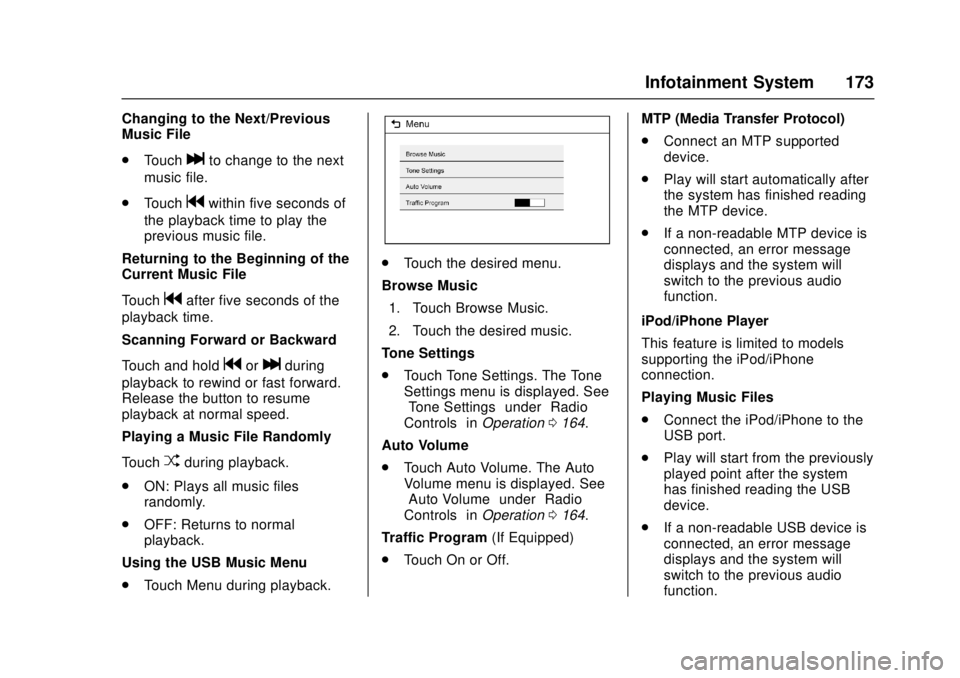
Using the USB Music Menu
. Touch Menu during playback.
.Touch the desired menu.
Browse Music 1. Touch Browse Music.
2. Touch the desired music.
Tone Settings
. Touch Tone Settings. The Tone
Settings menu is displayed. See
“Tone Settings” under“Radio
Controls” inOperation 0164.
Auto Volume
. Touch Auto Volume. The Auto
Volume menu is displayed. See
“Auto Volume” under“Radio
Controls” inOperation 0164.
Traffic Program (If Equipped)
. Touch On or Off. MTP (Media Transfer Protocol)
.
Connect an MTP supported
device.
. Play will start automatically after
the system has finished reading
the MTP device.
. If a non-readable MTP device is
connected, an error message
displays and the system will
switch to the previous audio
function.
iPod/iPhone Player
This feature is limited to models
supporting the iPod/iPhone
connection.
Playing Music Files
. Connect the iPod/iPhone to the
USB port.
. Play will start from the previously
played point after the system
has finished reading the USB
device.
. If a non-readable USB device is
connected, an error message
displays and the system will
switch to the previous audio
function.
Page 175 of 404
Chevrolet Cruze Owner Manual (GMNA-Localizing-U.S./Canada/Mexico-
11348462) - 2018 - crc - 5/15/17
174 Infotainment System
If the iPod/iPhone is already
connected:1. Press
{.
2. Touch AUDIO.
3. Touch Source.
4. Touch iPod.
To stop the device and select
another media source, touch
Source, then select the other
source.
To remove the device, select
another function, then remove the
device.
Pause
. Touch
jto pause.
. Touch
rto resume.
Changing to the Next/Previous
Music File
. Touch
lto change to the next
music file.
. Touch
gwithin two seconds of
the playback time to play the
previous music file. Returning to the Beginning of the
Current Music File
Touch
gafter two seconds of the
playback time.
Scanning Forward or Backward
Touch and hold
gorlduring
playback to rewind or fast forward.
Release the button to resume
playback at normal speed.
Playing a Music File Randomly
Touch
Zduring playback.
. ON: Plays all music files
randomly.
. OFF: Returns to normal
playback.
Using the iPod Menu
. Touch Menu during playback.
. Touch the appropriate
play mode.
Browse Music 1. Touch Browse Music.
2. Touch the desired music. Tone Settings
.
Touch Tone Settings. The Tone
Settings menu is displayed. See
“Tone Settings” under“Radio
Controls” inOperation 0164.
Auto Volume
. Touch Auto Volume. The Auto
Volume menu is displayed. See
“Auto Volume” under“Radio
Controls” inOperation 0164.
Picture System Information
The infotainment system can view
picture files stored on a USB
storage device and devices that
support Media Transfer
Protocol (MTP).
.
Supported file extensions: .jpg,
.bmp, .png, .gif.
. Animated GIF files are not
supported.
. Some picture files may not
operate due to a different
recording format or the condition
of the picture file.
Page 176 of 404
Chevrolet Cruze Owner Manual (GMNA-Localizing-U.S./Canada/Mexico-
11348462) - 2018 - crc - 5/15/17
Infotainment System 175
Viewing Pictures1. Connect the USB device to the USB port.
2. Touch the screen to open to full screen. Touch the screen again
to return to the previous
screen.
If the USB device is already
connected:
1. Press
{.
2. Touch GALLERY.
Some features are disabled while
the vehicle is in motion.
Viewing a Slide Show
1. Touch
zfrom the picture
screen.
2. Touch the screen to cancel the slide show during the slide
show playback.
Viewing a Previous or Next
Picture
Touch
SorTfrom the picture
screen. Rotating a Picture
Touch
wfrom the picture screen.
Enlarging a Picture
Touch
xfrom the picture screen.
Using the USB Picture Menu 1. Touch MENU from the picture screen.
2. Touch the appropriate menu: .Slide Show Time: Allows
selection of the slide show
interval.
. Clock, Temp. Display:
Allows selection of On or
Off to show the clock and
temperature on the full
screen.
. Display Settings: Adjusts
for Brightness and Contrast.
3. Touch
0to exit.
Auxiliary Devices
Using the Auxiliary Input Jack
Settings menus and functions may
vary depending on vehicle options. The auxiliary input jack can be used
to connect external audio devices
such as an iPod, iPhone, MP3
player, CD player and other
supported devices for use as
another source for audio listening.
This input jack is not an audio
output; do not plug headphones into
the front auxiliary input jack.
The auxiliary input jack is on the
center stack. The infotainment
system can play music connected
by the auxiliary device.
Play will begin when the system has
finished reading the information on
the device.
Playing Music
To play music from the device, if the
device is already connected:
1. Press
{.
2. Touch AUDIO.
3. Touch Source.
4. Touch AUX.
5. Touch
3.
To adjust the tone settings, see
“Tone Settings” inOperation 0164.
Page 178 of 404
Chevrolet Cruze Owner Manual (GMNA-Localizing-U.S./Canada/Mexico-
11348462) - 2018 - crc - 5/15/17
Infotainment System 177
Bluetooth (Infotainment
Controls)
To use infotainment controls to
access the menu system, see
Overview0163.
Pairing
A Bluetooth-enabled cell phone
must be paired to the Bluetooth
system and then connected to the
vehicle before it can be used. See
your cell phone manufacturer's user
guide for Bluetooth functions before
pairing the cell phone. If a Bluetooth
phone is not connected, calls will be
made using OnStar Hands-Free
Calling, if available. See OnStar
Overview 0381.
Pairing Information
. A Bluetooth phone with MP3
capability cannot be paired to
the vehicle as a phone and an
MP3 player at the same time.
. Up to 10 cell phones can be
paired to the Bluetooth system.
. The pairing process is disabled
when the vehicle is moving. .
Pairing only needs to be
completed once, unless the
pairing information on the cell
phone changes or the cell phone
is deleted from the system.
. Only one paired cell phone can
be connected to the Bluetooth
system at a time.
. If multiple paired cell phones are
within range of the system, the
system connects to the first
available paired cell phone in the
order that they were first paired.
When the Bluetooth device and
infotainment system are
successfully paired, the phone book
is downloaded automatically. This is
dependent on the type of phone
paired. If the automatic download
does not occur, proceed with the
phone book download on the
phone.
Pairing a Phone –SSP and No
Paired Device
When there is no paired device on
the infotainment system and Simple
Secure Pairing (SSP) is supported:
1. Press
{. 2. Touch Phone, press
5on the
center stack, or press
b/gon
the steering wheel without
OnStar.
3. Touch Search Device.
4. Touch the desired device to pair on the searched list
screen.
5. Touch Yes on the pop-up screen of the Bluetooth device
and infotainment system.
6. When the Bluetooth device and infotainment system are
successfully paired, the phone
screen is displayed on the
infotainment system.
Pairing a Phone –SSP and Paired
Device
When a paired device is on the
infotainment system and SSP is
supported:
1. Press
{.
2. Touch Settings.
3. Touch Bluetooth, then Device Management.
Page 179 of 404
Chevrolet Cruze Owner Manual (GMNA-Localizing-U.S./Canada/Mexico-
11348462) - 2018 - crc - 5/15/17
178 Infotainment System
4. Touch the desired device topair. When the Bluetooth
device and infotainment system
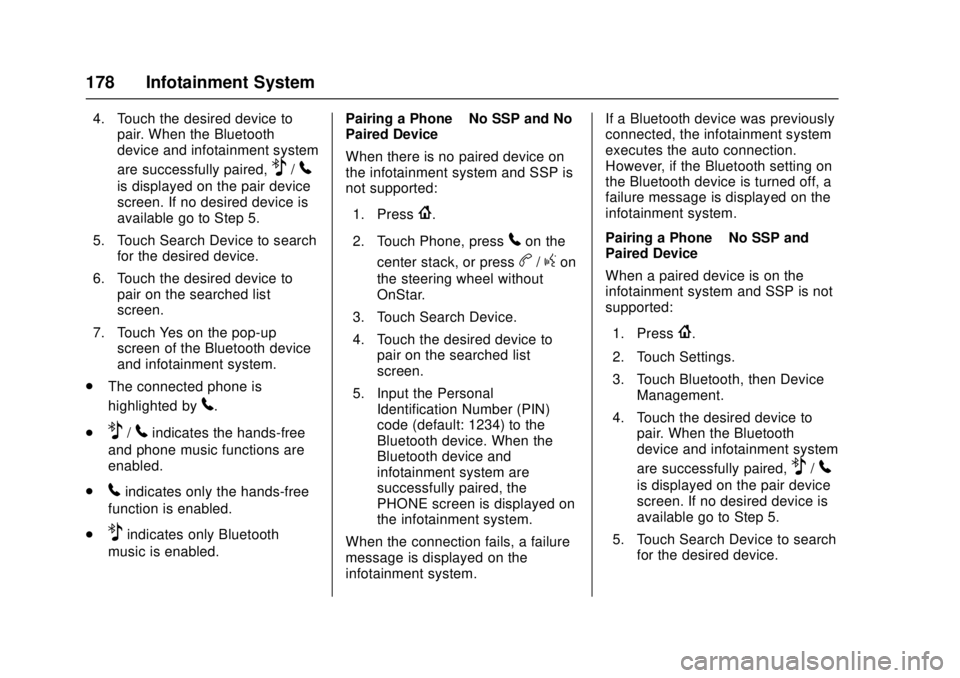
are successfully paired,
Z/5
is displayed on the pair device
screen. If no desired device is
available go to Step 5.
5. Touch Search Device to search for the desired device.
6. Touch the desired device to pair on the searched list
screen.
7. Touch Yes on the pop-up screen of the Bluetooth device
and infotainment system.
. The connected phone is
highlighted by
5.
.
Z/5indicates the hands-free
and phone music functions are
enabled.
.
5indicates only the hands-free
function is enabled.
.
Zindicates only Bluetooth
music is enabled. Pairing a Phone
–No SSP and No
Paired Device
When there is no paired device on
the infotainment system and SSP is
not supported:
1. Press
{.
2. Touch Phone, press
5on the
center stack, or press
b/gon
the steering wheel without
OnStar.
3. Touch Search Device.
4. Touch the desired device to pair on the searched list
screen.
5. Input the Personal Identification Number (PIN)
code (default: 1234) to the
Bluetooth device. When the
Bluetooth device and
infotainment system are
successfully paired, the
PHONE screen is displayed on
the infotainment system.
When the connection fails, a failure
message is displayed on the
infotainment system. If a Bluetooth device was previously
connected, the infotainment system
executes the auto connection.
However, if the Bluetooth setting on
the Bluetooth device is turned off, a
failure message is displayed on the
infotainment system.
Pairing a Phone
–No SSP and
Paired Device
When a paired device is on the
infotainment system and SSP is not
supported:
1. Press
{.
2. Touch Settings.
3. Touch Bluetooth, then Device Management.
4. Touch the desired device to pair. When the Bluetooth
device and infotainment system
are successfully paired,
Z/5
is displayed on the pair device
screen. If no desired device is
available go to Step 5.
5. Touch Search Device to search for the desired device.
Page 180 of 404
Chevrolet Cruze Owner Manual (GMNA-Localizing-U.S./Canada/Mexico-
11348462) - 2018 - crc - 5/15/17
Infotainment System 179
6. Touch the desired device topair on the searched list
screen.
7. Input the Personal Identification Number (PIN)
code (default: 1234) to the
Bluetooth device. When the
Bluetooth device and
infotainment system are
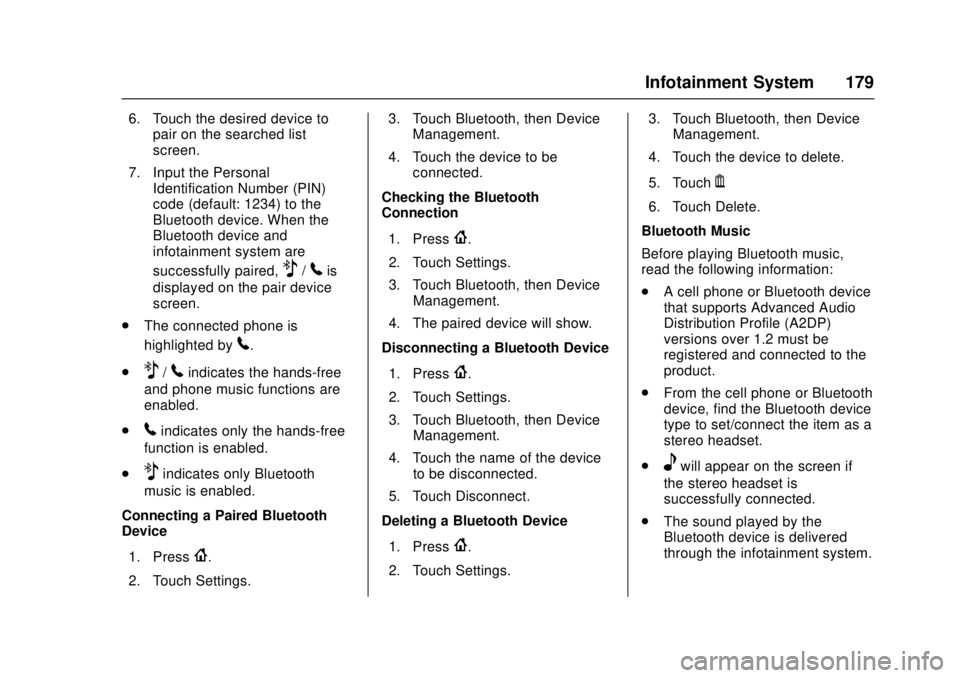
successfully paired,
Z/5is
displayed on the pair device
screen.
. The connected phone is
highlighted by
5.
.
Z/5indicates the hands-free
and phone music functions are
enabled.
.
5indicates only the hands-free
function is enabled.
.
Zindicates only Bluetooth
music is enabled.
Connecting a Paired Bluetooth
Device
1. Press
{.
2. Touch Settings. 3. Touch Bluetooth, then Device
Management.
4. Touch the device to be connected.
Checking the Bluetooth
Connection
1. Press
{.
2. Touch Settings.
3. Touch Bluetooth, then Device Management.
4. The paired device will show.
Disconnecting a Bluetooth Device
1. Press
{.
2. Touch Settings.
3. Touch Bluetooth, then Device Management.
4. Touch the name of the device to be disconnected.
5. Touch Disconnect.
Deleting a Bluetooth Device
1. Press
{.
2. Touch Settings. 3. Touch Bluetooth, then Device
Management.
4. Touch the device to delete.
5. Touch
Y.
6. Touch Delete.
Bluetooth Music
Before playing Bluetooth music,
read the following information:
. A cell phone or Bluetooth device
that supports Advanced Audio
Distribution Profile (A2DP)
versions over 1.2 must be
registered and connected to the
product.
. From the cell phone or Bluetooth
device, find the Bluetooth device
type to set/connect the item as a
stereo headset.
.
ewill appear on the screen if
the stereo headset is
successfully connected.
. The sound played by the
Bluetooth device is delivered
through the infotainment system.
Page 182 of 404
Chevrolet Cruze Owner Manual (GMNA-Localizing-U.S./Canada/Mexico-
11348462) - 2018 - crc - 5/15/17
Infotainment System 181
.The infotainment system outputs
the audio from the cell phone or
Bluetooth device as it is
transmitted.
Apple CarPlay and
Android Auto
If equipped, Android Auto and/or
Apple CarPlay capability may be
available through a compatible
smartphone. If available,
PROJECTION will appear on the
Home Page of the infotainment
display.
To use Android Auto or Apple
CarPlay:
1. Download the Android Auto app to your phone from the
Google Play store. No app is
required for Apple CarPlay.
2. Connect an Android phone or iPhone by using the compatible
phone USB cable and plugging
into a USB data port. For best
performance, use the device’ s
factory-provided USB cable.
Aftermarket or third-party
cables may not work. 3. When the phone is first
connected to activate Apple
CarPlay or Android Auto, the
message “Device Projection
Privacy Consent” will appear.
. Select Continue to launch
Apple CarPlay or
Android Auto.
. Select Disable to remove
Apple CarPlay and Android
Auto capability from the
vehicle Settings menu.
Other functions may
still work.
PROJECTION on the Home Page
will change to Android Auto or Apple
CarPlay depending on the phone.
Android Auto and/or Apple CarPlay
may automatically launch upon USB
connection. If not, touch the
ANDROID AUTO and/or APPLE
CARPLAY icon on the Home Page
to launch.
Press
{on the center stack to
return to the Home Page. For further information on how to set
up Android Auto and Apple CarPlay
in the vehicle, see my.chevrolet.com
or see
Customer Assistance Offices
0 369.
Android Auto is provided by Google
and is subject to Google’s terms
and privacy policy. Apple CarPlay is
provided by Apple and is subject to
Apple’ s terms and privacy policy.
Data plan rates apply. For Android
Auto support see https://
support.google.com/androidauto.
For Apple CarPlay support see
www.apple.com/ios/carplay/. Apple
or Google may change or suspend
availability at any time. Android
Auto, Android, Google, Google Play,
and other marks are trademarks of
Google Inc.; Apple CarPlay is a
trademark of Apple Inc.
Hands-Free Phone
General Information
Vehicles with a Hands-Free Phone
system can use a Bluetooth-capable
cell phone with a hands-free profile
to make and receive phone calls.
The infotainment system and voice
Page 183 of 404
Chevrolet Cruze Owner Manual (GMNA-Localizing-U.S./Canada/Mexico-
11348462) - 2018 - crc - 5/15/17
182 Infotainment System
commands are used to operate the
system. Not all phones support all
functions and not all phones work
with the Hands-Free Phone system.
Hands-Free Phone Controls
Use the controls on the infotainment
system and the steering wheel to
operate the Hands-Free Phone
system.
Steering Wheel Controls
Steering wheel controls can be
used to:
.Answer incoming calls.
. Confirm system information.
. End a call.
. Decline a call.
. Cancel an operation.
. Make outgoing calls using the
call list.
g:Press to answer incoming calls.
c:Press to end a call, decline a
call, or cancel an operation. Making a Call by Entering a Phone
Number
.
Press
5on the center stack.
. Press
{, then touch PHONE on
the infotainment display.
. Press
gon the steering wheel.
If a wrong number is entered, touch
}to delete the number one digit at
a time, or touch and hold
}to
delete all digits of the number.
Switching a Call to the Cell Phone
(Private Mode)
To switch the call from the cell
phone to hands-free:
1. Touch
0.
2. Touch
0again to switch back
to hands-free.
Turning the Microphone On
and Off
Touch
3to turn the microphone on
or off. Calling by Redial
To call by using redial:
.
Press
gon the steering wheel
controls to display the redial
guidance screen.
. Touch
5on the infotainment
display, or press
5on the center
stack.
Redialing is not possible when there
is no call history.
Taking Calls
When a phone call comes through
the connected Bluetooth cell phone,
the audio system will be muted or
paused and the phone will ring with
the relevant information displayed.
Press
gon the steering wheel
controls, touch
5on the
infotainment display, or press
5on
the center stack.
To decline the call, press
con the
steering wheel controls or touch
Reject on the infotainment display.
Page 184 of 404
Chevrolet Cruze Owner Manual (GMNA-Localizing-U.S./Canada/Mexico-
11348462) - 2018 - crc - 5/15/17
Infotainment System 183
Using the Contacts Menu1. Touch contacts on the phone screen.
2. Touch
QorRto scroll through
the list.
3. Touch the phone book entry to call.
4. If there is more than one number associated with the
name, touch the number
to dial.
Searching for Contacts Entries 1. Touch contacts on the phone screen.
2. Touch
9on the contacts
screen.
3. Use the keypad to input the name to search. For details,
see “Searching for a Name”
following.
4. Touch the phone book entry to call.
5. If there is more than one number associated with the
name, touch the number
to dial. When the Bluetooth device and
infotainment system are
successfully paired, the phone book
will download. Some phones may
not download automatically. If this
happens, connect it again or
proceed with the phone book
download on the phone.
Searching for a Name
Select characters by using the
keypad on the phone book screen.
As characters are selected, the
names that include those characters
will display on the phone book
screen. As more characters of the
name are entered, the list of
possible names is shortened.
To search for the name Alex:
1. Touch (abc) to select the first character.
2. Touch (jkl) three times to select the second character.
3. Touch (def) two times to select the third character.
4. Touch (wxy) two times to select the fourth character. Making a Call from Call History
1. Touch Call History on the phone screen.
2. Touch one of the following for:
.
WAll calls history.
.
[Dialed calls.
.
YMissed calls.
.
XReceived calls.
3. Select the contact entry to call.
Making a Call with Speed Dial
Numbers
Touch and hold the speed dial
number using the keypad on the
phone screen.
Only speed dial numbers already
stored on the cell phone can be
used for speed dial calls. Up to
two-digit speed dial numbers are
supported.
For two-digit speed dial numbers,
press and hold the second digit to
make a call to the speed dial
number.
Page 188 of 404
Chevrolet Cruze Owner Manual (GMNA-Localizing-U.S./Canada/Mexico-
11348462) - 2018 - crc - 5/15/17
Climate Controls 187
Air Delivery Mode Control :Press
to change the direction of the
airflow. The indicator light in the
button will turn on. The current
mode appears in the display screen.
To change the current mode, select
one of the following:
Y: Air is directed to the instrument
panel outlets.
\: Air is directed to the instrument
panel outlets and the floor outlets.
[: Air is directed to the floor
outlets.
-: Clears the windows of fog or
moisture. Air is directed to the
windshield and floor outlets.
0: Clears the windshield of fog or
frost more quickly. Air is directed to
the windshield and side window
outlets.
For best results, clear all snow and
ice from the windshield before
defrosting.
Do not drive the vehicle until all
windows are clear.
Air Conditioning
A/C : Press to turn the air
conditioning on or off. If the fan is
turned off or the outside
temperature falls below freezing, the
air conditioning compressor will
not work.
A/C (Comfort/Eco Air
Conditioning) (For Stop/Start
Vehicles) : Press to cycle between
the comfort, eco, and off air
conditioning modes. The indicator
will be lit in comfort and eco modes,
and turns off in the off air
conditioning mode. If the fan is
turned off, the air conditioner will not
run and the indicator light will
turn off.
For comfort a/c, press A/C. The
indicator will turn amber. This
setting limits Auto Stops to ensure
cabin comfort is maintained and
reduces the likelihood of window
fogging.
For eco a/c, press A/C again. The
indicator will turn green. This setting
balances fuel economy and air
conditioning comfort. In warm
weather conditions, Auto Stops may occur more frequently and the
vehicle interior may be warmer as
compared to the comfort air
conditioning setting. This setting
allows higher humidity inside the
vehicle and window fogging before
the engine restarts. Pressing
0
during an Auto Stop will restart the
engine to prevent window fogging.
L:
Press to turn on the
recirculation. An indicator light
comes on. Air is recirculated inside
the vehicle. It helps to quickly cool
the air inside the vehicle and reduce
the entry of outside air and odors.
Rear Window Defogger
1: Press to turn the rear window
defogger on or off. An indicator light
on the button comes on to show that
the rear window defogger is on.
The defogger only works when the
ignition is on. The defogger turns off
if the ignition is off or in ACC/
ACCESSORY.
Do not drive the vehicle until all
windows are clear.