charging CHEVROLET CRUZE 2018 Owner's Manual
[x] Cancel search | Manufacturer: CHEVROLET, Model Year: 2018, Model line: CRUZE, Model: CHEVROLET CRUZE 2018Pages: 404, PDF Size: 4.64 MB
Page 4 of 404
Chevrolet Cruze Owner Manual (GMNA-Localizing-U.S./Canada/Mexico-
11348462) - 2018 - crc - 5/15/17
Introduction 3
Danger, Warning, and
Caution
Warning messages found on vehicle
labels and in this manual describe
hazards and what to do to avoid or
reduce them.
{Danger
Danger indicates a hazard with a
high level of risk which will result
in serious injury or death.
{Warning
Warning indicates a hazard that
could result in injury or death.
Caution
Caution indicates a hazard that
could result in property or vehicle
damage.
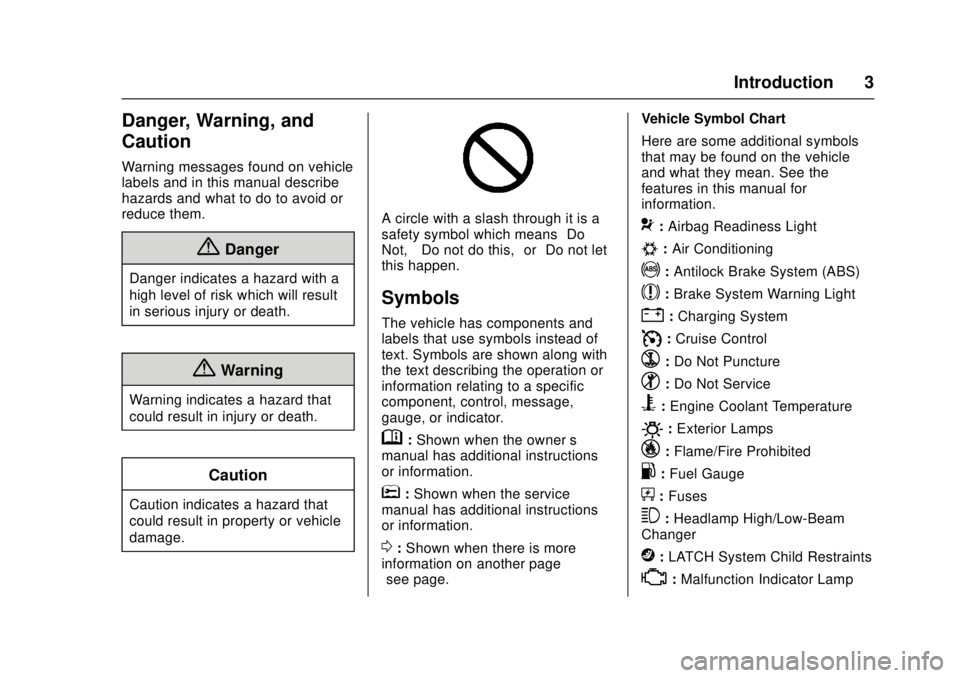
A circle with a slash through it is a
safety symbol which means“Do
Not,” “Do not do this,” or“Do not let
this happen.”
Symbols
The vehicle has components and
labels that use symbols instead of
text. Symbols are shown along with
the text describing the operation or
information relating to a specific
component, control, message,
gauge, or indicator.
M: Shown when the owner ’s
manual has additional instructions
or information.
*: Shown when the service
manual has additional instructions
or information.
0: Shown when there is more
information on another page —
“see page.” Vehicle Symbol Chart
Here are some additional symbols
that may be found on the vehicle
and what they mean. See the
features in this manual for
information.
9:
Airbag Readiness Light
#:Air Conditioning
!:Antilock Brake System (ABS)
$:Brake System Warning Light
":Charging System
I: Cruise Control
`:Do Not Puncture
^:Do Not Service
B:Engine Coolant Temperature
O:Exterior Lamps
_: Flame/Fire Prohibited
.:Fuel Gauge
+: Fuses
3:Headlamp High/Low-Beam
Changer
j: LATCH System Child Restraints
*:Malfunction Indicator Lamp
Page 8 of 404

Chevrolet Cruze Owner Manual (GMNA-Localizing-U.S./Canada/Mexico-
11348462) - 2018 - crc - 5/15/17
In Brief 7
1.Air Vents 0193.
2. Headlamp High/Low-Beam
Changer 0155.
Turn Signal Lever. See Turn
and Lane-Change Signals
0 157.
Driver Information Center (DIC)
Buttons (If Equipped).
See Driver Information Center
(DIC) (Base) 0138 orDriver
Information Center (DIC)
(Uplevel) 0141.
3. Instrument Cluster 0120.
4. Windshield Wiper/Washer
0111.
5. Infotainment 0161.
6. Light Sensor. See Automatic
Headlamp System 0155.
7. Hazard Warning Flashers
0156.
8. Heated Front Seats 064 (If
Equipped).
9. Instrument Panel Fuse Block
0295. 10.
Climate Control Systems (With
Heater Only) 0188 orClimate
Control Systems (With Air
Conditioning) 0186.
Automatic Climate Control
System 0190 (If Equipped).
11. Power Outlets 0115.
USB Port 0169.
12. Wireless Charging Pocket (If Equipped). See Wireless
Charging 0117.
13. Traction Control/Electronic
Stability Control 0231.
Assistance Systems for
Parking or Backing 0236.
14. Shift Lever. SeeAutomatic Transmission
0 224 orManual Transmission
0 227.
15. Steering Wheel Controls 0110.
Driver Information Center (DIC)
Controls (If Equipped).
See Driver Information Center
(DIC) (Base) 0138 orDriver
Information Center (DIC)
(Uplevel) 0141. 16.
Horn 0111.
17. Steering Wheel Adjustment
0110.
18. Cruise Control 0233.
Heated Steering Wheel 0111
(If Equipped).
Forward Collision Alert (FCA)
System 0238 (If Equipped).
Lane Keep Assist (LKA) 0242
(If Equipped).
19. Hood Release. See Hood
0 261.
20. Data Link Connector (DLC) (Out of View). See Malfunction
Indicator Lamp (Check Engine
Light) 0130.
21. Exterior Lamp Controls 0153.
Fog Lamps 0157 (If
Equipped).
Instrument Panel Illumination
Control 0158.
Page 23 of 404
Chevrolet Cruze Owner Manual (GMNA-Localizing-U.S./Canada/Mexico-
11348462) - 2018 - crc - 5/15/17
22 In Brief
5:
. Press and release to access the
phone screen, answer an
incoming call, or access the
device home screen.
See Overview 0163.
Satellite Radio
If equipped, a SiriusXM satellite
radio tuner and a valid SiriusXM
satellite radio subscription can
receive SiriusXM programming.
SiriusXM Satellite Radio
Service
SiriusXM is a satellite radio service
based in the 48 contiguous United
States and 10 Canadian provinces.
SiriusXM satellite radio has a wide
variety of programming and
commercial-free music, coast to
coast, and in digital-quality sound.
A fee is required to receive the
SiriusXM service.
Refer to:
.
www.siriusxm.com or call
1-888-601-6296 (U.S.). .
www.siriusxm.ca or call
1-877-438-9677 (Canada).
See Satellite Radio (If Equipped)
0 167.
Portable Audio Devices
This vehicle has a USB port on the
center stack for data and charging
and may have a USB charge port
on the rear of the center console.
External devices such as iPhones/
iPods and USB storage devices
may be connected.
See USB Port 0169.
Bluetooth
The Bluetooth system allows users
with a Bluetooth-enabled cell phone
to make and receive hands-free
calls using the vehicle audio system
and controls.
The Bluetooth-enabled cell phone
must be paired with the in-vehicle
Bluetooth system before it can be
used in the vehicle. Not all phones
will support all functions. See
Bluetooth (Infotainment
Controls) 0177 orBluetooth
(Overview) 0176.
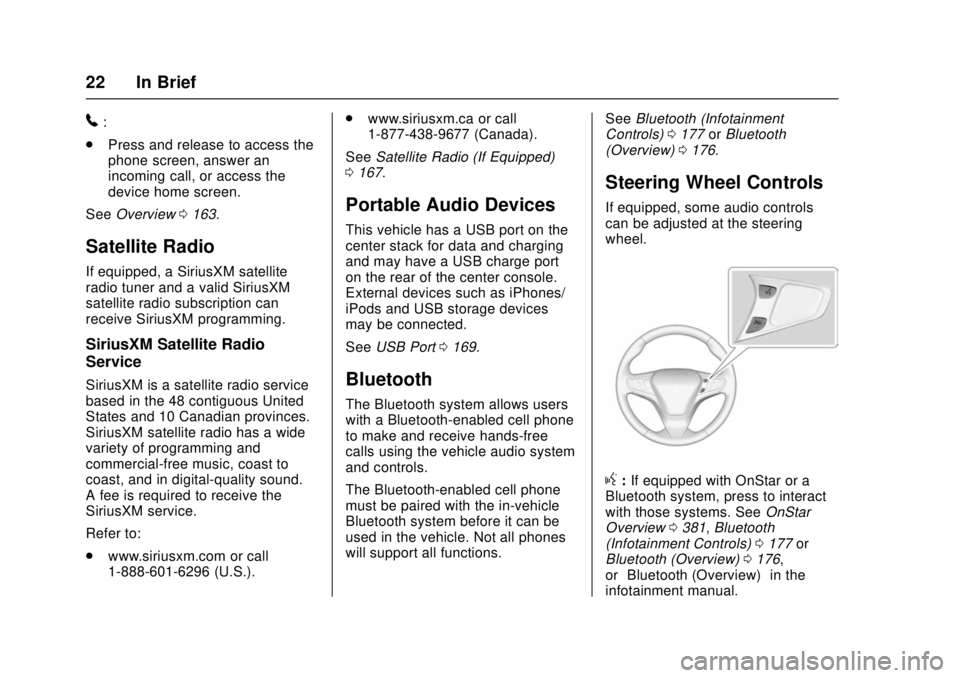
Steering Wheel Controls
If equipped, some audio controls
can be adjusted at the steering
wheel.
g:If equipped with OnStar or a
Bluetooth system, press to interact
with those systems. See OnStar
Overview 0381, Bluetooth
(Infotainment Controls) 0177 or
Bluetooth (Overview) 0176,
or “Bluetooth (Overview)” in the
infotainment manual.
Page 110 of 404
Chevrolet Cruze Owner Manual (GMNA-Localizing-U.S./Canada/Mexico-
11348462) - 2018 - crc - 5/15/17
Instruments and Controls 109
Instruments and
Controls
Controls
Steering Wheel Adjustment . . . 110
Steering Wheel Controls . . . . . . 110
Heated Steering Wheel . . . . . . . 111
Horn . . . . . . . . . . . . . . . . . . . . . . . . . . 111
Windshield Wiper/Washer . . . . . 111
Rear Window Wiper/Washer . . . . . . . . . . . . . . . . . . . . . . 112
Compass . . . . . . . . . . . . . . . . . . . . . 113
Clock . . . . . . . . . . . . . . . . . . . . . . . . . 113
Power Outlets . . . . . . . . . . . . . . . . 115
Wireless Charging . . . . . . . . . . . . 117
Warning Lights, Gauges, and
Indicators
Warning Lights, Gauges, and Indicators . . . . . . . . . . . . . . . . . . . 119
Instrument Cluster . . . . . . . . . . . . 120
Speedometer . . . . . . . . . . . . . . . . . 125
Odometer . . . . . . . . . . . . . . . . . . . . . 125
Trip Odometer . . . . . . . . . . . . . . . . 125
Tachometer . . . . . . . . . . . . . . . . . . . 125
Fuel Gauge . . . . . . . . . . . . . . . . . . . 126
Engine Coolant Temperature
Gauge . . . . . . . . . . . . . . . . . . . . . . 127
Seat Belt Reminders . . . . . . . . . 128 Airbag Readiness Light . . . . . . . 128
Passenger Airbag Status
Indicator . . . . . . . . . . . . . . . . . . . . 129
Charging System Light . . . . . . . 130
Malfunction Indicator Lamp (Check Engine Light) . . . . . . . . 130
Brake System Warning Light . . . . . . . . . . . . . . . . . . . . . . . . 132
Antilock Brake System (ABS) Warning Light . . . . . . . . . . . . . . . 132
Up-Shift Light . . . . . . . . . . . . . . . . . 133
Lane Keep Assist (LKA) Light . . . . . . . . . . . . . . . . . . . . . . . . 133
Vehicle Ahead Indicator . . . . . . 133
Traction Off Light . . . . . . . . . . . . . 134
StabiliTrak OFF Light . . . . . . . . . 134
Traction Control System (TCS)/ StabiliTrak Light . . . . . . . . . . . . . 134
Wait-to-Start Light . . . . . . . . . . . . 135
Tire Pressure Light . . . . . . . . . . . 135
Engine Oil Pressure Light . . . . 135
Low Fuel Warning Light . . . . . . 136
Diesel Exhaust Fluid (DEF) Warning Light . . . . . . . . . . . . . . . 136
Security Light . . . . . . . . . . . . . . . . . 136
High-Beam On Light . . . . . . . . . . 137
Front Fog Lamp Light . . . . . . . . . 137
Lamps On Reminder . . . . . . . . . 137
Cruise Control Light . . . . . . . . . . 137
Door Ajar Light . . . . . . . . . . . . . . . 137
Information Displays
Driver Information Center (DIC) (Base) . . . . . . . . . . . . . . . . 138
Driver Information Center (DIC) (Uplevel) . . . . . . . . . . . . . . . . . . . . 141
Vehicle Messages
Vehicle Messages . . . . . . . . . . . . 144
Engine Power Messages . . . . . 144
Vehicle Speed Messages . . . . . 144
Vehicle Personalization
Vehicle Personalization . . . . . . . 145
Page 118 of 404
Chevrolet Cruze Owner Manual (GMNA-Localizing-U.S./Canada/Mexico-
11348462) - 2018 - crc - 5/15/17
Instruments and Controls 117
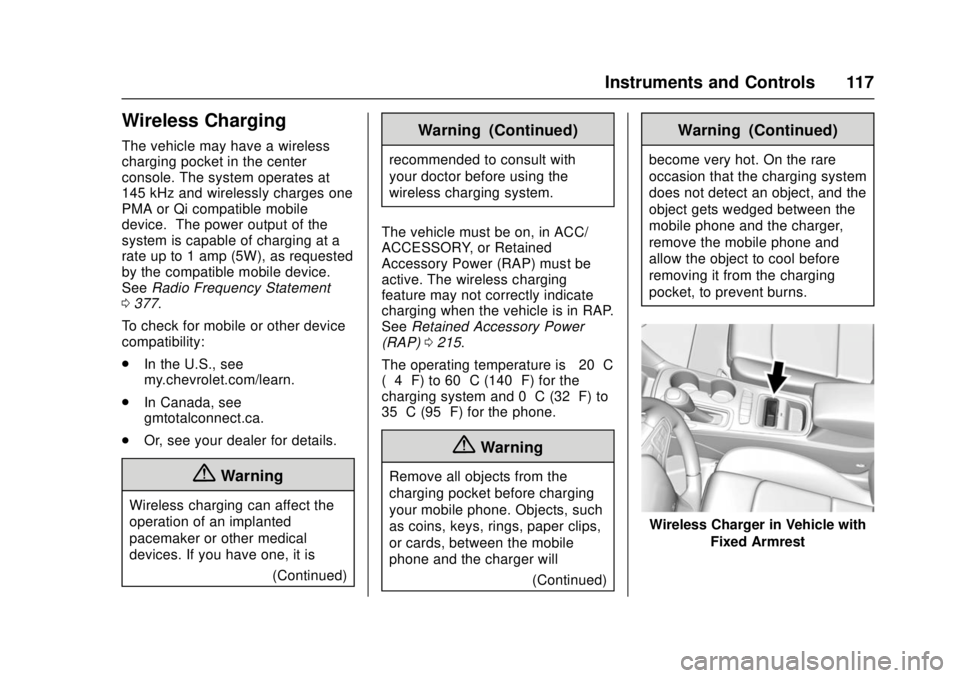
Wireless Charging
The vehicle may have a wireless
charging pocket in the center
console. The system operates at
145 kHz and wirelessly charges one
PMA or Qi compatible mobile
device. The power output of the
system is capable of charging at a
rate up to 1 amp (5W), as requested
by the compatible mobile device.
SeeRadio Frequency Statement
0 377.
To check for mobile or other device
compatibility:
. In the U.S., see
my.chevrolet.com/learn.
. In Canada, see
gmtotalconnect.ca.
. Or, see your dealer for details.
{Warning
Wireless charging can affect the
operation of an implanted
pacemaker or other medical
devices. If you have one, it is
(Continued)
Warning (Continued)
recommended to consult with
your doctor before using the
wireless charging system.
The vehicle must be on, in ACC/
ACCESSORY, or Retained
Accessory Power (RAP) must be
active. The wireless charging
feature may not correctly indicate
charging when the vehicle is in RAP.
See Retained Accessory Power
(RAP) 0215.
The operating temperature is −20 °C
(−4 °F) to 60 °C (140 °F) for the
charging system and 0 °C (32 °F) to
35 °C (95 °F) for the phone.
{Warning
Remove all objects from the
charging pocket before charging
your mobile phone. Objects, such
as coins, keys, rings, paper clips,
or cards, between the mobile
phone and the charger will
(Continued)
Warning (Continued)
become very hot. On the rare
occasion that the charging system
does not detect an object, and the
object gets wedged between the
mobile phone and the charger,
remove the mobile phone and
allow the object to cool before
removing it from the charging
pocket, to prevent burns.
Wireless Charger in Vehicle withFixed Armrest
Page 119 of 404
Chevrolet Cruze Owner Manual (GMNA-Localizing-U.S./Canada/Mexico-
11348462) - 2018 - crc - 5/15/17
118 Instruments and Controls
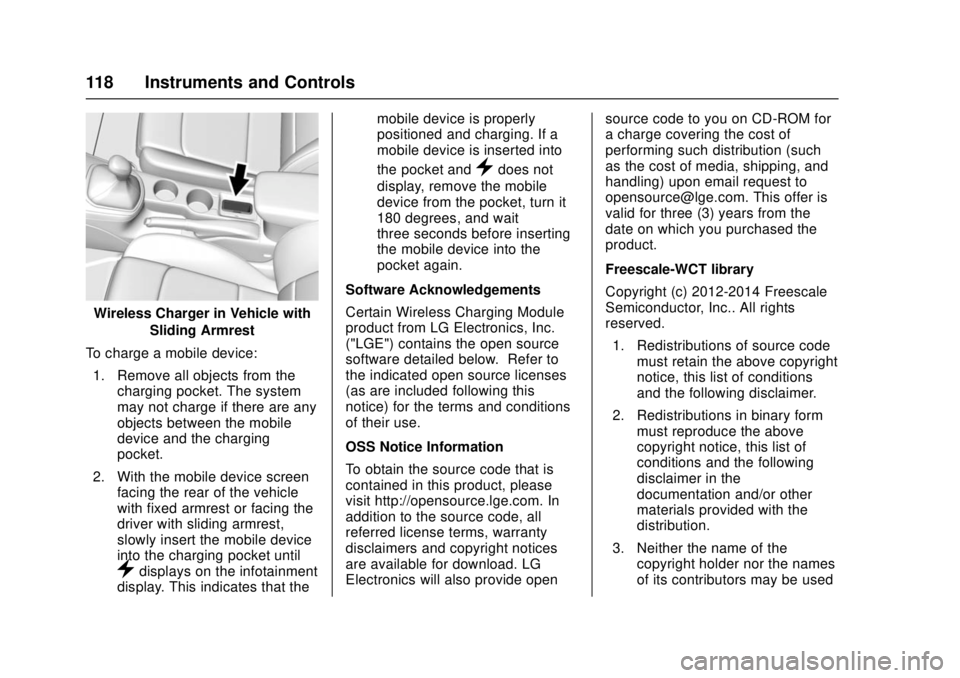
Wireless Charger in Vehicle withSliding Armrest
To charge a mobile device: 1. Remove all objects from the charging pocket. The system
may not charge if there are any
objects between the mobile
device and the charging
pocket.
2. With the mobile device screen facing the rear of the vehicle
with fixed armrest or facing the
driver with sliding armrest,
slowly insert the mobile device
into the charging pocket until
}displays on the infotainment
display. This indicates that the mobile device is properly
positioned and charging. If a
mobile device is inserted into
the pocket and
}does not
display, remove the mobile
device from the pocket, turn it
180 degrees, and wait
three seconds before inserting
the mobile device into the
pocket again.
Software Acknowledgements
Certain Wireless Charging Module
product from LG Electronics, Inc.
("LGE") contains the open source
software detailed below. Refer to
the indicated open source licenses
(as are included following this
notice) for the terms and conditions
of their use.
OSS Notice Information
To obtain the source code that is
contained in this product, please
visit http://opensource.lge.com. In
addition to the source code, all
referred license terms, warranty
disclaimers and copyright notices
are available for download. LG
Electronics will also provide open source code to you on CD-ROM for
a charge covering the cost of
performing such distribution (such
as the cost of media, shipping, and
handling) upon email request to
[email protected]. This offer is
valid for three (3) years from the
date on which you purchased the
product.
Freescale-WCT library
Copyright (c) 2012-2014 Freescale
Semiconductor, Inc.. All rights
reserved.
1. Redistributions of source code must retain the above copyright
notice, this list of conditions
and the following disclaimer.
2. Redistributions in binary form must reproduce the above
copyright notice, this list of
conditions and the following
disclaimer in the
documentation and/or other
materials provided with the
distribution.
3. Neither the name of the copyright holder nor the names
of its contributors may be used
Page 131 of 404
Chevrolet Cruze Owner Manual (GMNA-Localizing-U.S./Canada/Mexico-
11348462) - 2018 - crc - 5/15/17
130 Instruments and Controls
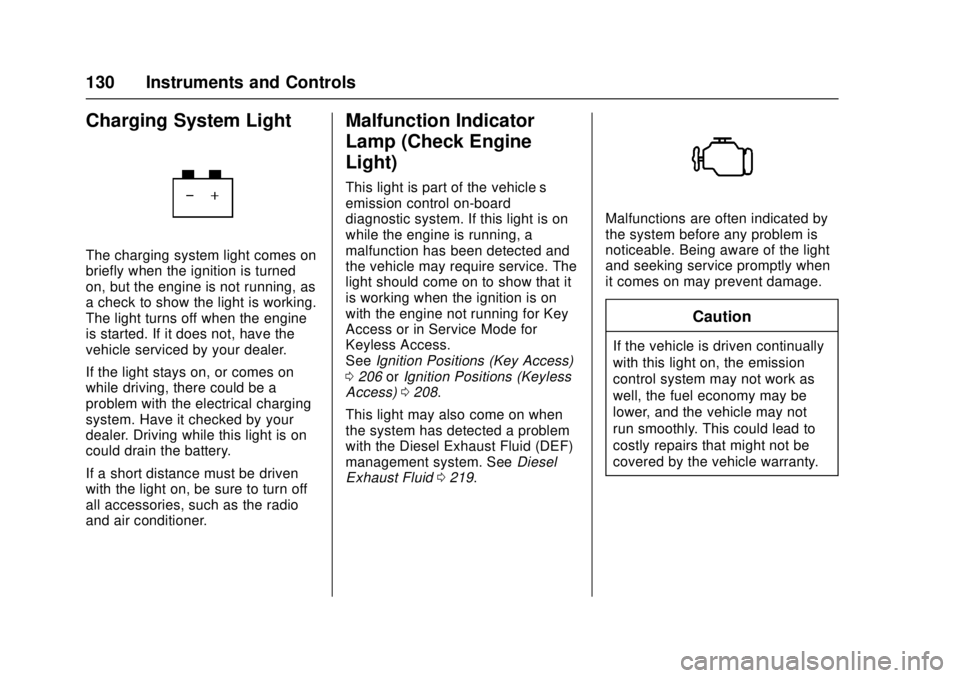
Charging System Light
The charging system light comes on
briefly when the ignition is turned
on, but the engine is not running, as
a check to show the light is working.
The light turns off when the engine
is started. If it does not, have the
vehicle serviced by your dealer.
If the light stays on, or comes on
while driving, there could be a
problem with the electrical charging
system. Have it checked by your
dealer. Driving while this light is on
could drain the battery.
If a short distance must be driven
with the light on, be sure to turn off
all accessories, such as the radio
and air conditioner.
Malfunction Indicator
Lamp (Check Engine
Light)
This light is part of the vehicle’s
emission control on-board
diagnostic system. If this light is on
while the engine is running, a
malfunction has been detected and
the vehicle may require service. The
light should come on to show that it
is working when the ignition is on
with the engine not running for Key
Access or in Service Mode for
Keyless Access.
SeeIgnition Positions (Key Access)
0 206 orIgnition Positions (Keyless
Access) 0208.
This light may also come on when
the system has detected a problem
with the Diesel Exhaust Fluid (DEF)
management system. See Diesel
Exhaust Fluid 0219.
Malfunctions are often indicated by
the system before any problem is
noticeable. Being aware of the light
and seeking service promptly when
it comes on may prevent damage.
Caution
If the vehicle is driven continually
with this light on, the emission
control system may not work as
well, the fuel economy may be
lower, and the vehicle may not
run smoothly. This could lead to
costly repairs that might not be
covered by the vehicle warranty.
Page 141 of 404
Chevrolet Cruze Owner Manual (GMNA-Localizing-U.S./Canada/Mexico-
11348462) - 2018 - crc - 5/15/17
140 Instruments and Controls
message will appear on the display.
Change the fuel filter as soon as
possible.
Diesel Exhaust Fluid (DEF)
Level :The DEF level will be
displayed as either OK, XX%,
or LOW. When LOW appears on the
display, add DEF as soon as
possible. See Diesel Exhaust Fluid
0 219.
Tire Pressure : Displays a vehicle
with the approximate pressures of
all four tires. Tire pressure is
displayed in either kilopascal (kPa)
or in pounds per square inch (psi).
See Tire Pressure Monitor System
0 307 andTire Pressure Monitor
Operation 0308.
Battery Voltage : Displays the
current battery voltage, if equipped.
Battery voltage changes are normal
while driving. See Charging System
Light 0130. If there is a problem
with the battery charging system,
the DIC will display a message.
Speed Warning : This display is
used to set the vehicle speed at
which the speed warning chime
sounds and the alert is displayed. The speed can be set by pressing
SET/CLR while the speed warning
display is showing.
Units :
Move
\to change between
Metric or US when the Unit display
is active. Press SET/CLR to confirm
the setting. This will change the
displays on the DIC to the type of
measurements you select.
ECO Drive Assist Menu (ECO)
Items
This menu is only available on some
vehicles. Press MENU on the turn
signal lever until the ECO menu is
displayed. Use
\to scroll through
the menu items. Not all items are
available on every vehicle. The
following is a list of all possible
menu items:
Best Average Fuel Economy : The
bottom displays the best average
fuel economy (AFE) achieved for a
selected distance. The top displays
a running average of fuel economy
for the most recently traveled
selected distance. The center bar
graph displays the instantaneous fuel economy. Quickly press SET/
CLR to change the settings for the
distance options.
When viewing best AFE, a several
second press and hold of SET/CLR
will reset the best value. The best
value will show
“- - -“until the
selected distance has been
traveled.
The display provides feedback on
how current driving behavior in the
bar graph affects the running
average in the top display and how
well recent driving compares to the
best that has been achieved.
Top Consumers : Shows a list of
the features that are currently
impacting the fuel economy, in order
from highest to lowest. If a feature is
turned off, it will be removed from
the list.
Economy Trend : Shows history of
the Average Fuel Economy from the
last 50 km (30 mi). Each bar
represents about 5 km (3 mi) of
driving. During driving the bars will
shift to always reflect the most
Page 144 of 404
Chevrolet Cruze Owner Manual (GMNA-Localizing-U.S./Canada/Mexico-
11348462) - 2018 - crc - 5/15/17
Instruments and Controls 143
approximate fuel economy that the
vehicle has right now and changes
frequently as driving conditions
change. This display cannot be
reset.
Average Vehicle Speed :Displays
the average vehicle speed of the
vehicle in kilometers per hour (km/h)
or miles per hour (mph). This
average is based on the various
vehicle speeds recorded since the
last reset. Reset the average speed
by pressing
Vwhen it is displayed.
Fuel Economy : The center
displays the approximate
instantaneous fuel economy as a
number and bar graph. Displayed
above the bar graph is a running
average of fuel economy for the
most recently traveled selected
distance. Displayed below the bar
graph is the best average fuel
economy that has been achieved for
the selected distance. The selected
distance is displayed at the top of
the page as “last xxx mi/km.” Press
pto select the distance or
reset best value. Use
wandxto
choose the distance and press
V.
Press
wandxto select “Reset
Best Score.” Press
Vto reset the
best average fuel economy. After
reset, the best value displays “-,-”
until the selected distance has been
traveled.
The display provides information on
how current driving behavior affects
the running average and how well
recent driving compares to the best
that has been achieved for the
selected distance.
Timer : This display can be used as
a timer. To start the timer, press
V
while this display is active. The
display will show the amount of time
that has passed since the timer was
last reset. To stop the timer, press
V
briefly while this display is active
and the timer is running. To reset
the timer to zero, press and hold
V
while this display is active, or presspand select reset. Following Distance Indicator :
The current follow time to the
vehicle ahead is displayed as a time
value on this page.
Battery Voltage :
Displays the
current battery voltage, if equipped.
Battery voltage changes are normal
while driving. See Charging System
Light 0130. If there is a problem
with the battery charging system,
the DIC will display a message.
Blank Page : Shows no
information.
Page 170 of 404
Chevrolet Cruze Owner Manual (GMNA-Localizing-U.S./Canada/Mexico-
11348462) - 2018 - crc - 5/15/17
Infotainment System 169
things like storms and power lines
interfere with radio reception. When
this happens, try reducing the treble
on the radio.
SiriusXM Satellite Radio
Service
SiriusXM Satellite Radio Service
gives digital radio reception from
coast to coast in the 48 contiguous
United States, and in Canada. Just
as with FM, tall buildings or hills can
interfere with satellite radio signals,
causing the sound to fade in and
out. In addition, traveling or standing
under heavy foliage, bridges,
garages, or tunnels may cause loss
of the SiriusXM signal for a period
of time.
Cell Phone Usage
Cell phone usage, such as making
or receiving phone calls, charging,
or just having the phone on may
cause static interference in the
radio. Unplug the phone or turn it off
if this happens.
Multi-Band Antenna
The multi-band antenna is on the
roof of the vehicle. The antenna is
used for OnStar, the SiriusXM
Satellite Radio Service System, and
GPS (Global Positioning System),
if the vehicle has these features.
Keep the antenna clear of
obstructions for clear reception.
If the vehicle has a sunroof, and it is
open, reception can also be
affected.
Audio Players
Avoiding Untrusted Media
Devices
When using media devices such as
CDs, DVDs, Blu-ray Discs, SD
cards, USB devices, and mobile
devices, consider the source.
Untrusted media devices could
contain files that affect system
operation or performance. Avoid use
if the content or origin cannot be
trusted.
USB Port
Using the USB Port
The infotainment system can play
music by connecting an auxiliary
device to the USB port.
USB Support
This vehicle has a USB port on the
center stack for data and charging
and may have a USB charge port
on the rear of the center console.
External devices such as iPhones/
iPods and USB storage devices
may be connected.