manual radio set CHEVROLET CRUZE HATCHBACK 2017 User Guide
[x] Cancel search | Manufacturer: CHEVROLET, Model Year: 2017, Model line: CRUZE HATCHBACK, Model: CHEVROLET CRUZE HATCHBACK 2017Pages: 405, PDF Size: 6.76 MB
Page 158 of 405
Chevrolet Cruze Owner Manual (GMNA-Localizing-U.S./Canada/Mexico-
9803785) - 2017 - CRC - 4/13/16
Instruments and Controls 157
Clear All Private Data
This allows selection to clear all
private information from the vehicle.
Select Delete or Cancel.
Restore Radio Settings
This allows selection to restore
radio settings.
Select Restore or Cancel.
Software Information
Select to view the infotainment
system current software information.
Page 170 of 405
Chevrolet Cruze Owner Manual (GMNA-Localizing-U.S./Canada/Mexico-
9803785) - 2017 - CRC - 4/13/16
Infotainment System 169
.USB/Music/Pictures: Press
to go to the next content.
Press and hold to fast
forward.
5.
5
. Press and release to
access the phone screen,
answer an incoming call,
or access the device home
screen.
Home Page
Touchscreen Buttons
Touchscreen buttons show on the
screen when available. When a
function is unavailable, the button
may gray out. When a function is
selected, the button may highlight.
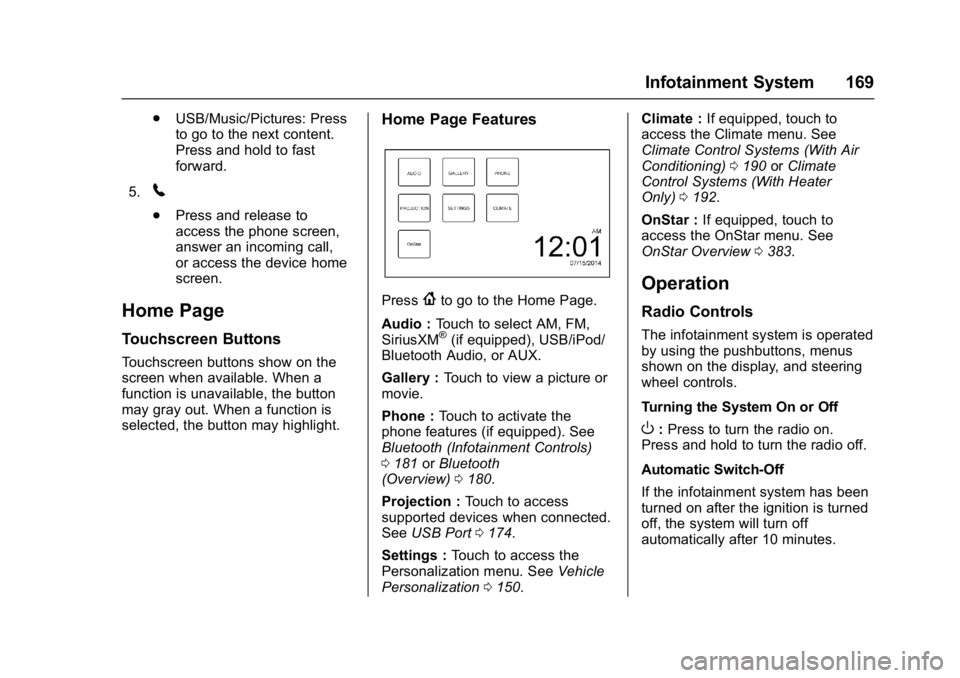
Home Page Features
Press{to go to the Home Page.
Audio : Touch to select AM, FM,
SiriusXM
®(if equipped), USB/iPod/
Bluetooth Audio, or AUX.
Gallery : Touch to view a picture or
movie.
Phone : Touch to activate the
phone features (if equipped). See
Bluetooth (Infotainment Controls)
0 181 orBluetooth
(Overview) 0180.
Projection : Touch to access
supported devices when connected.
See USB Port 0174.
Settings : Touch to access the
Personalization menu. See Vehicle
Personalization 0150. Climate :
If equipped, touch to
access the Climate menu. See
Climate Control Systems (With Air
Conditioning) 0190 orClimate
Control Systems (With Heater
Only) 0192.
OnStar : If equipped, touch to
access the OnStar menu. See
OnStar Overview 0383.
Operation
Radio Controls
The infotainment system is operated
by using the pushbuttons, menus
shown on the display, and steering
wheel controls.
Turning the System On or Off
O:Press to turn the radio on.
Press and hold to turn the radio off.
Automatic Switch-Off
If the infotainment system has been
turned on after the ignition is turned
off, the system will turn off
automatically after 10 minutes.
Page 171 of 405
Chevrolet Cruze Owner Manual (GMNA-Localizing-U.S./Canada/Mexico-
9803785) - 2017 - CRC - 4/13/16
170 Infotainment System
Volume Control
O:Turn to increase or decrease.
Press when the system is on to
mute and unmute the system.
System Settings
Auto Volume
This feature automatically adjusts
the radio volume to compensate for
road and wind noise.
The level of volume compensation
can be selected, or the feature can
be turned off.
Tone Settings
The tone settings can be set for
each radio band and each audio
player source. Custom Tone Settings
1. Touch SETTINGS from the home screen.
2. Select Radio.
3. Select Tone Settings. .Bass, Midrange, or Treble:
Touch −or +.
. Fader or Balance: Adjust
the front/rear or left/right
speakers by dragging the
dot in the vehicle image on
the screen.
4. Touch
3to go back to the
source screen.
Radio
AM-FM Radio
Playing the Radio
Audio Source Menu
{: Press to go to the Home Page.
O:Press to turn on, mute,
or unmute the system. Press and
hold to turn off the system.
Selecting a Band
1. Press{.
2. Touch AUDIO.
3. Touch Source.
4. Select AM, FM, or SXM (if equipped).
The last station that was playing
starts playing again.
Page 172 of 405
Chevrolet Cruze Owner Manual (GMNA-Localizing-U.S./Canada/Mexico-
9803785) - 2017 - CRC - 4/13/16
Infotainment System 171
Selecting a Station
Seek Tuning
If the radio station is not known:
Press
gordto automatically
search for available radio stations.
Direct Tune
From the AM or FM menu:
1. Touch Tune.
2. Enter the station number.
3. Touch Go.
Favorites
1. Touch
SorTto scroll through
the favorite pages.
2. Touch the station to select it.
Update Station List
. From the AM or FM menu, touch
Menu, then touch Update Station
List. The broadcasting list
updating will begin.
. During the AM or FM
broadcasting list update, touch
Cancel to stop the updates. Station List
1. From the AM or FM menu, touch Menu.
2. Select Station List.
3. Touch
QorRto scroll through
the list. Touch the station to
select it.
Menu
Touch to choose between available
menus for the current source.
Storing a Station as a Favorite
Stations from all bands can be
stored in any order in the favorite
pages.
Up to 25 stations can be stored.
Storing Stations
To store the station to a position in
the list, touch the corresponding
button 1−5 until a beep is heard.
1. Select the desired station.
2. Touch
SorTto select the
desired page of saved
favorites. 3. Touch and hold any of the
preset buttons to save the
current radio station to that
button of the selected
favorites page.
To change a preset button, tune to
the new desired radio station and
touch and hold the preset button.
Satellite Radio (If
Equipped)
Vehicles with an SXM Satellite
Radio tuner and a valid SiriusXM®
Satellite Radio subscription can
receive SiriusXM programming.
SiriusXM Satellite Radio
Service
SiriusXM is a satellite radio service
based in the 48 contiguous United
States and 10 Canadian provinces.
SiriusXM Satellite Radio has a wide
variety of programming and
commercial-free music, coast to
coast, and in digital-quality sound.
During your trial or when you
subscribe, you will get unlimited
access to SiriusXM Radio Online for
when you are not in the vehicle.
Page 173 of 405
Chevrolet Cruze Owner Manual (GMNA-Localizing-U.S./Canada/Mexico-
9803785) - 2017 - CRC - 4/13/16
172 Infotainment System
A service fee is required to receive
the SiriusXM service. If SiriusXM
service needs to be reactivated, the
radio will display "No Subscription
Please Renew" on channel SXM1.
For more information, contact
SiriusXM at www.siriusxm.com or
1-866-635-2349 (U.S.), and
www.xmradio.ca or 1-877-209-0079
(Canada).
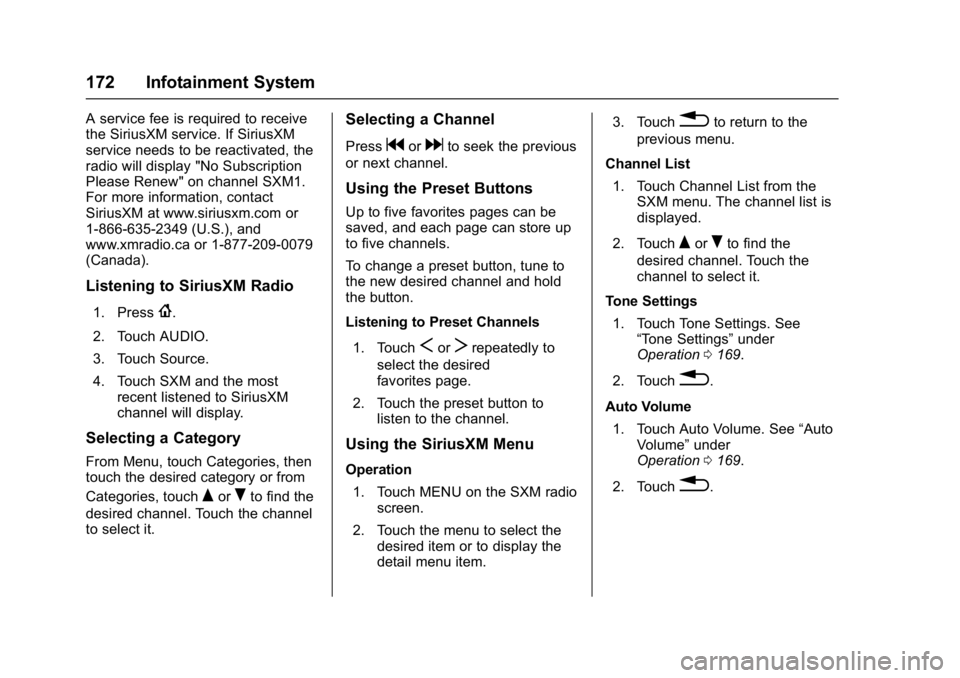
Listening to SiriusXM Radio
1. Press{.
2. Touch AUDIO.
3. Touch Source.
4. Touch SXM and the most recent listened to SiriusXM
channel will display.
Selecting a Category
From Menu, touch Categories, then
touch the desired category or from
Categories, touch
QorRto find the
desired channel. Touch the channel
to select it.
Selecting a Channel
Pressgordto seek the previous
or next channel.
Using the Preset Buttons
Up to five favorites pages can be
saved, and each page can store up
to five channels.
To change a preset button, tune to
the new desired channel and hold
the button.
Listening to Preset Channels
1. Touch
SorTrepeatedly to
select the desired
favorites page.
2. Touch the preset button to listen to the channel.
Using the SiriusXM Menu
Operation
1. Touch MENU on the SXM radio screen.
2. Touch the menu to select the desired item or to display the
detail menu item. 3. Touch
0to return to the
previous menu.
Channel List 1. Touch Channel List from the SXM menu. The channel list is
displayed.
2. Touch
QorRto find the
desired channel. Touch the
channel to select it.
Tone Settings 1. Touch Tone Settings. See “Tone Settings” under
Operation 0169.
2. Touch
0.
Auto Volume 1. Touch Auto Volume. See “Auto
Volume” under
Operation 0169.
2. Touch
0.
Page 178 of 405
Chevrolet Cruze Owner Manual (GMNA-Localizing-U.S./Canada/Mexico-
9803785) - 2017 - CRC - 4/13/16
Infotainment System 177
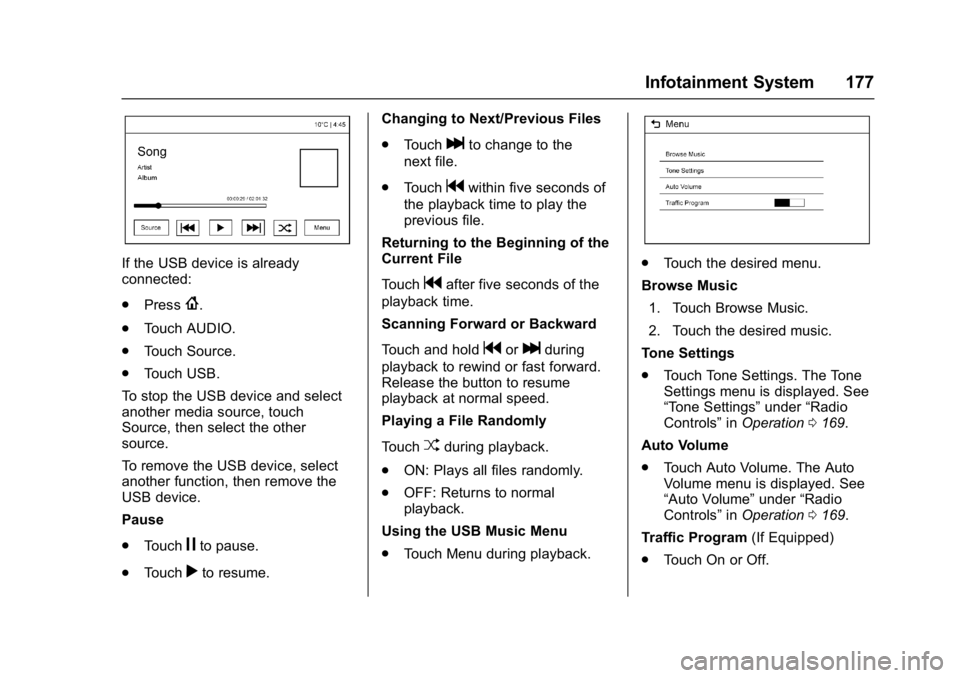
If the USB device is already
connected:
.Press
{.
. Touch AUDIO.
. Touch Source.
. Touch USB.
To stop the USB device and select
another media source, touch
Source, then select the other
source.
To remove the USB device, select
another function, then remove the
USB device.
Pause
. Touch
jto pause.
. Touch
rto resume. Changing to Next/Previous Files
.
Touch
lto change to the
next file.
. Touch
gwithin five seconds of
the playback time to play the
previous file.
Returning to the Beginning of the
Current File
Touch
gafter five seconds of the
playback time.
Scanning Forward or Backward
Touch and hold
gorlduring
playback to rewind or fast forward.
Release the button to resume
playback at normal speed.
Playing a File Randomly
Touch
Zduring playback.
. ON: Plays all files randomly.
. OFF: Returns to normal
playback.
Using the USB Music Menu
. Touch Menu during playback.
.Touch the desired menu.
Browse Music 1. Touch Browse Music.
2. Touch the desired music.
Tone Settings
. Touch Tone Settings. The Tone
Settings menu is displayed. See
“Tone Settings” under“Radio
Controls” inOperation 0169.
Auto Volume
. Touch Auto Volume. The Auto
Volume menu is displayed. See
“Auto Volume” under“Radio
Controls” inOperation 0169.
Traffic Program (If Equipped)
. Touch On or Off.
Page 180 of 405
Chevrolet Cruze Owner Manual (GMNA-Localizing-U.S./Canada/Mexico-
9803785) - 2017 - CRC - 4/13/16
Infotainment System 179
Tone Settings
.Touch Tone Settings. The Tone
Settings menu is displayed. See
“Tone Settings” under“Radio
Controls” inOperation 0169.
Auto Volume
. Touch Auto Volume. The Auto
Volume menu is displayed. See
“Auto Volume” under“Radio
Controls” inOperation 0169.
Picture System Information
The infotainment system can view
picture files stored on a USB
storage device and devices that
support Media Transfer
Protocol (MTP).
.
Supported file extensions: .jpg,
.bmp, .png, .gif.
. Animated GIF files are not
supported.
. Some files may not operate due
to a different recording format or
the condition of the file.
Viewing Pictures 1. Connect the USB device to the USB port. 2. Touch the screen to open to full
screen. Touch the screen again
to return to the previous
screen.
If the USB device is already
connected:
1. Press
{.
2. Touch GALLERY.
Some features are disabled while
the vehicle is in motion.
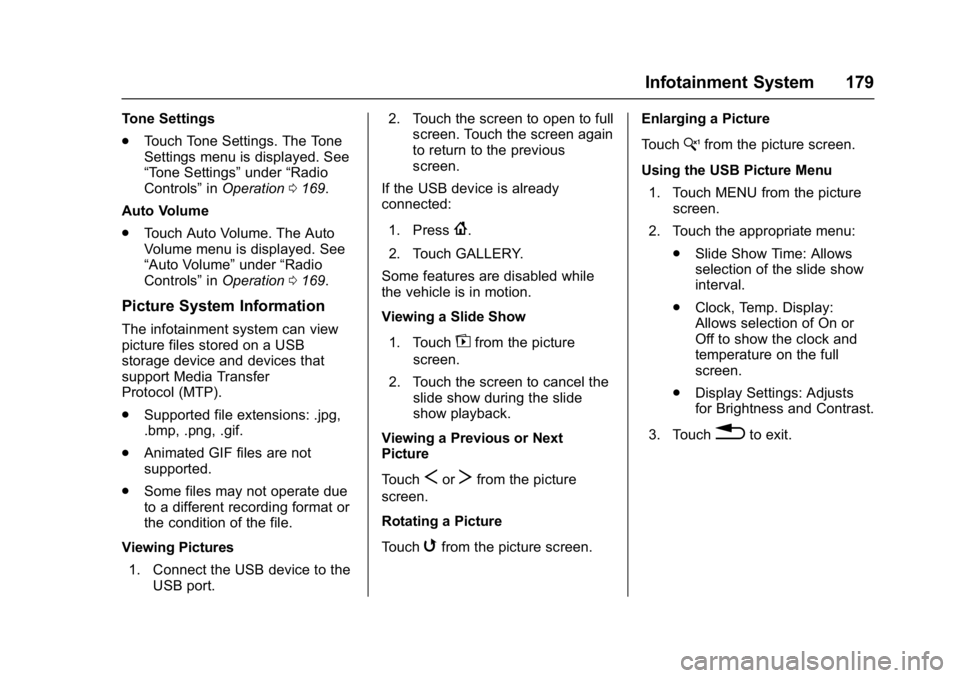
Viewing a Slide Show
1. Touch
zfrom the picture
screen.
2. Touch the screen to cancel the slide show during the slide
show playback.
Viewing a Previous or Next
Picture
Touch
SorTfrom the picture
screen.
Rotating a Picture
Touch
wfrom the picture screen. Enlarging a Picture
Touch
xfrom the picture screen.
Using the USB Picture Menu 1. Touch MENU from the picture screen.
2. Touch the appropriate menu: .Slide Show Time: Allows
selection of the slide show
interval.
. Clock, Temp. Display:
Allows selection of On or
Off to show the clock and
temperature on the full
screen.
. Display Settings: Adjusts
for Brightness and Contrast.
3. Touch
0to exit.
Page 197 of 405
Chevrolet Cruze Owner Manual (GMNA-Localizing-U.S./Canada/Mexico-
9803785) - 2017 - CRC - 4/13/16
196 Climate Controls
If equipped with heated outside
mirrors, they turn on when the rear
window defogger button is on and
help to clear fog or frost from the
surface of the mirrors. SeeHeated
Mirrors 054.
Caution
Do not try to clear frost or other
material from the inside of the
front windshield and rear window
with a razor blade or anything
else that is sharp. This may
damage the rear window
defogger grid and affect the
radio's ability to pick up stations
clearly. The repairs would not be
covered by the vehicle warranty.
MorL:If equipped, press to turn
the heated seats on or off. See
Heated Front Seats 064. Remote Start Climate Control
Operation :
If the vehicle is
equipped with the remote vehicle
start feature, the climate control
system may run when the vehicle is
started remotely with settings
according to ambient conditions.
The rear defog may come on during
remote start based on cold ambient
conditions. The rear defog indicator
light does not come on during a
remote start. If the vehicle has front
heated seats, they may come on
during a remote start. The heated
seat indicator lights do not come on
during a remote start. See Remote
Vehicle Start 042 and Heated Front
Seats 064.
Sensors
The solar sensor, on top of the
instrument panel near the
windshield, monitors the solar heat.
The climate control system uses the
sensor information to adjust the
temperature, fan speed,
recirculation, and air delivery mode
for best comfort.
If the sensor is covered, the
automatic climate control system
may not work properly.
Page 201 of 405
Chevrolet Cruze Owner Manual (GMNA-Localizing-U.S./Canada/Mexico-
9803785) - 2017 - CRC - 4/13/16
200 Driving and Operating
Cold Weather Operation(Diesel) . . . . . . . . . . . . . . . . . . . . . 255
Water in Fuel (Diesel) . . . . . . . . 255
Running Out of Fuel (Diesel) . . . . . . . . . . . . . . . . . . . . . 258
Fuel Filter Replacement (Diesel) . . . . . . . . . . . . . . . . . . . . . 258
Filling the Tank . . . . . . . . . . . . . . . 259
Filling a Portable Fuel Container . . . . . . . . . . . . . . . . . . . 261
Trailer Towing
General TowingInformation . . . . . . . . . . . . . . . . . . 261
Conversions and Add-Ons
Add-On ElectricalEquipment . . . . . . . . . . . . . . . . . . 262
Driving Information
Distracted Driving
Distraction comes in many forms
and can take your focus from the
task of driving. Exercise good
judgment and do not let other
activities divert your attention away
from the road. Many local
governments have enacted laws
regarding driver distraction. Become
familiar with the local laws in
your area.
To avoid distracted driving, always
keep your eyes on the road, hands
on the wheel, and mind on the drive.
. Do not use a phone in
demanding driving situations.
Use a hands-free method to
place or receive necessary
phone calls.
. Watch the road. Do not read,
take notes, or look up
information on phones or other
electronic devices.
. Designate a front seat
passenger to handle potential
distractions. .
Become familiar with vehicle
features before driving, such as
programming favorite radio
stations and adjusting climate
control and seat settings.
Program all trip information into
any navigation device prior to
driving.
. Wait until the vehicle is parked
to retrieve items that have fallen
to the floor.
. Stop or park the vehicle to tend
to children.
. Keep pets in an appropriate
carrier or restraint.
. Avoid stressful conversations
while driving, whether with a
passenger or on a cell phone.
{Warning
Taking your eyes off the road too
long or too often could cause a
crash resulting in injury or death.
Focus your attention on driving.
Page 220 of 405
Chevrolet Cruze Owner Manual (GMNA-Localizing-U.S./Canada/Mexico-
9803785) - 2017 - CRC - 4/13/16
Driving and Operating 219
Warning (Continued)
.Do not operate the vehicle
with the heater cord
permanently attached to the
vehicle. Possible heater
cord and thermostat
damage could occur.
. While in use, do not let the
heater cord touch vehicle
parts or sharp edges. Never
close the hood on the
heater cord.
. Before starting the vehicle,
unplug the cord, reattach
the cover to the plug, and
securely fasten the cord.
Keep the cord away from
any moving parts.
The length of time the heater should
remain plugged in depends on
several factors. Ask a dealer in the
area where you will be parking the
vehicle for the best advice on this.
Retained Accessory
Power (RAP)
These vehicle accessories may be
used for up to 10 minutes after the
engine is turned off:
. Audio System
. Power Windows
. Sunroof
The power windows and sunroof will
continue to work for up to
10 minutes or until any door is
opened. The radio will work when
the key is in ON/RUN or ACC/
ACCESSORY. Once the key is
turned from ON/RUN to LOCK/OFF,
the radio will continue to work for
10 minutes, or until the driver door is
opened or the key is removed from
the ignition.
Shifting Into Park
1. Hold the brake pedal down and set the parking brake.
See Parking Brake 0234. 2. Hold the button on the shift
lever and push the lever toward
the front of the vehicle into
P (Park).
3. Turn off the ignition.
Leaving the Vehicle with the
Engine Running
{Warning
It can be dangerous to leave the
vehicle with the engine running.
It could overheat and catch fire.
It is dangerous to get out of the
vehicle if the shift lever is not fully
in P (Park) with the parking brake
firmly set. The vehicle can roll.
Do not leave the vehicle when the
engine is running. If you have left
the engine running, the vehicle
can move suddenly. You or others
could be injured. To be sure the
vehicle will not move, even when
you are on fairly level ground,
always set the parking brake and
move the shift lever to P (Park).
See Shifting Into Park 0219.