radio CHEVROLET EPICA 2006 1.G Owners Manual
[x] Cancel search | Manufacturer: CHEVROLET, Model Year: 2006, Model line: EPICA, Model: CHEVROLET EPICA 2006 1.GPages: 368, PDF Size: 2.24 MB
Page 73 of 368
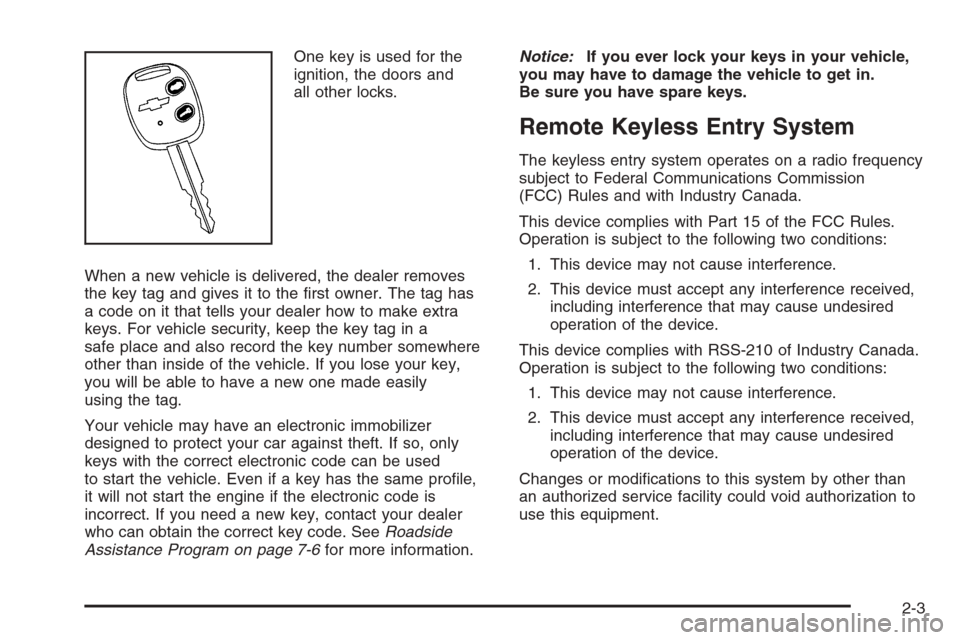
One key is used for the
ignition, the doors and
all other locks.
When a new vehicle is delivered, the dealer removes
the key tag and gives it to the first owner. The tag has
a code on it that tells your dealer how to make extra
keys. For vehicle security, keep the key tag in a
safe place and also record the key number somewhere
other than inside of the vehicle. If you lose your key,
you will be able to have a new one made easily
using the tag.
Your vehicle may have an electronic immobilizer
designed to protect your car against theft. If so, only
keys with the correct electronic code can be used
to start the vehicle. Even if a key has the same profile,
it will not start the engine if the electronic code is
incorrect. If you need a new key, contact your dealer
who can obtain the correct key code. SeeRoadside
Assistance Program on page 7-6for more information.Notice:If you ever lock your keys in your vehicle,
you may have to damage the vehicle to get in.
Be sure you have spare keys.
Remote Keyless Entry System
The keyless entry system operates on a radio frequency
subject to Federal Communications Commission
(FCC) Rules and with Industry Canada.
This device complies with Part 15 of the FCC Rules.
Operation is subject to the following two conditions:
1. This device may not cause interference.
2. This device must accept any interference received,
including interference that may cause undesired
operation of the device.
This device complies with RSS-210 of Industry Canada.
Operation is subject to the following two conditions:
1. This device may not cause interference.
2. This device must accept any interference received,
including interference that may cause undesired
operation of the device.
Changes or modifications to this system by other than
an authorized service facility could void authorization to
use this equipment.
2-3
Page 88 of 368
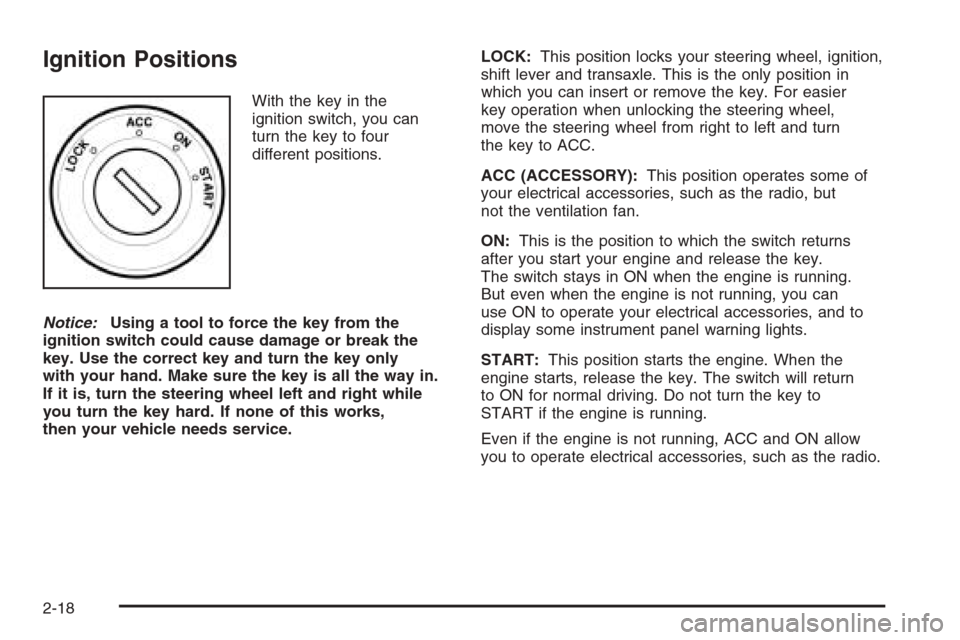
Ignition Positions
With the key in the
ignition switch, you can
turn the key to four
different positions.
Notice:Using a tool to force the key from the
ignition switch could cause damage or break the
key. Use the correct key and turn the key only
with your hand. Make sure the key is all the way in.
If it is, turn the steering wheel left and right while
you turn the key hard. If none of this works,
then your vehicle needs service.LOCK:This position locks your steering wheel, ignition,
shift lever and transaxle. This is the only position in
which you can insert or remove the key. For easier
key operation when unlocking the steering wheel,
move the steering wheel from right to left and turn
the key to ACC.
ACC (ACCESSORY):This position operates some of
your electrical accessories, such as the radio, but
not the ventilation fan.
ON:This is the position to which the switch returns
after you start your engine and release the key.
The switch stays in ON when the engine is running.
But even when the engine is not running, you can
use ON to operate your electrical accessories, and to
display some instrument panel warning lights.
START:This position starts the engine. When the
engine starts, release the key. The switch will return
to ON for normal driving. Do not turn the key to
START if the engine is running.
Even if the engine is not running, ACC and ON allow
you to operate electrical accessories, such as the radio.
2-18
Page 108 of 368
Traction Control System
Active Light..............................................3-38
Traction Off Light..........................................3-39
Hold Mode Light...........................................3-39
Engine Coolant Temperature Gage..................3-40
Malfunction Indicator Lamp.............................3-40
Oil Pressure Light.........................................3-43
Cruise Control Light......................................3-43
Highbeam On Light.......................................3-44
Daytime Running Lamps (DRL)
Indicator Light...........................................3-44
Door Ajar Light.............................................3-44
Trunk Ajar Light............................................3-44
Fuel Gage...................................................3-45
Low Fuel Warning Light.................................3-46Audio System(s).............................................3-46
Radio with CD
(Single Display, Base Level).......................3-48
Radio with CD
(Single Display, MP3).................................3-52
Radio with CD
(Double Display, MP3/WMA).......................3-59
Radio with Six-Disc CD
(Double Display, MP3/WMA).......................3-67
Trunk-Mounted CD Changer...........................3-75
Audio Steering Wheel Controls.......................3-78
Radio Reception...........................................3-79
Care of Your CDs.........................................3-80
Care of the CD Player...................................3-80
Backglass Antenna (Sedan Models).................3-80
Integrated Windshield Antenna
(Hatchback and Wagon Models)..................3-81
Section 3 Instrument Panel
3-2
Page 122 of 368
Entry Lighting
When you open either a front or a rear door, the door
step lamps inside your vehicle will turn on. The door step
lamps are located on the driver’s and front passenger’s
door trims. The lamps will turn off after you close all
of the doors.
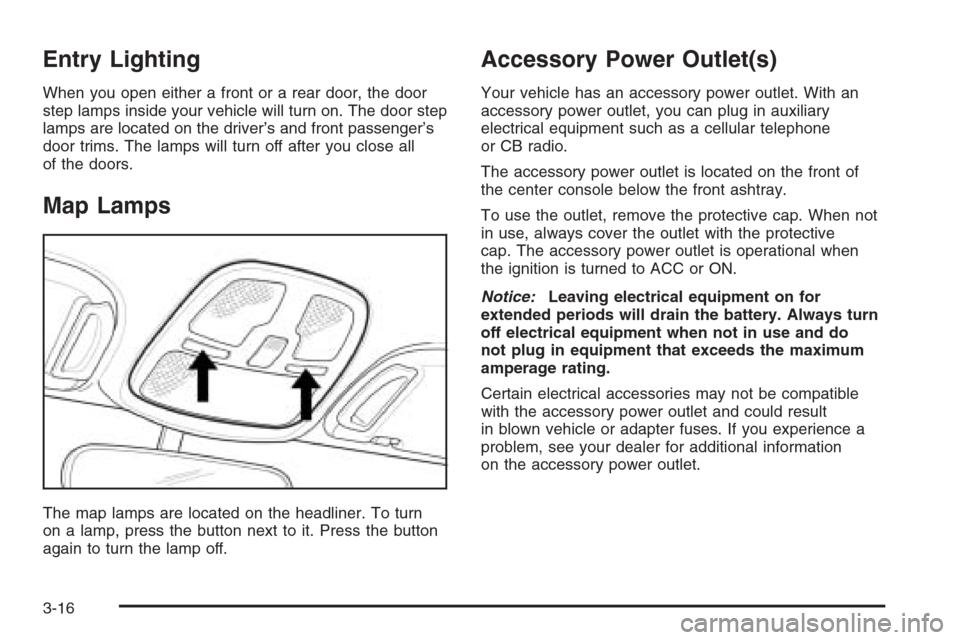
Map Lamps
The map lamps are located on the headliner. To turn
on a lamp, press the button next to it. Press the button
again to turn the lamp off.
Accessory Power Outlet(s)
Your vehicle has an accessory power outlet. With an
accessory power outlet, you can plug in auxiliary
electrical equipment such as a cellular telephone
or CB radio.
The accessory power outlet is located on the front of
the center console below the front ashtray.
To use the outlet, remove the protective cap. When not
in use, always cover the outlet with the protective
cap. The accessory power outlet is operational when
the ignition is turned to ACC or ON.
Notice:Leaving electrical equipment on for
extended periods will drain the battery. Always turn
off electrical equipment when not in use and do
not plug in equipment that exceeds the maximum
amperage rating.
Certain electrical accessories may not be compatible
with the accessory power outlet and could result
in blown vehicle or adapter fuses. If you experience a
problem, see your dealer for additional information
on the accessory power outlet.
3-16
Page 141 of 368
{CAUTION:
If the airbag readiness light in the instrument
panel cluster ever comes on and stays on,
it means that something may be wrong with
the airbag system. If this ever happens,
have the vehicle serviced promptly, because
an adult-size person sitting in the right
front passenger’s seat may not have the
protection of the frontal airbag and side
airbag (if equipped). SeeAirbag Readiness
Light on page 3-32for more on this,
including important safety information.
Charging System Light
The charging system light
will come on briefly when
you turn on the ignition,
and the engine is not
running, as a check
to show you it is working.
Then it should go out when the engine is started.
If it stays on, or comes on while you are driving, you
may have a problem with the electrical charging system.
Have it checked by your GM dealer. Driving while this
light is on could drain your battery.
If you must drive a short distance with the light on,
be certain to turn off all your accessories, such as the
radio and air conditioner.
3-35
Page 152 of 368
Low Fuel Warning Light
This light comes on when
the fuel tank is low on fuel.
The low fuel warning light comes on when there is
approximately 2.0 gallons (7.5 liters) of fuel remaining
in the tank.
To turn the light off, add fuel to the fuel tank.
SeeFilling the Tank on page 5-8.
Audio System(s)
Determine which radio your vehicle has and then read
the pages following to familiarize yourself with its
features.
Driving without distraction is a necessity for a safer
driving experience. SeeDefensive Driving on page 4-2.
By taking a few moments to read this manual and
get familiar with your vehicle’s audio system, you can
use it with less effort, as well as take advantage of
its features. While your vehicle is parked, set up your
audio system by presetting your favorite radio stations,
setting the tone and adjusting the speakers. Then,
when driving conditions permit, you can tune to your
favorite stations using the presets and steering
wheel controls (if equipped).
3-46
Page 153 of 368
{CAUTION:
This system provides you with a far greater
access to audio stations and song listings.
Giving extended attention to entertainment
tasks while driving can cause a crash and you
or others can be injured or killed. Always keep
your eyes on the road and your mind on the
drive — avoid engaging in extended searching
while driving.
Keeping your mind on the drive is important for safe
driving. For more information, seeDefensive Driving
on page 4-2.
Here are some ways in which you can help avoid
distraction while driving.While your vehicle is parked:
•Familiarize yourself with all of its controls.
•Familiarize yourself with its operation.
•Set up your audio system by presetting your
favorite radio stations, setting the tone, and
adjusting the speakers. Then, when driving
conditions permit, you can tune to your favorite
radio stations using the presets and steering
wheel controls (if equipped).
Notice:Before adding any sound equipment to
your vehicle, such as an audio system, CD player,
CB radio, mobile telephone, or two-way radio, make
sure that it can be added by checking with your
dealer. Also, check federal rules covering mobile
radio and telephone units. If sound equipment can
be added, it is very important to do it properly.
Added sound equipment may interfere with
the operation of your vehicle’s engine, radio, or
other systems, and even damage them. Your
vehicle’s systems may interfere with the operation
of sound equipment that has been added.
3-47
Page 154 of 368
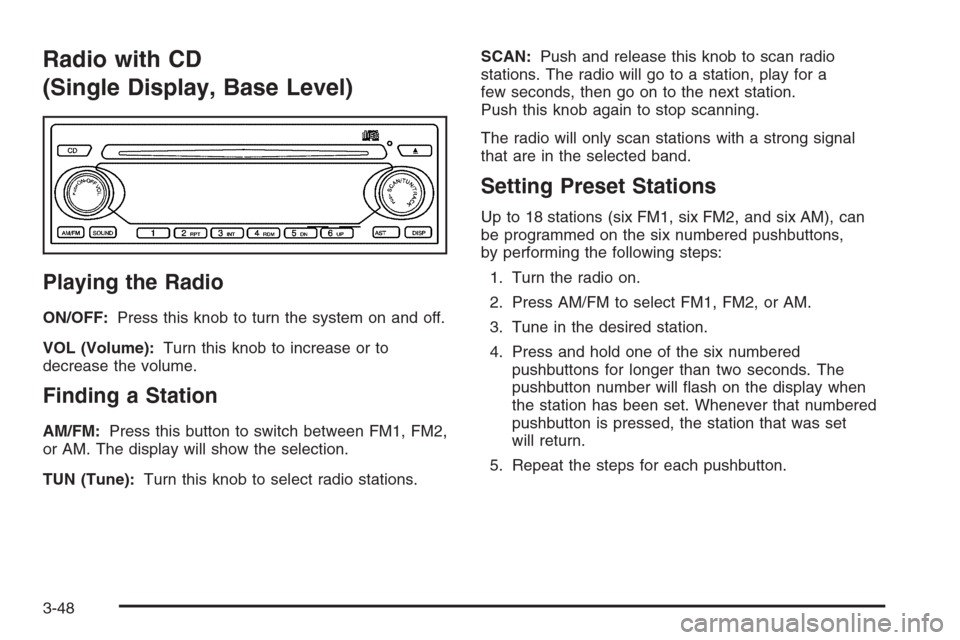
Radio with CD
(Single Display, Base Level)
Playing the Radio
ON/OFF:Press this knob to turn the system on and off.
VOL (Volume):Turn this knob to increase or to
decrease the volume.
Finding a Station
AM/FM:Press this button to switch between FM1, FM2,
or AM. The display will show the selection.
TUN (Tune):Turn this knob to select radio stations.SCAN:Push and release this knob to scan radio
stations. The radio will go to a station, play for a
few seconds, then go on to the next station.
Push this knob again to stop scanning.
The radio will only scan stations with a strong signal
that are in the selected band.
Setting Preset Stations
Up to 18 stations (six FM1, six FM2, and six AM), can
be programmed on the six numbered pushbuttons,
by performing the following steps:
1. Turn the radio on.
2. Press AM/FM to select FM1, FM2, or AM.
3. Tune in the desired station.
4. Press and hold one of the six numbered
pushbuttons for longer than two seconds. The
pushbutton number will flash on the display when
the station has been set. Whenever that numbered
pushbutton is pressed, the station that was set
will return.
5. Repeat the steps for each pushbutton.
3-48
Page 155 of 368
Automatic Store
Six FM1 preset stations with the strongest reception in
the region can be automatically stored. Press the AST
button for longer than one second. Once the stations are
stored, the radio will switch to FM1 and the first preset
station will begin to play. FM-A will appear on the display
when listening to the automatic stored stations. Press the
AM-FM button to cancel automatic store.
Setting the Tone (Bass/Treble)
SOUND (Bass/Treble):Press this button until BAS
appears on the display. Then turn the volume knob to
increase or to decrease the bass. The display will show
the bass level. When finished making the selection,
press this button to select the bass level.
Press this button until TRE appears on the display. Turn
the volume knob to increase or to decrease the treble.
The display will show the treble level. When finished
making the selection, press this button to select the treble
level. If a station is weak or noisy, decrease the treble.
SOUND (Equalization):Press this button until EQ OFF
appears on the display to select customized equalization
settings designed for classic, pop, rock, jazz, and voice.
Turn the volume knob until the desired equalization
setting appears on the display. When finished making
the selection, press the SOUND button to select the
equalization setting.To cancel an equalization setting, press the SOUND
button until EQ OFF appears on the display, turn
the volume knob until OFF appears on the display,
then press the SOUND button again to select the
equalization setting.
Adjusting the Speakers (Balance/Fade)
SOUND (Balance/Fade):To adjust the balance
between the right and the left speakers, press this
button until BAL appears on the display. Then turn
the volume knob to increase or to decrease. The
display will show the balance level. When finished
making the selection, press this button to select
the balance level.
To adjust the fade between the front and the rear
speakers, press this button until FAD appears on
the display. Turn the volume knob to increase or to
decrease the fade between the front and the rear
speakers. The display will show the fade level.
When finished making the selection, press this button
to select the fade level.
3-49
Page 156 of 368
Playing a CD
Insert a CD partway into the slot, label side up. The
player will pull it in and the CD should begin playing.
You can insert a CD with the ignition off.
When the CD is inserted, CDP will appear on the
display. As the CD is loading Filecheck will appear on
the display. As each new track starts to play, Track
and the track number will appear on the display.
If the ignition or radio is turned off with a CD in the
player, it will stay in the player. When a CD is in
the player and the ignition is turned on, the radio
must be turned on before the CD will start playback.
When the ignition and radio are turned on, the CD
will start playing where it stopped, if it was the
last selected audio source.
The CD player can play the smaller 3 inch (8 cm)
single CDs with an adapter ring. Full-size CDs and
the smaller CDs are loaded in the same manner.
If playing a CD-R, the sound quality may be reduced
due to CD-R quality, the method of recording, the
quality of the music that has been recorded, and the
way the CD-R has been handled. There may be
an increase in skipping, difficulty in finding tracks,
and/or difficulty in loading and ejecting. If these
problems occur, check the bottom surface of the CD.If the surface of the CD is damaged, such as cracked,
broken, or scratched, the CD will not play properly. If the
surface of the CD is soiled, seeCare of Your CDs on
page 3-80for more information.
If there is no apparent damage, try a known good CD.
Do not add any label to a CD, it could get caught in the
CD player. If a CD is recorded on a personal computer
and a description label is needed, try labeling the top of
the recorded CD with a marking pen instead.
Notice:If you add any label to a CD, insert more
than one CD into the slot at a time, or attempt to play
scratched or damaged CDs, you could damage the
CD player. When using the CD player, use only CDs
in good condition without any label, load one CD at a
time, and keep the CD player and the loading slot free
of foreign materials, liquids, and debris.
If an error appears on the display, see “CD Messages”
later in this section.
2 RPT (Repeat):Press this pushbutton to repeat the
current track. RPT will appear on the display. Press this
pushbutton again to turn off repeat play.
3 INT (SCAN):Press this button to listen to the first
few seconds of each track on each CD inserted. INTRO
will appear on the display. To stop scanning press
this button again. The current track will begin to play.
3-50