Display screen CHEVROLET EQUINOX 2018 User Guide
[x] Cancel search | Manufacturer: CHEVROLET, Model Year: 2018, Model line: EQUINOX, Model: CHEVROLET EQUINOX 2018Pages: 428, PDF Size: 6.05 MB
Page 183 of 428
Chevrolet Equinox Owner Manual (GMNA-Localizing-U.S./Canada/Mexico-
10446639) - 2018 - CRC - 8/18/17
182 Infotainment System
paired. If the automatic download
does not occur, proceed with the
phone book download on the
phone.
Pairing a Phone–SSP and No
Paired Device
When there is no paired device on
the infotainment system and Simple
Secure Pairing (SSP) is supported:
1. Press
{.
2. Touch Phone, press
5on the
center stack, or press
b/gon
the steering wheel without
OnStar.
3. Touch Search Device.
4. Touch the desired device to pair on the searched list
screen.
5. Touch Yes on the pop-up screen of the Bluetooth device
and infotainment system.
6. When the Bluetooth device and infotainment system are
successfully paired, the phone
screen is displayed on the
infotainment system. Pairing a Phone
–SSP and Paired
Device
When a paired device is on the
infotainment system and SSP is
supported:
1. Press
{.
2. Touch Settings.
3. Touch Bluetooth, then Device Management.
4. Touch the desired device to pair. When the Bluetooth
device and infotainment system
are successfully paired,
Z/5
is displayed on the pair device
screen. If no desired device is
available go to Step 5.
5. Touch Search Device to search for the desired device.
6. Touch the desired device to pair on the searched list
screen.
7. Touch Yes on the pop-up screen of the Bluetooth device
and infotainment system.
. The connected phone is highlighted by
5.
.
Z/5indicates the hands-free
and phone music functions are
enabled.
.
5indicates only the hands-free
function is enabled.
.
Zindicates only Bluetooth
music is enabled.
Pairing a Phone –No SSP and No
Paired Device
When there is no paired device on
the infotainment system and SSP is
not supported:
1. Press
{.
2. Touch Phone, press
5on the
center stack, or press
b/gon
the steering wheel without
OnStar.
3. Touch Search Device.
4. Touch the desired device to pair on the searched list
screen.
Page 184 of 428
Chevrolet Equinox Owner Manual (GMNA-Localizing-U.S./Canada/Mexico-
10446639) - 2018 - CRC - 8/18/17
Infotainment System 183
5. Input the PersonalIdentification Number (PIN)
code (default: 1234) to the
Bluetooth device. When the
Bluetooth device and
infotainment system are
successfully paired, the
PHONE screen is displayed on
the infotainment system.
When the connection fails, a failure
message is displayed on the
infotainment system.
If a Bluetooth device was previously
connected, the infotainment system
executes the auto connection.
However, if the Bluetooth setting on
the Bluetooth device is turned off, a
failure message is displayed on the
infotainment system.
Pairing a Phone –No SSP and
Paired Device
When a paired device is on the
infotainment system and SSP is not
supported:
1. Press
{.
2. Touch Settings. 3. Touch Bluetooth, then Device
Management.
4. Touch the desired device to pair. When the Bluetooth
device and infotainment system
are successfully paired,
Z/5
is displayed on the pair device
screen. If no desired device is
available go to Step 5.
5. Touch Search Device to search for the desired device.
6. Touch the desired device to pair on the searched list
screen.
7. Input the Personal Identification Number (PIN)
code (default: 1234) to the
Bluetooth device. When the
Bluetooth device and
infotainment system are
successfully paired,
Z/5is
displayed on the pair device
screen.
. The connected phone is
highlighted by
5. .
Z/5indicates the hands-free
and phone music functions are
enabled.
.
5indicates only the hands-free
function is enabled.
.
Zindicates only Bluetooth
music is enabled.
Connecting a Paired Bluetooth
Device
1. Press
{.
2. Touch Settings.
3. Touch Bluetooth, then Device Management.
4. Touch the device to be connected.
Checking the Bluetooth
Connection
1. Press
{.
2. Touch Settings.
3. Touch Bluetooth, then Device Management.
4. The paired device will show.
Page 186 of 428

Chevrolet Equinox Owner Manual (GMNA-Localizing-U.S./Canada/Mexico-
10446639) - 2018 - CRC - 8/18/17
Infotainment System 185
Returning to the Beginning of the
Current Song
Touch
gafter two seconds of
playback time.
Search
Touch and hold
gorlto rewind
or fast forward.
Playing Music Randomly
Touch
Zduring playback. Touch
again to return to normal play.
This function may not be supported
depending on the Bluetooth device.
Do not change the track too quickly
when playing Bluetooth music.
Conditions that may occur when
playing Bluetooth music:
. It takes time to transmit data
from the Bluetooth device to the
infotainment system.
. If the cell phone or Bluetooth
device is not in the waiting
screen mode, it may not
automatically play. .
The infotainment system
transmits the order to play from
the Bluetooth device in the
Bluetooth music play mode.
If this is done in a different
mode, then the device transmits
the order to stop. Depending on
the Bluetooth device options,
this order to play/stop may take
time to activate.
. If the Bluetooth music playback
is not functioning, then check to
see if the Bluetooth device is in
the waiting screen mode.
. Sounds may be cut off during
the Bluetooth music playback.
. The infotainment system outputs
the audio from the cell phone or
Bluetooth device as it is
transmitted.
Apple CarPlay and
Android Auto
If equipped, Android Auto and/or
Apple CarPlay capability may be
available through a compatible
smartphone. If available, PROJECTION will appear on the
Home Page of the infotainment
display.
To use Android Auto or Apple
CarPlay:
1. Download the Android Auto app to your phone from the
Google Play store. No app is
required for Apple CarPlay.
2. Connect an Android phone or iPhone by using the compatible
phone USB cable and plugging
into a USB data port. For best
performance, use the device’ s
factory-provided USB cable.
Aftermarket or third-party
cables may not work.
3. When the phone is first connected to activate Apple
CarPlay or Android Auto, the
message “Device Projection
Privacy Consent” will appear.
. Select Continue to launch
Apple CarPlay or
Android Auto.
Page 188 of 428
Chevrolet Equinox Owner Manual (GMNA-Localizing-U.S./Canada/Mexico-
10446639) - 2018 - CRC - 8/18/17
Infotainment System 187
Switching a Call to the Cell Phone
(Private Mode)
To switch the call from the cell
phone to hands-free:1. Touch
0.
2. Touch
0again to switch back
to hands-free.
Turning the Microphone On
and Off
Touch
3to turn the microphone on
or off.
Calling by Redial
To call by using redial:
. Press
ion the steering wheel
controls to display the redial
guidance screen.
. Touch
5on the screen.
Redialing is not possible when there
is no call history. Taking Calls
When a phone call comes through
the connected Bluetooth cell phone,
the audio system will be muted or
paused and the phone will ring with
the relevant information displayed.
Press
ion the steering wheel
controls, or touch
5on the screen.
To decline the call, press
ion the
steering wheel controls or touch
Reject on the screen.
Using the Contacts Menu
1. Touch contacts on the phone screen.
2. Touch
QorRto scroll through
the list.
3. Touch the phone book entry to call.
4. If there is more than one number associated with the
name, touch the number
to dial. Searching for Contacts Entries
1. Touch contacts on the phone screen.
2. Touch
9on the contacts
screen.
3. Use the keypad to input the name to search. For details,
see “Searching for a Name”
following.
4. Touch the phone book entry to call.
5. If there is more than one number associated with the
name, touch the number
to dial.
When the Bluetooth device and
infotainment system are
successfully paired, the phone book
will download. Some phones may
not download automatically. If this
happens, connect it again or
proceed with the phone book
download on the phone.
Page 189 of 428
Chevrolet Equinox Owner Manual (GMNA-Localizing-U.S./Canada/Mexico-
10446639) - 2018 - CRC - 8/18/17
188 Infotainment System
Searching for a Name
Select characters by using the
keypad on the phone book screen.
As characters are selected, the
names that include those characters
will display on the phone book
screen. As more characters of the
name are entered, the list of
possible names is shortened.
To search for the name Alex:1. Touch (abc) to select the first character.
2. Touch (jkl) three times to select the second character.
3. Touch (def) two times to select the third character.
4. Touch (wxy) two times to select the fourth character.
Making a Call from Call History 1. Touch Call History on the phone screen.
2. Touch one of the following for:
.
WAll calls history.
.
[Dialed calls. .
YMissed calls.
.
XReceived calls.
3. Select the contact entry to call.
Making a Call with Speed Dial
Numbers
Touch and hold the speed dial
number using the keypad on the
phone screen.
Only speed dial numbers already
stored on the cell phone can be
used for speed dial calls. Up to
two-digit speed dial numbers are
supported.
For two-digit speed dial numbers,
touch and hold the second digit to
make a call to the speed dial
number.
Trademarks and
License Agreements
FCC Information
See Radio Frequency Statement
0 399.
Bluetooth
®
The Bluetooth word mark and logos
are owned by the Bluetooth®SIG,
Inc. and any use of such marks by
General Motors is under license.
Other trademarks and trade names
are those of their respective owners.
“Made for iPod” and“Made for
iPhone” mean that an electronic
accessory has been designed to
connect specifically to iPod or
iPhone and has been certified by
the developer to meet Apple
performance standards.
Page 194 of 428
Chevrolet Equinox Owner Manual (GMNA-Localizing-U.S./Canada/Mexico-
10446639) - 2018 - CRC - 8/18/17
Climate Controls 193
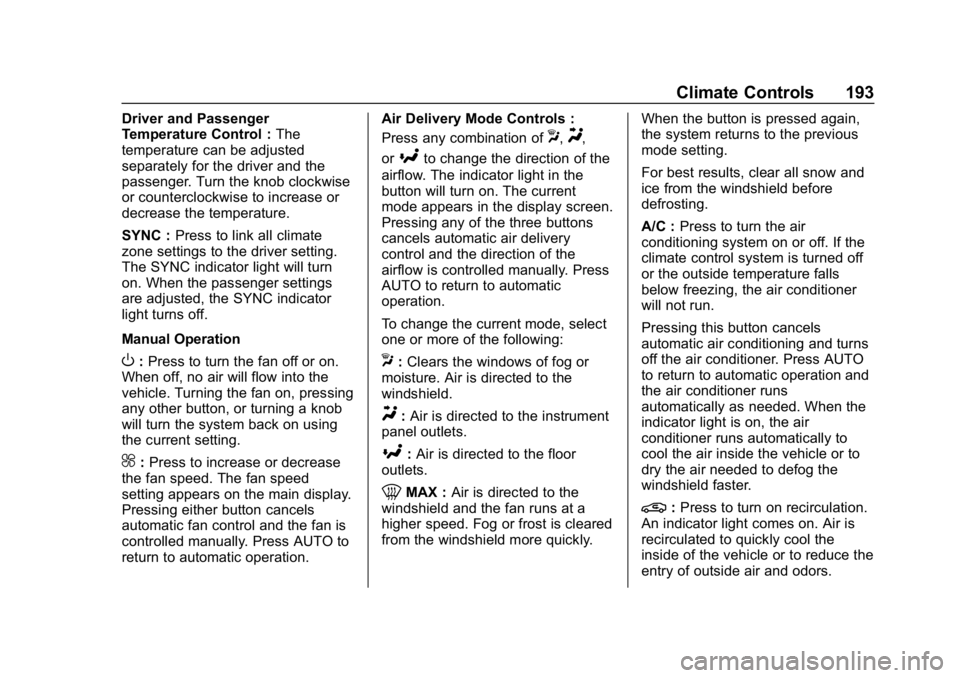
Driver and Passenger
Temperature Control :The
temperature can be adjusted
separately for the driver and the
passenger. Turn the knob clockwise
or counterclockwise to increase or
decrease the temperature.
SYNC : Press to link all climate
zone settings to the driver setting.
The SYNC indicator light will turn
on. When the passenger settings
are adjusted, the SYNC indicator
light turns off.
Manual Operation
O: Press to turn the fan off or on.
When off, no air will flow into the
vehicle. Turning the fan on, pressing
any other button, or turning a knob
will turn the system back on using
the current setting.
^: Press to increase or decrease
the fan speed. The fan speed
setting appears on the main display.
Pressing either button cancels
automatic fan control and the fan is
controlled manually. Press AUTO to
return to automatic operation. Air Delivery Mode Controls :
Press any combination of
X,Y,
or
[to change the direction of the
airflow. The indicator light in the
button will turn on. The current
mode appears in the display screen.
Pressing any of the three buttons
cancels automatic air delivery
control and the direction of the
airflow is controlled manually. Press
AUTO to return to automatic
operation.
To change the current mode, select
one or more of the following:
X: Clears the windows of fog or
moisture. Air is directed to the
windshield.
Y: Air is directed to the instrument
panel outlets.
[: Air is directed to the floor
outlets.
0MAX : Air is directed to the
windshield and the fan runs at a
higher speed. Fog or frost is cleared
from the windshield more quickly. When the button is pressed again,
the system returns to the previous
mode setting.
For best results, clear all snow and
ice from the windshield before
defrosting.
A/C :
Press to turn the air
conditioning system on or off. If the
climate control system is turned off
or the outside temperature falls
below freezing, the air conditioner
will not run.
Pressing this button cancels
automatic air conditioning and turns
off the air conditioner. Press AUTO
to return to automatic operation and
the air conditioner runs
automatically as needed. When the
indicator light is on, the air
conditioner runs automatically to
cool the air inside the vehicle or to
dry the air needed to defog the
windshield faster.@: Press to turn on recirculation.
An indicator light comes on. Air is
recirculated to quickly cool the
inside of the vehicle or to reduce the
entry of outside air and odors.
Page 246 of 428
Chevrolet Equinox Owner Manual (GMNA-Localizing-U.S./Canada/Mexico-
10446639) - 2018 - CRC - 8/18/17
Driving and Operating 245
Warning (Continued)
.Work if the area surrounding
the detection sensor is
damaged or not properly
repaired.
Complete attention is always
required while driving, and you
should be ready to take action
and apply the brakes and/or steer
the vehicle to avoid crashes.
Audible or Safety Alert Seat
Some driver assistance features
alert the driver of obstacles by
beeping. To change the volume of
the warning chime, see “Comfort
and Convenience” underVehicle
Personalization 0145.
If equipped with the Safety Alert
Seat, the driver seat cushion may
provide a vibrating pulse alert
instead of beeping. To change this,
see “Collision/Detection Systems”
under Vehicle Personalization
0 145.
Assistance Systems for
Parking or Backing
If equipped, the Rear Vision Camera
(RVC), Rear Parking Assist (RPA),
and Rear Cross Traffic Alert (RCTA)
may help the driver park or avoid
objects. Always check around the
vehicle when parking or backing.
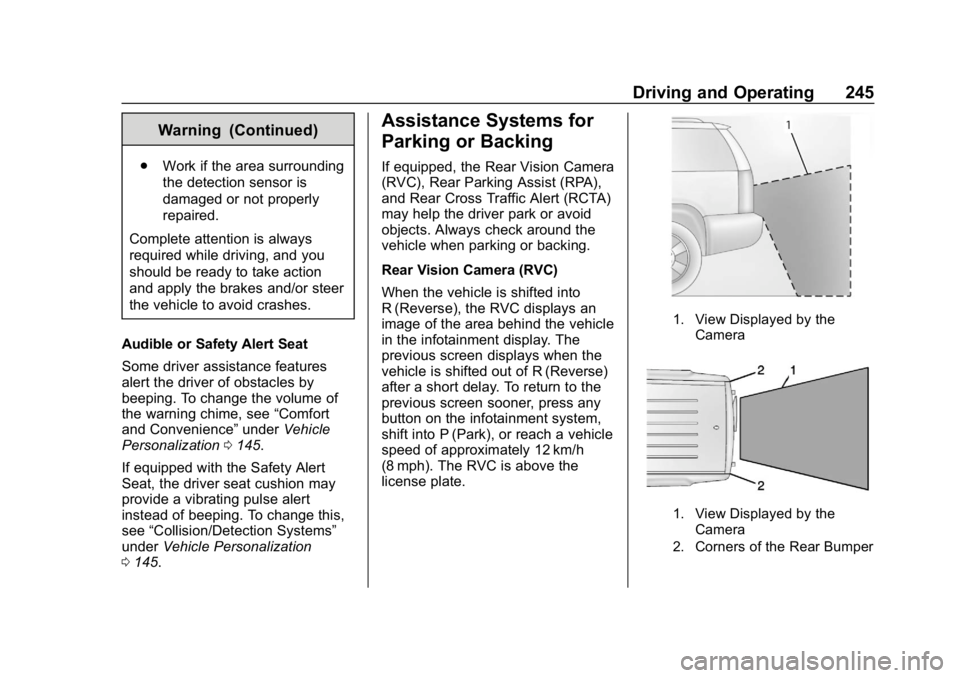
Rear Vision Camera (RVC)
When the vehicle is shifted into
R (Reverse), the RVC displays an
image of the area behind the vehicle
in the infotainment display. The
previous screen displays when the
vehicle is shifted out of R (Reverse)
after a short delay. To return to the
previous screen sooner, press any
button on the infotainment system,
shift into P (Park), or reach a vehicle
speed of approximately 12 km/h
(8 mph). The RVC is above the
license plate.
1. View Displayed by the
Camera
1. View Displayed by theCamera
2. Corners of the Rear Bumper
Page 333 of 428
Chevrolet Equinox Owner Manual (GMNA-Localizing-U.S./Canada/Mexico-
10446639) - 2018 - CRC - 8/18/17
332 Vehicle Care
.The battery of the TPMS sensor
is low.
If the tire fill alert does not operate
due to TPMS interference, move the
vehicle about 1 m (3 ft) back or
forward and try again. If the tire fill
alert feature is not working, use a
tire pressure gauge.
TPMS Sensor Matching
Process
Each TPMS sensor has a unique
identification code. The identification
code needs to be matched to a new
tire/wheel position after rotating the
vehicle’s tires or replacing one or
more of the TPMS sensors. The
TPMS sensor matching process
should also be performed after
replacing a spare tire with a road
tire containing the TPMS sensor.
The malfunction light and the DIC
message should go off at the next
ignition cycle. The sensors are
matched to the tire/wheel positions,
using a TPMS relearn tool, in the
following order: driver side front tire,
passenger side front tire, passenger
side rear tire, and driver side rear tire. See your dealer for service or
to purchase a relearn tool. A TPMS
relearn tool can also be purchased.
See Tire Pressure Monitor
Sensor Activation Tool at
www.gmtoolsandequipment.com or
call 1-800-GM TOOLS
(1-800-468-6657).
There are two minutes to match the
first tire/wheel position, and
five minutes overall to match all four
tire/wheel positions. If it takes
longer, the matching process stops
and must be restarted.
The TPMS sensor matching
process is:
1. Set the parking brake.
2. Place the vehicle in Service Mode. See Ignition Positions
0 215.
3. Make sure the Tire Pressure info page option is turned on.
The info pages on the DIC can
be turned on and off through
the Options menu. See Driver
Information Center (DIC) 0139. 4. Use the DIC controls on the
right side of the steering wheel
to scroll to the Tire Pressure
screen under the DIC
info page.
5. Press and hold
Vin the center
of the DIC controls.
The horn sounds twice to
signal the receiver is in relearn
mode and the TIRE
LEARNING ACTIVE message
displays on the DIC display.
6. Start with the driver side front tire.
7. Place the relearn tool against the tire sidewall, near the valve
stem. Then press the button to
activate the TPMS sensor.
A horn chirp confirms that the
sensor identification code has
been matched to this tire and
wheel position.
8. Proceed to the passenger side front tire, and repeat the
procedure in Step 7.
Page 406 of 428
Chevrolet Equinox Owner Manual (GMNA-Localizing-U.S./Canada/Mexico-
10446639) - 2018 - CRC - 8/18/17
OnStar 405
Security
If equipped, OnStar provides these
services:
.With Stolen Vehicle Assistance,
OnStar Advisors can use GPS to
pinpoint the vehicle and help
authorities quickly recover it.
. With Remote Ignition Block,
if equipped, OnStar can block
the engine from being restarted.
. With Stolen Vehicle Slowdown,
if equipped, OnStar can work
with law enforcement to
gradually slow the vehicle down.
Theft Alarm Notification
If equipped, if the doors are locked
and the vehicle alarm sounds, a
notification by text, e-mail, or phone
call will be sent. If the vehicle is
stolen, an OnStar Advisor can work
with authorities to recover the
vehicle.
Navigation
OnStar navigation requires a
specific OnStar service plan. Press
Qto receive Turn-by-Turn
directions or have them sent to the
vehicle’s navigation screen,
if equipped.
Turn-by-Turn Navigation
1. PressQto connect to an
Advisor.
2. Request directions to be downloaded to the vehicle.
3. Follow the voice-guided commands.
Using Voice Commands
During a Planned Route
Functionality of the Voice Command
button may vary by vehicle and
region. For some vehicles, press
=
to open the OnStar app on the
infotainment display. For other
vehicles press
=as follows.
Cancel Route
1. Press
=. System responds:
“OnStar ready,” then a tone. 2. Say
“Cancel route.” System
responds: “Do you want to
cancel directions?”
3. Say “Yes.”System responds:
“OK, request completed, thank
you, goodbye.”
Route Preview
1. Press
=. System responds:
“OnStar ready,” then a tone.
2. Say “Route preview.” System
responds with the next three
maneuvers.
Repeat
1. Press
=. System responds:
“OnStar ready,” then a tone.
2. Say “Repeat.” System
responds with the last direction
given, then responds with
“OnStar ready,” then a tone.
Get My Destination
1. Press
=. System responds:
“OnStar ready,” then a tone.
Page 407 of 428
Chevrolet Equinox Owner Manual (GMNA-Localizing-U.S./Canada/Mexico-
10446639) - 2018 - CRC - 8/18/17
406 OnStar
2. Say“Get my destination.”
System responds with the
address and distance to the
destination, then responds with
“OnStar ready,” then a tone.
Send Destination to Vehicle
Directions can be sent to the
vehicle’s navigation screen,
if equipped.
Press
Q, then ask the Advisor to
download directions to the vehicle’s
navigation system, if equipped. After
the call ends, the navigation screen
will provide prompts to begin driving
directions. Routes that are sent to
the navigation screen can only be
canceled through the navigation
system.
See www.onstar.com (U.S.) or
www.onstar.ca (Canada).
Connections
The following OnStar services help
with staying connected.
For coverage maps, see
www.onstar.com (U.S.) or
www.onstar.ca (Canada). Ensuring Security
.
Change the default passwords
for the Wi-Fi hotspot and
myChevrolet mobile application.
Make these passwords different
from each other and use a
combination of letters, numbers,
and symbols to increase the
security.
. Change the default name of the
SSID (Service Set Identifier).
This is your network’s name that
is visible to other wireless
devices. Choose a unique name
and avoid family names or
vehicle descriptions.
OnStar Wi-Fi Hotspot (If Equipped)
The vehicle may have a built-in
Wi-Fi hotspot that provides access
to the Internet and web content at
4G LTE speed. Up to seven mobile
devices can be connected. A data
plan is required. Use the in-vehicle
controls only when it is safe to
do so. 1. To retrieve Wi-Fi hotspot
information, press
=to open
the OnStar app on the
infotainment display, then
select Wi-Fi Hotspot. On some
vehicles, touch Wi-Fi or Wi-Fi
Settings on the screen.
2. The Wi-Fi settings will display the Wi-Fi hotspot name (SSID),
password, and on some
vehicles, the connection type
(no Internet connection, 3G,
4G, 4G LTE), and signal quality
(poor, good, excellent).
3. To change the SSID or password, press
Qor call
1-888-4ONSTAR to connect
with an Advisor. On some
vehicles, the SSID and
password can be changed in
the Wi-Fi Hotspot menu.
After initial set-up, your vehicle’s
Wi-Fi hotspot will connect
automatically to your mobile
devices. Manage data usage by
turning Wi-Fi on or off on your
mobile device, using the
myChevrolet mobile app, or by