phone CHEVROLET EQUINOX 2018 User Guide
[x] Cancel search | Manufacturer: CHEVROLET, Model Year: 2018, Model line: EQUINOX, Model: CHEVROLET EQUINOX 2018Pages: 428, PDF Size: 6.05 MB
Page 169 of 428
Chevrolet Equinox Owner Manual (GMNA-Localizing-U.S./Canada/Mexico-
10446639) - 2018 - CRC - 8/18/17
168 Infotainment System
4.d
.Radio: Press and release to
go to the next station or
channel. Press and hold to
fast seek the next track or
strongest station or
channel.
. USB/Music/Pictures: Press
to go to the next content.
Press and hold to fast
forward.
5.
5
. Press and release to
access the phone screen,
answer an incoming call,
or access the device home
screen.
Home Page
Touchscreen Controls
Touchscreen controls show on the
screen when available. When a
function is unavailable, the icon may
gray out. When a function is
selected, the icon may highlight.
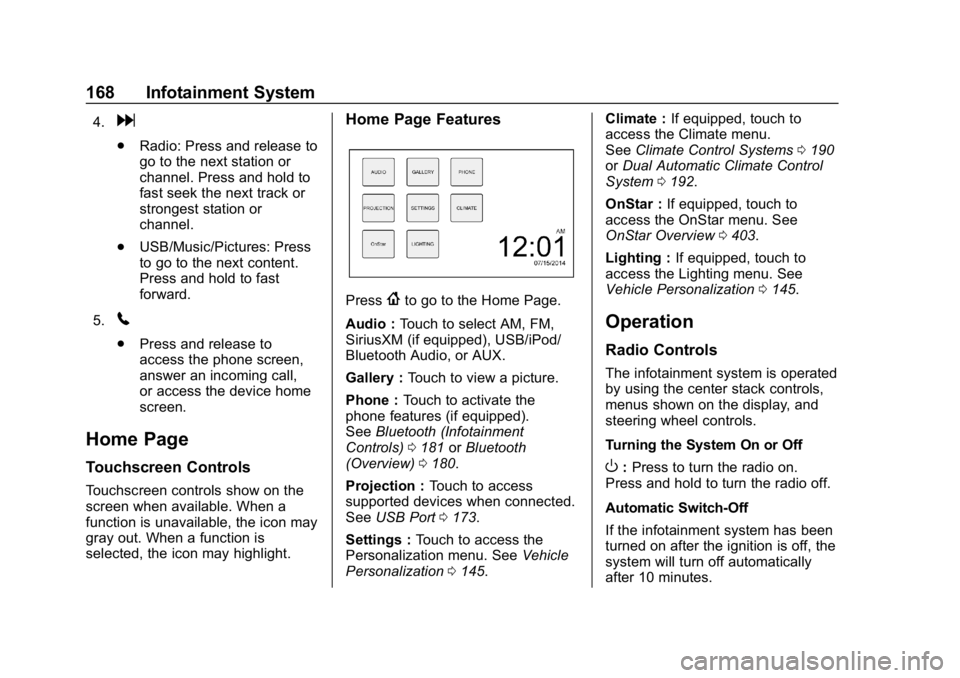
Home Page Features
Press{to go to the Home Page.
Audio : Touch to select AM, FM,
SiriusXM (if equipped), USB/iPod/
Bluetooth Audio, or AUX.
Gallery : Touch to view a picture.
Phone : Touch to activate the
phone features (if equipped).
See Bluetooth (Infotainment
Controls) 0181 orBluetooth
(Overview) 0180.
Projection : Touch to access
supported devices when connected.
See USB Port 0173.
Settings : Touch to access the
Personalization menu. See Vehicle
Personalization 0145. Climate :
If equipped, touch to
access the Climate menu.
See Climate Control Systems 0190
or Dual Automatic Climate Control
System 0192.
OnStar : If equipped, touch to
access the OnStar menu. See
OnStar Overview 0403.
Lighting : If equipped, touch to
access the Lighting menu. See
Vehicle Personalization 0145.
Operation
Radio Controls
The infotainment system is operated
by using the center stack controls,
menus shown on the display, and
steering wheel controls.
Turning the System On or Off
O:Press to turn the radio on.
Press and hold to turn the radio off.
Automatic Switch-Off
If the infotainment system has been
turned on after the ignition is off, the
system will turn off automatically
after 10 minutes.
Page 173 of 428
Chevrolet Equinox Owner Manual (GMNA-Localizing-U.S./Canada/Mexico-
10446639) - 2018 - CRC - 8/18/17
172 Infotainment System
Using the Presets
Up to five favorites pages can be
saved, and each page can store up
to five channels.
To change a preset, tune to the new
desired channel, then touch and
hold the preset.
Listening to Preset Channels1. Touch
SorTrepeatedly to
select the desired
favorites page.
2. Touch the preset to listen to the channel.
Using the SiriusXM Menu
Operation
1. Touch MENU on the SXM radio screen.
2. Touch the menu to select the desired item or to display the
detail menu item.
3. Touch
3to return to the
previous menu. Channel List
1. Touch Channel List from the SXM menu. The channel list is
displayed.
2. Touch
QorRto find the
desired channel. Touch the
channel to select it.
Tone Settings 1. Touch Tone Settings. See “Tone Settings” under
Operation 0168.
2. Touch
3.
Auto Volume 1. Touch Auto Volume. See “Auto
Volume” underOperation
0 168.
2. Touch
3.
Categories 1. Touch Categories.
2. Touch
QorRto find the
desired category. Touch the
category to select it. Explicit Content Filter
When on, only a filtered list of
channels will be received. When off,
all regular SXM programming
subscribed to will be received.
1. Touch SXM Explicit Filter.
2. Select to enable or disable.
Radio Reception
Frequency interference and static
can occur during normal radio
reception if items such as cell phone
chargers, vehicle convenience
accessories, and external electronic
devices are plugged into the
accessory power outlet. If there is
interference or static, unplug the
item from the accessory power
outlet.
FM
FM signals only reach about 16 to
65 km (10 to 40 mi). Although the
radio has a built-in electronic circuit
that automatically works to reduce
interference, some static can occur,
Page 174 of 428
Chevrolet Equinox Owner Manual (GMNA-Localizing-U.S./Canada/Mexico-
10446639) - 2018 - CRC - 8/18/17
Infotainment System 173
especially around tall buildings or
hills, causing the sound to fade in
and out.
AM
The range for most AM stations is
greater than for FM, especially at
night. The longer range can cause
station frequencies to interfere with
each other. Static can occur when
things like storms and power lines
interfere with radio reception. When
this happens, try reducing the treble
on the radio.
SiriusXM Satellite Radio
Service
If equipped, SiriusXM Satellite
Radio Service provides digital radio
reception. Tall buildings or hills can
interfere with satellite radio signals,
causing the sound to fade in and
out. In addition, traveling or standing
under heavy foliage, bridges,
garages, or tunnels may cause loss
of the SiriusXM signal for a period
of time.
Cell Phone Usage
Cell phone usage, such as making
or receiving phone calls, charging,
or just having the phone on may
cause static interference with the
radio. Unplug the phone or turn it off
if this happens.
Multi-Band Antenna
The multi-band antenna is on the
roof of the vehicle. The antenna is
used for AM-FM radio, OnStar, the
SiriusXM satellite radio service
system, and GPS (Global
Positioning System), if the vehicle
has these features. Keep the
antenna clear of obstructions for
clear reception.
If the vehicle has a sunroof, and it is
open, reception can also be
affected.
Audio Players
Avoiding Untrusted Media
Devices
When using media devices such as
CDs, DVDs, Blu-ray Discs, SD
cards, USB devices, and mobile
devices, consider the source.
Untrusted media devices could
contain files that affect system
operation or performance. Avoid use
if the content or origin cannot be
trusted.
USB Port
Using the USB Port
The infotainment system can play
music by connecting an auxiliary
device to the USB port.
USB Support
If equipped, there are USB ports on
the center stack and inside the
center console for data and
charging. There may also be USB
Page 175 of 428
Chevrolet Equinox Owner Manual (GMNA-Localizing-U.S./Canada/Mexico-
10446639) - 2018 - CRC - 8/18/17
174 Infotainment System
charge ports on the rear of the
center console. The USB ports use
the USB 2.0 standard.
USB Supported Devices
.USB Flash Drives
. iPods/iPhones
. Portable USB Hard Drives
Not all iPods and USB drives are
compatible with the USB port.
Make sure the iPod has the latest
firmware from Apple for proper
operation. iPod firmware can be
updated using the latest iTunes
application. See www.apple.com/
itunes in the U.S. and Canada only.
For help with identifying your iPod,
go to www.apple.com/support in the
U.S. and Canada only.
The USB port can play both lower
and upper case .mp3, .wma, .ogg,
and .wav files stored on a USB
storage device. Supported Apple Devices
To view supported devices in the
U.S., see www.my.chevrolet.com
\learned.
To view supported devices in
Canada, see
www.chevroletowner.ca.
For information on supported
devices in Mexico, see your dealer.
USB Supported File and Folder
Structure
The infotainment system supports:
.
FAT16.
. FAT32.
. exFAT.
Connecting a USB Storage
Device or iPod/iPhone
To connect a USB storage device,
connect the device to the USB port.
To connect an iPod/iPhone, connect
one end of the device’ s cable to the
iPod/iPhone and the other end to
the USB port. The iPod/iPhone charges while it is
connected to the vehicle if the
vehicle is on or in ACC/
ACCESSORY. See
Ignition
Positions 0215. When the vehicle is
turned off, the iPod/iPhone
automatically powers off and will not
charge or draw power from the
vehicle's battery.
For more information on USB
usage, see “Audio System
Information” following.
Audio System Information
The infotainment system can play
the music files contained in the USB
storage device or iPod/iPhone
products.
Using MP3/WMA/OGG/WAV Files
.
Music files with .mp3, .wma,
.ogg, and .wav file name
extensions can be played.
. MP3 files that can be played: Bit
rate: 8 kbps to 320 kbps.
Sampling frequency: 48 kHz,
44.1 kHz, 32 kHz, 24 kHz, 22.05
kHz, and 16 kHz.
Page 176 of 428

Chevrolet Equinox Owner Manual (GMNA-Localizing-U.S./Canada/Mexico-
10446639) - 2018 - CRC - 8/18/17
Infotainment System 175
.Files with a bit rate above
128 kbps will result in higher
quality sound.
. ID3 Tag information for MP3
files, such as the album name
and the artist, can be played.
. To display album title, track title,
and artist information, the file
should be compatible with the
ID3 Tag V1 and V2 formats.
Using USB Storage Devices and
an iPod/iPhone
. Use a USB or flash memory type
storage device. Do not connect
using a USB adaptor.
. Do not connect and reconnect
the USB device repeatedly in a
short time, as this may cause
static electricity and problems
using the device.
. Use a USB device with a metal
connecting terminal.
. Connection with i-Stick Type
USB storage devices may be
faulty due to vehicle vibration.
. Do not touch the USB
connecting terminal. .
Only USB storage devices
formatted in FAT16/32 or exFAT
file systems are recognized.
NTFS and other file systems are
not recognized.
. The time it takes to process files
will depend on the USB storage
device type and capacity, and
the type of files stored.
. Some USB storage device files
may not be compatible.
. Up to two USB devices and one
iPod can be played through a
USB hub. All devices may not be
supported, depending on the
performance of the USB hub.
If there is not enough power
supply, it may not operate
normally.
. Do not disconnect the USB
storage device while it is playing.
This may cause damage to the
product or affect the
performance of the USB device.
. Disconnect the USB storage
device when the ignition is
turned off. If the ignition is turned
on while the USB device is connected, the USB device may
be damaged or may not operate
normally.
. USB storage devices can only
be connected for playing music,
viewing photo files,
or upgrading.
. Do not use the USB terminal to
charge USB accessory
equipment. The heat generated
may cause performance issues
or damage.
. Music files to which Digital Right
Management (DRM) is applied
cannot be played.
. USB storage device that has a
capacity limit of no more than
5,000 files, such as music,
photo, video, 15 levels of folder
structure. Normal usage cannot
be guaranteed for a storage
device that exceeds this limit.
The iPod/iPhone can play all
music files that are supported.
The music file lists will only
display up to 5,000 files on the
screen. These files are sorted in
alphabetical order.
Page 177 of 428
Chevrolet Equinox Owner Manual (GMNA-Localizing-U.S./Canada/Mexico-
10446639) - 2018 - CRC - 8/18/17
176 Infotainment System
.Some iPod/iPhone product
models may not support the
connectivity or functionality of
this product.
. Only connect the iPod/iPhone
with connection cables
supported by iPod/iPhone
products. Other connection
cables cannot be used.
. The iPod/iPhone may be
damaged if it is connected to the
vehicle with the ignition on.
When not in use, disconnect the
iPod/iPhone.
. When the iPod/iPhone is
connected to the USB port by
using the iPod/iPhone cable, the
Bluetooth music is not
supported.
. The iPod/iPhone playback
functions and the information
displayed may be different when
played on the infotainment
system.
.
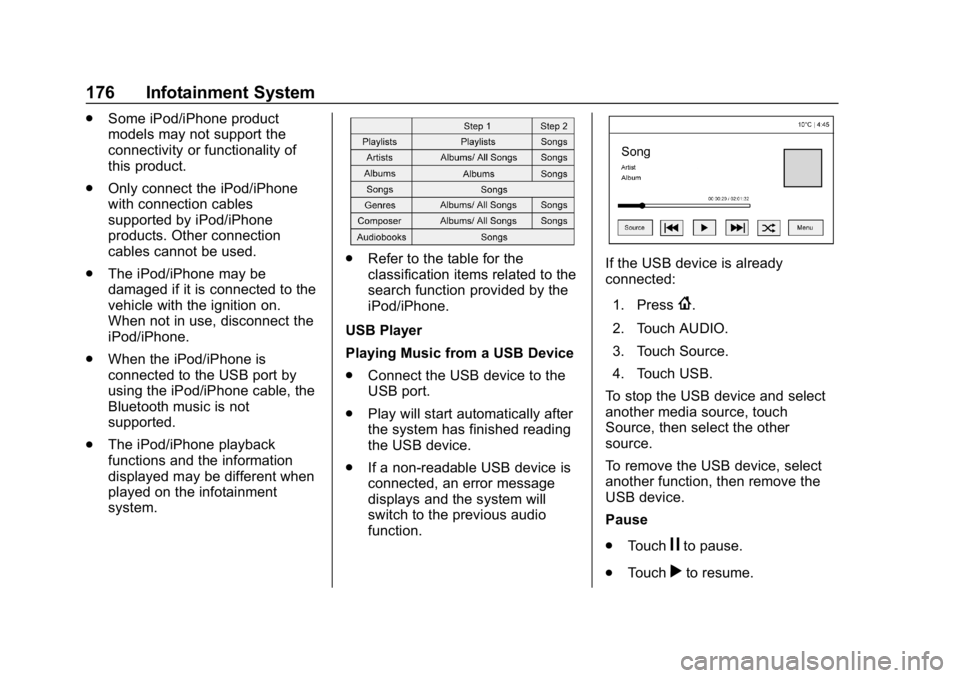
Refer to the table for the
classification items related to the
search function provided by the
iPod/iPhone.
USB Player
Playing Music from a USB Device
. Connect the USB device to the
USB port.
. Play will start automatically after
the system has finished reading
the USB device.
. If a non-readable USB device is
connected, an error message
displays and the system will
switch to the previous audio
function.If the USB device is already
connected:
1. Press
{.
2. Touch AUDIO.
3. Touch Source.
4. Touch USB.
To stop the USB device and select
another media source, touch
Source, then select the other
source.
To remove the USB device, select
another function, then remove the
USB device.
Pause
. Touch
jto pause.
. Touch
rto resume.
Page 178 of 428
Chevrolet Equinox Owner Manual (GMNA-Localizing-U.S./Canada/Mexico-
10446639) - 2018 - CRC - 8/18/17
Infotainment System 177
Changing to Next/Previous Files
.Touch
lto change to the
next file.
. Touch
gwithin five seconds of
the playback time to play the
previous file.
Returning to the Beginning of the
Current File
Touch
gafter five seconds of the
playback time.
Scanning Forward or Backward
Touch and hold
gorlduring
playback to rewind or fast forward.
Release to resume playback at
normal speed.
Playing Files Randomly
Touch
Zduring playback.
. ON: Plays all files randomly.
. OFF: Returns to normal
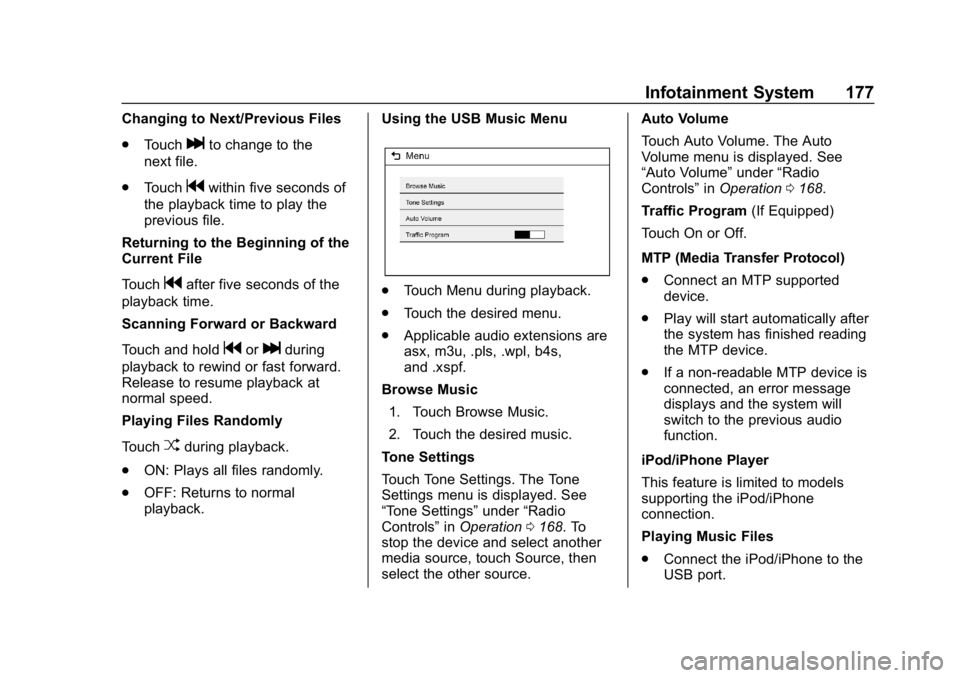
playback. Using the USB Music Menu
.
Touch Menu during playback.
. Touch the desired menu.
. Applicable audio extensions are
asx, m3u, .pls, .wpl, b4s,
and .xspf.
Browse Music 1. Touch Browse Music.
2. Touch the desired music.
Tone Settings
Touch Tone Settings. The Tone
Settings menu is displayed. See
“Tone Settings” under“Radio
Controls” inOperation 0168. To
stop the device and select another
media source, touch Source, then
select the other source. Auto Volume
Touch Auto Volume. The Auto
Volume menu is displayed. See
“Auto Volume”
under“Radio
Controls” inOperation 0168.
Traffic Program (If Equipped)
Touch On or Off.
MTP (Media Transfer Protocol)
. Connect an MTP supported
device.
. Play will start automatically after
the system has finished reading
the MTP device.
. If a non-readable MTP device is
connected, an error message
displays and the system will
switch to the previous audio
function.
iPod/iPhone Player
This feature is limited to models
supporting the iPod/iPhone
connection.
Playing Music Files
. Connect the iPod/iPhone to the
USB port.
Page 179 of 428
Chevrolet Equinox Owner Manual (GMNA-Localizing-U.S./Canada/Mexico-
10446639) - 2018 - CRC - 8/18/17
178 Infotainment System
.Play will start from the previously
played point after the system
has finished reading the USB
device.
. If a non-readable USB device is
connected, an error message
displays and the system will
switch to the previous audio
function.
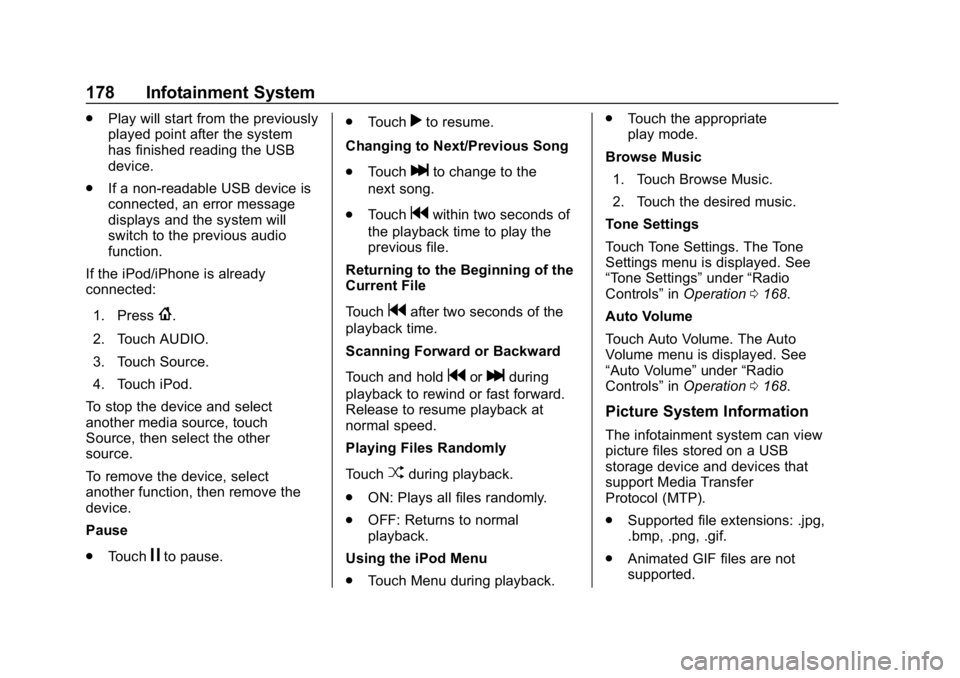
If the iPod/iPhone is already
connected:
1. Press
{.
2. Touch AUDIO.
3. Touch Source.
4. Touch iPod.
To stop the device and select
another media source, touch
Source, then select the other
source.
To remove the device, select
another function, then remove the
device.
Pause
. Touch
jto pause. .
Touch
rto resume.
Changing to Next/Previous Song
. Touch
lto change to the
next song.
. Touch
gwithin two seconds of
the playback time to play the
previous file.
Returning to the Beginning of the
Current File
Touch
gafter two seconds of the
playback time.
Scanning Forward or Backward
Touch and hold
gorlduring
playback to rewind or fast forward.
Release to resume playback at
normal speed.
Playing Files Randomly
Touch
Zduring playback.
. ON: Plays all files randomly.
. OFF: Returns to normal
playback.
Using the iPod Menu
. Touch Menu during playback. .
Touch the appropriate
play mode.
Browse Music 1. Touch Browse Music.
2. Touch the desired music.
Tone Settings
Touch Tone Settings. The Tone
Settings menu is displayed. See
“Tone Settings” under“Radio
Controls” inOperation 0168.
Auto Volume
Touch Auto Volume. The Auto
Volume menu is displayed. See
“Auto Volume” under“Radio
Controls” inOperation 0168.
Picture System Information
The infotainment system can view
picture files stored on a USB
storage device and devices that
support Media Transfer
Protocol (MTP).
.
Supported file extensions: .jpg,
.bmp, .png, .gif.
. Animated GIF files are not
supported.
Page 180 of 428
Chevrolet Equinox Owner Manual (GMNA-Localizing-U.S./Canada/Mexico-
10446639) - 2018 - CRC - 8/18/17
Infotainment System 179
.Some files may not operate due
to a different recording format or
the condition of the file.
Viewing Pictures 1. Connect the USB device to the USB port.
2. Touch the screen to open to full screen. Touch the screen again
to return to the previous
screen.
If the USB device is already
connected:
1. Press
{.
2. Touch GALLERY.
Some features are disabled while
the vehicle is in motion.
Viewing a Slide Show
1. Touch
zfrom the picture
screen.
2. Touch the screen to cancel the slide show during the slide
show playback. Viewing a Previous or Next
Picture
Touch
SorTfrom the picture
screen.
Rotating a Picture
Touch
wfrom the picture screen.
Enlarging a Picture
Touch
xfrom the picture screen.
Using the USB Picture Menu 1. Touch MENU from the picture screen.
2. Touch the appropriate menu: .Slide Show Time: Allows
selection of the slide show
interval.
. Clock, Temp. Display:
Allows selection of On or
Off to show the clock and
temperature on the full
screen. .
Display Settings: Adjusts
for Brightness and Contrast.
3. Touch
3to exit.
Auxiliary Devices
Using the Auxiliary Input Jack
Settings menus and functions may
vary depending on vehicle options.
The auxiliary input jack can be used
to connect external audio devices
such as an iPod, iPhone, MP3
player, and other supported devices
for use as another source for audio
listening. This input jack is not an
audio output; do not plug
headphones into the front auxiliary
input jack.
The auxiliary input jack is on the
center stack. The infotainment
system can play music connected
by the auxiliary device.
Page 181 of 428
Chevrolet Equinox Owner Manual (GMNA-Localizing-U.S./Canada/Mexico-
10446639) - 2018 - CRC - 8/18/17
180 Infotainment System
Play will begin when the system has
finished reading the information on
the device.
Playing Music
To play music from the device, if the
device is already connected:1. Press
{.
2. Touch AUDIO.
3. Touch Source.
4. Touch AUX.
5. Touch
3.
To adjust the tone settings, see
“Tone Settings” inOperation 0168.
Phone
Bluetooth (Overview)
If equipped with Bluetooth capability,
the system can interact with many
Bluetooth phones, PDAs, or other
devices to:
.
Place and receive hands-free
calls.
. Transmit hands-free data.
. Play audio streaming files.
The device must be paired first. See
“Pairing” under“Bluetooth
(Infotainment Controls)” later in this
section.
To minimize driver distraction,
before driving, and with the vehicle
parked:
. Become familiar with the
features of the cell phone.
Organize the phone book and
contact lists clearly and delete
duplicate or rarely used entries.
If possible, program speed dial
or other shortcuts. .
Review the controls and
operation of the infotainment
system.
. Pair cell phone(s) to the vehicle.
The system may not work with
all cell phones. See “Pairing”
under “Bluetooth (Infotainment
Controls)” later in this section.
{Warning
When using a cell phone, it can
be distracting to look too long or
too often at the screen of the
phone or the infotainment system.
Taking your eyes off the road too
long or too often could cause a
crash resulting in injury or death.
Focus your attention on driving.
Vehicles with a Bluetooth system
can use a Bluetooth-capable cell
phone with a Hands-Free Profile to
make and receive phone calls. The
infotainment system is used to
control the system. The system can
be used while the ignition is on or in
ACC/ACCESSORY. See Ignition
Positions 0215. Not all phones