radio CHEVROLET EXPRESS 2016 User Guide
[x] Cancel search | Manufacturer: CHEVROLET, Model Year: 2016, Model line: EXPRESS, Model: CHEVROLET EXPRESS 2016Pages: 289, PDF Size: 11.46 MB
Page 102 of 289

Chevrolet Express Owner Manual (GMNA-Localizing-U.S./Canada/Mexico-
15555951) - 2022 - CRC - 1/27/22
Infotainment System 101
To scan stations, press and hold either
button for two seconds until a beep sounds.
The radio goes to a station, plays for a few
seconds, then goes to the next station. For
AM-FM Radio, the station frequency flashes
while the radio is in the scan mode. Press
either button again to stop scanning.
The radio seeks and scans stations only with
a strong signal that are in the
selected band.
Scan presets within the current selected
band by pressing and holding either SEEK
button for four seconds until a double beep
sounds. The radio goes to a stored preset,
plays for a few seconds if a strong signal is
present, then goes to the next stored preset.
The station frequency flashes while the
radio is in the scan mode.
Storing a Radio Station as a Favorite
You are encouraged to set up radio station
favorites while the vehicle is parked. Tune to
favorite stations using the presets, favorites
button, and steering wheel controls,
if equipped. SeeDefensive Driving 0121.
FAV : If equipped with a FAV button, a
maximum of 36 stations can be programmed
as favorites by using the six softkeys below
the radio station frequency tabs and by using the radio favorites page button (FAV
button). Press FAV to go through up to
six pages of favorites, each having
six favorite stations available per page. Each
page of favorites can contain any
combination of AM and FM stations.
The balance/fade and tone settings that
were previously adjusted are stored with the
favorite stations.
To store a station as a favorite:
1. Tune to the desired radio station.
2. Press FAV to display the page where the station is to be stored.
3. Press and hold one of the six softkeys until a beep sounds. When that softkey
is pressed and released, the station that
was set returns.
4. Repeat the steps for each softkey radio station to be stored as a favorite.
The number of favorites pages can be set up
using the MENU button. To set up the
number of favorites pages: 1. Press MENU to display the radio setup menu.
2. Press the softkey below the FAV 1-6 tab. 3. Select the desired number of favorites
pages by pressing the softkey below the
displayed page numbers.
4. Press FAV, or let the menu time out, to return to the original main radio screen
showing the radio station frequency tabs
and to begin the process of
programming favorites for the chosen
number of numbered pages.
Satellite Radio
SiriusXM, if equipped, is a satellite radio
service based in the United States and
Canada only.
Finding a Category (CAT) Station
CAT : The CAT button is used to find SXM
channels (if equipped) while the radio is in
the SXM mode.
Finding a Channel
BAND or SRCE : Press to switch between
FM1, FM2, AM, and SXM if equipped. The
selection displays.
f: Turn clockwise or counterclockwise to
increase or decrease the station frequency.
Page 103 of 289
Chevrolet Express Owner Manual (GMNA-Localizing-U.S./Canada/Mexico-
15555951) - 2022 - CRC - 1/27/22
102 Infotainment System
©SEEK or¨SEEK :Press©SEEK to go to
the previous or
¨SEEK to go to the next
station and stay there.
To scan stations, press and hold either
button for two seconds until a beep sounds.
The radio goes to a station, plays for a few
seconds, then goes to the next station. The
station frequency flashes while the radio is
in the scan mode. Press either button again
to stop scanning.
The radio seeks and scans stations only with
a strong signal that are in the
selected band.
To scan presets within the current selected
band, press and hold either SEEK button for
four seconds until a double beep sounds. The
radio goes to a stored preset, plays for a
few seconds if a strong signal is present,
then goes to the next stored preset. The
station frequency flashes while the radio is
in the scan mode.
Storing a Radio Station as a Favorite
You are encouraged to set up radio station
favorites while the vehicle is parked. Tune to
favorite stations using the presets, favorites
button, and steering wheel controls,
if equipped. See Defensive Driving 0121. FAV :
If equipped with a FAV button, a
maximum of 36 stations can be programmed
as favorites using the six softkeys below the
radio station frequency tabs and by using
the radio favorites page button (FAV
button). Press FAV to go through up to
six pages of favorites, each having
six favorite stations available per page. Each
page of favorites can contain any
combination of AM, FM, or SXM stations.
The balance/fade and tone settings that
were previously adjusted are stored with the
favorite stations.
To store a station as a favorite:
1. Tune to the desired radio station.
2. Press FAV to display the page where the station is to be stored.
3. Press and hold one of the six softkeys until a beep sounds. When that softkey
is pressed and released, the station that
was set returns.
4. Repeat the steps for each softkey radio station to be stored as a favorite.
The number of favorites pages can be set up
using the MENU button. To set up the
number of favorites pages: 1. Press MENU to display the radio setup menu. 2. Press the softkey below the FAV 1-6 tab.
3. Select the desired number of favorites
pages by pressing the softkey below the
displayed page numbers.
4. Press FAV, or let the menu time out, to return to the original main radio screen
showing the radio station frequency tabs
and to begin the process of
programming favorites for the chosen
number of numbered pages.
Radio Reception
Unplug electronic devices from the accessory
power outlets if there is interference or
static in the radio.
FM
FM signals only reach about 16 to 65 km (10
to 40 mi). Although the radio has a built-in
electronic circuit that automatically works to
reduce interference, some static can occur,
especially around tall buildings or hills,
causing the sound to fade in and out.
AM
The range for most AM stations is greater
than for FM, especially at night. The longer
range can cause station frequencies to
interfere with each other. Static can also
Page 104 of 289
Chevrolet Express Owner Manual (GMNA-Localizing-U.S./Canada/Mexico-
15555951) - 2022 - CRC - 1/27/22
Infotainment System 103
occur when things like storms and power
lines interfere with radio reception. When
this happens, try reducing the treble on the
radio.
SiriusXM Satellite Radio Service
If equipped, SiriusXM Satellite Radio Service
provides digital radio reception. Tall
buildings or hills can interfere with satellite
radio signals, causing the sound to fade in
and out. In addition, traveling or standing
under heavy foliage, bridges, garages,
or tunnels may cause loss of the SiriusXM
signal for a period of time. Some cellular
services may interfere with SXM reception
causing loss of signal.
Mobile Device Usage
Mobile device usage, such as making or
receiving calls, charging, or just having the
mobile device on may cause static
interference in the radio. Unplug the mobile
device or turn it off if this happens.
Fixed Mast Antenna
The fixed mast antenna will go through
most car washes as long as it is securely
attached. If the antenna becomes slightly
bent, straighten it out by hand. If it is badly
bent, replace it.Occasionally check that the antenna is tight
at the base. If tightening is required, protect
the paint from damage.
Multi-Band Antenna
The roof antenna may be used for radio,
navigation, and OnStar, depending on the
equipped options. Keep clear of obstructions
for clear reception. If the vehicle has a
sunroof, and it is open, reception can also
be affected.
Audio Players
Avoiding Untrusted Media Devices
When using media devices such as CDs,
DVDs, Blu-ray Discs, SD cards, USB devices,
and mobile devices, consider the source.
Untrusted media devices could contain files
that affect system operation or performance.
Avoid use if the content or origin cannot be
trusted.
Auxiliary Devices
Using the Auxiliary Input Jack
Radios with an auxiliary input jack on the
lower right side can connect to an external
audio device such as an iPod, MP3 player,
or CD player for use as another source for
audio listening. This input jack is not an
audio output; do not plug headphones into
the front auxiliary input jack.
Drivers are encouraged to set up any
auxiliary device while the vehicle is in
P (Park). See
Defensive Driving 0121 for
more information on driver distraction.
To use a portable audio player, connect a
3.5 mm (1/8 in) cable to the radio's front
auxiliary input jack. When a device is
connected, press the radio CD/AUX button
to begin playing audio from the device over
the vehicle speakers.
For optimal sound quality, increase the
portable audio device's volume to the
loudest level.
It is always best to power the portable
audio device through its own battery while
playing.
O: Turn clockwise or counterclockwise to
increase or decrease the volume of the
portable player. Additional volume
adjustments might have to be made from
the portable device if the volume is not loud
or soft enough.
Page 105 of 289
Chevrolet Express Owner Manual (GMNA-Localizing-U.S./Canada/Mexico-
15555951) - 2022 - CRC - 1/27/22
104 Infotainment System
BAND :If equipped, press to listen to the
radio when a portable audio device is
playing. The portable audio device continues
playing.
CD/AUX : If equipped, press to play a CD
when a portable audio device is playing.
Press again and the system begins playing
audio from the connected portable audio
player. If a portable audio player is not
connected, “No Input Device Found” displays.
SRCE : If equipped, press to listen to the
radio when a portable audio device is
playing. The portable audio device continues
playing.
Press to play a CD when a portable audio
device is playing. Press again and the
system begins playing audio from the
connected portable audio player. If a
portable audio player is not connected, “No
Input Device Found” displays.
Using the USB Port
Radios with a USB port can control a USB
storage device or an iPod using the radio
buttons and knobs. USB Support
Caution
To avoid vehicle damage, unplug all
accessories and disconnect all accessory
cables from the vehicle when not in use.
Accessory cables left plugged into the
vehicle, unconnected to a device, could be
damaged or cause an electrical short if
the unconnected end comes in contact
with liquids or another power source such
as the accessory power outlet.
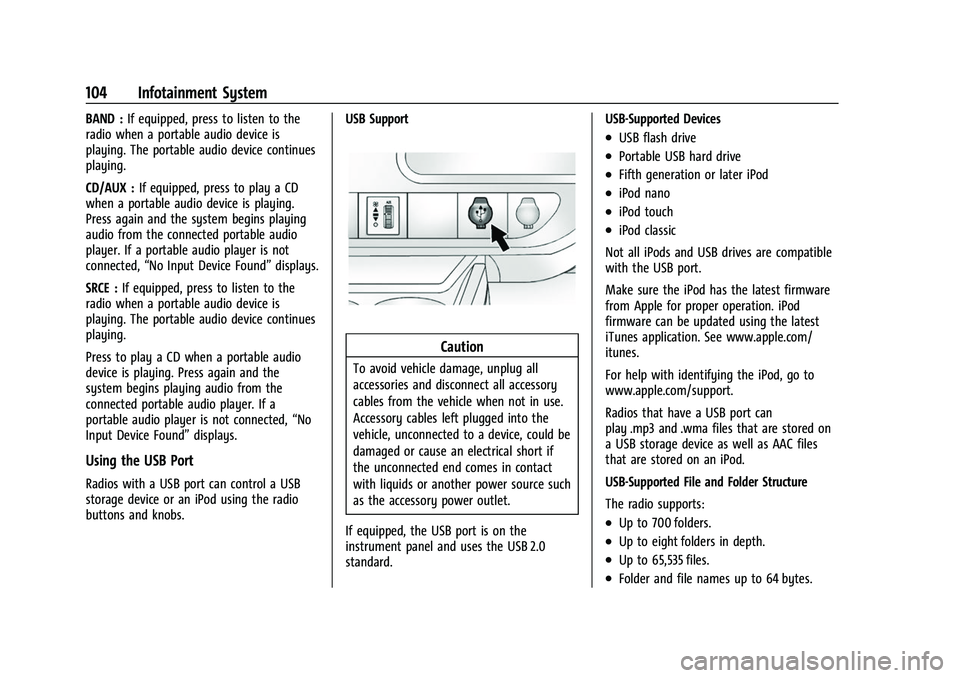
If equipped, the USB port is on the
instrument panel and uses the USB 2.0
standard. USB-Supported Devices
.USB flash drive
.Portable USB hard drive
.Fifth generation or later iPod
.iPod nano
.iPod touch
.iPod classic
Not all iPods and USB drives are compatible
with the USB port.
Make sure the iPod has the latest firmware
from Apple for proper operation. iPod
firmware can be updated using the latest
iTunes application. See www.apple.com/
itunes.
For help with identifying the iPod, go to
www.apple.com/support.
Radios that have a USB port can
play .mp3 and .wma files that are stored on
a USB storage device as well as AAC files
that are stored on an iPod.
USB-Supported File and Folder Structure
The radio supports:
.Up to 700 folders.
.Up to eight folders in depth.
.Up to 65,535 files.
.Folder and file names up to 64 bytes.
Page 106 of 289
Chevrolet Express Owner Manual (GMNA-Localizing-U.S./Canada/Mexico-
15555951) - 2022 - CRC - 1/27/22
Infotainment System 105
.Files with an .mp3 or .wma file extension.
.AAC files stored on an iPod.
.FAT16.
.FAT32.
Connecting a USB Storage Device or iPod
The USB port can be used to control an iPod
or a USB storage device.
To connect a USB storage device, connect
the device to the USB port on the
instrument panel.
To connect an iPod, connect one end of the
USB cable that came with the iPod to the
iPod’s dock connector and connect the other
end to the USB port on the instrument
panel. If the vehicle is on and the USB
connection works,“OK to disconnect” and a
GM logo may appear on the iPod, and iPod
appears on the infotainment display. The
iPod music appears on the infotainment
display and begins playing.
The iPod charges while it is connected to
the vehicle if the ignition is on or in ACC/
ACCESSORY. When the vehicle is turned off,
the iPod automatically powers off and will
not charge or draw power from the vehicle's
battery. If you have an older iPod model that is not
supported, it can still be used by connecting
it to the auxiliary input jack using a
standard 3.5 mm (1/8 in) stereo cable. See
“Using the Auxiliary Input Jack”
previously in
this section.Using the Radio to Control a USB
Storage Device or iPod
The radio can control a USB storage device
or an iPod using the radio buttons and
knobs, and can display song information on
the infotainment display.
f: Turn to select files.
©SEEK : Press to go to the start of the
track, if more than 10 seconds have played.
Press and hold or press multiple times to
continue moving backward through tracks.
¨SEEK : Press to go to the next track. Press
and hold or press multiple times to continue
moving forward through tracks.
sREV : Press and hold to reverse playback
quickly. Sound is heard at a reduced volume.
Release
sREV to resume playing. The
elapsed time of the file displays.
\FWD : Press and hold to advance
playback quickly. Sound is heard at a
reduced volume. Release
\FWD to resume
playing. The elapsed time of the file
displays.
4: Press to display additional information
about the selected track.
Using Softkeys to Control a USB Storage
Device or iPod
The five softkeys below the infotainment
display are used to control the functions
listed below.
To use the softkeys:
1. Press the first or fifth softkey below the infotainment display to display the
functions listed below, or press the
softkey below the function if it is
currently displayed.
2. Press the softkey below the tab with the function on it to use that function.
j:Press the softkey belowjto pause the
track. The tab appears raised when pause is
being used. Press the softkey below
jagain
to resume playback.
Page 113 of 289
Chevrolet Express Owner Manual (GMNA-Localizing-U.S./Canada/Mexico-
15555951) - 2022 - CRC - 1/27/22
112 Infotainment System
3. Say“Voice.” The system responds “OK,
accessing
The cell phone's normal prompt messages
will go through their cycle according to the
phone's operating instructions.
Dual Tone Multi-Frequency (DTMF) Tones
The Bluetooth system can send numbers
and the numbers stored as name tags
during a call. You can use this feature when
calling a menu-driven phone system.
Account numbers can also be stored for use.
Sending a Number or Name Tag During
a Call
1. Press
b/g. The system responds
“Ready,” followed by a tone.
2. Say “Dial.”
3. Say the number or name tag to send.
Clearing the System
Unless information is deleted out of the
in-vehicle Bluetooth system, it will be
retained indefinitely. This includes all saved
name tags in the phone book and phone
pairing information. For information on how
to delete this information, see the previous
section “Deleting a Paired Phone” and the
previous sections on deleting name tags.
Other Information
The Bluetooth word mark and logos are
owned by the Bluetooth SIG, Inc. and any
use of such marks by General Motors is
under license. Other trademarks and trade
names are those of their respective owners.
See Radio Frequency Statement 0267.
Trademarks and License
Agreements
FCC Information
See Radio Frequency Statement 0267.
"Made for iPod," and "Made for iPhone,"
mean that an electronic accessory has been
designed to connect specifically to iPod or
iPhone, respectively, and has been certified
by the developer to meet Apple
performance standards. Apple is not
responsible for the operation of this device
or its compliance with safety and regulatory standards. Please note that the use of this
accessory with iPod or iPhone may affect
wireless performance. iPhone, iPod, iPod
classic, iPod nano, iPod shuffle, and iPod
touch are trademarks of Apple Inc.,
registered in the U.S. and other countries.
Fees and Taxes: Subscription fee, taxes, one
time activation fee, and other fees may
apply. Subscription fee is consumer only. All
fees and programming subject to change.
Subscriptions subject to Customer
Agreement available at www.siriusxm.com.
SiriusXM service only available in the
48 contiguous United States and Canada.
In Canada: Some deterioration of service
may occur in extreme northern latitudes.
This is beyond the control of SiriusXM
Satellite Radio.
Explicit Language Notice: Channels with
frequent explicit language are indicated with
an
“XL” preceding the channel name.
Page 114 of 289
Chevrolet Express Owner Manual (GMNA-Localizing-U.S./Canada/Mexico-
15555951) - 2022 - CRC - 1/27/22
Infotainment System 113
Channel blocking is available for SiriusXM
Satellite Radio receivers by notifying
SiriusXM:
.USA Customers: See www.siriusxm.com or
call 1-888-601-6296.
.Canadian Customers: See www.siriusxm.ca
or call 1-877-438-9677.
It is prohibited to copy, decompile,
disassemble, reverse engineer, hack,
manipulate, or otherwise make available any
technology or software incorporated in
receivers compatible with the SiriusXM
Satellite Radio System or that support the
SiriusXM website, the Online Service or any
of its content. Furthermore, the AMBER voice
compression software included in this
product is protected by intellectual property
rights including patent rights, copyrights,
and trade secrets of Digital Voice
Systems, Inc.
General Requirements: 1. A License Agreement from SiriusXM is required for any product that
incorporates SiriusXM Technology
and/or for use of any of the SiriusXM
marks to be manufactured, distributed,
or marketed in the SiriusXM
Service Area. 2. For products to be distributed, marketed,
and/or sold in Canada, a separate
agreement is required with Canadian
Satellite Radio Inc. (operating as XM
Canada).Bluetooth
The Bluetooth word mark and logos are
owned by the Bluetooth SIG, Inc. and any
use of such marks by General Motors is
under license. Other trademarks and trade
names are those of their respective owners.
Page 122 of 289
Chevrolet Express Owner Manual (GMNA-Localizing-U.S./Canada/Mexico-
15555951) - 2022 - CRC - 1/27/22
Driving and Operating 121
Driving Information
Driving for Better Fuel Economy
Driving habits can affect fuel mileage. Here
are some driving tips to get the best fuel
economy possible:
.Set the climate controls to the desired
temperature after the engine is started,
or turn them off when not required.
.Avoid fast starts and accelerate smoothly.
.Brake gradually and avoid abrupt stops.
.Avoid idling the engine for long periods
of time.
.When road and weather conditions are
appropriate, use cruise control.
.Always follow posted speed limits or
drive more slowly when conditions
require.
.Keep vehicle tires properly inflated.
.Combine several trips into a single trip.
.Replace the vehicle's tires with the same
TPC Spec number molded into the tire's
sidewall near the size.
.Follow recommended scheduled
maintenance.
Distracted Driving
Distraction comes in many forms and can
take your focus from the task of driving.
Exercise good judgment and do not let other
activities divert your attention away from
the road. Many local governments have
enacted laws regarding driver distraction.
Become familiar with the local laws in
your area.
To avoid distracted driving, keep your eyes
on the road, keep your hands on the
steering wheel, and focus your attention on
driving.
.Do not use a phone in demanding driving
situations. Use a hands-free method to
place or receive necessary phone calls.
.Watch the road. Do not read, take notes,
or look up information on phones or
other electronic devices.
.Designate a front seat passenger to
handle potential distractions.
.Become familiar with vehicle features
before driving, such as programming
favorite radio stations and adjusting
climate control and seat settings. Program
all trip information into any navigation
device prior to driving.
.Wait until the vehicle is parked to
retrieve items that have fallen to the
floor.
.Stop or park the vehicle to tend to
children.
.Keep pets in an appropriate carrier or
restraint.
.Avoid stressful conversations while
driving, whether with a passenger or on a
cell phone.
{Warning
Taking your eyes off the road too long or
too often could cause a crash resulting in
injury or death. Focus your attention on
driving.
Refer to the infotainment section for more
information on using that system and the
navigation system, if equipped, including
pairing and using a cell phone.
Defensive Driving
Defensive driving means “always expect the
unexpected.” The first step in driving
defensively is to wear the seat belt. See
Seat Belts 028.
Page 148 of 289
Chevrolet Express Owner Manual (GMNA-Localizing-U.S./Canada/Mexico-
15555951) - 2022 - CRC - 1/27/22
Driving and Operating 147
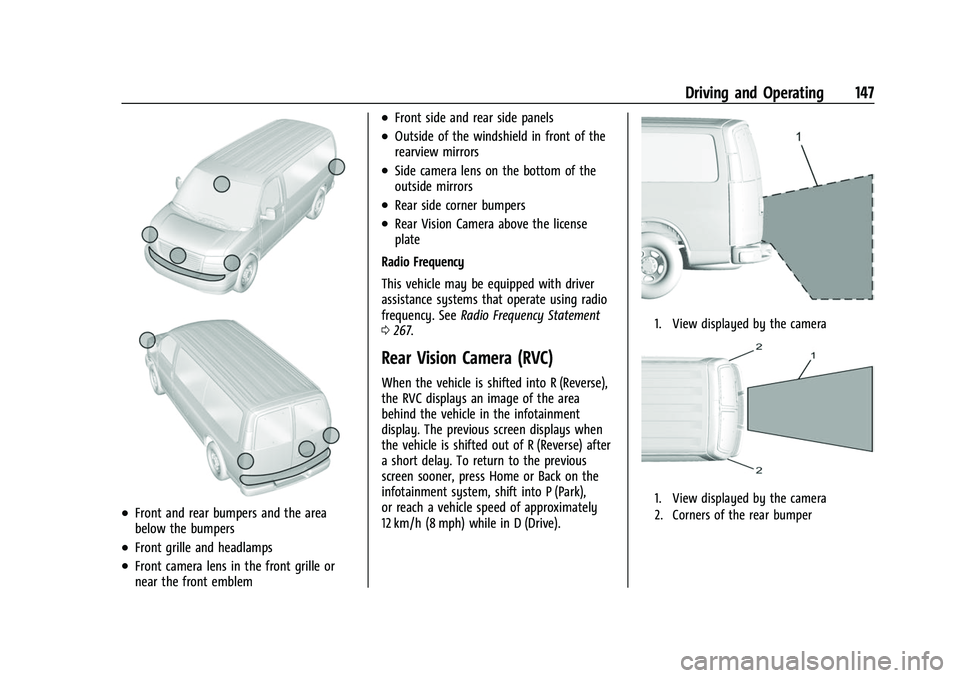
.Front and rear bumpers and the area
below the bumpers
.Front grille and headlamps
.Front camera lens in the front grille or
near the front emblem
.Front side and rear side panels
.Outside of the windshield in front of the
rearview mirrors
.Side camera lens on the bottom of the
outside mirrors
.Rear side corner bumpers
.Rear Vision Camera above the license
plate
Radio Frequency
This vehicle may be equipped with driver
assistance systems that operate using radio
frequency. See Radio Frequency Statement
0 267.
Rear Vision Camera (RVC)
When the vehicle is shifted into R (Reverse),
the RVC displays an image of the area
behind the vehicle in the infotainment
display. The previous screen displays when
the vehicle is shifted out of R (Reverse) after
a short delay. To return to the previous
screen sooner, press Home or Back on the
infotainment system, shift into P (Park),
or reach a vehicle speed of approximately
12 km/h (8 mph) while in D (Drive).
1. View displayed by the camera
1. View displayed by the camera
2. Corners of the rear bumper
Page 153 of 289

Chevrolet Express Owner Manual (GMNA-Localizing-U.S./Canada/Mexico-
15555951) - 2022 - CRC - 1/27/22
152 Driving and Operating
SBZA may not operate when the SBZA
sensors in the left or right corners of the
rear bumper are covered with mud, dirt,
snow, ice, or slush, or in heavy rainstorms.
For cleaning instructions, see "Washing the
Vehicle" underExterior Care0235. If the DIC
displays the system unavailable message
after cleaning both sides of the vehicle
toward the rear corners of the vehicle, see
your dealer.
If the SBZA displays do not light up when
vehicles are in the blind zone and the
system is clean, the system may need
service. Take the vehicle to your dealer.
When SBZA is disabled for any reason other
than the driver turning it off, the Side Blind
Zone Alert On option will not be available
on the personalization menu.
Driving with a Trailer
Use caution while changing lanes when
towing a trailer.
Radio Frequency Information
See Radio Frequency Statement 0267.
Lane Departure Warning (LDW)
If equipped, LDW may help avoid crashes
due to unintentional lane departures. LDW
uses a camera sensor to detect the lane
markings at speeds of 56 km/h (35 mph) or
greater. It may provide an alert if the
vehicle is crossing a lane without using a
turn signal in that direction. LDW light will
not alert if the turn signal is active in the
direction of lane departure, or if LDW
detects that you are accelerating, braking or
actively steering.
{Warning
The LDW system does not steer the
vehicle. The LDW system may not:
.Provide enough time to avoid a crash.
.Detect lane markings under poor
weather or visibility conditions. This
can occur if the windshield or
headlamps are blocked by dirt, snow,
or ice; if they are not in proper
condition; or if the sun shines directly
into the camera.
.Detect road edges.
.Detect lanes on winding or hilly roads.
(Continued)
Warning (Continued)
If LDW only detects lane markings on one
side of the road, it will only warn you
when departing the lane on the side
where it has detected a lane marking.
Always keep your attention on the road
and maintain proper vehicle position
within the lane, or vehicle damage,
injury, or death could occur. Always keep
the windshield, headlamps, and camera
sensors clean and in good repair. Do not
use LDW in bad weather conditions.
How the System Works
LDW utilizes a camera sensor installed on
the windshield ahead of the rearview mirror
to detect lane markings.
To turn LDW on and off, press
@on the
center stack. The control indicator will light
when LDW is on. When LDW is on,
@is
green if LDW is available to warn of a lane
departure. If the vehicle crosses a detected
lane marking without using the turn signal
in that direction,
@changes to amber and
flashes. Additionally, there will be three
beeps on the right or left, depending on the
lane departure direction. LDW will not alert