change time CHEVROLET EXPRESS CARGO 2021 User Guide
[x] Cancel search | Manufacturer: CHEVROLET, Model Year: 2021, Model line: EXPRESS CARGO, Model: CHEVROLET EXPRESS CARGO 2021Pages: 296, PDF Size: 6.68 MB
Page 94 of 296
Chevrolet Express Owner Manual (GMNA-Localizing-U.S./Canada/Mexico-
14583525) - 2021 - CRC - 12/9/20
Lighting 93
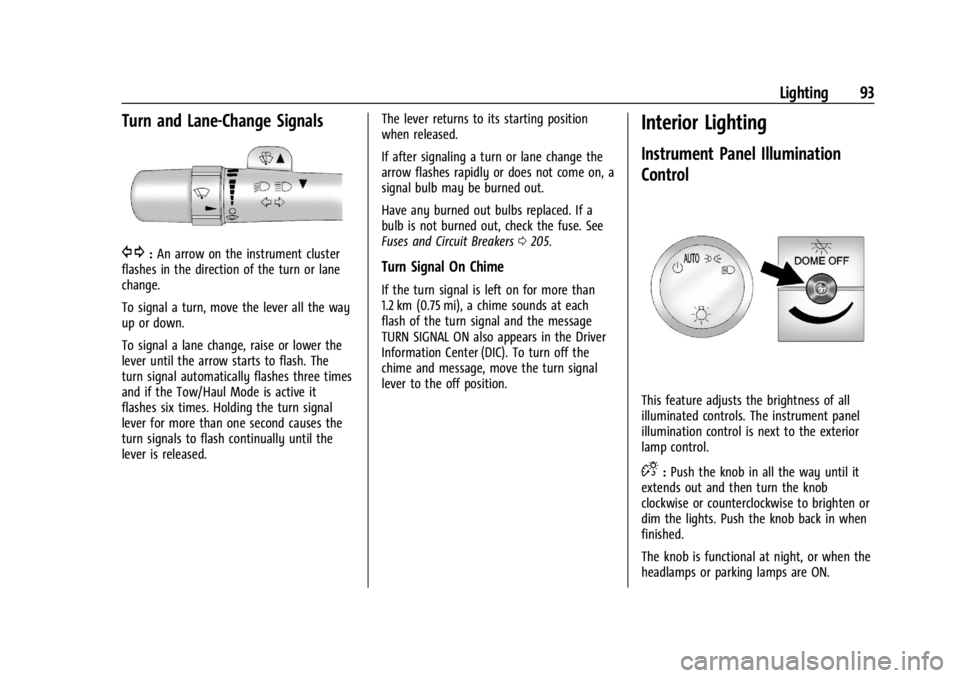
Turn and Lane-Change Signals
G:An arrow on the instrument cluster
flashes in the direction of the turn or lane
change.
To signal a turn, move the lever all the way
up or down.
To signal a lane change, raise or lower the
lever until the arrow starts to flash. The
turn signal automatically flashes three times
and if the Tow/Haul Mode is active it
flashes six times. Holding the turn signal
lever for more than one second causes the
turn signals to flash continually until the
lever is released. The lever returns to its starting position
when released.
If after signaling a turn or lane change the
arrow flashes rapidly or does not come on, a
signal bulb may be burned out.
Have any burned out bulbs replaced. If a
bulb is not burned out, check the fuse. See
Fuses and Circuit Breakers
0205.Turn Signal On Chime
If the turn signal is left on for more than
1.2 km (0.75 mi), a chime sounds at each
flash of the turn signal and the message
TURN SIGNAL ON also appears in the Driver
Information Center (DIC). To turn off the
chime and message, move the turn signal
lever to the off position.
Interior Lighting
Instrument Panel Illumination
Control
This feature adjusts the brightness of all
illuminated controls. The instrument panel
illumination control is next to the exterior
lamp control.
D:Push the knob in all the way until it
extends out and then turn the knob
clockwise or counterclockwise to brighten or
dim the lights. Push the knob back in when
finished.
The knob is functional at night, or when the
headlamps or parking lamps are ON.
Page 96 of 296

Chevrolet Express Owner Manual (GMNA-Localizing-U.S./Canada/Mexico-
14583525) - 2021 - CRC - 12/9/20
Lighting 95
The exterior lamps and dome lamp remain
on after the door is closed for a set amount
of time, then automatically turn off.
The exterior lamps turn off immediately by
turning the exterior lamp control off. The
exit lighting for exterior lights can be
changed. SeeVehicle Personalization 086.
Battery Load Management
The vehicle may have Electric Power
Management (EPM) that estimates the
battery's temperature and state of charge.
It then adjusts the voltage for best
performance and extended life of the
battery.
When the battery's state of charge is low,
the voltage is raised slightly to quickly bring
the charge back up. When the state of
charge is high, the voltage is lowered
slightly to prevent overcharging. If the
vehicle has a voltmeter gauge or a voltage
display on the Driver Information Center
(DIC), you may see the voltage move up or
down. This is normal. If there is a problem,
an alert will be displayed.
The battery can be discharged at idle if the
electrical loads are very high. This is true for
all vehicles. This is because the generator (alternator) may not be spinning fast
enough at idle to produce all the power that
is needed for very high electrical loads.
A high electrical load occurs when several of
the following are on, such as: headlamps,
high beams, fog lamps, rear window
defogger, climate control fan at high speed,
heated seats, engine cooling fans, trailer
loads, and loads plugged into accessory
power outlets.
EPM works to prevent excessive discharge of
the battery. It does this by balancing the
generator's output and the vehicle's
electrical needs. It can increase engine idle
speed to generate more power, whenever
needed. It can temporarily reduce the power
demands of some accessories.
Normally, these actions occur in steps or
levels, without being noticeable. In rare
cases at the highest levels of corrective
action, this action may be noticeable to the
driver. If so, a Driver Information Center
(DIC) message might be displayed, such as
SERVICE BATTERY CHARGING SYSTEM. If this
messages displays, it is recommended that
the driver reduce the electrical loads as
much as possible.
Battery Power Protection
This feature shuts off the interior lamps if
they are left on for more than 10 minutes
when the ignition is off. This helps to
prevent the battery from running down.
Exterior Lighting Battery Saver
The exterior lamps turn off about 10 minutes
after the ignition is turned off, if the parking
lamps or headlamps have been manually
left on. This protects against draining the
battery. To restart the 10-minute timer, turn
the exterior lamp control to the
Oposition
and then back to the
;or2position.
To keep the lamps on for more than
10 minutes, the ignition must be on or in
ACC/ACCESSORY.
Page 101 of 296
Chevrolet Express Owner Manual (GMNA-Localizing-U.S./Canada/Mexico-
14583525) - 2021 - CRC - 12/9/20
100 Infotainment System
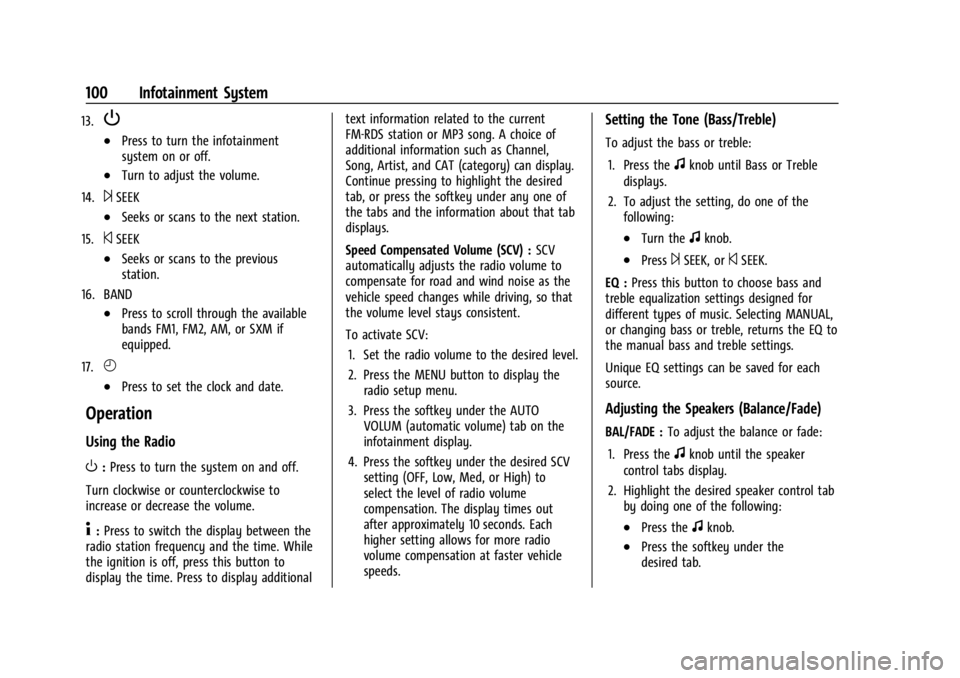
13.P
.Press to turn the infotainment
system on or off.
.Turn to adjust the volume.
14.
¨SEEK
.Seeks or scans to the next station.
15.
©SEEK
.Seeks or scans to the previous
station.
16. BAND
.Press to scroll through the available
bands FM1, FM2, AM, or SXM if
equipped.
17.
H
.Press to set the clock and date.
Operation
Using the Radio
O: Press to turn the system on and off.
Turn clockwise or counterclockwise to
increase or decrease the volume.
4: Press to switch the display between the
radio station frequency and the time. While
the ignition is off, press this button to
display the time. Press to display additional text information related to the current
FM-RDS station or MP3 song. A choice of
additional information such as Channel,
Song, Artist, and CAT (category) can display.
Continue pressing to highlight the desired
tab, or press the softkey under any one of
the tabs and the information about that tab
displays.
Speed Compensated Volume (SCV) :
SCV
automatically adjusts the radio volume to
compensate for road and wind noise as the
vehicle speed changes while driving, so that
the volume level stays consistent.
To activate SCV:
1. Set the radio volume to the desired level.
2. Press the MENU button to display the radio setup menu.
3. Press the softkey under the AUTO VOLUM (automatic volume) tab on the
infotainment display.
4. Press the softkey under the desired SCV setting (OFF, Low, Med, or High) to
select the level of radio volume
compensation. The display times out
after approximately 10 seconds. Each
higher setting allows for more radio
volume compensation at faster vehicle
speeds.
Setting the Tone (Bass/Treble)
To adjust the bass or treble:
1. Press the
fknob until Bass or Treble
displays.
2. To adjust the setting, do one of the following:
.Turn thefknob.
.Press¨SEEK, or©SEEK.
EQ : Press this button to choose bass and
treble equalization settings designed for
different types of music. Selecting MANUAL,
or changing bass or treble, returns the EQ to
the manual bass and treble settings.
Unique EQ settings can be saved for each
source.
Adjusting the Speakers (Balance/Fade)
BAL/FADE : To adjust the balance or fade:
1. Press the
fknob until the speaker
control tabs display.
2. Highlight the desired speaker control tab by doing one of the following:
.Press thefknob.
.Press the softkey under the
desired tab.
Page 108 of 296
Chevrolet Express Owner Manual (GMNA-Localizing-U.S./Canada/Mexico-
14583525) - 2021 - CRC - 12/9/20
Infotainment System 107
Playing an MP3
4:Press to display additional text
information related to the current song.
If information is available, the song title
information displays on the top line of the
display and artist information displays on
the bottom line. When information is not
available, NO INFO displays.
f: Turn to select MP3s on the CD currently
playing.
©SEEK : Press to go to the start of the
track, if more than 10 seconds have played.
Press and hold or press multiple times to
continue moving backward through tracks.
¨SEEK : Press to go to the next track. Press
and hold or press multiple times to continue
moving forward through tracks.
sREV : Press and hold to reverse playback
quickly. Sound is heard at a reduced volume
and the elapsed time of the file displays.
Release
sREV to resume playing.
\FWD : Press and hold to advance
playback quickly. Sound is heard at a
reduced volume and the elapsed time of the file displays. Release
\FWD to resume
playing. The elapsed time of the file
displays.
S c:Press the softkey below theS ctab to go to the first track in the previous
folder.
c T:Press the softkey below thec Ttab to go to the first track in the next
folder.
RDM : For Radios with CD/MP3. Press to
listen to tracks in random, rather than
sequential order.
To use random:
1. Press the softkey under the RDM tab until Random Current Disc displays.
2. Press the softkey again to turn off random play.
h:Press the softkey below thehtab to play the files in order by artist or
album.
The player scans the disc to sort the files by
artist and album ID3 tag information. It can
take several minutes to scan the disc
depending on the number of files on the
disc. The radio may begin playing while it is
scanning in the background. When the scan is finished, the disc begins
playing files in order by artist. The current
artist playing is shown on the second line of
the display. Once all songs by that artist are
played, the player moves to the next artist
in alphabetical order and begins playing files
by that artist.
To listen to files by another artist, press the
softkey below either arrow tab. The disc
goes to the next or previous artist in
alphabetical order. Continue pressing either
softkey below the arrow tab until the
desired artist displays.
To change from playback by artist to
playback by album:
1. Press the softkey below the Sort By tab.
2. Press one of the softkeys below the Album tab from the sort screen.
3. Press the softkey below the Back tab to return to the main music navigator
screen.
The album name displays on the second line
between the arrows, and songs from the
current album begin to play. Once all songs
from that album have played, the player
moves to the next album in alphabetical
order on the CD and begins playing MP3s
from that album.
Page 114 of 296

Chevrolet Express Owner Manual (GMNA-Localizing-U.S./Canada/Mexico-
14583525) - 2021 - CRC - 12/9/20
Infotainment System 113
Voice Recognition
The Bluetooth system uses voice recognition
to interpret voice commands to dial phone
numbers and name tags.
For additional information, say“Help”while
you are in a voice recognition menu.
Noise : Keep interior noise levels to a
minimum. The system may not recognize
voice commands if there is too much
background noise.
When to Speak : A short tone sounds after
the system responds indicating when it is
waiting for a voice command. Wait until the
tone and then speak.
How to Speak : Speak clearly in a calm and
natural voice.
Audio System
When using the in-vehicle Bluetooth system,
sound comes through the vehicle's front
audio system speakers and overrides the
audio system. Use the audio system volume
knob, during a call, to change the volume
level. The adjusted volume level remains in
memory for later calls. To prevent missed
calls, a minimum volume level is used if the
volume is turned down too low.
Bluetooth Controls
Use the buttons on the steering wheel to
operate the in-vehicle Bluetooth system. See
Steering Wheel Controls 066.
b/g:Press to answer incoming calls,
confirm system information, and start
speech recognition.
c/x: Press to end a call, reject a call,
or cancel an operation.
Pairing
A Bluetooth-enabled cell phone must be
paired to the Bluetooth system and then
connected to the vehicle before it can be
used. See the cell phone manufacturer's user
guide for Bluetooth functions before pairing
the cell phone.
Pairing Information
.A Bluetooth phone with MP3 capability
cannot be paired to the vehicle as a
phone and an MP3 player at the
same time.
.Up to five cell phones can be paired to
the Bluetooth system.
.The pairing process is disabled when the
vehicle is moving.
.Pairing only needs to be completed once,
unless the pairing information on the cell
phone changes or the cell phone is
deleted from the system.
.Only one paired cell phone can be
connected to the Bluetooth system at
a time.
.If multiple paired cell phones are within
range of the system, the system connects
to the first available paired cell phone in
the order that they were first paired to
the system. To connect to a different
paired phone, see “Connecting to a
Different Phone” later in this section.
Pairing a Phone
1. Press and hold
b/gfor two seconds.
2. Say “Bluetooth.” This command can be
skipped.
3. Say “Pair.”The system responds with
instructions and a four-digit Personal
Identification Number (PIN). The PIN is
used in Step 5.
4. Start the pairing process on the cell phone that you want to pair. For help
with this process, see the cell phone
manufacturer's user guide.
Page 115 of 296

Chevrolet Express Owner Manual (GMNA-Localizing-U.S./Canada/Mexico-
14583525) - 2021 - CRC - 12/9/20
114 Infotainment System
5. Locate the device named“Your Vehicle”
in the list on the cell phone. Follow the
instructions on the cell phone to enter
the PIN provided in Step 3. After the PIN
is successfully entered, the system
prompts you to provide a name for the
paired cell phone. This name will be used
to indicate which phones are paired and
connected to the vehicle. The system
responds with “
successfully paired” after the pairing
process is complete.
6. Repeat Steps 1–5 to pair additional phones.
Listing All Paired and Connected Phones
The system can list all cell phones paired to
it. If a paired cell phone is also connected to
the vehicle, the system responds with “is
connected” after that phone name.
1. Press and hold
b/gfor two seconds.
2. Say “Bluetooth.”
3. Say “List.”
Deleting a Paired Phone
If the phone name you want to delete is
unknown, see “Listing All Paired and
Connected Phones.”
1. Press and hold
b/gfor two seconds. 2. Say
“Bluetooth.”
3. Say “Delete.” The system asks which
phone to delete.
4. Say the name of the phone you want to delete.
Connecting to a Different Phone
To connect to a different cell phone, the
Bluetooth system looks for the next
available cell phone in the order in which all
the available cell phones were paired.
Depending on which cell phone you want to
connect to, you may have to use this
command several times.
1. Press and hold
b/gfor two seconds.
2. Say “Bluetooth.”
3. Say “Change phone.”
.If another cell phone is found, the
response will be “
now connected.”
.If another cell phone is not found,
the original phone remains
connected.
Storing and Deleting Phone Numbers
The system can store up to 30 phone
numbers as name tags in the Hands-Free
Directory for Bluetooth. The following commands are used to delete
and store phone numbers.
Store :
This command will store a phone
number, or a group of numbers as a
name tag.
Digit Store : This command allows a phone
number to be stored as a name tag by
entering the digits one at a time.
Delete : This command is used to delete
individual name tags.
Delete All Name Tags : This command
deletes all stored name tags in the
Hands-Free Calling Directory.
Using the “Store”Command
1. Press and hold
b/gfor two seconds.
2. Say “Store.”
3. Say the phone number or group of numbers you want to store all at once
with no pauses, then follow the
directions given by the system to save a
name tag for this number.
Using the “Digit Store” Command
If an unwanted number is recognized by the
system, say “Clear”at any time to clear the
last number.
Page 116 of 296

Chevrolet Express Owner Manual (GMNA-Localizing-U.S./Canada/Mexico-
14583525) - 2021 - CRC - 12/9/20
Infotainment System 115
To hear all of the numbers recognized by
the system, say“Verify”at any time.
1. Press and hold
b/gfor two seconds.
2. Say “Digit Store.”
3. Say each digit, one at a time, that you want to store. After each digit is entered,
the system repeats back the digit it
heard followed by a tone. After the last
digit has been entered, say “Store,”and
then follow the directions given by the
system to save a name tag for this
number.
Using the “Delete”Command
1. Press and hold
b/gfor two seconds.
2. Say “Delete.”
3. Say the name tag you want to delete.
Using the “Delete All Name Tags” Command
This command deletes all stored name tags
in the Hands-Free Calling Directory.
To delete all name tags:
1. Press and hold
b/gfor two seconds.
2. Say “Delete all name tags.”
Listing Stored Numbers
The list command will list all stored
numbers and name tags. Using the
“List”Command
1. Press and hold
b/gfor two seconds.
2. Say “Directory.”
3. Say “Hands-Free Calling.”
4. Say “List.”
Making a Call
Calls can be made using the following
commands.
Dial or Call : The dial or call command can
be used interchangeably to dial a phone
number or a stored name tag.
Digit Dial : This command allows a phone
number to be dialed by entering the digits
one at a time.
Re-dial : This command is used to dial the
last number used on the cell phone.
Using the “Dial”or“Call” Command
1. Press and hold
b/gfor two seconds.
2. Say “Dial”or“Call.”
3. Say the entire number without pausing, or say the name tag.
Once connected, the person called will be
heard through the audio speakers. Calling Emergency
1. Press and hold
b/gfor two seconds.
The system responds “Ready,”followed
by a tone.
2. Say “Dial”or“Call.”
3. Say [emergency number].
4. Say “Dial”or“Call.”
Once connected, the person called will be
heard through the audio speakers.
Using the “Digit Dial” Command
The digit dial command allows a phone
number to be dialed by entering the digits
one at a time. After each digit is entered,
the system repeats back the digit it heard
followed by a tone.
If an unwanted number is recognized by the
system, say “Clear”at any time to clear the
last number.
To hear all of the numbers recognized by
the system, say “Verify”at any time.
1. Press and hold
b/gfor two seconds.
2. Say “Digit Dial.”
Page 119 of 296

Chevrolet Express Owner Manual (GMNA-Localizing-U.S./Canada/Mexico-
14583525) - 2021 - CRC - 12/9/20
118 Infotainment System
Fees and Taxes: Subscription fee, taxes, one
time activation fee, and other fees may
apply. Subscription fee is consumer only. All
fees and programming subject to change.
Subscriptions subject to Customer
Agreement available at www.siriusxm.com.
SiriusXM service only available in the
48 contiguous United States and Canada.
In Canada: Some deterioration of service
may occur in extreme northern latitudes.
This is beyond the control of SiriusXM
Satellite Radio.
Explicit Language Notice: Channels with
frequent explicit language are indicated with
an“XL” preceding the channel name.
Channel blocking is available for SiriusXM
Satellite Radio receivers by notifying
SiriusXM:
.USA Customers: See www.siriusxm.com or
call 1-888-601-6296.
.Canadian Customers: See www.siriusxm.ca
or call 1-877-438-9677. It is prohibited to copy, decompile,
disassemble, reverse engineer, hack,
manipulate, or otherwise make available any
technology or software incorporated in
receivers compatible with the SiriusXM
Satellite Radio System or that support the
SiriusXM website, the Online Service or any
of its content. Furthermore, the AMBER voice
compression software included in this
product is protected by intellectual property
rights including patent rights, copyrights,
and trade secrets of Digital Voice
Systems, Inc.
General Requirements:
1. A License Agreement from SiriusXM is required for any product that
incorporates SiriusXM Technology and/or
for use of any of the SiriusXM marks to
be manufactured, distributed,
or marketed in the SiriusXM
Service Area.
2. For products to be distributed, marketed, and/or sold in Canada, a separate
agreement is required with Canadian
Satellite Radio Inc. (operating as XM
Canada).
Bluetooth
The Bluetooth word mark and logos are
owned by the Bluetooth SIG, Inc. and any
use of such marks by General Motors is
under license. Other trademarks and trade
names are those of their respective owners.
Page 145 of 296
Chevrolet Express Owner Manual (GMNA-Localizing-U.S./Canada/Mexico-
14583525) - 2021 - CRC - 12/9/20
144 Driving and Operating
constantly makes adjustments to improve
vehicle performance according to how the
vehicle is being used, such as with a heavy
load or when the temperature changes.
During this adaptive shift control process,
shifting might feel different as the
transmission determines the best settings.
The shift quality of a new vehicle may not
be ideal because the adaptive shift control
process may not have determined the best
settings for a particular shift or condition.
Shift quality will improve with continued
driving.
When temperatures are very cold, the
transmission's gear shifting could be
delayed, providing more stable shifts until
the engine warms up. Shifts could be more
noticeable with a cold transmission. This
difference in shifting is normal.
M :This position lets drivers select the
range of gears appropriate for current
driving conditions. If the vehicle has this
feature, see “Range Selection Mode” under
Manual Mode 0144.
1 : This position reduces vehicle speed
without using the brakes. You can use it for
major/severe downgrades where the vehicle
would otherwise accelerate due to steepness
of grade. When you shift to 1 (First) it provides the lowest gear appropriate to
current road speed and continues to
downshift as the vehicle slows, eventually
downshifting to 1 (First) gear. The
transmission can be held in 1 (First) gear
using Range Selection Mode or the shift
lever. See
“Range Selection Mode” under
Manual Mode 0144.
Caution
Spinning the tires or holding the vehicle
in one place on a hill using only the
accelerator pedal may damage the
transmission. The repair will not be
covered by the vehicle warranty. If the
vehicle is stuck, do not spin the tires.
When stopping on a hill, use the brakes
to hold the vehicle in place.
Normal Mode Grade Braking
This mode is enabled when the vehicle is
started, but is not enabled in Range
Selection Mode. It assists in maintaining
desired vehicle speeds when driving on
downhill grades by using the engine and
transmission to slow the vehicle. The first
time the system activates for each ignition
key cycle. To disable or enable Normal Mode Grade
Braking within the current ignition key cycle,
press and hold the Tow/Haul button for
three seconds.
For other forms of grade braking, see
Tow/
Haul Mode 0145 and
Cruise Control 0149.
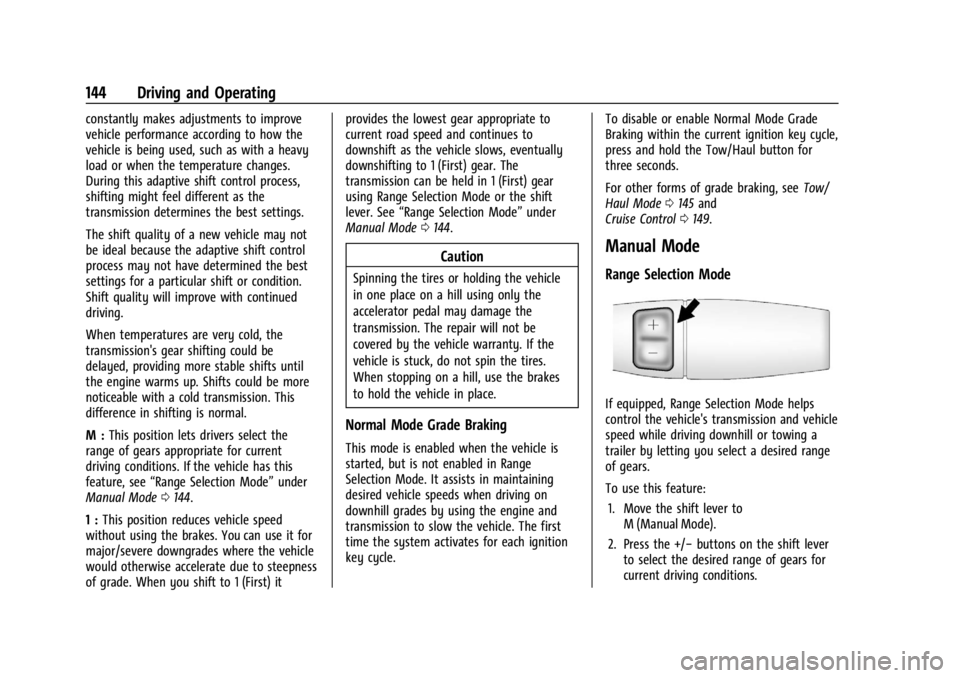
Manual Mode
Range Selection Mode
If equipped, Range Selection Mode helps
control the vehicle's transmission and vehicle
speed while driving downhill or towing a
trailer by letting you select a desired range
of gears.
To use this feature:
1. Move the shift lever to M (Manual Mode).
2. Press the +/− buttons on the shift lever
to select the desired range of gears for
current driving conditions.
Page 147 of 296
Chevrolet Express Owner Manual (GMNA-Localizing-U.S./Canada/Mexico-
14583525) - 2021 - CRC - 12/9/20
146 Driving and Operating
Brakes
Antilock Brake System (ABS)
The Antilock Brake System (ABS) helps
prevent a braking skid and maintain steering
while braking hard.
ABS performs a system check when the
vehicle is first driven. A momentary motor
or clicking noise may be heard while this
test is going on, and the brake pedal may
move slightly. This is normal.
If there is a problem with ABS, this warning
light stays on. SeeAntilock Brake System
(ABS) Warning Light 078.
ABS does not change the time needed to
get a foot on the brake pedal and does not
always decrease stopping distance. If you
get too close to the vehicle ahead, there will
not be enough time to apply the brakes if
that vehicle suddenly slows or stops. Always
leave enough room ahead to stop, even
with ABS.
Using ABS
Do not pump the brakes. Just hold the brake
pedal down firmly. Hearing or feeling ABS
operate is normal.
Braking in Emergencies
ABS allows steering and braking at the same
time. In many emergencies, steering can
help even more than braking.
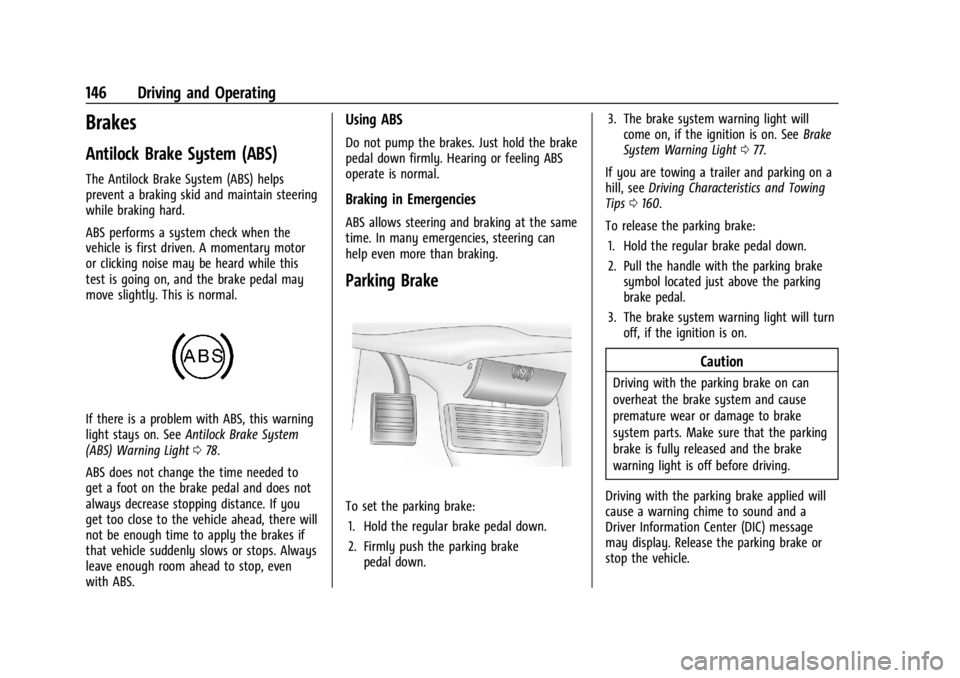
Parking Brake
To set the parking brake: 1. Hold the regular brake pedal down.
2. Firmly push the parking brake pedal down. 3. The brake system warning light will
come on, if the ignition is on. See Brake
System Warning Light 077.
If you are towing a trailer and parking on a
hill, see Driving Characteristics and Towing
Tips 0160.
To release the parking brake: 1. Hold the regular brake pedal down.
2. Pull the handle with the parking brake symbol located just above the parking
brake pedal.
3. The brake system warning light will turn off, if the ignition is on.
Caution
Driving with the parking brake on can
overheat the brake system and cause
premature wear or damage to brake
system parts. Make sure that the parking
brake is fully released and the brake
warning light is off before driving.
Driving with the parking brake applied will
cause a warning chime to sound and a
Driver Information Center (DIC) message
may display. Release the parking brake or
stop the vehicle.