ignition CHEVROLET EXPRESS CARGO VAN 2007 1.G Service Manual
[x] Cancel search | Manufacturer: CHEVROLET, Model Year: 2007, Model line: EXPRESS CARGO VAN, Model: CHEVROLET EXPRESS CARGO VAN 2007 1.GPages: 458, PDF Size: 2.62 MB
Page 199 of 458
With RDS, the radio can do the following:
•Seek to stations broadcasting the selected
type of programming
•Receive announcements concerning local and
national emergencies
•Display messages from radio stations
This system relies upon receiving specific
information from these stations and only works
when the information is available. In rare cases, a
radio station may broadcast incorrect information
that causes the radio features to work improperly.
If this happens, contact the radio station.
While the radio is tuned to an RDS station, the
station name or call letters appear on the display
instead of the frequency. RDS stations may
also provide the time of day, a program type (PTY)
for current programming, and the name of the
program being broadcast.
Playing the Radio
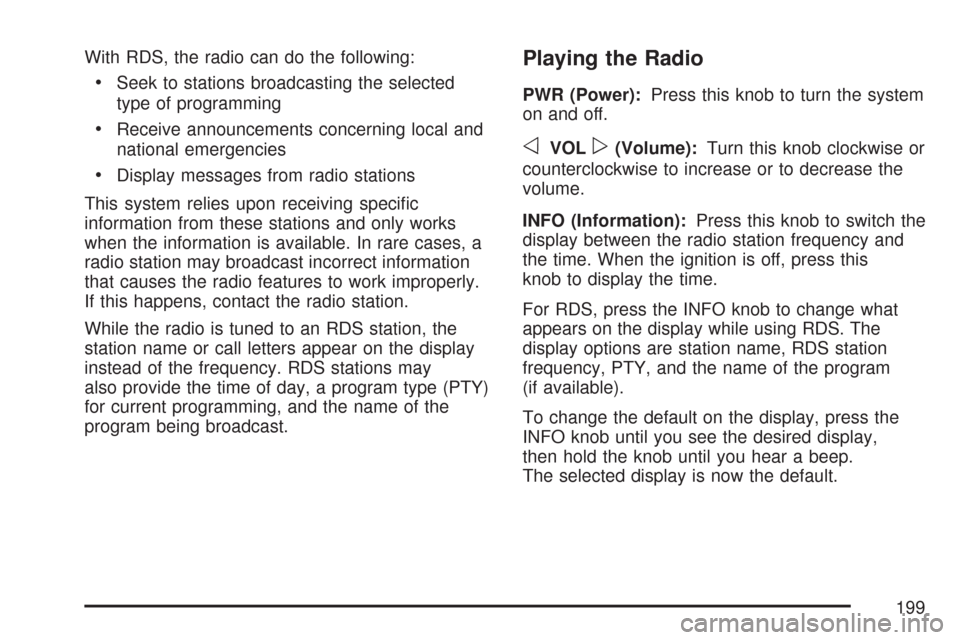
PWR (Power):Press this knob to turn the system
on and off.
oVOLp(Volume):Turn this knob clockwise or
counterclockwise to increase or to decrease the
volume.
INFO (Information):Press this knob to switch the
display between the radio station frequency and
the time. When the ignition is off, press this
knob to display the time.
For RDS, press the INFO knob to change what
appears on the display while using RDS. The
display options are station name, RDS station
frequency, PTY, and the name of the program
(if available).
To change the default on the display, press the
INFO knob until you see the desired display,
then hold the knob until you hear a beep.
The selected display is now the default.
199
Page 205 of 458
If the ignition and radio are off, press the eject
button or the INFO knob to insert and to begin play
of a tape. If the ignition is on and the radio is
off, the tape can be inserted and begins playing.
While the tape is playing, use the VOL, AUDIO,
and SEEK controls just as you do for the
radio. The cassette tape symbol appears on the
display and an arrow showing which side of
the tape is playing. The tape player plays the other
side of the tape when it reaches the end.
Cassette tape adapter kits for portable CD players
works in the cassette tape player. See “CD
Adapter Kits” later for more information.
The tape bias is set automatically when a metal or
chrome tape is inserted.
If an error appears on the display, see “Cassette
Tape Messages” later in this section.
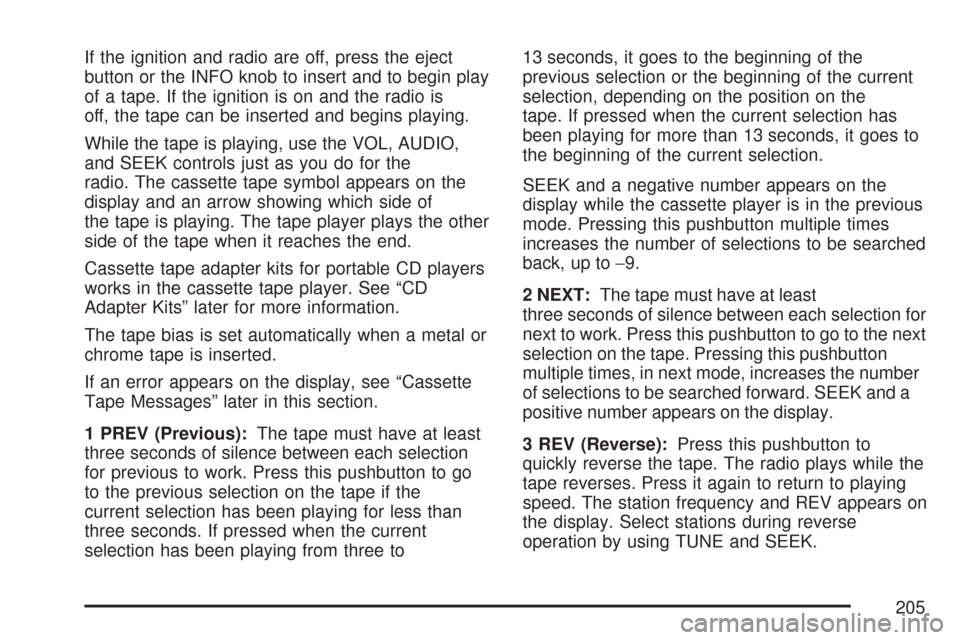
1 PREV (Previous):The tape must have at least
three seconds of silence between each selection
for previous to work. Press this pushbutton to go
to the previous selection on the tape if the
current selection has been playing for less than
three seconds. If pressed when the current
selection has been playing from three to13 seconds, it goes to the beginning of the
previous selection or the beginning of the current
selection, depending on the position on the
tape. If pressed when the current selection has
been playing for more than 13 seconds, it goes to
the beginning of the current selection.
SEEK and a negative number appears on the
display while the cassette player is in the previous
mode. Pressing this pushbutton multiple times
increases the number of selections to be searched
back, up to−9.
2 NEXT:The tape must have at least
three seconds of silence between each selection for
next to work. Press this pushbutton to go to the next
selection on the tape. Pressing this pushbutton
multiple times, in next mode, increases the number
of selections to be searched forward. SEEK and a
positive number appears on the display.
3 REV (Reverse):Press this pushbutton to
quickly reverse the tape. The radio plays while the
tape reverses. Press it again to return to playing
speed. The station frequency and REV appears on
the display. Select stations during reverse
operation by using TUNE and SEEK.
205
Page 207 of 458
Cassette Tape Messages
CHK TAPE (Check Tape):If this message
appears on the display, the tape does not play
due to one of the following errors:
•The tape is tight and the player cannot turn
the tape hubs. Remove the tape. Hold the
tape with the open end down and try to turn
the right hub counterclockwise with a
pencil. Turn the tape over and repeat. If the
hubs do not turn easily, the tape may be
damaged and should not be used in the
player. Try a new tape to make sure your
player is working properly.
•The tape is broken. Try a new tape.
•The tape is wrapped around the tape head.
Attempt to get the cassette out. Try a new tape.
CLEAN:If this message appears on the display,
the cassette tape player needs to be cleaned.
It still plays tapes, but it should be cleaned as soon
as possible to prevent damage to the tapes and
player. SeeCare of the Cassette Tape Player
on page 224.
If the cassette tape is not playing correctly, for any
other reason, try a known good cassette.If any error occurs repeatedly or if an error cannot
be corrected, contact your dealer. If the radio
displays an error message, write it down and
provide it to your dealer when reporting the
problem.
CD Adapter Kits
It is possible to use a portable CD player with the
cassette tape player after activating the bypass
feature on your tape player.
To activate the bypass feature, perform the
following steps:
1. Turn the ignition on.
2. Turn the radio off.
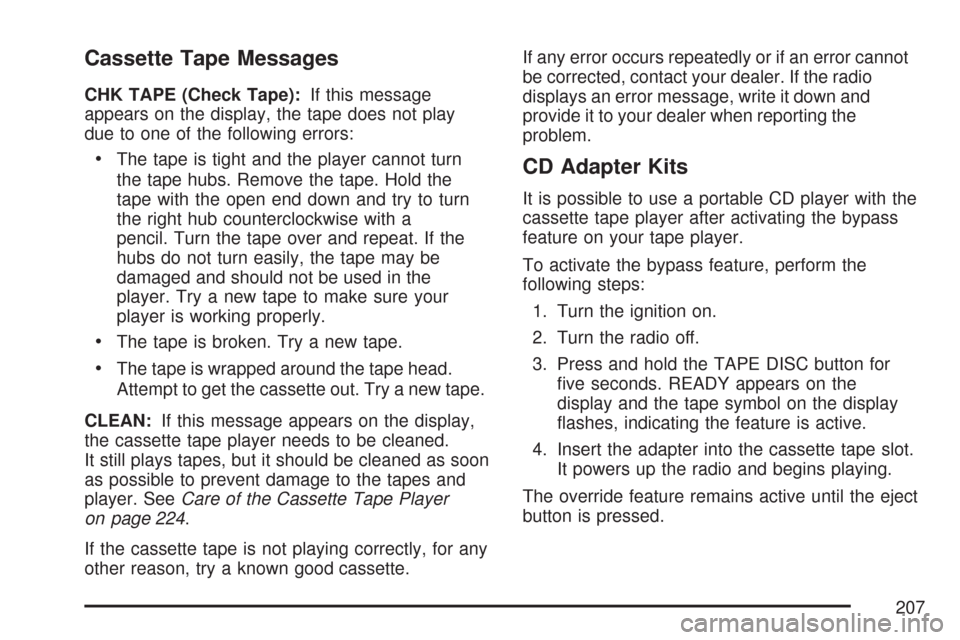
3. Press and hold the TAPE DISC button for
five seconds. READY appears on the
display and the tape symbol on the display
flashes, indicating the feature is active.
4. Insert the adapter into the cassette tape slot.
It powers up the radio and begins playing.
The override feature remains active until the eject
button is pressed.
207
Page 208 of 458
Playing a CD
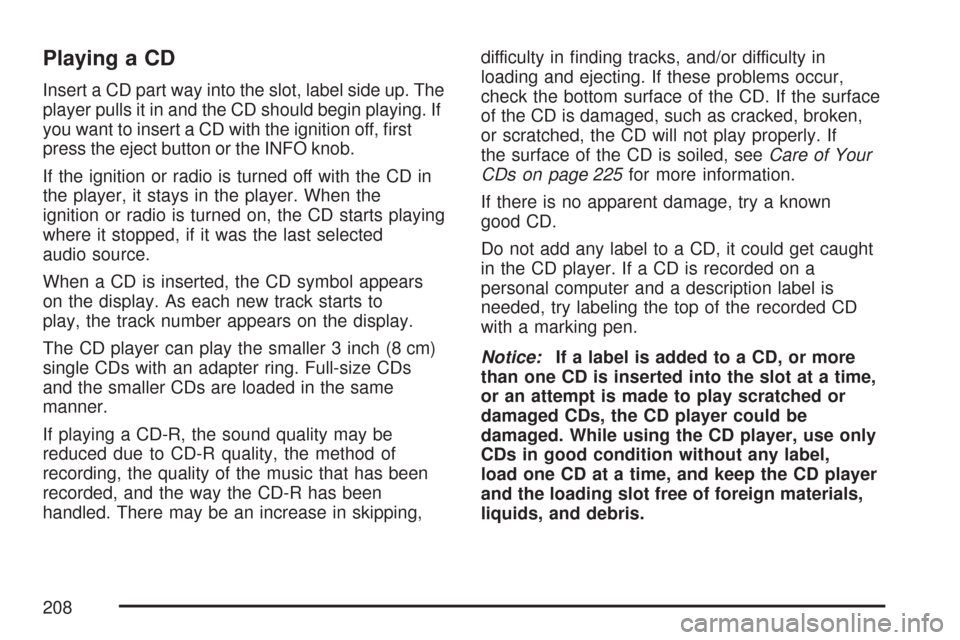
Insert a CD part way into the slot, label side up. The
player pulls it in and the CD should begin playing. If
you want to insert a CD with the ignition off, first
press the eject button or the INFO knob.
If the ignition or radio is turned off with the CD in
the player, it stays in the player. When the
ignition or radio is turned on, the CD starts playing
where it stopped, if it was the last selected
audio source.
When a CD is inserted, the CD symbol appears
on the display. As each new track starts to
play, the track number appears on the display.
The CD player can play the smaller 3 inch (8 cm)
single CDs with an adapter ring. Full-size CDs
and the smaller CDs are loaded in the same
manner.
If playing a CD-R, the sound quality may be
reduced due to CD-R quality, the method of
recording, the quality of the music that has been
recorded, and the way the CD-R has been
handled. There may be an increase in skipping,difficulty in finding tracks, and/or difficulty in
loading and ejecting. If these problems occur,
check the bottom surface of the CD. If the surface
of the CD is damaged, such as cracked, broken,
or scratched, the CD will not play properly. If
the surface of the CD is soiled, seeCare of Your
CDs on page 225for more information.
If there is no apparent damage, try a known
good CD.
Do not add any label to a CD, it could get caught
in the CD player. If a CD is recorded on a
personal computer and a description label is
needed, try labeling the top of the recorded CD
with a marking pen.
Notice:If a label is added to a CD, or more
than one CD is inserted into the slot at a time,
or an attempt is made to play scratched or
damaged CDs, the CD player could be
damaged. While using the CD player, use only
CDs in good condition without any label,
load one CD at a time, and keep the CD player
and the loading slot free of foreign materials,
liquids, and debris.
208
Page 210 of 458
©SCAN¨:Press and hold either the SCAN or
the TYPE arrows for more than two seconds
until SCAN appears on the display and you hear a
beep. The radio goes to the next track, plays for
10 seconds, then goes to the next track. Press
either the SCAN or the TYPE arrows again, to
stop scanning.
INFO (Information):Press this knob to see how
long the current track has been playing. ET
and the elapsed time appears on the display. To
change the default on the display, track or elapsed
time, press the knob until you see the desired
display, then hold the knob for two seconds. The
radio produces one beep and the selected
display is now the default.
BAND:Press this button to listen to the radio
when a cassette tape or CD is playing. The
inactive tape or CD remains safely inside the radio
for future listening.
TAPE DISC:Press this button to play a cassette
tape or CD when listening to the radio. The
inactive tape or CD remains safely inside the radio
for future listening.Z(Eject):Press this button to stop a CD when
it is playing or to eject a CD when it is not
playing. Eject may be activated with either the
ignition or radio off. CDs may be loaded with the
radio and ignition off if this button is pressed first.
If the CD is not removed after 25 seconds, the
CD automatically pulls back into the player. If the
CD is pushed back into the player, before the
25 second time period is complete, the player
senses an error and tries to eject the CD several
times before stopping.
Do not repeatedly press the CD eject button to eject
a CD after you have tried to push it manually. The
player’s 25-second eject timer resets at each press
of eject, causing the player to not eject the CD until
the 25-second time period has elapsed.
210
Page 212 of 458
INFO (Information):When the ignition is off,
press this knob to display the time.
For RDS, press the INFO knob to change what
appears on the display while using RDS. The
display options are station name, RDS station
frequency, PTY, and the name of the program
(if available).
To change the default on the display, press the
INFO knob until you see the desired display, then
press and hold the knob until you hear a beep.
The selected display is now the default.
AUTO VOL (Automatic Volume):With automatic
volume, the audio system adjusts automatically
to make up for road and wind noise as you drive
by increasing the volume as vehicle speed
increases.
Set the volume at the desired level. Press this
button to select MIN, MED, or MAX. AUTO VOL
appears on the display. Each higher setting
provides more volume compensation at faster
vehicle speeds. To turn automatic volume
off, press this button until AUTO VOL OFF
appears on the display.Finding a Station
BAND:Press this button to switch between FM1,
FM2, or AM. The display shows the selection.
oTUNEp:Turn this knob to select radio stations.
©SEEK¨:Press either the SEEK or the TYPE
arrows to go to the next or to the previous
station and stay there.
The radio only seeks stations with a strong signal
that are in the selected band.
©SCAN¨:Press and hold either the SCAN or
the TYPE arrows for two seconds until SCN
appears on the display and you hear a beep. The
radio goes to a station, plays for a few seconds,
then goes to the next station. Press either the
SCAN or the TYPE arrows again to stop scanning.
To scan preset stations, press and hold either
the SCAN or the TYPE arrows for more than
four seconds. PSC appears on the display and you
will hear a double beep. The radio goes to a preset
station, plays for a few seconds, then goes to the
next preset station. Press either the SCAN or the
TYPE arrows again to stop scanning presets.
The radio only scans stations with a strong signal
that are in the selected band.
212
Page 217 of 458
Playing a CD
If the ignition or radio is turned off, with a CD in the
player, it stays in the player. When the ignition or
radio is turned on, the CD starts playing where it
stopped, if it was the last selected audio source.
When a CD is inserted, the CD symbol appears on
the display. As each new track starts to play,
the track number appears on the display.
The CD player can play the smaller 3 inch (8 cm)
single CDs with an adapter ring. Full-size CDs and
the smaller CDs are loaded in the same manner.
If playing a CD-R, the sound quality may be
reduced due to CD-R quality, the method of
recording, the quality of the music that has been
recorded, and the way the CD-R has been
handled. There may be an increase in skipping,
difficulty in finding tracks, and/or difficulty in loading
and ejecting. If these problems occur, check the
bottom surface of the CD. If the surface of the CD
is damaged, such as cracked, broken, or
scratched, the CD will not play properly. If the
surface of the CD is soiled, seeCare of Your CDs
on page 225for more information.If there is no apparent damage, try a known
good CD.
Do not add any label to a CD, it could get caught
in the CD player. If a CD is recorded on a
personal computer and a description label is
needed, try labeling the top of the recorded CD
with a marking pen.
Notice:If a label is added to a CD, or more
than one CD is inserted into the slot at a time,
or an attempt is made to play scratched or
damaged CDs, the CD player could be
damaged. While using the CD player, use only
CDs in good condition without any label,
load one CD at a time, and keep the CD player
and the loading slot free of foreign materials,
liquids, and debris.
If an error appears on the display, see “CD
Messages” later in this section.
217
Page 218 of 458
LOAD:Press this button to load CDs into the CD
player. This CD player holds up to six CDs.
To insert one CD, do the following:
1. Turn the ignition on.
2. Press and release the LOAD button.
3. Wait for the indicator light, located to the right
of the slot, to turn green.
4. Load a CD. Insert the CD partway into the slot,
label side up. The player pulls the CD in.
To insert multiple CDs, do the following:
1. Turn the ignition on.
2. Press and hold the LOAD button for
two seconds.
You will hear a beep and the indicator light,
located to the right of the slot, begins to flash
and MULTI LOAD # appears on the display.
3. Once the light stops flashing and turns green,
INSERT CD # appears on the display, load a
CD. Insert the CD partway into the slot,
label side up. The player pulls the CD in.
Once the CD is loaded, the indicator
light begins flashing again. Once the light
stops flashing and turns green, you can load
another CD. The CD player takes up to
six CDs. Do not try to load more than six.To load more than one CD but less than six,
complete Steps 1 through 3. When finished loading
CDs, press the LOAD button to cancel the
loading function. The radio begins to play the last
CD loaded.
If more than one CD has been loaded, a number
for each CD appears on the display.
Playing a Specic Loaded CD
For every CD loaded, a number appears on the
display. To play a specific CD, first press the
CD AUX button (if not already in CD mode), then
press the numbered pushbutton that corresponds
to the CD. A small bar appears under the CD
number that is playing and the track number
appears on the display.
If an error appears on the display, see “CD
Messages” later in this section.
218
Page 225 of 458
When cleaning the cassette tape player with the
recommended non-abrasive cleaning cassette,
it is possible that the cassette might eject, because
the cut tape detection feature on the radio can
recognize it as a broken tape, in error. To prevent
the cleaning cassette from being ejected, use
the following steps:
1. Turn the ignition on.
2. Turn the radio off.
3. Press and hold the TAPE DISC button for
five seconds. READY displays and the
cassette symbol flashes for five seconds.
4. Insert the scrubbing action cleaning cassette.
5. Eject the cleaning cassette after the
manufacturer’s recommended cleaning time.
When the cleaning cassette has been ejected,
the cut tape detection feature activates again.
A non-scrubbing action, wet-type cleaner which
uses a cassette with a fabric belt to clean the tape
head can be used. This type of cleaning cassette
does not eject on its own. A non-scrubbing
action cleaner might not clean as thoroughly
as the scrubbing type cleaner. The use of a
non-scrubbing action, dry-type cleaning cassette
is not recommended.After the player is cleaned, press and hold the
eject button for five seconds to reset the CLEAN
indicator. The radio displays --- or CLEANED
to show the indicator was reset.
Cassettes are subject to wear and the sound
quality can degrade over time. Always make sure
the cassette tape is in good condition before
the tape player is serviced.
Care of Your CDs
Handle CDs carefully. Store them in their original
cases or other protective cases and away from
direct sunlight and dust. The CD player scans the
bottom surface of the disc. If the surface of a CD is
damaged, such as cracked, broken, or scratched,
the CD does not play properly or not at all. If the
surface of a CD is soiled, take a soft, lint free cloth
or dampen a clean, soft cloth in a mild, neutral
detergent solution mixed with water, and clean it.
Make sure the wiping process starts from the center
to the edge.
Do not touch the bottom side of a CD while handling
it; this could damage the surface. Pick up CDs by
grasping the outer edges or the edge of the hole
and the outer edge.
225
Page 226 of 458
Care of the CD Player
Do not use CD lens cleaners for CD players
because the lens of the CD optics can become
contaminated by lubricants.
Fixed Mast Antenna
The fixed mast antenna can withstand most car
washes without being damaged. If the mast should
ever become slightly bent, straighten it out by
hand. If the mast is badly bent, replace it.
Check occasionally to make sure the mast is
still tightened to the fender. If tightening is
required, tighten by hand, then with a wrench
one quarter turn.
Chime Level Adjustment
The radio is used to adjust the vehicle’s chime
level. To change the volume level of the chime,
press and hold pushbutton 6 with the ignition on
and the radio power off. The volume level will
change from the normal level to loud, and LOUD
will appear on the radio display. To change back to
the default or normal setting, press and hold
pushbutton 6 again. The volume level will change
from the loud level to normal, and NORMAL will
appear on the radio display. Each time the chime
volume is changed, three chimes will sound to
indicate the change. Removing the radio and not
replacing it with a factory radio or chime module will
disable vehicle chimes.
226