key CHEVROLET EXPRESS CARGO VAN 2013 1.G Service Manual
[x] Cancel search | Manufacturer: CHEVROLET, Model Year: 2013, Model line: EXPRESS CARGO VAN, Model: CHEVROLET EXPRESS CARGO VAN 2013 1.GPages: 402, PDF Size: 6.46 MB
Page 148 of 402
Black plate (2,1)Chevrolet Express Owner Manual - 2013 - 1stPrintReady - 6/19/12
6-2 Lighting
If the headlamps are turned on
while the vehicle is on, the
headlamps turn off automatically
10 minutes after the ignition is
turned off. If the headlamps are
turned on while the vehicle is off,
the headlamps will continue to stay
on. To prevent the battery from
being drained, turn the control to the
Oposition.
A warning chime sounds if the driver
door is opened while the ignition
switch is off and the headlamps
are on.
To change the headlamps from low
beam to high beam, pull the turn
signal/multifunction lever all the way
toward you. Then release it.
Exterior Lamps Off
Reminder
If a door is open, a reminder chime
sounds when the headlamps or
parking lamps are manually turned
on and the key is out of the ignition.
To turn off the chime, turn the
headlamp switch to
Oor AUTO and then back on, or close and re‐open
the door. In the auto mode, the
headlamps turn off once the ignition
is in LOCK/OFF or may remain on
until the headlamp delay ends,
if enabled in the Driver Information
Center (DIC). See
“Exit Lighting”
under Vehicle Personalization on
page 5‑38.
Headlamp High/
Low-Beam Changer
2 3
(Headlamp High/Low-Beam
Changer): Pull the turn signal lever
all the way toward you to change
the headlamps from low to high
beam. Then release it.
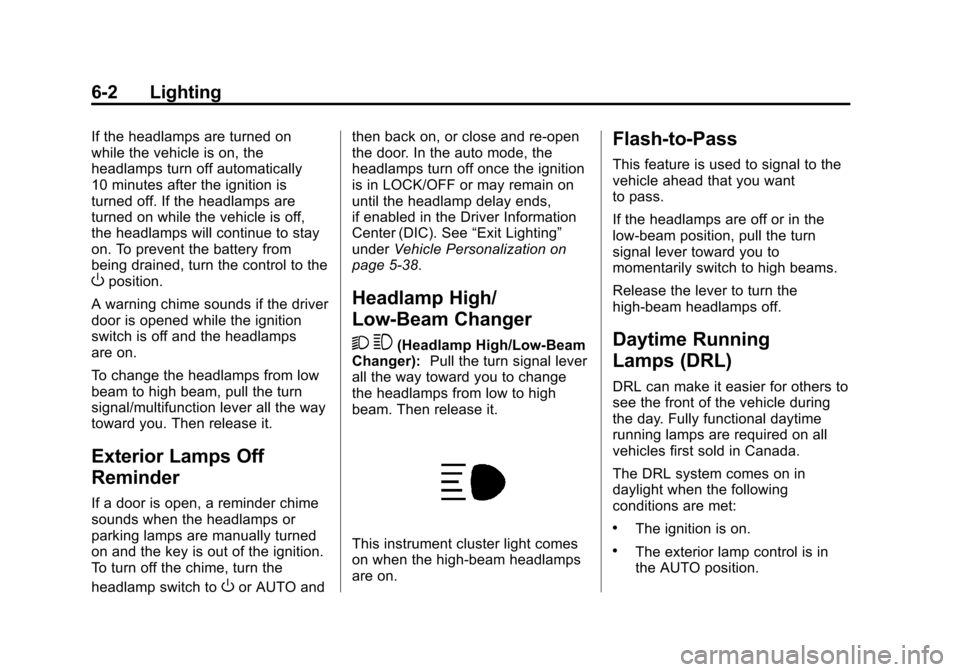
This instrument cluster light comes
on when the high-beam headlamps
are on.
Flash-to-Pass
This feature is used to signal to the
vehicle ahead that you want
to pass.
If the headlamps are off or in the
low‐beam position, pull the turn
signal lever toward you to
momentarily switch to high beams.
Release the lever to turn the
high-beam headlamps off.
Daytime Running
Lamps (DRL)
DRL can make it easier for others to
see the front of the vehicle during
the day. Fully functional daytime
running lamps are required on all
vehicles first sold in Canada.
The DRL system comes on in
daylight when the following
conditions are met:
.The ignition is on.
.The exterior lamp control is in
the AUTO position.
Page 152 of 402
Black plate (6,1)Chevrolet Express Owner Manual - 2013 - 1stPrintReady - 6/19/12
6-6 Lighting
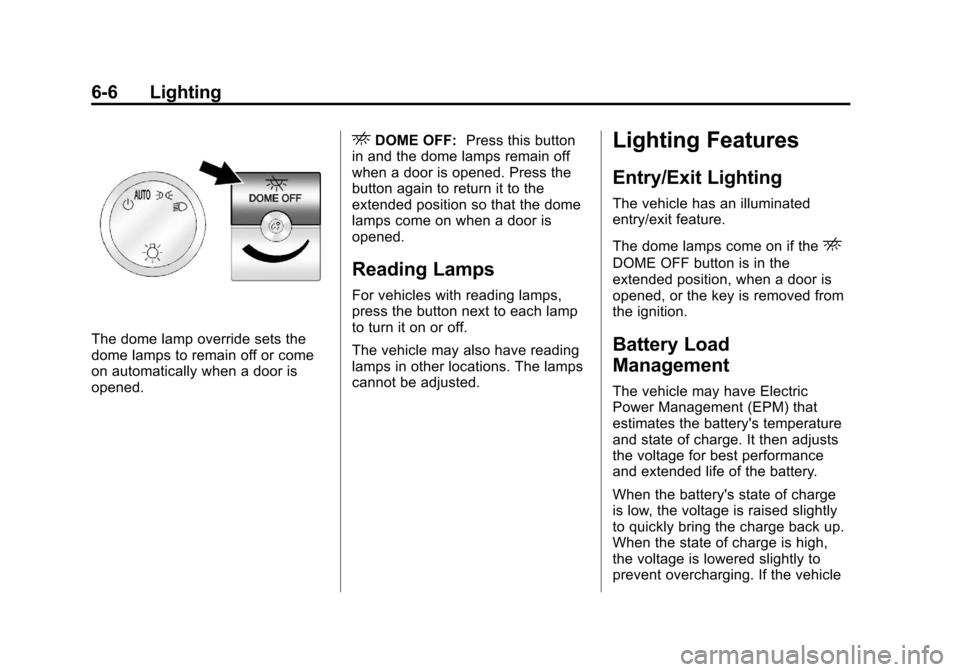
The dome lamp override sets the
dome lamps to remain off or come
on automatically when a door is
opened.
EDOME OFF:Press this button
in and the dome lamps remain off
when a door is opened. Press the
button again to return it to the
extended position so that the dome
lamps come on when a door is
opened.
Reading Lamps
For vehicles with reading lamps,
press the button next to each lamp
to turn it on or off.
The vehicle may also have reading
lamps in other locations. The lamps
cannot be adjusted.
Lighting Features
Entry/Exit Lighting
The vehicle has an illuminated
entry/exit feature.
The dome lamps come on if the
E
DOME OFF button is in the
extended position, when a door is
opened, or the key is removed from
the ignition.
Battery Load
Management
The vehicle may have Electric
Power Management (EPM) that
estimates the battery's temperature
and state of charge. It then adjusts
the voltage for best performance
and extended life of the battery.
When the battery's state of charge
is low, the voltage is raised slightly
to quickly bring the charge back up.
When the state of charge is high,
the voltage is lowered slightly to
prevent overcharging. If the vehicle
Page 160 of 402
Black plate (6,1)Chevrolet Express Owner Manual - 2013 - 1stPrintReady - 6/19/12
7-6 Infotainment System
station or MP3 song. A choice of
additional information such as
Channel, Song, Artist, and CAT
(category) can display. Continue
pressing to highlight the desired tab,
or press the softkey under any one
of the tabs and the information
about that tab displays.
Speed Compensated Volume
(SCV):Radios with CD have SCV
that automatically adjust the radio
volume to compensate for road and
wind noise as the vehicle speed
changes while driving, so that the
volume level stays consistent.
To activate SCV:
1. Set the radio volume to the desired level.
2. Press the MENU button to display the radio setup menu.
3. Press the softkey under the AUTO VOLUM (automatic
volume) tab on the radio display.
4. Press the softkey under the desired SCV setting (OFF, Low,
Med, or High) to select the level of radio volume compensation.
The display times out after
approximately 10 seconds. Each
higher setting allows for more
radio volume compensation at
faster vehicle speeds.
Setting the Tone (Bass/Treble)
To adjust the bass or treble:
1. Press the
fknob until Bass or
Treble displays.
2. To adjust the setting, do one of the following:
.Turn thefknob.
.Press either¨SEEK,
or
©SEEK.
EQ (Equalization): Press this
button to choose bass and treble
equalization settings designed for
different types of music. Selecting
MANUAL, or changing bass or
treble, returns the EQ to the manual
bass and treble settings.
Unique EQ settings can be saved
for each source.
Adjusting the Speakers
(Balance/Fade)
To adjust the balance or fade:
1. Press
`or press thefknob
until the speaker control tab
displays.
2. To adjust the setting, do one of the following:
.Turn thefknob.
.Press either¨SEEK,
or
©SEEK.
Radio Messages
Calibration Error: The audio
system has been calibrated for
the vehicle from the factory.
If Calibration Error displays, it
means that the radio has not been
configured properly for the vehicle
and it must be returned to your
dealer for service.
Page 162 of 402
Black plate (8,1)Chevrolet Express Owner Manual - 2013 - 1stPrintReady - 6/19/12
7-8 Infotainment System
strong signal is present, then goes
to the next stored preset. The
station frequency flashes while the
radio is in the scan mode.
Setting Preset Stations
If the radio does not have a FAV
button, up to 18 stations (six FM1,
six FM2, and six AM), can be
programmed on the six numbered
softkeys, by performing the following
steps:
1. Turn the radio on.
2. Press BAND to select FM1,FM2, or AM.
3. Tune in the desired station.
4. Press and hold one of the six numbered softkeys for
three seconds until a beep
sounds. When that softkey is
pressed and released, the
station that was set, returns.
5. Repeat Steps 2–4 for each softkey.
Storing a Radio Station as a
Favorite
Drivers are encouraged to set up
radio station favorites while the
vehicle is parked. Tune to favorite
stations using the presets, favorites
button, and steering wheel controls,
if the vehicle has this feature. See
Defensive Driving on page 9‑3.
FAV (Favorites): If the vehicle has
a FAV button, a maximum of
36 stations can be programmed as
favorites using the six softkeys
below the radio station frequency
tabs and by using the radio favorites
page button (FAV button). Press the
FAV button to go through up to
six pages of favorites, each having
six favorite stations available per
page. Each page of favorites can
contain any combination of AM and
FM stations.
The balance/fade and tone settings
that were previously adjusted, are
stored with the favorite stations. To store a station as a favorite:
1. Tune to the desired radio station.
2. Press the FAV button to display
the page where the station is to
be stored.
3. Press and hold one of the six softkeys until a beep sounds.
When that softkey is pressed
and released, the station that
was set, returns.
4. Repeat the steps for each softkey radio station to be stored
as a favorite.
The number of favorites pages can
be set up using the MENU button.
To set up the number of favorites
pages:
1. Press the MENU button to display the radio setup menu.
2. Press the softkey below the FAV 1-6 tab.
3. Select the desired number of favorites pages by pressing the
softkey below the displayed
page numbers.
Page 163 of 402
Black plate (9,1)Chevrolet Express Owner Manual - 2013 - 1stPrintReady - 6/19/12
Infotainment System 7-9
4. Press the FAV button, or let themenu time out, to return to the
original main radio screen
showing the radio station
frequency tabs and to begin the
process of programming
favorites for the chosen number
of numbered pages.
Satellite Radio
SiriusXM®, if equipped, is a satellite
radio service based in the United
States and Canada only.
Finding a Category (CAT)
Station
CAT (Category): The CAT button is
used to find XM stations (if
equipped) while the radio is in the
XM mode.
Finding a Station
BAND: Press to switch between
FM1, FM2, AM, and XM. The
selection displays.
f(Tune): Turn clockwise or
counterclockwise to increase or
decrease the station frequency.
©SEEK or¨SEEK: Press©
SEEK to go to the previous or¨
SEEK to go to the next station and
stay there.
To scan stations, press and hold
either button for two seconds until a
beep sounds. The radio goes to a
station, plays for a few seconds,
then goes to the next station. The
station frequency flashes while the
radio is in the scan mode. Press
either button again to stop scanning.
The radio seeks and scans stations
only with a strong signal that are in
the selected band.
To scan presets within the current
selected band by pressing and
holding either SEEK button for
four seconds until a double beep
sounds. The radio goes to a stored
preset, plays for a few seconds if a
strong signal is present, then goes to the next stored preset. The
station frequency flashes while the
radio is in the scan mode.
Setting Preset Stations
If the radio does not have a FAV
button, up to 18 stations (six FM1,
six FM2, and six AM), can be
programmed on the six numbered
softkeys, by performing the following
steps:
1. Turn the radio on.
2. Press BAND to select FM1,
FM2, or AM.
3. Tune in the desired station.
4. Press and hold one of the six numbered softkeys for
three seconds until a beep
sounds. When that softkey is
pressed and released, the
station that was set, returns.
5. Repeat Steps 2–4 for each softkey.
Page 164 of 402
Black plate (10,1)Chevrolet Express Owner Manual - 2013 - 1stPrintReady - 6/19/12
7-10 Infotainment System
Storing a Radio Station as a
Favorite
Drivers are encouraged to set up
radio station favorites while the
vehicle is parked. Tune to favorite
stations using the presets, favorites
button, and steering wheel controls,
if the vehicle has this feature. See
Defensive Driving on page 9‑3.
FAV (Favorites):If the vehicle has
a FAV button, a maximum of
36 stations can be programmed as
favorites using the six softkeys
below the radio station frequency
tabs and by using the radio favorites
page button (FAV button). Press the
FAV button to go through up to
six pages of favorites, each having
six favorite stations available per
page. Each page of favorites can
contain any combination of AM and
FM stations.
The balance/fade and tone settings
that were previously adjusted, are
stored with the favorite stations. To store a station as a favorite:
1. Tune to the desired radio station.
2. Press the FAV button to display
the page where the station is to
be stored.
3. Press and hold one of the six softkeys until a beep sounds.
When that softkey is pressed
and released, the station that
was set, returns.
4. Repeat the steps for each softkey radio station to be stored
as a favorite.
The number of favorites pages can
be set up using the MENU button.
To set up the number of favorites
pages:
1. Press the MENU button to display the radio setup menu.
2. Press the softkey below the FAV 1-6 tab.
3. Select the desired number of favorites pages by pressing the
softkey below the displayed
page numbers. 4. Press the FAV button, or let the
menu time out, to return to the
original main radio screen
showing the radio station
frequency tabs and to begin the
process of programming
favorites for the chosen number
of numbered pages.
Radio Reception
Frequency interference and static
can occur during normal radio
reception if items such as cell phone
chargers, vehicle convenience
accessories, and external electronic
devices are plugged into the
accessory power outlet. If there is
interference or static, unplug the
item from the accessory power
outlet.
AM
The range for most AM stations is
greater than for FM, especially at
night. The longer range can cause
station frequencies to interfere with
each other. For better radio
reception, most AM radio stations
Page 167 of 402
Black plate (13,1)Chevrolet Express Owner Manual - 2013 - 1stPrintReady - 6/19/12
Infotainment System 7-13
When a CD is inserted, the CD
symbol displays on the left side of
the radio display. As each new track
starts to play, the track number
displays.
The CD player can play the smaller
8 cm (3 in) single CDs with an
adapter ring. Full-size CDs and the
smaller CDs are loaded in the same
manner.
CD/AUX (CD/Auxiliary):Press to
cycle between CD or Auxiliary when
listening to the radio. The CD icon
and a message showing the disc
and/or track number will display
when a CD is in the player. Press
again and the system automatically
searches for an auxiliary input
device; see Auxiliary Devices on
page 7‑17. If a portable audio player
is not connected, “No Input Device
Found” displays.
4(Information): Press to display
additional text information related to
the current song. If information is
available, the song title information
displays on the top line of the display and artist information
displays on the bottom line. When
information is not available, NO
INFO displays.
f(Tune):
Turn to select tracks on
the CD that is currently playing.
©SEEK: Press to go to the start of
the current track if more than
10 seconds on the CD have played.
Press to go to the previous track if
less than 10 seconds on the CD
have played.
Press and hold, or press multiple
times, to continue moving backward
through the tracks on the CD.
¨SEEK: Press to go to the next
track.
Press and hold, or press multiple
times, to continue moving forward
through the tracks on the CD.
sREV (Reverse): Press and hold
to reverse playback quickly within a
track.
\FWD (Fast Forward): Press
and hold to advance playback
quickly within a track.
RDM (Random): For Radios with
CD/MP3. Press to listen to tracks in
random, rather than sequential
order.
To use random:
1. Press the softkey under the RDM tab until Random Current
Disc displays.
2. Press the softkey again to turn off random play.
MP3-Supported Files
Radios with CD/MP3 have the
capability of playing an MP3 CD-R
or CD-RW disc.
Format
Radios that have the capability of
playing MP3s can play .mp3 or .wma
files that were recorded onto a
CD-R or CD-RW disc. The files can
be recorded with the following fixed
bit rates: 32 kbps, 40 kbps, 56 kbps,
64 kbps, 80 kbps, 96 kbps, 112 kbps,
Page 169 of 402
Black plate (15,1)Chevrolet Express Owner Manual - 2013 - 1stPrintReady - 6/19/12
Infotainment System 7-15
Preprogrammed Playlists
CDs that have preprogrammed
playlists created using WinAmp™,
MusicMatch™, or Real Jukebox™
software can be accessed; however,
there is no playlist-editing capability
using the radio. These playlists are
treated as special folders containing
compressed audio song files.
Playlists that have an .m3u or .pls
file extension and are stored on a
USB device may be supported by
the radio with a USB port.
Playlists can be changed by using
the softkeys below the
Scand
c Ttabs, thefknob, the©SEEK
button, or the
¨SEEK button. An
MP3 CD-R or CD-RW that has been
recorded without using file folders
can be played. If a CD-R or CD-RW
contains more than the maximum of
50 folders, 15 playlists, and
512 folders and files, the player
allows access and navigates up to
the maximum, but all items over the
maximum are not accessible.
Playing an MP3
4(Information): Press to display
additional text information related to
the current song. If information is
available, the song title information
displays on the top line of the
display and artist information
displays on the bottom line. When
information is not available, NO
INFO displays.
f(Tune): Turn to select MP3s on
the CD currently playing.
©SEEK: Press to go to the start of
the track, if more than 10 seconds
have played. Press and hold or
press multiple times to continue
moving backward through tracks.
¨SEEK: Press to go to the next
track. Press and hold or press
multiple times to continue moving
forward through tracks.
sREV (Reverse): Press and hold
to reverse playback quickly. Sound
is heard at a reduced volume and
the elapsed time of the file displays.
Release
sREV to resume playing.
\FWD (Fast Forward): Press
and hold to advance playback
quickly. Sound is heard at a reduced
volume and the elapsed time of the
file displays. Release
\FWD to
resume playing. The elapsed time of
the file displays.
S c(Previous Folder): Press
the softkey below the
S ctab to
go to the first track in the previous
folder.
c T(Next Folder): Press the
softkey below the
c Ttab to go to
the first track in the next folder.
RDM (Random): For Radios with
CD/MP3. Press to listen to tracks in
random, rather than sequential
order.
To use random:
1. Press the softkey under the
RDM tab until Random Current
Disc displays.
2. Press the softkey again to turn off random play.
Page 170 of 402
Black plate (16,1)Chevrolet Express Owner Manual - 2013 - 1stPrintReady - 6/19/12
7-16 Infotainment System
h(Music Navigator):Press the
softkey below the
htab to play
the files in order by artist or album.
The player scans the disc to sort the
files by artist and album ID3 tag
information. It can take several
minutes to scan the disc depending
on the number of files on the disc.
The radio may begin playing while it
is scanning in the background.
When the scan is finished, the disc
begins playing files in order by
artist. The current artist playing is
shown on the second line of the
display. Once all songs by that artist
are played, the player moves to the
next artist in alphabetical order and
begins playing files by that artist.
To listen to files by another artist,
press the softkey below either arrow
tab. The disc goes to the next or
previous artist in alphabetical order.
Continue pressing either softkey
below the arrow tab until the desired
artist displays. To change from playback by artist to
playback by album:
1. Press the softkey below the Sort
By tab.
2. Press one of the softkeys below the Album tab from the sort
screen.
3. Press the softkey below the Back tab to return to the main
music navigator screen.
The album name displays on the
second line between the arrows,
and songs from the current album
begin to play. Once all songs from
that album have played, the player
moves to the next album in
alphabetical order on the CD and
begins playing MP3s from that
album.
To exit music navigator mode, press
the softkey below the Back tab to
return to normal MP3 playback.
CD Player Messages
CHECK DISC: If this message
displays and/or the CD ejects, it
could be for one of the following
reasons:
.It is very hot. When the
temperature returns to normal,
the CD should play.
.The road is very rough. When
the road becomes smoother, the
CD should play.
.The CD is dirty, scratched, wet,
or upside down.
.The air is very humid. If so, wait
about an hour and try again.
.There was a problem while
burning the CD.
.The label is caught in the CD
player.
If the CD is not playing correctly, for
any other reason, try a known
good CD.
If any error occurs repeatedly or if
an error cannot be corrected,
contact your dealer. If the radio
Page 173 of 402
Black plate (19,1)Chevrolet Express Owner Manual - 2013 - 1stPrintReady - 6/19/12
Infotainment System 7-19
(1/8 in) stereo cable. See“Using the
Auxiliary Input Jack” previously in
this section.
Using the Radio to Control a
USB Storage Device or iPod
The radio can control a USB
storage device or an iPod using the
radio buttons and knobs, and
display song information on the
radio display.
f(Tune): Turn to select files.
©SEEK:Press to go to the start of
the track, if more than 10 seconds
have played. Press and hold or
press multiple times to continue
moving backward through tracks.
¨SEEK: Press to go to the next
track. Press and hold or press
multiple times to continue moving
forward through tracks.
sREV (Reverse): Press and hold
to reverse playback quickly. Sound
is heard at a reduced volume. Release
sREV to resume playing.
The elapsed time of the file
displays.
\FWD (Fast Forward): Press
and hold to advance playback
quickly. Sound is heard at a reduced
volume. Release
\FWD to
resume playing. The elapsed time of
the file displays.
4(Information): Press to display
additional information about the
selected track.
Using Softkeys to Control a
USB Storage Device or iPod
The five softkeys below the radio
display are used to control the
functions listed below.
To use the softkeys:
1. Press the first or fifth softkey
below the radio display to
display the functions listed
below, or press the softkey
below the function if it is
currently displayed. 2. Press the softkey below the tab
with the function on it to use that
function.
j(Pause): Press the softkey belowjto pause the track. The tab
appears raised when pause is being
used. Press the softkey below
j
again to resume playback.
Back: Press the softkey below the
Back tab to go back to the main
display screen on an iPod, or the
root directory on a USB storage
device.
c(Folder View): Press the
softkey below
cto view the
contents of the current folder on the
USB drive. To browse and select
files:
1. Press the softkey below
c.
2. Turn
fto scroll through the list
of folders.
3. Press
fto select the desired
folder. If there is more then one
folder, repeat Steps 1 and 2 until
the desired folder is reached.